

Your fonts
Your fonts is the first screen you see and the one you come back to. It holds every font you've made, as a shelf of cards, each written in its own font. From here you start new fonts, pick one up where you left off, and export, mix or delete several at once.
The shelf
At the top is the pencil, then the title Your fonts and four buttons:
- New font
- Starts a new font. See Making a new font.
- Select
- Lets you pick several fonts to export, mix or delete together. It's hidden while the shelf is still loading, and when you have no fonts.
- iCloud
- Turns iCloud sync on or off and shows how it's doing. See iCloud on the shelf.
- Settings
- Opens Settings.
Under them sit the search field, three chips that sort and filter the shelf, the dashed New font card (another way to start a font), and then a card for every font.
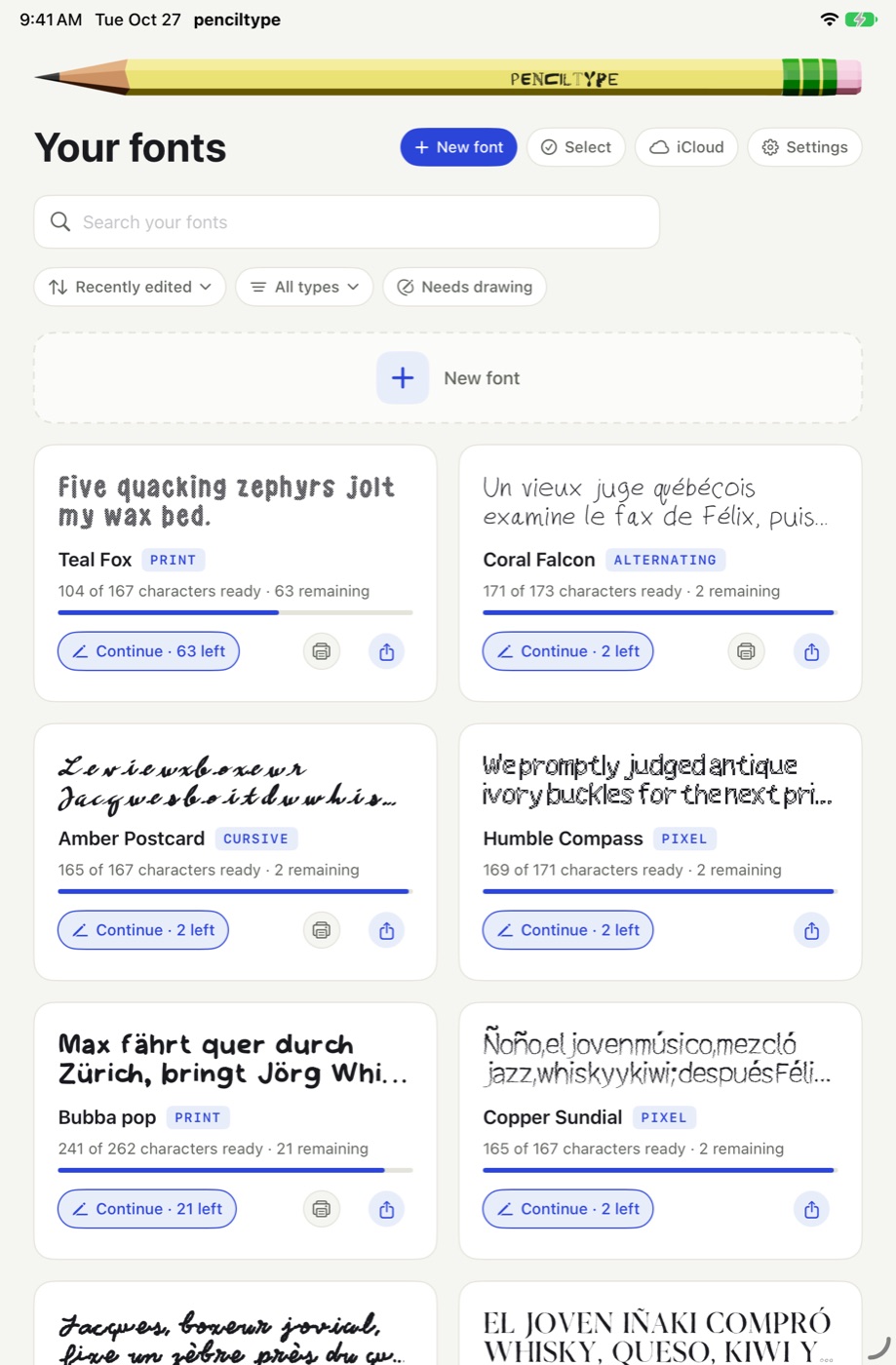
On iPad the buttons carry their names, the whole pencil runs across the top and cards sit two or three to a row. On iPhone, and on iPad in Split View or Slide Over, the shelf switches to one column, half a pencil, and icon-only buttons. See iPhone and Mac.
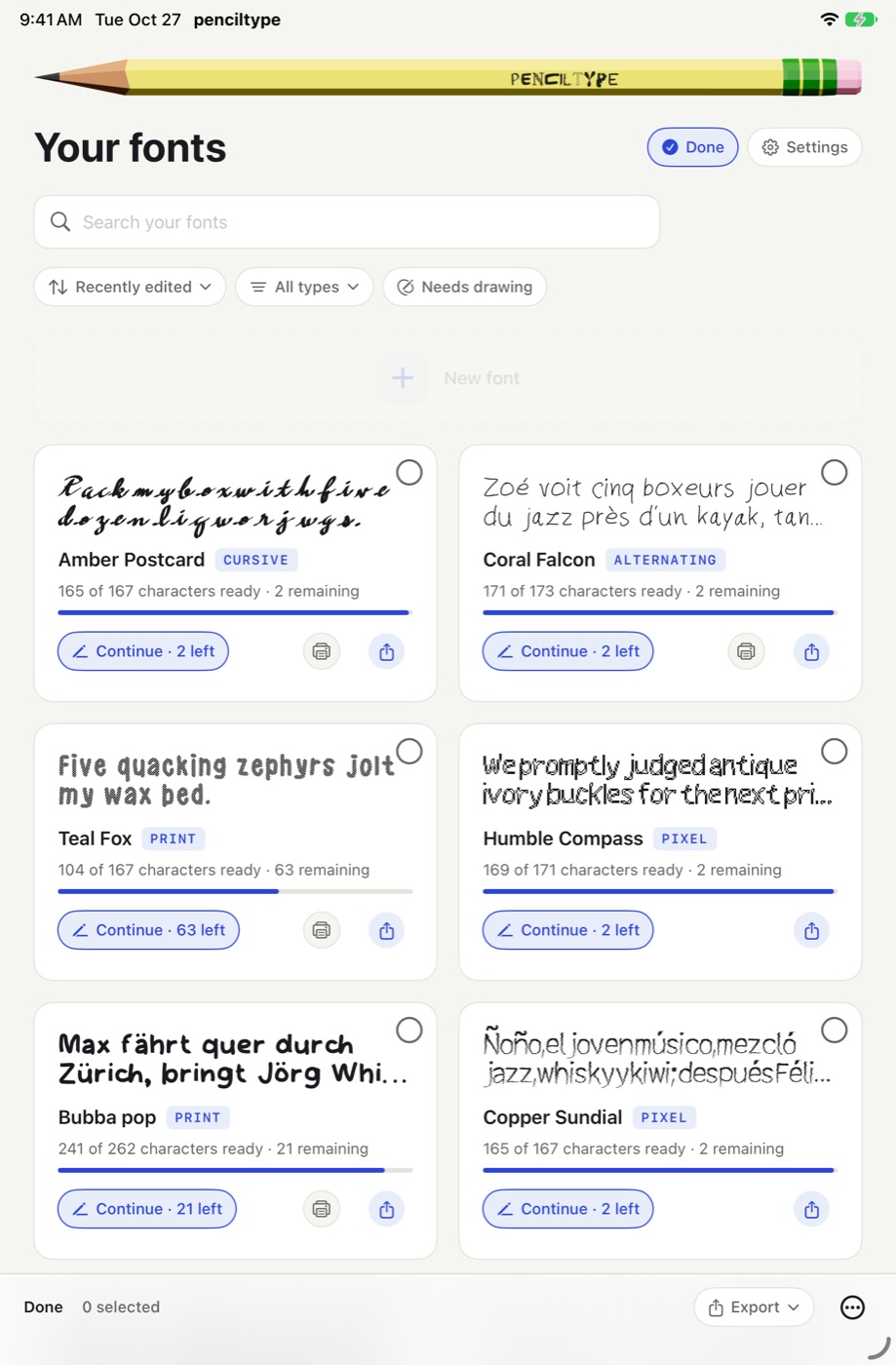
Font cards
Each card shows:
- A specimen: a pangram set in the font, in one of the font's languages, using only letters you've drawn. That's why a font with only capitals shows a sentence in capitals, and a half-drawn font may show an odd-looking line made of the letters it has.
- The font's name and its kind: PRINT, ALTERNATING, CURSIVE or PIXEL.
- How far along it is, for example 104 of 167 characters ready · 63 remaining, with a progress bar. A finished font reads All 89 characters ready.
- Continue · 63 left: opens the canvas on the next character you still have to draw, counting on from the last one you drew. The letter grid sits underneath, so going back lands you on the grid. Finished fonts and fonts with nothing drawn don't have it.
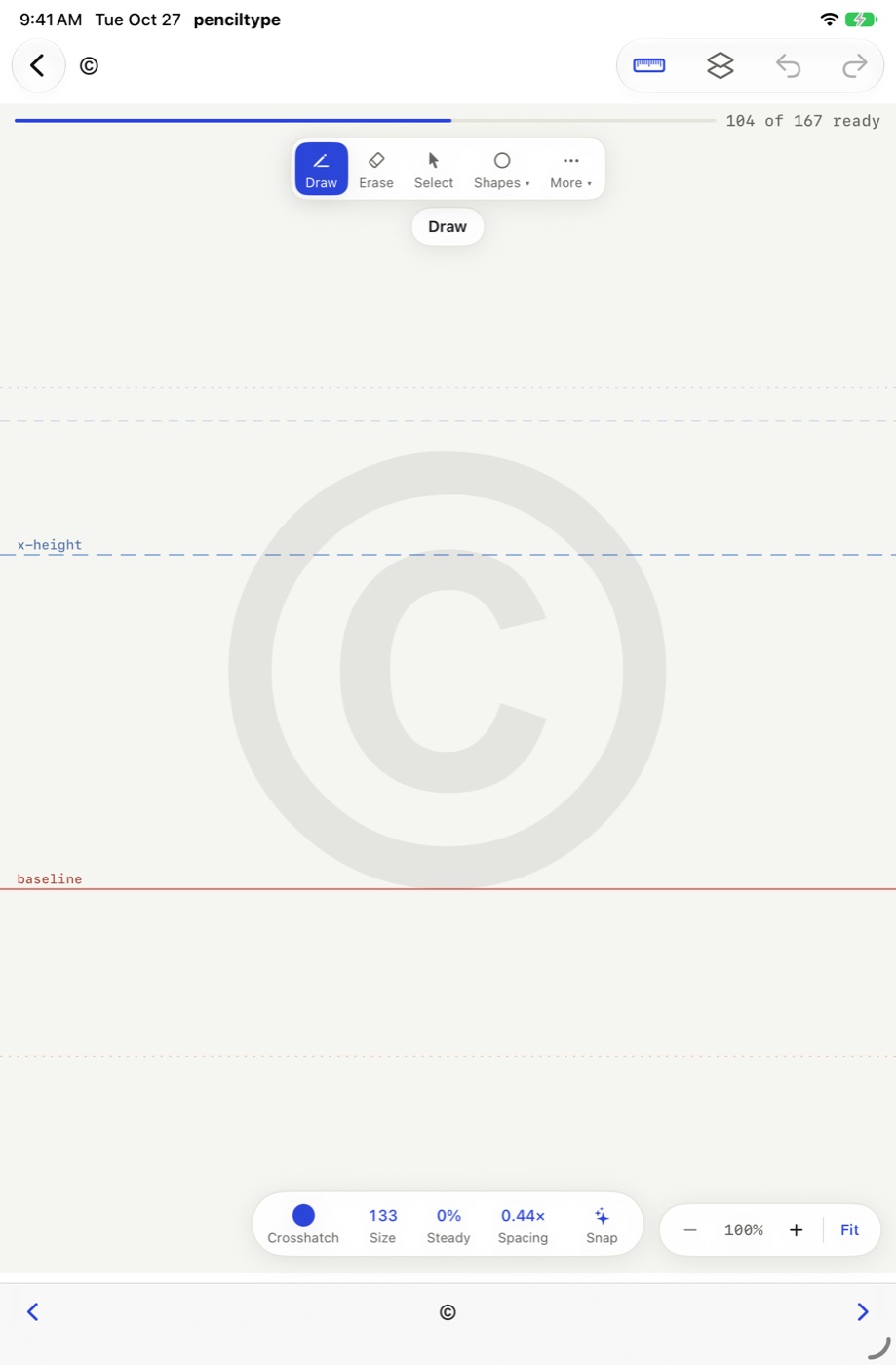
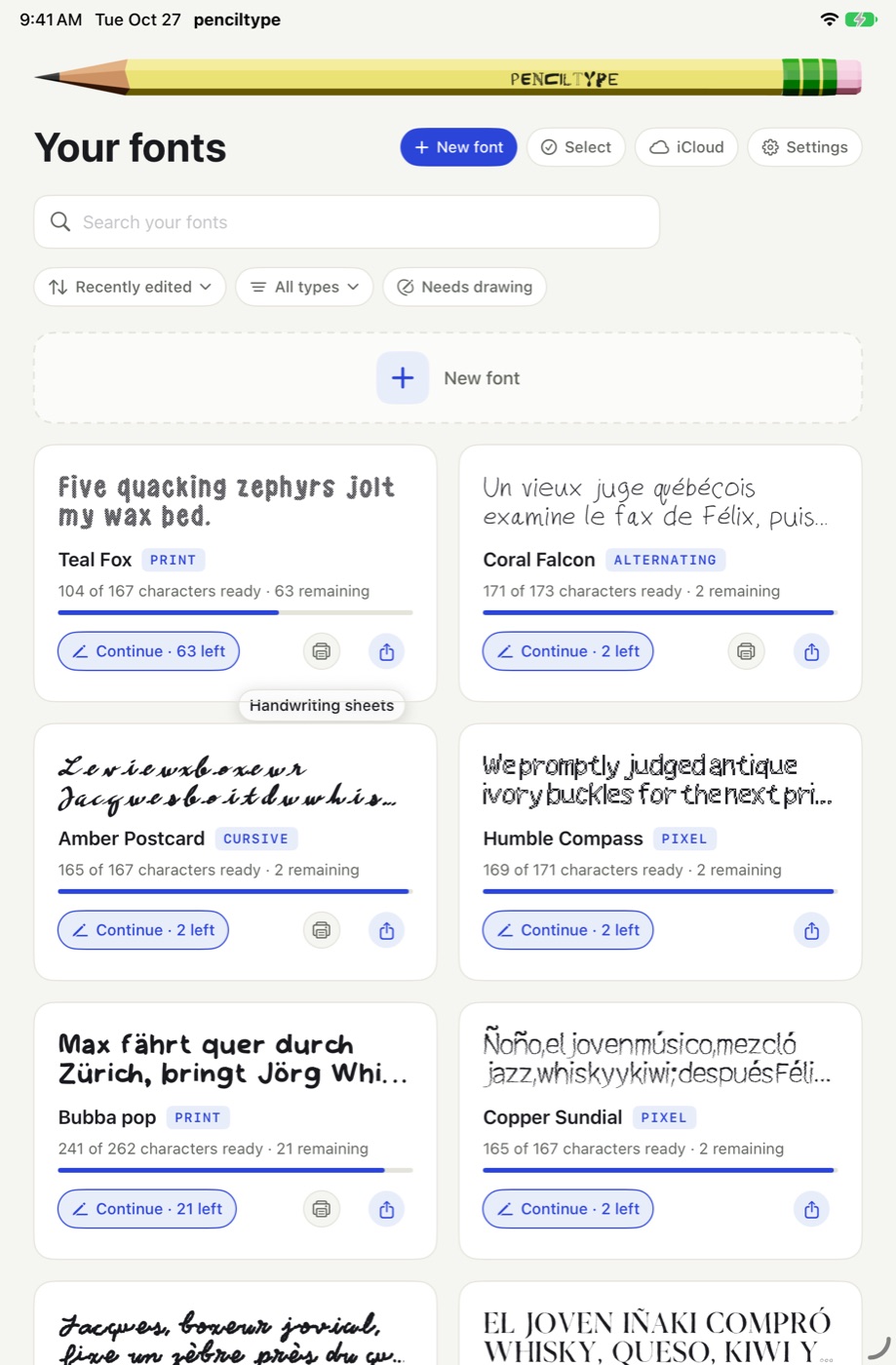
- Handwriting sheets (the printer icon): print a sheet to fill in with a pen, or scan one back. See Scanning. Pixel fonts don't have it.
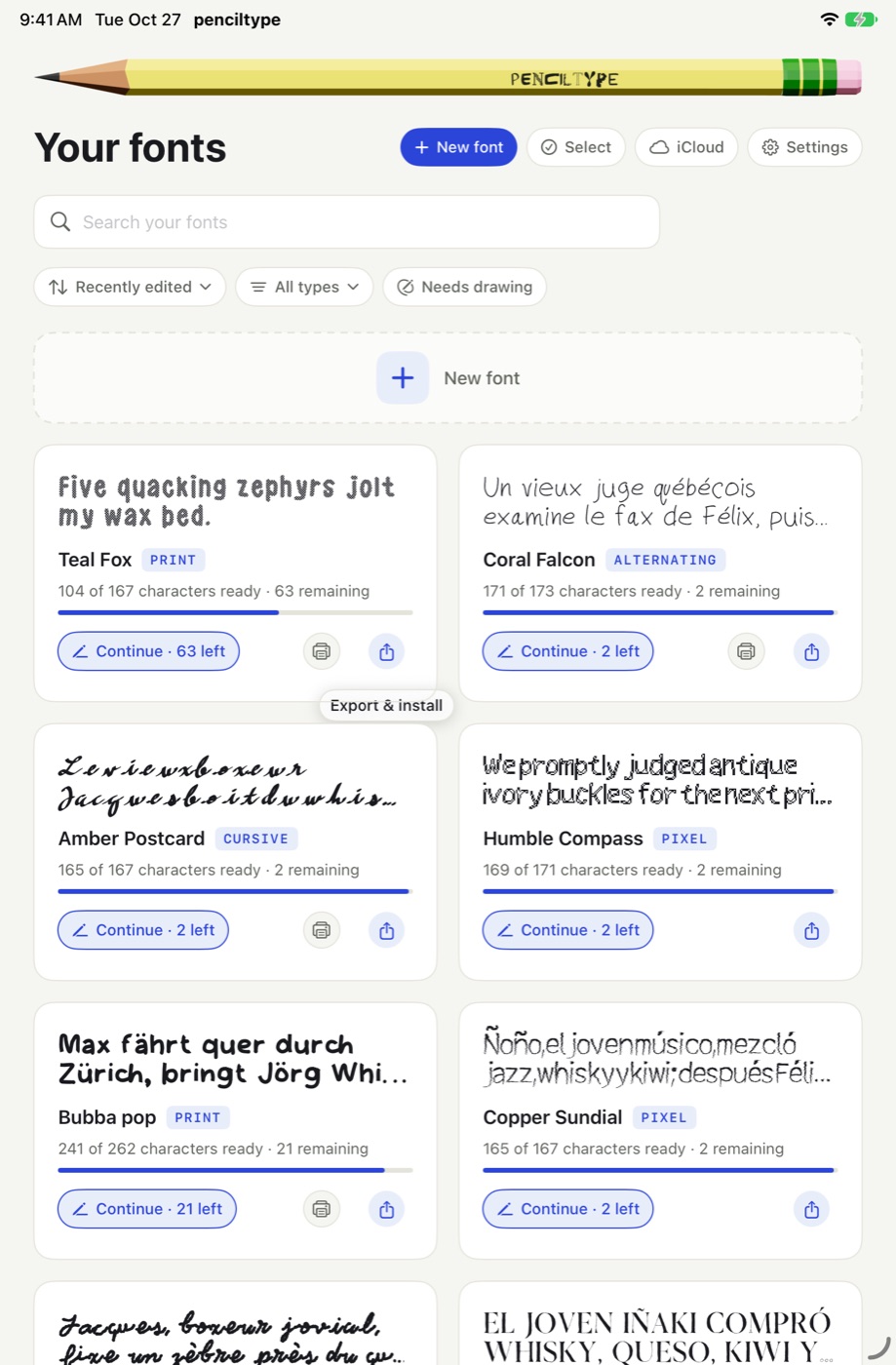
- Export & install (the share icon): install the font, or share the file. See Export and install. It appears once something is drawn.
Tap anywhere else on the card to open the font's letter grid.
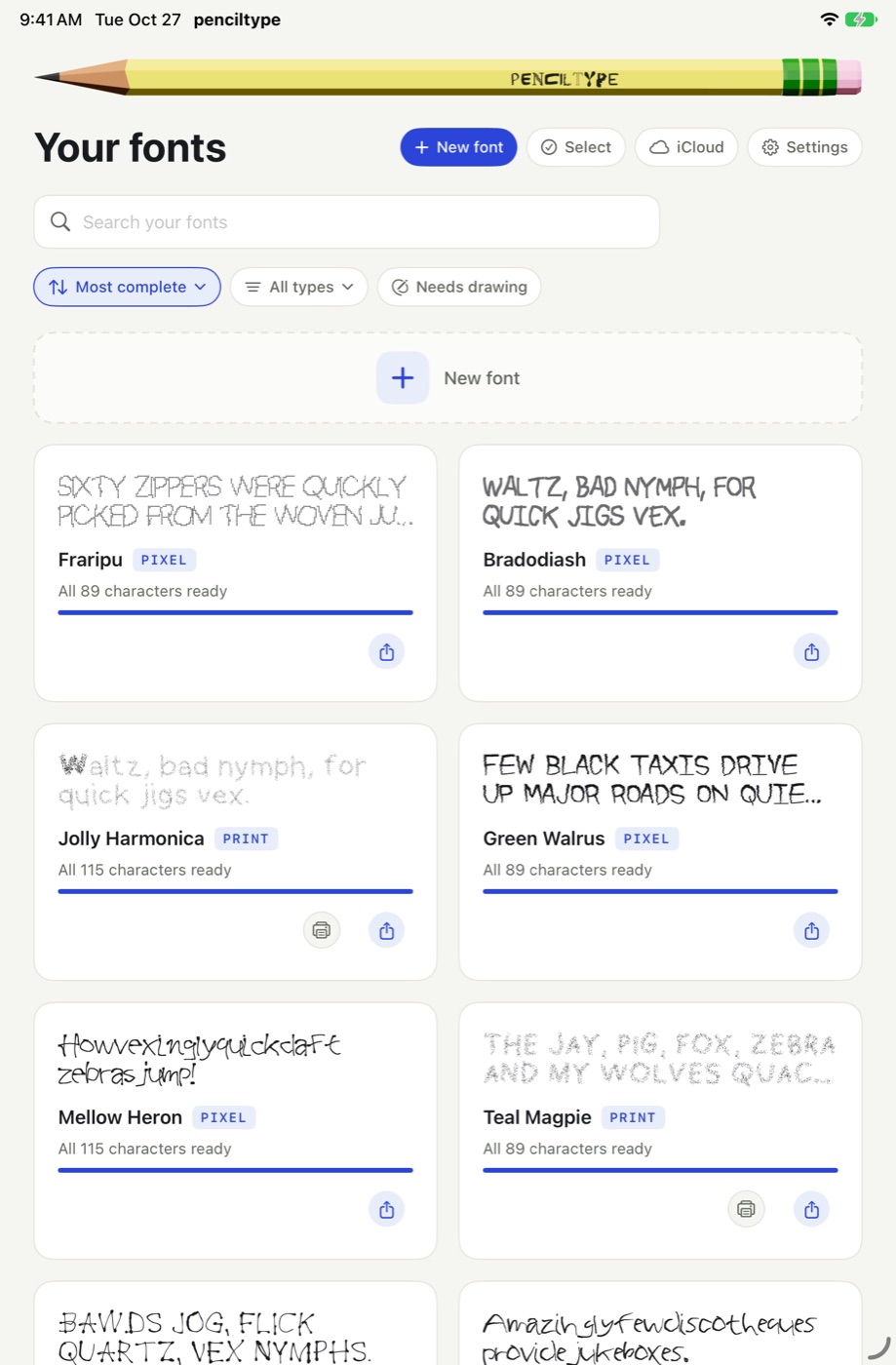
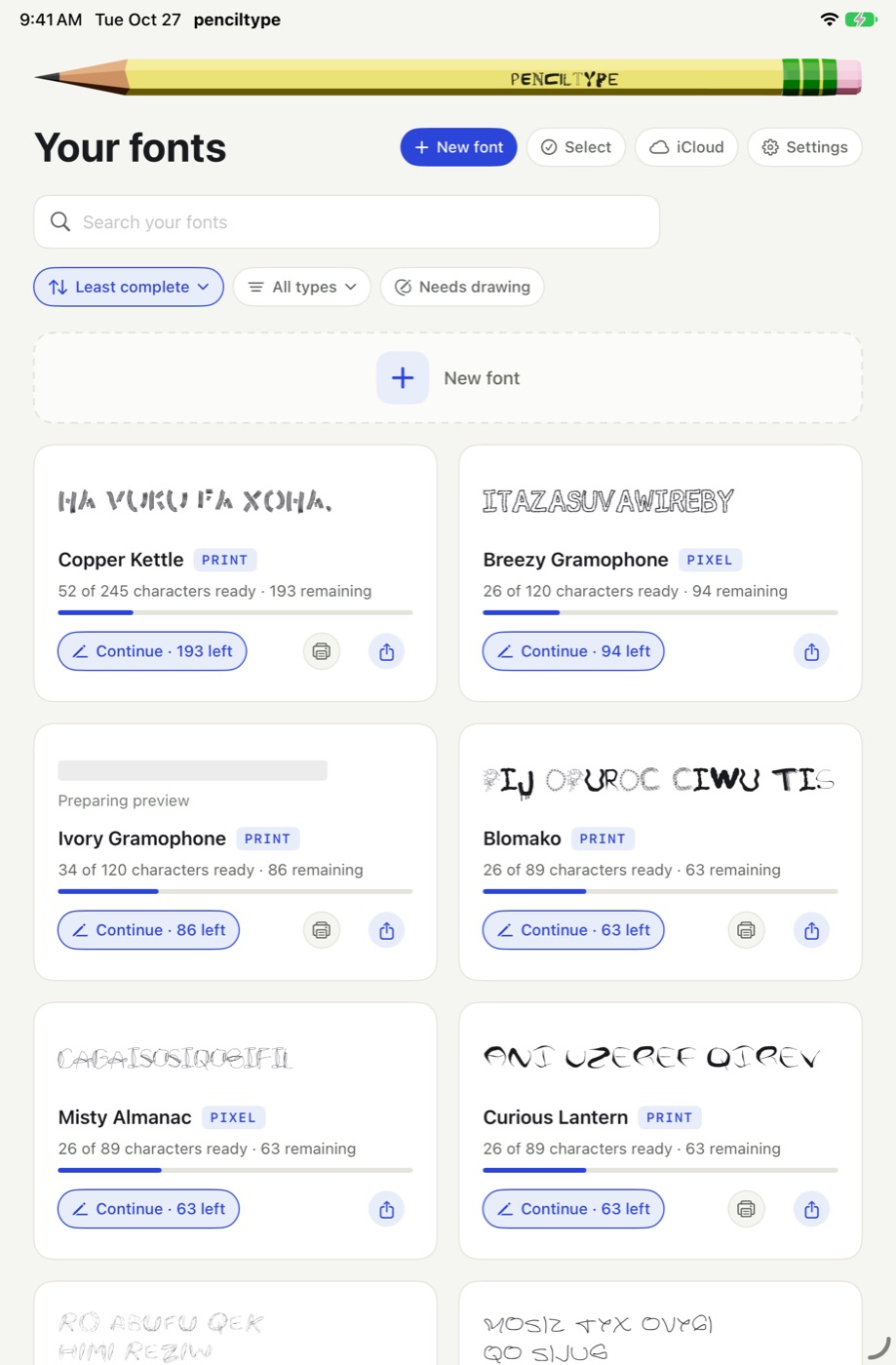
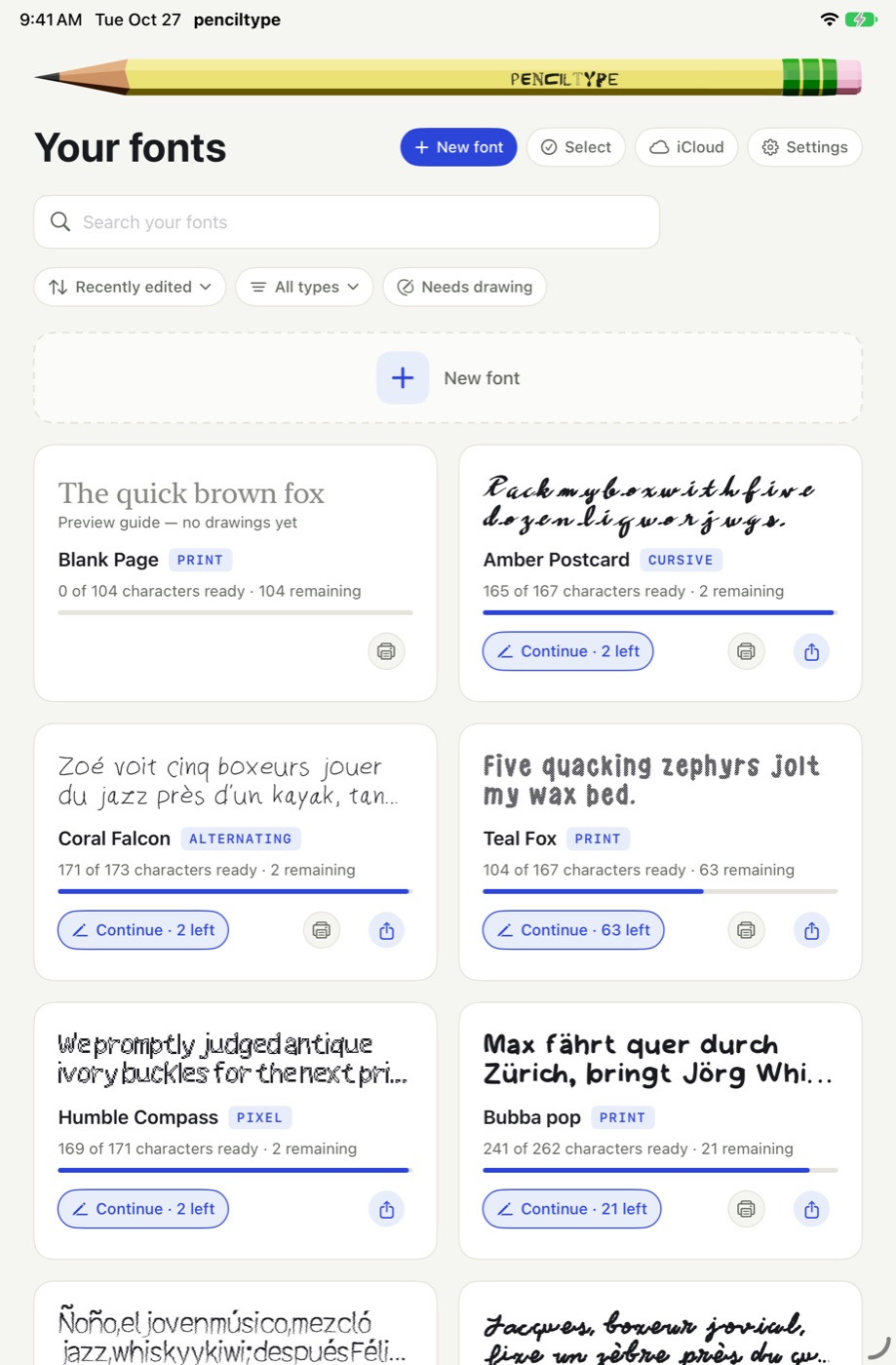
A card can also say Preview unavailable if its specimen couldn't be made. The font itself is fine; open it and keep drawing.
What the icons are called
Press and hold the printer or share icon for a moment and a small label names it. The same works on the Shuffle name button in the New font sheet.
Searching
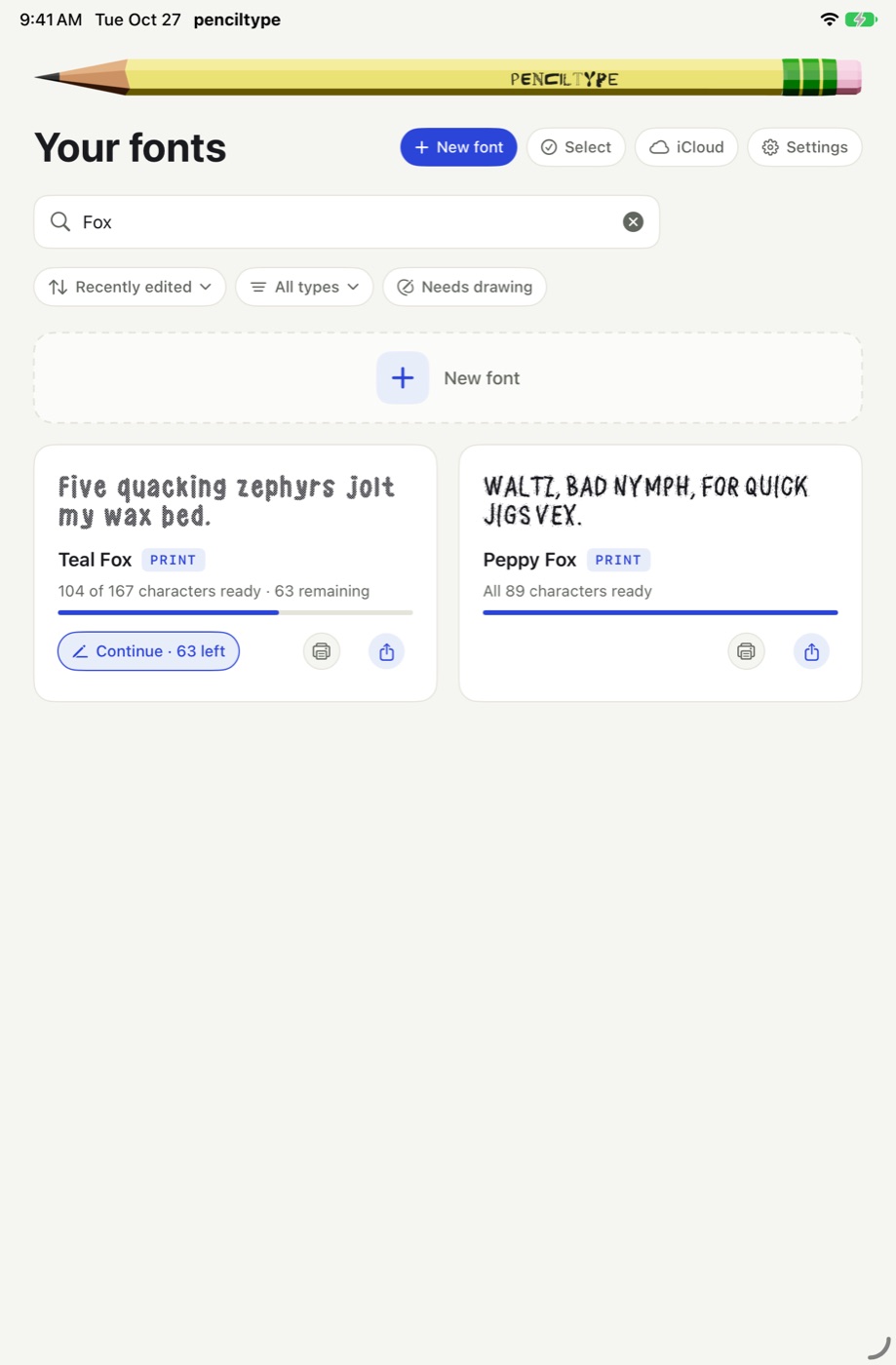
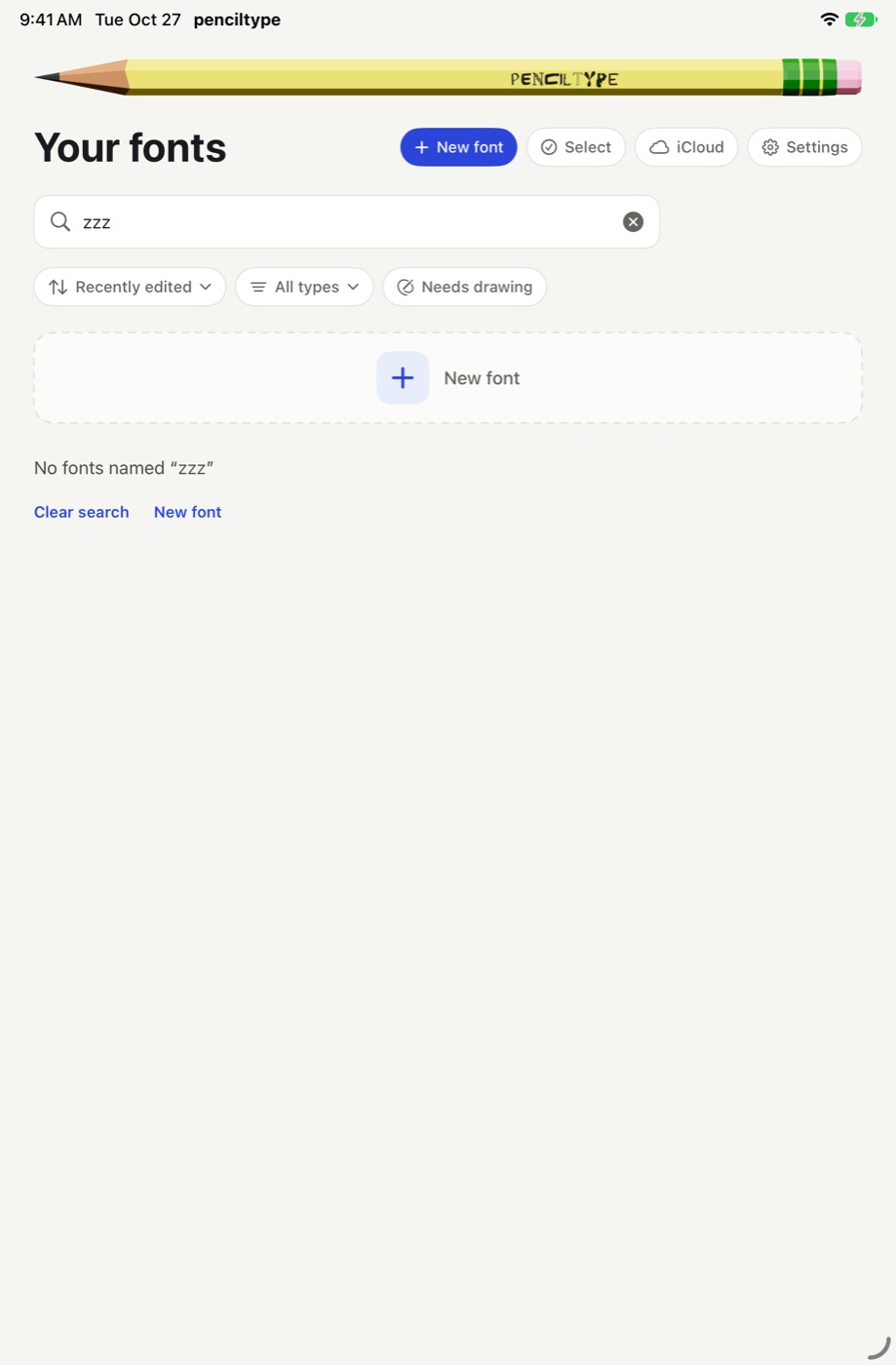
Tap Search your fonts and type part of a name. Only fonts whose names contain what you typed stay on the shelf. Capitals and accents don't matter, so “cafe” finds “Café”. Tap the × in the field to clear it.
The search is remembered: if you leave the app with a search in the field, the shelf opens filtered next time.
Sorting
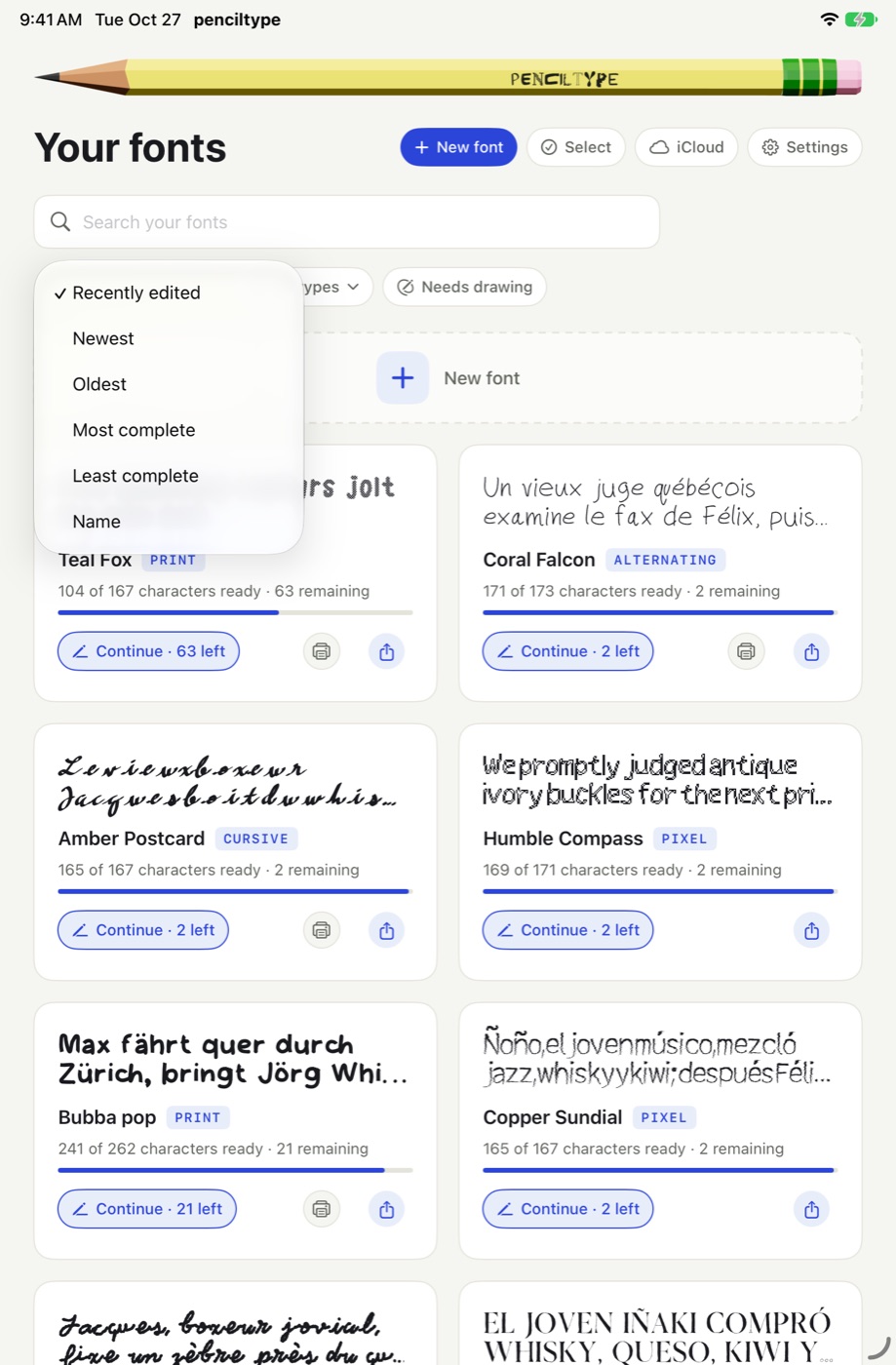
The first chip under the search field shows the current order. Tap it to choose another:
- Recently edited
- The font you worked on last comes first. This is the usual order.
- Newest
- The font you made most recently comes first.
- Oldest
- The first font you made comes first.
- Most complete
- Fonts with the most of their characters drawn come first.
- Least complete
- Fonts with the least drawn come first: handy for finding what to work on.
- Name
- Alphabetical. Numbers sort the way you'd expect, so “Font 9” comes before “Font 10”.
Any order other than Recently edited turns the chip blue, so you can tell at a glance that the shelf is sorted differently. The order is remembered.
Filtering
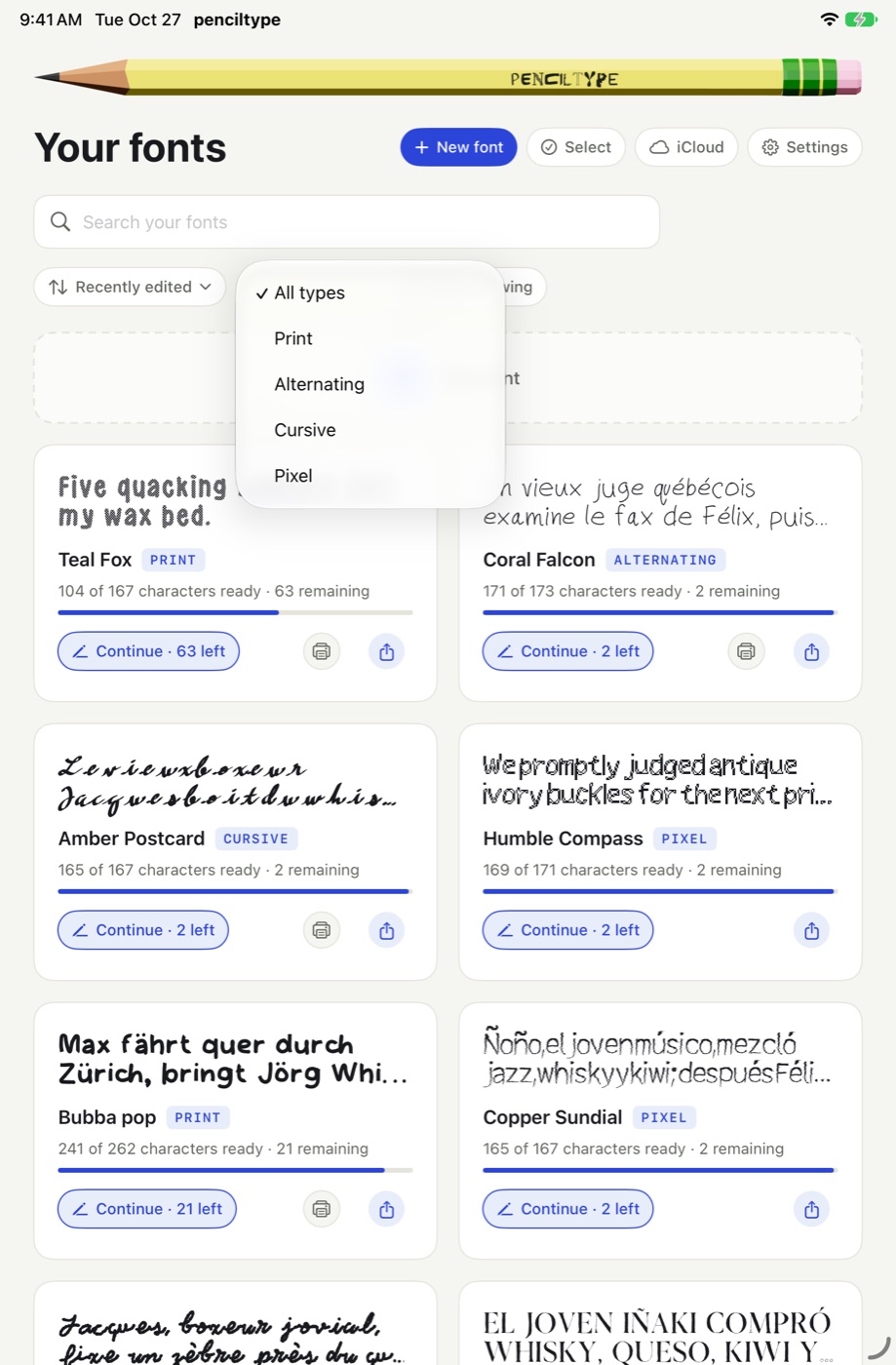
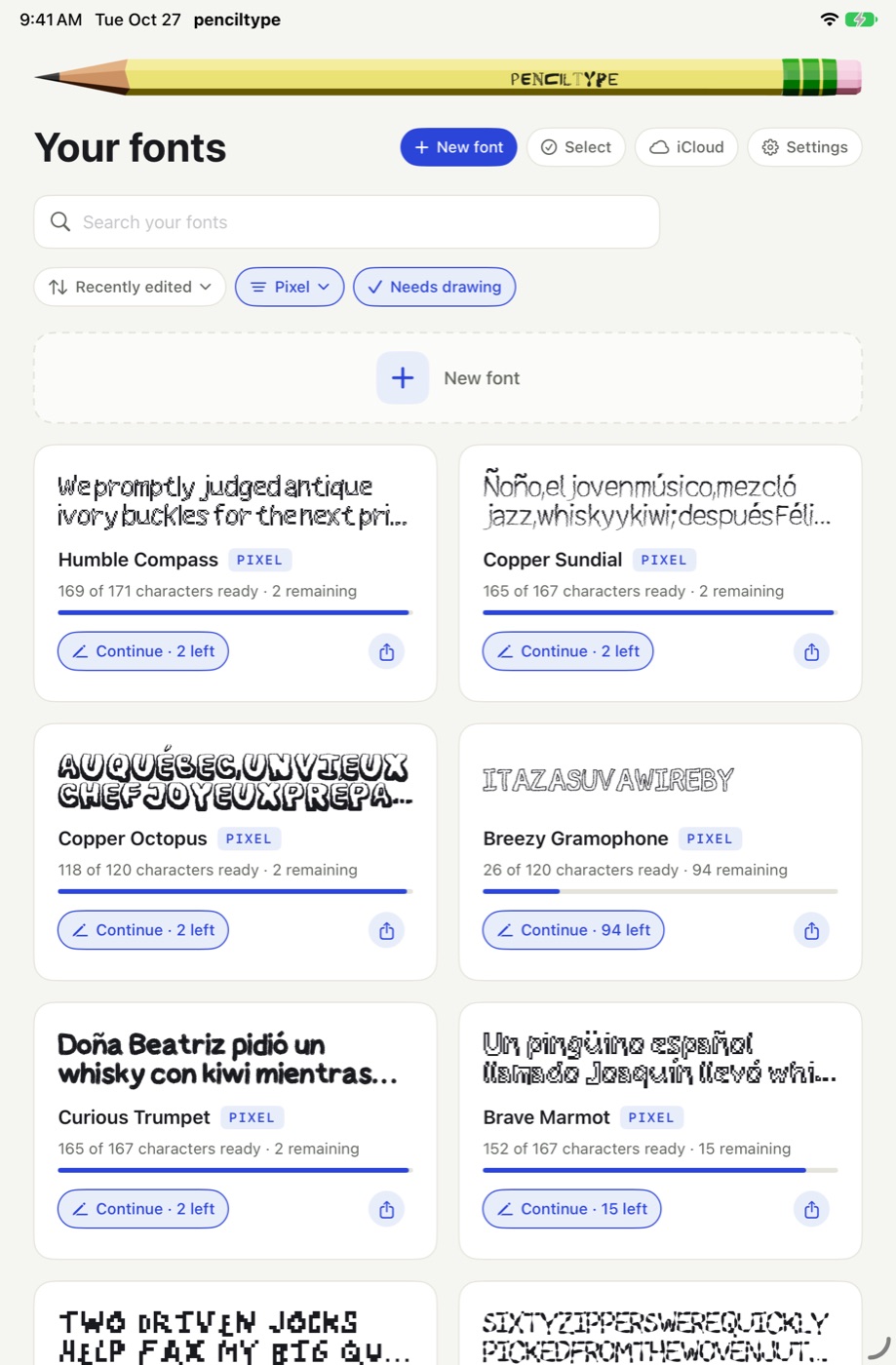
Two chips narrow the shelf:
- All types
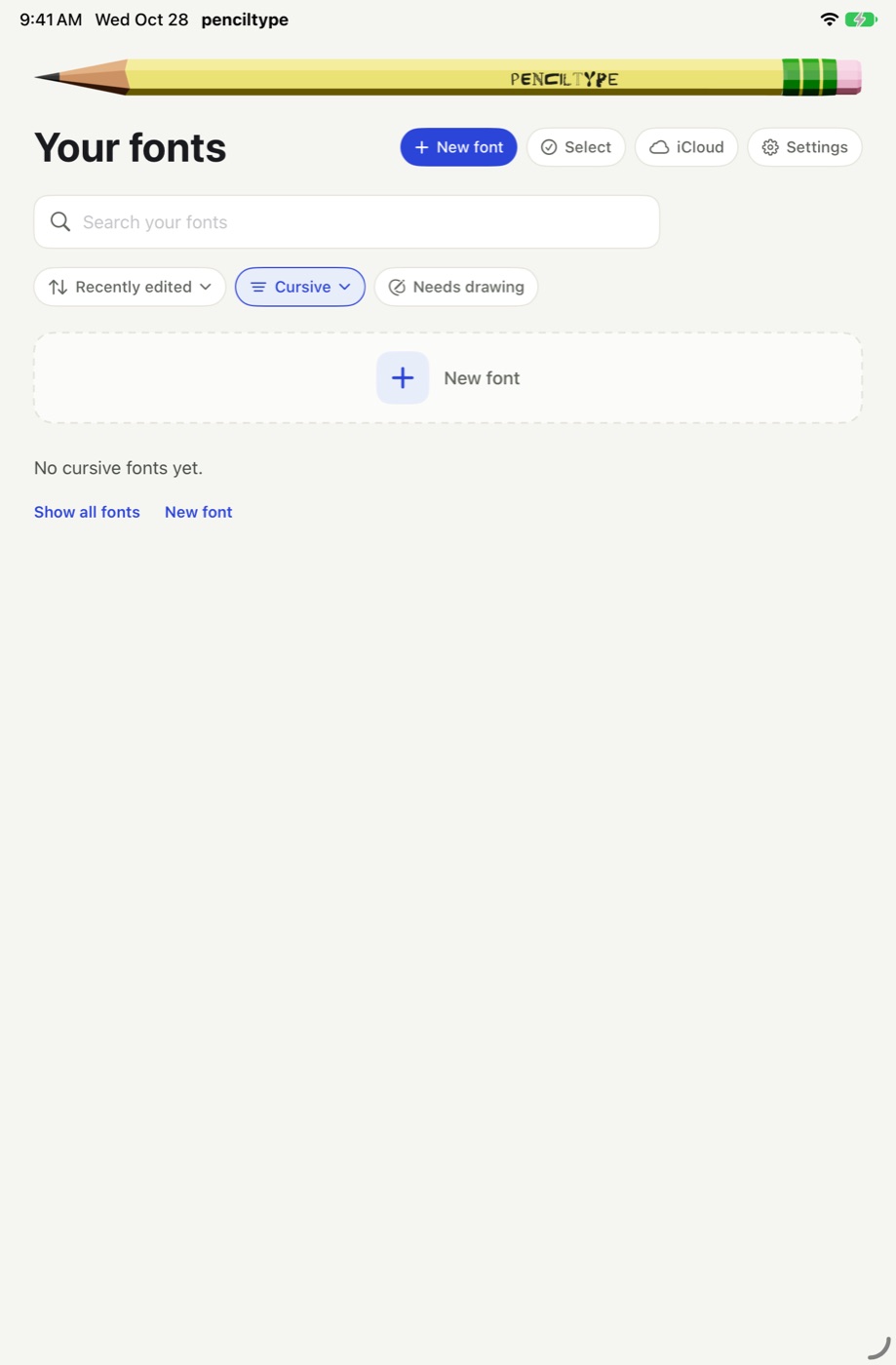
- Tap to show only one kind of font: Print, Alternating, Cursive or Pixel. Print includes fonts made with the pieces kit. The chip then names the kind.
- Needs drawing
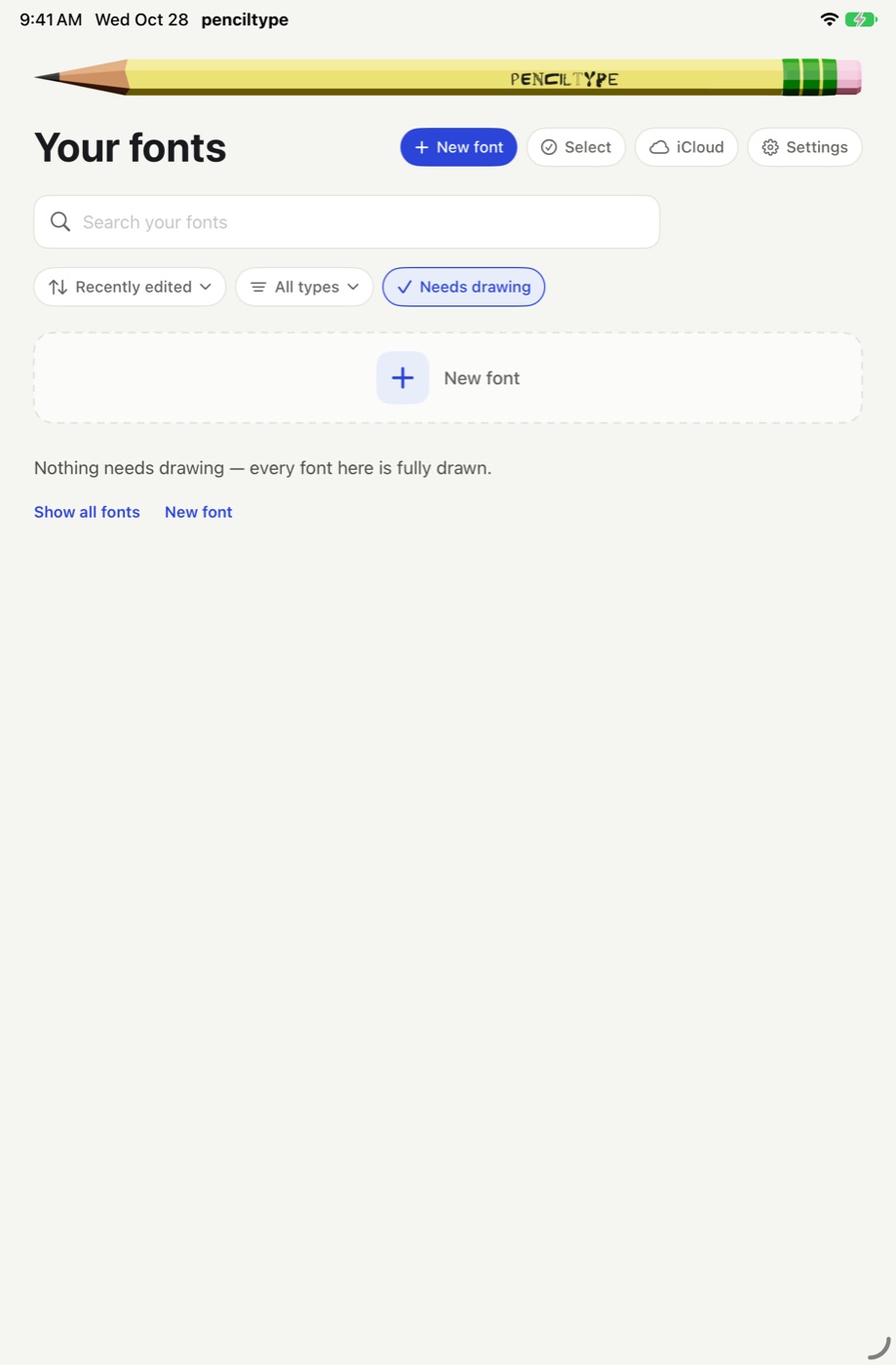
- Shows only fonts that still have characters to draw. Tap again to show every font.
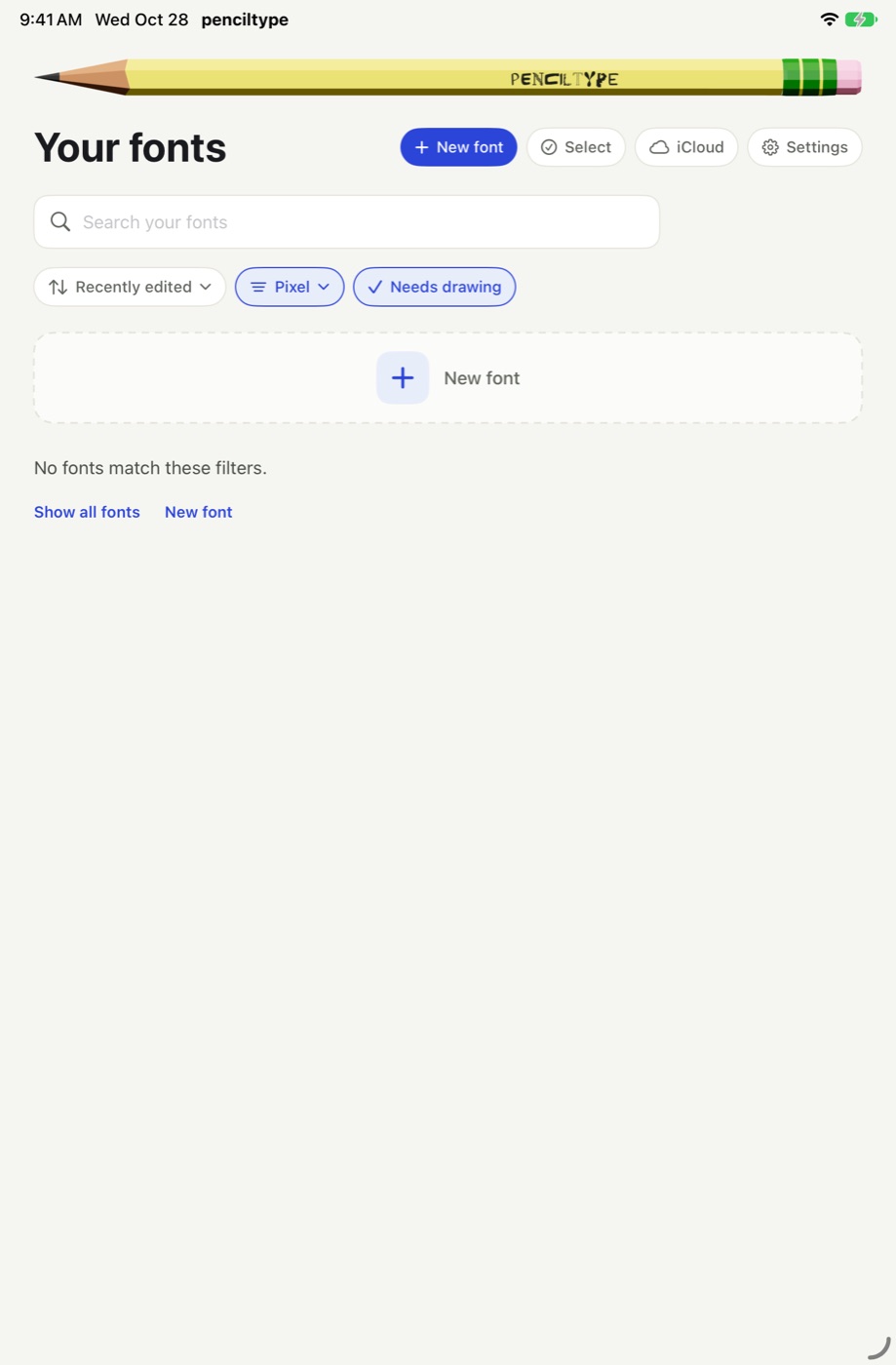
Both turn blue while they're hiding fonts, and both are remembered.
If the filters leave nothing, the shelf says so instead of showing an empty space:
- No print fonts yet. (or alternating, cursive, pixel) when you have no fonts of that kind,
- Nothing needs drawing — every font here is fully drawn. when Needs drawing is on and every font is finished,
- No fonts match these filters. when the two together leave nothing.
Show all fonts under the message turns both filters off; New font starts one. If a search is also active, the search message (No fonts named “…”) wins.
Loading, an empty shelf, and coming back
The shelf is normally full the moment the app opens: penciltype keeps a small summary of every font and shows it while the fonts themselves load in the background. The first time after an update, before that summary exists, a big library may take a moment, and the shelf says Loading your fonts… under the New font card until they're in. If you've just turned on iCloud sync on a new device, it says Loading your fonts from iCloud… while they arrive (see Backups and iCloud).
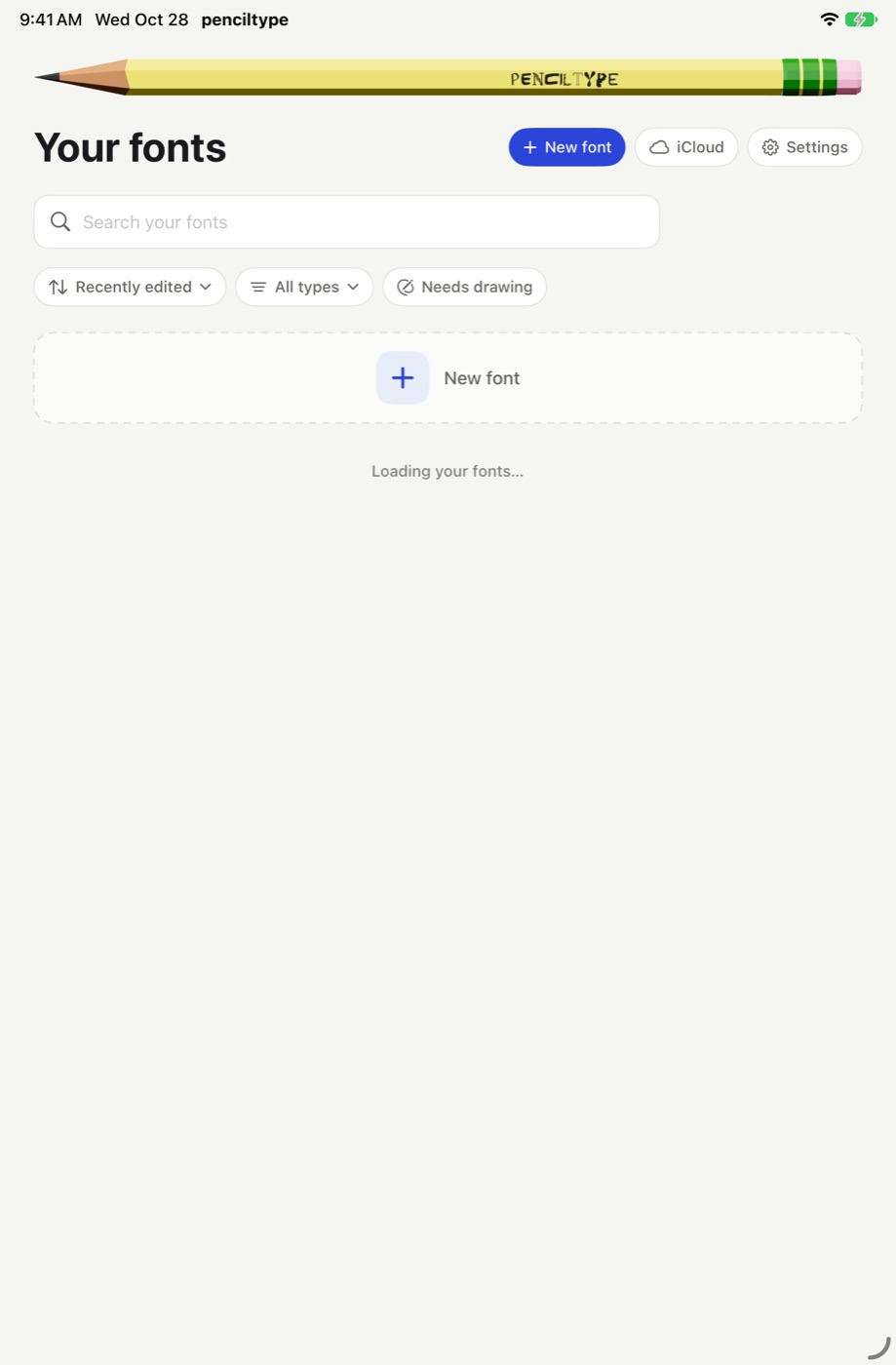
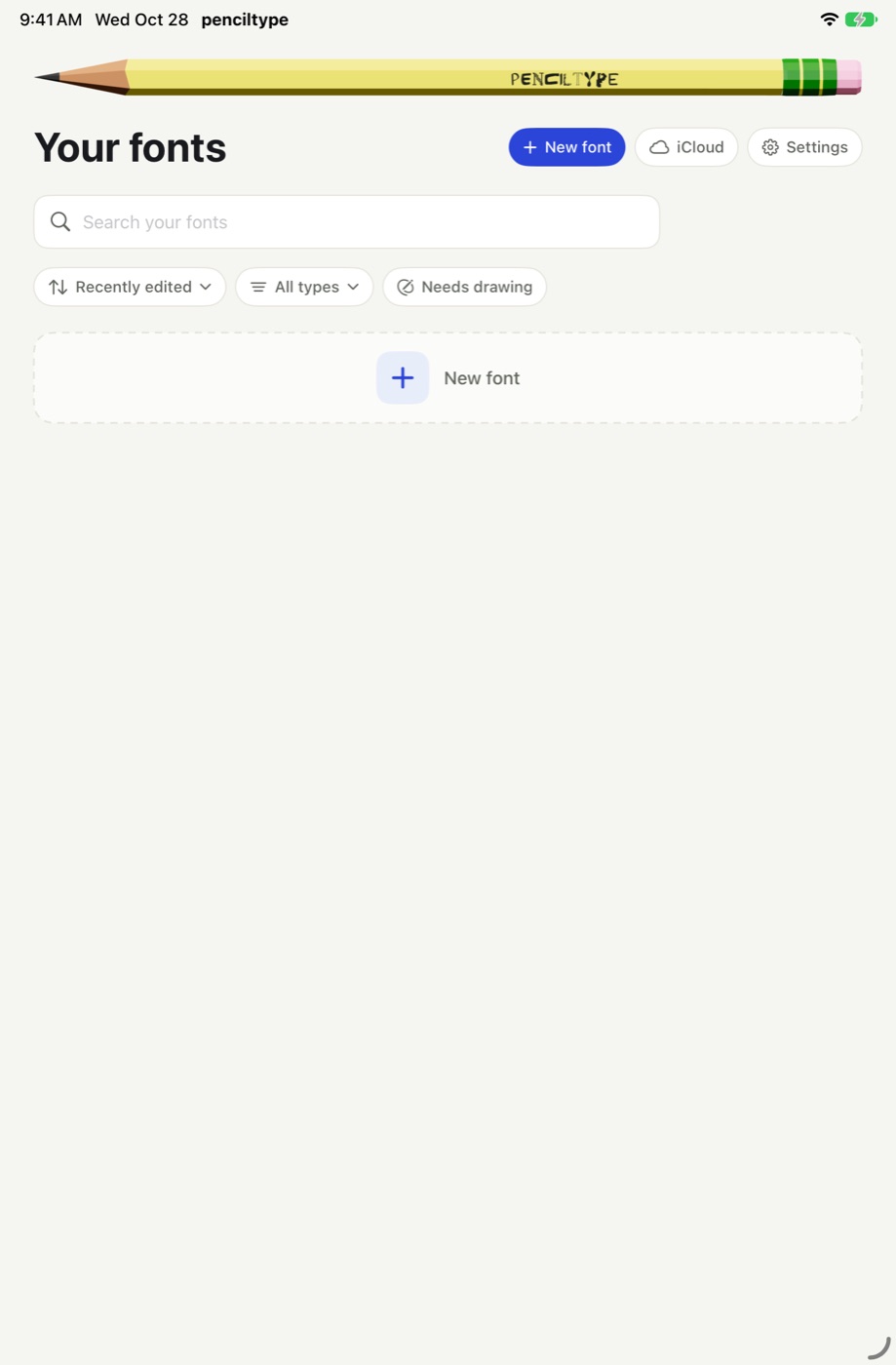
With no fonts at all, the shelf shows just the New font card. Select is hidden, since there's nothing to select.
When you go back to the shelf from a font, the shelf scrolls that font's card into the middle of the screen, wherever Recently edited has moved it, so you never lose your place.
Selecting several fonts
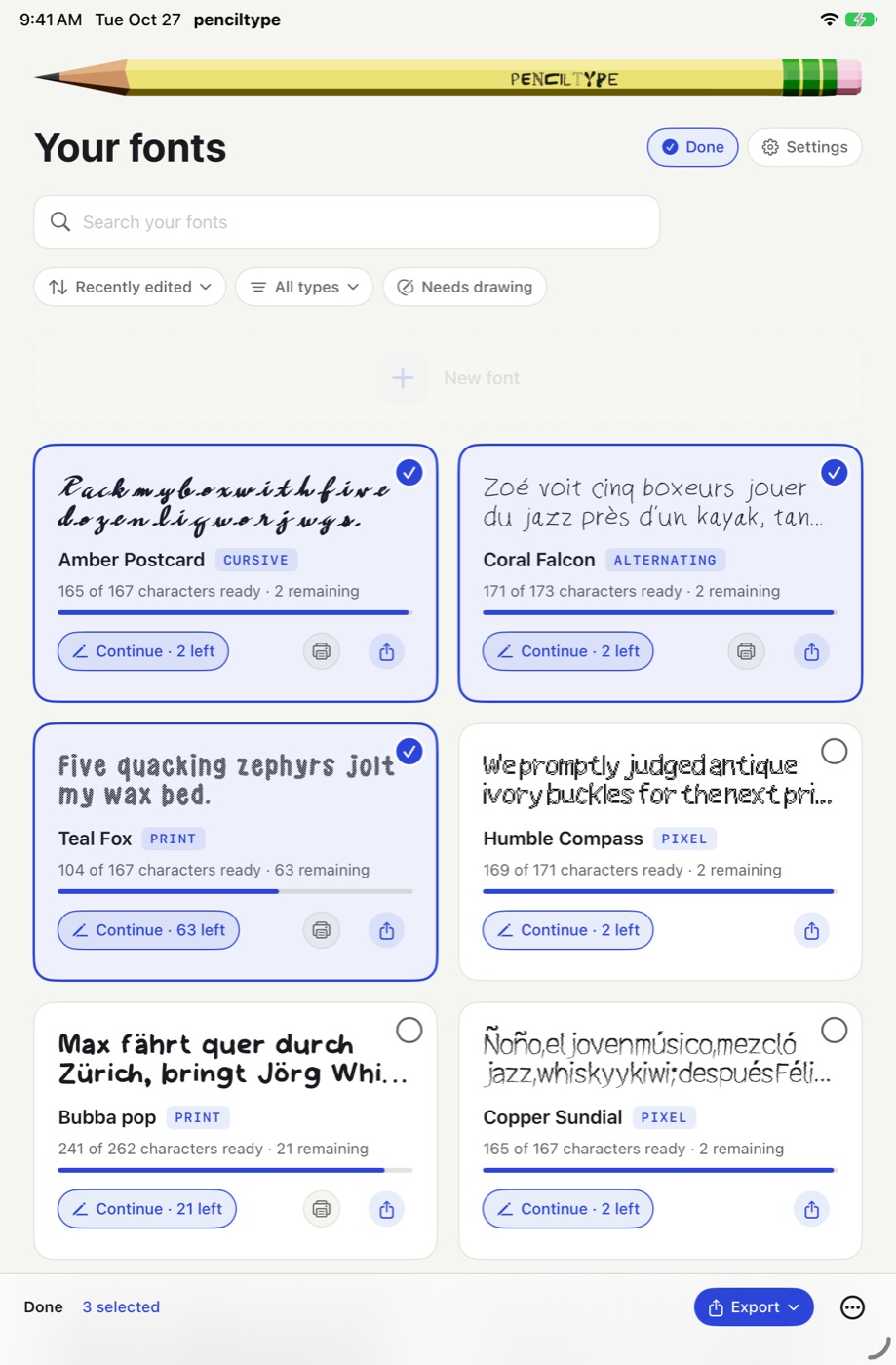
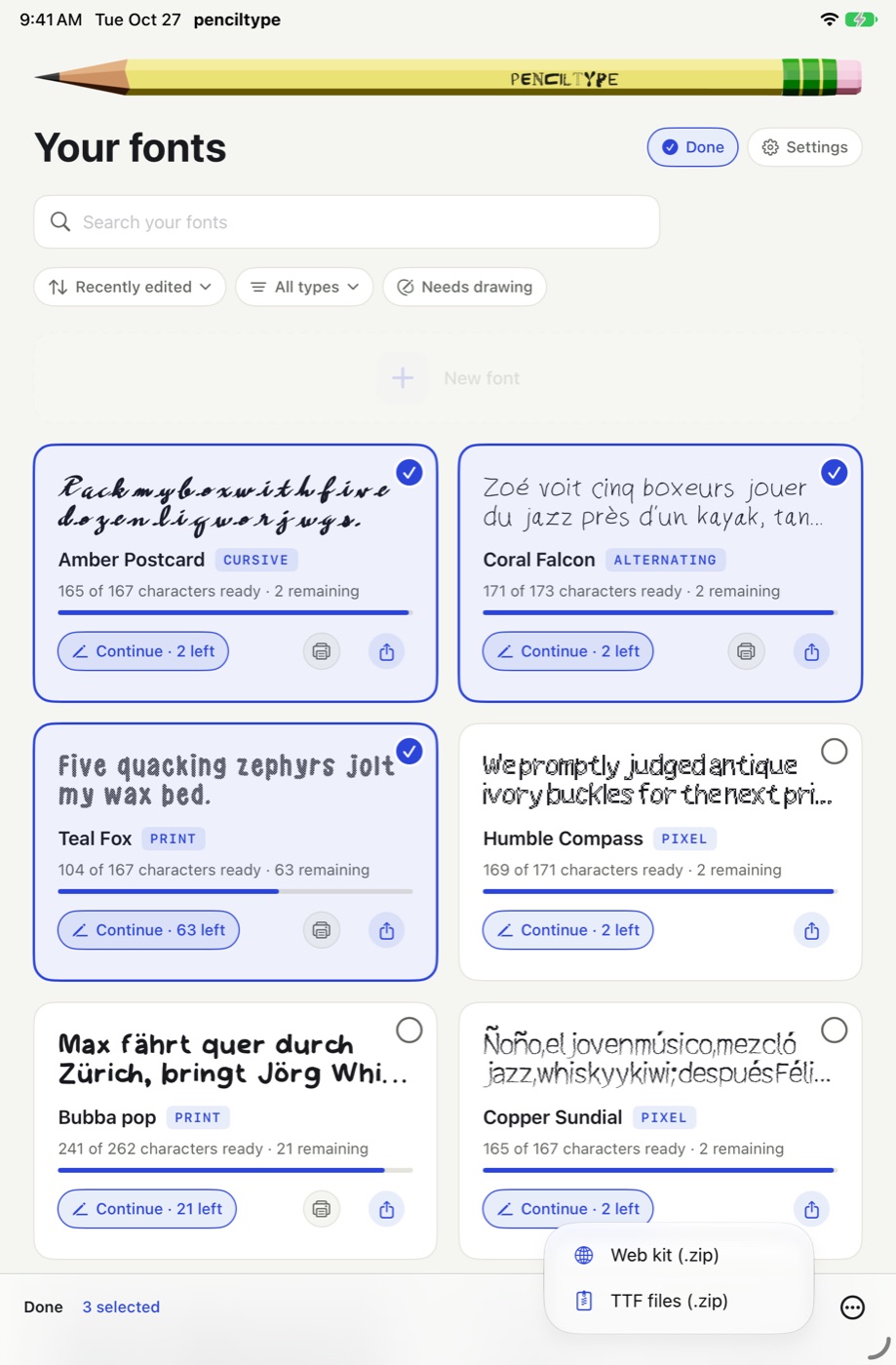
Tap Select. The New font and iCloud buttons step aside, the New font card dims, and a bar appears at the bottom of the screen. Tap cards to pick them: a picked card gets a blue outline and a checkmark. Tap it again to put it back.
The bottom bar holds:
- Done
- Leaves select mode and clears the selection. The Done button at the top does the same.
- 2 selected
- How many fonts you've picked.
- Export
- Exports every picked font in one zip. See below. It's dimmed until you pick something.
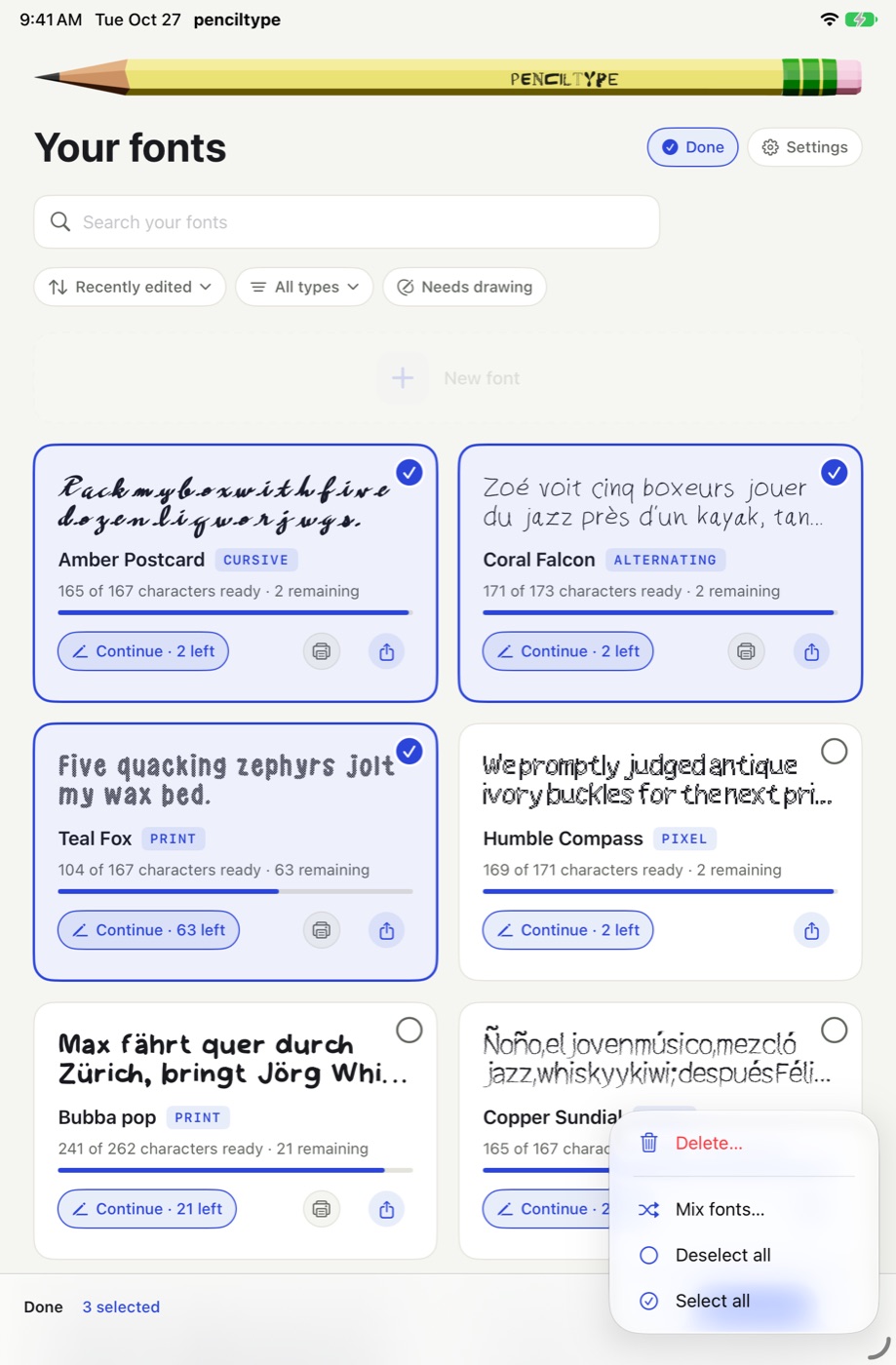
- More actions (…)
- Select all picks every font on screen, Deselect all clears the selection, Mix fonts… makes a new font from the picked ones (at least two; see Mix fonts), and Delete… deletes them.
The selection only ever holds fonts you can see. If you change the search or the filters while selecting, fonts that disappear from the shelf drop out of the selection, so Select all and Delete… never touch a font that's hidden.
Exporting several fonts at once
Pick the fonts, tap Export and choose:
- TTF files (.zip)
- One zip holding a TrueType font file for each picked font, plus its italic companion where the font has one.
- Web kit (.zip)
- A zip with TTF and WOFF files and a demo web page, ready to put on a website.
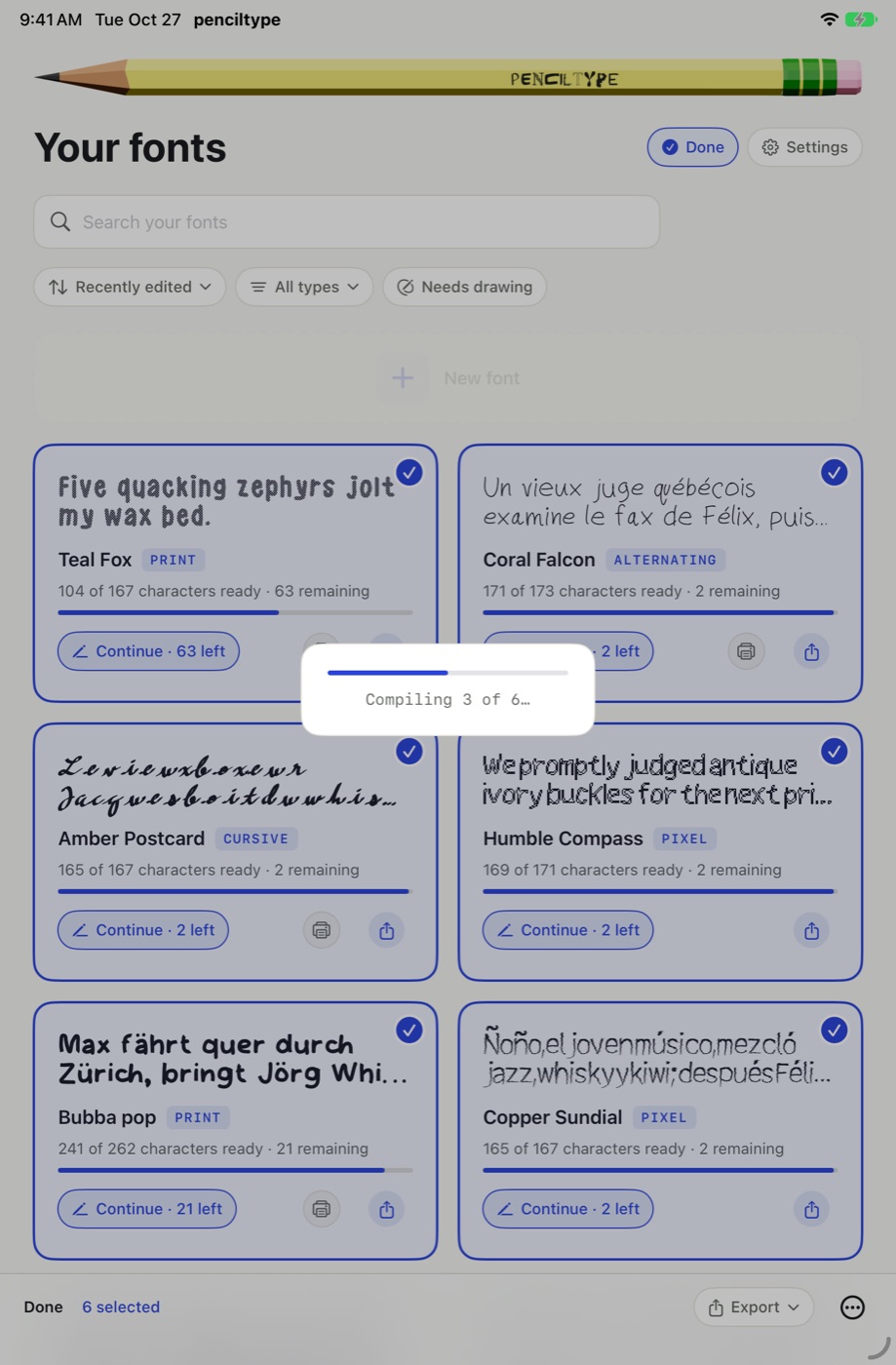
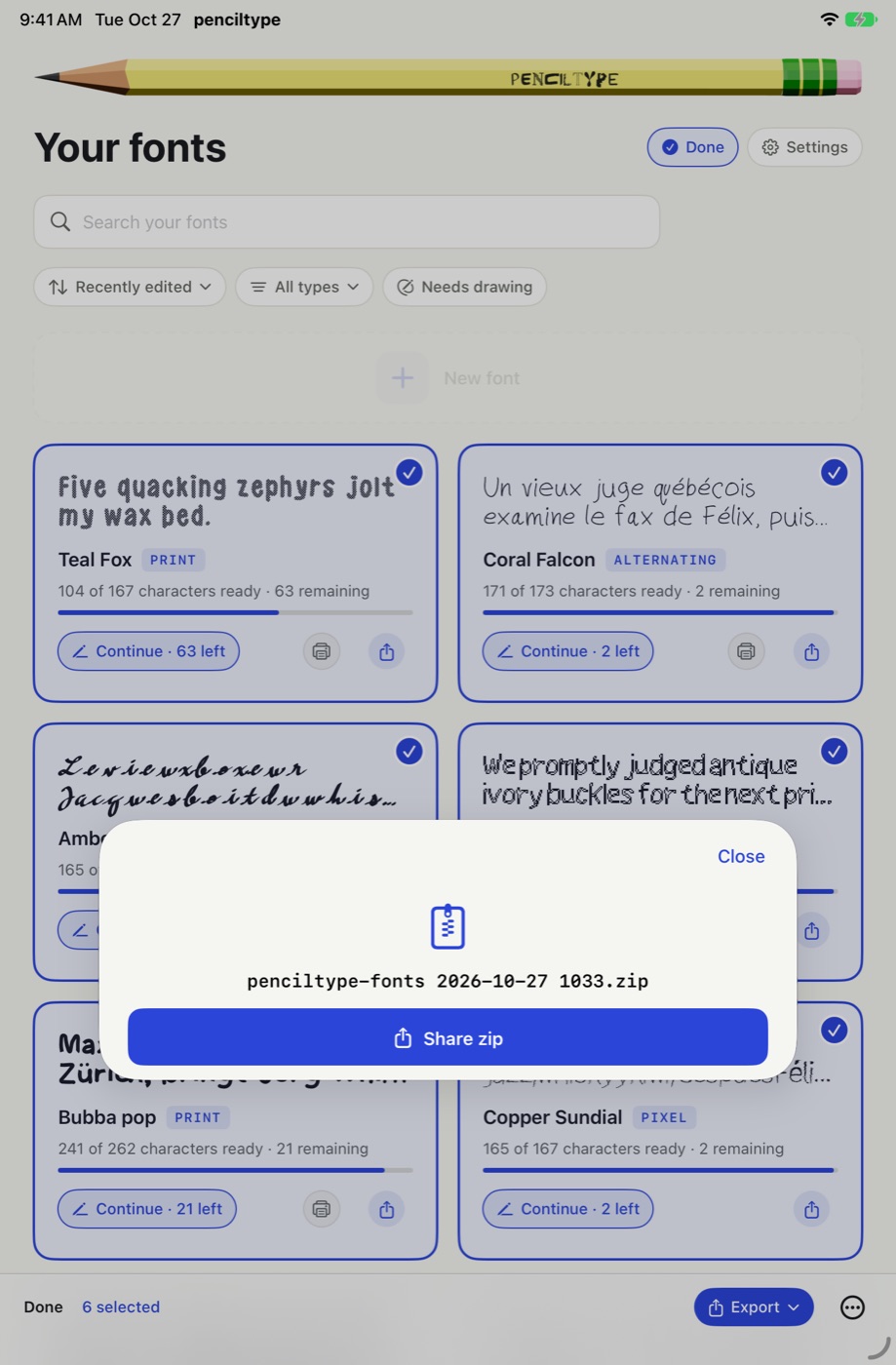
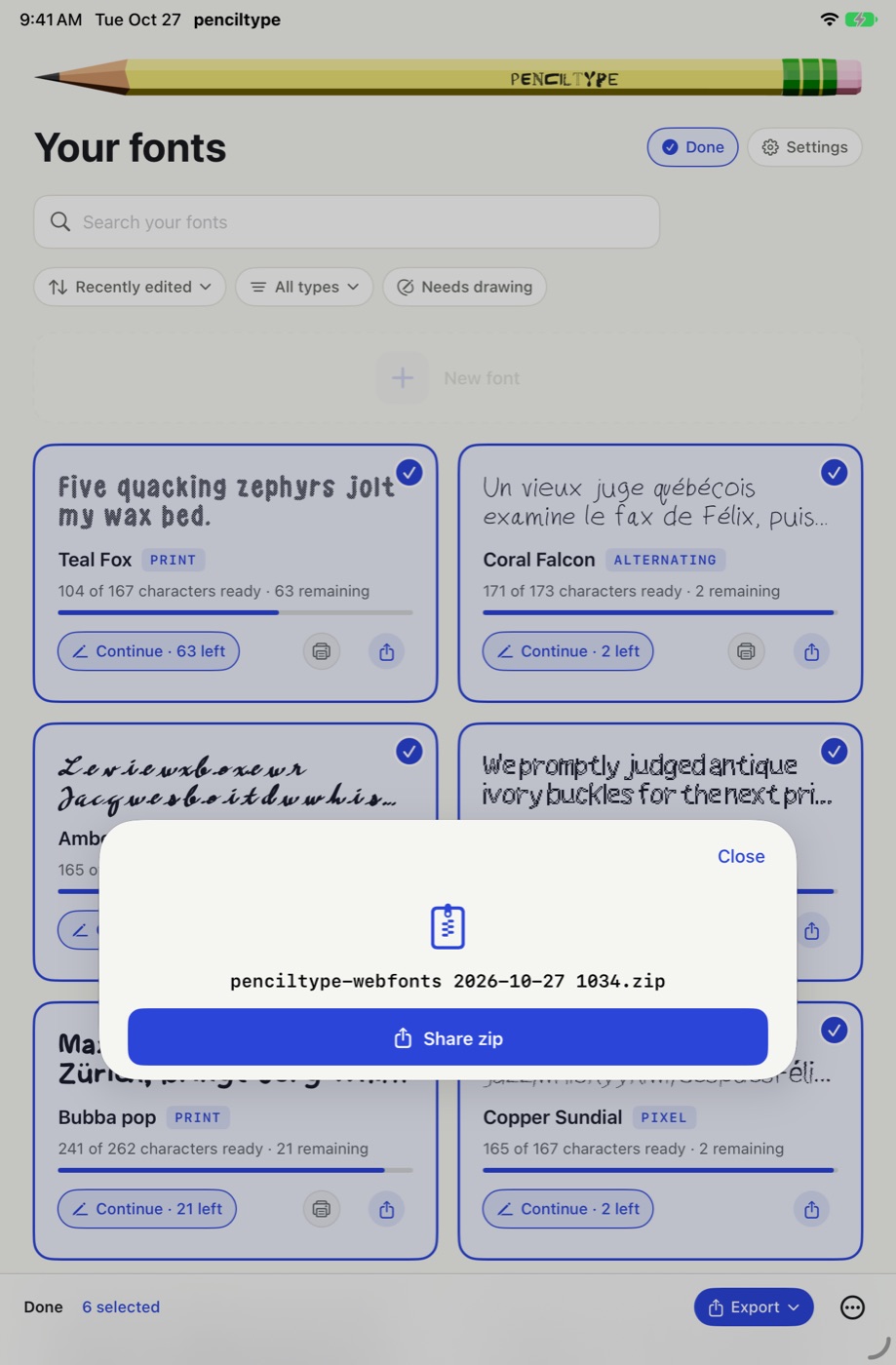
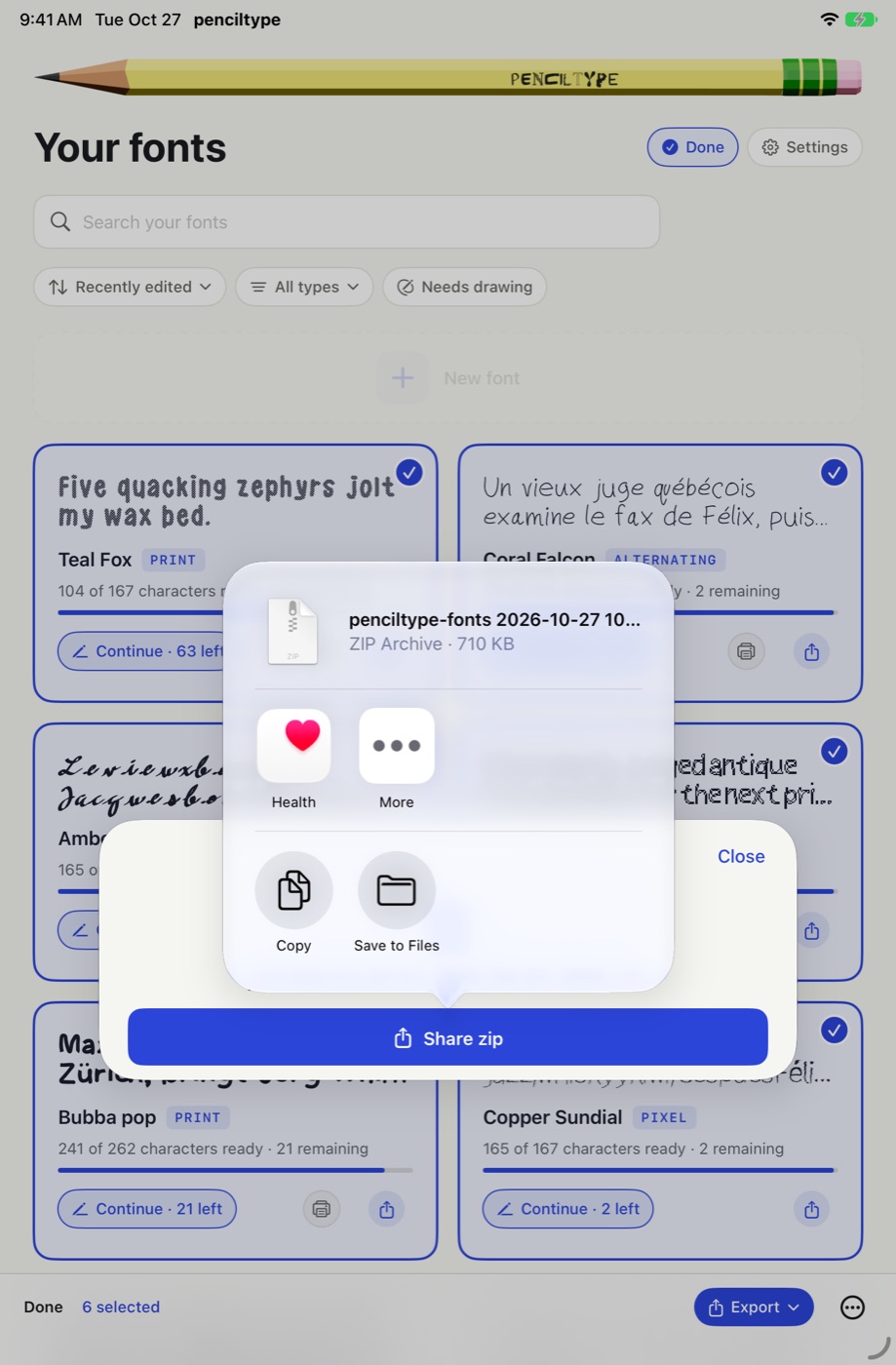
penciltype builds the fonts one by one, showing Compiling 1 of 6…. While it works, Export, Mix and Delete wait. Then a sheet shows the zip's name (penciltype-fonts or penciltype-webfonts, then the date and time). Tap Share zip to send it with the share sheet: Save to Files, AirDrop, Mail and so on. Close puts it away.
Fonts with nothing drawn are left out. If two picked fonts have the same name, the second is numbered (“Name 2”) inside the zip. To export and install a single font, use the card's share icon instead: see Export and install.
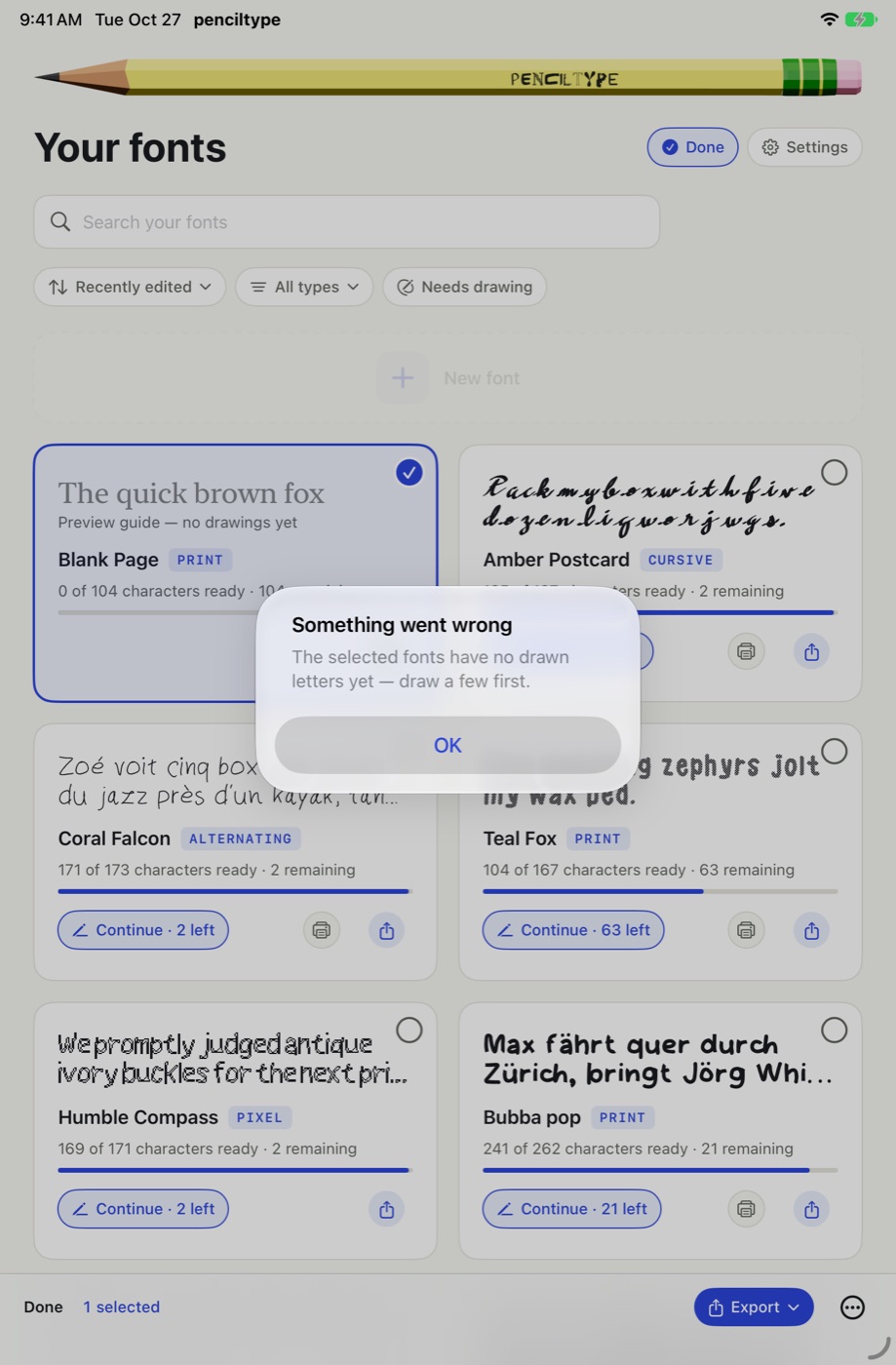
If every font you picked is empty, there's nothing to put in the zip, and you'll see Something went wrong: “The selected fonts have no drawn letters yet — draw a few first.” The same alert carries the system's own message if the zip can't be written, for example when the device is full.
Deleting fonts, and getting them back
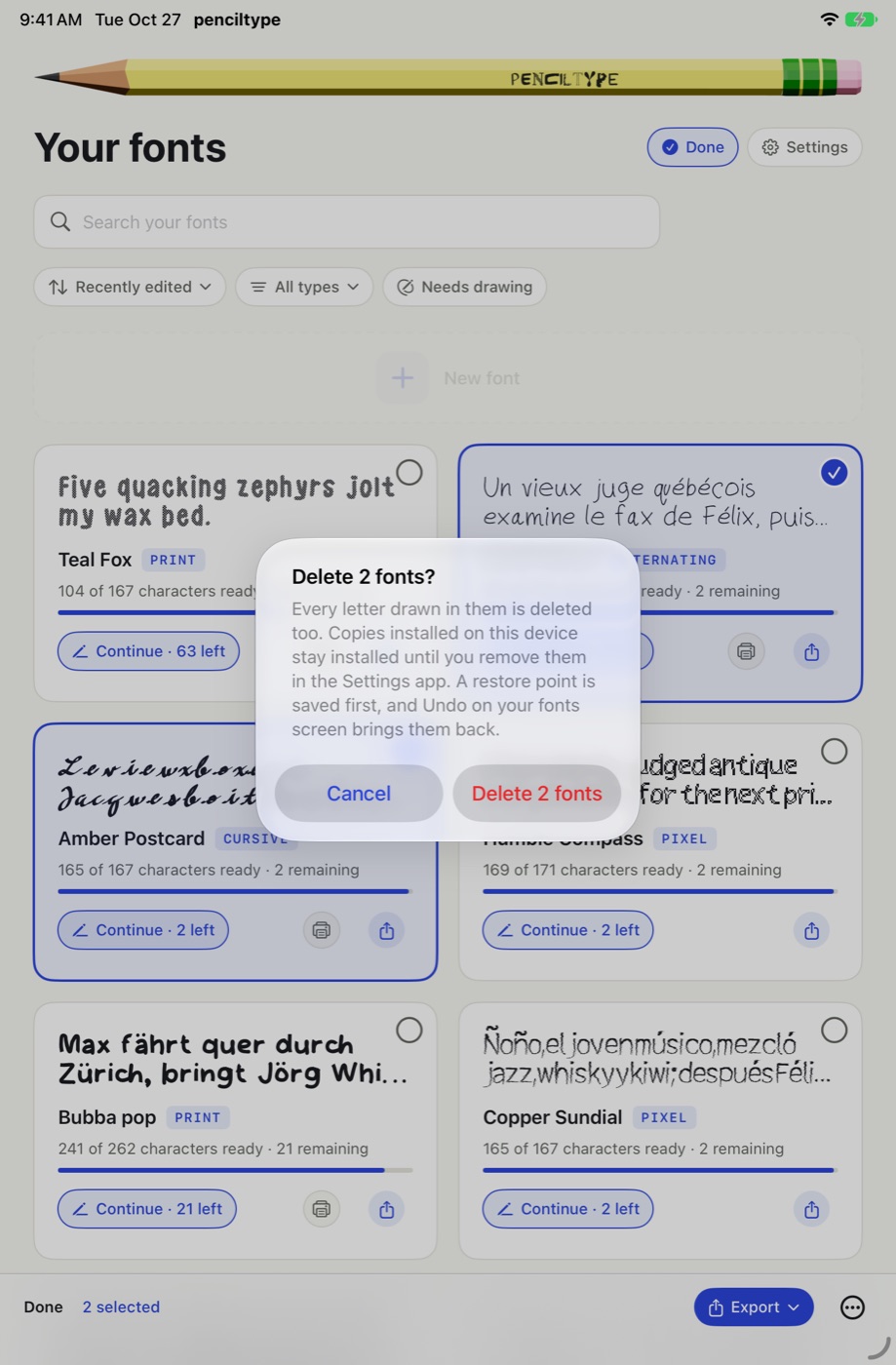
To delete fonts, tap Select, pick them, then More actions › Delete…. penciltype asks first, and tells you what happens:
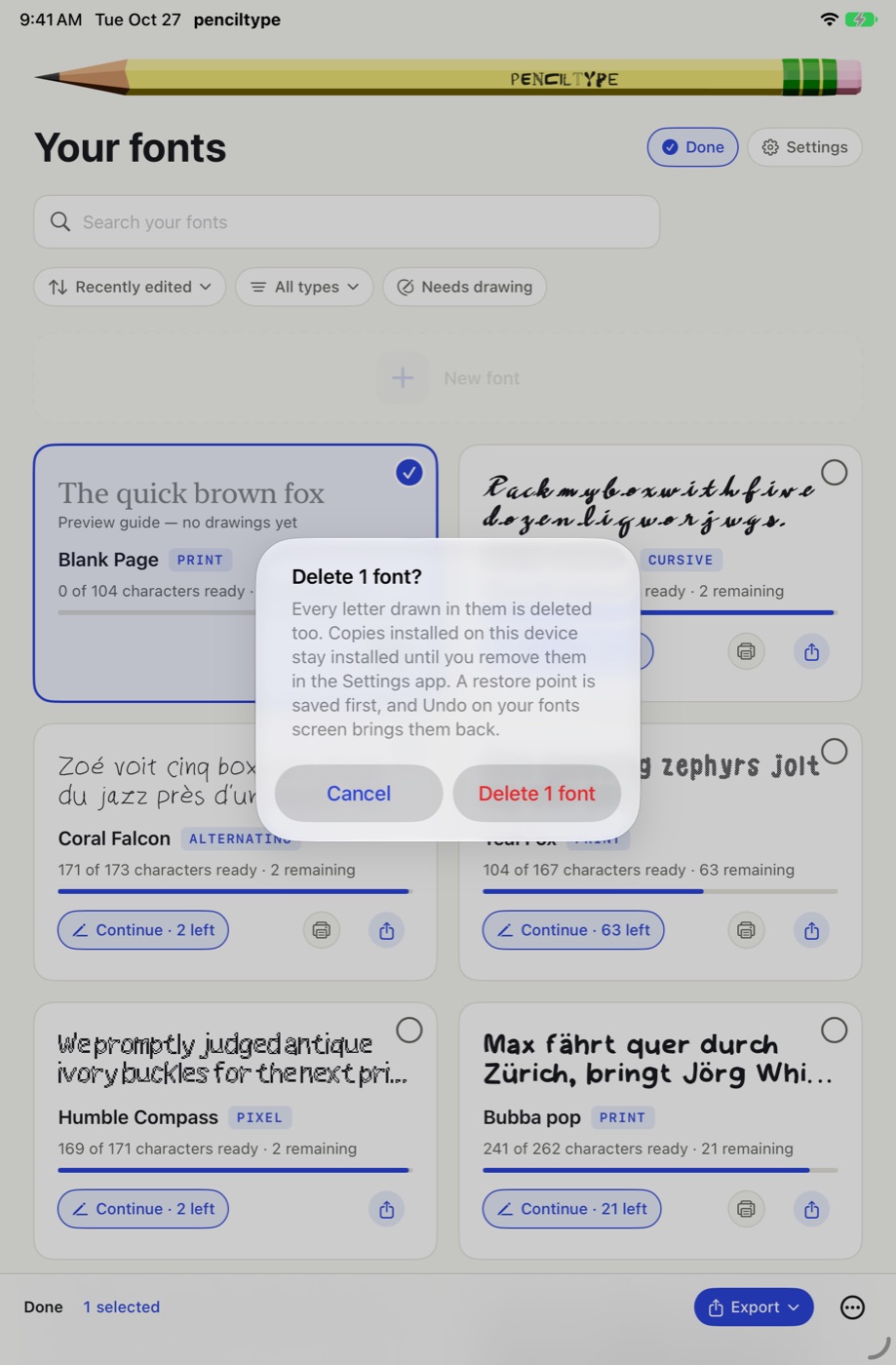
“Every letter drawn in them is deleted too. Copies installed on this device stay installed until you remove them in the Settings app. A restore point is saved first, and Undo on your fonts screen brings them back.”
Tap Delete 2 fonts (or Delete 1 font) to go ahead, or Cancel.
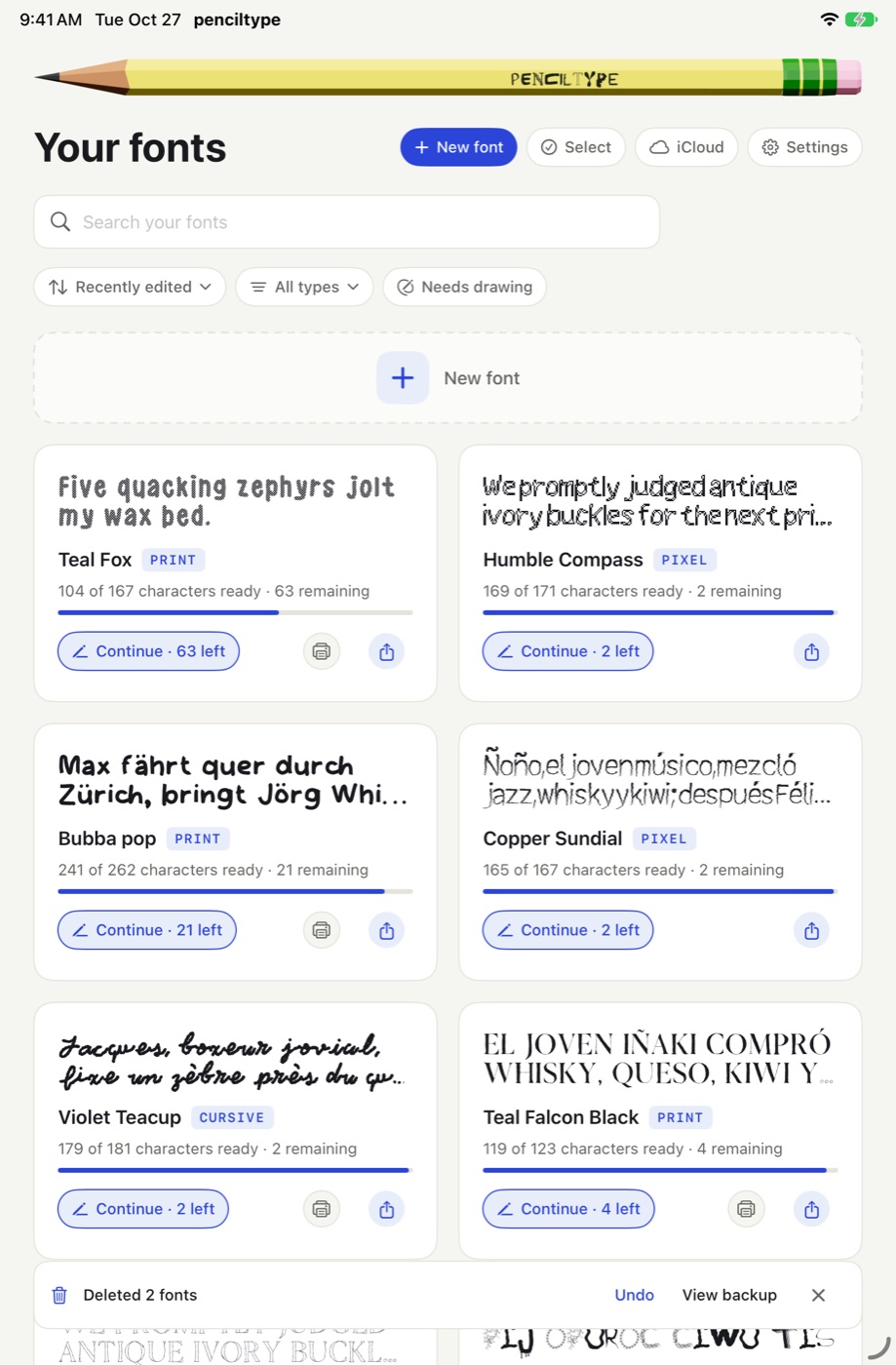
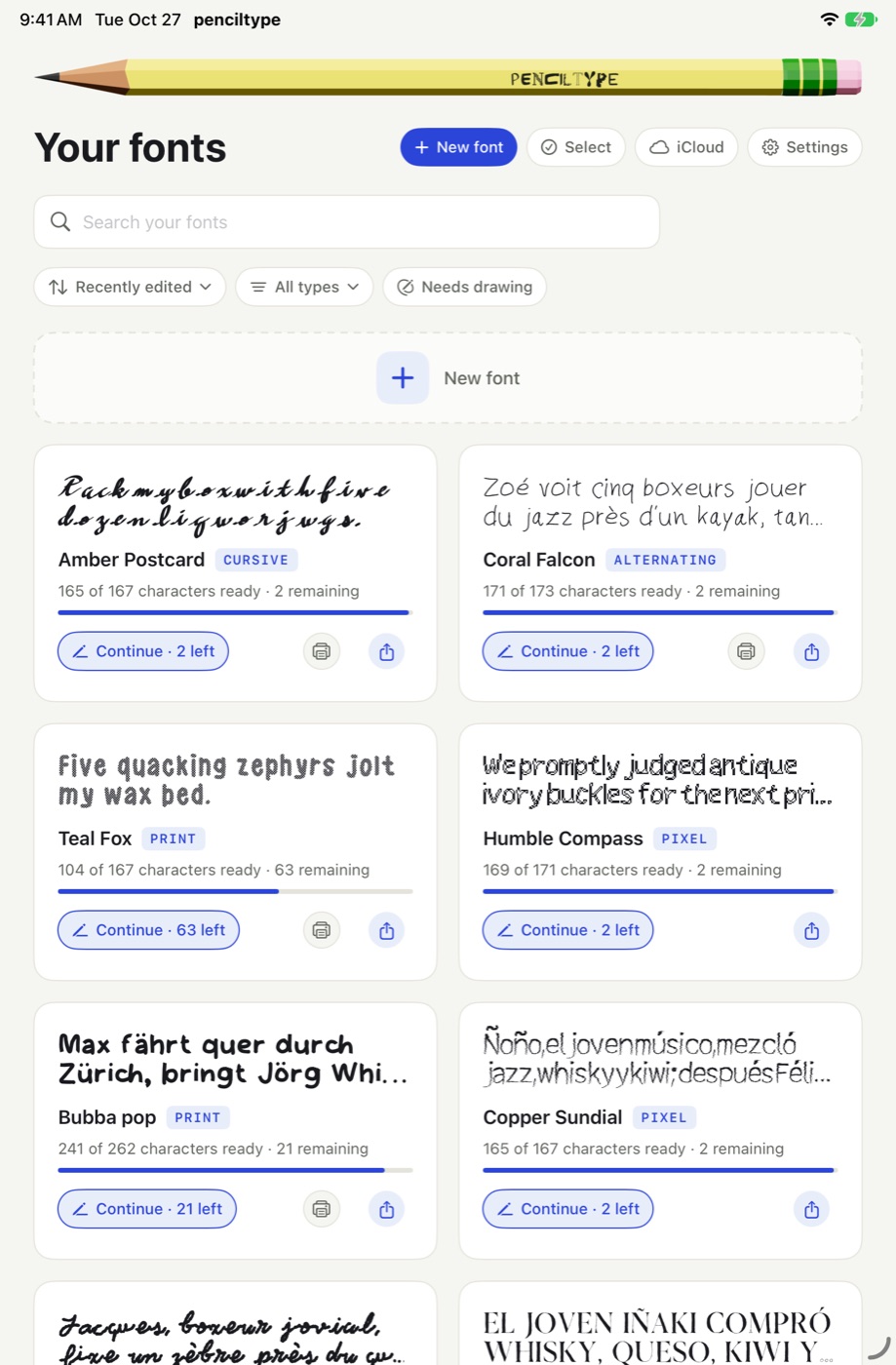
Before anything is deleted, penciltype saves a restore point of your whole library. A banner then sits at the bottom of the shelf:
- Undo
- Brings back just the fonts you deleted, exactly as they were.
- View backup
- Opens Settings on that restore point, so you can see what's in it first.
- ×
- Hides the banner. The fonts stay deleted, but the restore point stays in Settings › Backups for 30 days, so you can still get them back.
The banner goes away when you make any other change to your library: a new font, an import, a sync from another device, a restore or another delete. It's hidden while you're selecting.
There's no delete button on a single card. To delete one font, select just that font, or use Delete font in the font's own Font settings. Fonts you delete in Compare copies get the same restore point and Undo.
iCloud on the shelf
The iCloud button keeps your fonts on every device signed into the same Apple Account. Its picture tells you how sync is doing; tap it for the details and the next step:
- A plain cloud: sync is off. The menu offers Sync with iCloud.
- A cloud with a checkmark: sync is on and up to date (or checking for changes).
- A cloud with an arrow: fonts are downloading or uploading.
- A spinner: sync is connecting.
- A cloud with an exclamation mark: something needs you — sign in, turn on iCloud Drive, or resume after an account change.
While sync runs, the button turns blue. To stop, tap it, then Stop syncing, and confirm with Stop Syncing. Your fonts stay on this device and in iCloud Drive; changes just stop going between devices until you turn sync back on.
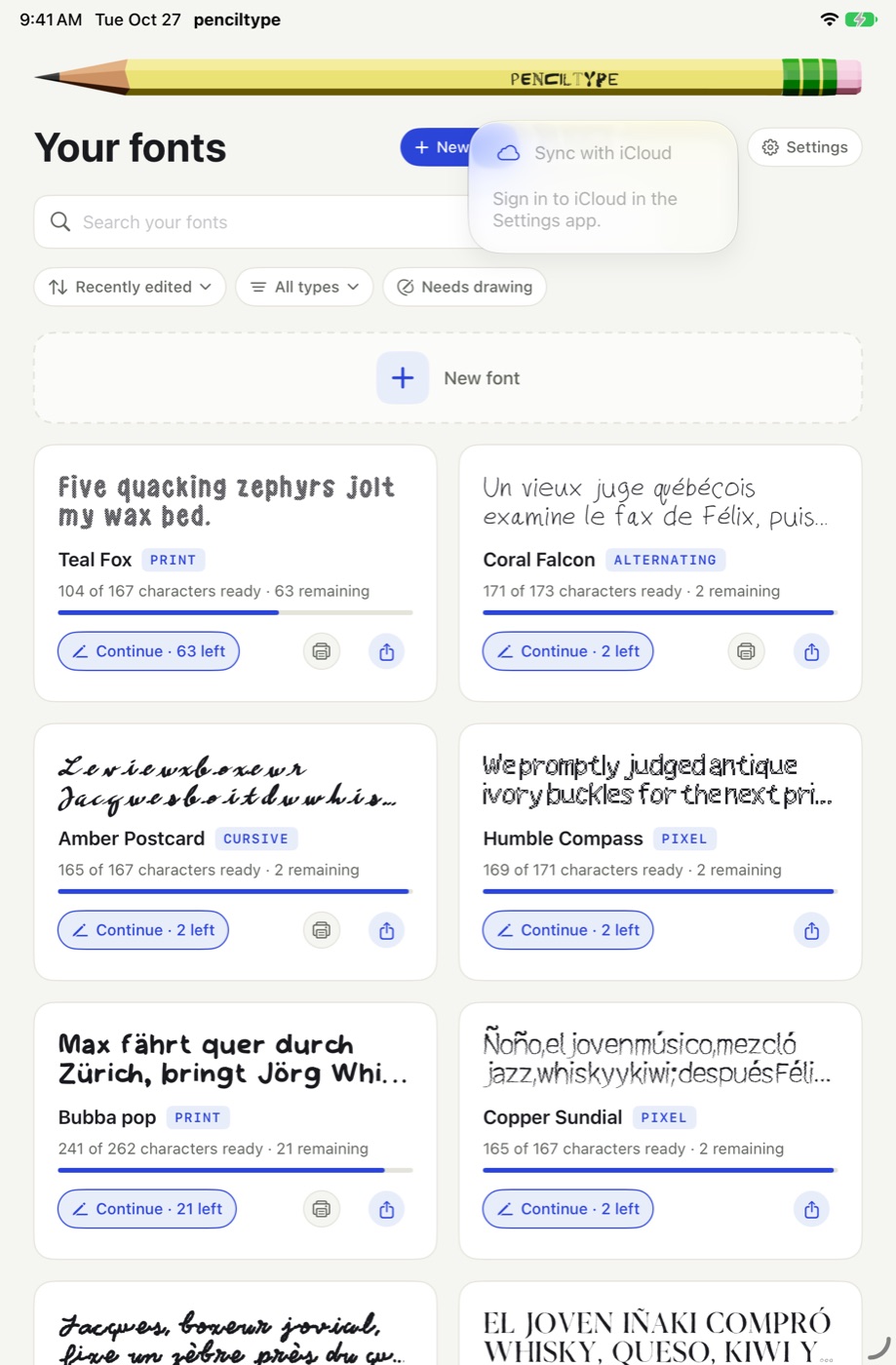
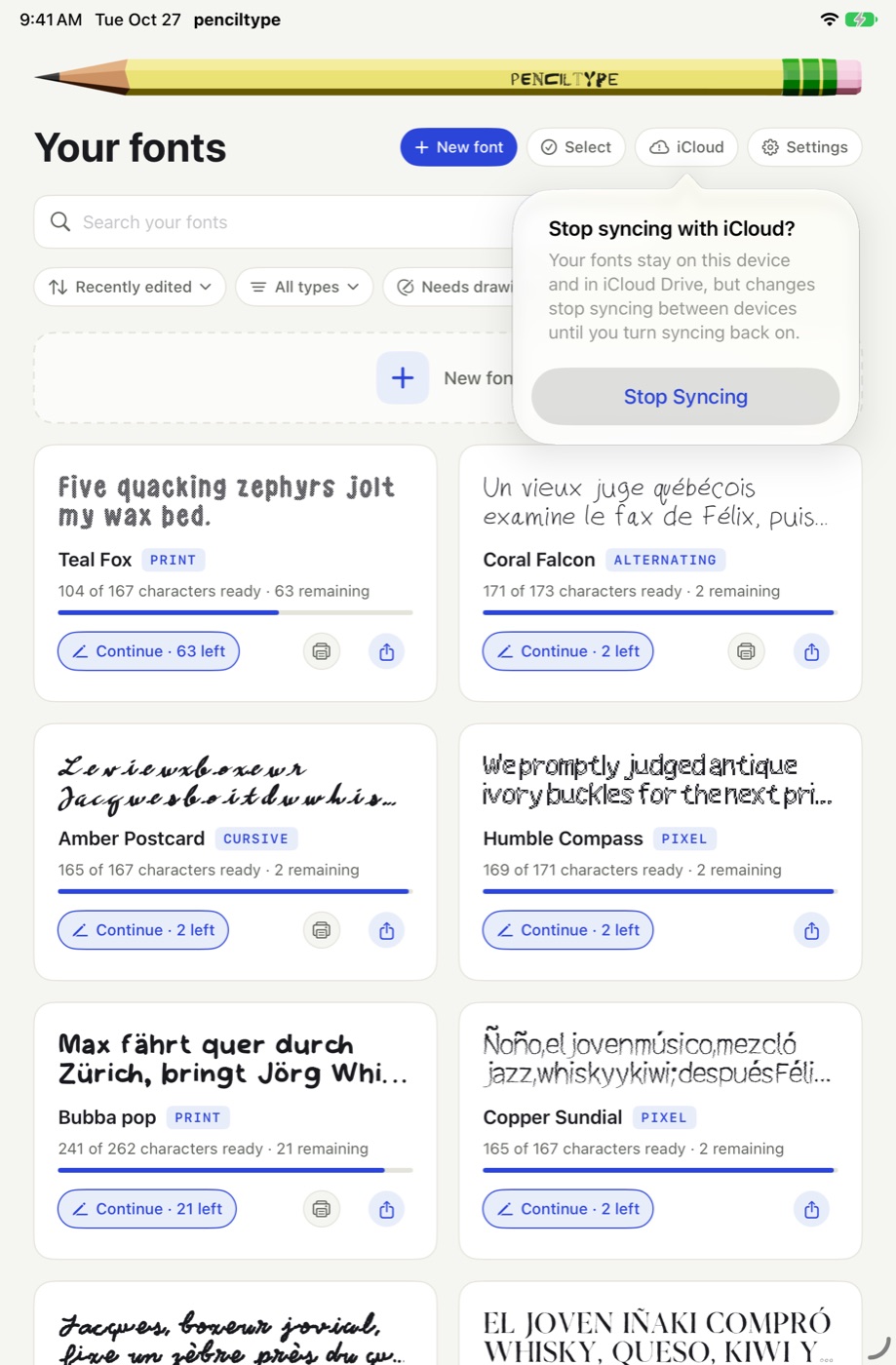
Every state of the menu, what each line means and what to do about it are in Backups and iCloud.
On iPad and Mac
On iPad, the shelf turns with the device in any direction. New font, Settings and the other sheets open as page-sized cards in the middle of the screen. In Split View or Slide Over the app is narrow, so the shelf uses its iPhone layout.
On a Mac with Apple silicon, penciltype runs as its iPad app. The wording follows: the intro says “Create real fonts on your Mac”, the New font sheet says “nothing leaves this Mac”, and sign-in instructions point to System Settings. Menus open as Mac menus. There are no menu-bar commands or keyboard shortcuts for the shelf. More in iPhone and Mac.
What the shelf doesn't do
Cards have no long-press menu, no swipe actions and no drag and drop, and the shelf has no keyboard shortcuts. Renaming, duplicating and deleting a single font live in the font's own Font settings.