

Export and install
Export & install turns your drawings into a real TrueType font, then puts it to work: installed on this device so other apps can use it, shared as a file, or packed up for a website.
Opening Export & install
You can open it from four places, once at least one character is ready:
- Export in the row of chips on the letter grid,
- the share icon on a font's card on the shelf,
- Export at the top right of Preview your font,
- Export on the finished-font screen.
Every time it opens, it compiles the font afresh from your latest drawings, with a progress bar: Compiling your font…, then Writing TTF….
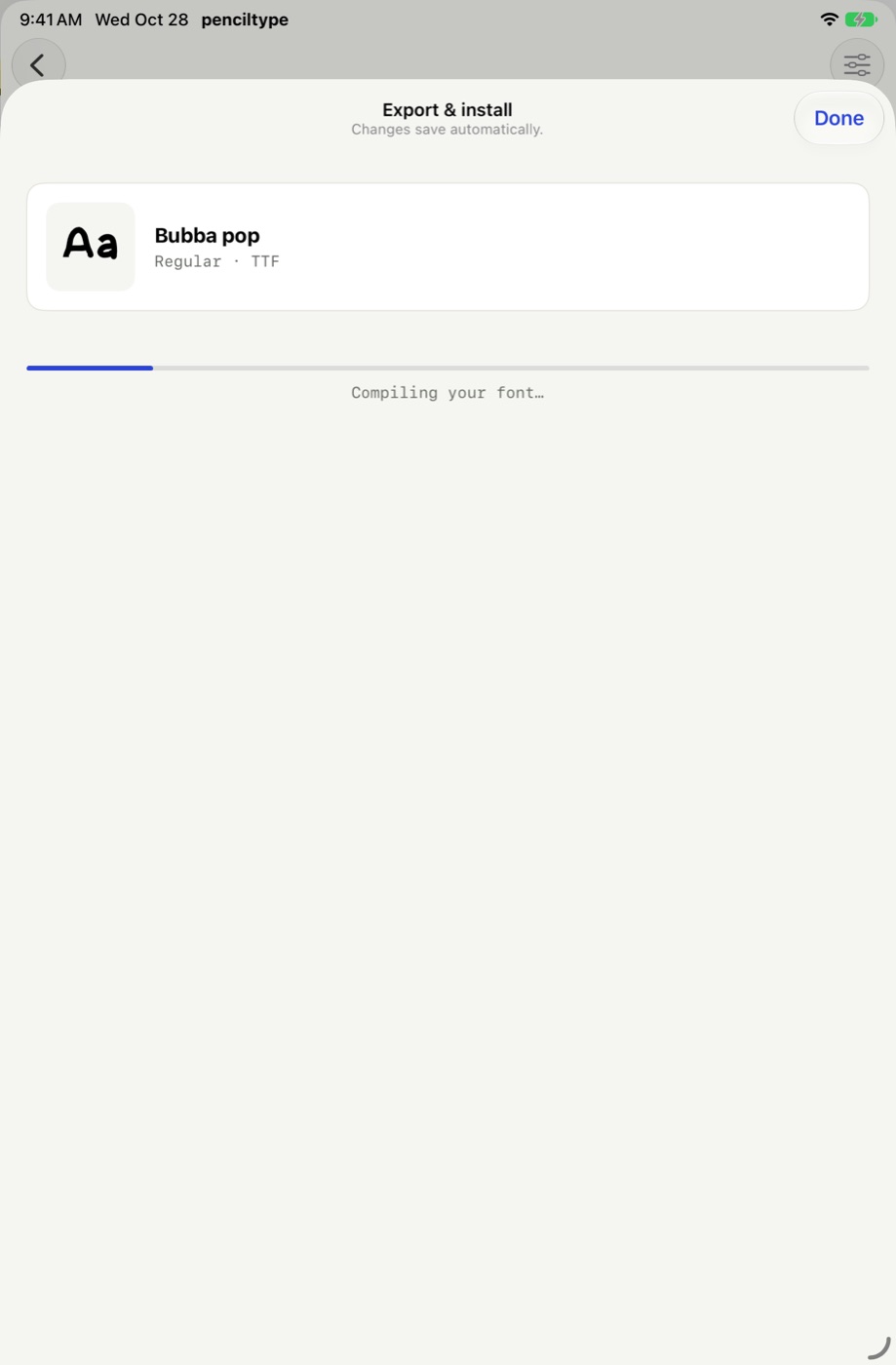
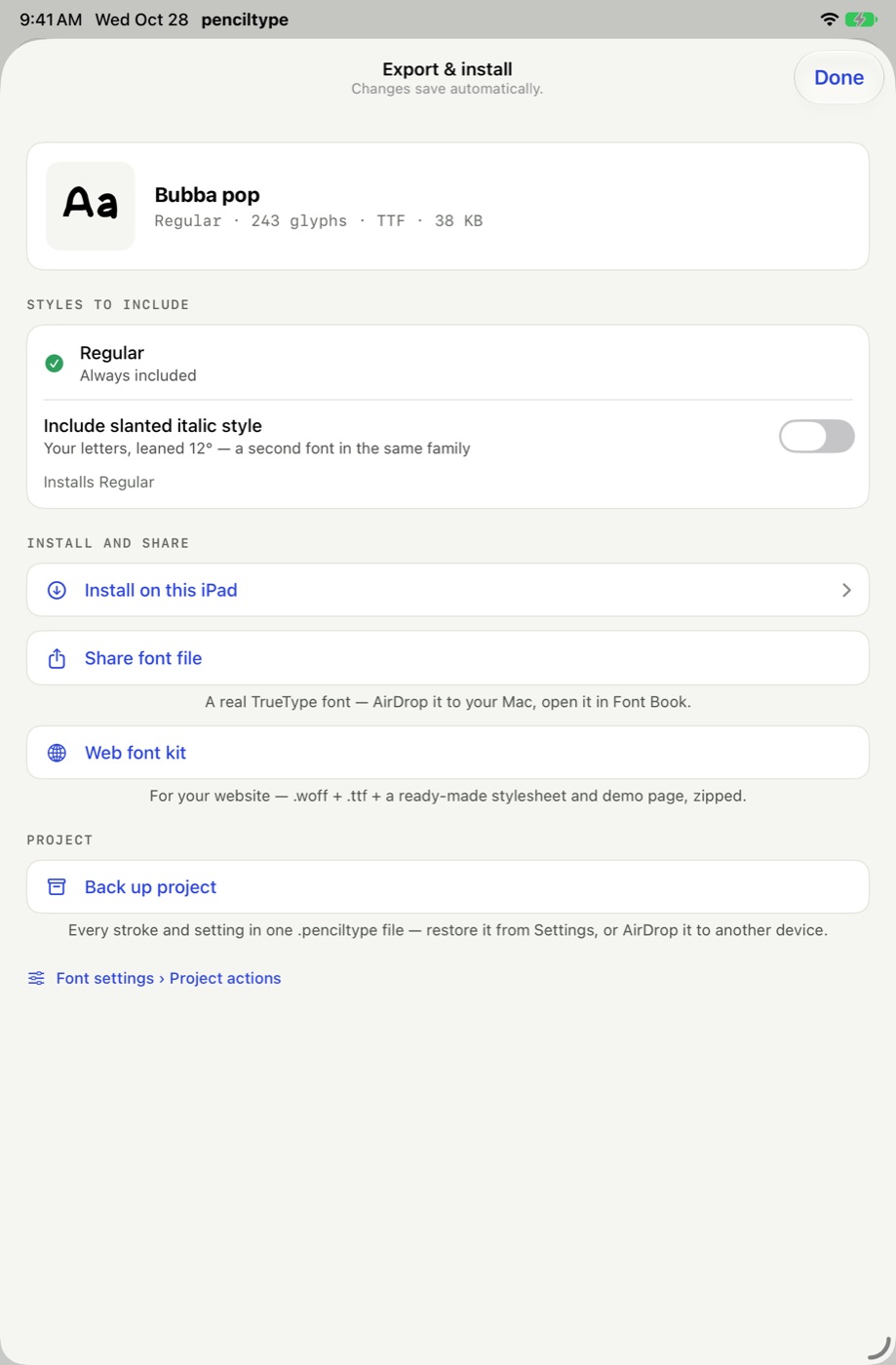
At the top is the font's card: Aa in your font, its name, and what was built, for example Regular · 243 glyphs · TTF · 38 KB. The glyph count is the compiled file's own, so it includes alternates, joins and composed characters. Below it come three sections: Styles to include, Install and share and Project. Done closes the sheet (and deletes the temporary files it made).
If the font can't be compiled, the sheet says why (for example Draw a few letters first. or The font couldn't be compiled.) with Try again.
Styles: adding an italic
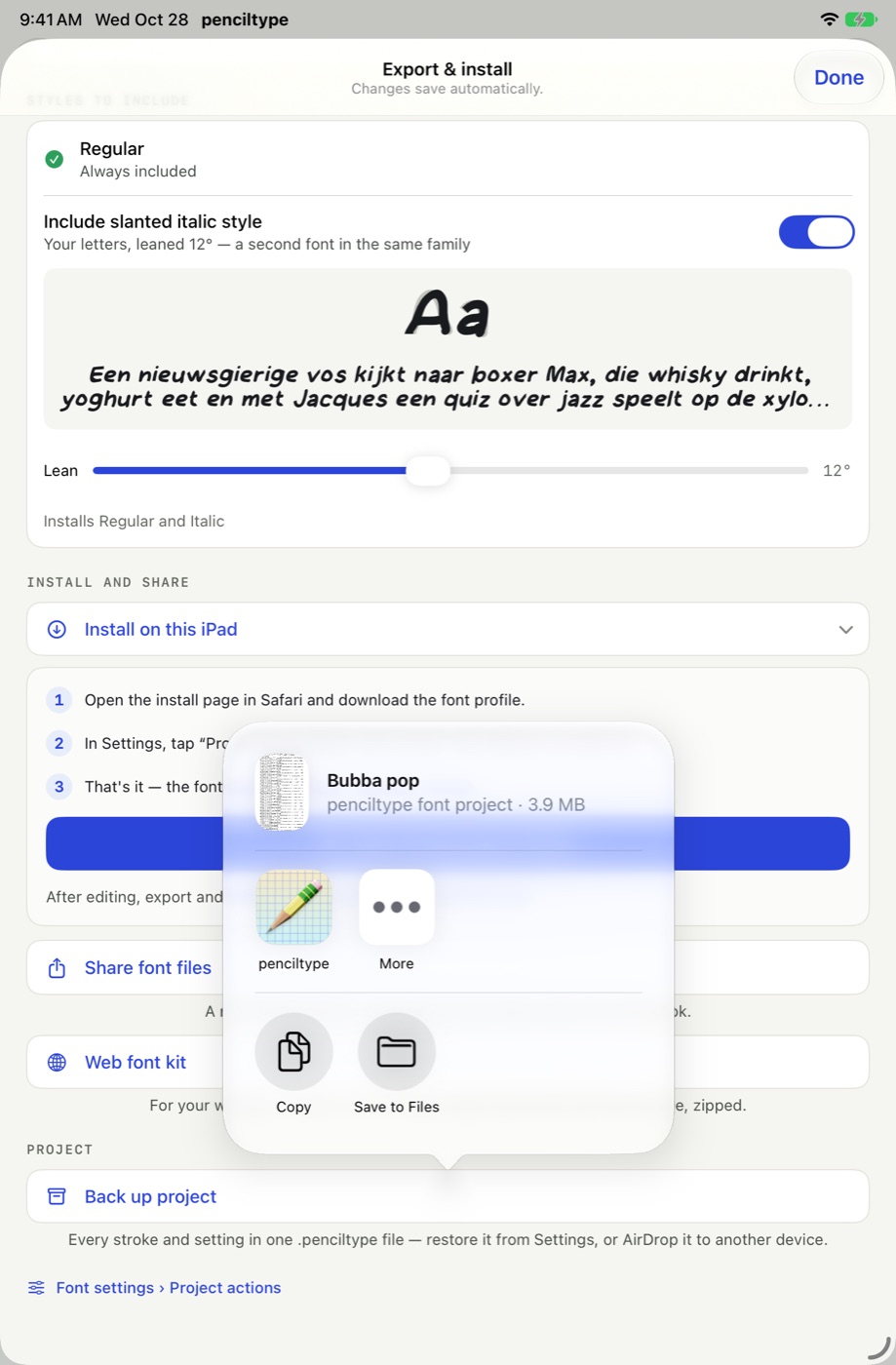
Regular is always included. Turn on Include slanted italic style (“Your letters, leaned 12° — a second font in the same family”) and the export adds a second font, your letters leaned, in the same family. Apps then use it when you press their Italic button, instead of faking a slant.
With the italic on, a preview shows your letters leaning over a faint upright ghost, and a Lean slider sets the angle from 5° to 20° (12° to start). The font is rebuilt when you let go; meanwhile Rebuilding… shows beside Install and share and those rows wait. The line under the styles says what an install will deliver: Installs Regular or Installs Regular and Italic.
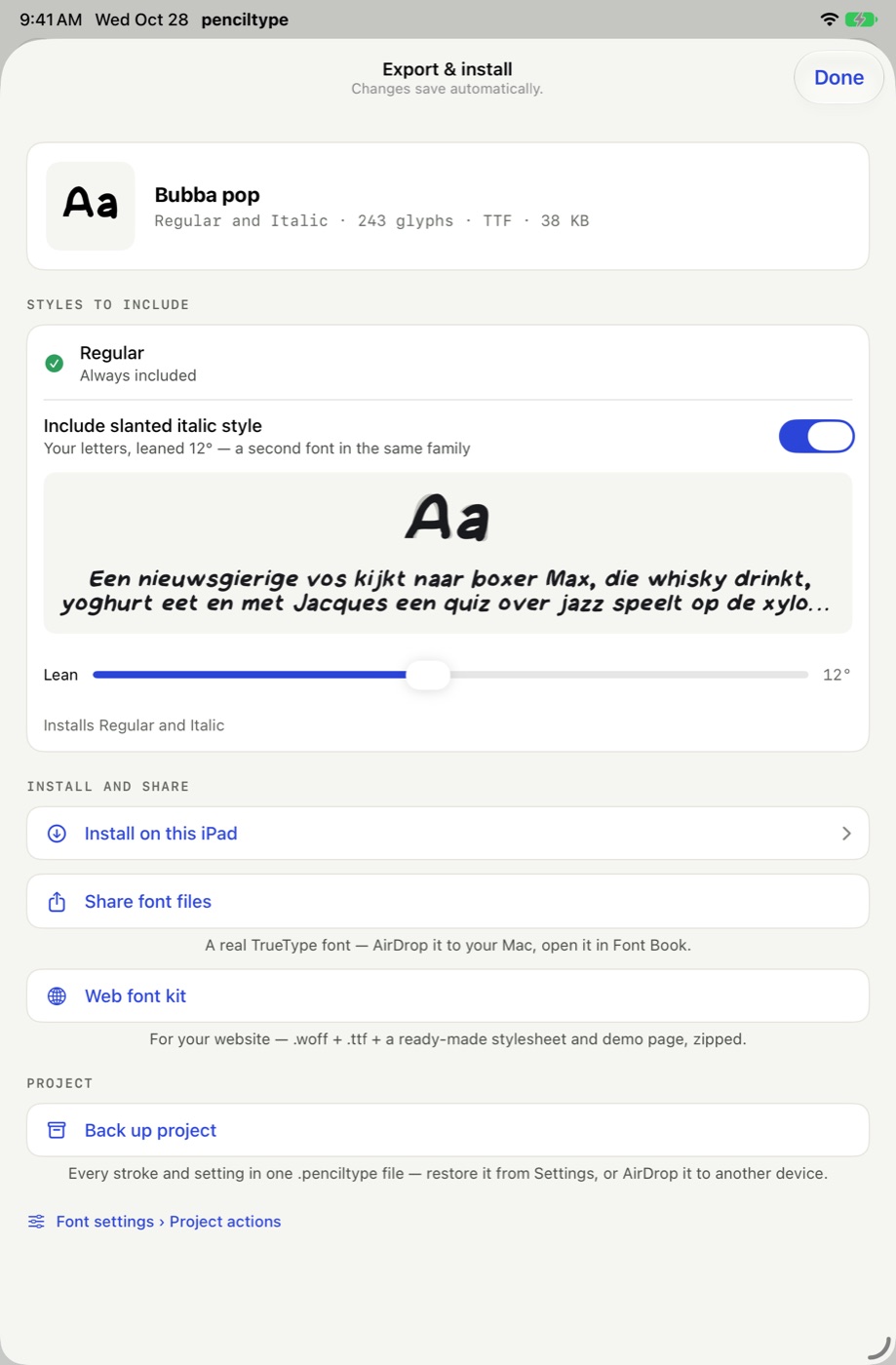
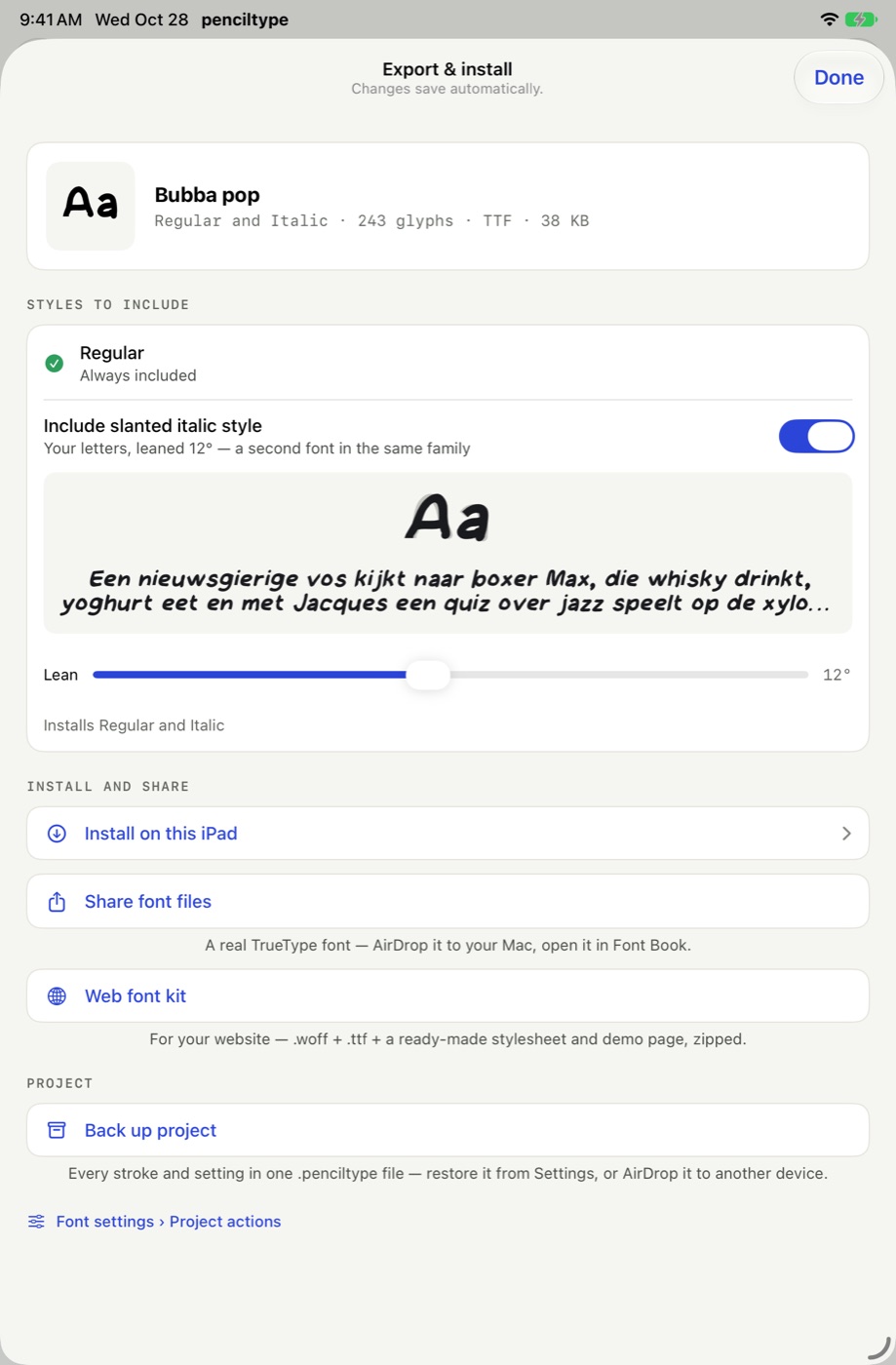
The italic switch and the lean are saved with the font, so the next export remembers them.
Installing on iPhone and iPad
iPhone and iPad only let an app install fonts that ship inside it, so penciltype installs your font a different way: as a font profile, handed to the Settings app by Safari. It takes a minute, and then the font works in any app that supports custom fonts, like Pages, Keynote and Goodnotes.
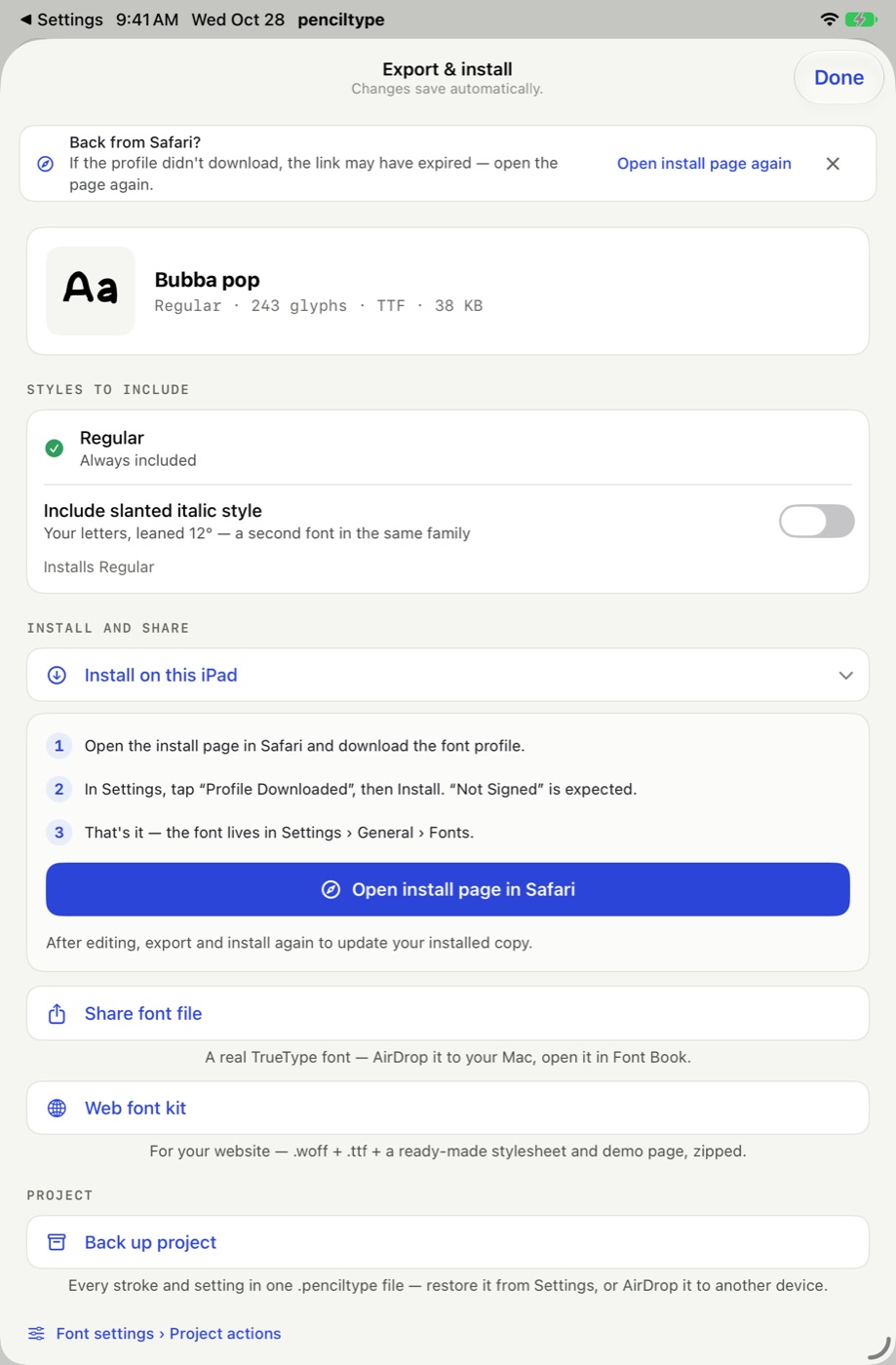
Under Install and share, tap Install on this iPad (or Install on this iPhone). Three steps unfold:
- Open the install page in Safari and download the font profile.
- In Settings, tap “Profile Downloaded”, then Install. “Not Signed” is expected.
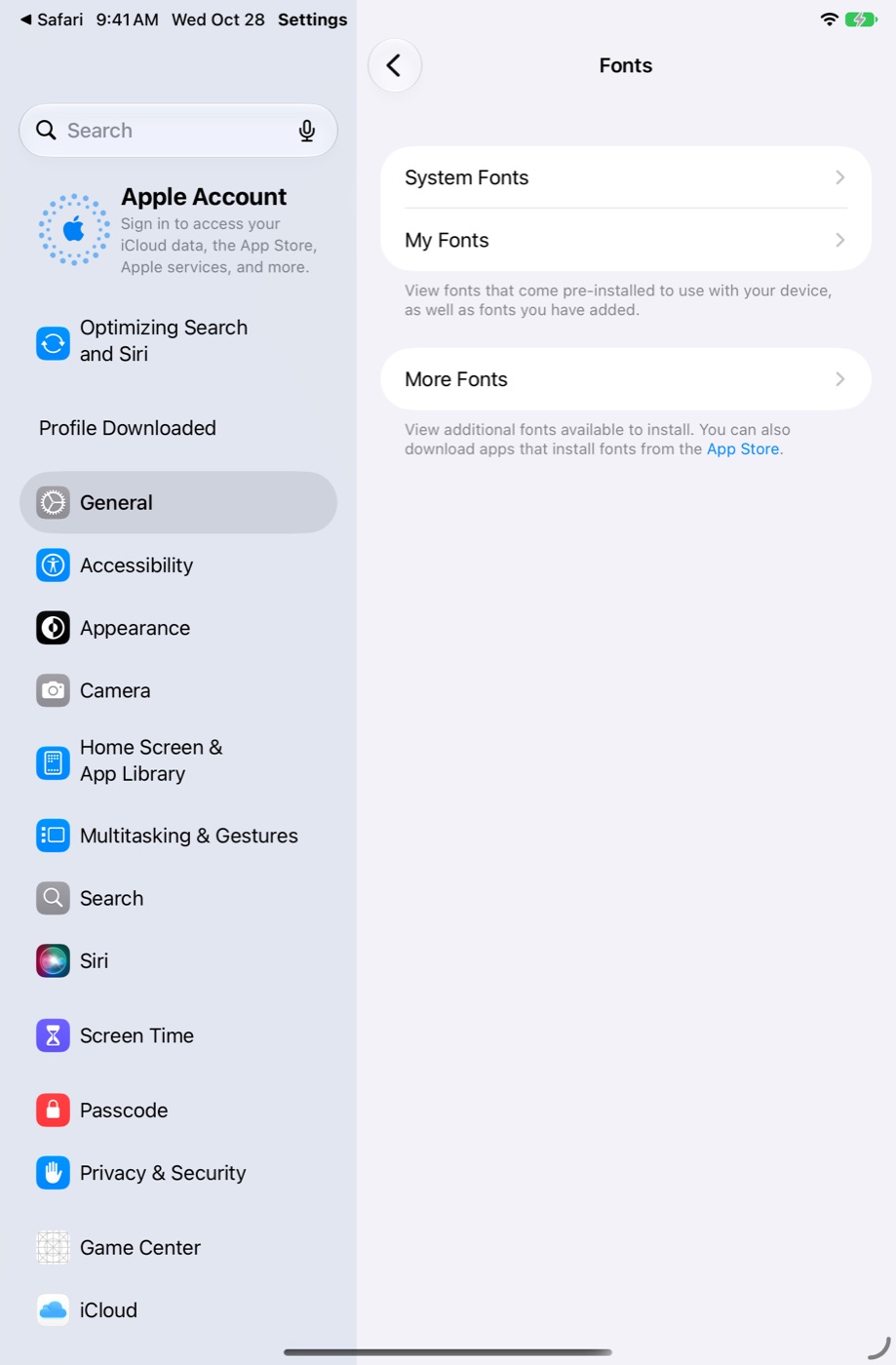
- That's it — the font lives in Settings › General › Fonts.
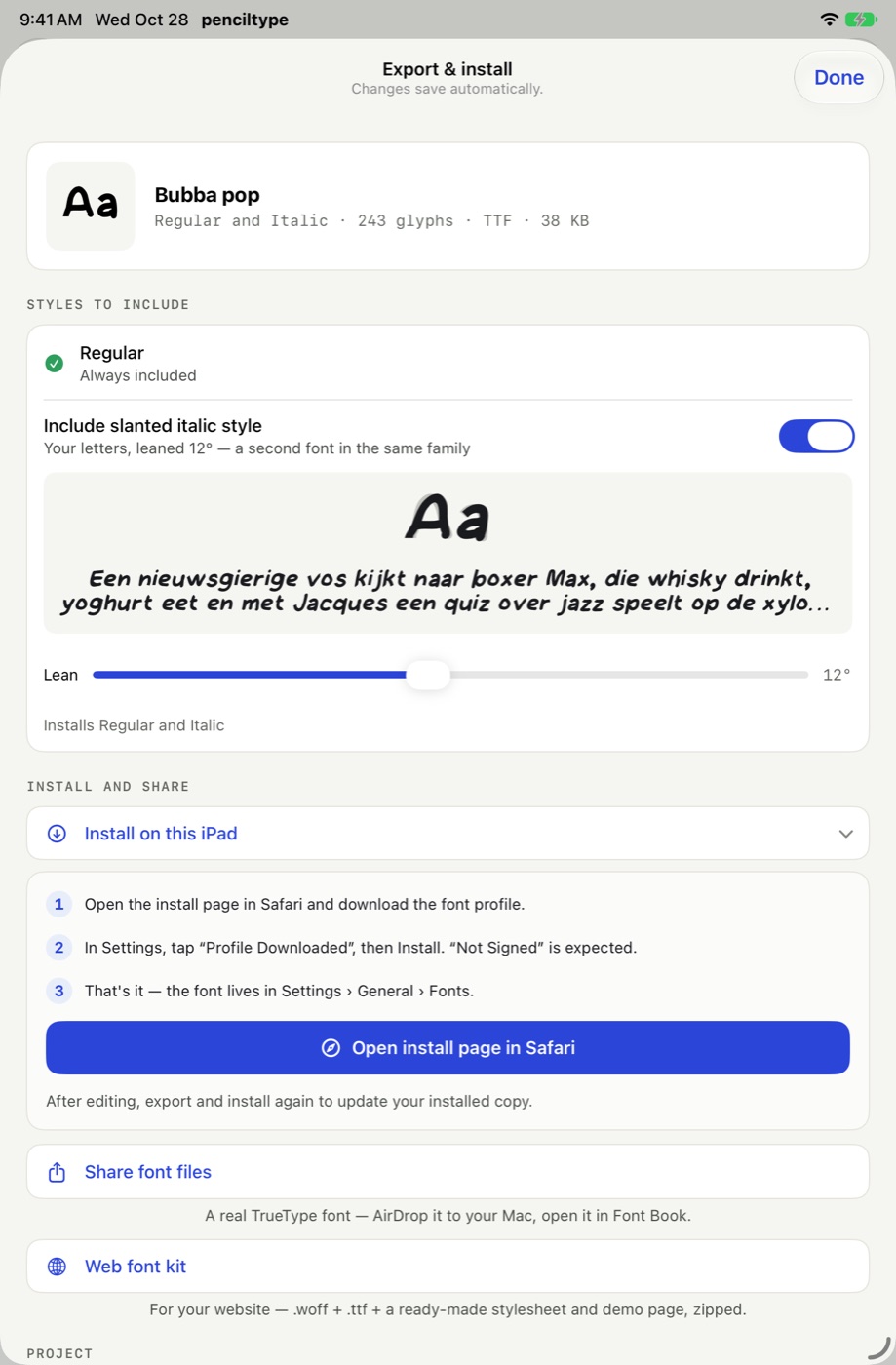
1. The install page in Safari
Tap Open install page in Safari. penciltype builds the profile and opens a page about it in Safari, because only Safari can hand a font profile to Settings.
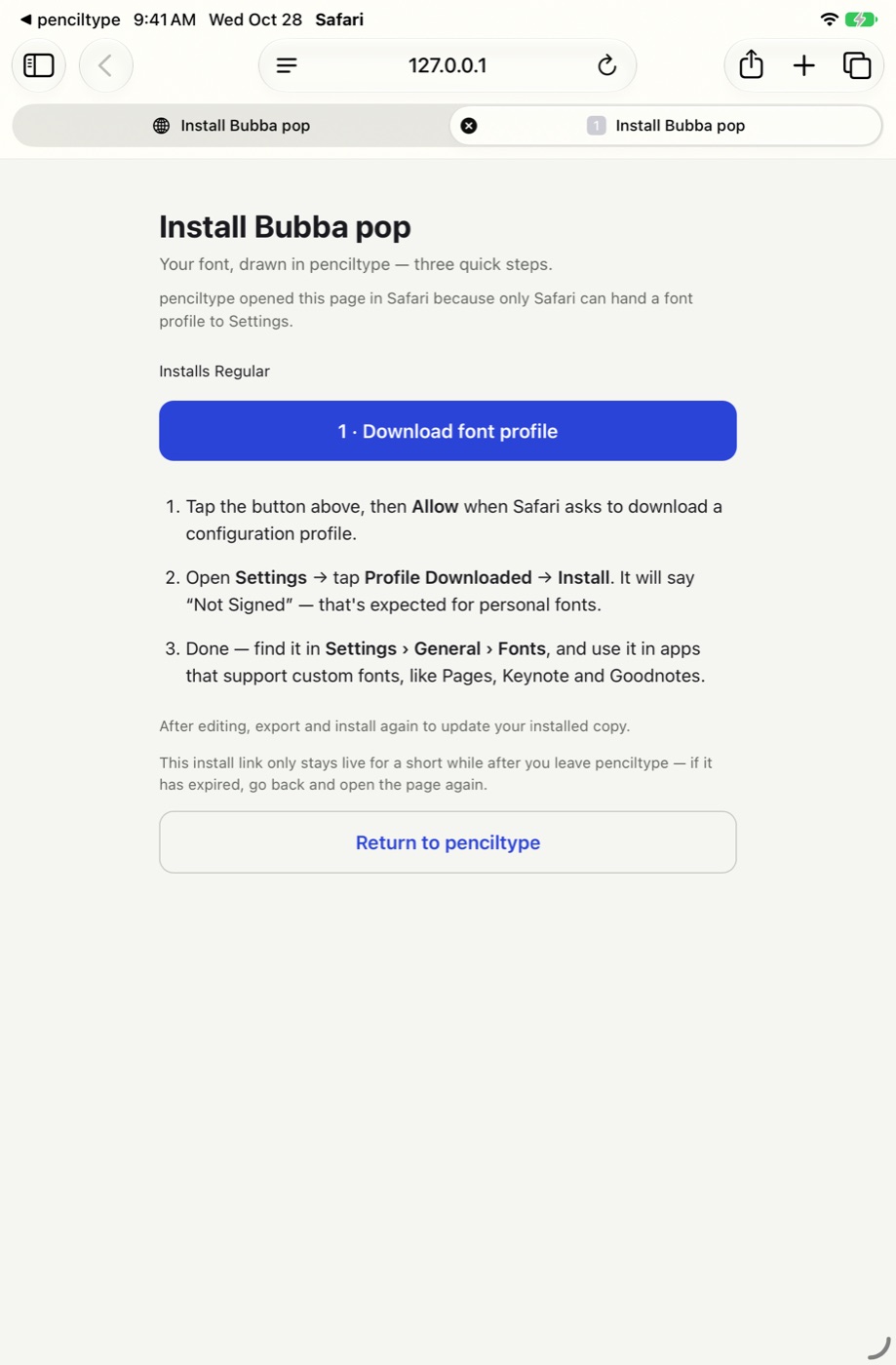
The page is titled Install Bubba pop, “Your font, drawn in penciltype — three quick steps.” It says which styles the profile installs (Installs Regular, or Installs Regular and Italic). Tap 1 · Download font profile, then Allow when Safari asks whether to download a configuration profile. Safari confirms Profile Downloaded; tap Close.
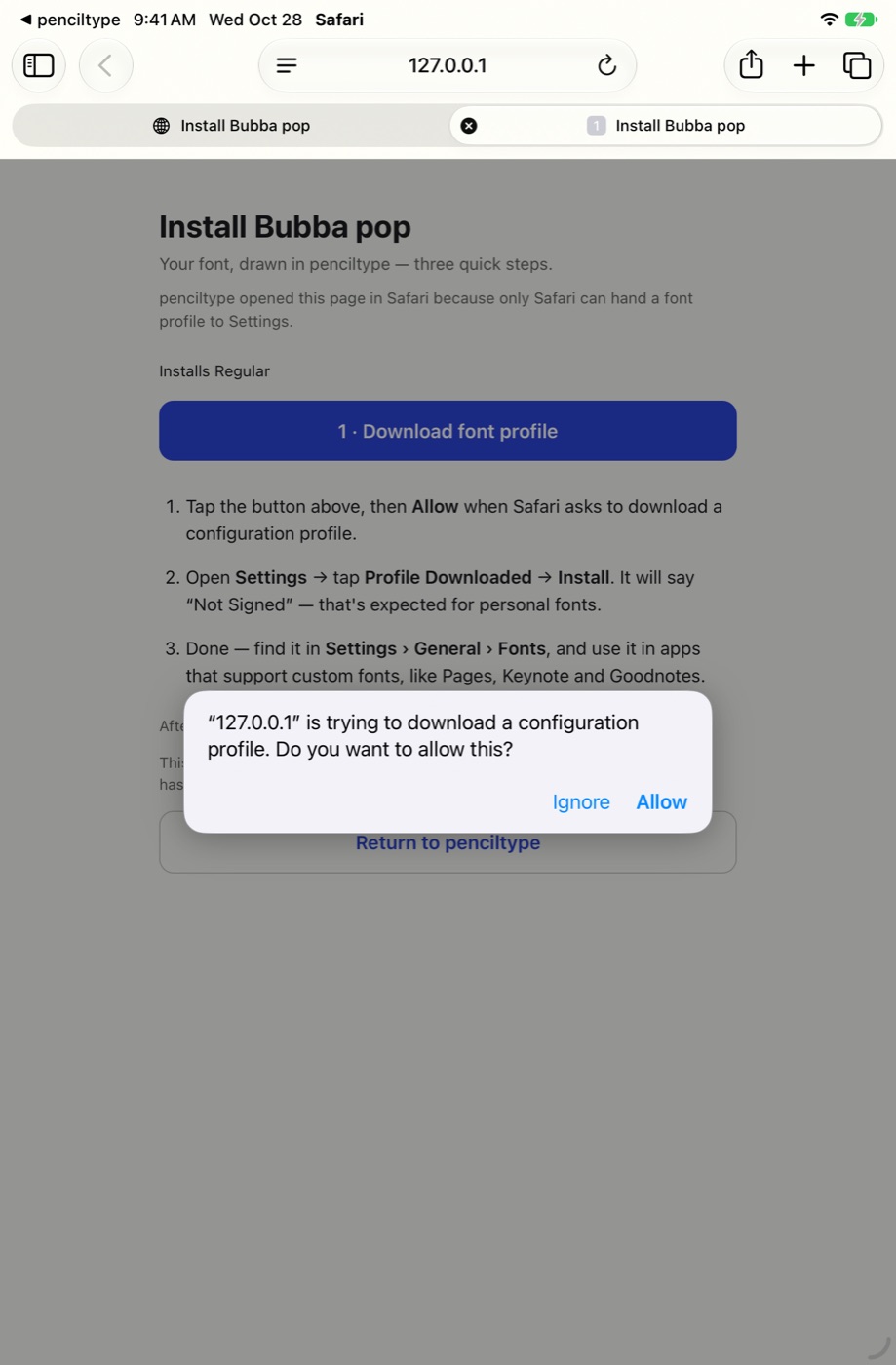
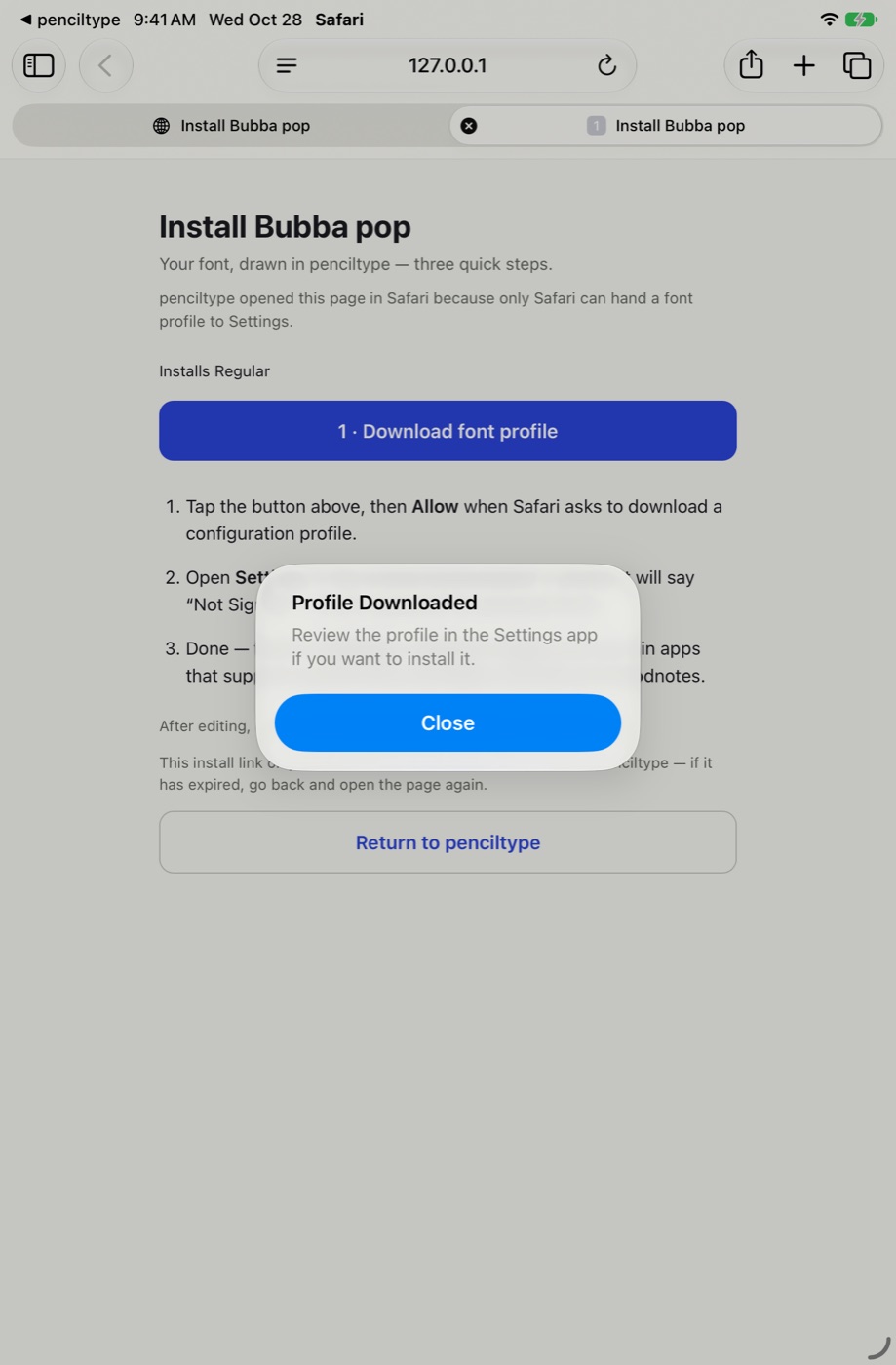
The page is written in penciltype's language, but Safari and Settings use your device's language. That's why the button names on the page are in bold: they're what to look for. Return to penciltype at the bottom of the page takes you back to the app.
2. Install the profile in Settings
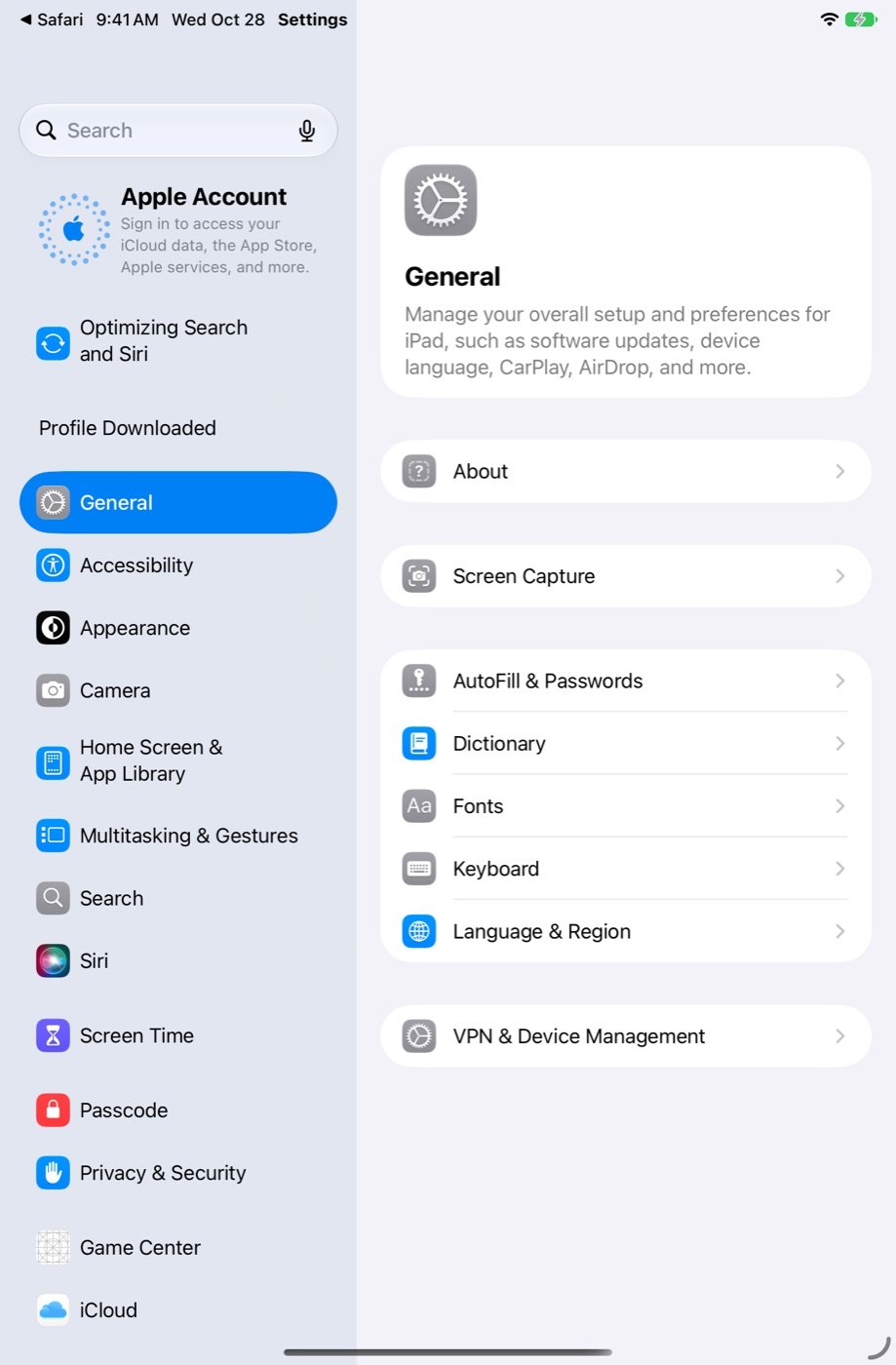
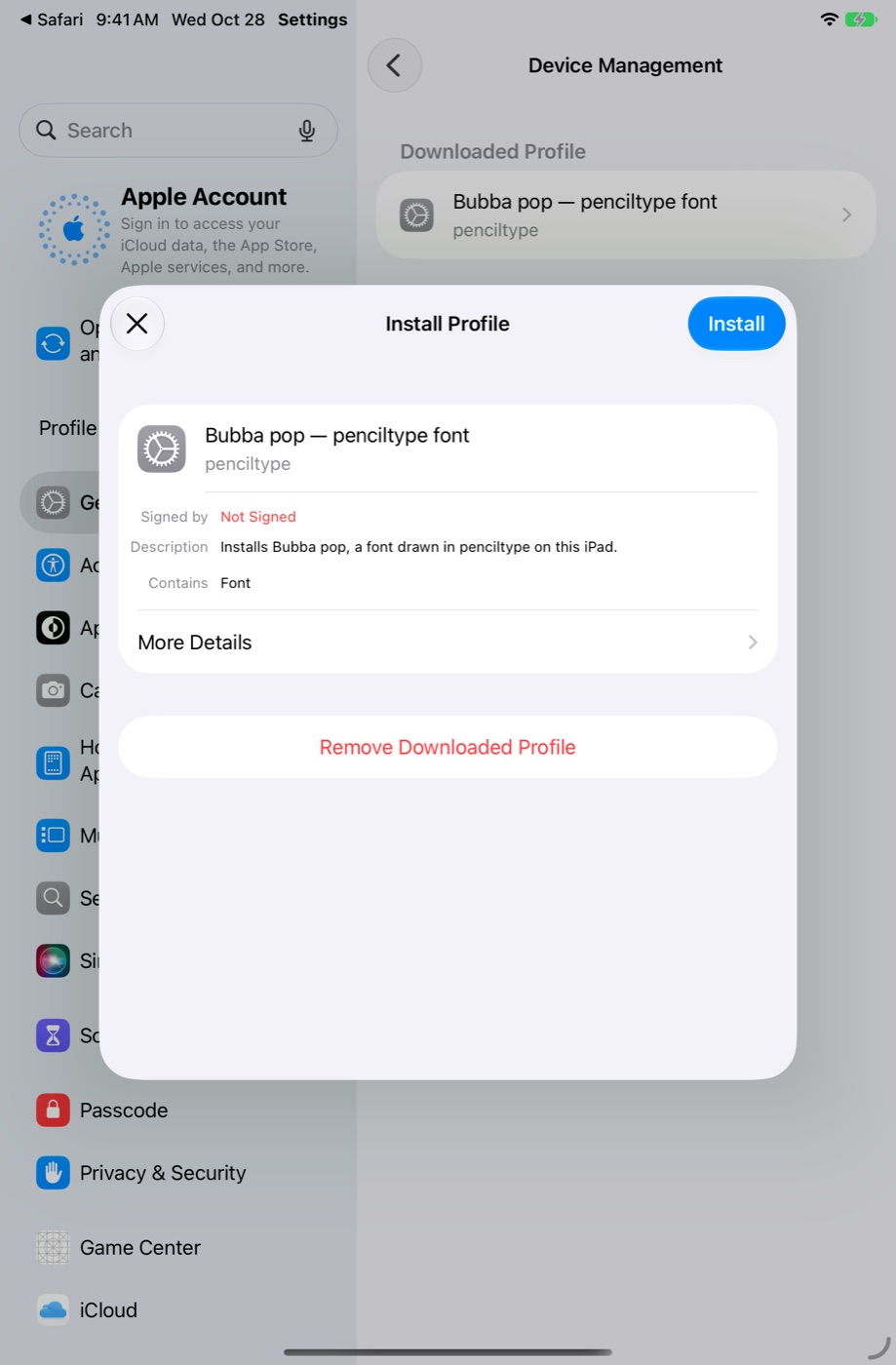
Open the Settings app. Near the top is Profile Downloaded. Tap it: the Install Profile sheet shows “Bubba pop — penciltype font”, from penciltype, with the description “Installs Bubba pop, a font drawn in penciltype on this iPad.” and Contains: Font. Tap Install (top right) and enter your passcode. It will say “Not Signed”. That's expected for personal fonts: it means the profile wasn't signed by a company, not that something's wrong. If you change your mind, Remove Downloaded Profile on the same sheet throws it away; a downloaded profile you never install is also removed by the system after a while.
3. Done
Your font is now listed in Settings › General › Fonts, under My Fonts (and “Bubba pop Italic” too, if you included the italic). Use it in any app that supports custom fonts: Pages, Keynote, Goodnotes and many more.
Back from Safari
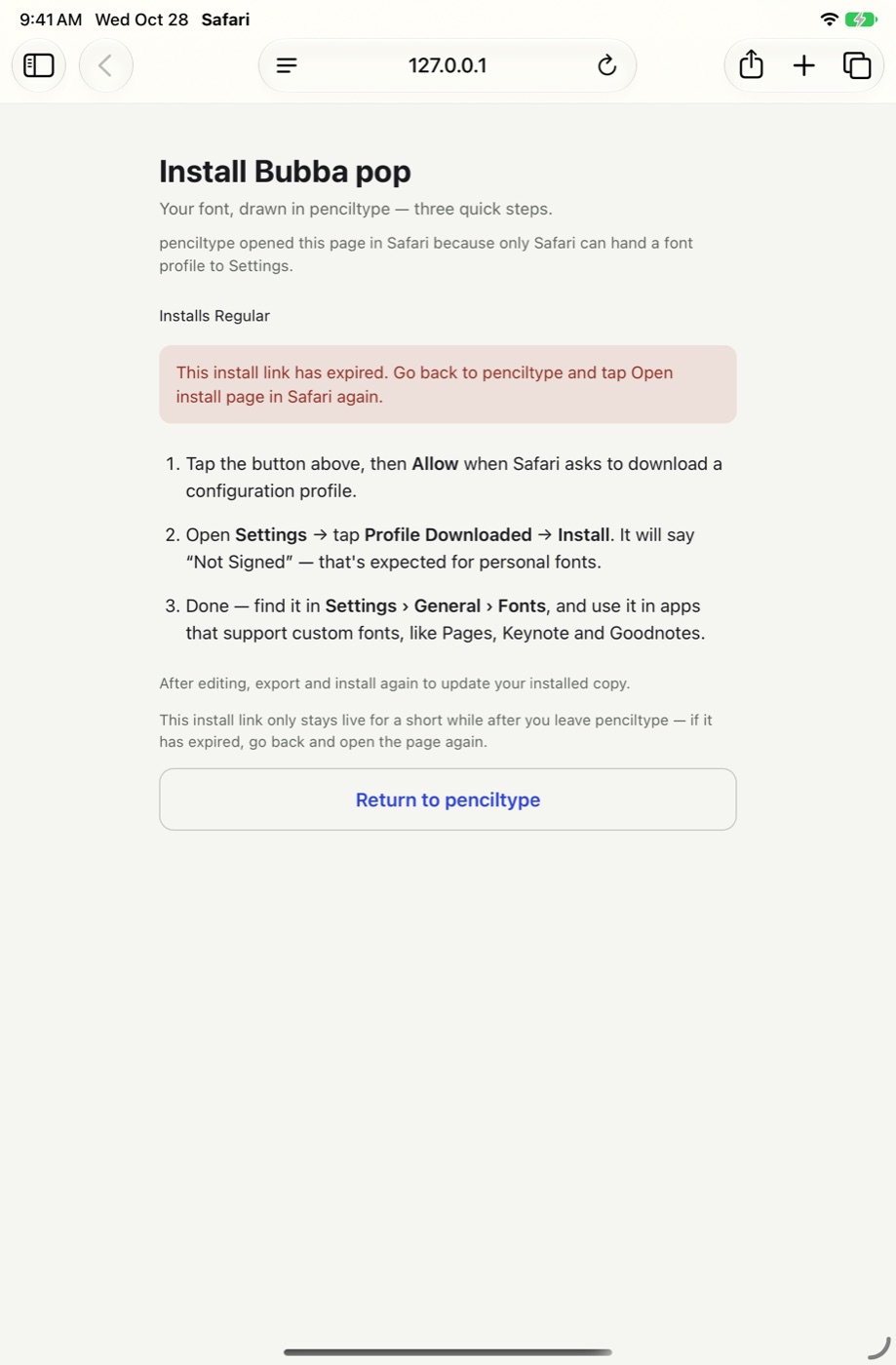
The install page only works while penciltype is around to serve it. Once you leave the app, the link stays live for a short while (at most three minutes, often less), then expires. If you come back to the page later, it says This install link has expired. Go back to penciltype and tap Open install page in Safari again. in place of the download button.
When you switch back to penciltype after opening Safari, the Export & install sheet shows a banner: Back from Safari? “If the profile didn't download, the link may have expired — open the page again.” Tap Open install page again for a fresh page, or × to dismiss the banner.
Installing on a Mac
On a Mac, penciltype installs the font directly. Under Install and share, click Install on this Mac. The first time, macOS asks you to confirm: click Install. (“Mac asks once to confirm — then it's available in apps that support custom fonts, like Pages, Keynote and Goodnotes.”) A spinner shows while it installs, then the row reads Installed — it's in Settings › Fonts with a green tick. penciltype checks with macOS that the font is really there before it says so. Both styles install, Regular and Italic, when you've included the italic.
If something goes wrong:
- A red line explains it: Couldn't install: and the reason. If a font with the same name is already installed, it says “A font with this name is already installed. Rename the font in Settings, or remove the old one first.”
- If macOS quietly refuses the font, the row switches to the font profile steps described above, with a note: “Mac quietly refused the direct install — it only allows that for fonts an app ships with. The font profile route below always works.”
- Click Install isn't working? Use the font profile instead at any time to switch to the profile steps yourself.
- If you click Don't Install at the system prompt, nothing is installed and the row goes back to how it was. That isn't treated as an error.
Sharing the font file
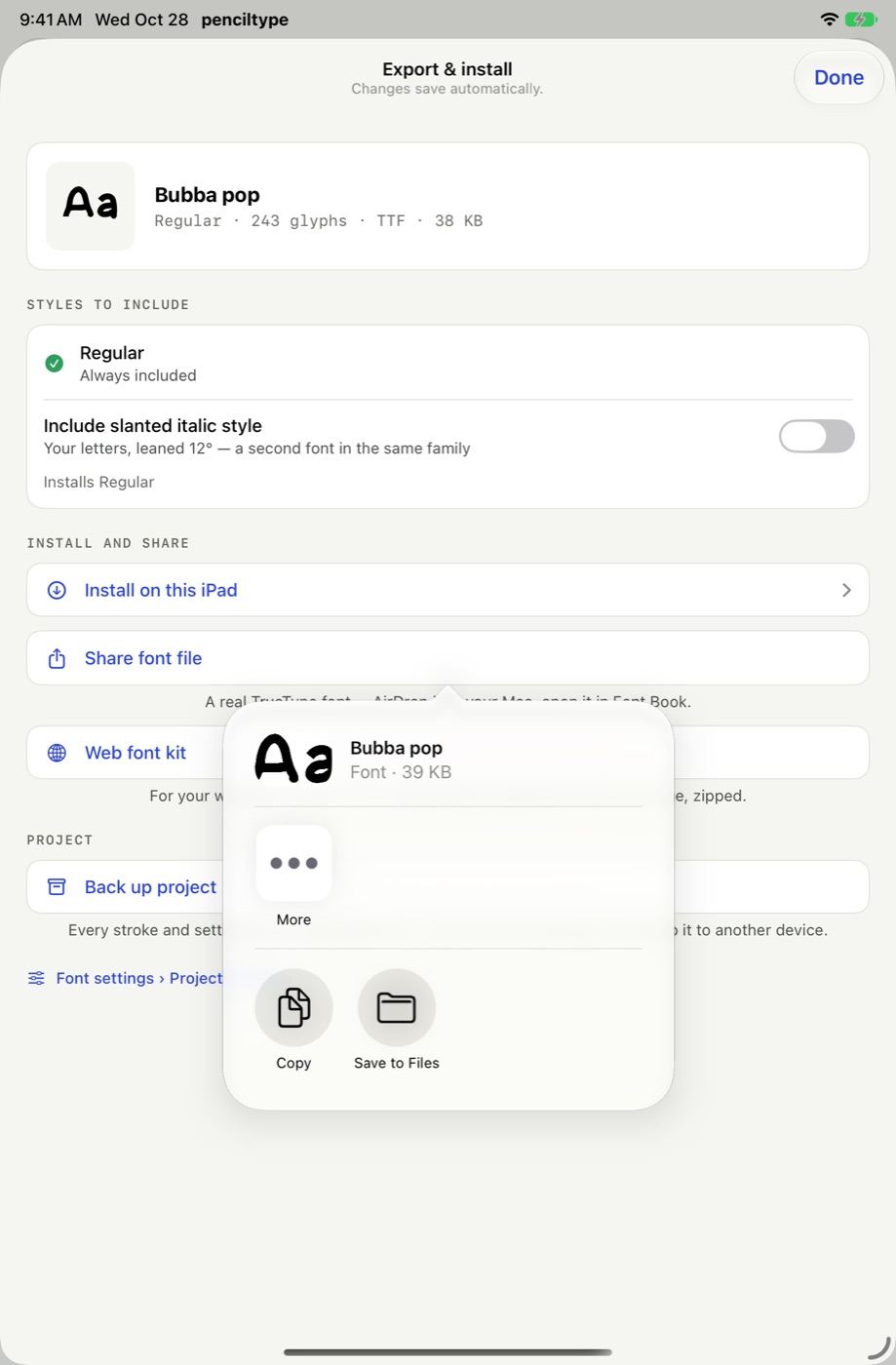
Share font file (or Share font files, with the italic) opens the share sheet with a real TrueType font: Bubba pop.ttf, and Bubba pop Italic.ttf if you included the italic. AirDrop it to your Mac and open it in Font Book, save it to Files, or send it to a friend.
Web font kit
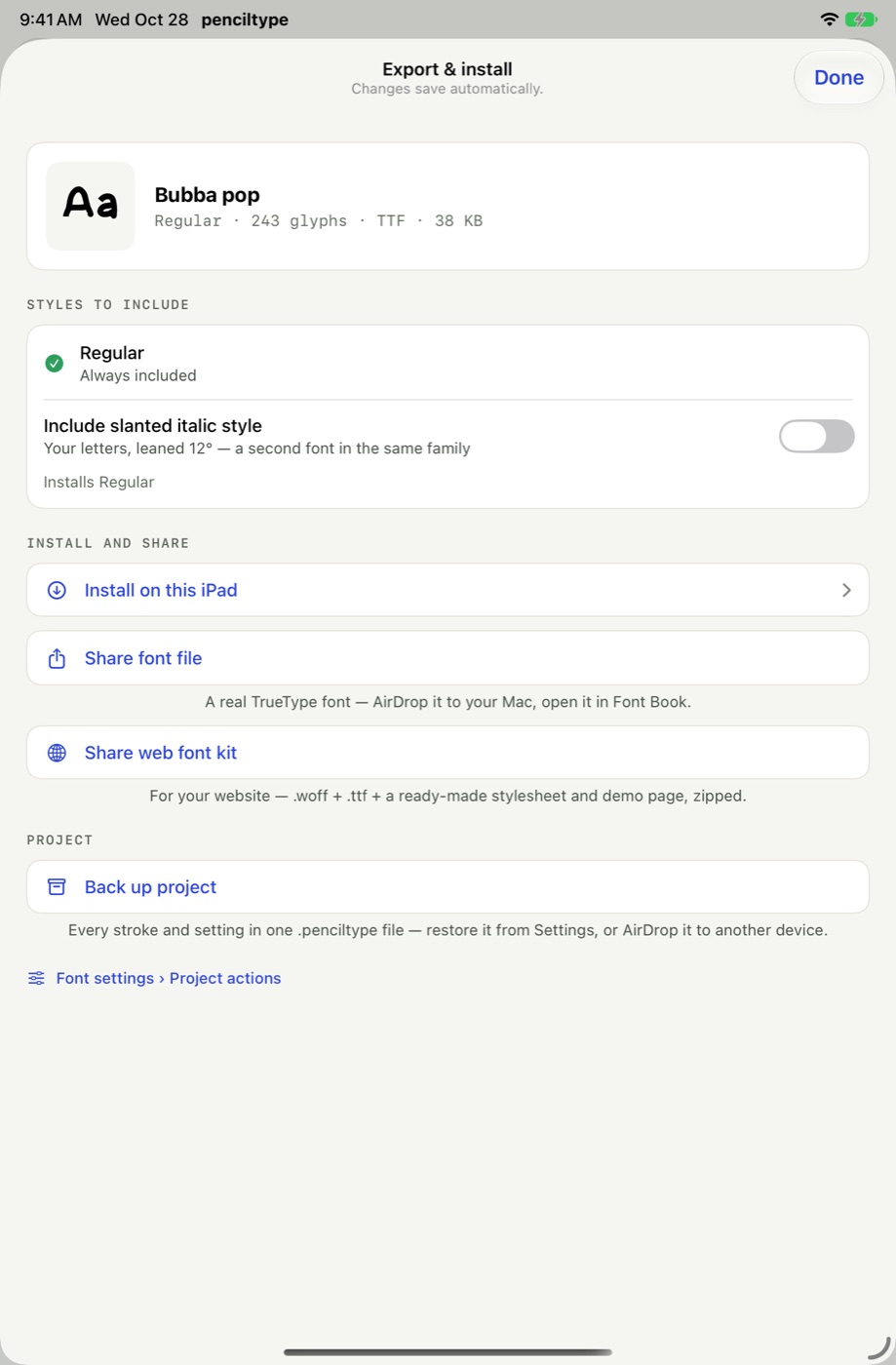
For your website. Tap Web font kit; the row reads Building web font kit… for a moment, then Share web font kit. Tap that to send or save the zip (“For your website — .woff + .ttf + a ready-made stylesheet and demo page, zipped.”).
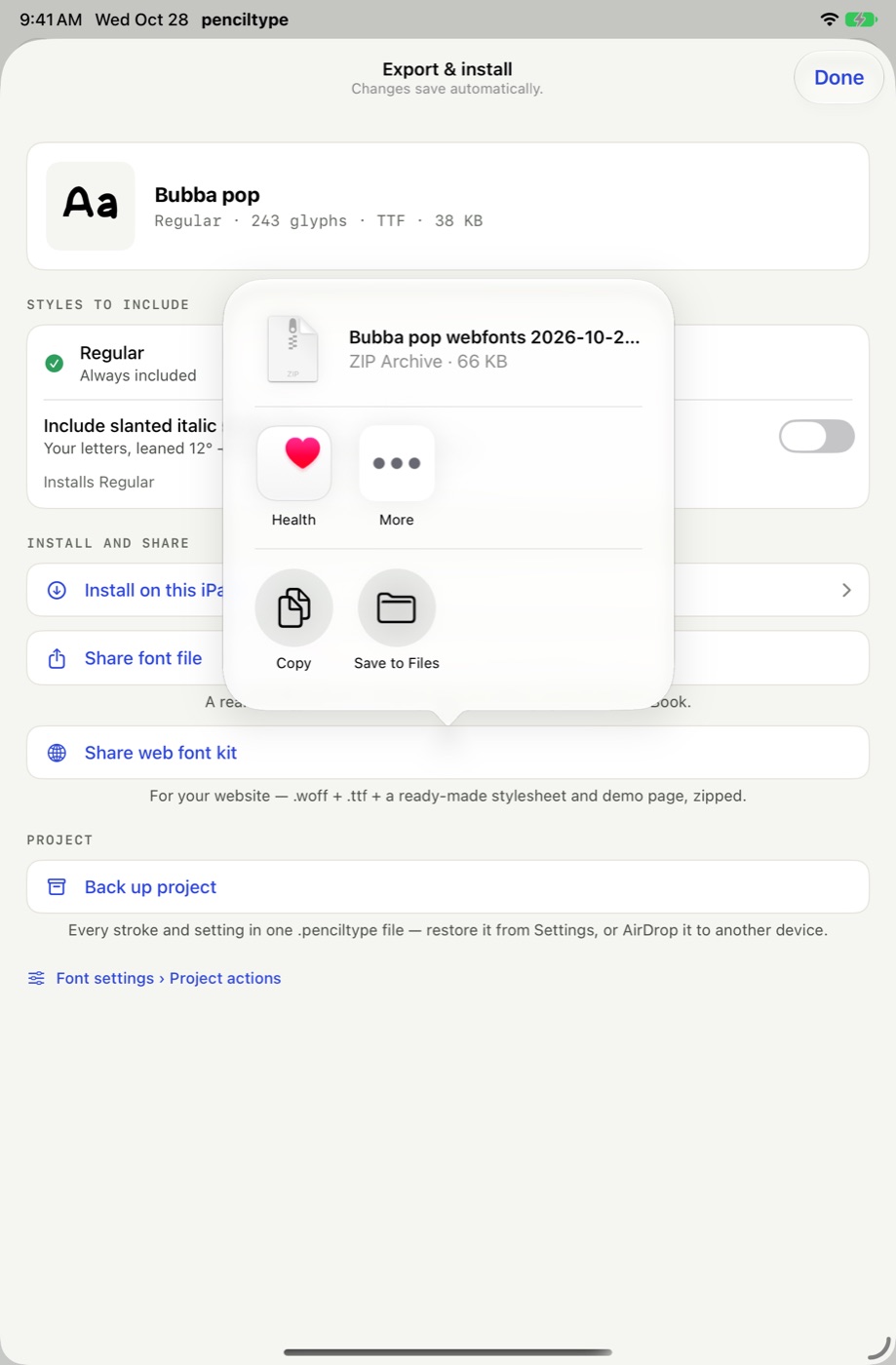
The zip, named like Bubba pop webfonts 2026-10-28 0256.zip (66 KB for this font), holds:
- a folder for the font with Bubba pop.woff and Bubba pop.ttf (plus the Italic pair, if included),
- a stylesheet.css in that folder, with an
@font-facefor each style, - an index.html demo page.
Open index.html in a browser to see the kit at work: Your penciltype fonts, a card for the font with a pangram and the digits set in it (and an italic line if there is one), and a box where you can Type anything in the font. To use the font on your site, copy its folder next to your HTML, link its stylesheet, and use the family name in your CSS:
<link rel="stylesheet" href="Bubba pop/stylesheet.css">
body { font-family: "Bubba pop"; }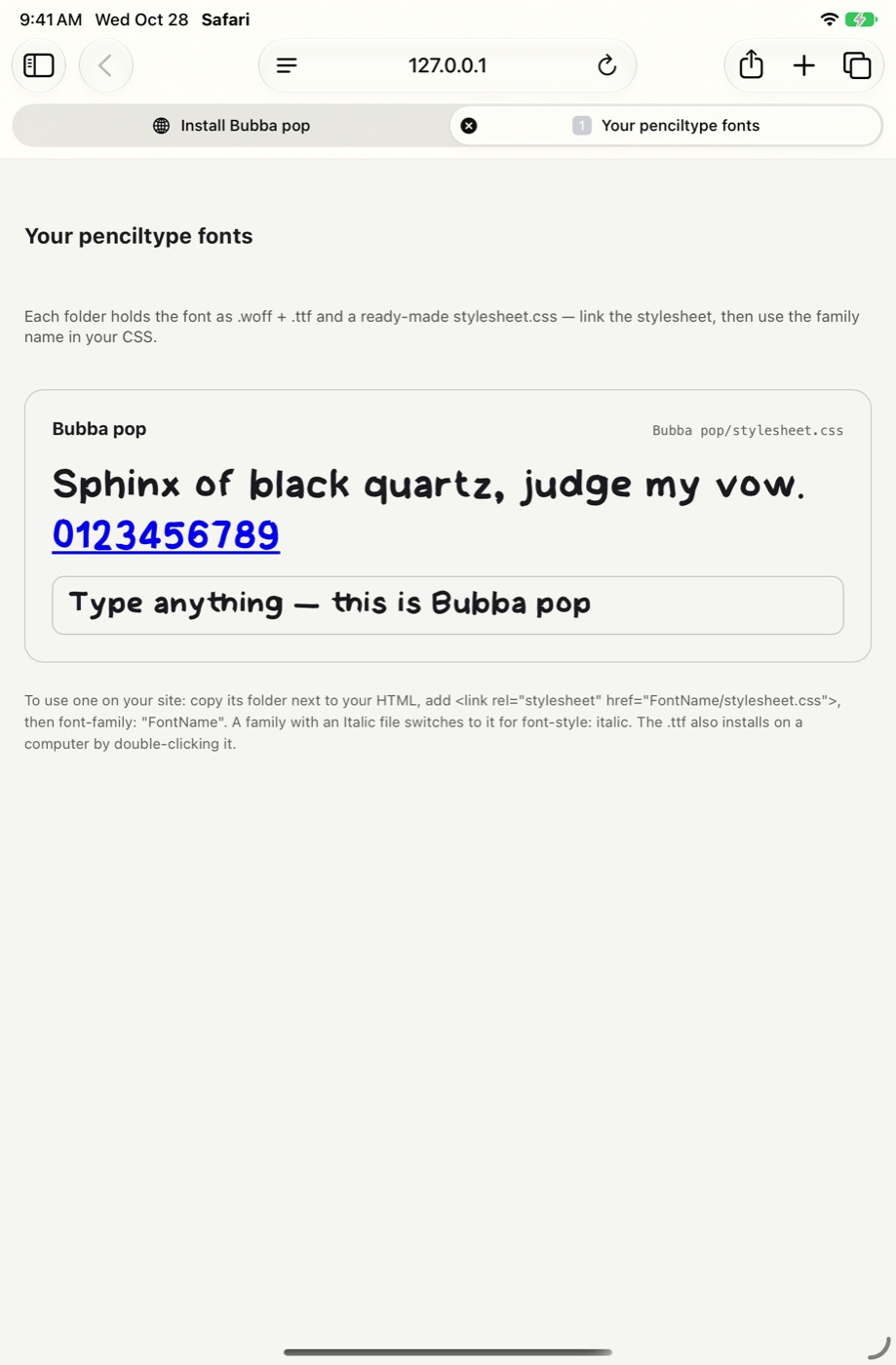
Building a new export (turning on the italic, say) makes the old kit stale, so the row goes back to Web font kit and builds afresh.
Project
Back up project hands the whole project, every stroke and setting, to the share sheet as one .penciltype file. Restore it from Settings, or AirDrop it to another device and open it there. (Font settings has the same action, which saves to Files instead.)
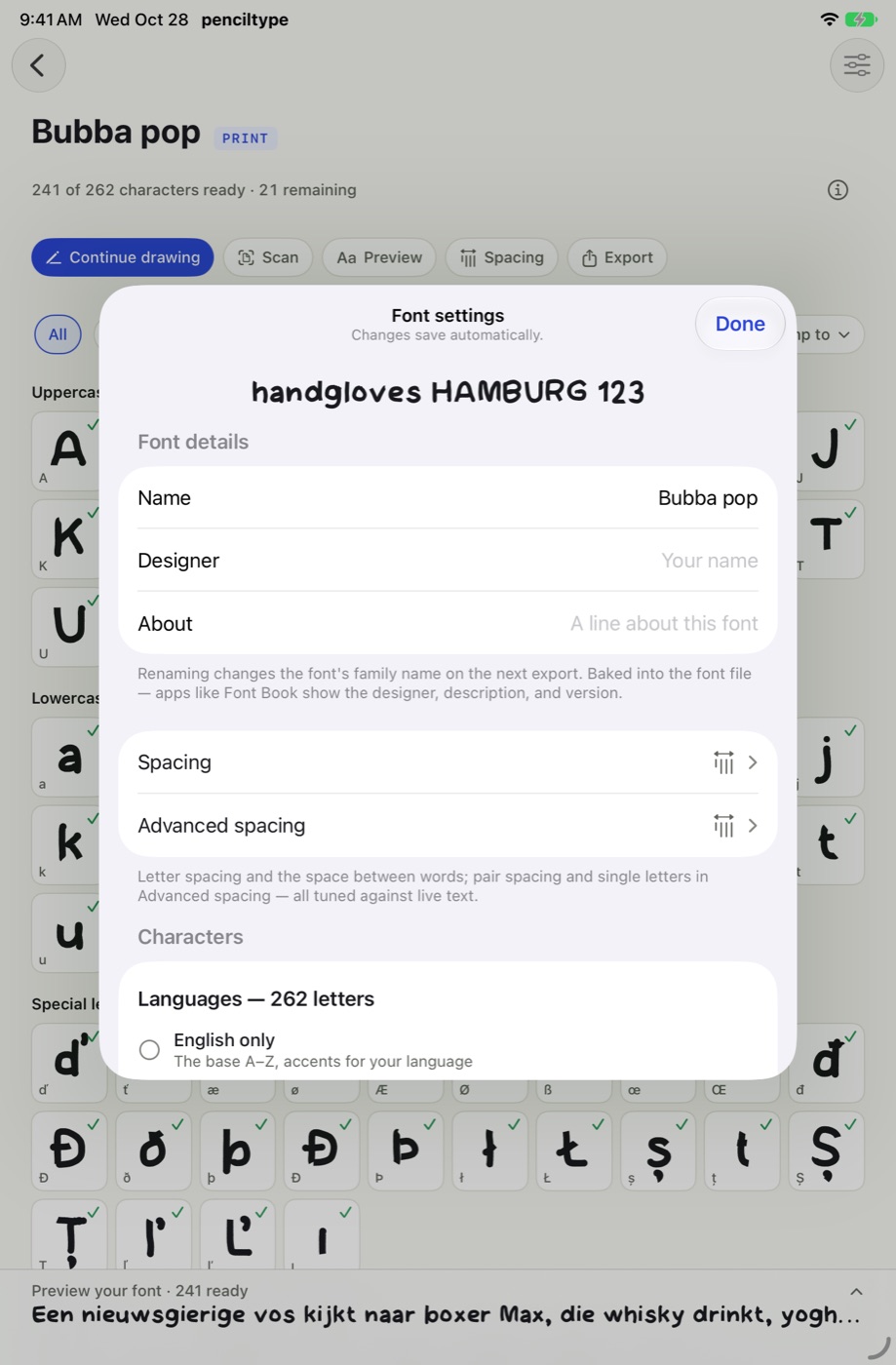
Font settings › Project actions closes Export & install and opens Font settings over the grid, for duplicating, filling, backing up or deleting the font.
Updating and removing an installed font
An installed font is a copy: it doesn't follow your later edits. After you change letters or spacing, open Export & install and install again (“After editing, export and install again to update your installed copy.”). The new install replaces the old one under the same name, rather than adding a second font. If you've renamed the font, it installs as a new family.
To remove an installed font:
- On iPhone and iPad, open the Settings app, go to General › VPN & Device Management, tap the font's profile (“Bubba pop — penciltype font”) and tap Remove Profile. Deleting the font in penciltype doesn't remove it; the delete alert reminds you of this.
- On a Mac, deleting the font in penciltype also removes the copy it installed directly.