Basic
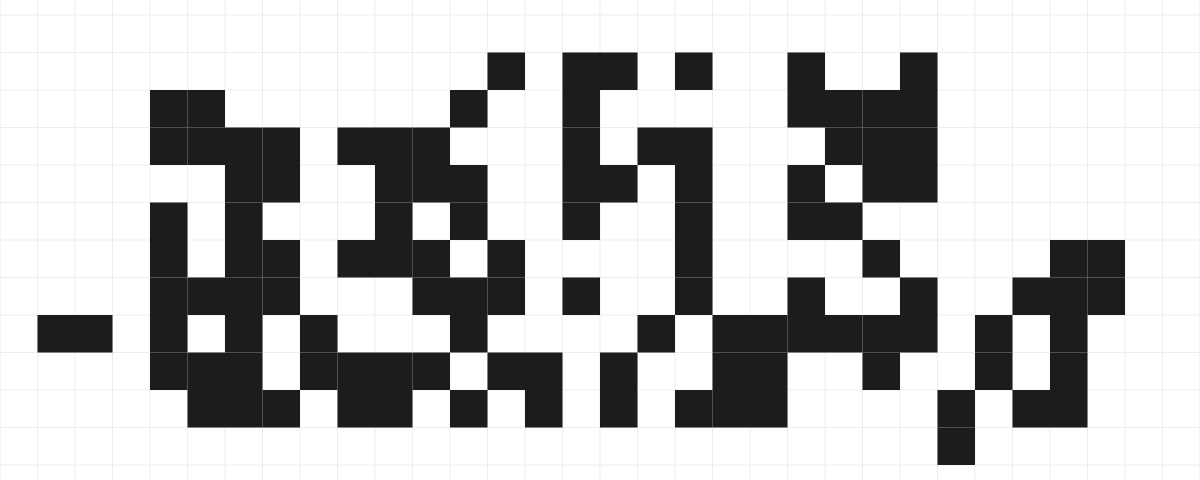
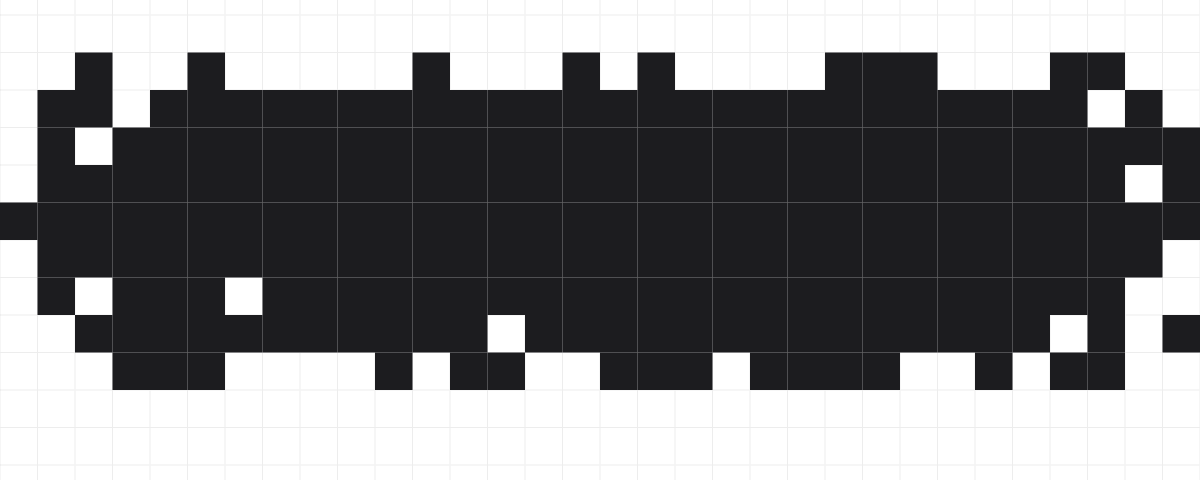
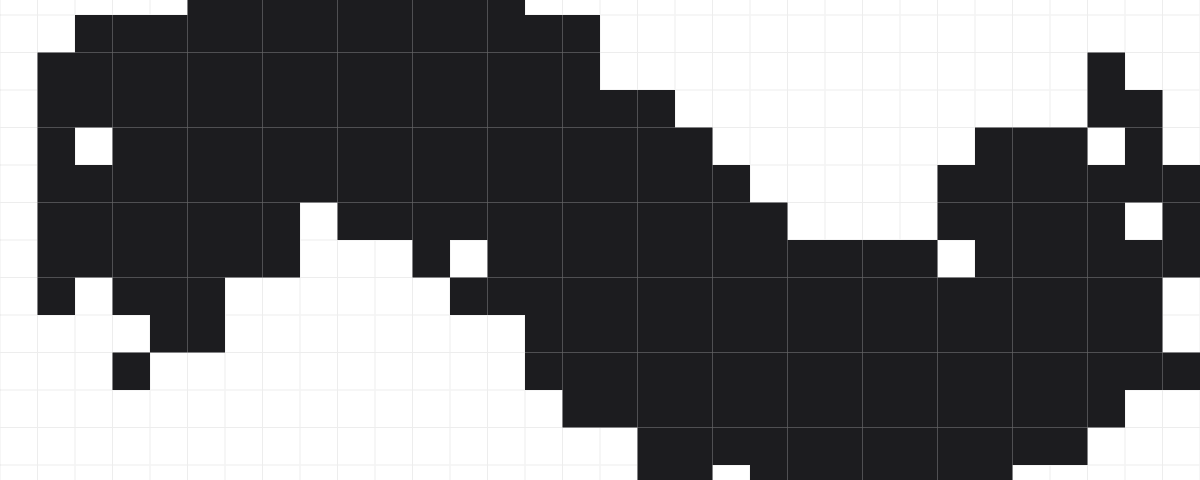
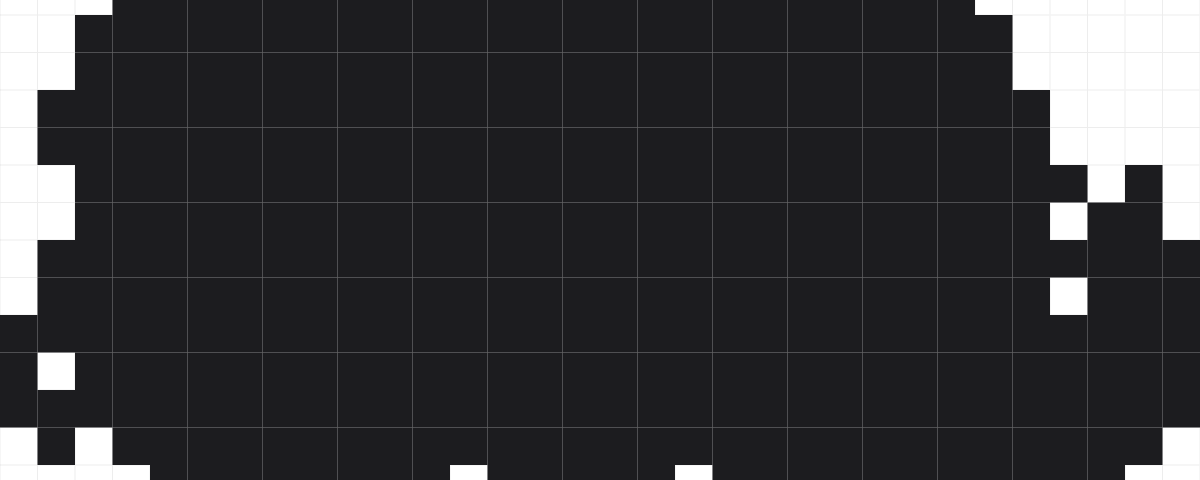
The plain pixel stamps: solid squares, a 50% dither checker, a fixed random dot field and a spray can.
How these brushes work
- Pixel brushes
- For pixel fonts, drawn on a grid of cells spanning the em. A drag stamps a square of Size × Size cells every half cell along its path; each mode then shapes the stamp, filters it through a pattern fixed to the grid, shears its rows, or adds copies, growth or wear. Cells are stored as they are painted, so randomness is baked in; erasing keeps the fixed patterns (dither, scanlines, stipple, hatches, tiles, crackle, weighted) and erases a plain square for the rest.
The brushes
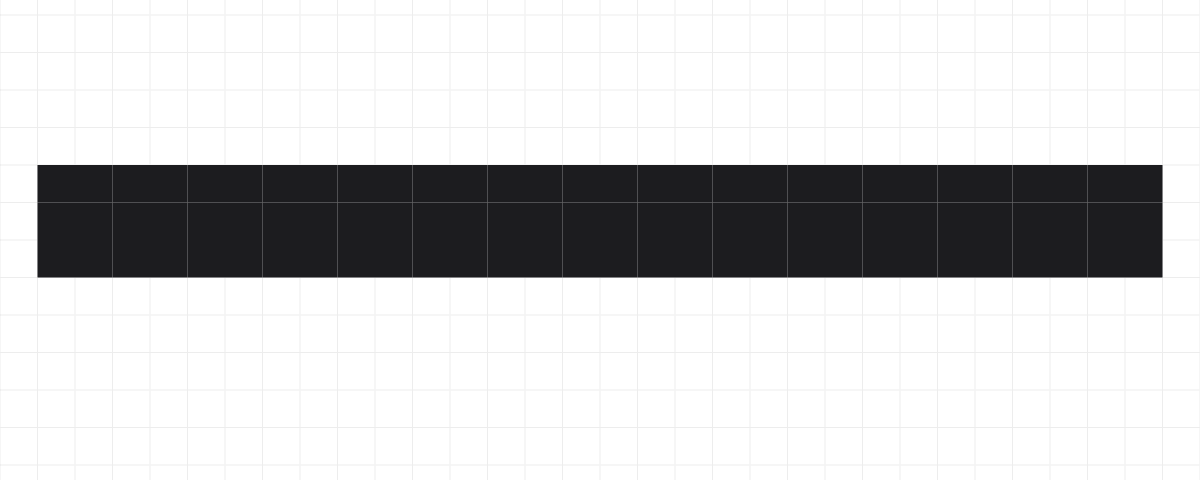
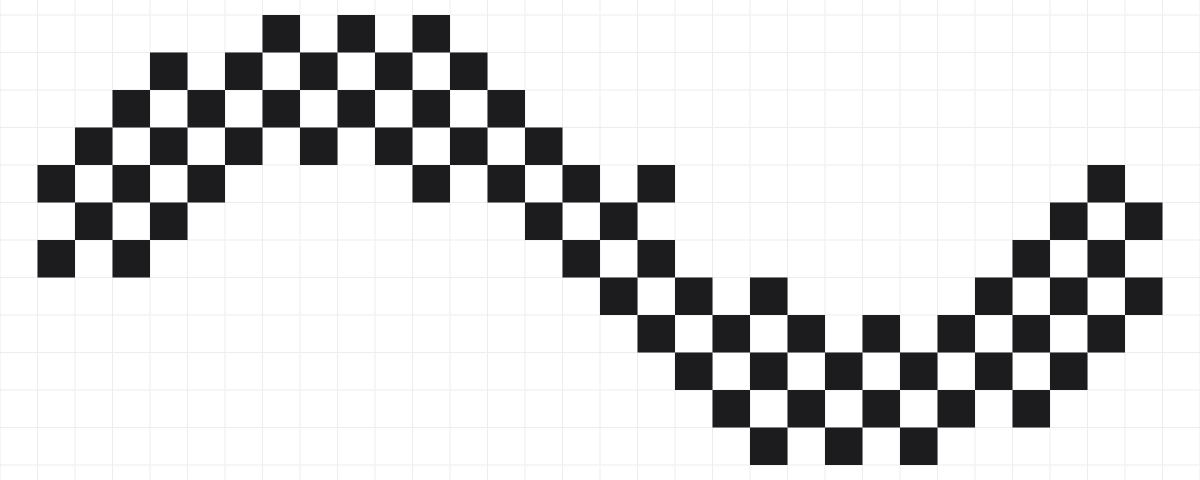
Paints every cell of a square stamp, Size × Size cells, centred on your touch. A drag stamps every half cell along its path, so even a fast stroke never leaves gaps. Erasing with it clears a plain square.
Reads: nothing but where you draw
With a finger: Works the same with a finger, an Apple Pencil or a mouse: pixel brushes never read pressure or tilt, only where you drag.
No settings of its own beyond size.
Tips
- Size 1 draws single-pixel lines for classic bitmap fonts; raise Size for bolder stems.
- Use the Fill tool to flood an enclosed counter instead of scribbling it in.
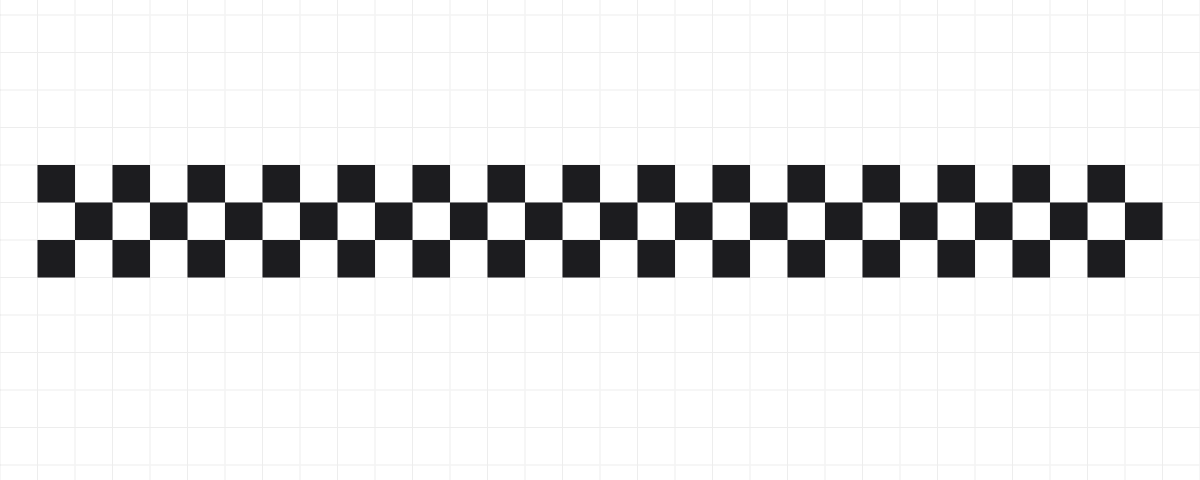
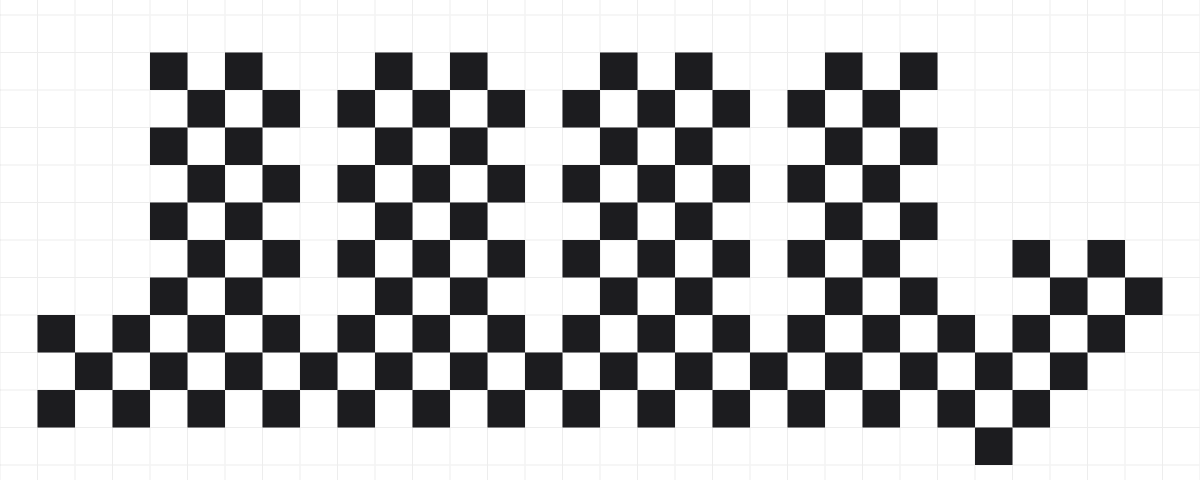
Keeps only the cells of a checkerboard that covers the whole grid (cells where x + y is even), so any area you paint becomes 50% shading and strokes that meet share one checker. Erasing with it clears only its own pattern.
Reads: nothing but where you draw
With a finger: Works the same with a finger, an Apple Pencil or a mouse: pixel brushes never read pressure or tilt, only where you drag.
No settings of its own beyond size.
Tips
- At Size 1 a stroke is dotted, because only every other cell can be inked; use Size 2 or more for solid-reading shading.
- Paint dither over solid areas' edges for retro shading; erase in dither to thin a solid fill to 50%.
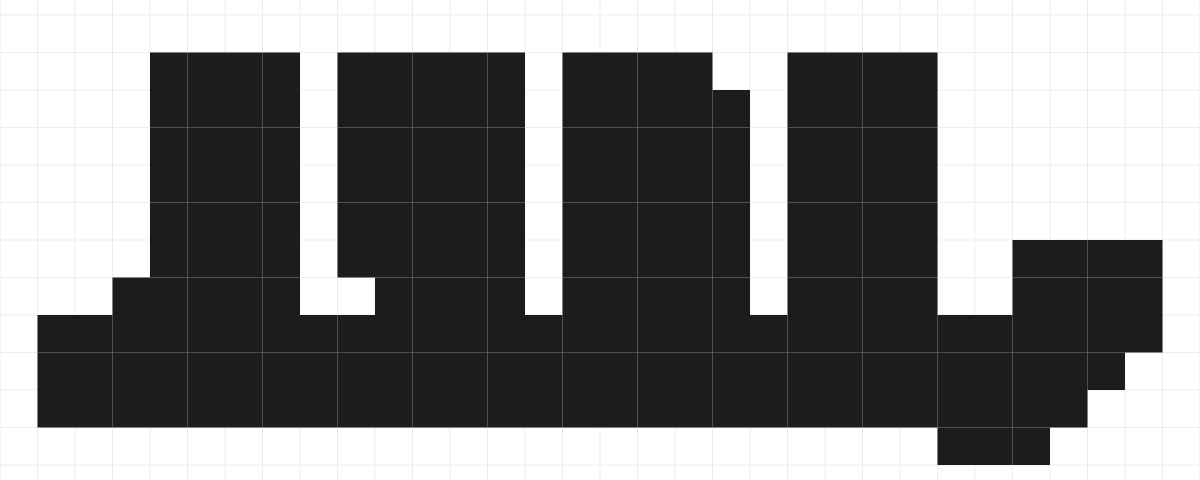
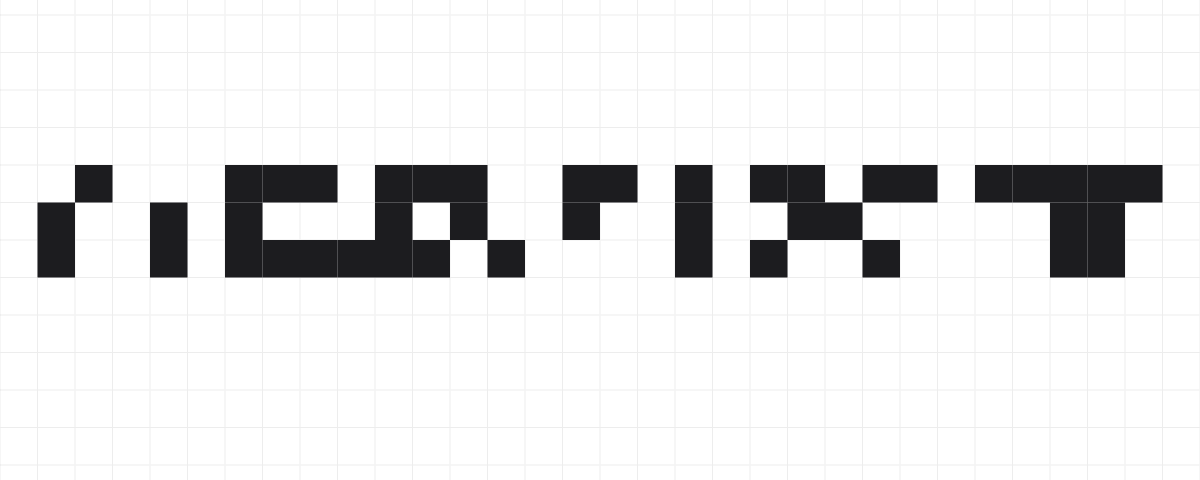
Keeps each cell of the stamp only if a fixed per-cell value falls under Dot density (50%), so painted areas break into a stable random dot field. The field belongs to the grid: painting over an area again never changes it, and lower densities break apart more. Erasing with it clears only its own pattern.
Reads: nothing but where you draw
With a finger: Works the same with a finger, an Apple Pencil or a mouse: pixel brushes never read pressure or tilt, only where you drag.
| Setting | Range | Factory | What it does |
|---|
| Dot density Options page · pen bar: Density | 5% – 100% (Sparse … Dense) | 50% | Share of cells that get painted. Also a chip on the bottom bar (“Density”). |
Tips
- Use different densities on neighbouring areas for tonal shading.
- Erasing in stipple thins existing solid ink into the same dot field.
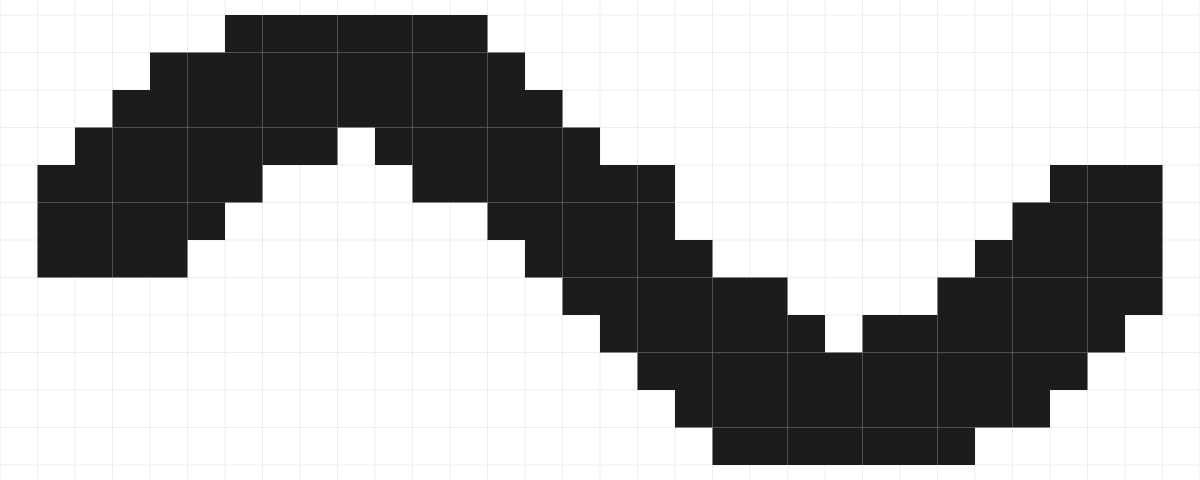
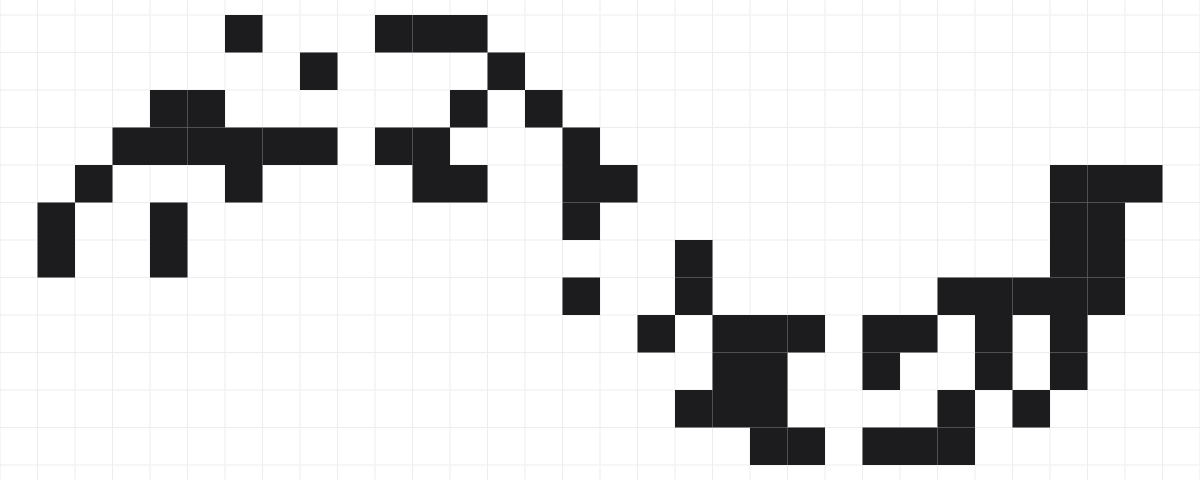
Scatters cells over a disc reaching Size + 1 cells around your touch; every stamp rolls each cell with a 13% chance (× Spray density, at most 95%), so density builds the longer you dwell or the more you go over an area, like a real can. The pattern is seeded per stroke and stored as plain cells, so it never changes later. Erasing with it clears a plain square.
Reads: nothing but where you draw
With a finger: Works the same with a finger, an Apple Pencil or a mouse: pixel brushes never read pressure or tilt, only where you drag.
| Setting | Range | Factory | What it does |
|---|
| Spray density Options page · pen bar: Density | 0.2× – 3.0× (Sparse … Dense) | 1.0× | Multiplies each cell's chance per stamp. Also a chip on the bottom bar (“Density”). |
Tips
- Hold still to build a dense spot; sweep quickly for a light mist.
- The disc is wider than the stamp (Size + 1 cells in radius); leave room around letters.