Artwork and shapes
Draw a bowl once and reuse it in b, d, p and q; bring a drawing in from paper or another app; give a brush a shape of its own. This chapter covers saved shapes, importing artwork, and the piece pad in Brush Studio.
Saved shapes and imported artwork are for vector fonts; pixel fonts don't have them.
Saved shapes
Any piece you've placed on a canvas — a stroke, a shape, a path, a fill or artwork — can be saved and placed again in any letter of the same font.
Saving a shape
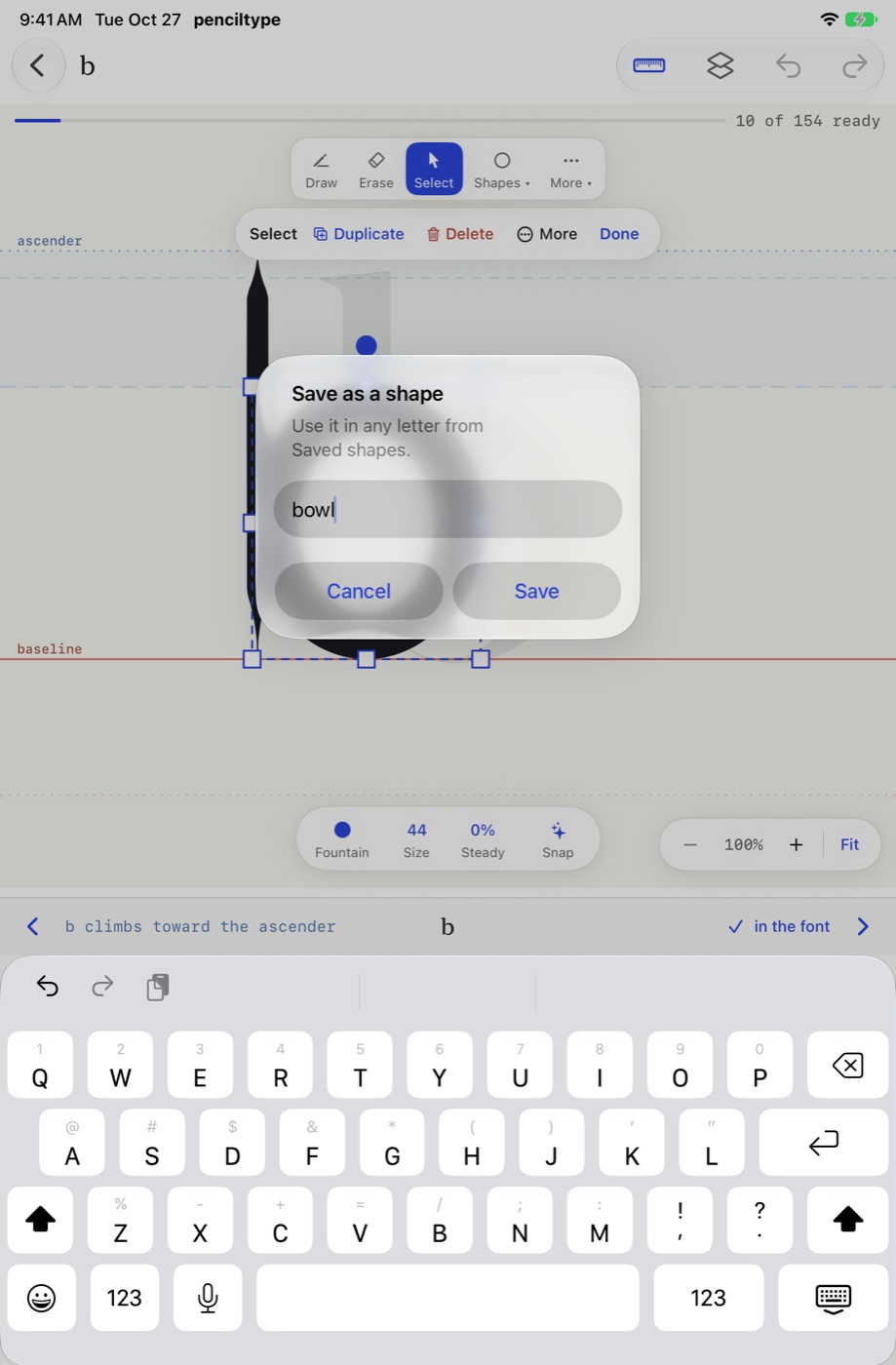
- Pick Select and tap the piece.
- In the selection bar, tap More › Save as shape….
- Give it a name (bowl, stem…) and tap Save. Left blank, it is saved as shape.
You can also open More ▾ › Saved shapes… with a piece selected and tap Save selected shape.
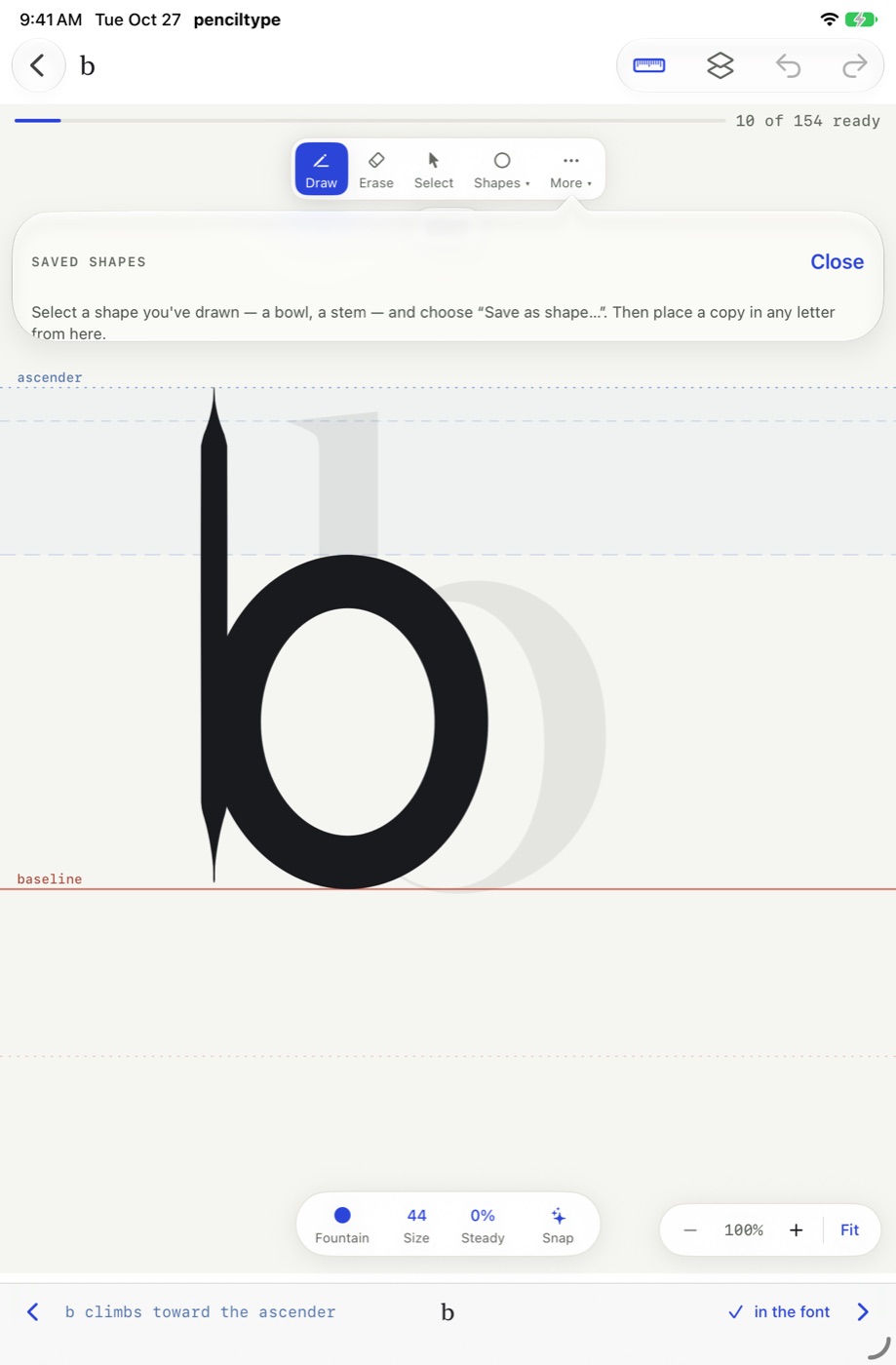
Placing a saved shape
Open More ▾ › Saved shapes… and tap a tile. A copy lands on this canvas, selected and with Select active, ready to move, scale or rotate.
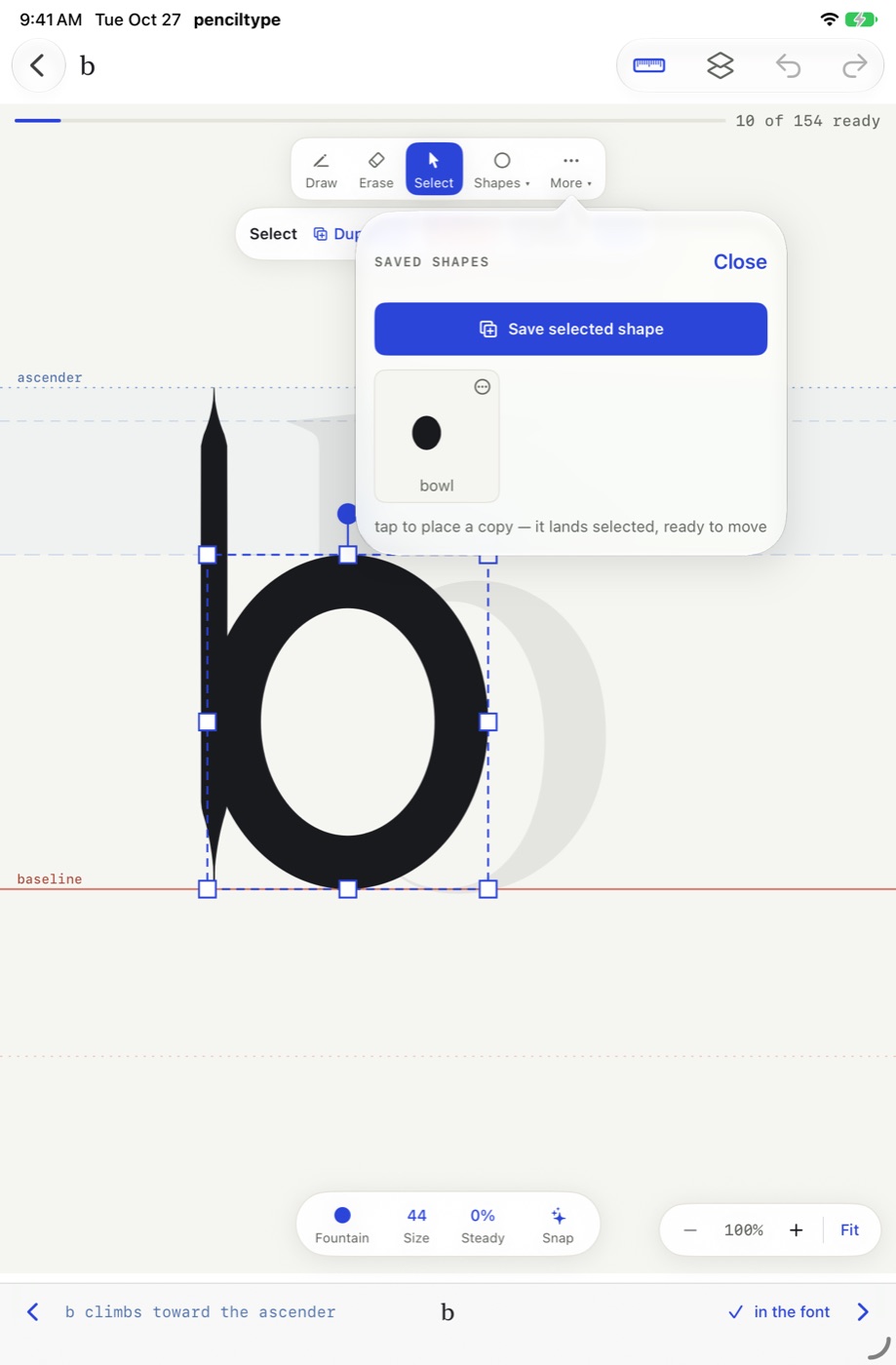
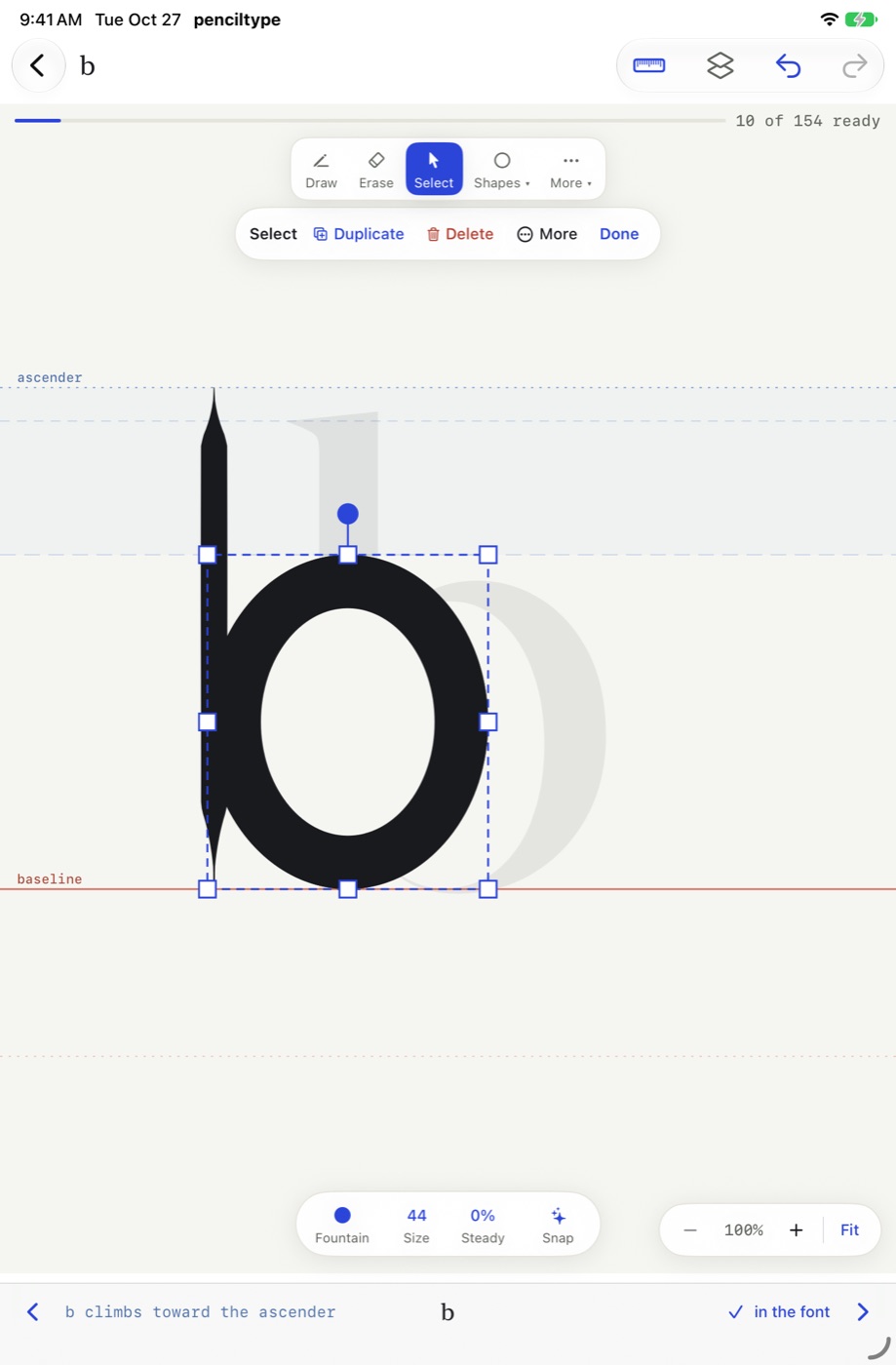
Saved shapes belong to the font. Artwork you import is saved here too, unless you turn that off in the trace sheet.
On iPad and Mac Saved shapes is a popover under More; on iPhone it opens as a sheet with a Close button.
Renaming and removing saved shapes
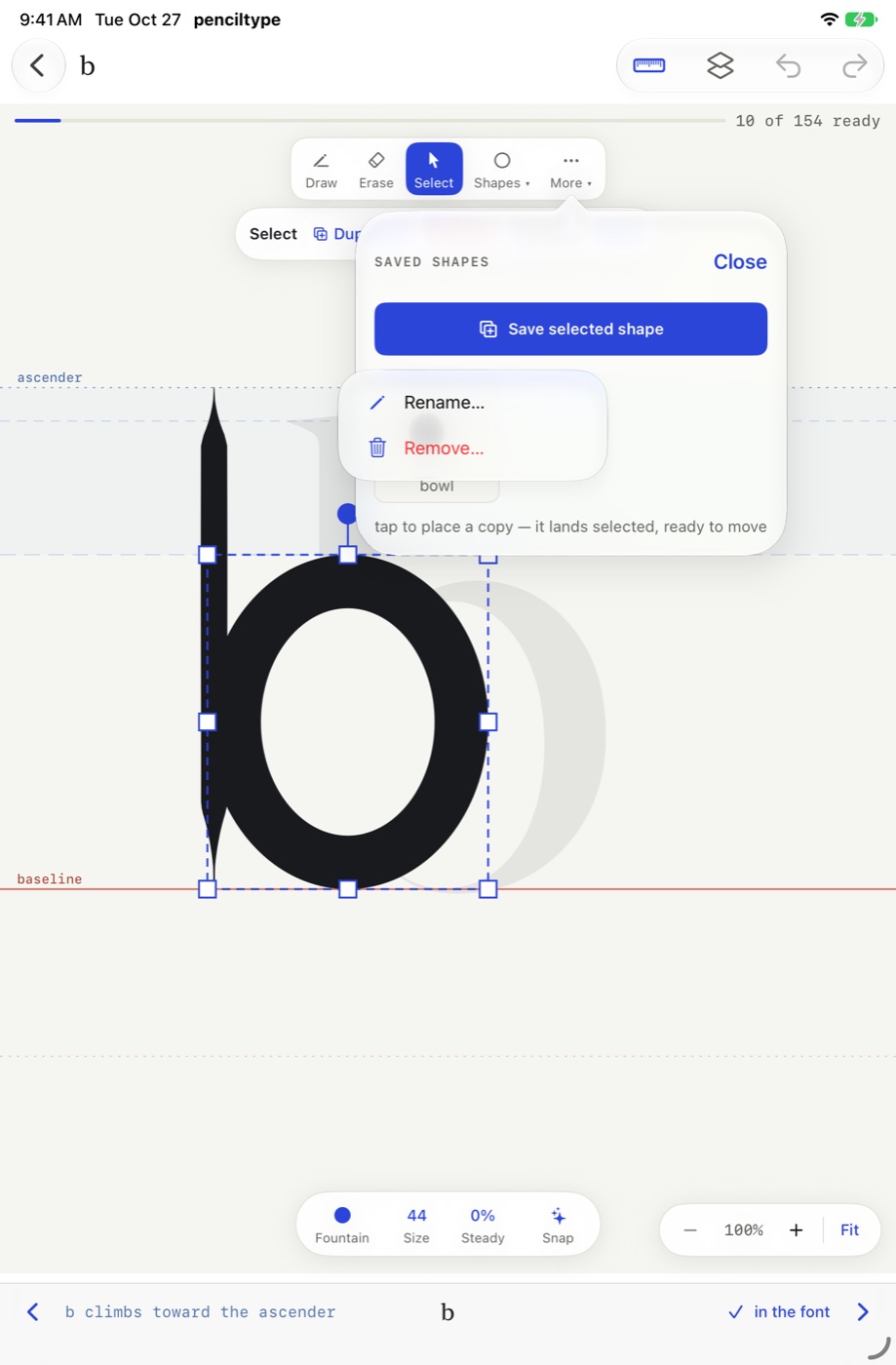
Each tile has a ⋯ menu in its corner with Rename… and Remove….
- Rename… asks for the new name: Rename saves it, Cancel keeps the old one.
- Remove… asks first — Remove “bowl” from Saved shapes? Letters that already use it keep their copy. — then Remove takes it out of the list.
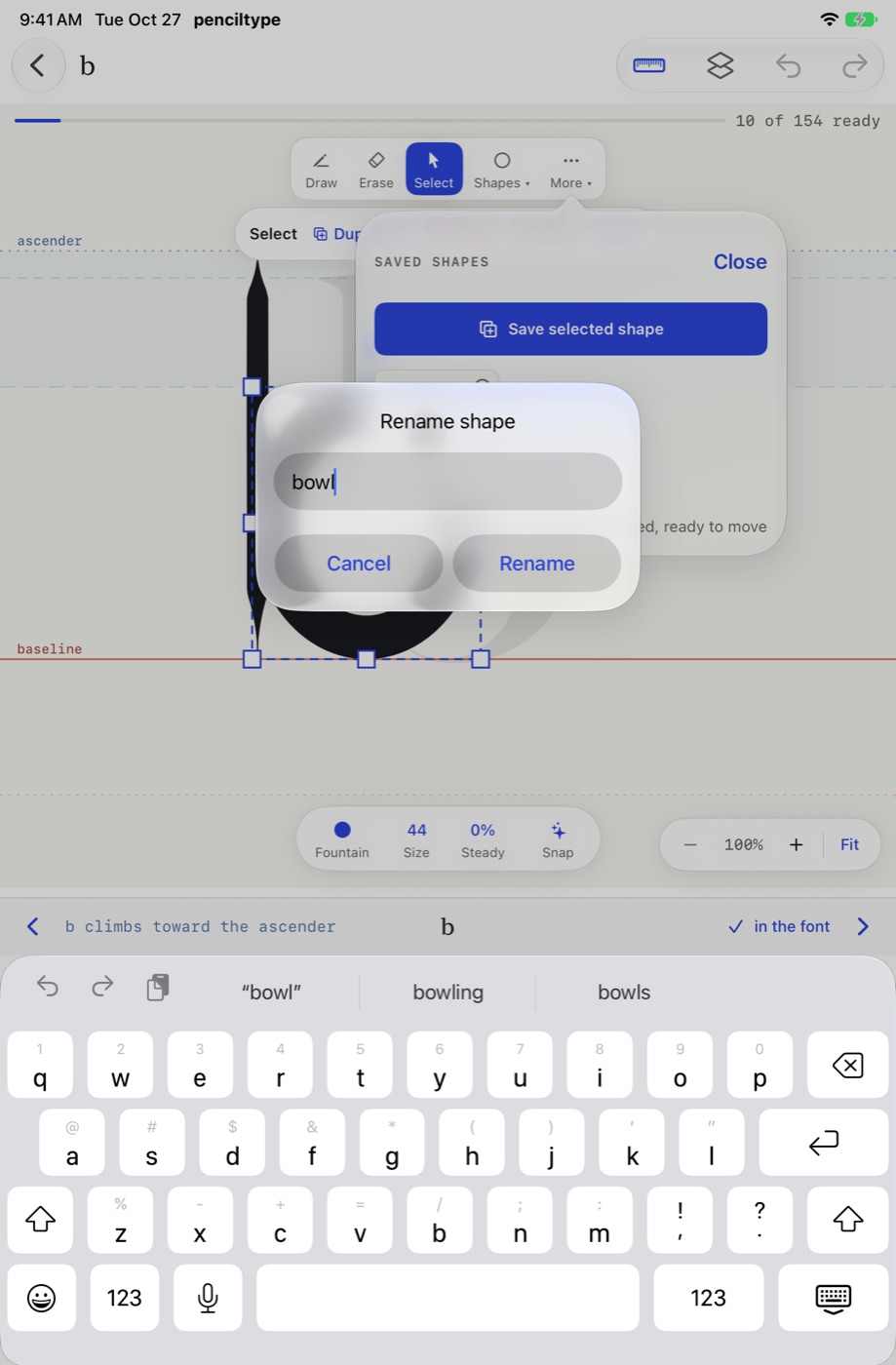
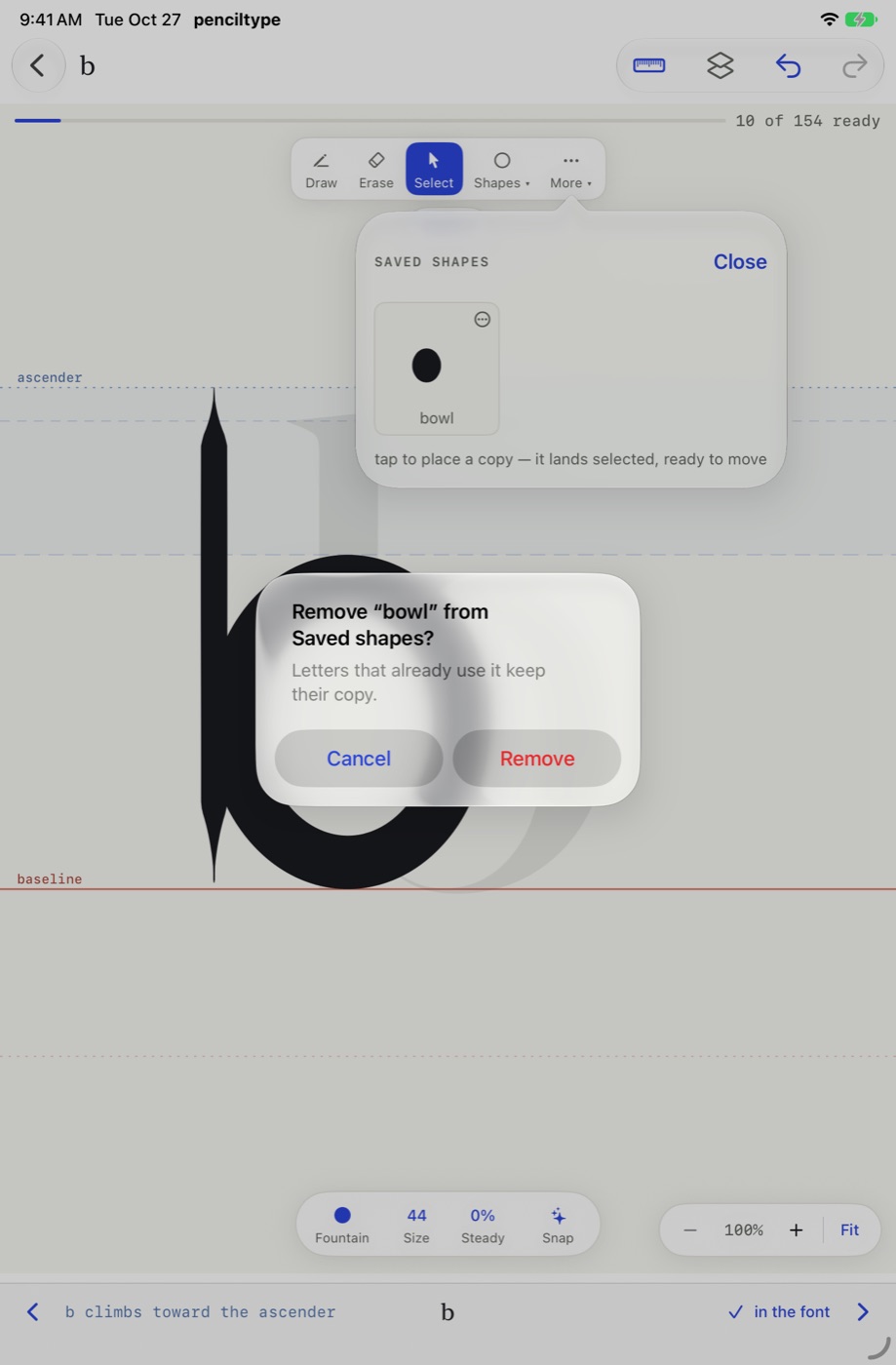
Only pieces already placed on the canvas can be saved. In the rare case that saving fails, penciltype says Couldn't save that shape — Select a committed piece first — a stroke or shape already placed on the canvas.
Importing artwork
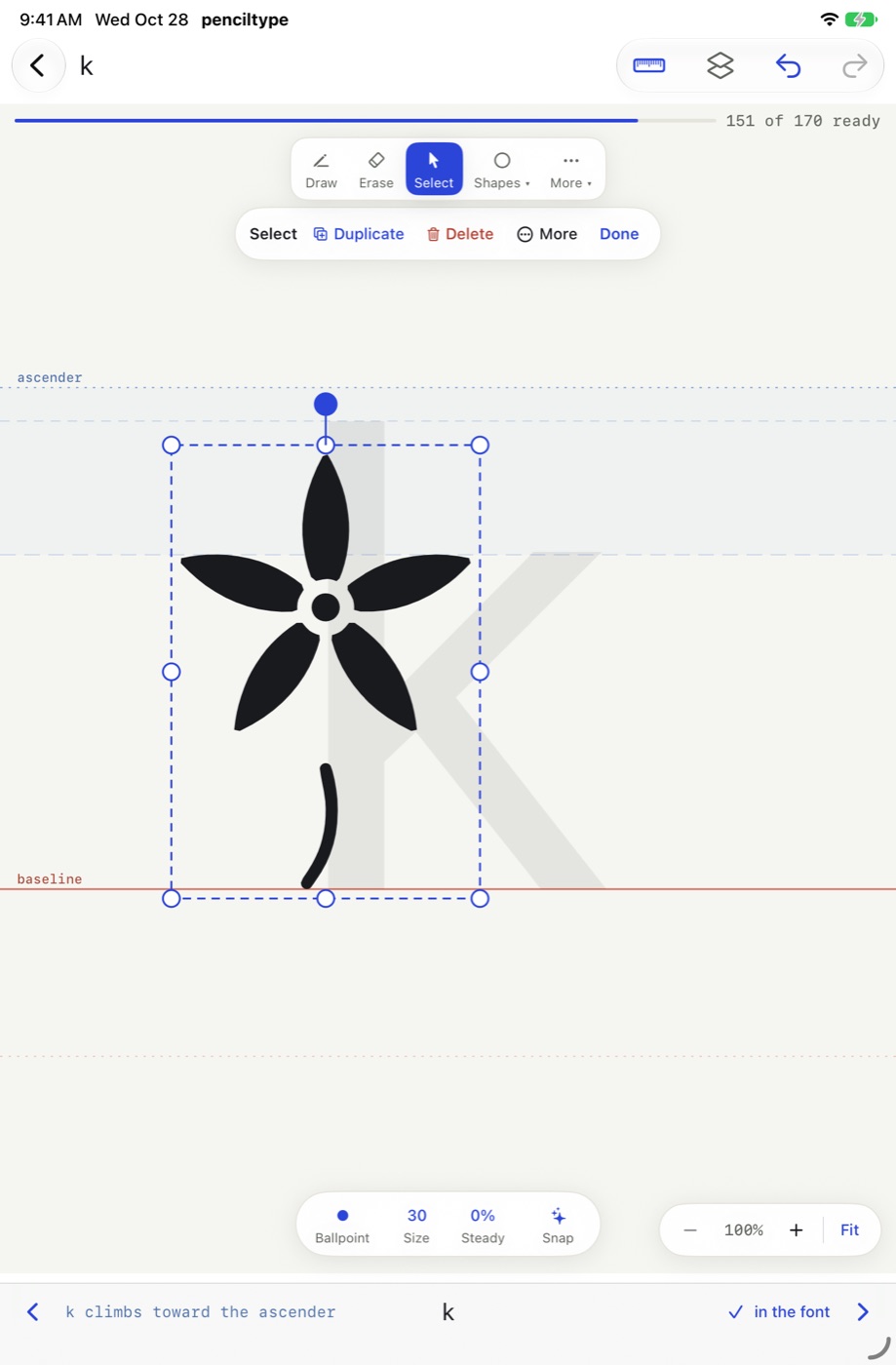
You can bring in a drawing from paper or another app and place it on a letter: a photo, a picture from your library, or an SVG, PDF or image file. penciltype traces it into clean outlines first, so it scales and exports like everything else.
- Tap More ▾ › Import artwork….
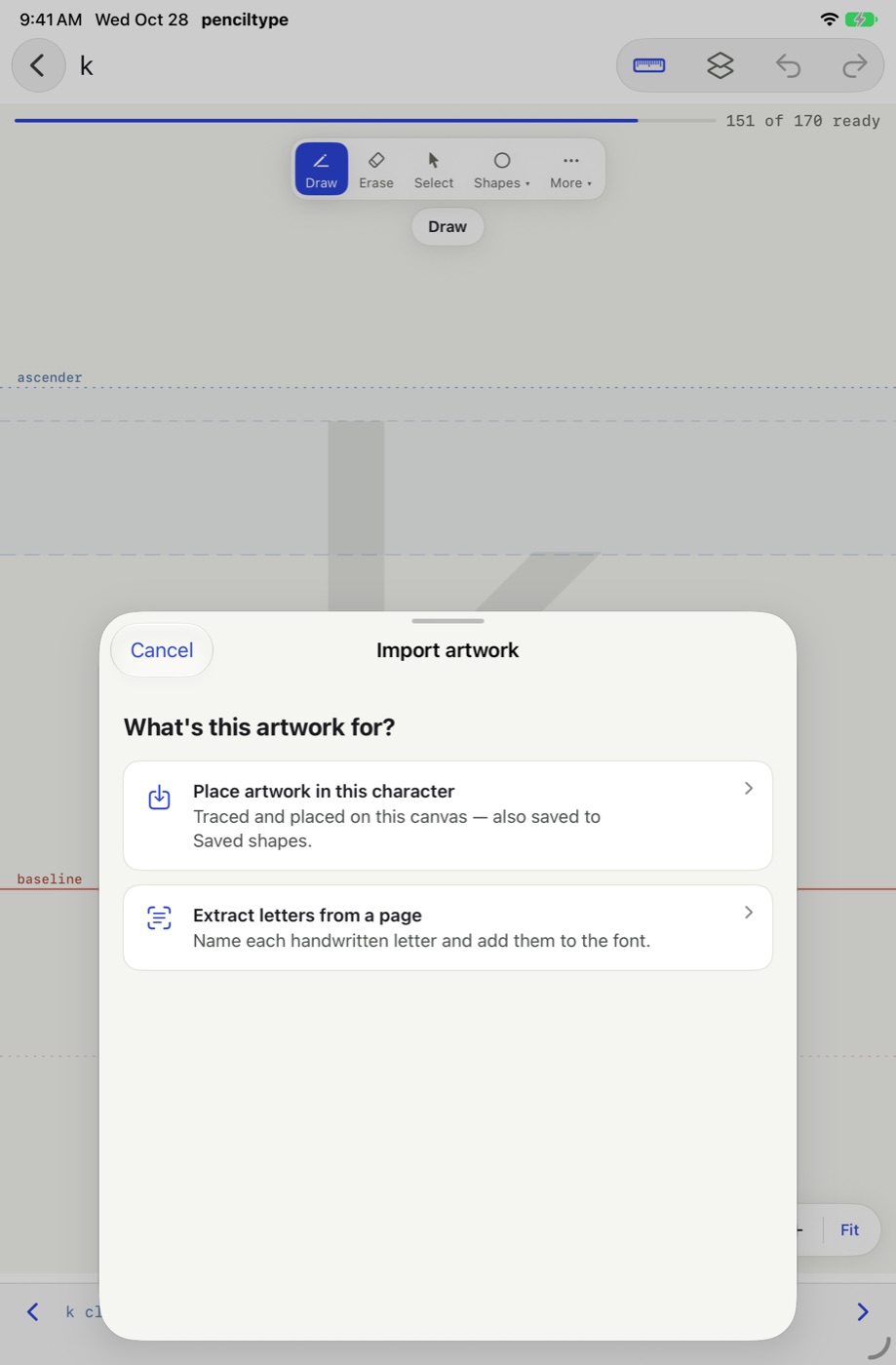
- Choose what the artwork is for:
- Place artwork in this character — traced and placed on this canvas, and also saved to Saved shapes.
- Extract letters from a page — name each handwritten letter on a page and add them all to the font. This opens the free-scan naming screen; see Free scan.
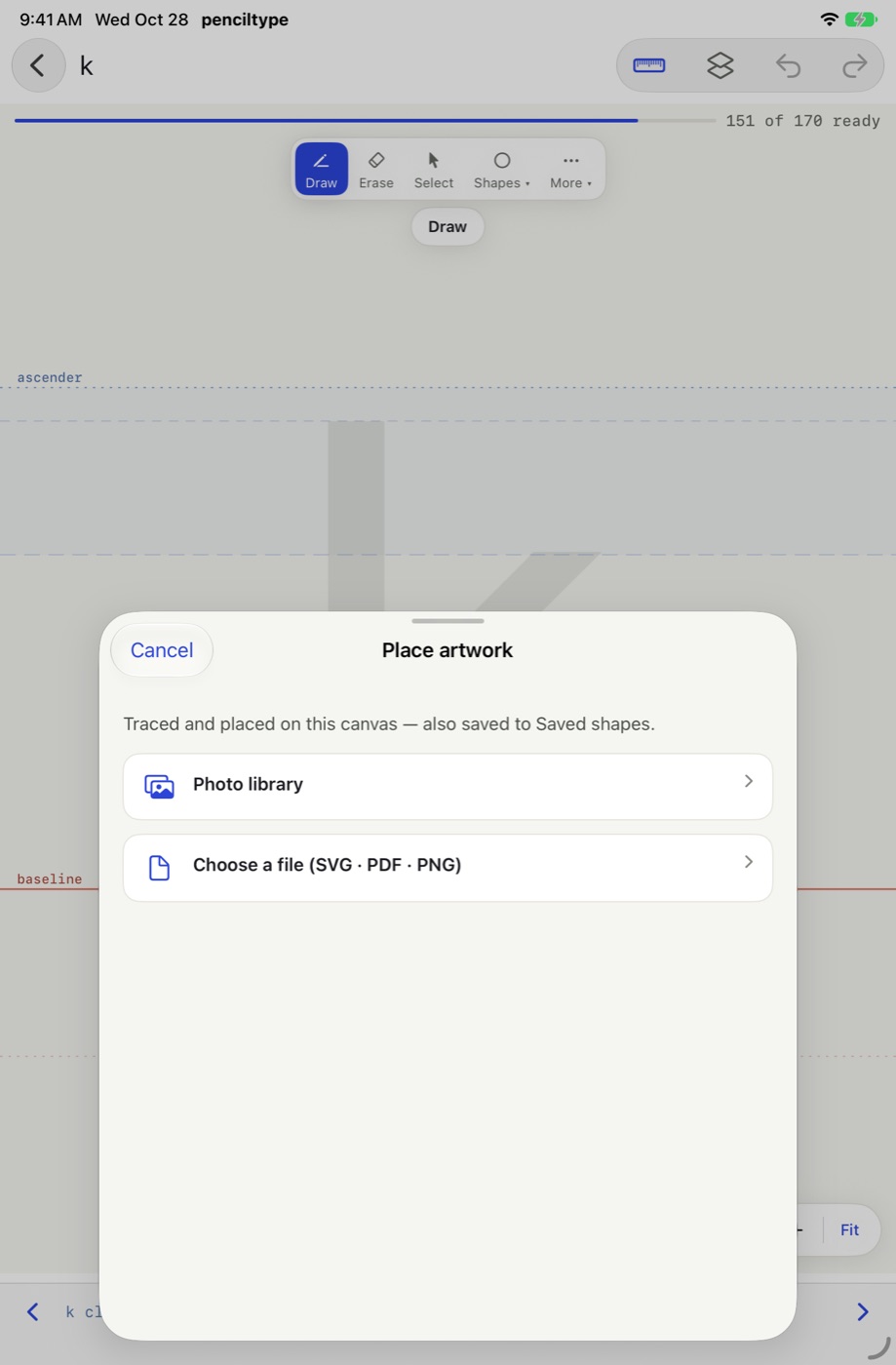
- For Place artwork, pick a source:
- Take a photo — opens the camera (only on a device that has one).
- Photo library — the system photo picker.
- Choose a file (SVG · PDF · PNG) — the system file browser. The file's name becomes the artwork's name.
- Tune the trace and tap Place (next section).
Cancel, or swiping the sheet down, closes it without importing anything.
Taking a photo
Take a photo opens a full-screen camera (always dark) titled Take a photo. Point it at your drawing and tap the shutter; the shot is straightened and goes on to the trace sheet like any picture. The photo button beside the shutter picks a library photo instead, and Cancel closes the camera.
If the camera can't be used, the viewfinder is replaced by a message saying why — Camera access is off — allow it in Settings, or choose a photo, or that it was interrupted, stopped working, isn't ready yet, or that the shot didn't come out — with Choose a photo, and Open Settings or Try again where they help.
While it loads
A large picture takes a moment to read; Reading artwork… shows over the canvas meanwhile. If the picture or file can't be read, an alert says Import didn't work — Couldn't load that photo or Couldn't read that file — and OK closes it.
The trace sheet
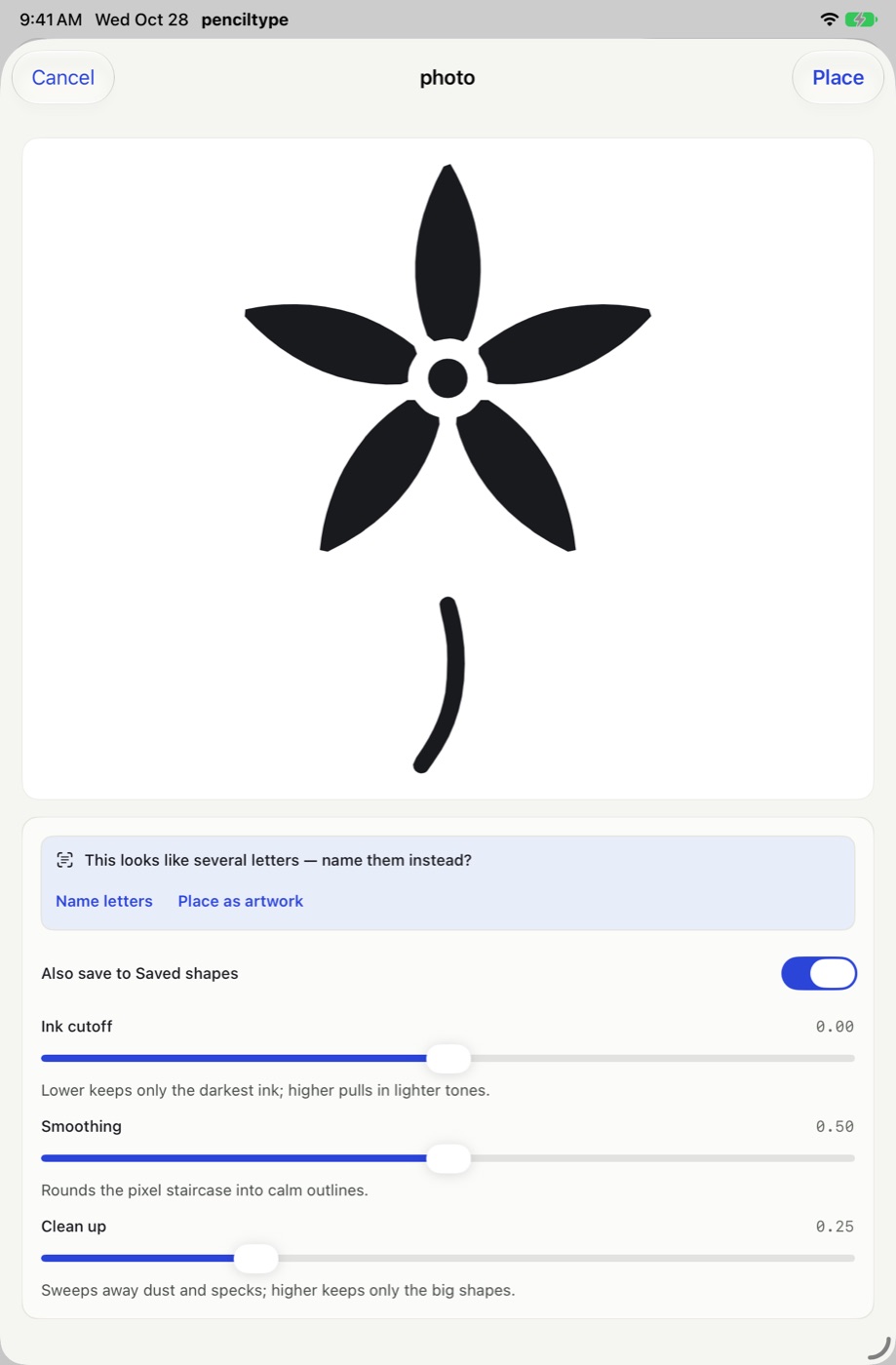
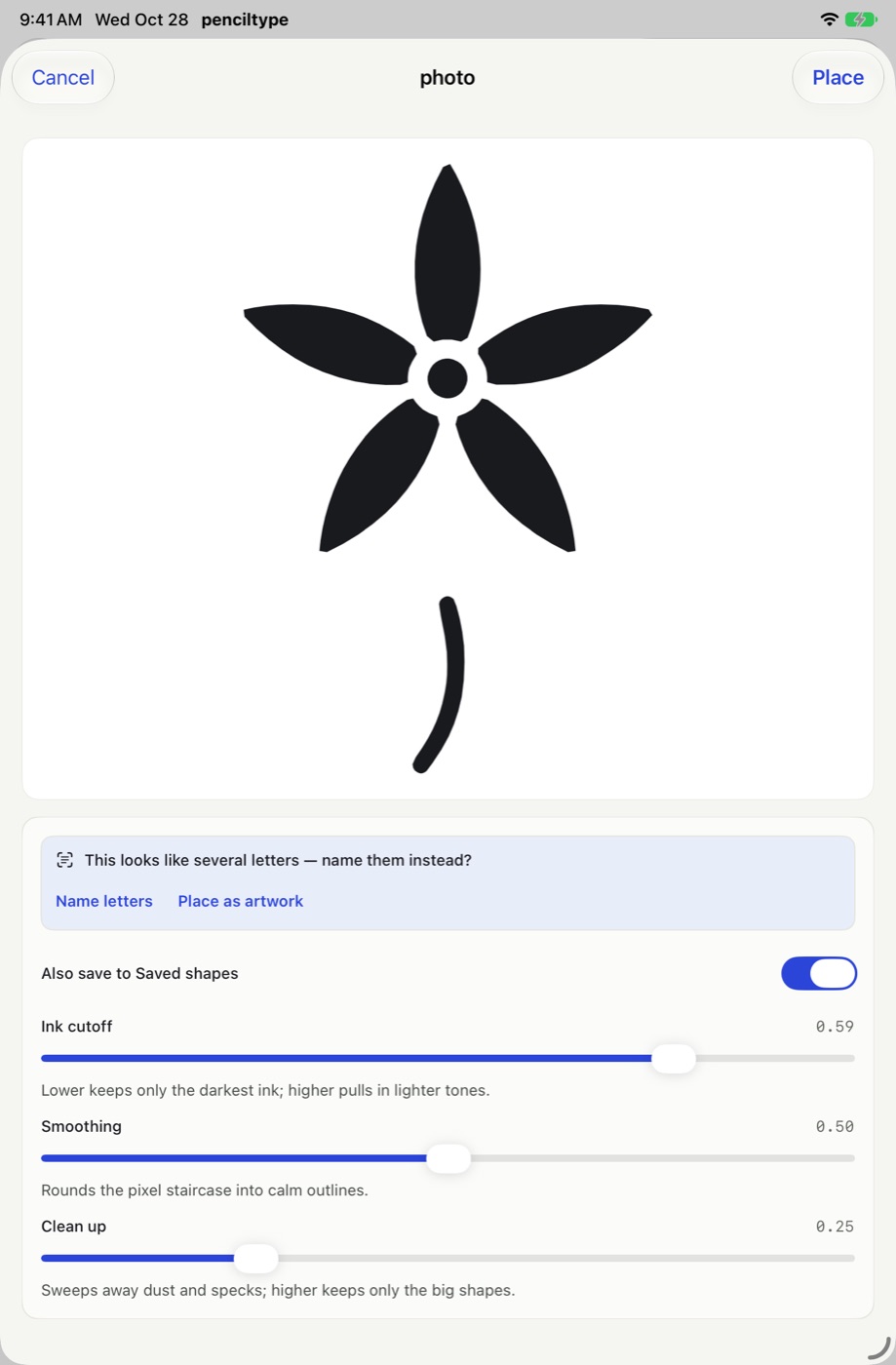
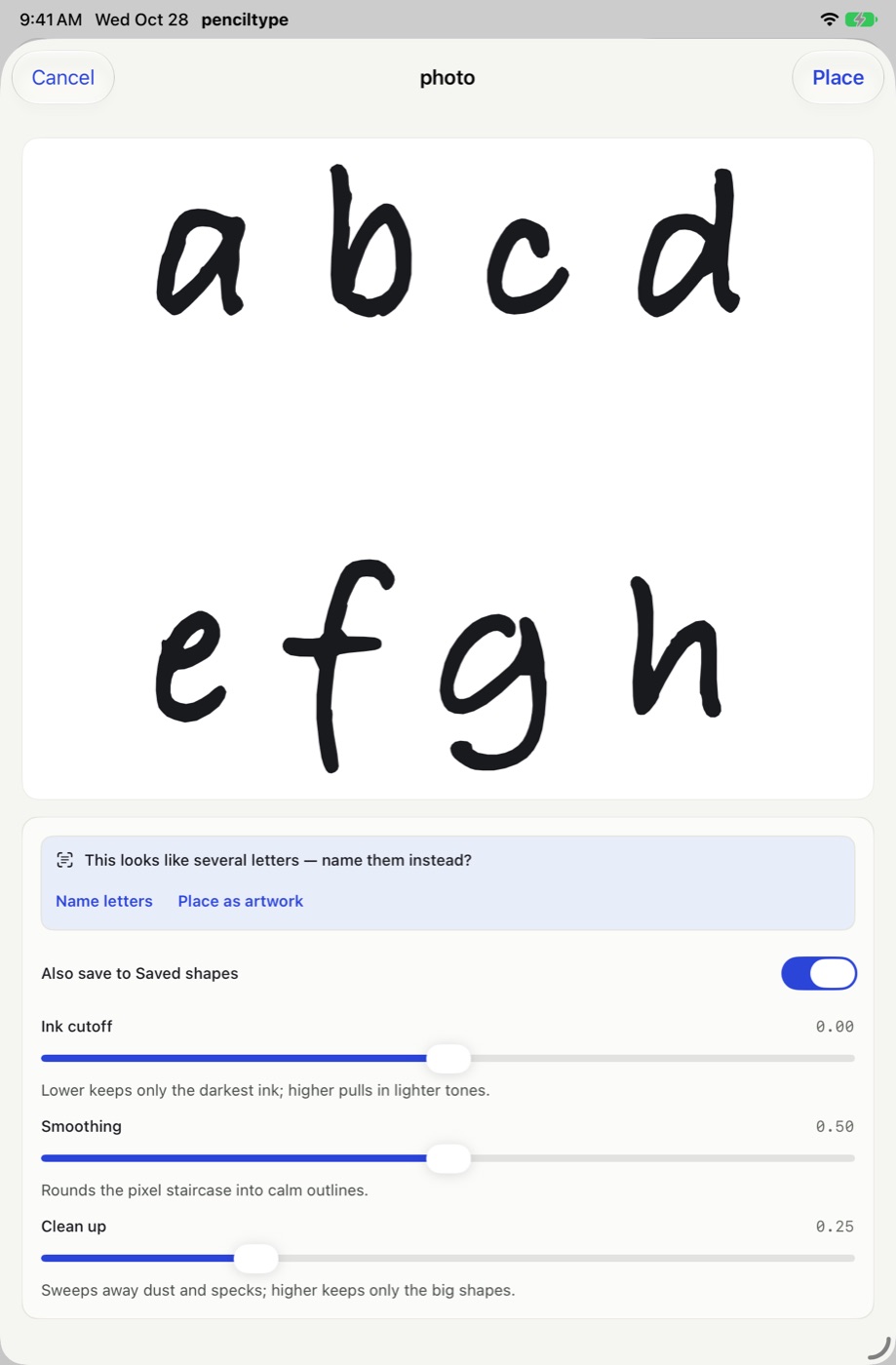
Before artwork lands on the canvas, the trace sheet shows it traced into outlines, and redraws the trace live as you move its three dials:
- Ink cutoff
- Lower keeps only the darkest ink; higher pulls in lighter tones.
- Smoothing
- Rounds the pixel staircase into calm outlines.
- Clean up
- Sweeps away dust and specks; higher keeps only the big shapes.
Each dial shows its value. Also save to Saved shapes (on at first) keeps a copy for other letters. Place puts the traced outline on the canvas, selected with Select active so you can move and size it; Cancel drops the import. If nothing is traced, the sheet says Nothing traced — pull the ink cutoff up, or ease the clean-up and Place is dimmed.
If the picture looks like a page of several letters, the sheet offers This looks like several letters — name them instead? Name letters sends it to the naming screen, where each letter is added to the font (see Free scan); Place as artwork hides the suggestion. From the naming screen, Place as artwork instead comes back to this canvas.
Cropping a brush stamp
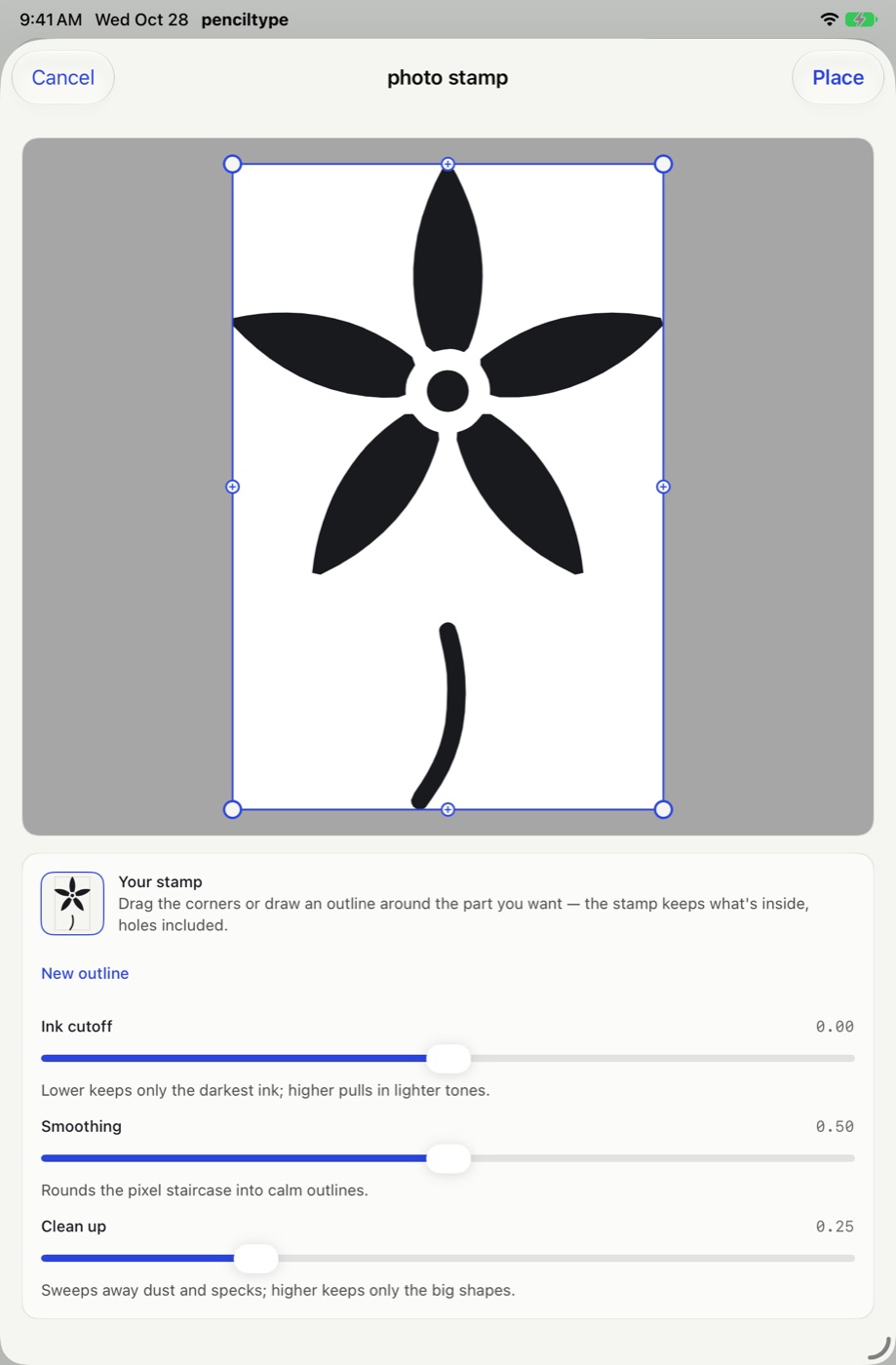
The Art brush paints with a stamp — a shape repeated along the stroke — and you can make one from a photo or file (see Brush options). Its trace sheet adds a crop, so the stamp keeps only the part you want:
- Drag the four corners to crop like a box, or drag inside to move the whole outline.
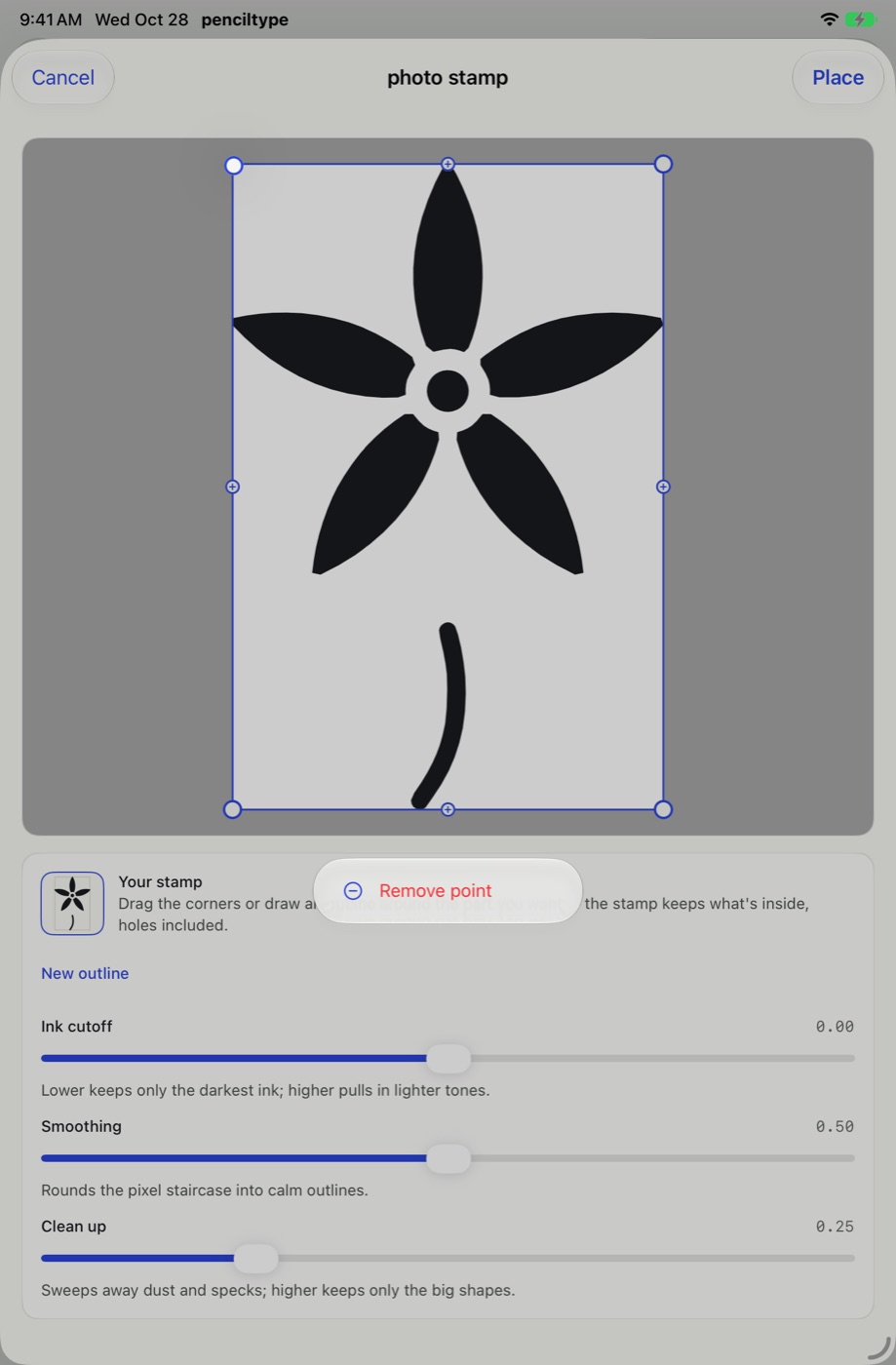
- Tap the + at the middle of an edge to add a point there (drag it to add and move it at once). Press and hold a point for Remove point (not possible with only three).
- New outline starts a point-by-point outline: tap the preview around the part you want, then Done outline (three or more points). Reset crop goes back to the full box.
Outside the outline is dimmed. Your stamp, a thumbnail beside the preview, shows exactly what Place will hand to the brush — holes included. An empty crop says Nothing inside the outline — draw it around some ink.
The piece pad
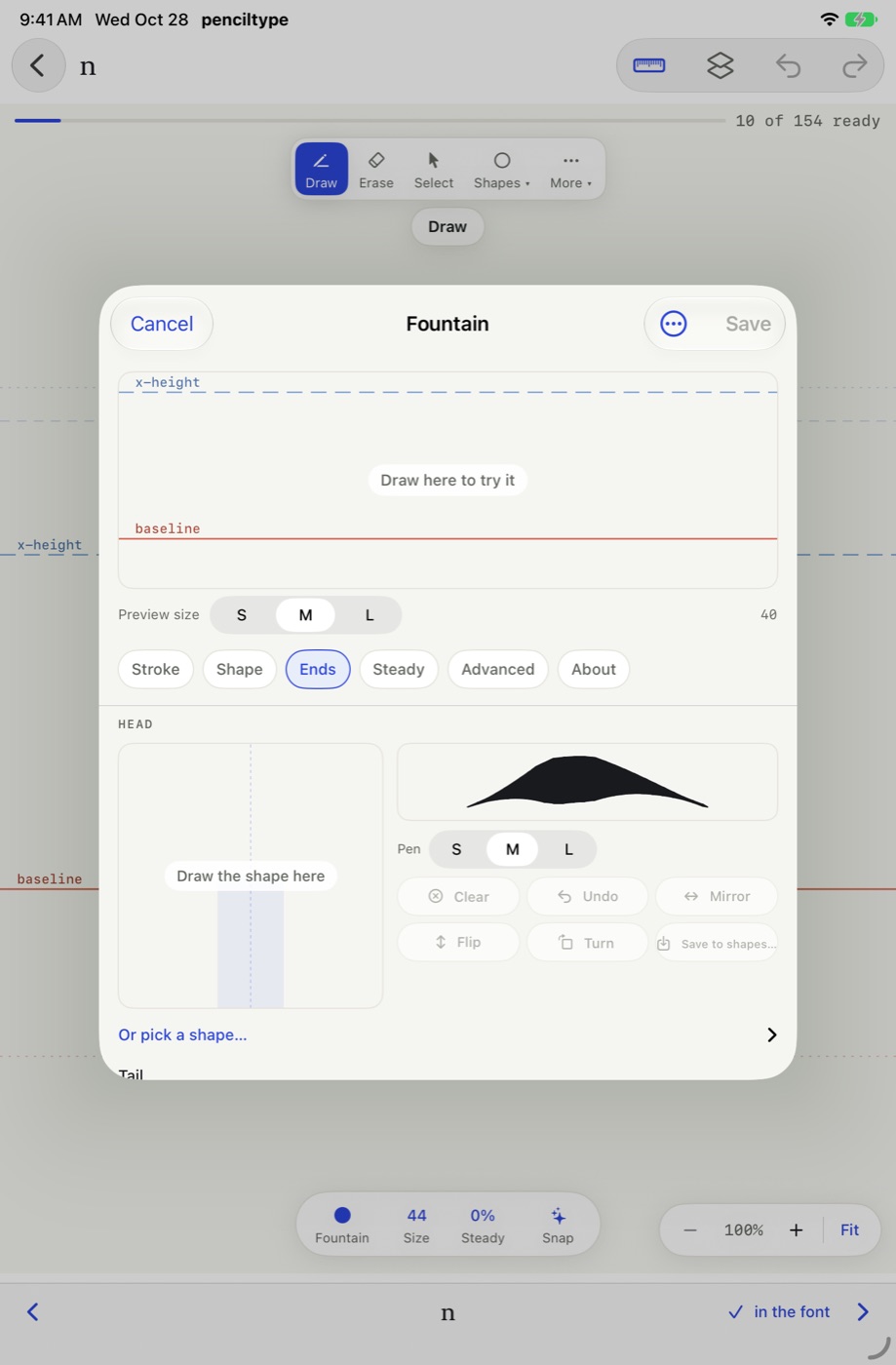
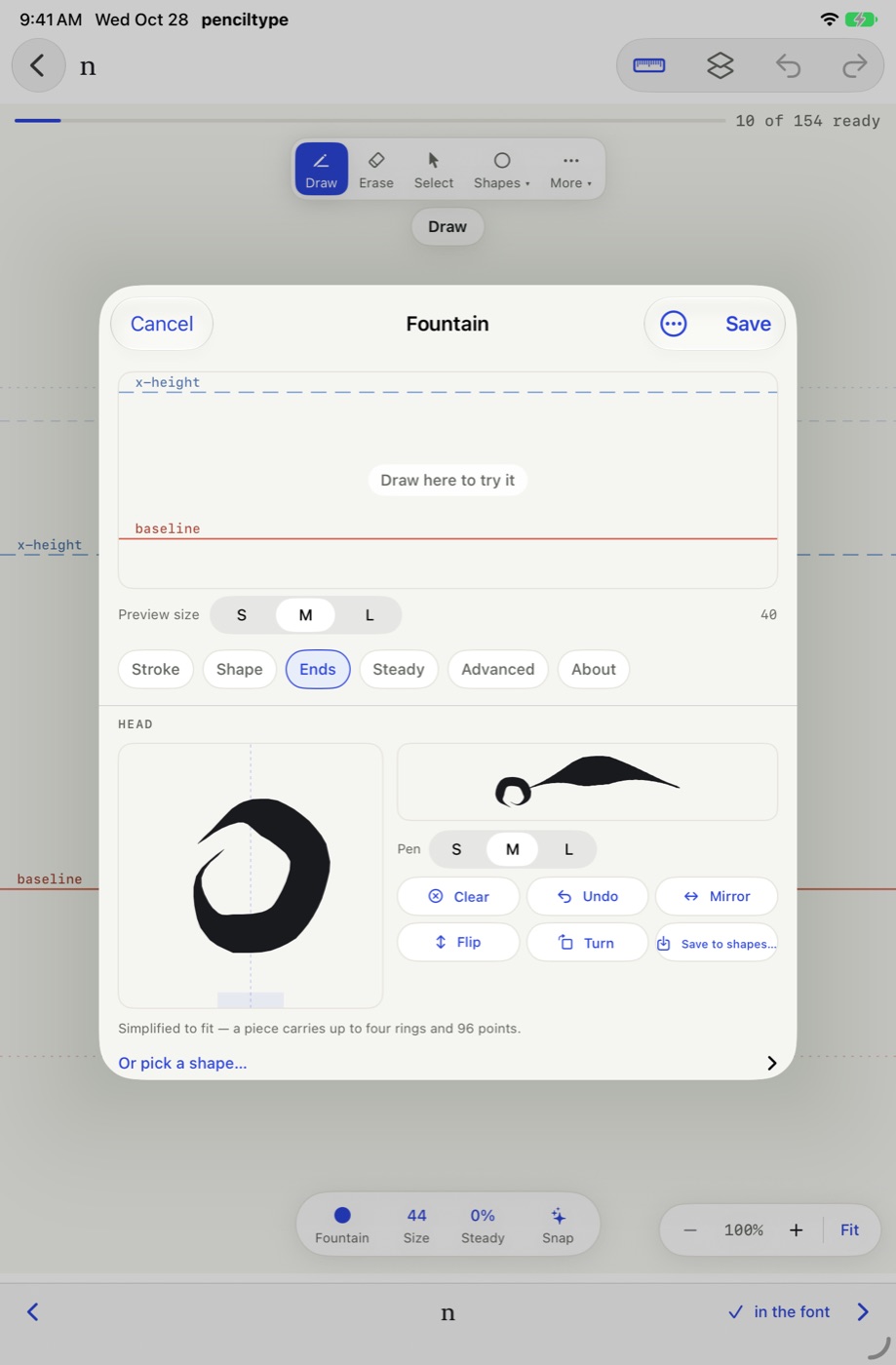
In Brush Studio (opened from the brush picker), brushes with ends or a body shape have a piece pad: a box where you draw a head, a tail or a body shape with your finger or Pencil. A faint band in the box is the stroke the piece will sit on; the preview beside the box sweeps a stroke with your piece on it.
- Pen S / M / L sets how thick you draw in the box (with the brush's own pen, or a fineliner).
- Undo, Clear, Mirror, Flip and Turn (a quarter turn) edit what you've drawn.
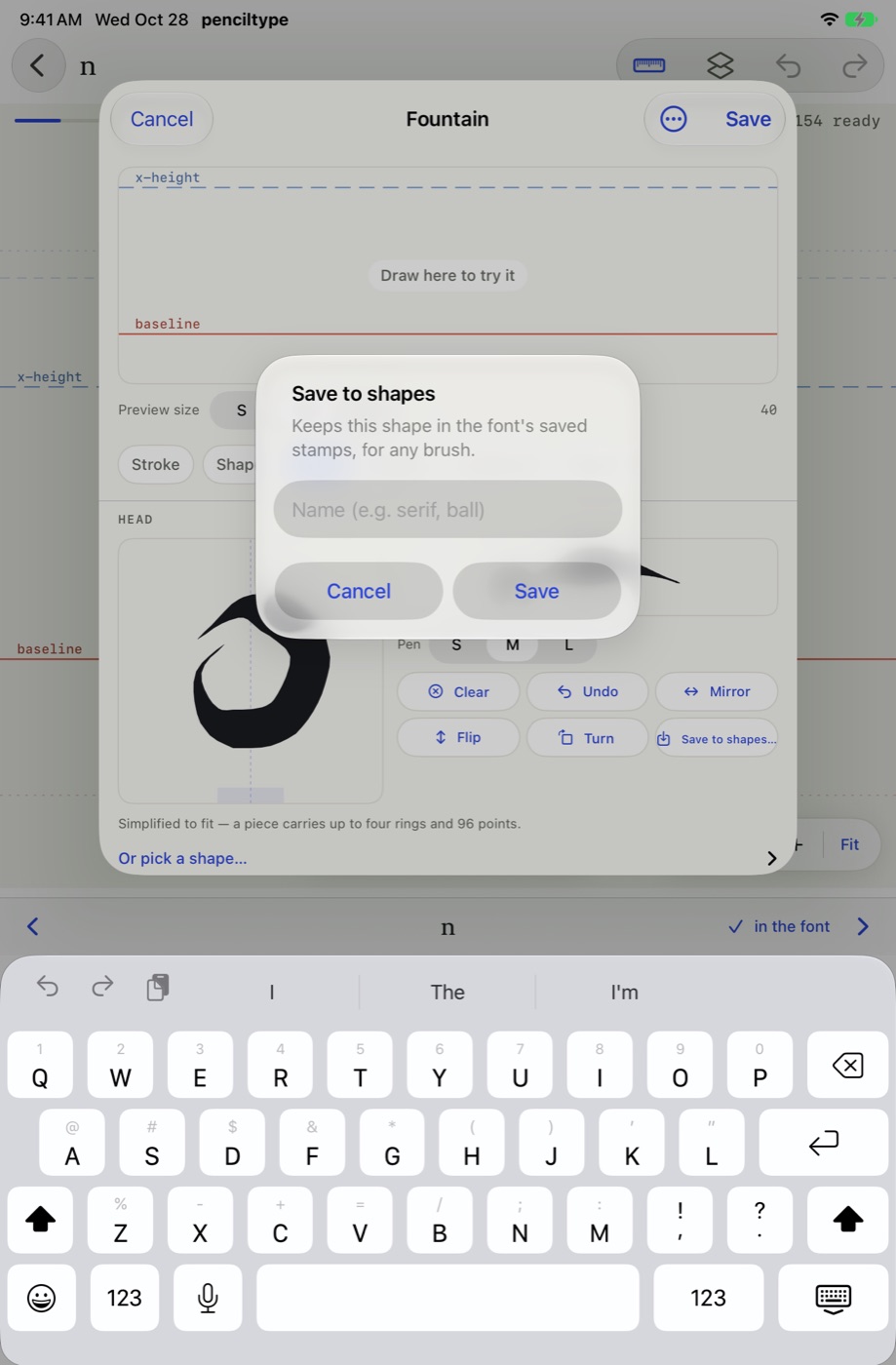
- Save to shapes… keeps the piece in the font's saved stamps, for any brush: name it (serif, ball…) and tap Save.
- Or pick a shape… folds open a chooser of ready-made and saved shapes instead.
A piece can carry up to four rings and 96 points; a busier drawing is simplified to fit, and the pad says so. Opened without a font (from Settings), the pad says Open the Studio from a font to save shapes into it. The body choices — Pen line, Stretched, Repeated, Stamped — are explained in Brush Studio.