

Settings
Settings holds the choices that apply across the whole app: how it looks, what new fonts start with, how drawing behaves, and your backups. Everything a single font can change about itself lives in that font's Font settings instead.
Opening Settings
On Your fonts, tap Settings (the gear) at the top right. Settings opens as a sheet over the shelf; it's the only way in. Tap Done to close it.
There's no Save button: every change takes effect and is saved the moment you make it. The line Changes save automatically. under the title says so (on older versions of iOS it sits under the Appearance section instead).
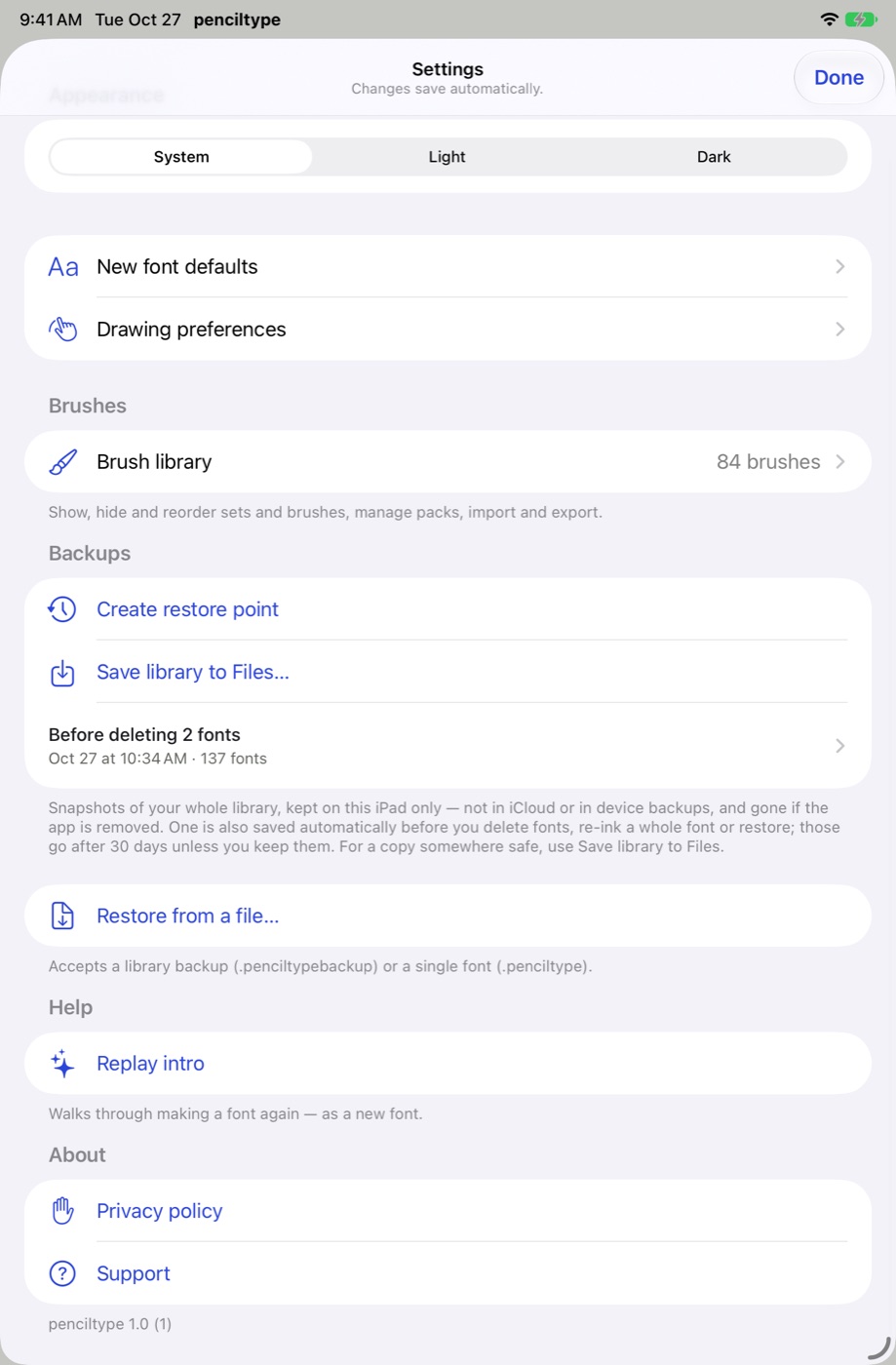
The sections, top to bottom:
- Appearance
- Light, dark, or follow the device. Below.
- New font defaults
- What every new font starts with. Below.
- Drawing preferences
- How the canvas behaves. Below.
- Brushes › Brush library
- Your brush sets. Below.
- Backups
- Restore points, backup files and restoring. See Backups and iCloud.
- Help › Replay intro
- Runs the intro again. Below.
- About
- Privacy policy, Support and the app's version. Below.
Settings sometimes opens by itself on a particular screen: View backup on the shelf's Undo banner opens it on that delete's restore point, and opening a backup file from Files, AirDrop or Mail opens it on that file. Restoring anything closes Settings and takes you back to the shelf.
Appearance
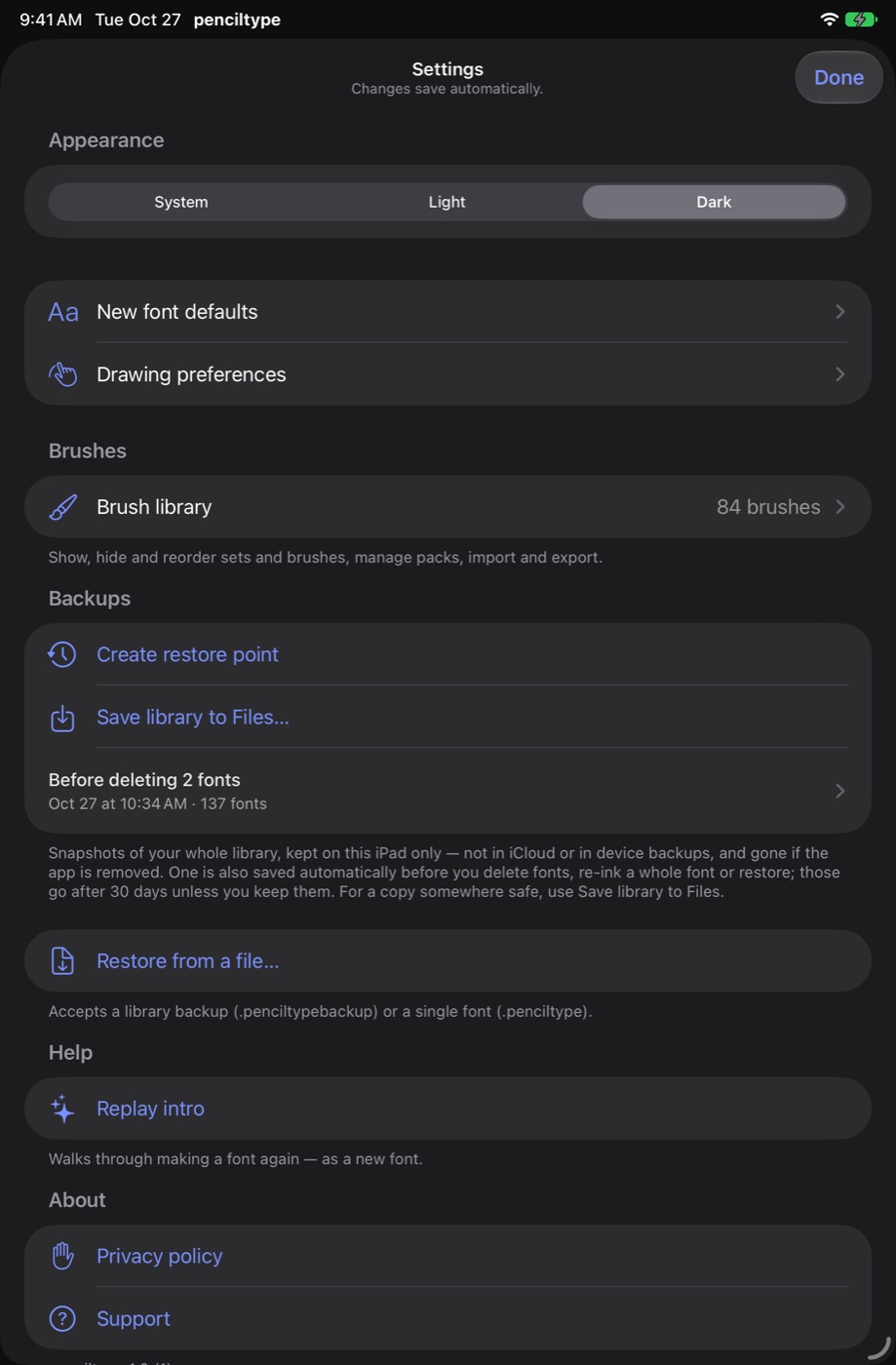
Choose System to follow the device's light or dark setting (the usual choice), or Light or Dark to keep penciltype that way whatever the device does. It applies at once to everything: the shelf, every sheet, alert and menu, the canvas and the splash pencil, and every window on iPad. The screen you see for an instant while the app starts always follows the device.
New font defaults
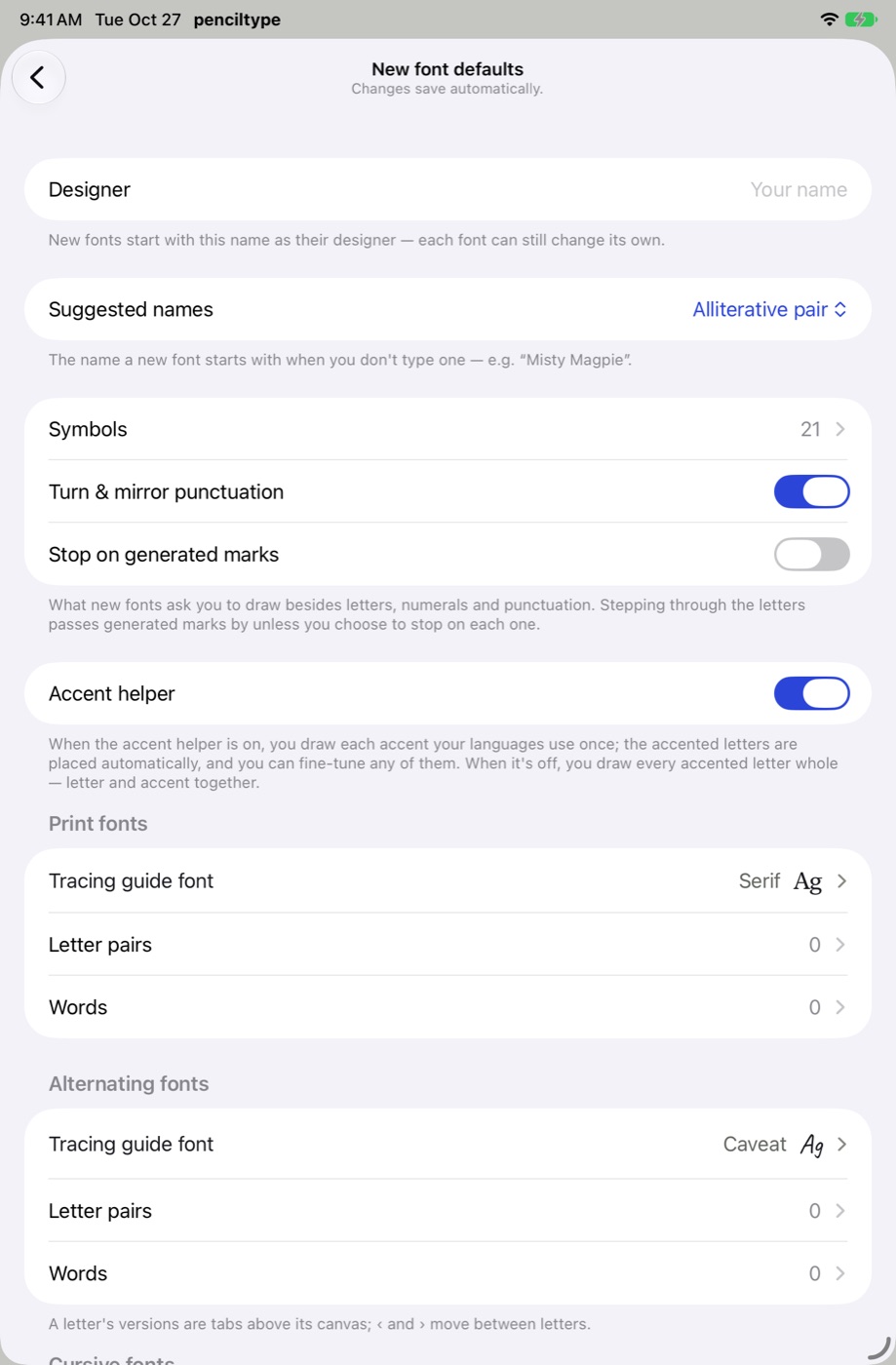
Settings › New font defaults sets what every new font starts with. These are only starting points: each font can change any of them later in its own Font settings, and changing a default never changes fonts you already have.
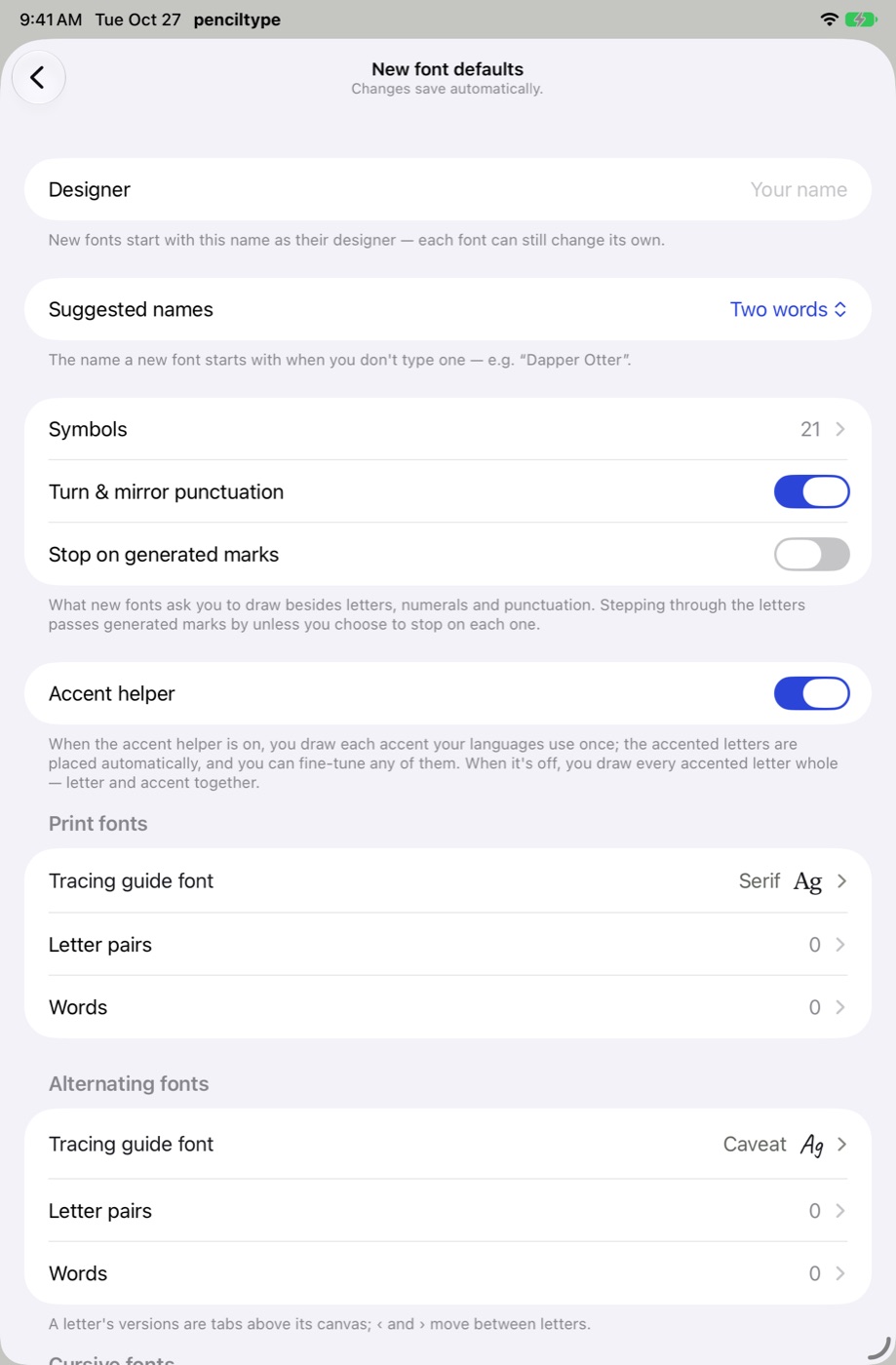
- Designer
- Your name, written into every new font as its designer. Apps that show font details display it. Leave it empty for none.
- Suggested names
- How penciltype names a new font when you don't type a name (see the list below). The line under it shows an example in the chosen style.
- Symbols
- Which symbols new fonts ask you to draw, besides letters, numerals and punctuation. The row shows how many. Below.
- Turn & mirror punctuation
- On (the default): marks that are another mark turned or mirrored are made for you from the one you draw. ‘ comes from ’, ) from (, and ‚ from ’. Off: you draw each one yourself.
- Stop on generated marks
- Off (the default): when you step through the letters with ‹ and ›, the made-for-you marks are skipped. On: the stepper stops on each one, showing its turned shape faintly so you can trace it or keep it. Only available while Turn & mirror punctuation is on.
- Accent helper
- On (the default): you draw each accent your languages use once, and accented letters (é, ü, ñ…) are put together for you; you can still fine-tune any of them. Off: you draw every accented letter whole, letter and accent together. See Generated letters.
Suggested names
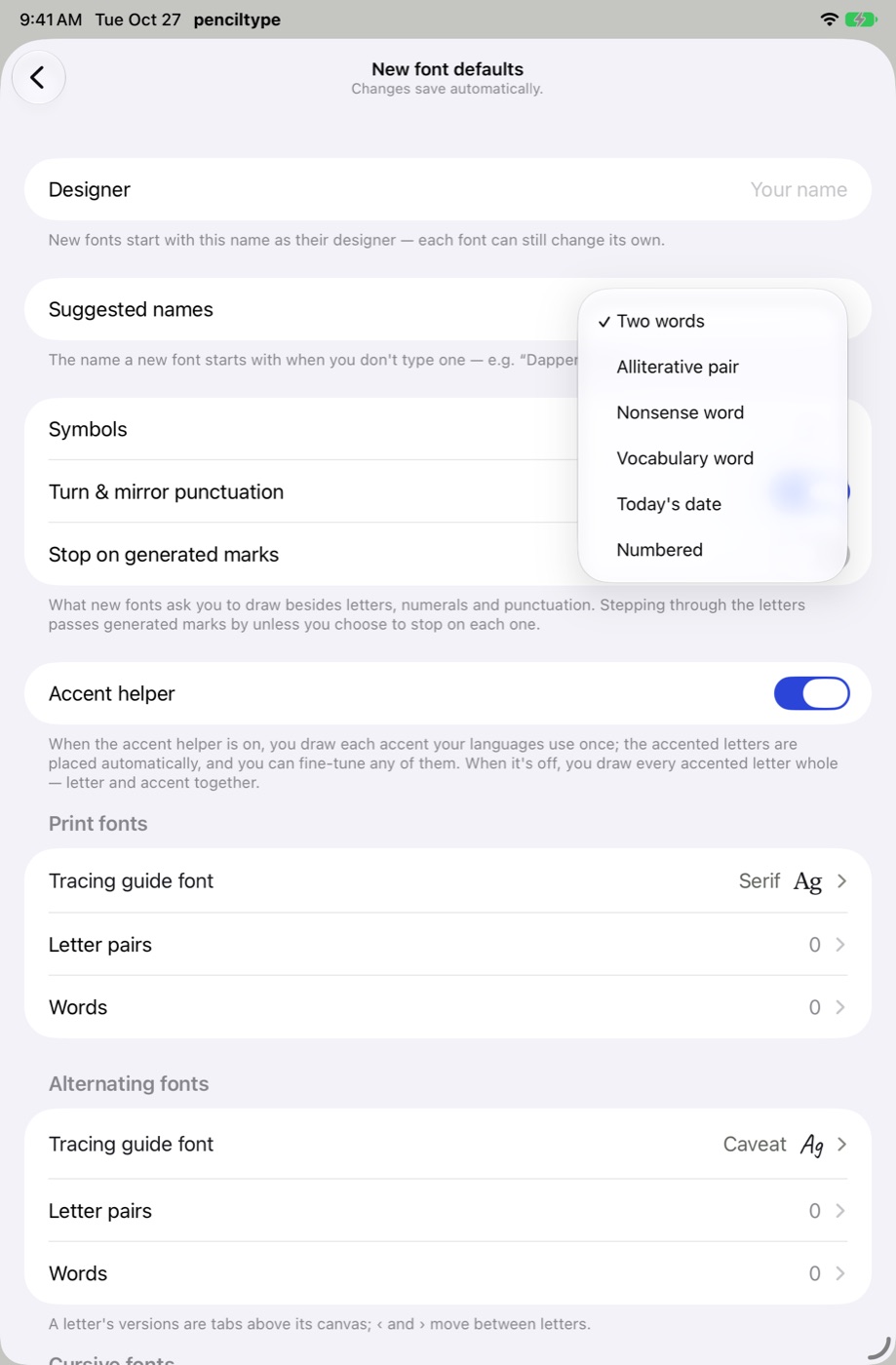
Tap Suggested names to choose a style:
| Style | Example | How it works |
|---|---|---|
| Two words | Mellow Walrus | An adjective and a noun. The default. |
| Alliterative pair | Wobbly Walrus | Two words that start with the same letter. |
| Nonsense word | Tavimora | An invented word you can say out loud. |
| Vocabulary word | Serendipity | One long real word, never handed out twice. Once the list runs out it starts again with numbers (“Reverie 2”). |
| Today's date | Font · 6 Oct 2026 | The day you made the font. |
| Numbered | Font 7 | The first number not already taken. |
Suggestions never repeat a name already on your shelf. In the New font sheet, the shuffle button rolls another suggestion in the same style (dates and numbers have nothing to shuffle, so it's hidden for those).
Symbols
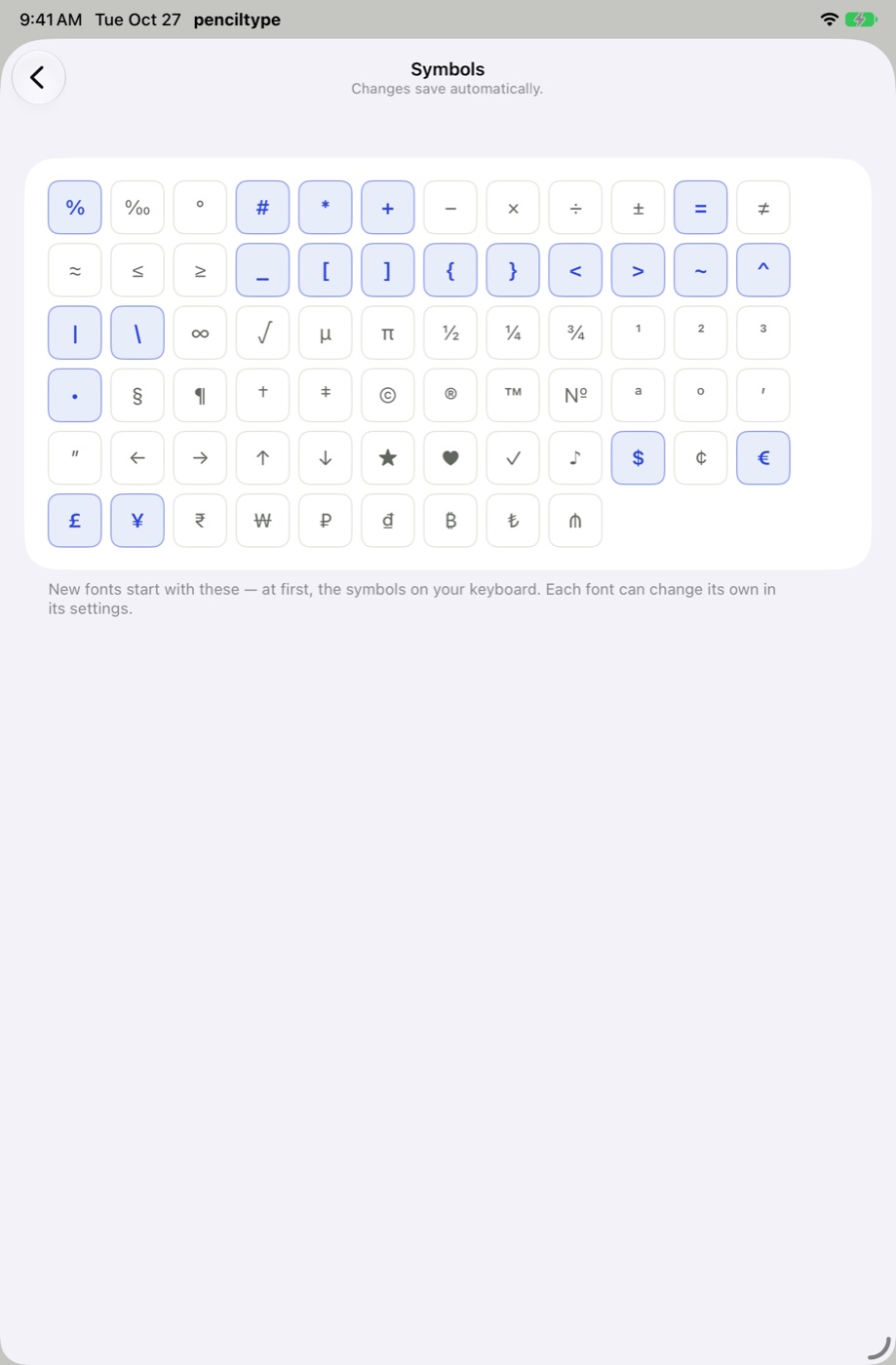
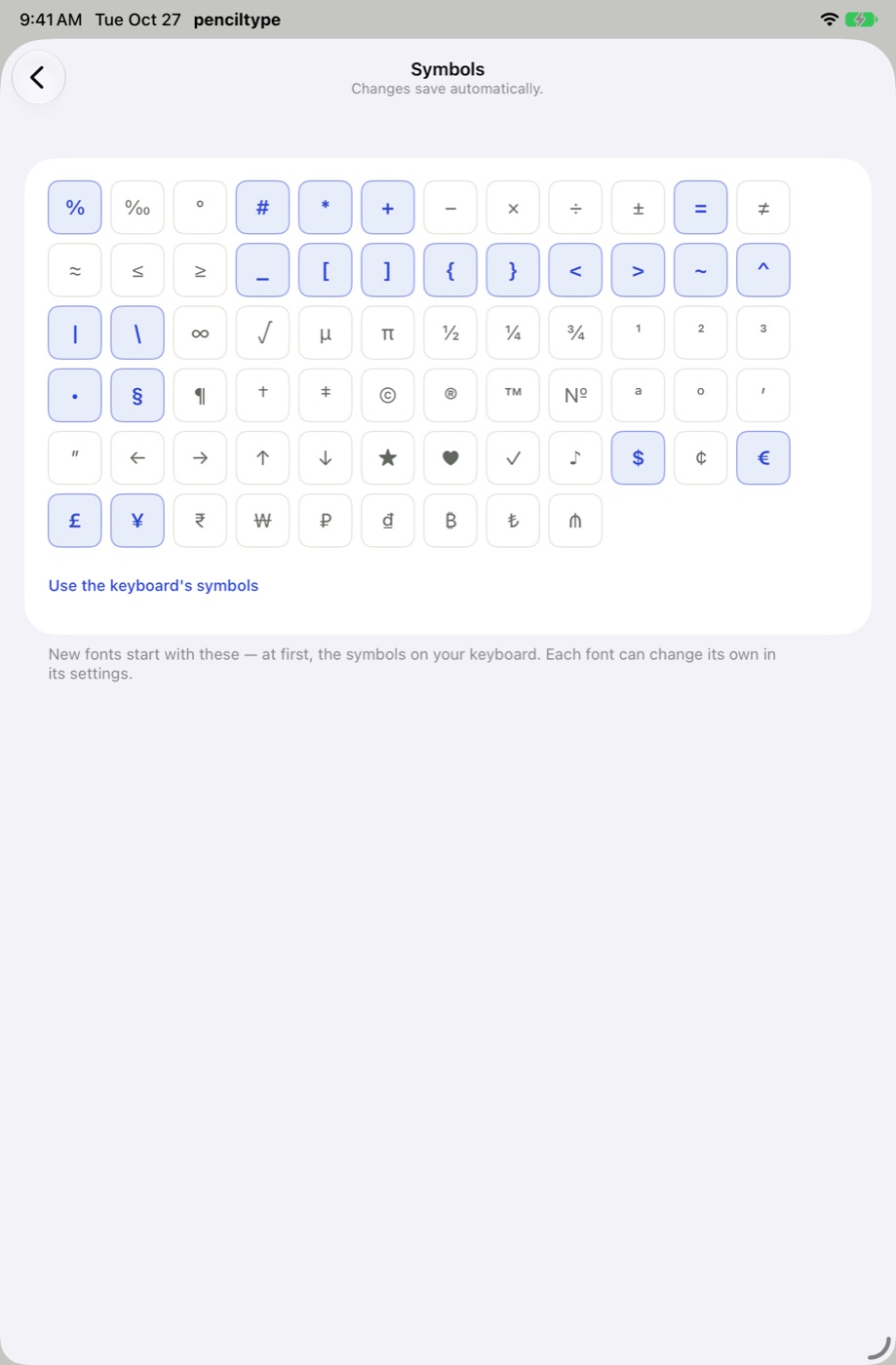
New font defaults › Symbols shows every symbol penciltype knows, as buttons. Blue ones are included in new fonts; tap one to include it or leave it out. At first the selection is exactly the symbols on your device's keyboard. Once you change it, Use the keyboard's symbols appears at the bottom to put it back.
Defaults for each kind of font
Further down, New font defaults has a section for each kind of font: Print fonts, Alternating fonts, Cursive fonts and Pixel fonts. Each has three rows.
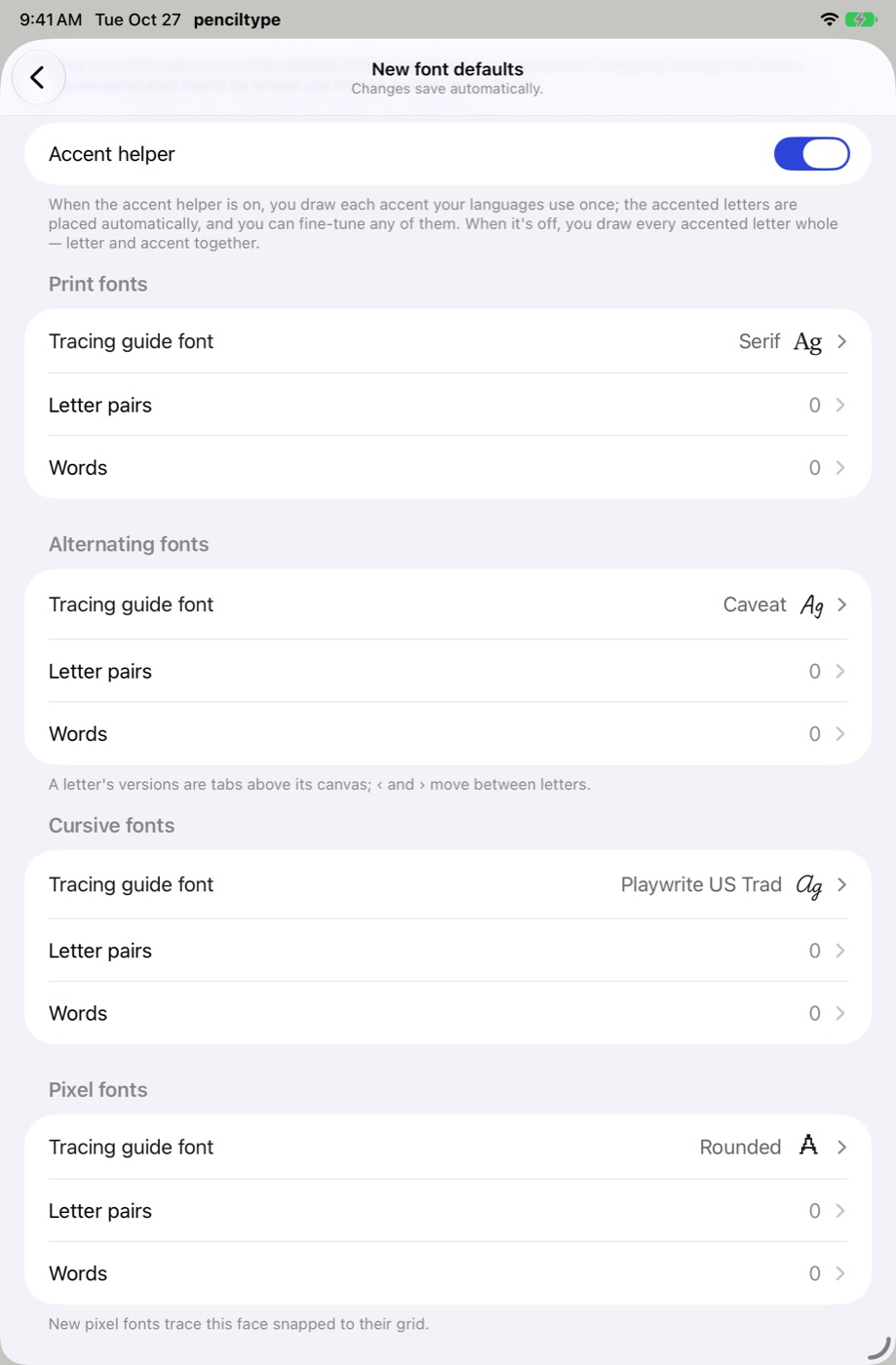
- Tracing guide font
- The faint letter shown behind the canvas while you draw, so your alphabet stays even. The row shows the face's name and a sample. The defaults are Serif for Print, Caveat for Alternating (it has three forms of each letter), Playwrite US Trad for Cursive, and Rounded for Pixel (shown snapped to a grid).
- Letter pairs
- Pairs such as th, fi or ll that new fonts of this kind ask you to draw as one shape. When you type that pair, your drawing is used instead of the two letters. The row shows how many are on.
- Words
- Common whole words of your device's language, drawn as one shape and used only as whole words: “the” uses your drawing, the “the” inside “other” doesn't.
Choosing a tracing guide
Tap Tracing guide font in a section. The sheet lists the faces that suit that kind of font, each with a sample; tap one to pick it. Below them, Choose from installed fonts… opens the system's font list, so you can trace any font on your device (including penciltype fonts you've installed). Your fonts lists up to five of your own fonts with drawn letters, so you can practise against your own hand; if you have more, Choose from all your fonts… lists them all with a search field. Cancel keeps the current guide.
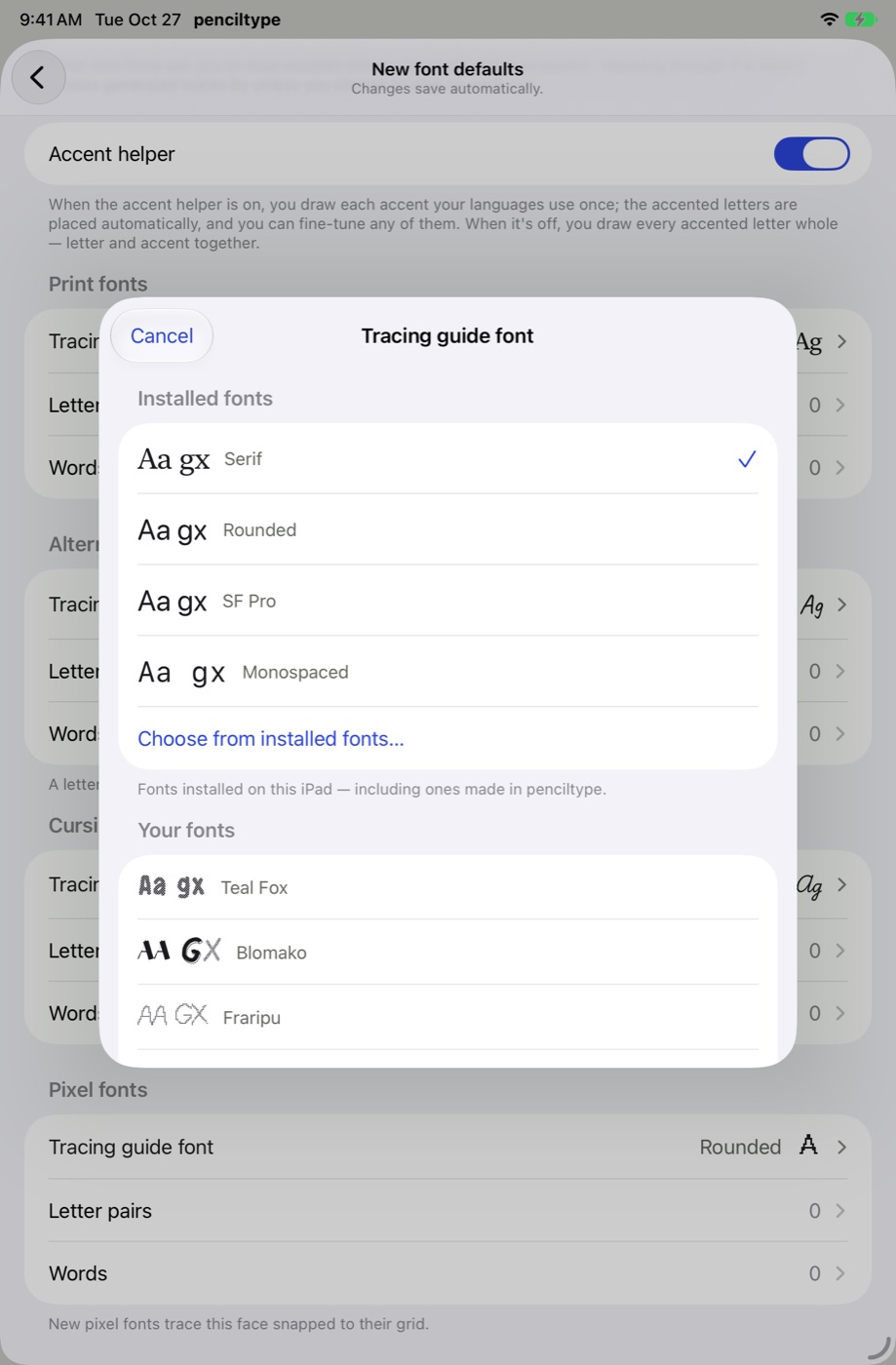
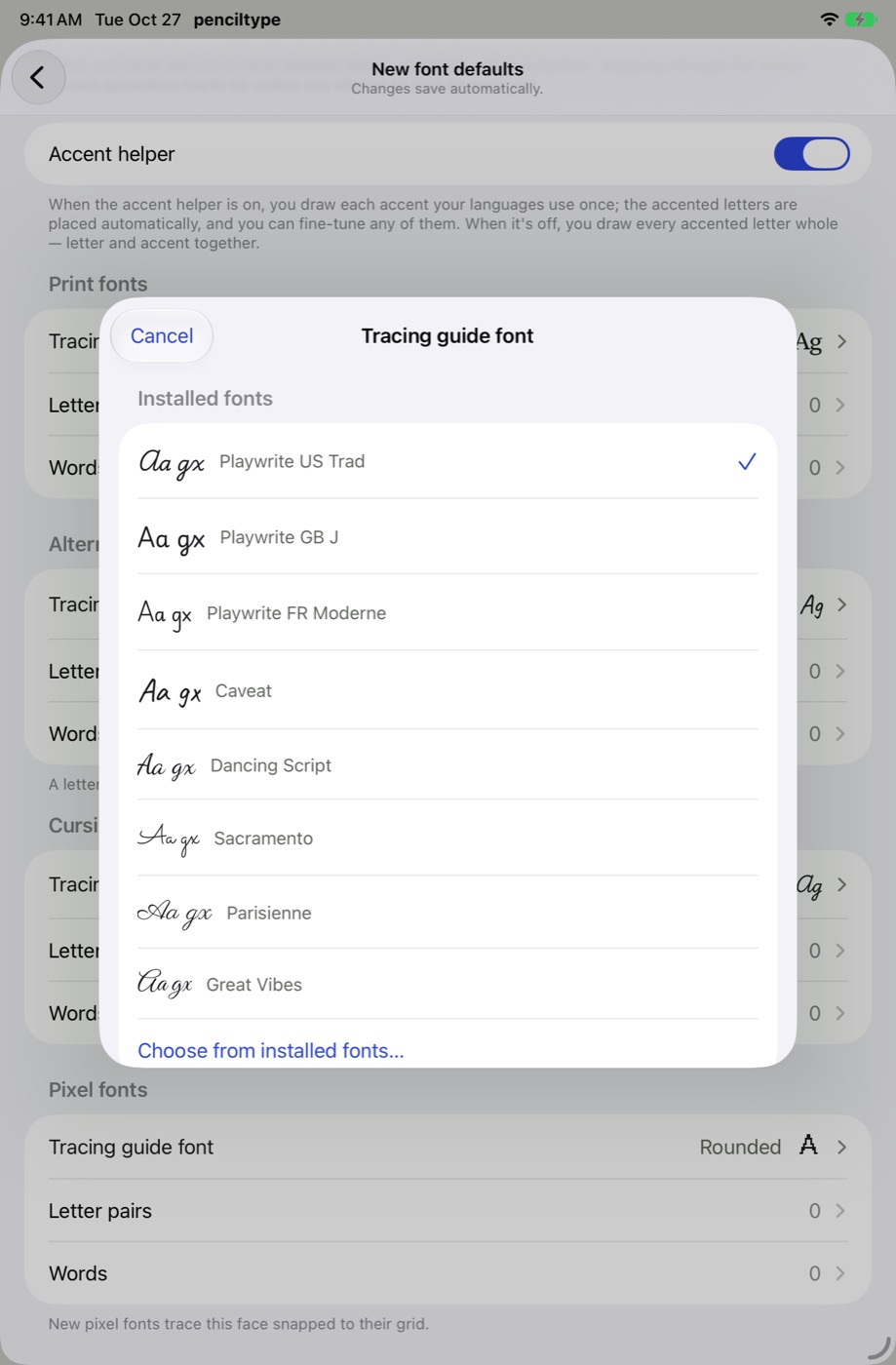
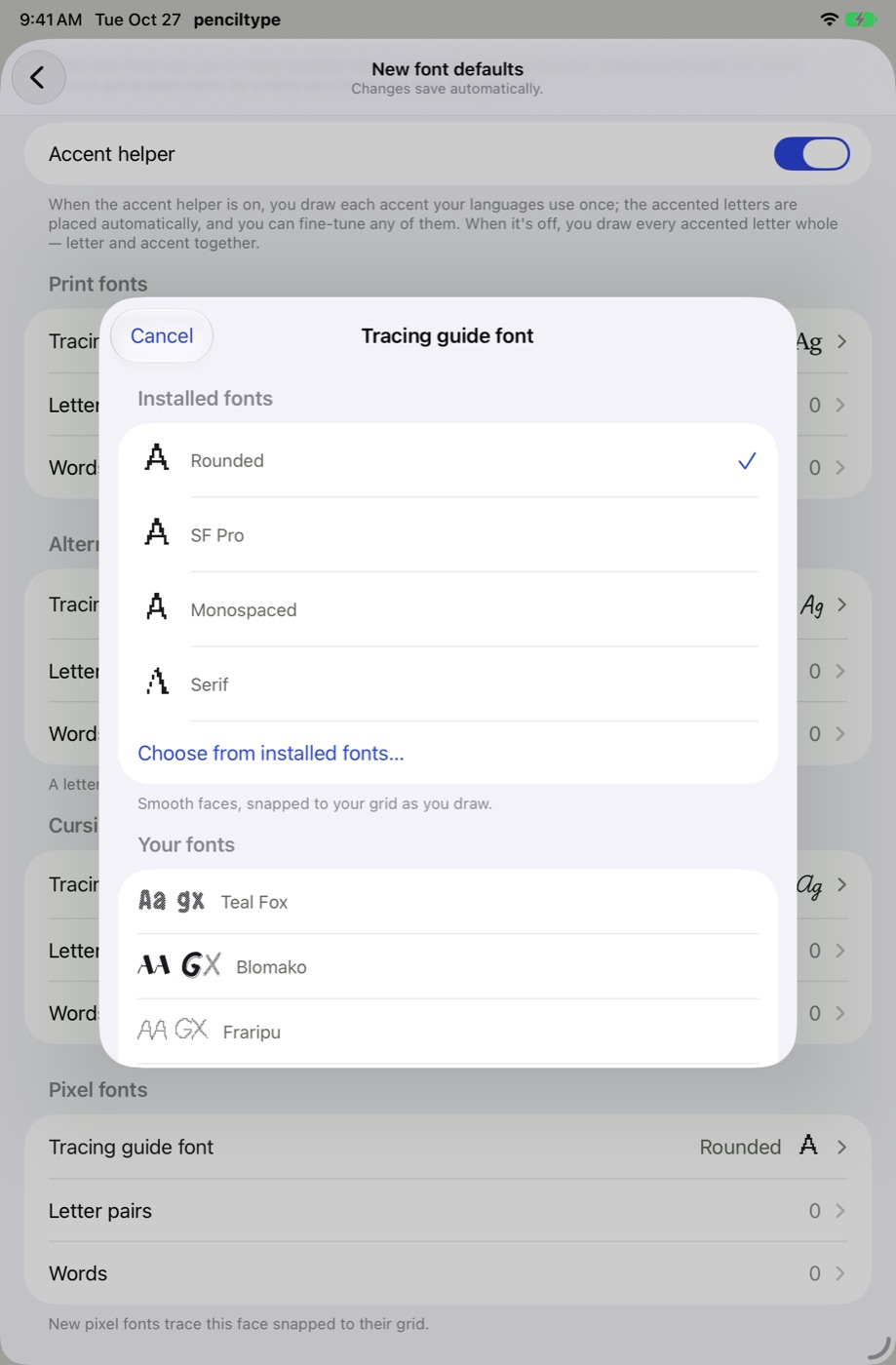
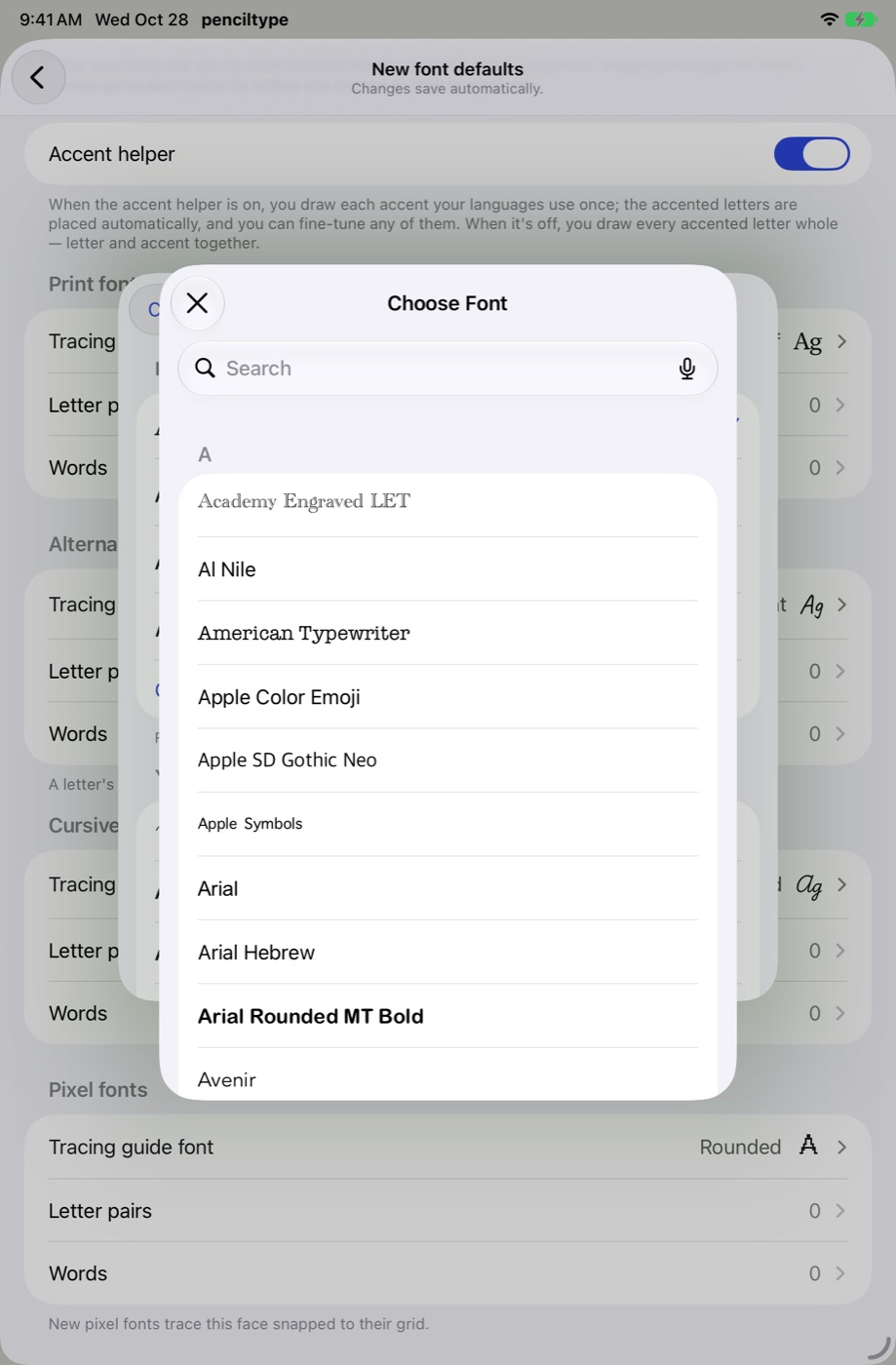
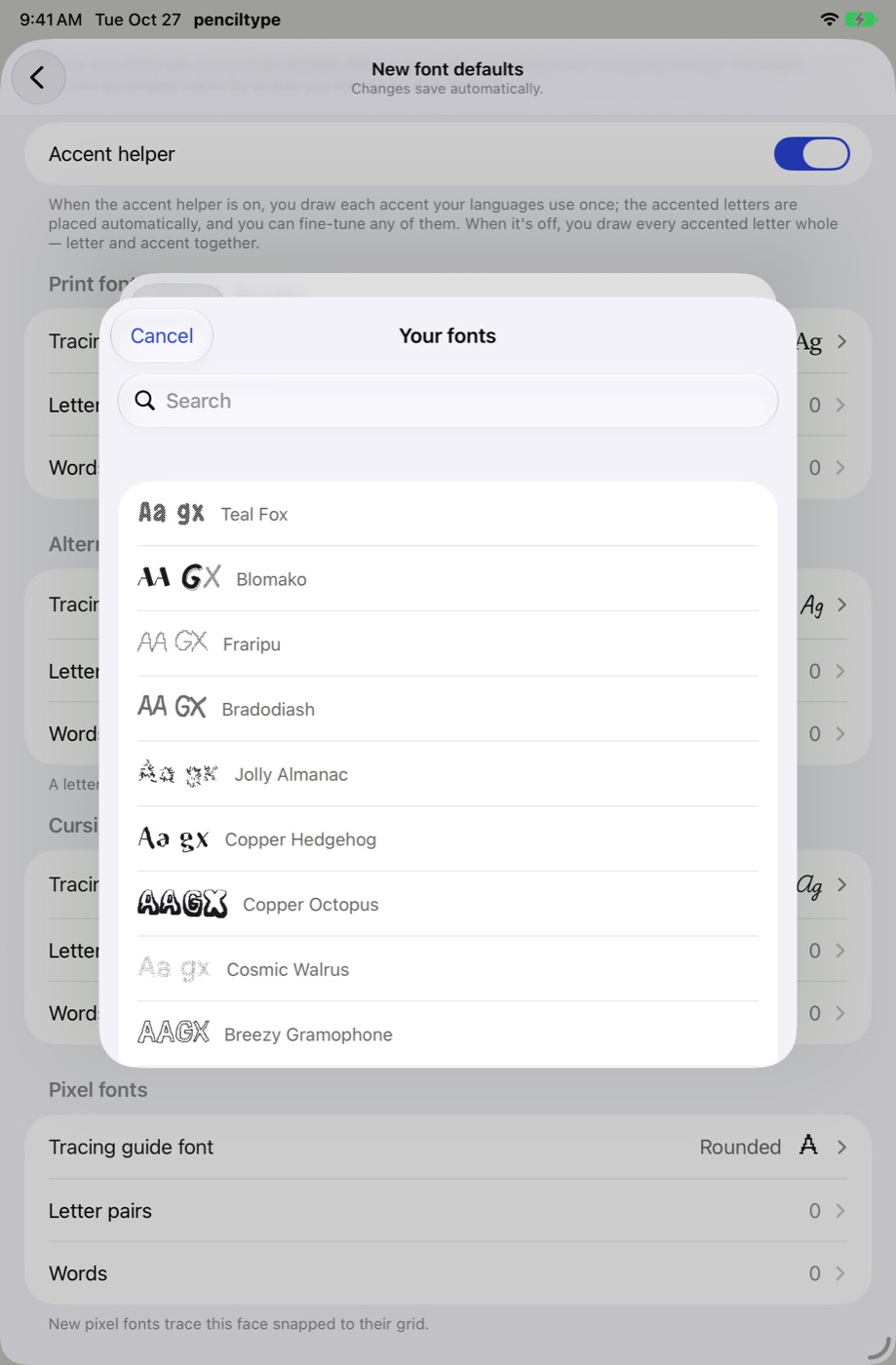
The faces offered for each kind: Print — Serif, Rounded, SF Pro, Monospaced; Alternating — Caveat, Serif, Rounded, SF Pro, Monospaced; Cursive — Playwrite US Trad, Playwrite GB J, Playwrite FR Moderne, Caveat, Dancing Script, Sacramento, Parisienne, Great Vibes (all open-source handwriting faces); Pixel — Rounded, SF Pro, Monospaced, Serif.
Letter pairs and words
Tap Letter pairs or Words in a section. Each pair or word has a switch; All at the top turns them all on or off. At first they're all off.
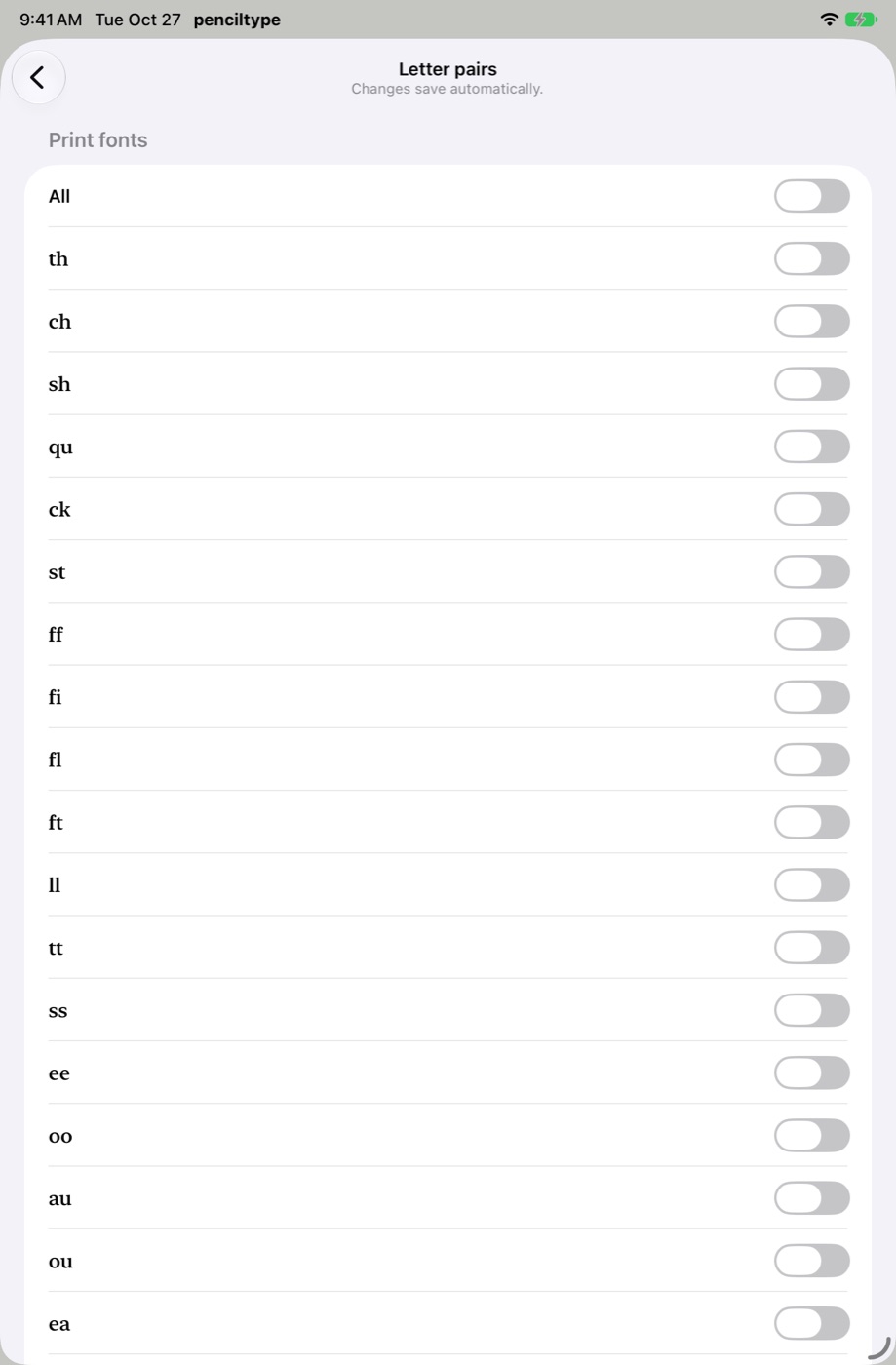
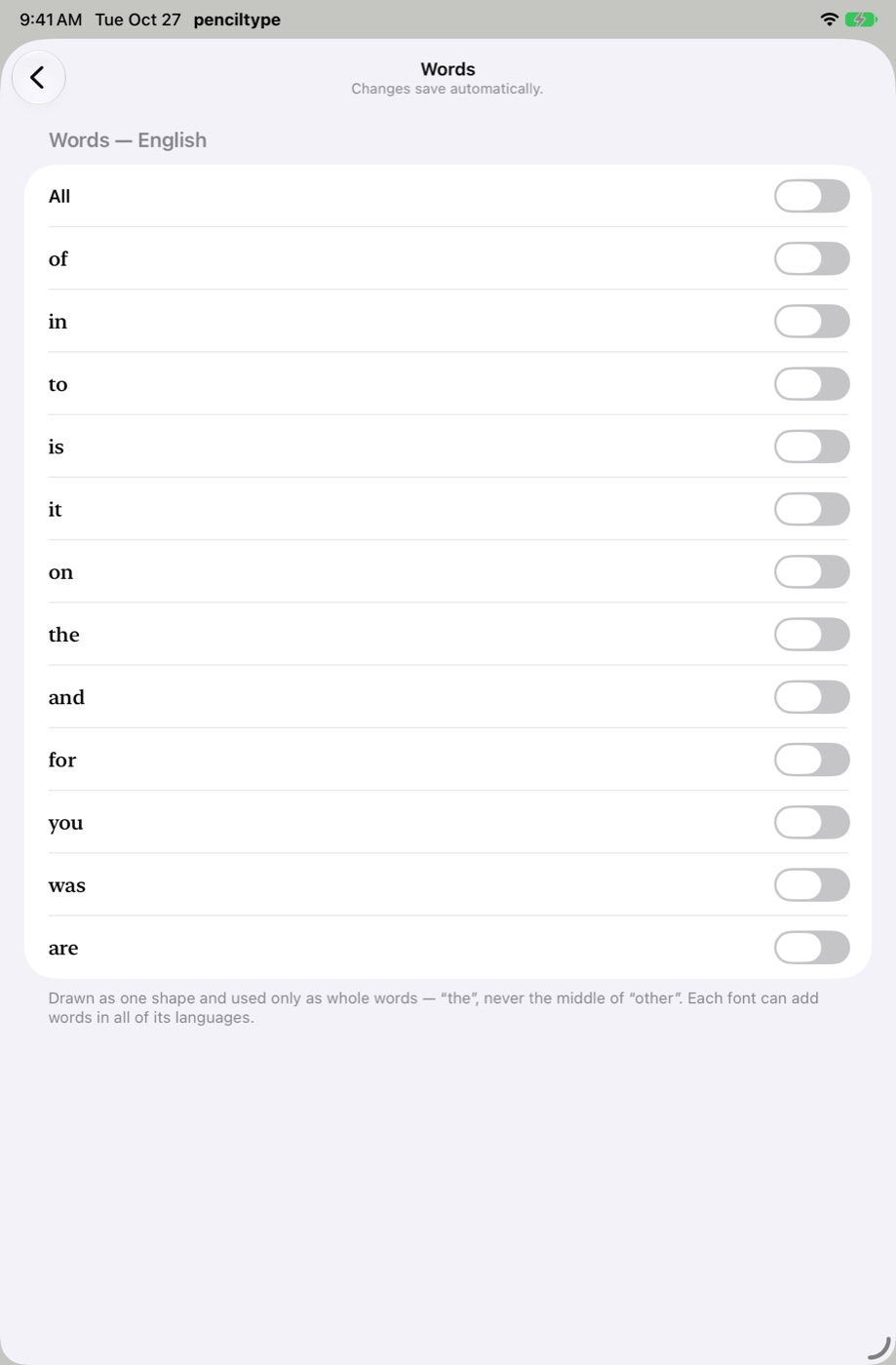
The pairs: th, ch, sh, qu, ck, st, ff, fi, fl, ft, ll, tt, ss, ee, oo, au, ou, ea, re, er, on, an, in, en, or, es. The word list follows your device's language (English if there's no list for it), and each font can add words in all of its languages later.
Drawing preferences
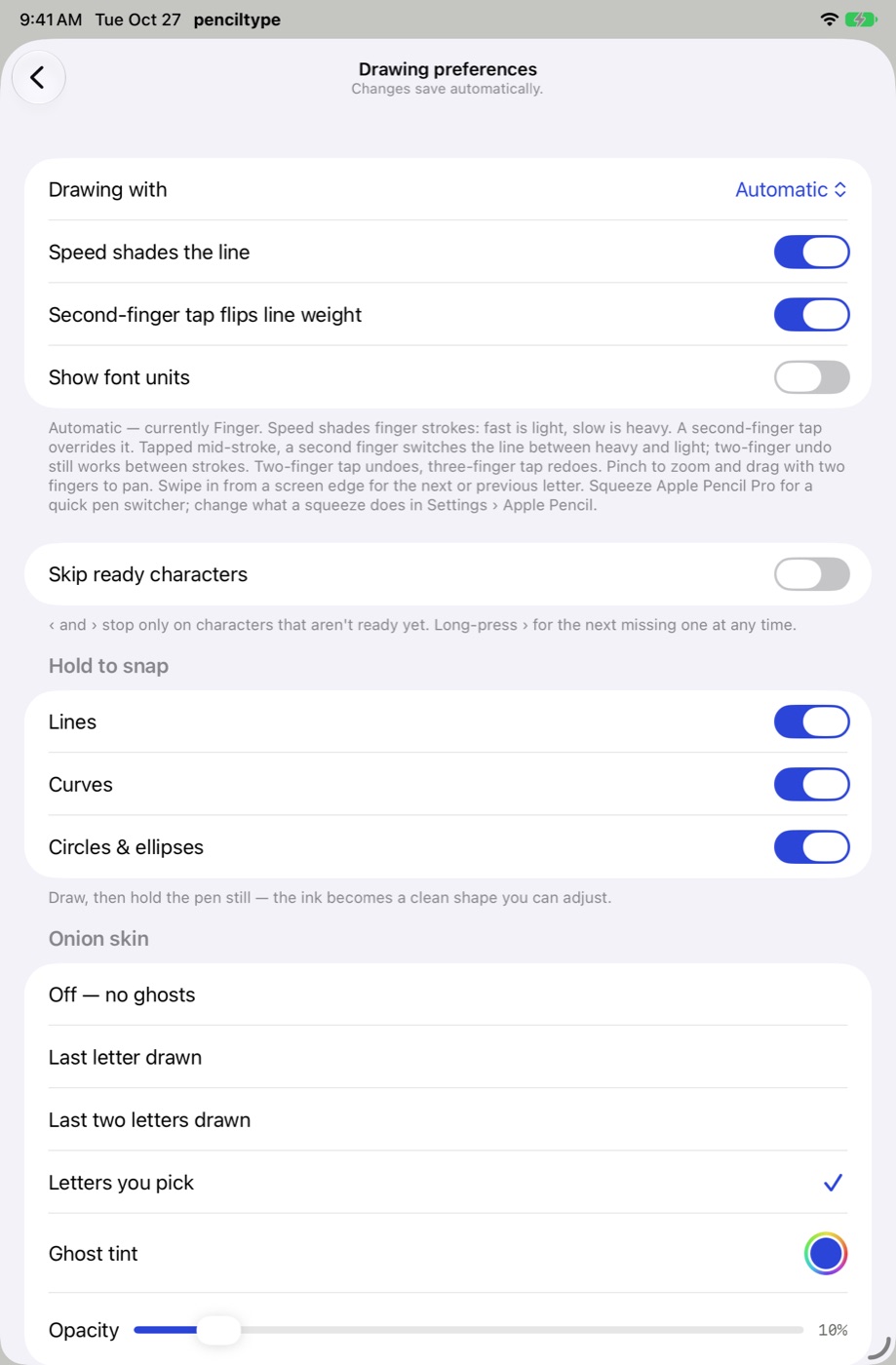
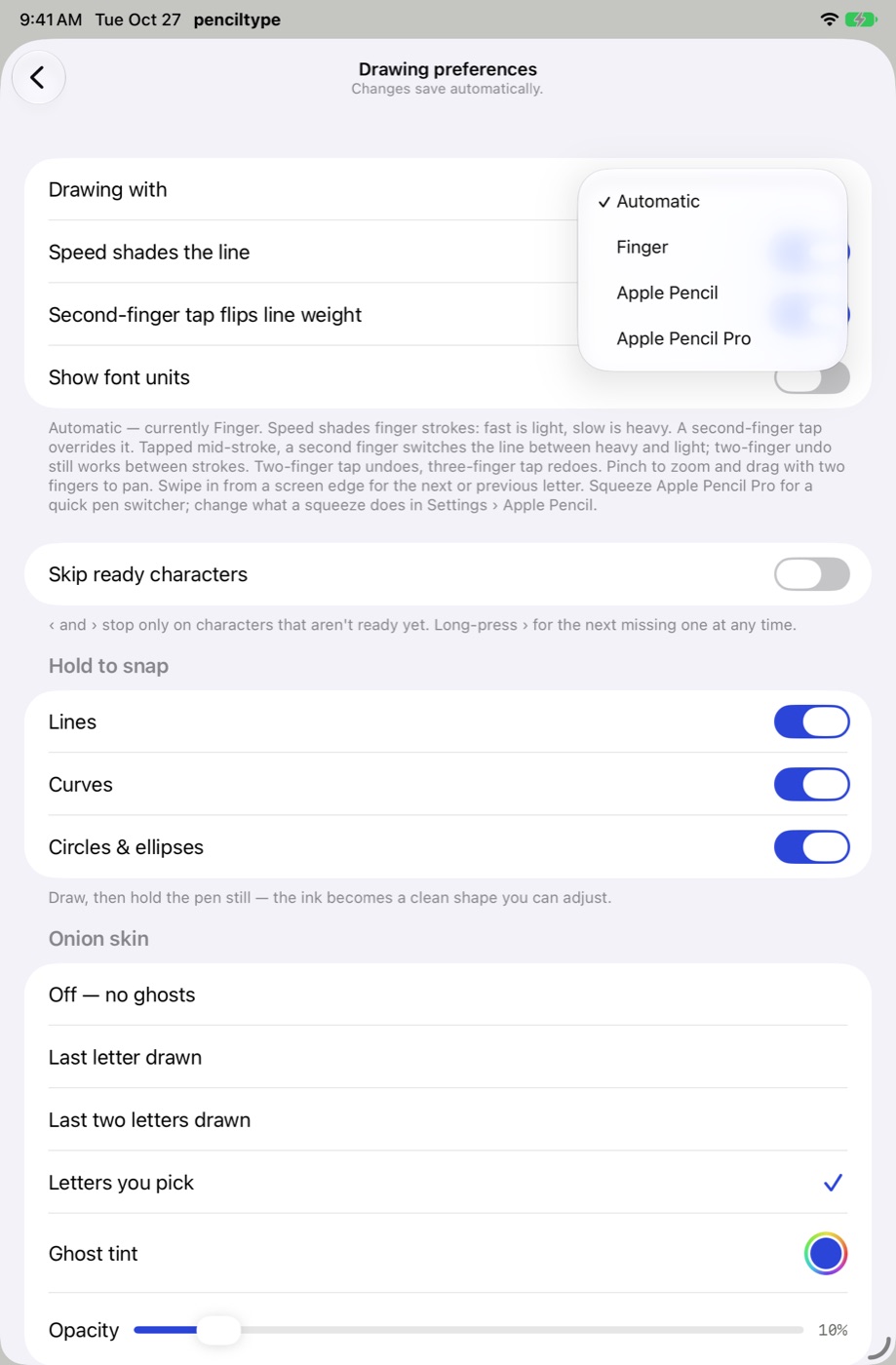
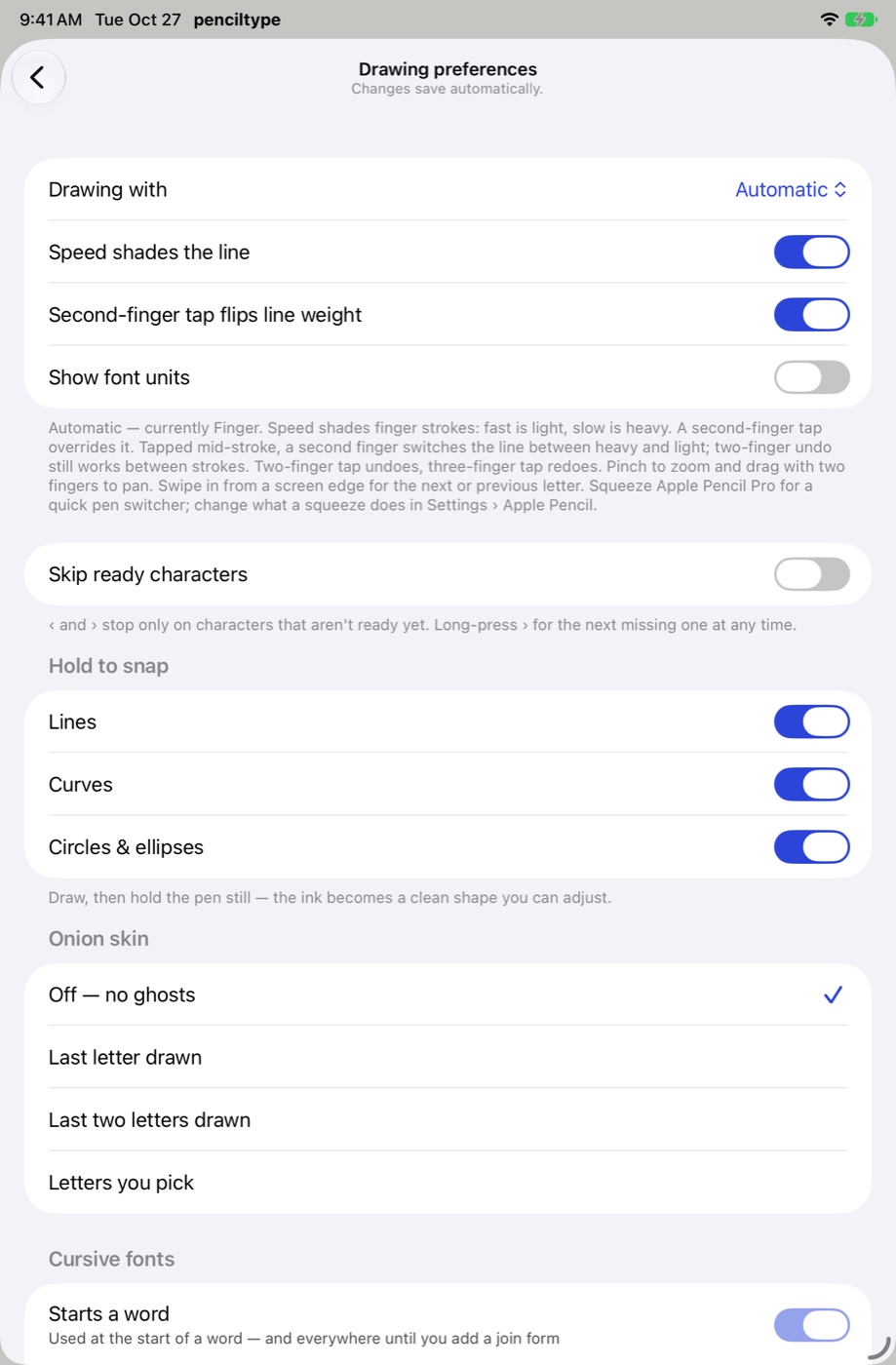
Settings › Drawing preferences changes how drawing works in every font. Several of these switches also sit on the canvas itself, and changing one place changes the other.
- Drawing with
- What you draw with, so the brush library can put the brushes that suit it first. Automatic (the default) works it out: once an Apple Pencil touches the canvas, penciltype remembers it. Or choose Finger, Apple Pencil (pressure and tilt brushes first) or Apple Pencil Pro (adds barrel roll and squeeze). On a Mac, Finger reads Mouse or trackpad. The line under the section says what's detected, for example “Automatic — currently Finger.” See The brush library.
- Speed shades the line
- For finger drawing: draw fast for a light line, slowly for a heavy one. On by default.
- Second-finger tap flips line weight
- While you draw a stroke with one finger, tap the screen with a second finger to switch the line between heavy and light. Two-finger undo still works between strokes. On by default.
- Show font units
- Shows the font-unit numbers at the right end of the canvas's guide lines. Off by default. Also in the canvas's Guides popover.
- Skip ready characters
- Makes ‹ and › stop only on characters you haven't finished. Off by default. Whatever this says, a long press on › always jumps to the next missing character.
The two finger switches are hidden when you draw with a mouse or trackpad.
Canvas gestures
The note under the first section lists the canvas gestures:
- Tap with two fingers to undo; tap with three fingers to redo.
- Pinch to zoom; drag with two fingers to move around.
- Swipe in from the left or right edge of the screen for the previous or next letter.
- On iPad, squeeze Apple Pencil Pro for a quick pen switcher. What a squeeze does is set in the device's own Settings › Apple Pencil.
More in The canvas.
Hold to snap
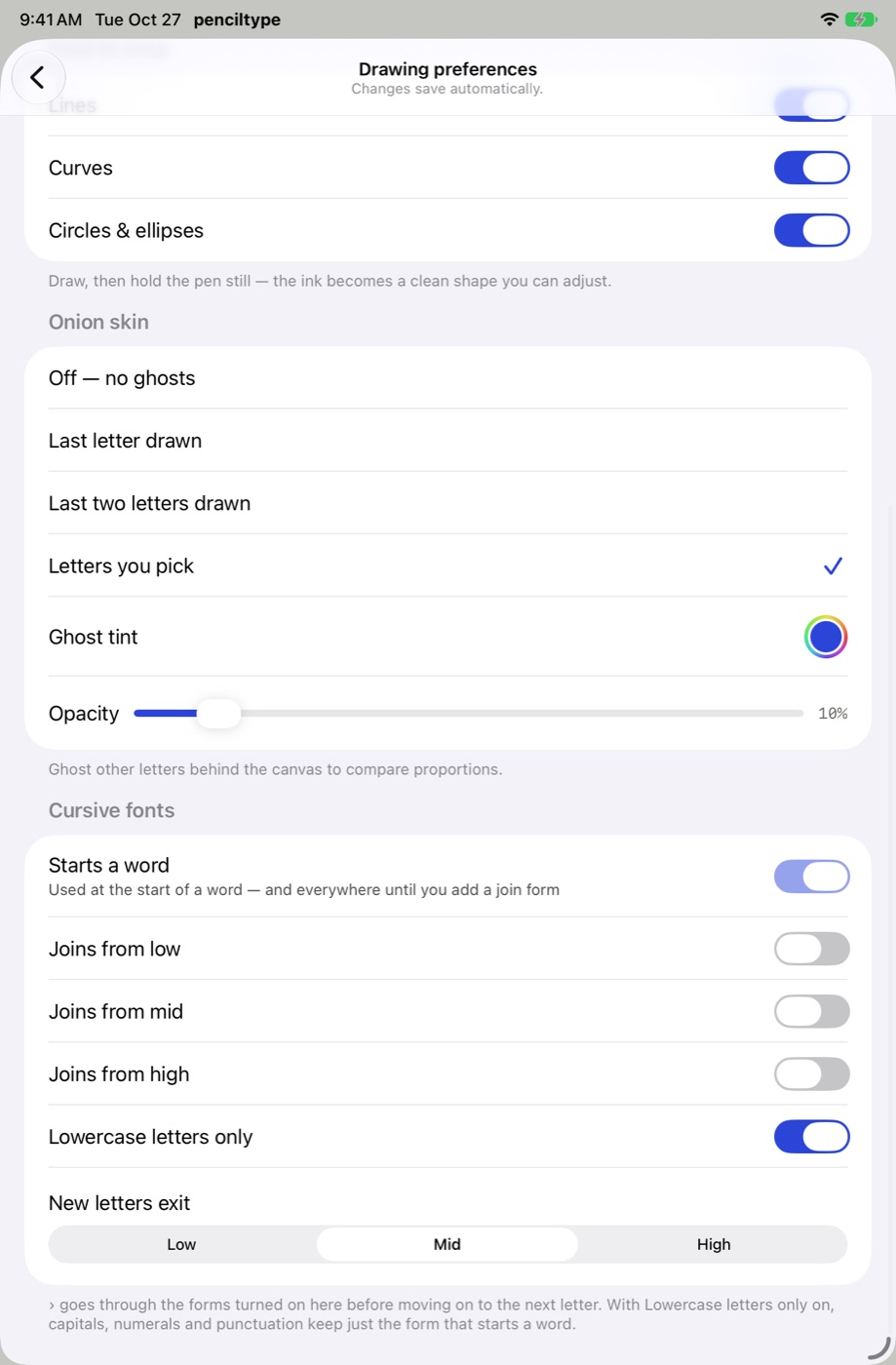
Draw a stroke, then hold your finger or pen still at the end: the ink becomes a clean shape you can adjust. Three switches choose which shapes it can become: Lines, Curves and Circles & ellipses. All are on by default. The same switches are in the canvas's Snap popover; see Drawing tools.
Onion skin
Onion skin shows other letters faintly behind the one you're drawing, to compare sizes and shapes:
- Off — no ghosts
- Nothing behind the canvas.
- Last letter drawn
- Whatever you drew last floats behind the next letter.
- Last two letters drawn
- The last two letters you drew.
- Letters you pick
- You choose which letters to show, on the canvas. This is the default.
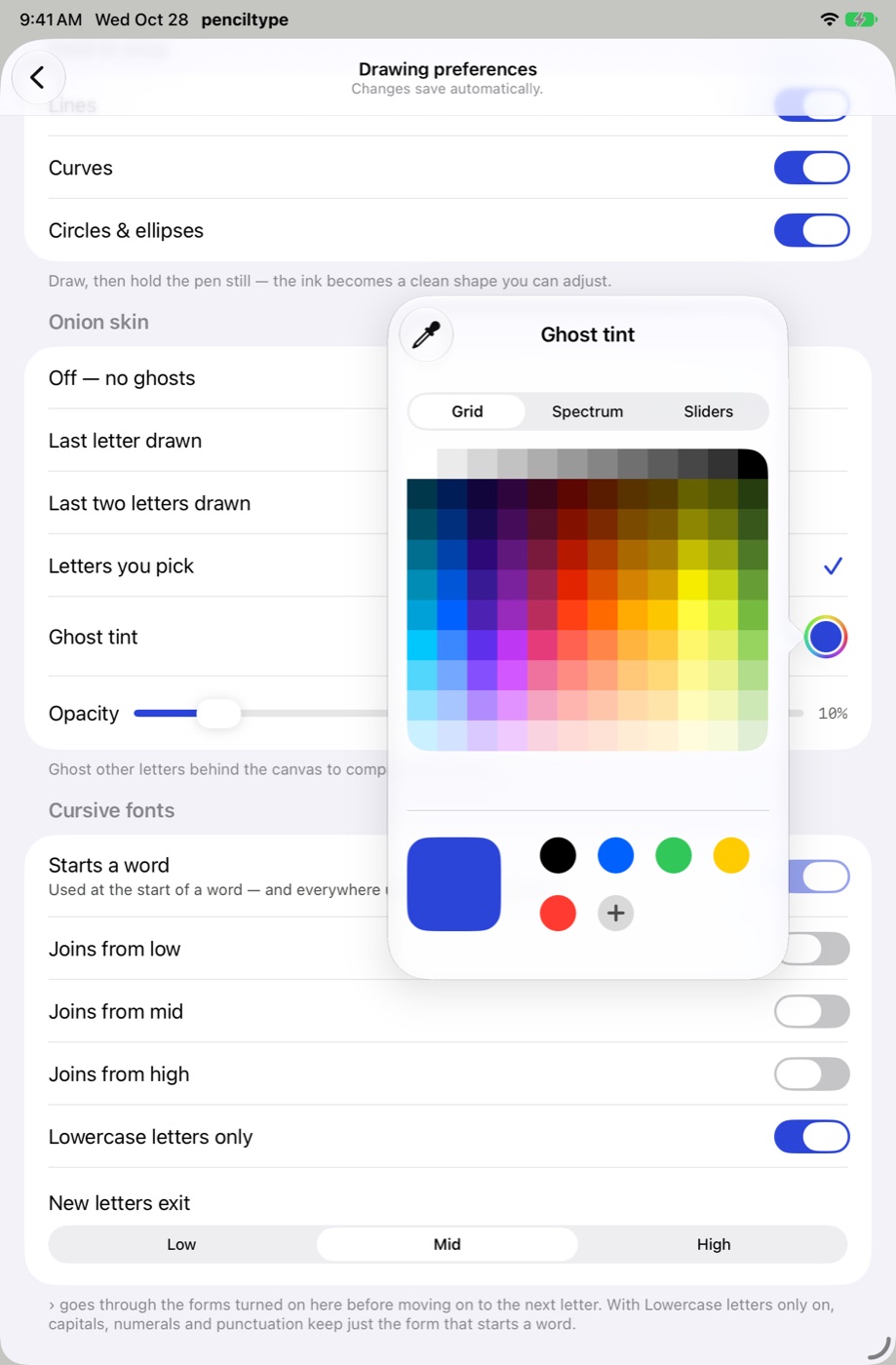
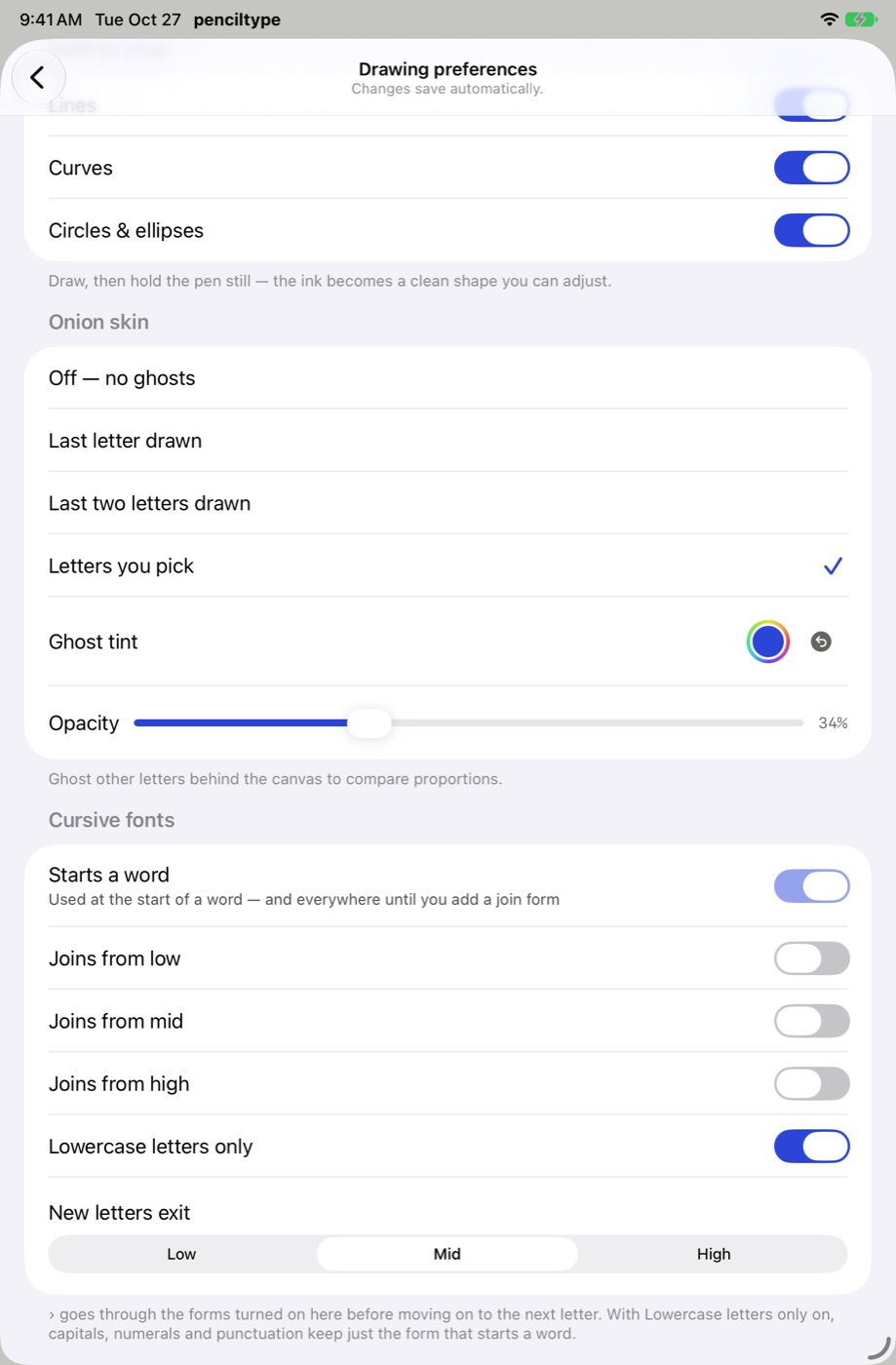
Ghost tint sets the ghosts' colour: tap the colour well to open the colour picker. Opacity sets how strong they are, from 0 to 100%. Once you've changed either, a round-arrow button beside the well puts back the default (the app's blue at 10%). Both rows are hidden when Onion skin is off.
See The canvas for picking letters to ghost.
Cursive fonts
In a cursive font, a letter can have several forms, depending on where the stroke coming from the letter before joins it. This section sets which forms › walks you through before moving on to the next letter:
- Starts a word
- The form used at the start of a word, and everywhere until you add a join form. On by default.
- Joins from low / Joins from mid / Joins from high
- The forms joined from the low rail, the middle rail and the x-height. Off by default.
- Lowercase letters only
- On (the default): capitals, numerals and punctuation keep just the form that starts a word, so › doesn't stop on join forms for them.
- New letters exit
- Where a newly drawn letter hands off to the next one: Low, Mid (the default) or High.
At least one form stays on: the last one can't be turned off. See Joins and versions.
Brushes
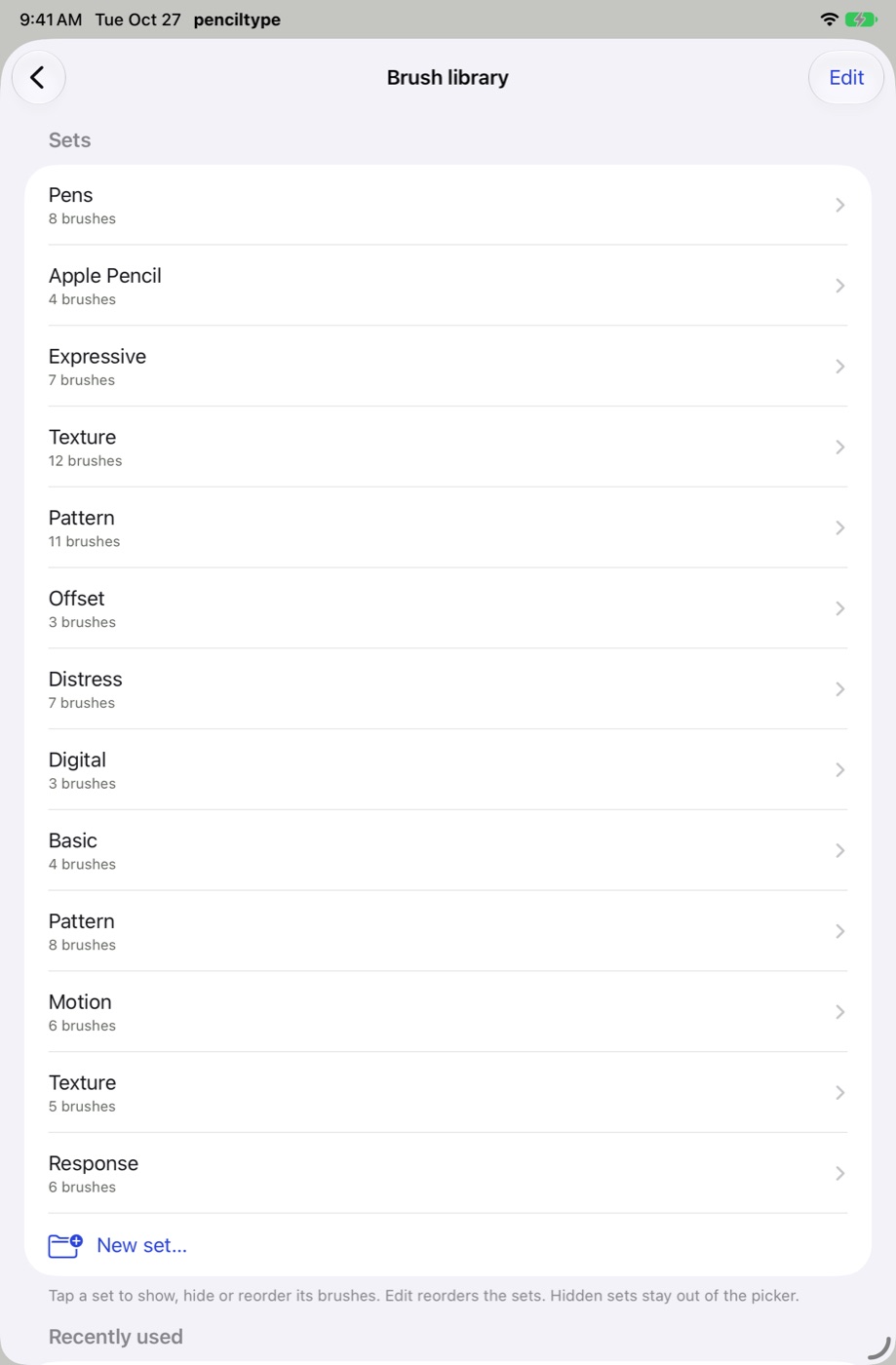
Settings › Brush library shows how many brushes you have; tap it to show, hide and reorder brush sets and brushes, manage brush packs, and import and export brushes. It opens inside Settings. Everything on it is in The brush library.
Backups
The Backups section holds Create restore point, Save library to Files…, your newest restore points and Restore from a file…. They have a chapter of their own: Backups and iCloud.
Help and About
- Replay intro
- Closes Settings and starts the intro again, as a new font. The canvas hints start over too. See Getting started.
- Privacy policy
- Opens penciltype.com/privacy in your browser.
- Support
- Opens penciltype.com/support in your browser.
The line at the very bottom gives the app's version and build, for example penciltype 1.0 (1). Quote it when you contact support.