

Preview your font
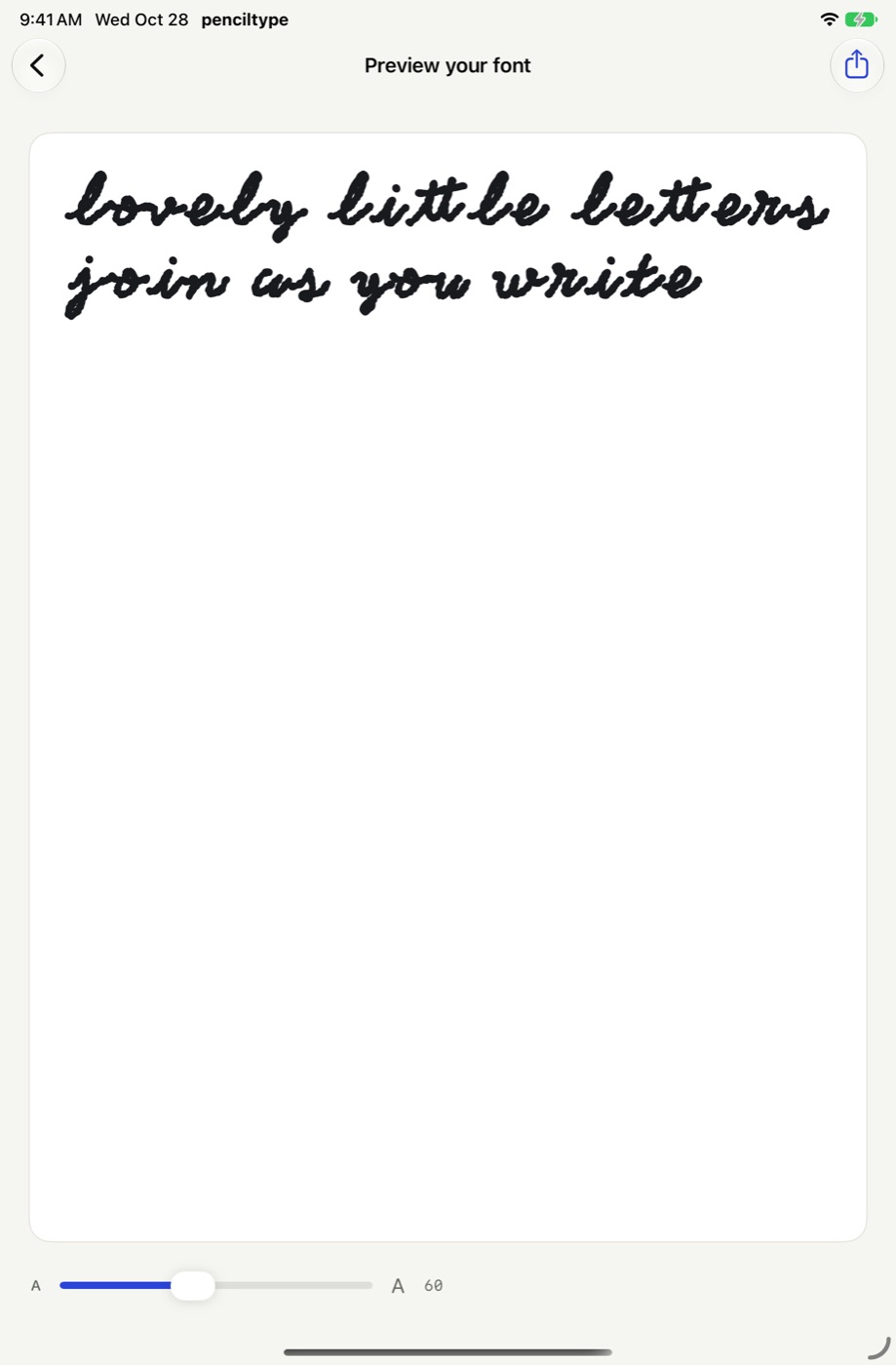
The Preview page is a type tester for the font you're making: type anything and it's set in your handwriting, live, as the font stands right now.
Opening Preview
There are three ways in:
- Preview in the row of chips on the letter grid,
- Open full preview in the grid's specimen panel,
- Try typing on the finished-font screen.
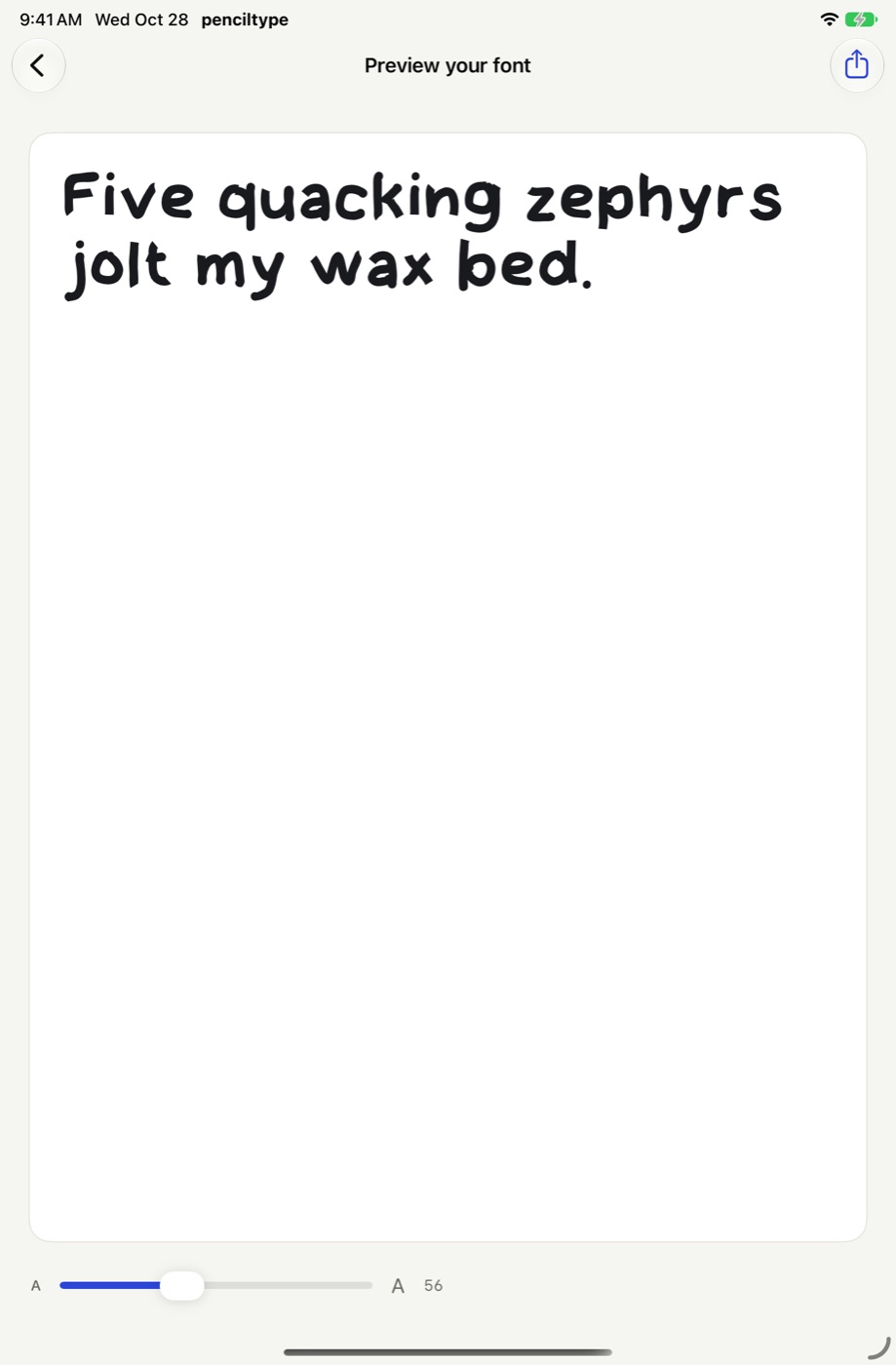
The page opens on your sample text. Until you change it, that's a pangram in one of the font's languages; if the shelf card shows a pangram all of whose letters you've drawn, it's that one. Once you edit the text, your text is kept for this font, and it's the same text the grid's specimen panel shows.
Typing
Tap the text and type. Whatever you type is set in your font as you type it. Autocorrect and automatic capitals are off, so you see exactly the letters you typed. If you clear the box it says Type anything…; before any character is ready it says Draw a few letters first — your font shows up here, live.
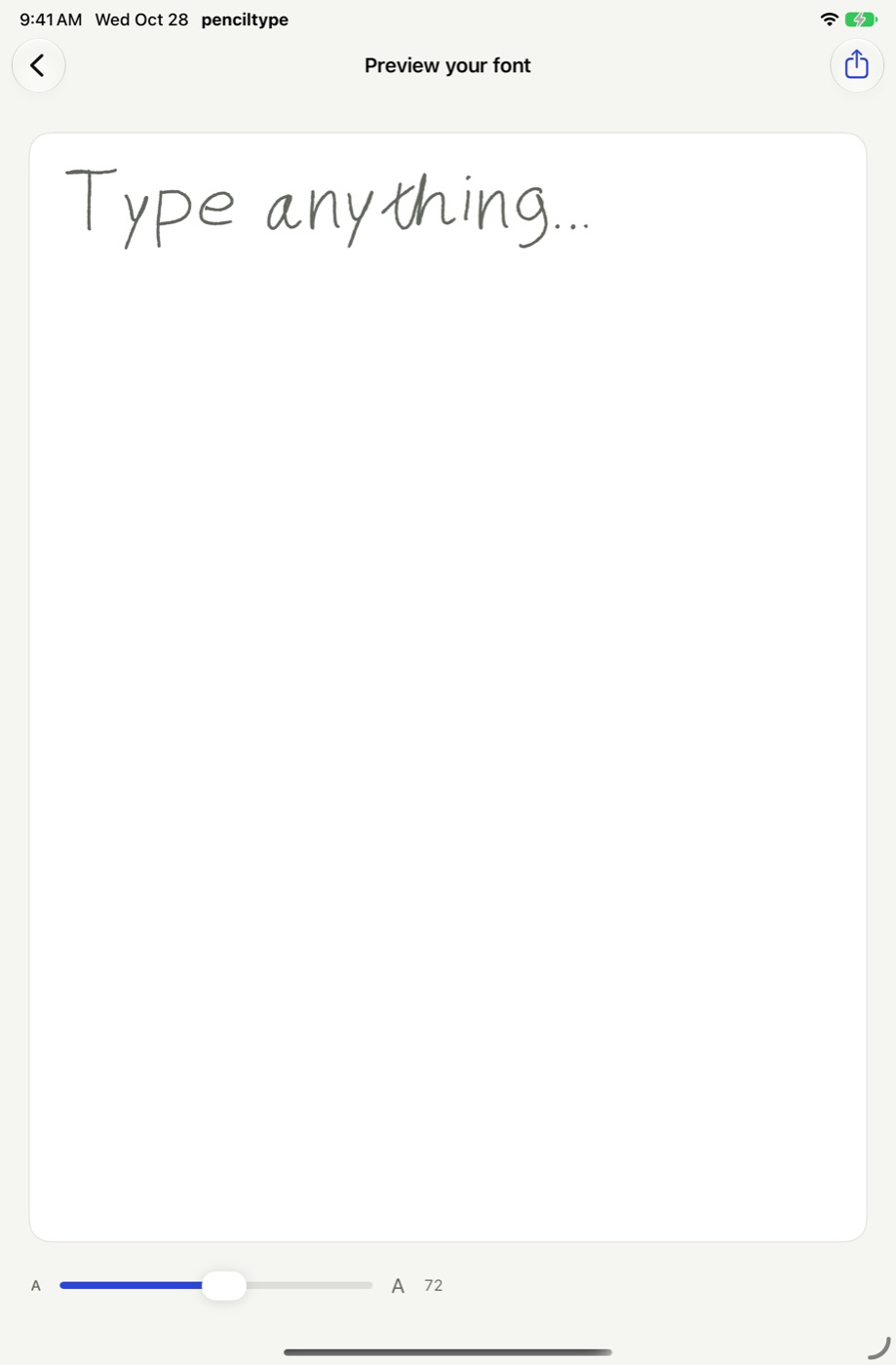
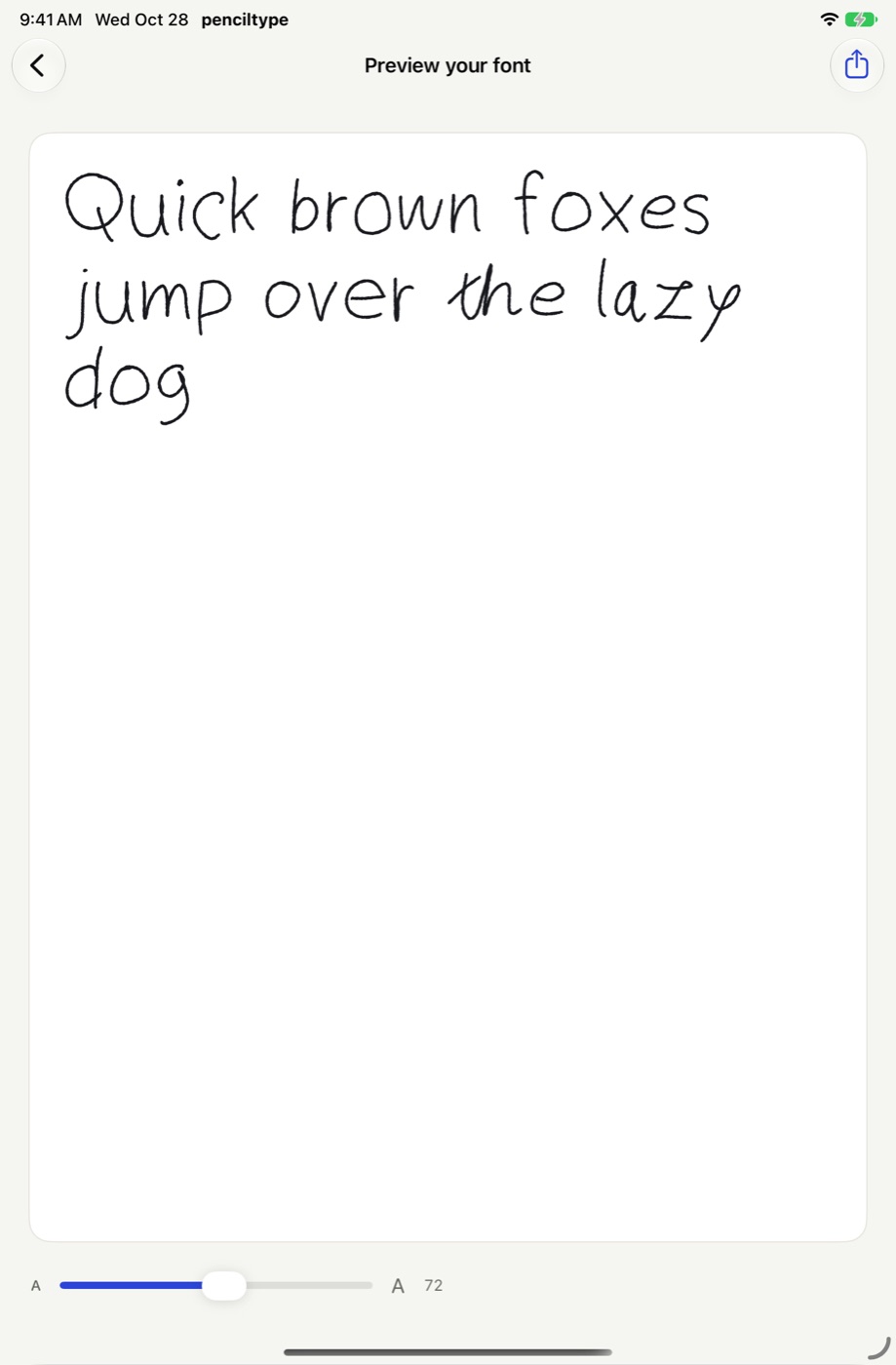
The text can be up to 2,000 characters. It's remembered for each font separately.
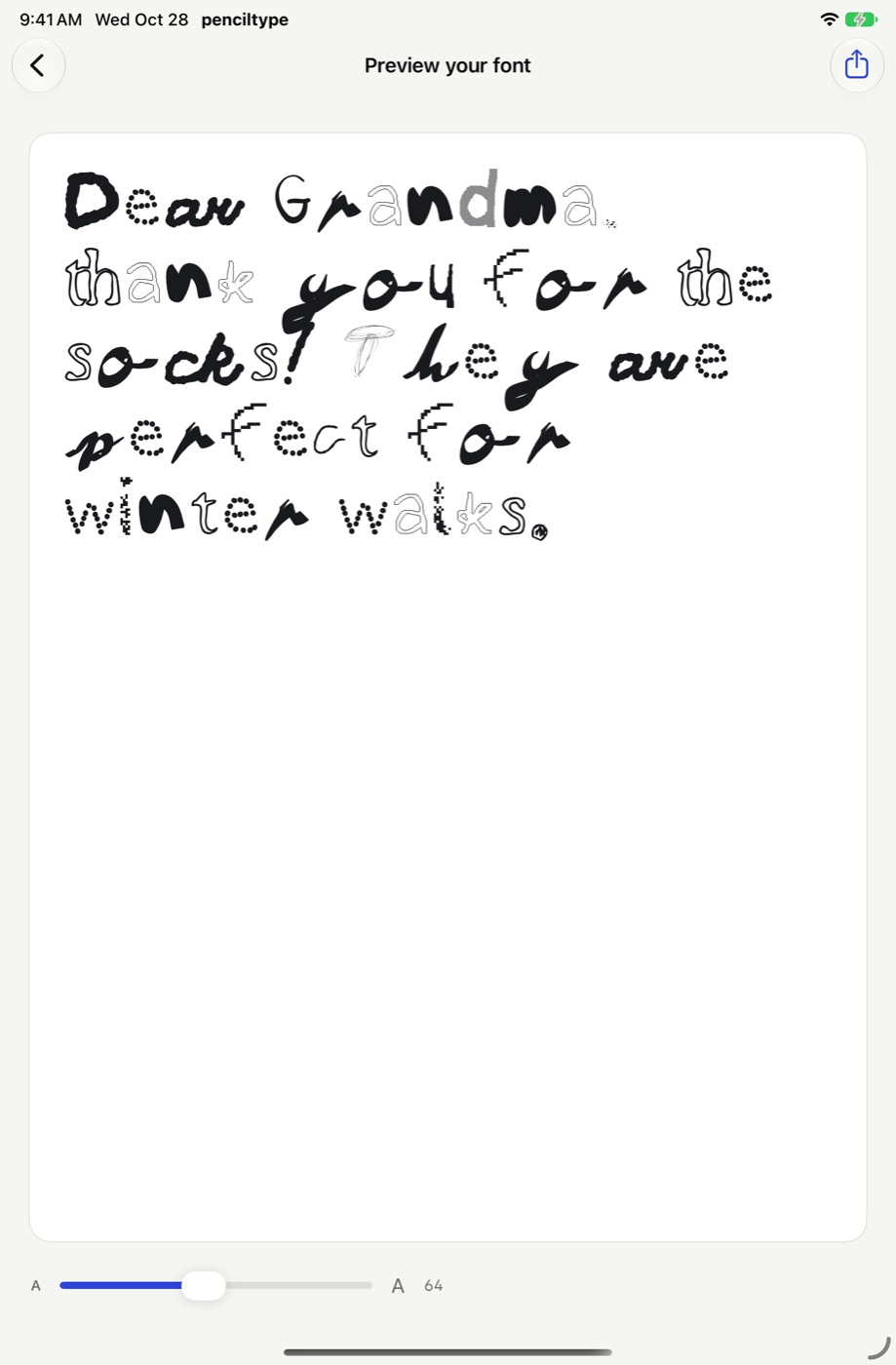
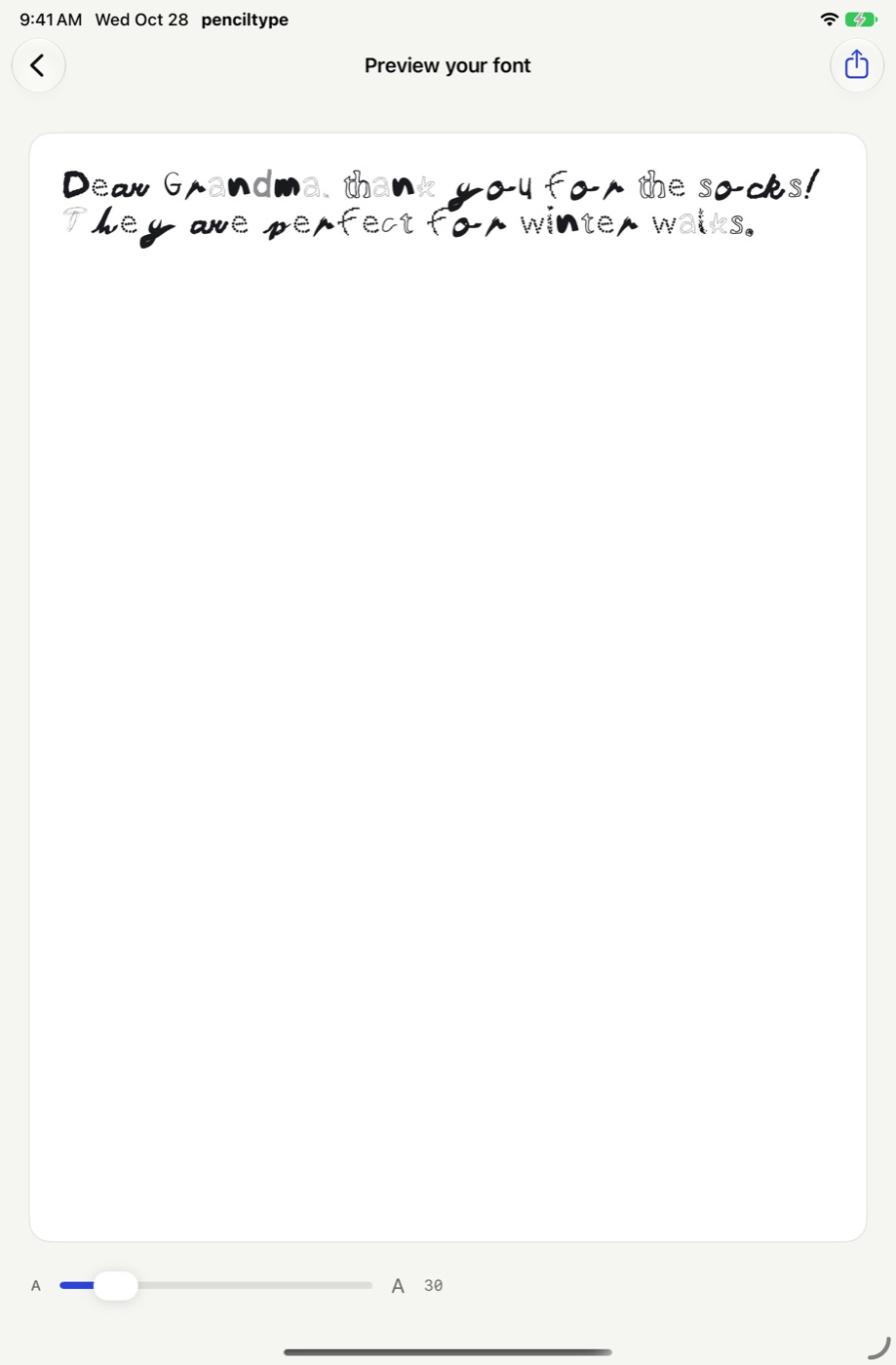
Size
The slider under the text, between a small and a large A, sets the size from 18 to 120 points; the number shows beside it. The size is shared by every font while the app is open. If you use a larger text size on your device, the sample grows on top of the slider's value.
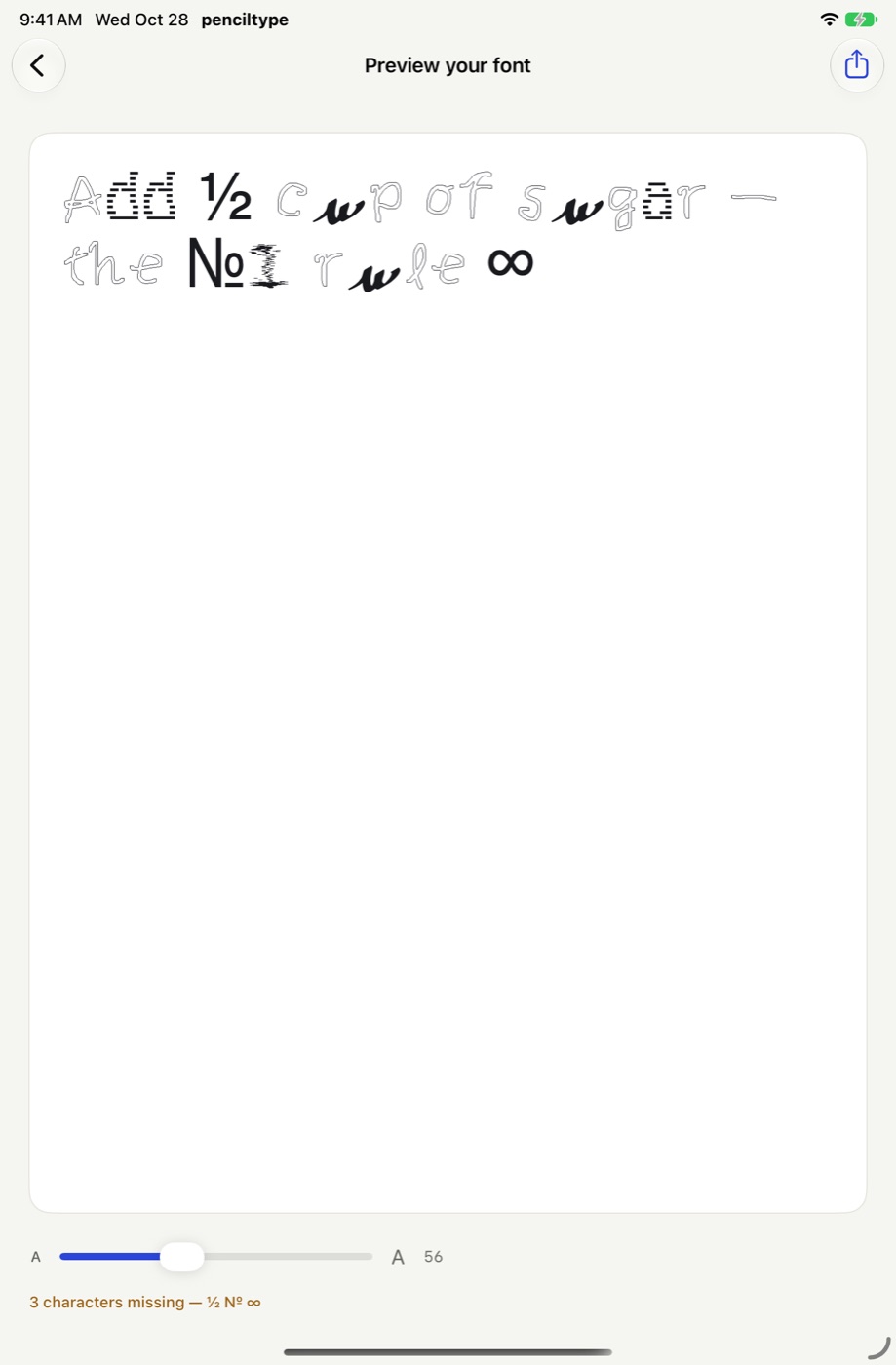
Missing characters
If your text uses characters the font doesn't have yet, a line under the sample lists them, up to six: for example 3 characters missing — ½ № ∞. They're shown in a fallback face in the text, so you can still read it. Draw them on the grid, or add them in Font settings › Characters if they aren't in the font at all.
Export from here
Export at the top right opens Export & install. It's greyed out until at least one character is ready. If you use Font settings › Project actions on the export sheet, you go back to the grid with Font settings open.