The letter grid
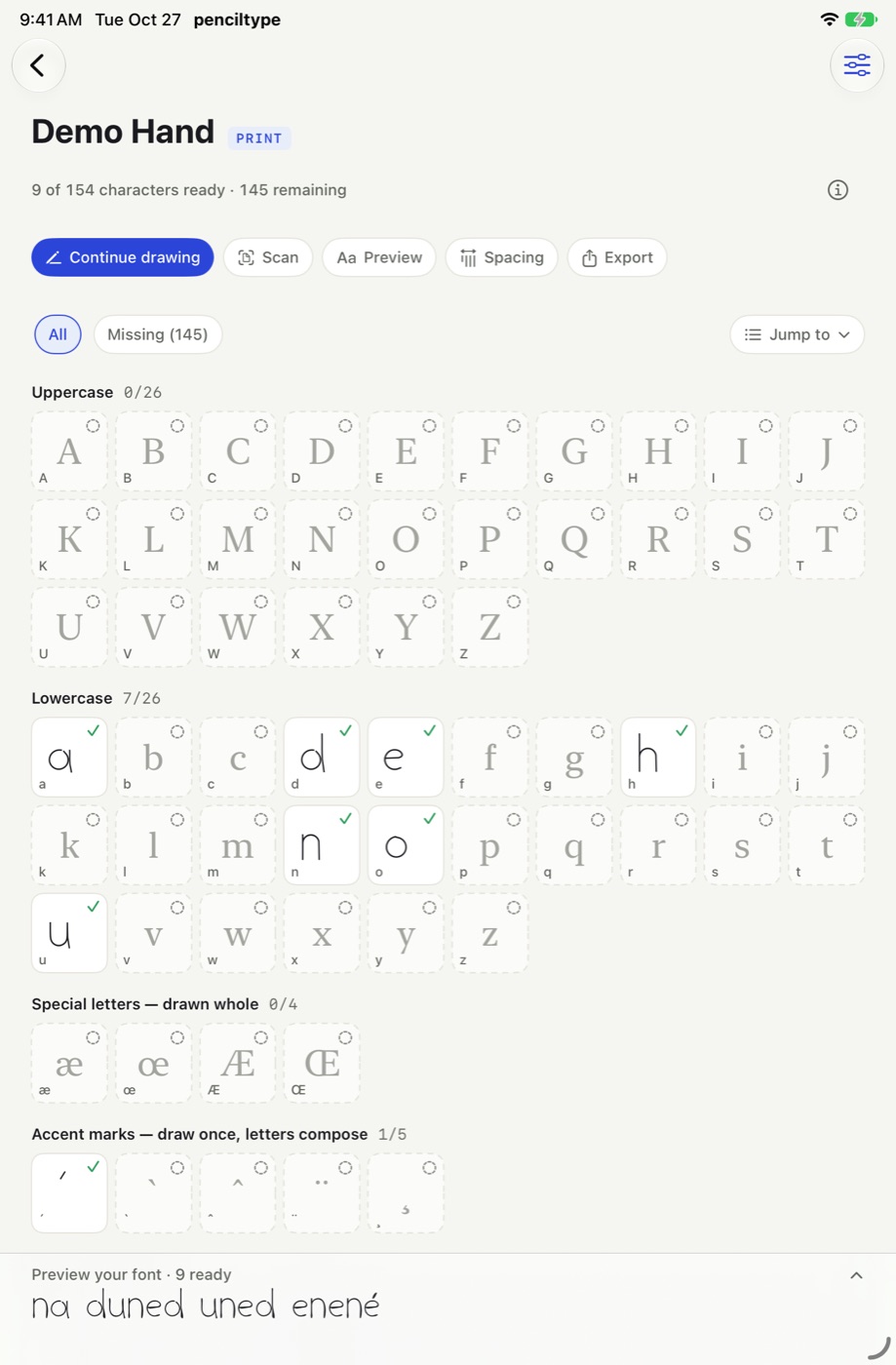
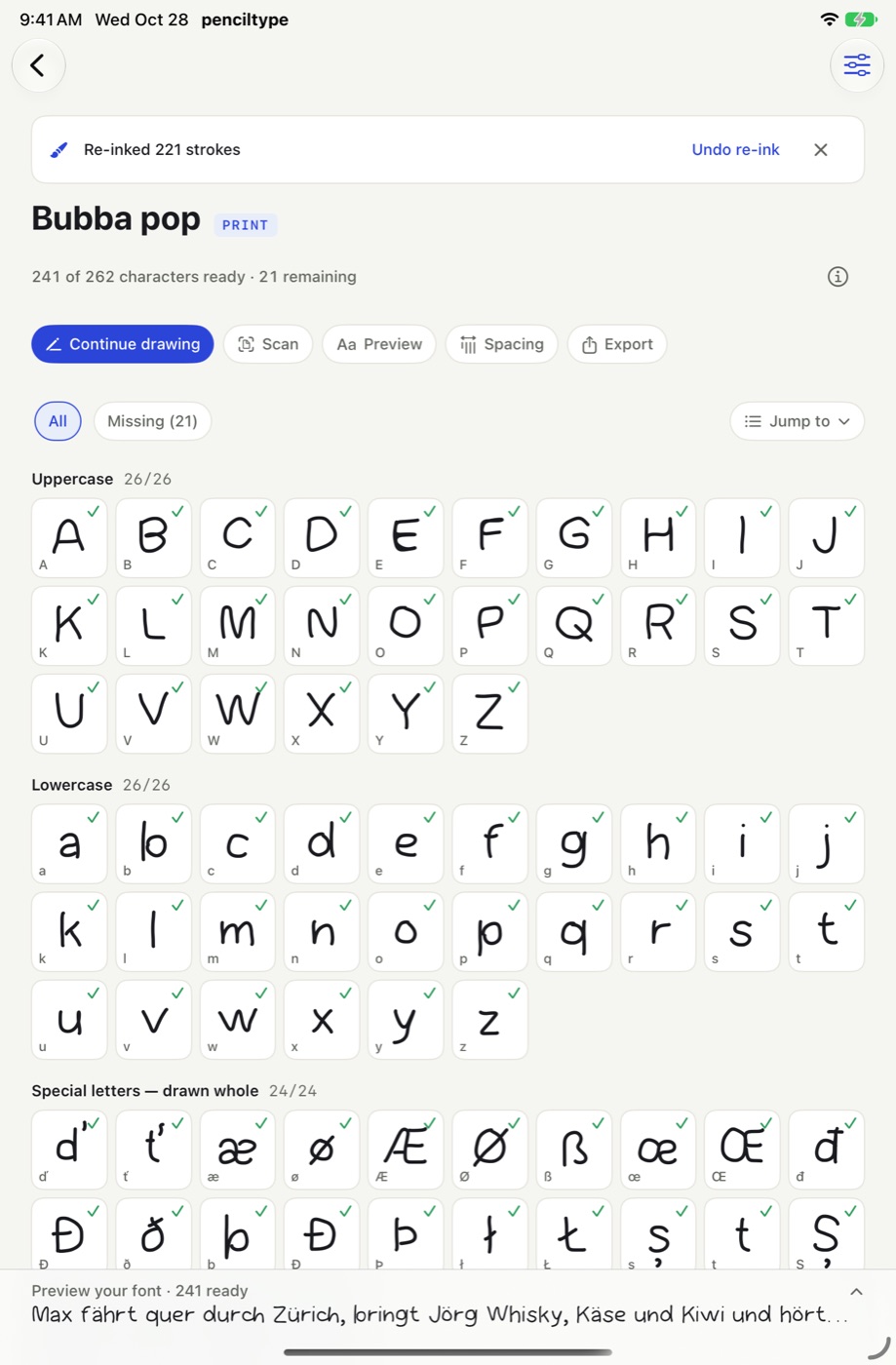
Open a font from the shelf and you land on its letter grid: one tile for every character the font asks for, in the order you'd draw them. It shows what's done, what's left, and what the font can make for you, and every other part of the font is a tap away from here.
Around the grid
Tap a font's card on the shelf to open it. The grid's title is the font's name, and every screen you open from here has a back button with that name on it.
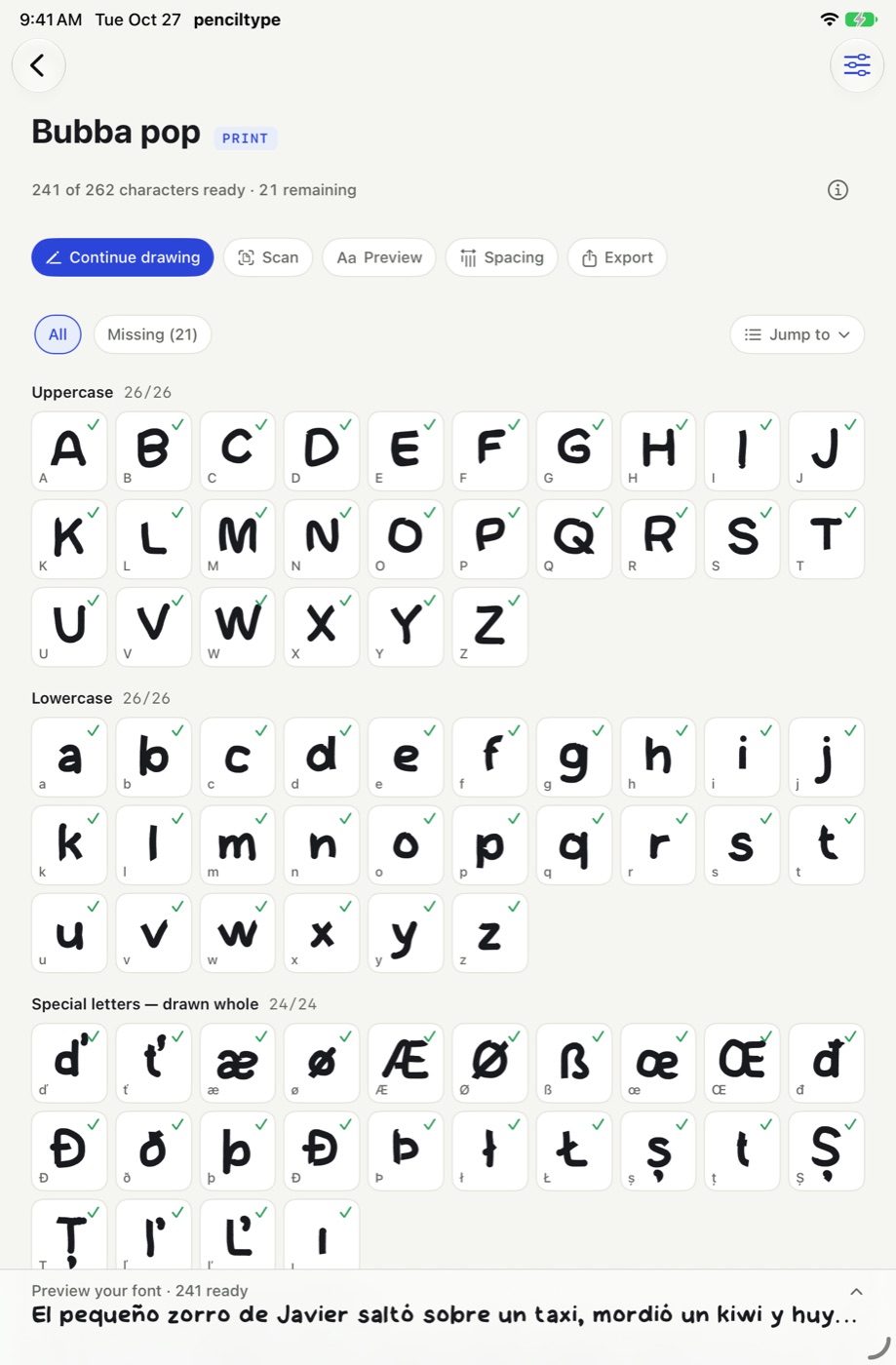
From the top down:
- The font's name and kind
- The name in large type, with a tag for its kind: PRINT, ALTERNATING, CURSIVE or PIXEL. See Font kinds below.
- The progress line
- “241 of 262 characters ready · 21 remaining”, or “All 262 characters ready” once nothing is missing. A character counts as ready when you've drawn it or when the font can make it from other drawings. The shelf card uses exactly the same words and numbers. Alternating fonts add a line Additional versions: N, the extra versions of letters you've drawn. Cursive fonts add Join forms: N, the join forms you've drawn beyond each letter's first form.
- The (i) button
- Opens What the marks mean, the legend for the marks on the tiles (see Character states).
- The action chips
- Continue drawing, Scan, Preview, Spacing and Export, described in the next section.
- The settings button
- The slider icon at the top right opens Font settings: the name, languages, guides and everything else about this font.
- The filters and Jump to
- All shows every section. Missing (21) shows only what's left, grouped by what finishes it. Jump to scrolls to a section.
- The sections
- Tiles grouped as Uppercase, Lowercase, Special letters — drawn whole, Accent marks — draw once, letters compose, Accents · …, Numerals, Punctuation and Symbols, then your own Extras, Letter pairs and Words. Each heading shows how many of its characters are ready, for example 26/26. Which sections appear depends on the font's languages, its symbols and the accent helper (all set in Font settings).
- The specimen bar
- Pinned to the bottom: the first line of your sample text, set in the font as it is right now. See The specimen bar.
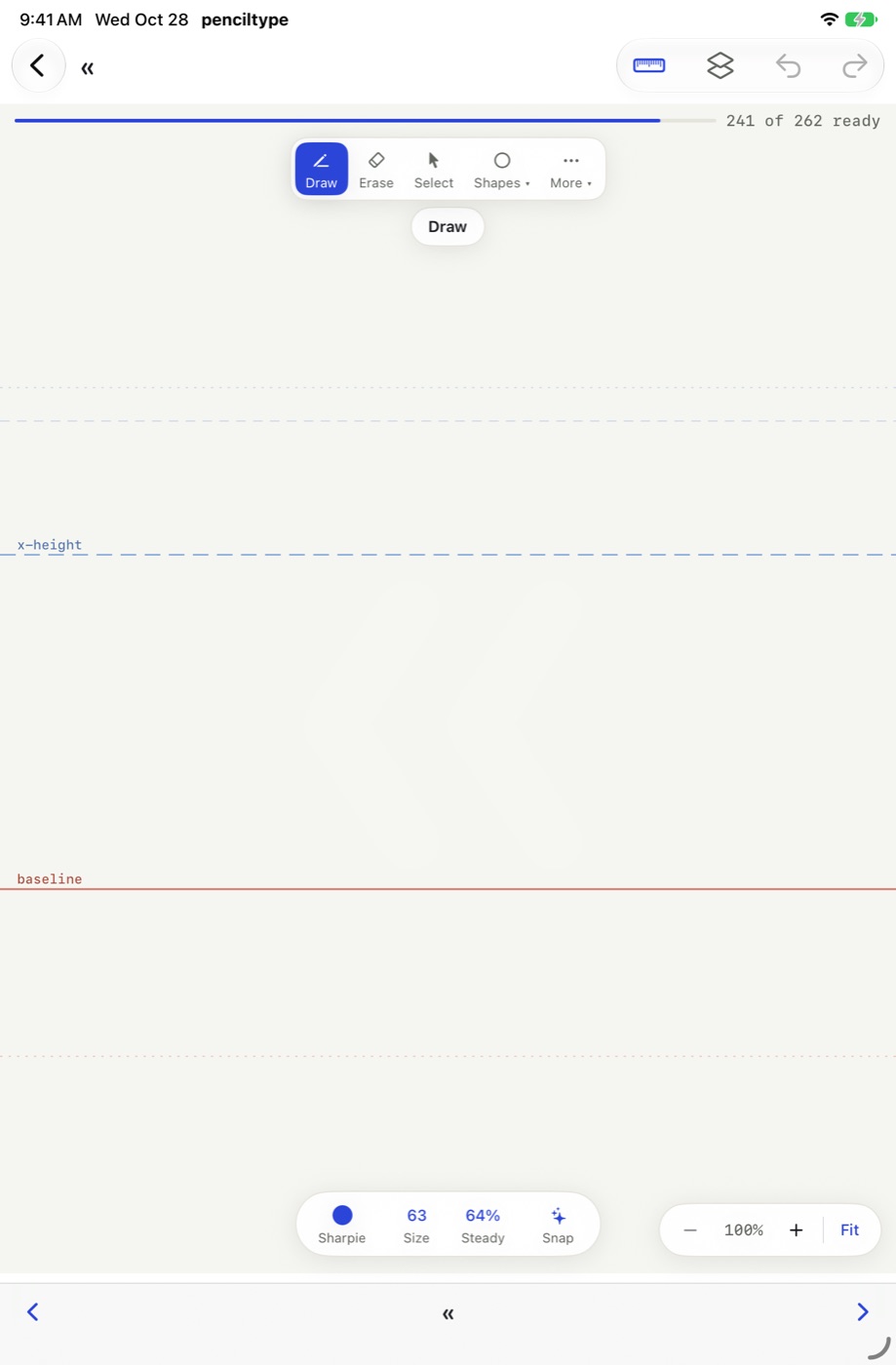
Tap any tile to draw that character on the canvas. When you come back, the tile shows your new ink.
When you scroll down, the big name scrolls away and the font's name appears in the bar at the top instead.
The action chips
- Continue drawing
- Opens the canvas on the next character that isn't ready. It counts on from the last character you drew, so a session keeps moving forward through the font, and it wraps round to the start at the end. The chip only shows while at least one character is ready and at least one is still missing.
- Scan
- Turns handwriting on paper into letters. See Scanning. Pixel fonts have no Scan chip.
- Preview
- Opens Preview your font, where you type anything in your font.
- Spacing
- Opens Spacing. It's greyed out until at least one character is ready.
- Export
- Opens Export & install. Also greyed out until something is ready.
Character states and marks
Every tile shows the character's ink and its name in the bottom-left corner. A small mark in the top-right corner says how the character got there. Tap the (i) button at the end of the progress line to see the legend.
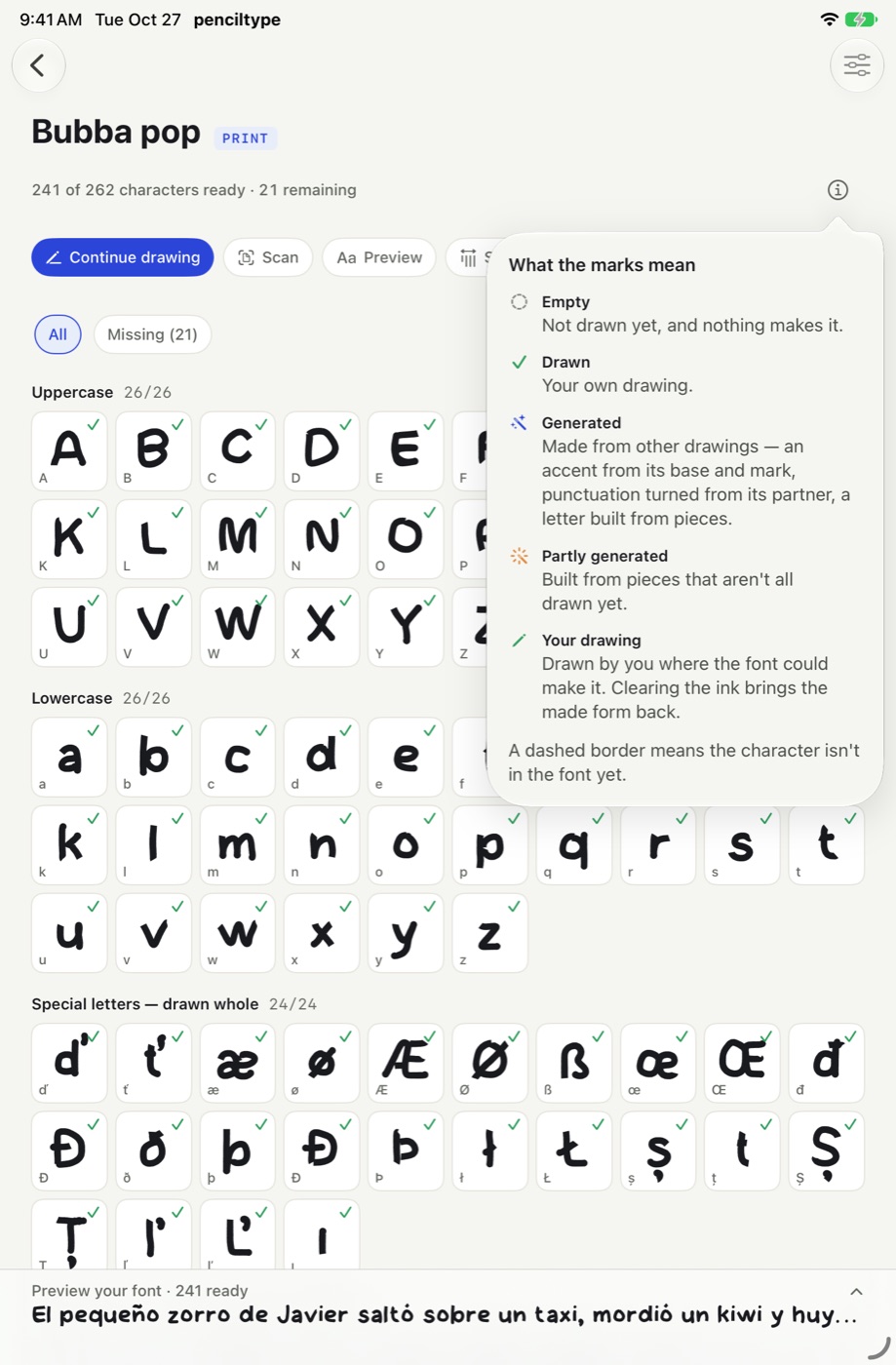
| Mark | State | What it means |
|---|---|---|
| Dashed grey circle | Empty | Not drawn yet, and nothing makes it. |
| Green tick | Drawn | Your own drawing. |
| Blue wand with sparkles | Generated | Made from other drawings: an accented letter from its base and its mark, a punctuation mark turned or mirrored from its partner, or a letter built from pieces. |
| Orange wand with rays | Partly generated | Built from pieces that aren't all drawn yet. |
| Green pencil | Your drawing | You drew it yourself where the font could have made it. Clear the ink and the made form comes back. |
A dashed border around a tile means the character isn't in the font yet. Generated characters are shown at full ink, just like drawn ones; only the mark tells them apart. The same five states are what VoiceOver reads for each tile, and they drive every count in the app.
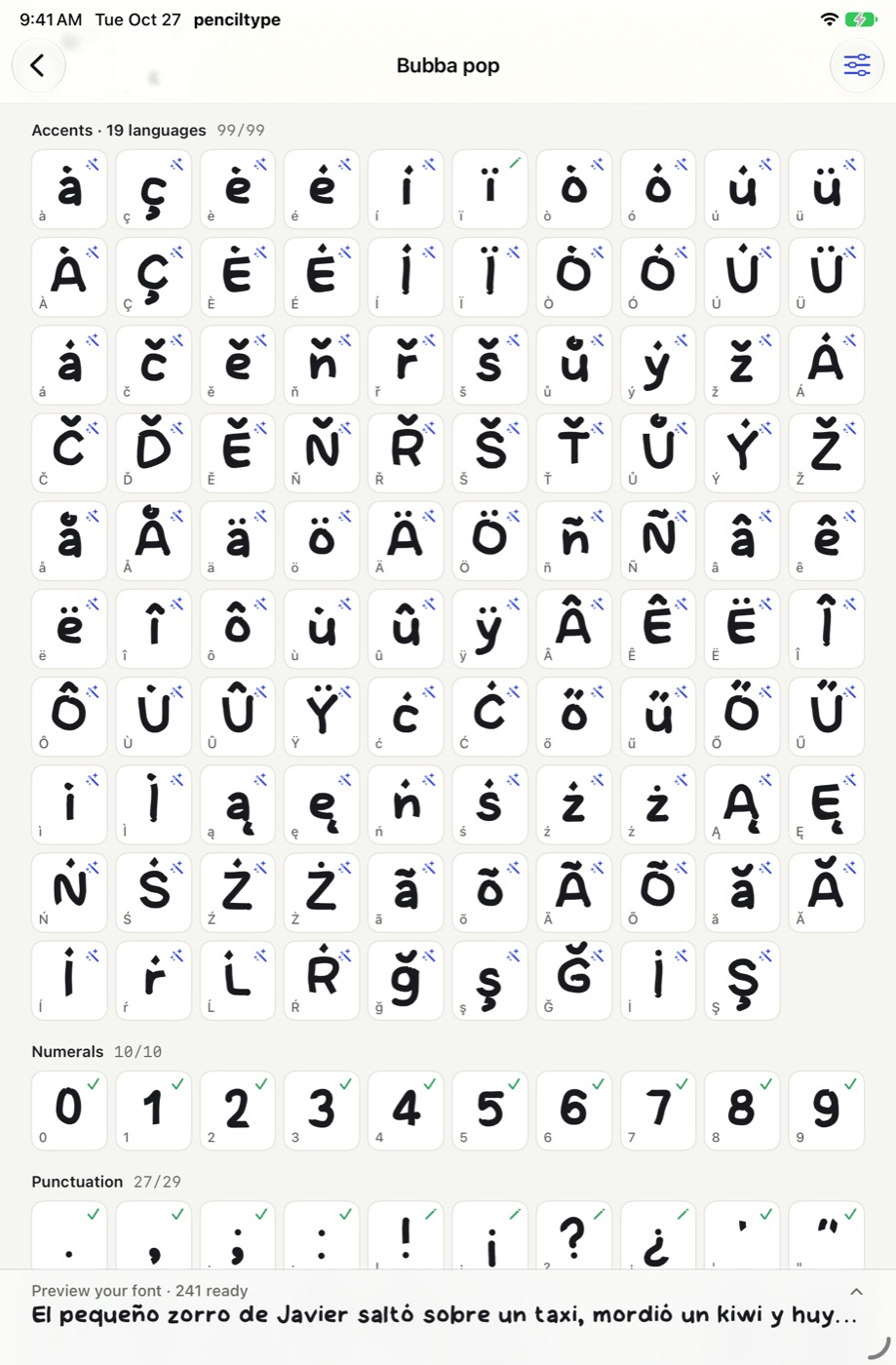
Ghosted tiles
Tiles you haven't drawn show the character faintly in the font's tracing guide face, the same ghost letter you'll trace over on the canvas. So a new font's grid already previews what you're about to draw. Change the face in Font settings › Tracing guide font and the ghosts change with it.
Missing: what's left, and what finishes it
Tap Missing (n) under the header to see only the characters that aren't ready. The number is the live count. Instead of the usual sections, the missing characters are grouped by the one thing that finishes them, the biggest wins first:
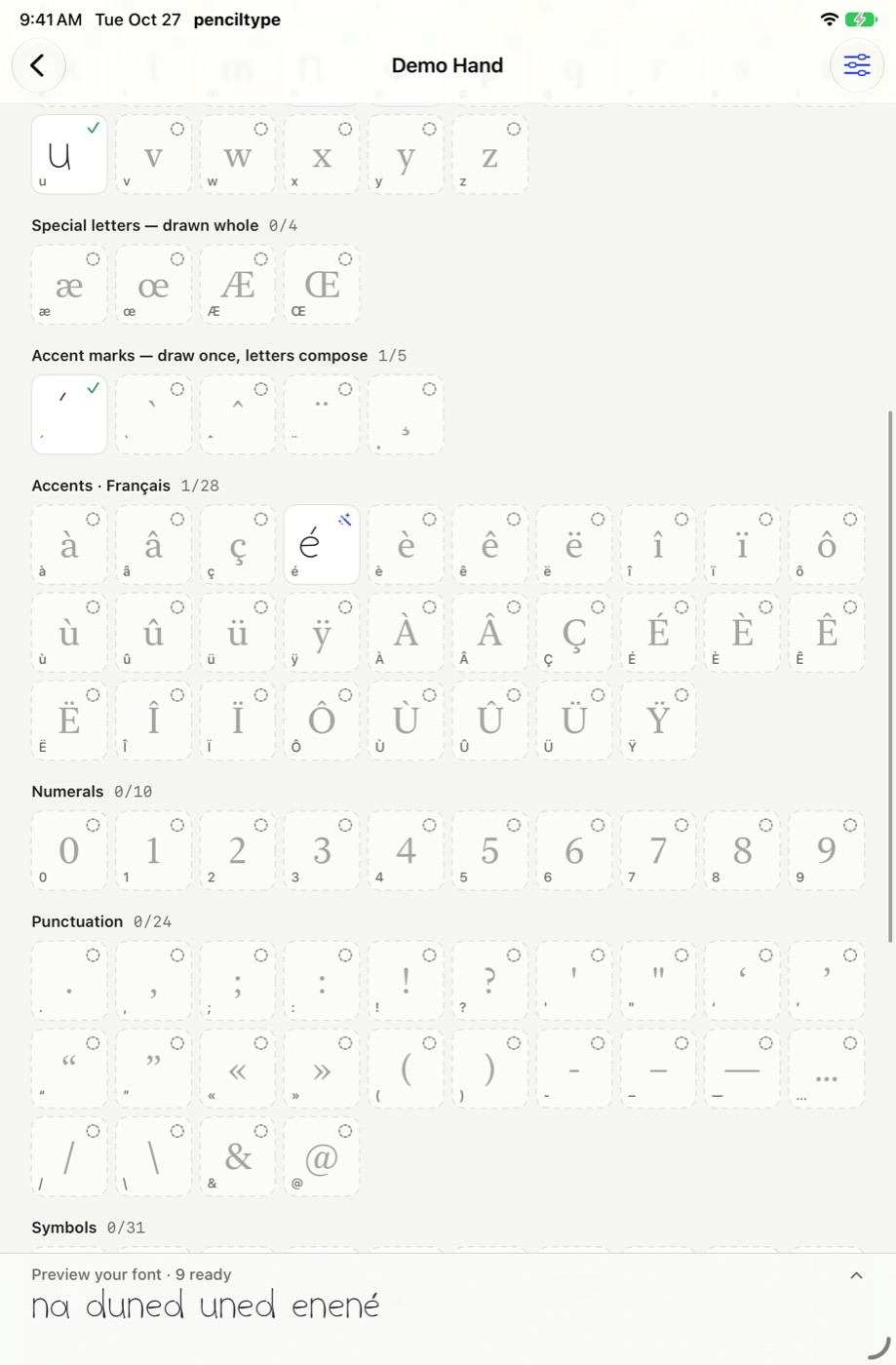
- Draw ´ — these compose from it
- A row of accented letters waiting on one accent mark. A large chip with the mark and a pencil opens its canvas; draw the mark once and the whole row is made.
- Draw e — these compose over it
- Accented letters whose mark is drawn but whose base letter isn't. The chip opens the base.
- Draw « or » — the other is made from it
- A punctuation pair. Draw either one and the other is turned or mirrored from it (see Turn & mirror punctuation). There are no chips: the two tiles are the parts. Low quotes (‚ „) join their pair above.
- Draw stem, round … to finish these
- Pieces fonts only: the kit pieces a family of letters still needs, as a row of chips. See Pieces.
- Draw these directly
- Everything nothing else can make. Always last.
Within each group the tiles keep grid order. Tap a tile or a part chip to draw it. Tap All to go back to the full grid. When nothing is missing, the view says Nothing missing — every character is ready.
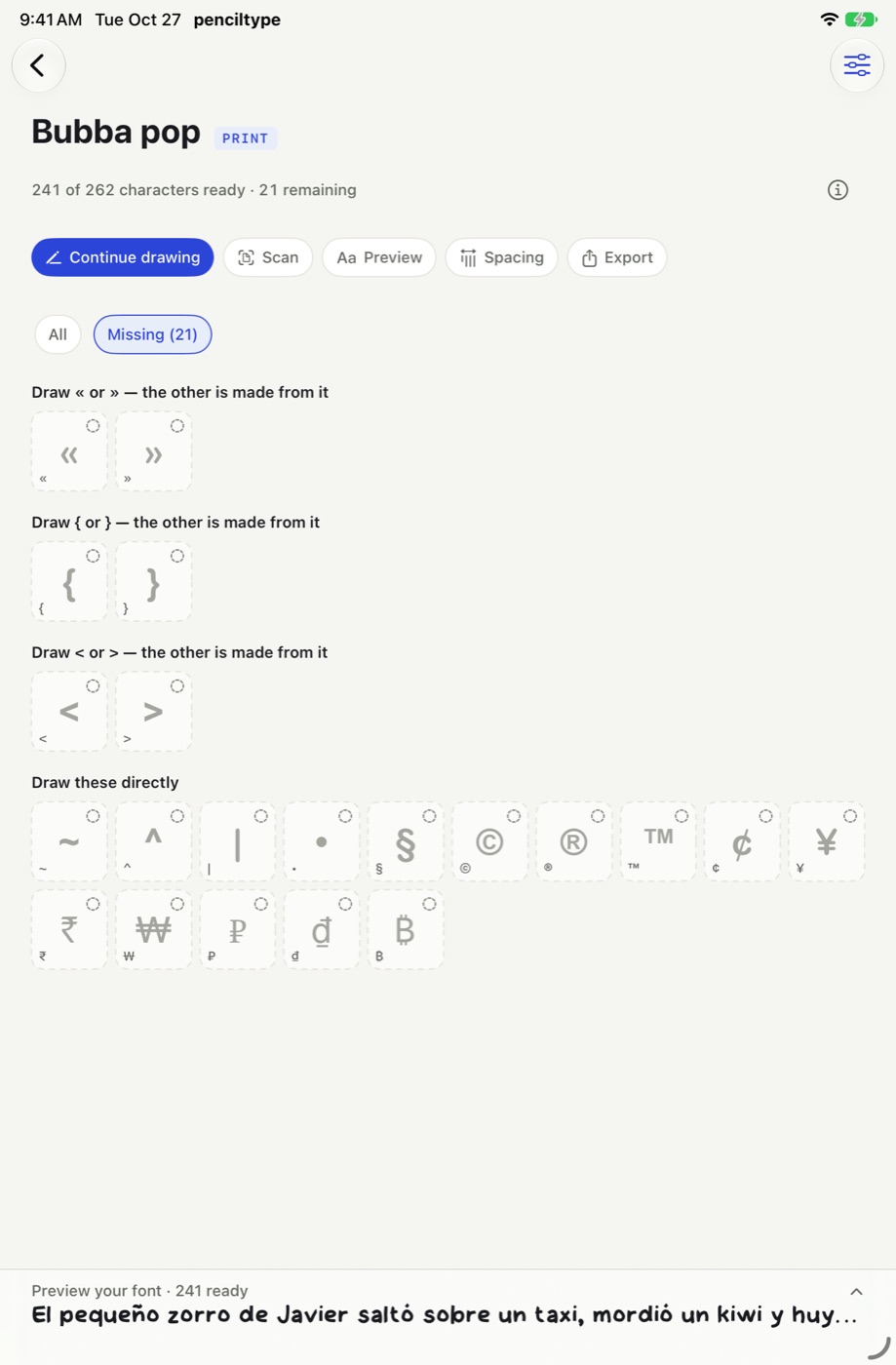
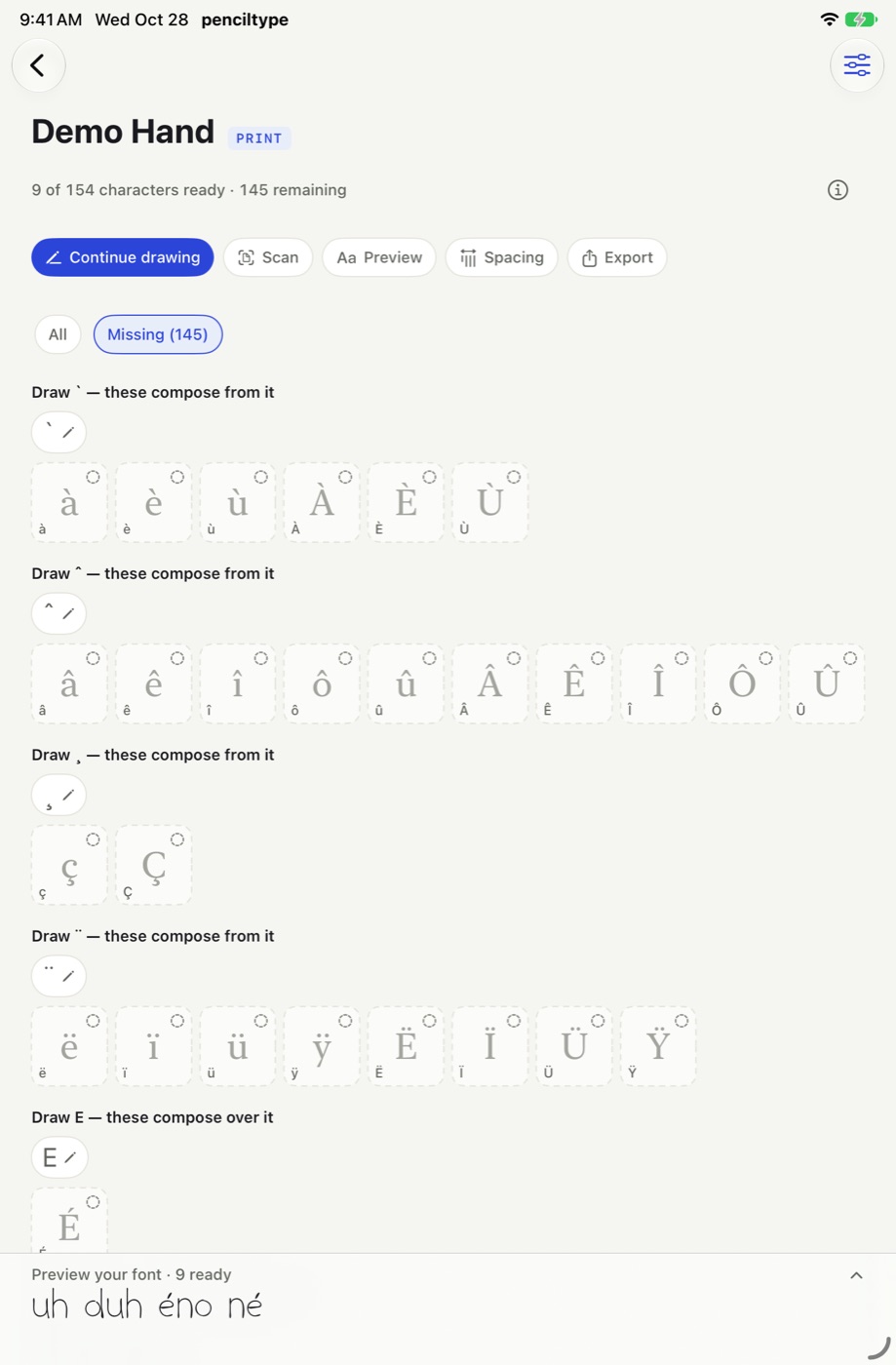
The Missing view isn't remembered: the grid opens on All each time. Jump to is hidden while Missing is selected. If the accent helper is off, accented letters fall into Draw these directly; if Turn & mirror punctuation is off, there are no pair groups.
Jump to a section
With All selected, tap Jump to at the right of the filter chips. The menu lists every section with its ready count, for example Numerals · 10/10. Pick one and the grid scrolls straight to it. The menu only appears when the grid has more than one section.
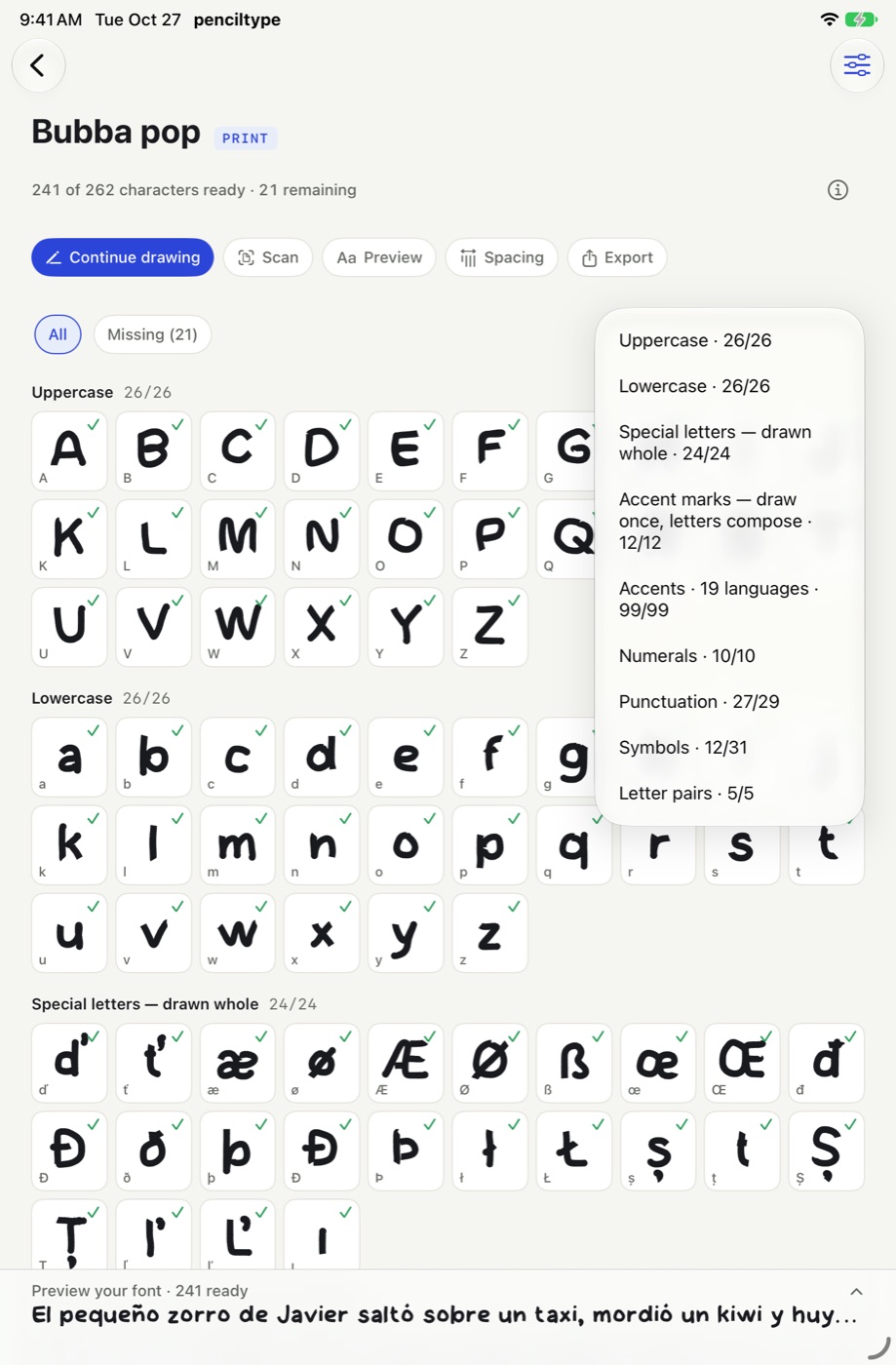
The entries, in grid order, are: Pieces (pieces fonts only), Uppercase, Lowercase (not for all-caps fonts), Special letters — drawn whole (when your languages add letters with no accent shortcut, such as æ, œ, ß and ø), Accent marks — draw once, letters compose (with the accent helper on), Accents · …, Numerals, Punctuation, Symbols, and Extras, Letter pairs and Words when the font has any. The Accents section names up to three languages (“Accents · Español + Français”), otherwise the number of languages (“Accents · 19 languages”).
Your own characters: extras, letter pairs and words
At the end of the grid are three sections for characters you add yourself. Each ends with a dashed + tile.
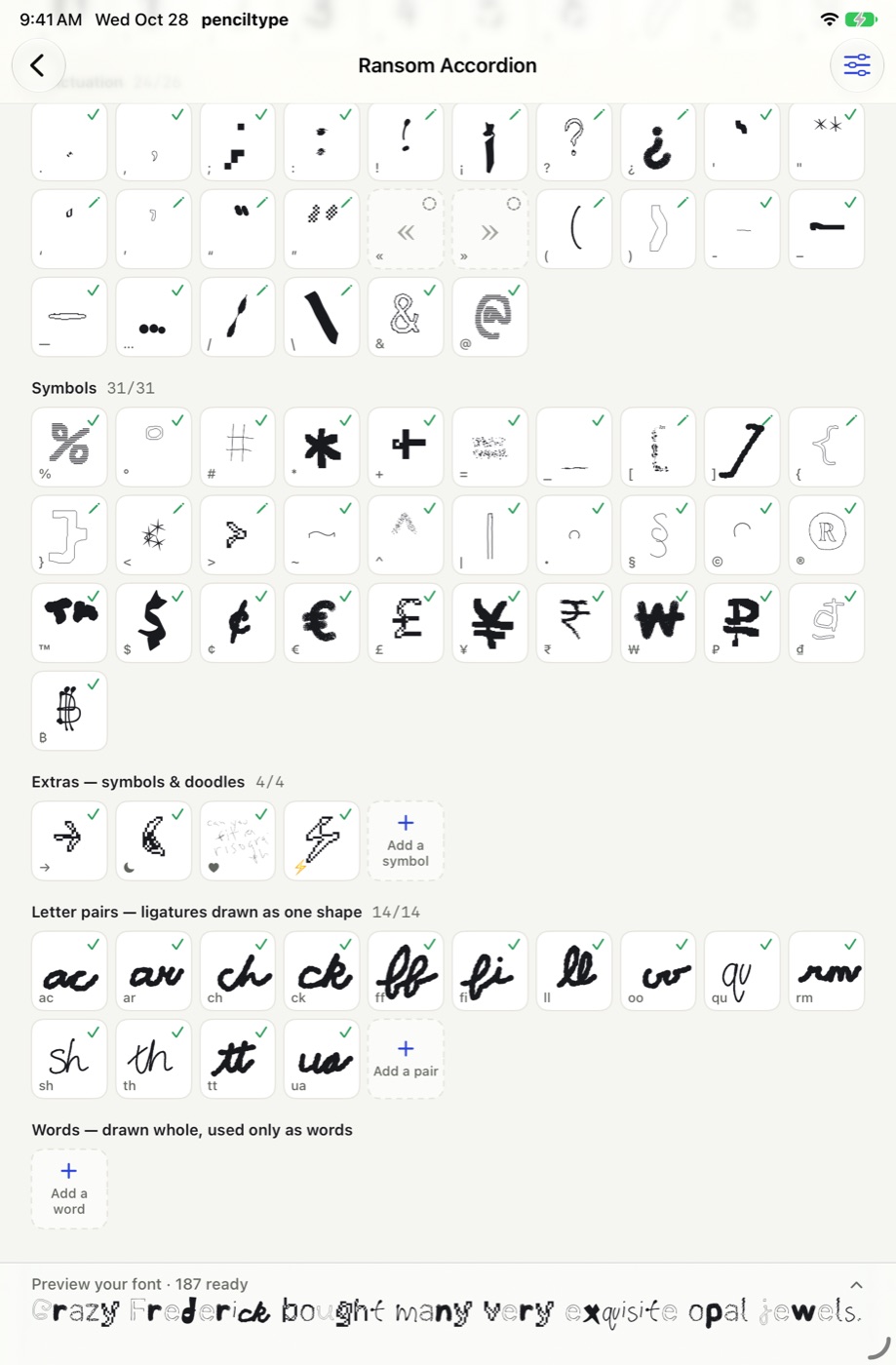
- Extras — symbols & doodles
- Any single character: a heart, a star, a signature mark, an emoji, or an extra accented letter your languages don't include. Once drawn, you type it like any letter. An accented letter added here composes from parts you've already drawn straight away.
- Letter pairs — ligatures drawn as one shape
- Two to four letters drawn as one shape, like a joined “th” or “ff”. Whenever you type that sequence, the font uses your drawing instead of the separate letters.
- Words — drawn whole, used only as words
- A whole word of two to eight letters drawn as one shape. The font uses it only where the word stands on its own, never inside a longer word: your “the” replaces “the” but not the “the” in “there”.
Adding one
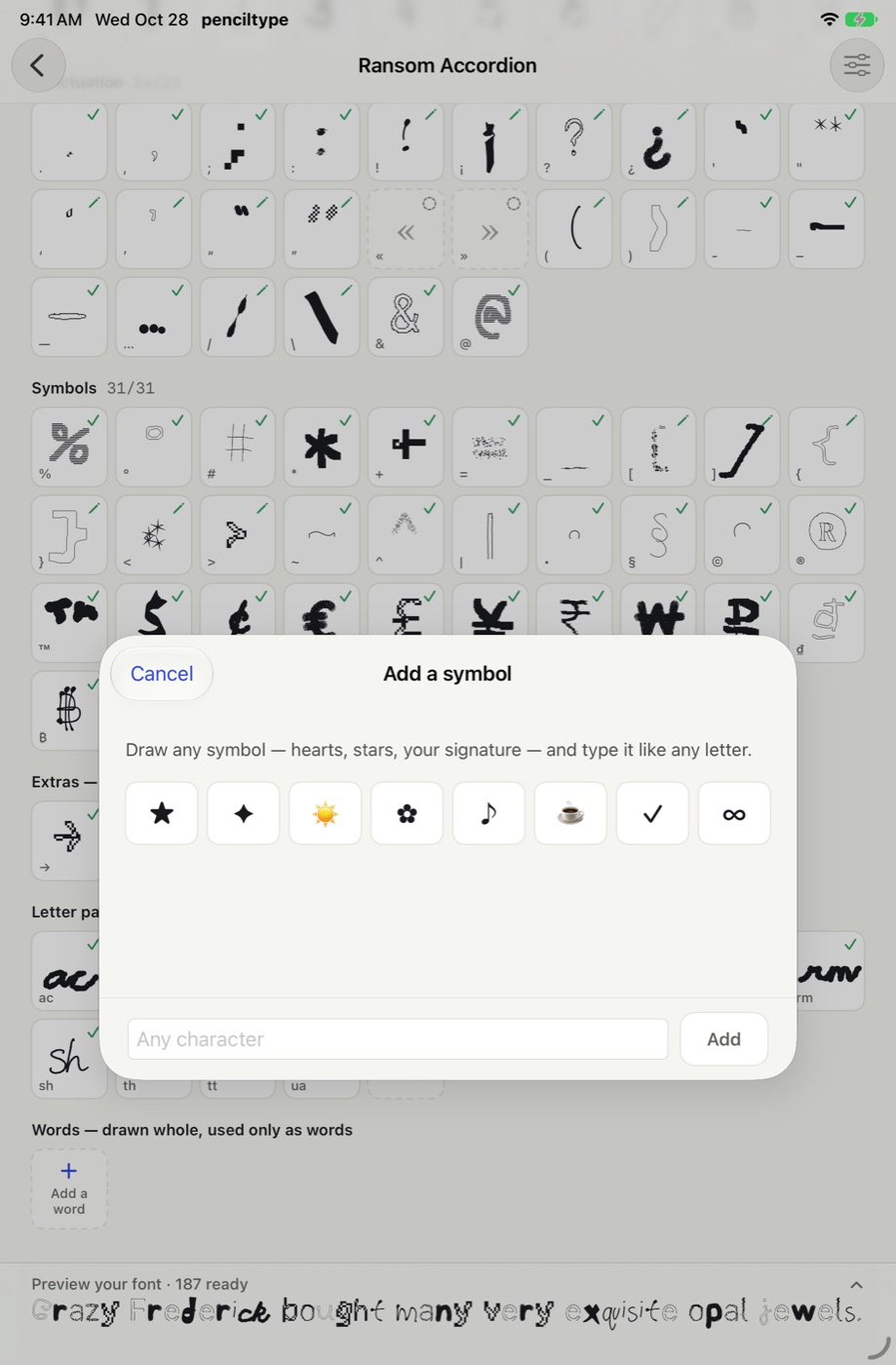
Tap Add a symbol, Add a pair or Add a word. A sheet opens with suggestions and a field. Tap a suggestion, or type your own and tap Add; the sheet closes and the canvas opens on the new character so you can draw it right away. Cancel closes the sheet without adding anything.
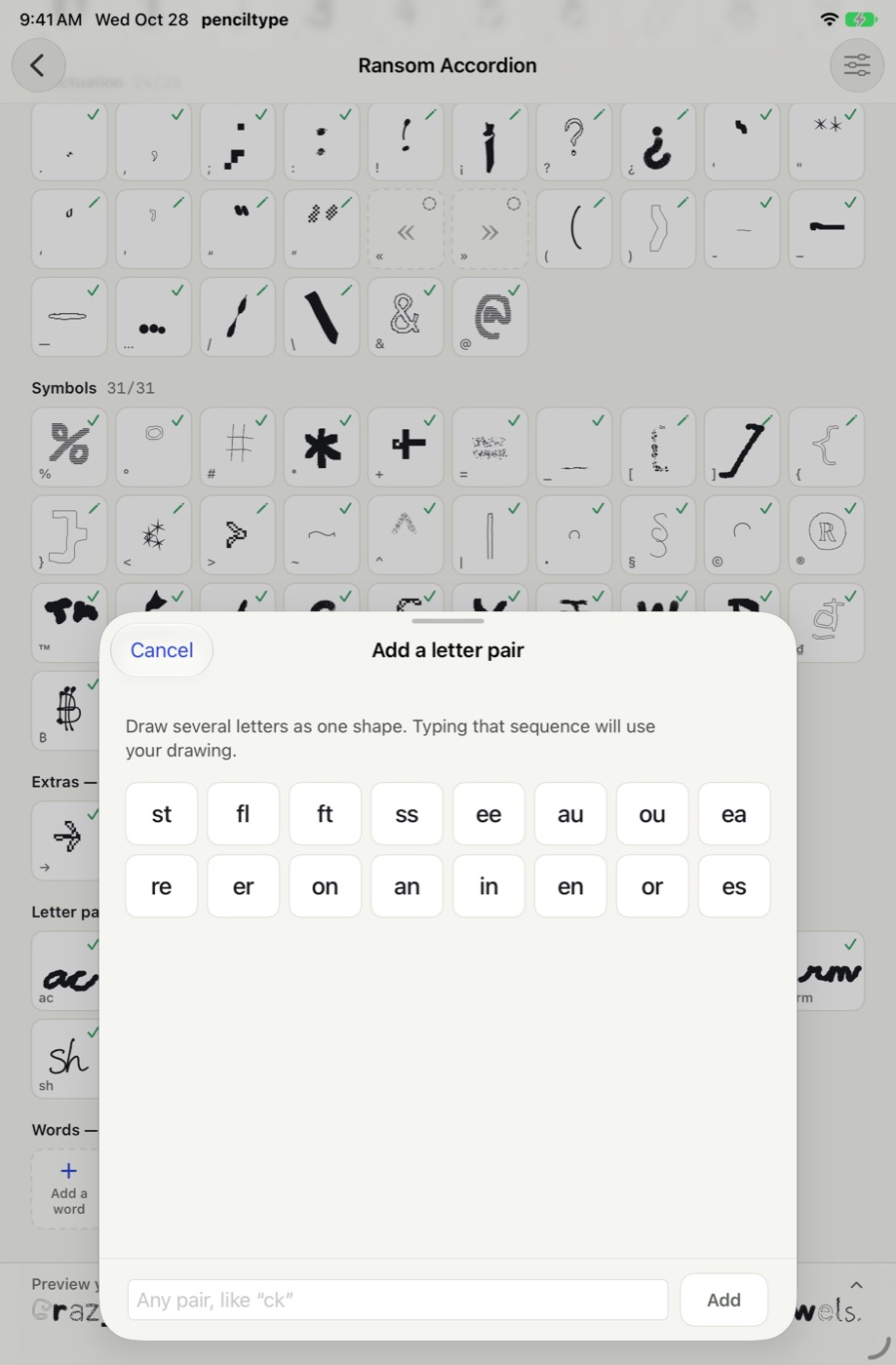
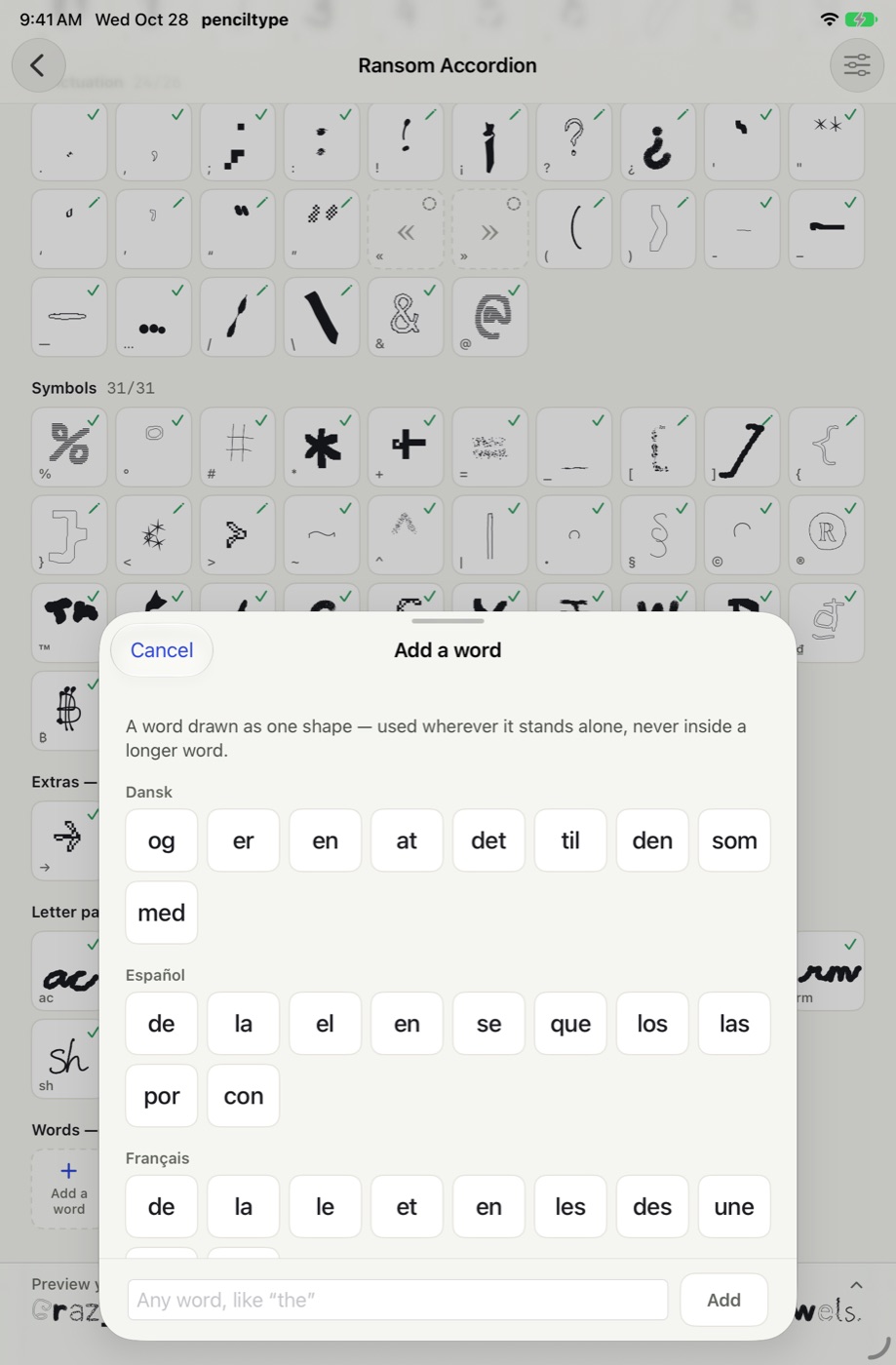
| Sheet | Suggestions | What you can type |
|---|---|---|
| Add a symbol | ♥ ★ ✦ ☀ ☾ ✿ ⚡ ♪ ☕ ✓ → ∞, minus any already added | Exactly one character (emoji included) that isn't already an extra. Field: Any character. |
| Add a letter pair | th ch sh qu ck st ff fi fl ft ll tt ss ee oo au ou ea re er on an in en or es, minus pairs and words already in the font | Two to four characters that aren't already a pair or word. Field: Any pair, like “ck”. |
| Add a word | Common short words grouped under each of the font's languages, English last (for English: of in to is it on the and for you was are) | Two to eight letters, letters only, not already in the font. Field: Any word, like “the”. |
In an All caps font, what you type is uppercased, and pairs and words are stored and shown in capitals.
Removing an extra, pair or word
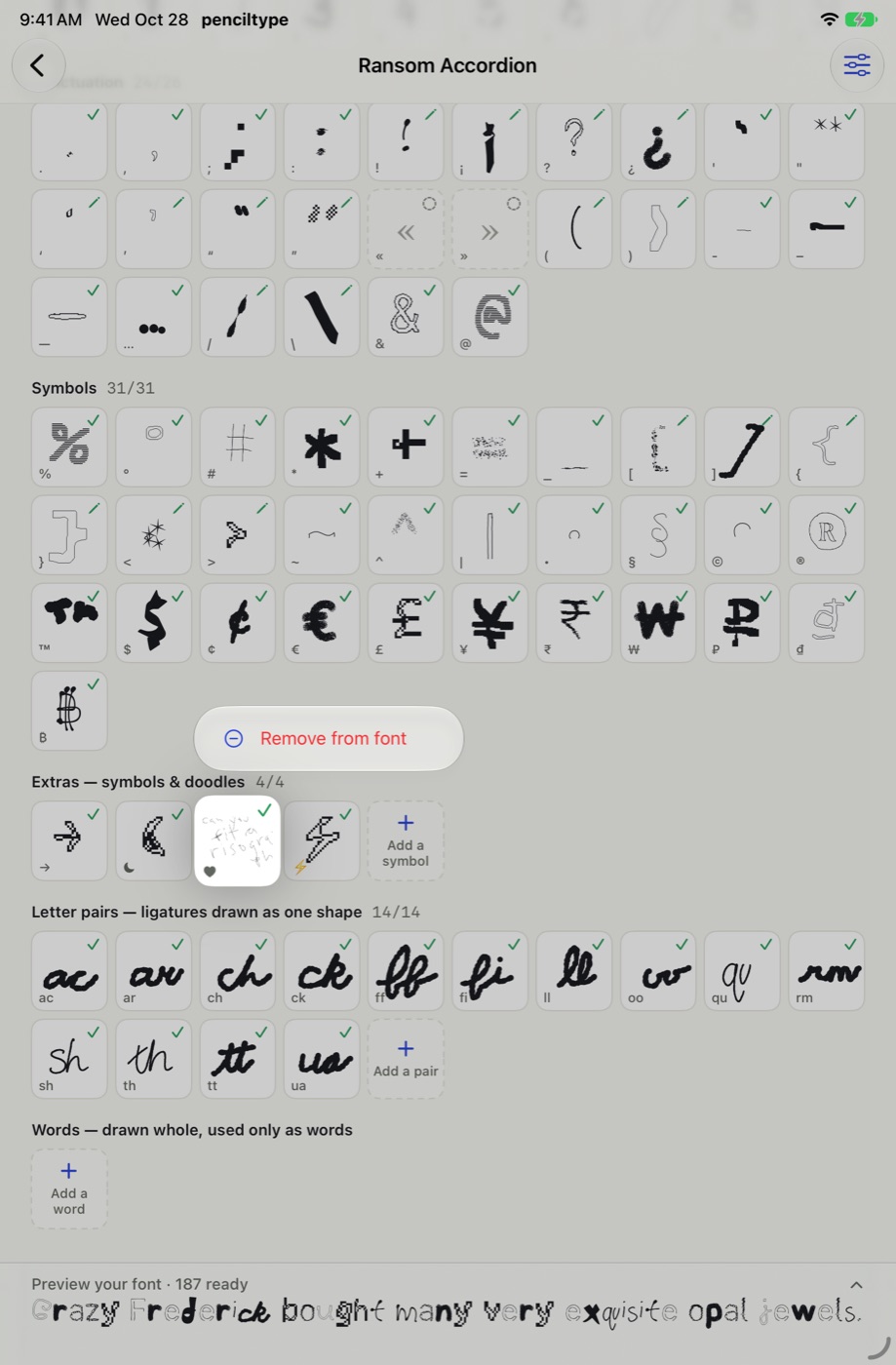
Touch and hold a tile in Extras, Letter pairs or Words (on Mac, right-click or Control-click it) and choose Remove from font. It leaves the grid at once, with no confirmation, and the font is rebuilt without it.
The drawing isn't thrown away: it stays in the project, and if you add the same character, pair or word again, your ink comes back. Ordinary characters, like letters and numerals, have no menu; to drop those, change the font's languages or symbols.
The specimen bar
The bar pinned to the bottom of the grid, Preview your font · 241 ready, sets the first line of your sample text in the font as it is right now. Every letter you draw shows up there as soon as the font rebuilds. If the line uses characters the font doesn't have yet, the bar warns you, for example 3 characters missing — ñ ½ € (it lists up to six). Before anything is drawn it reads Draw a few letters first — your font shows up here, live.
Tap the bar to open it into a small type tester:
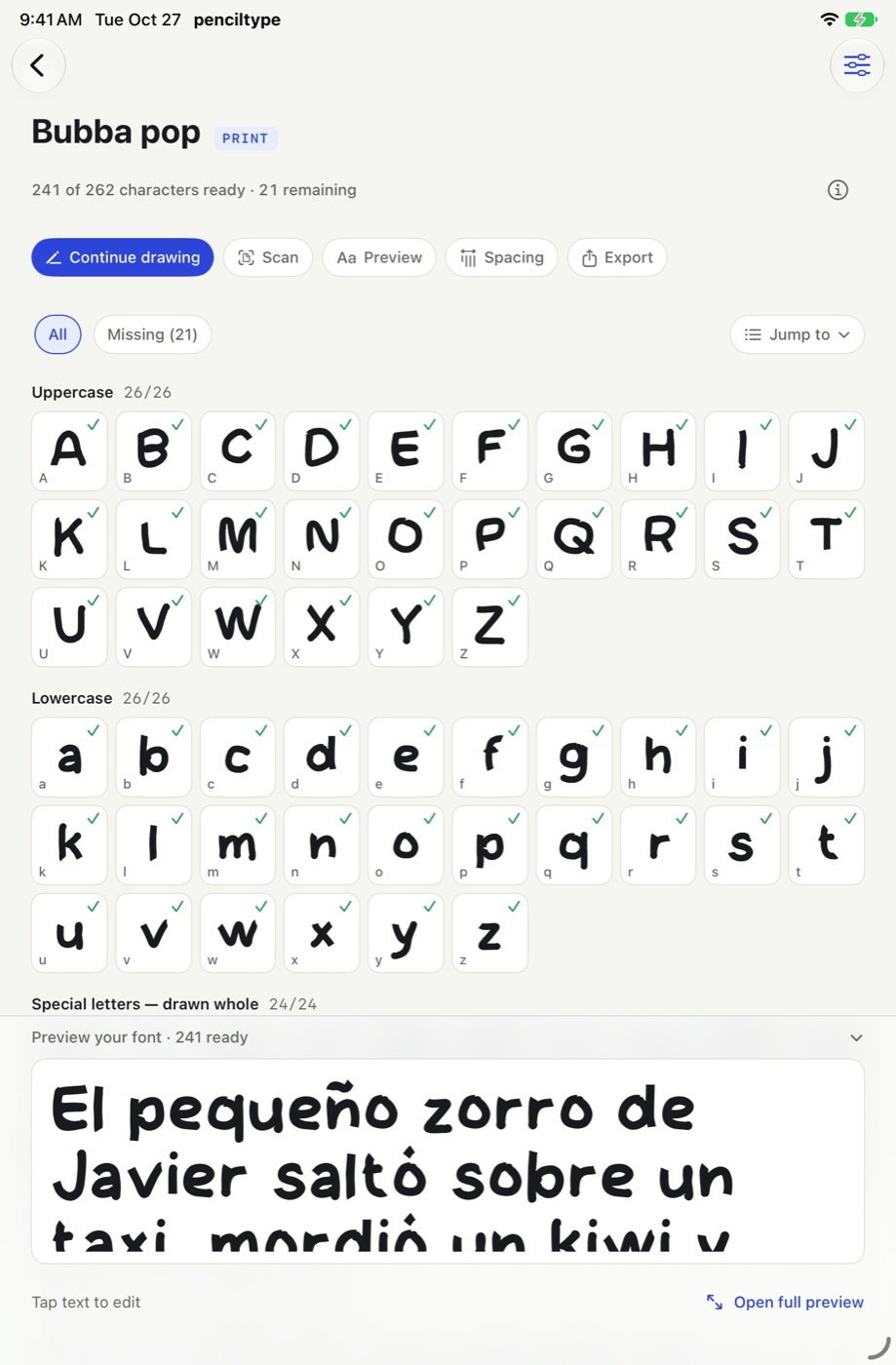
- Tap the text to edit it. Type anything; it's set in your font as you type (Tap text to edit). Autocorrect and automatic capitals are off, so you see exactly what you typed. An empty box says Type anything…
- Open full preview opens the Preview page, with a size slider.
- Tap the bar again (or its chevron) to fold it away.
The text is saved for each font, up to 2,000 characters, and it's the same text the Preview page edits: change it in one place and it changes in the other.
Font kinds
The tag beside the name says which kind of font this is. You choose the kind when you create the font, and it decides which tracing faces you get and which controls appear.
| Tag | What it means | On the grid |
|---|---|---|
| Each letter stands alone. | As described in this chapter. | |
| ALTERNATING | Draw up to three versions of each letter, so repeated letters vary. | An extra line, Additional versions: N. |
| CURSIVE | Letters join as you type. | A line Join forms: N once you've drawn join forms. No All caps option in Font settings; spacing has only the font-wide values (no pairs or single letters). |
| PIXEL | Bitmap letters on a tile grid. | No Scan chip; tiles show pixel ink. No Line metrics in Font settings. |
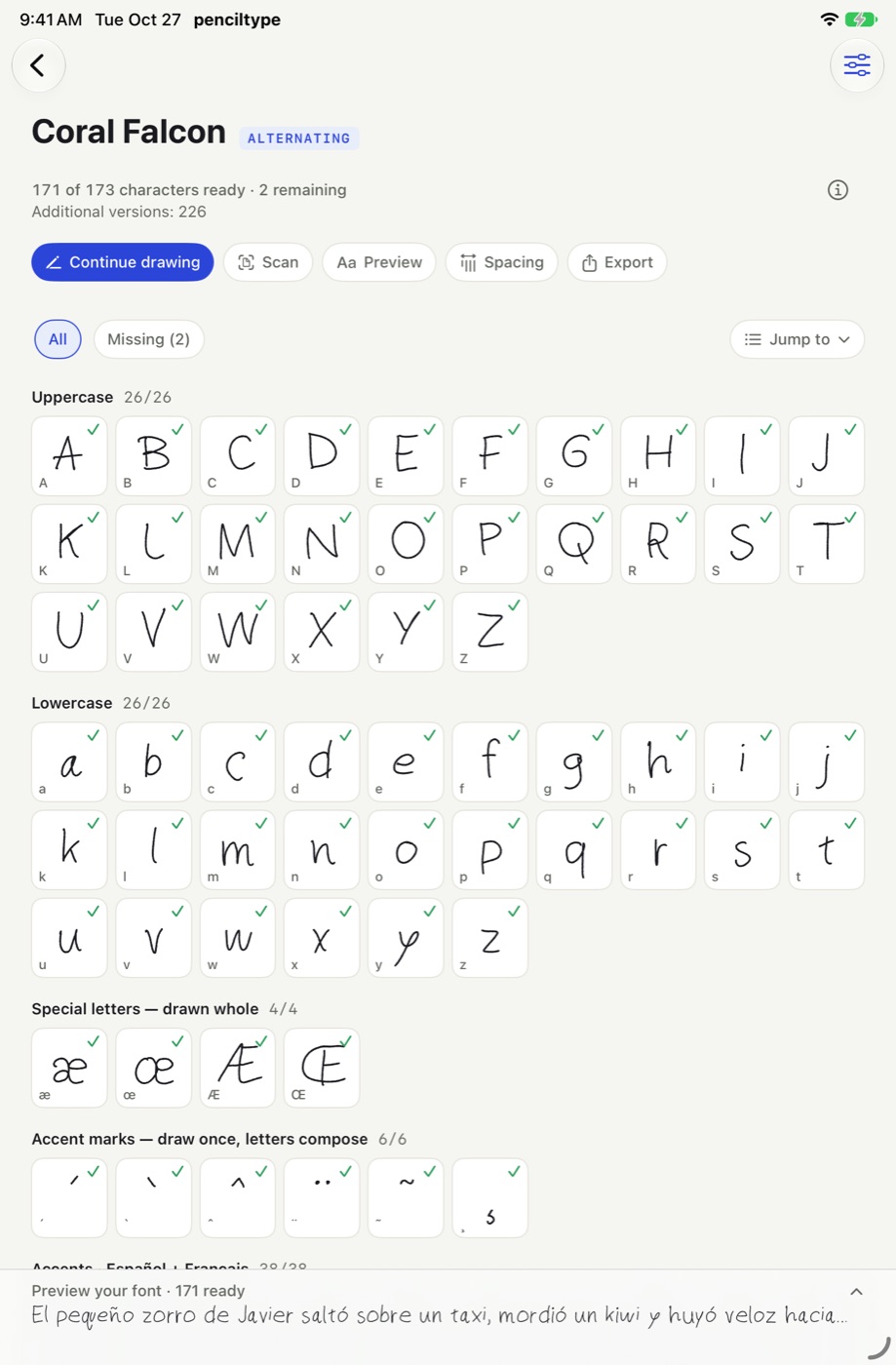
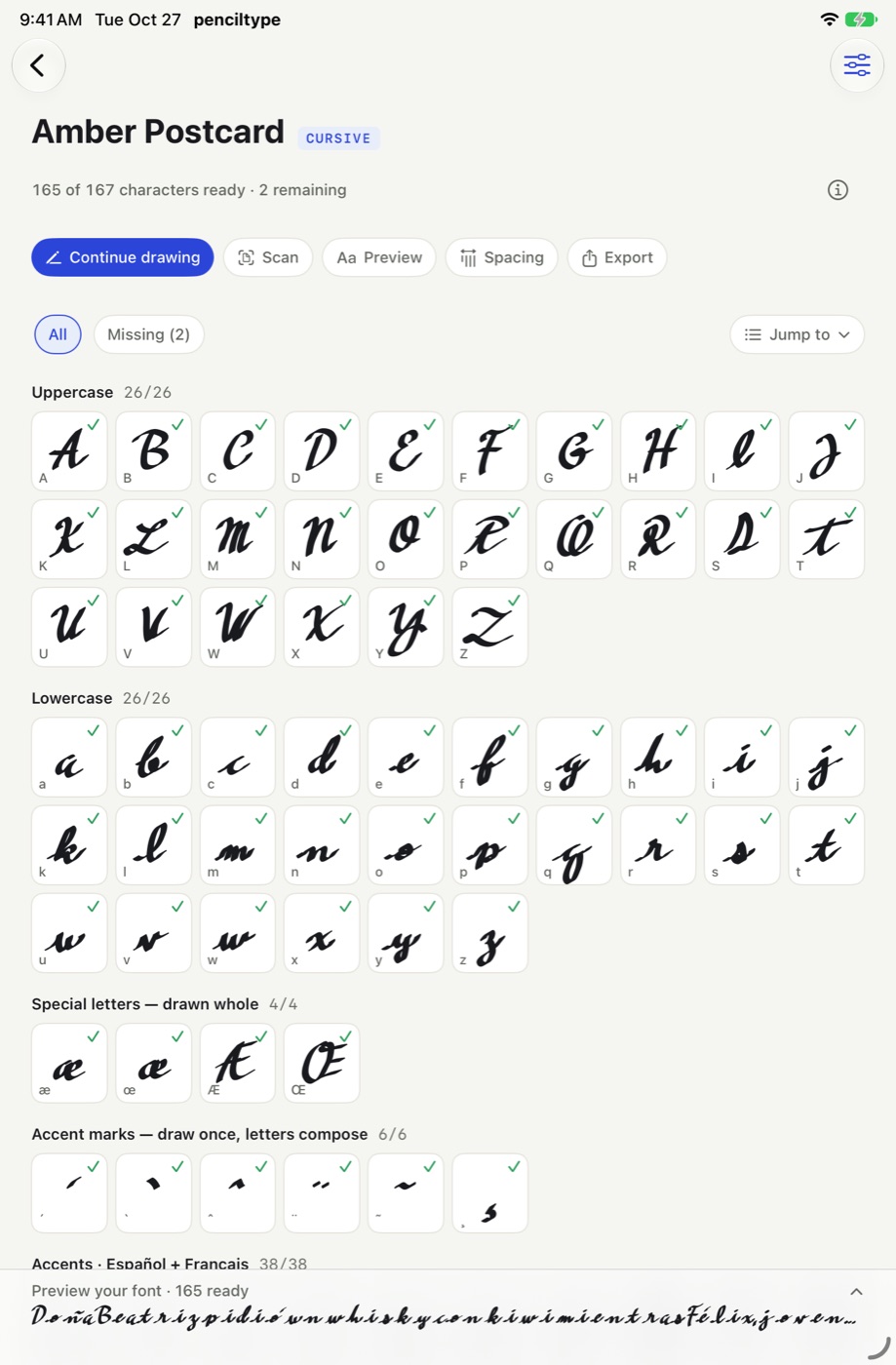
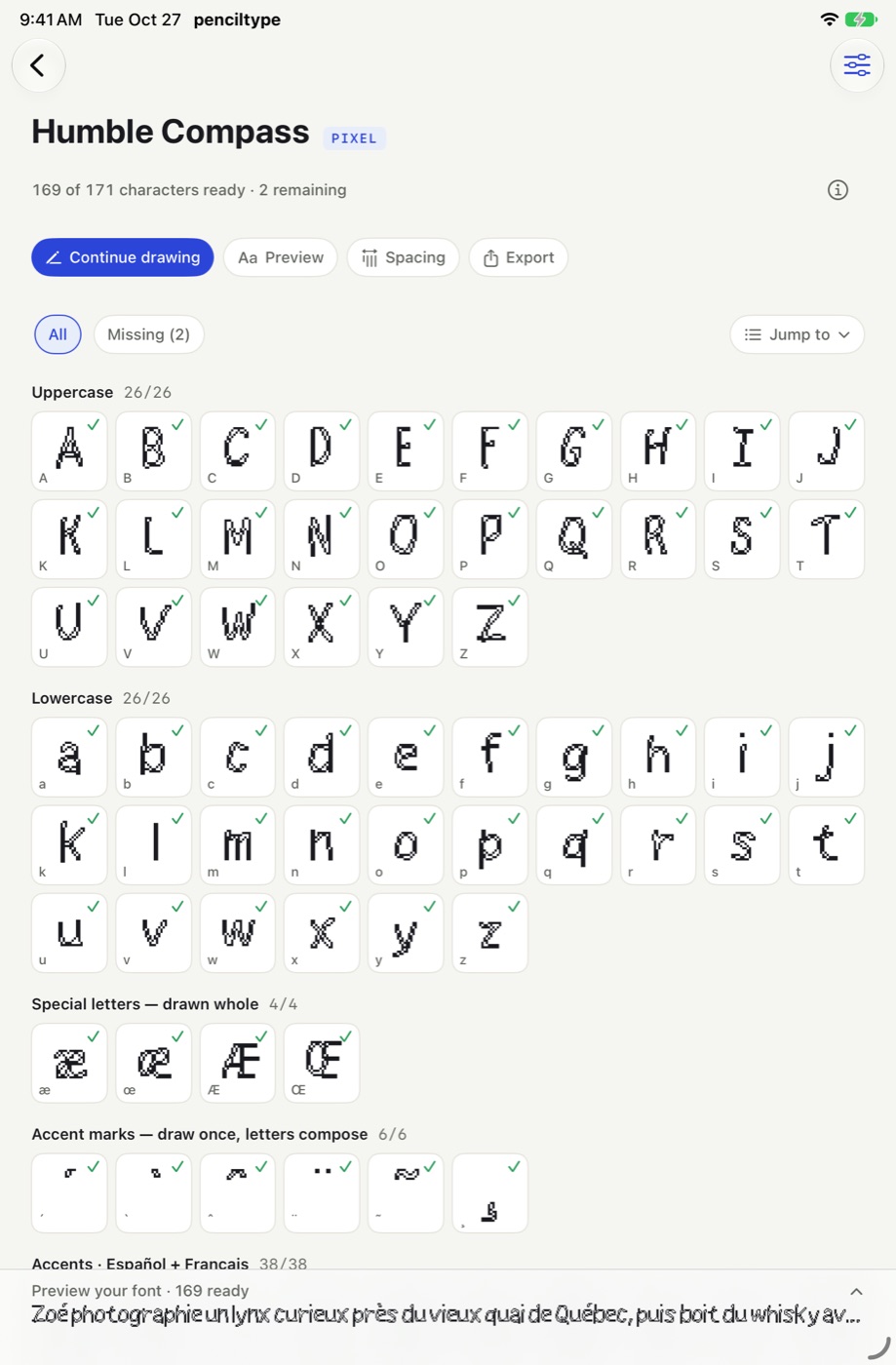
More about each kind: Joins and versions for alternating and cursive fonts, Pixel fonts for pixel fonts.
After a scan: Undo import
When you apply a scan, you come back to the grid with a banner pinned above the letters. It says what the import did:
- Added 28 new, or Added 28 new · replaced 2 when some letters you'd already drawn were replaced.
- Added 40 characters from 3 pages (and · 2 replaced) when you applied several pages at once.
Undo import puts every imported character back as it was, and removes any extras the import added. If you're working through a guided sheet with pages left, a Scan page 2 of 6 link under the message takes you back to the sheet for the next page. The × hides the banner and keeps the imported letters.
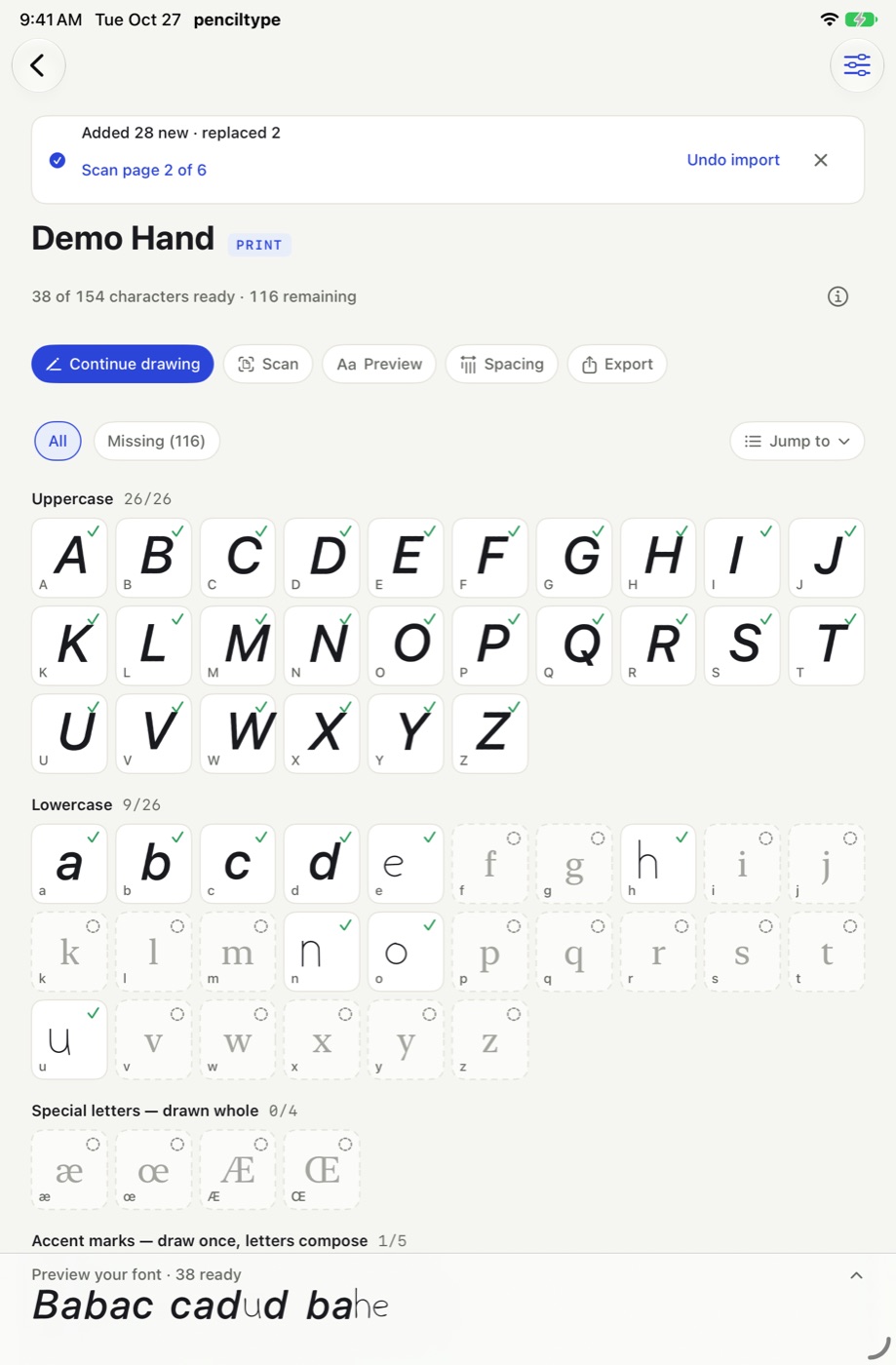
The banner stays put while you scroll. It goes away when you dismiss it, undo, or edit any imported letter (or a letter made from one). It never shows at the same time as the Re-ink banner below.
After re-inking a font: Undo re-ink
When you re-ink a whole font with another pen (see Re-ink a font), the grid shows a banner above the letters: Re-inked 221 strokes, with Undo re-ink and a ×. Undo re-ink brings back every stroke's previous ink. The × hides the banner and keeps the new ink. The same banner shows on the canvas.
Undo only works until the font changes again: the banner leaves as soon as you draw, import, restore, or delete the font.
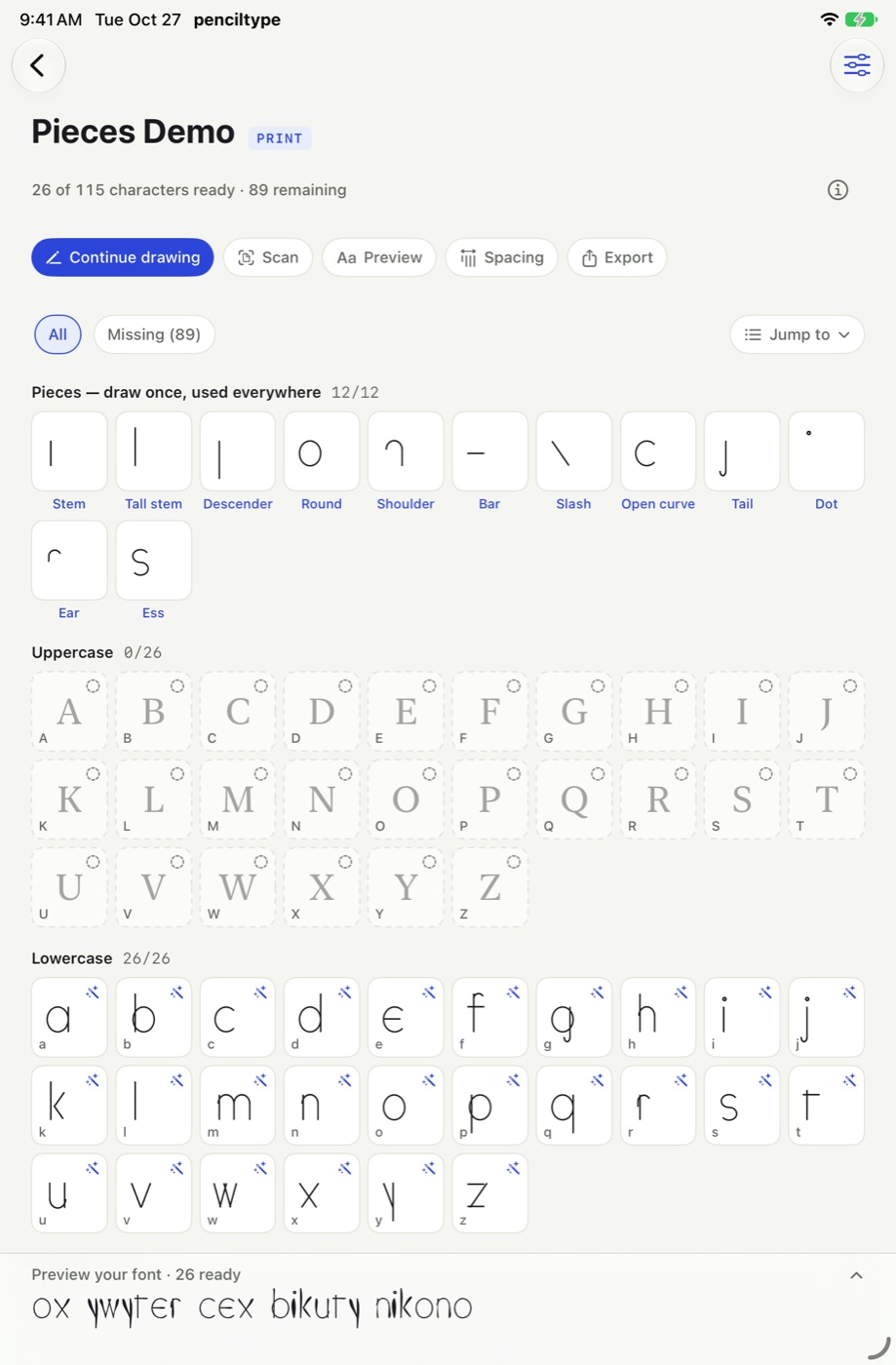
Pieces
A pieces font builds its lowercase from twelve shapes you draw once: Stem, Tall stem, Descender, Round, Shoulder, Bar, Slash, Open curve, Tail, Dot, Ear and Ess. The kit leads the grid under Pieces — draw once, used everywhere. Draw a piece and every letter that uses it lights up. A letter you draw yourself always wins over the assembled one.
Undrawn piece tiles ghost the letter they come from, and a piece's name turns blue once it's drawn. Letters still waiting on pieces carry the orange Partly generated mark, and Missing groups them by the pieces they still need.