

The brush library
Every brush you can pick lives in your brush library. The picker is for choosing; the library screen is for looking after it all: showing, hiding and ordering sets, packs of brushes, files in and out, and starting over.
Opening the brush library
Two ways in:
- From the shelf: Settings › Brush library (under Brushes; the row shows how many brushes you have).
- From a letter: open the brush picker and choose ⋯ › Manage library…. The picker closes and the same screen opens as a sheet over the canvas, with Done at its top left.
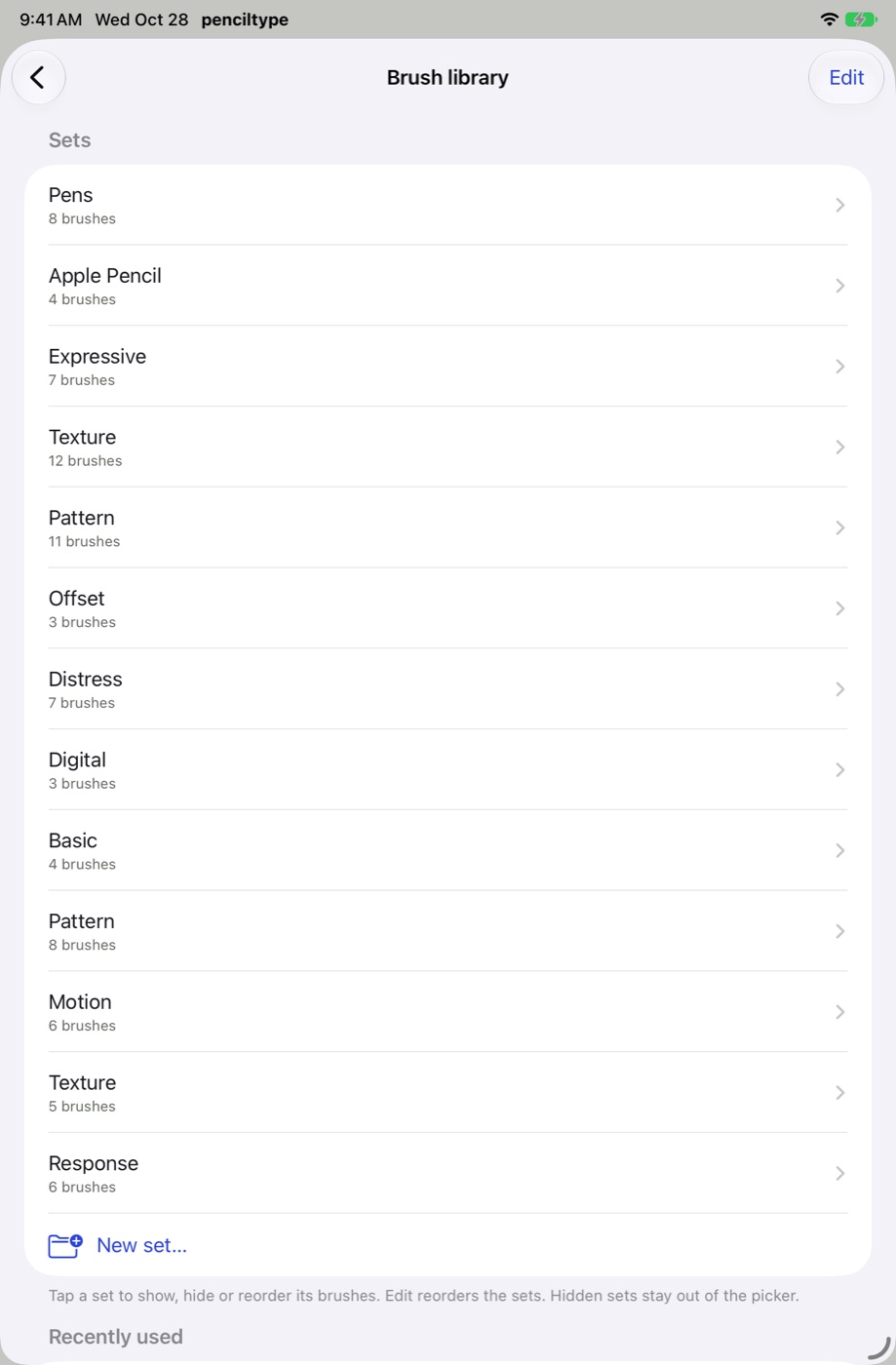
The screen has five sections: Sets, Recently used, Packs, Import & export, and a last one to unhide everything or reset the library.
From the picker
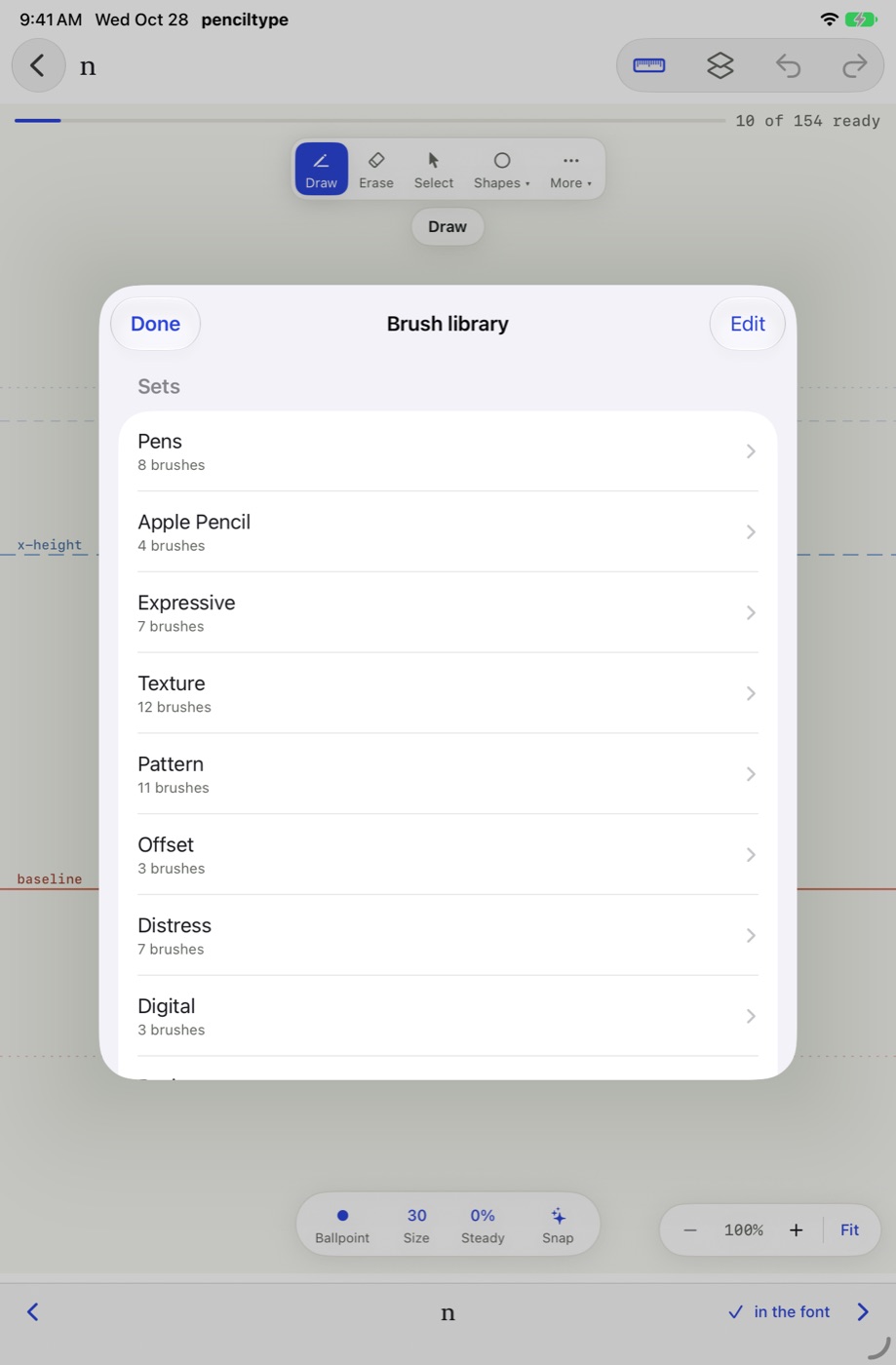
On iPhone it's a page sheet; on iPad and Mac a form sheet. Everything on it works as in Settings.
Sets
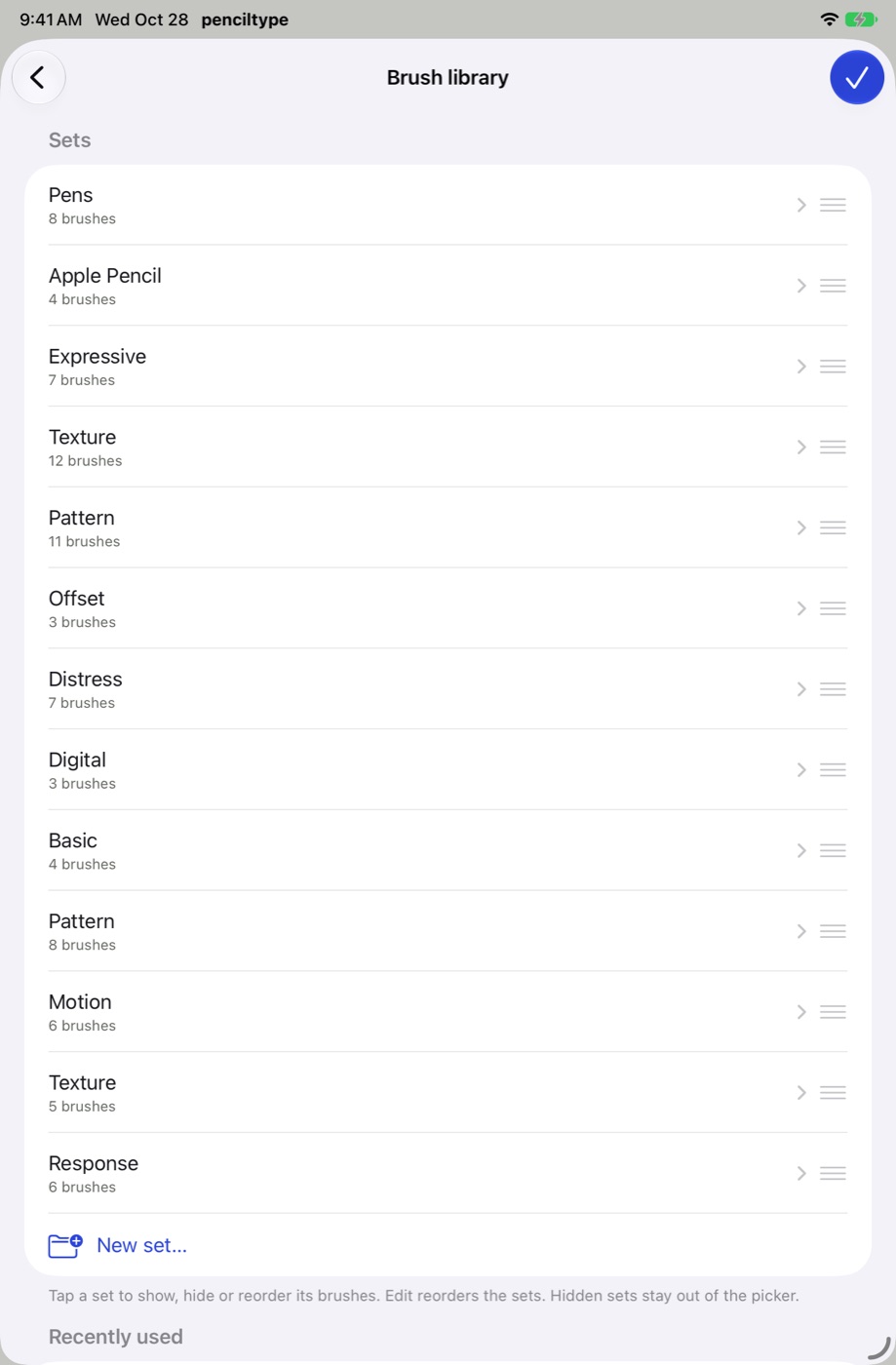
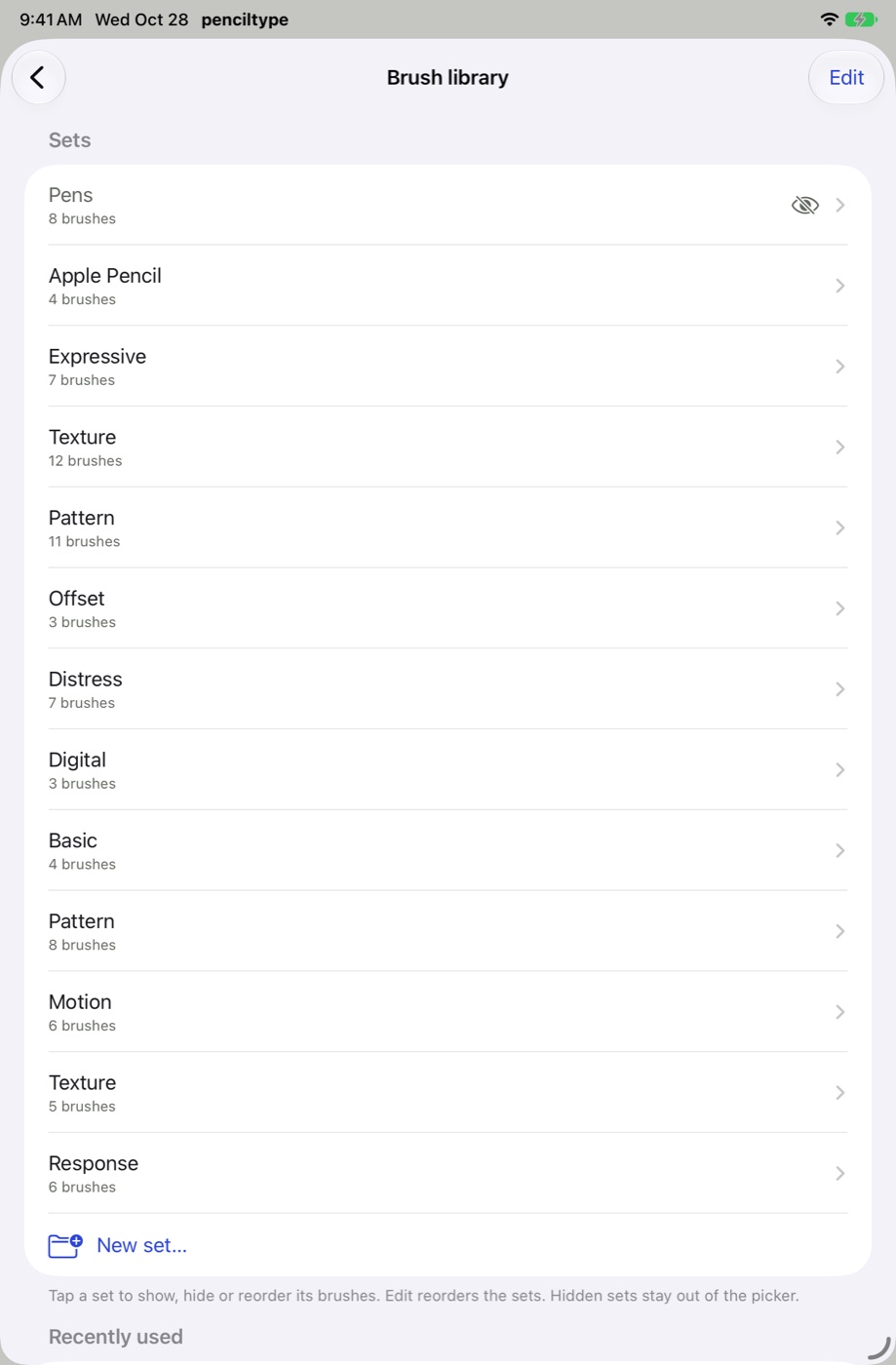
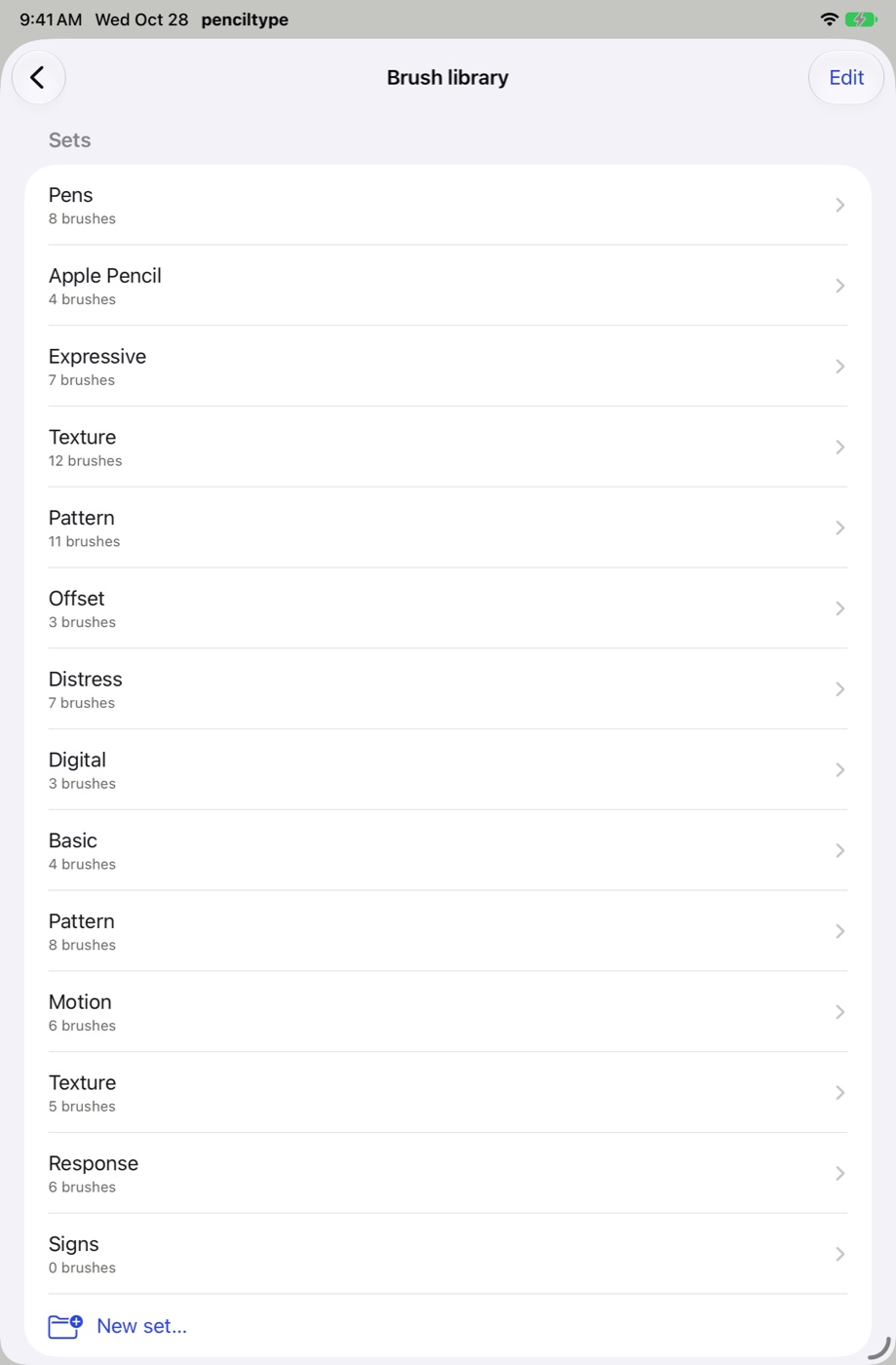
One row per set, in the order the picker shows them: the set's name and a caption with its brush count, how many are hidden (“2 hidden”), and “from a pack” for a set that came with a pack you installed. A hidden set is dimmed with a crossed-out eye: the picker leaves it out.
- Tap a set to open its page (below).
- Tap Edit at the top right, then drag the handles to reorder the sets. The picker's chips and list follow this order. Tap Done.
- New set… under the list makes an empty set of your own (the same prompt as in the picker).
The footer reminds you: “Tap a set to show, hide or reorder its brushes. Edit reorders the sets. Hidden sets stay out of the picker.”
A set's menu and swipes
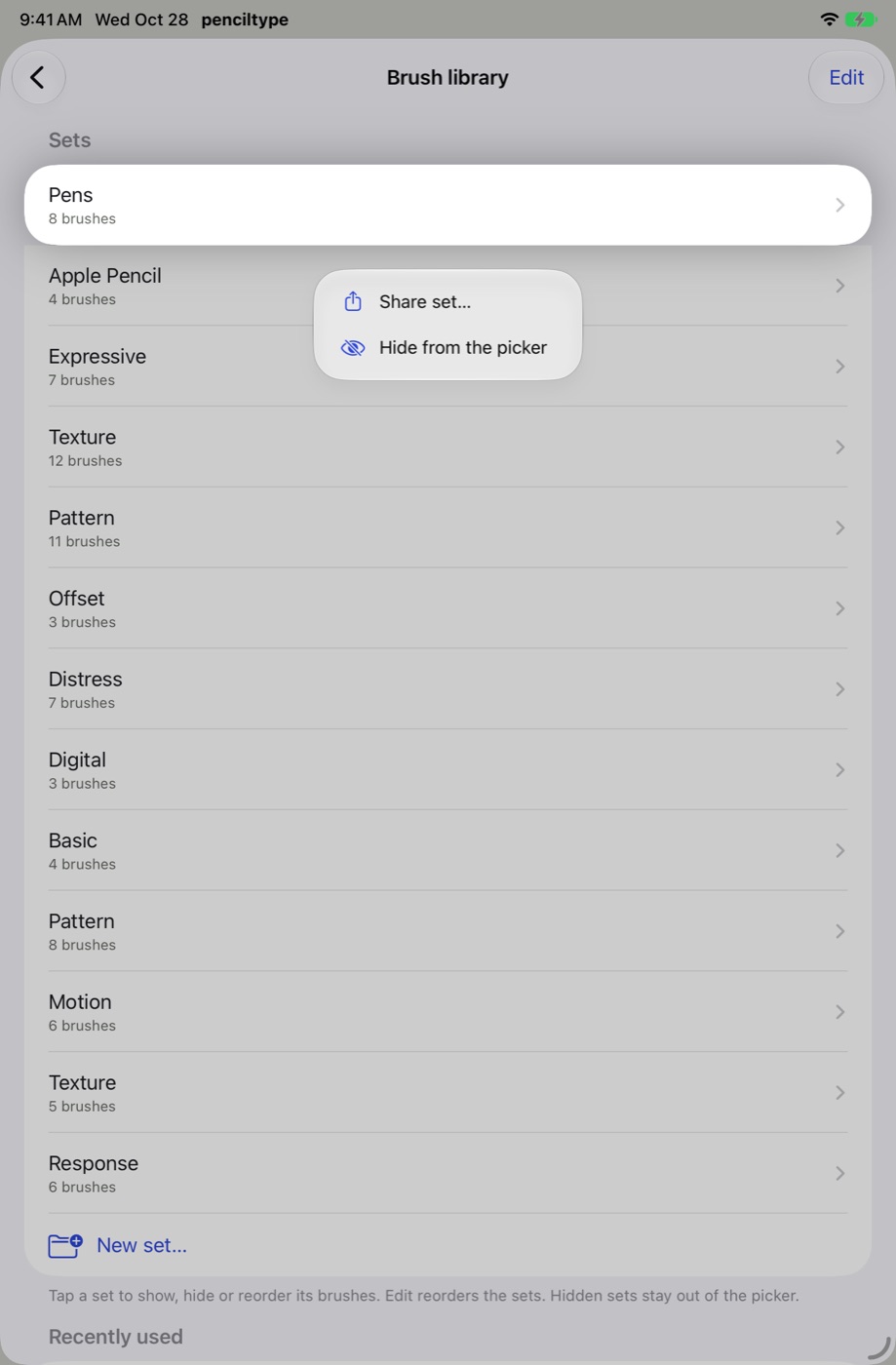
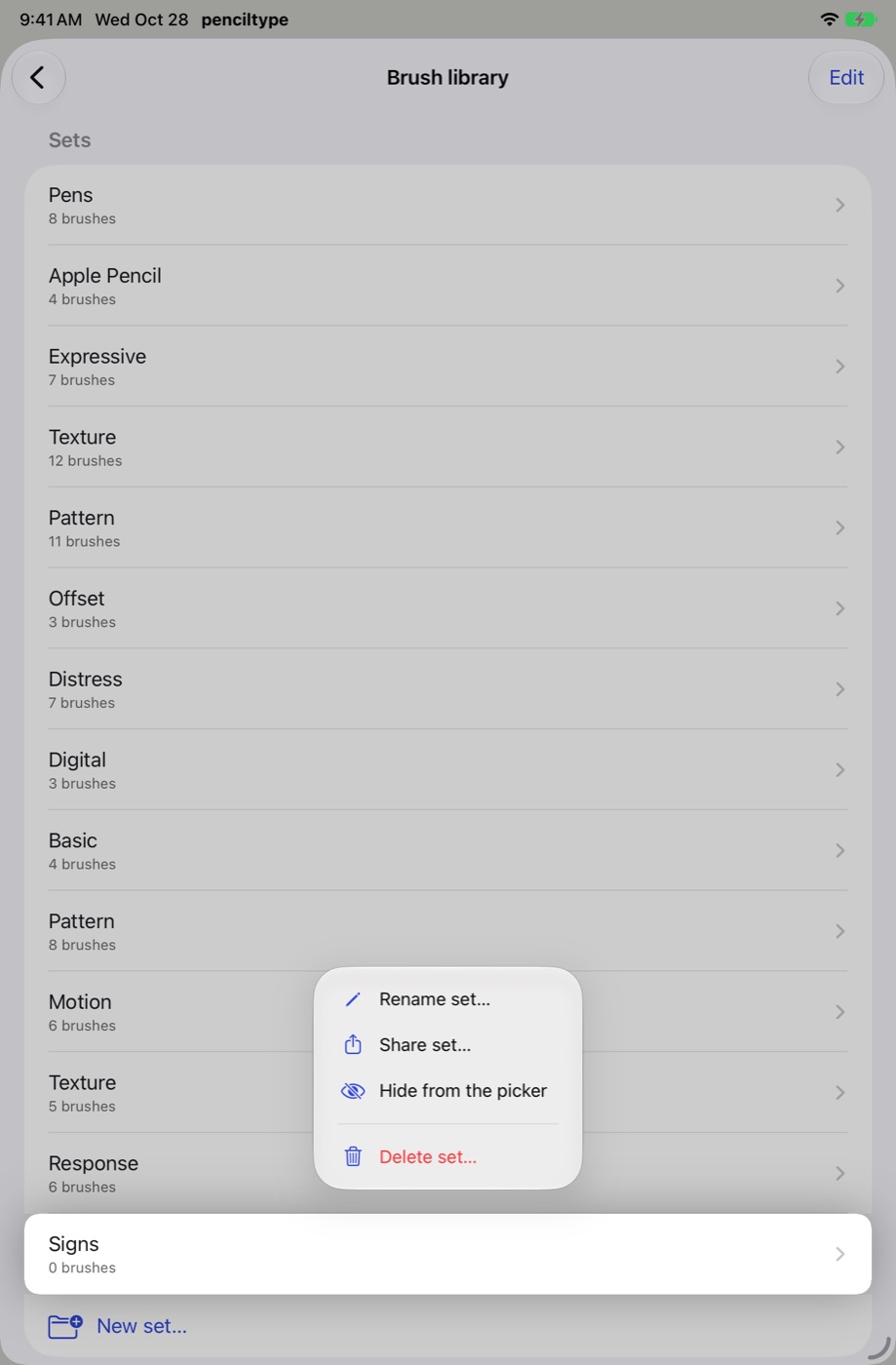
Touch and hold a set for its menu:
- Rename set…
- Your own sets and packs' sets.
- Share set…
- Writes the set as a pack, ready to send (see Sharing brushes).
- Hide from the picker / Show in the picker
- Takes the whole set out of the picker, or brings it back.
- Delete set…
- Your own sets, except My brushes. Asks what to do with its brushes, as in the picker (see Your own sets).
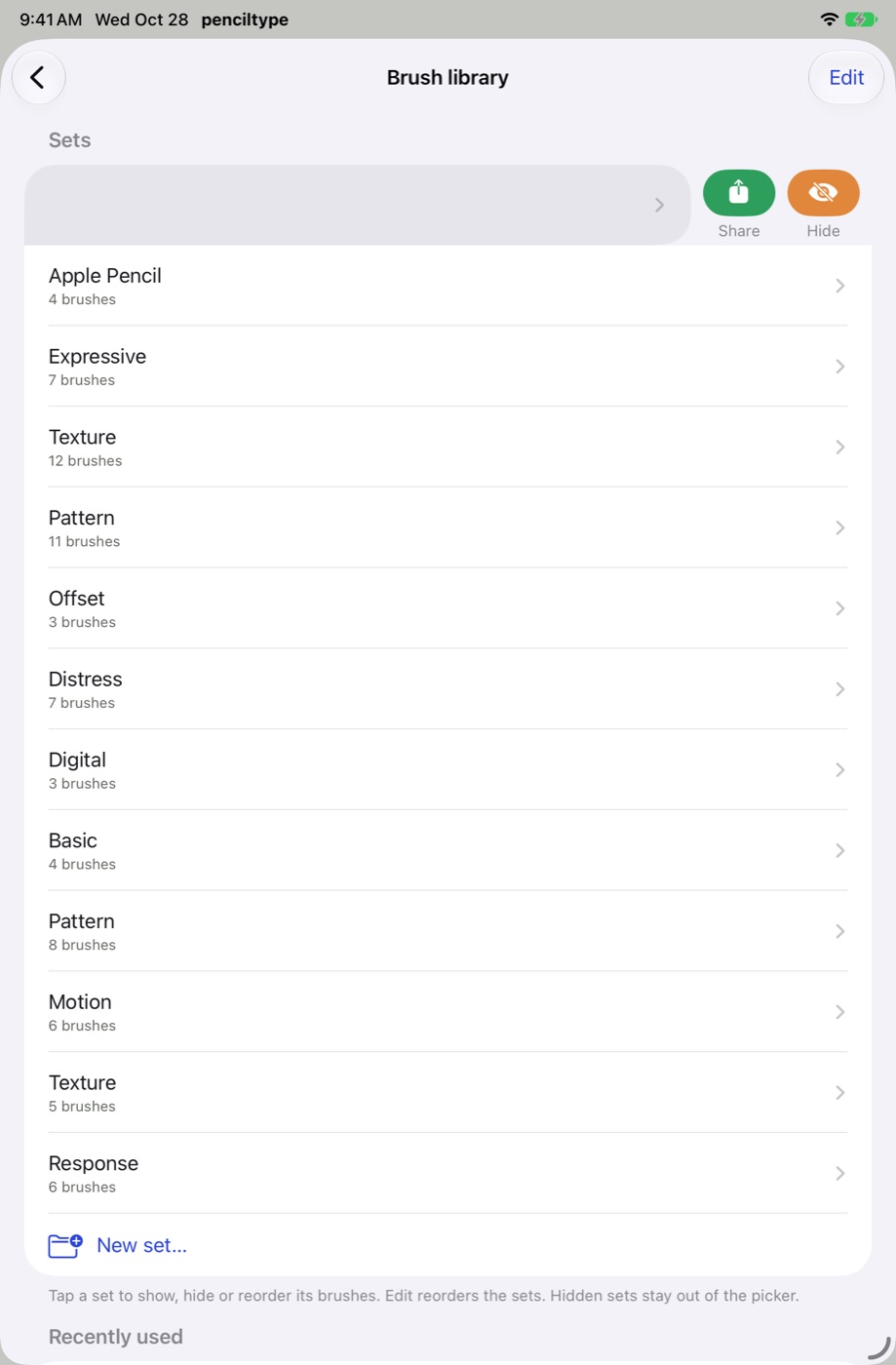
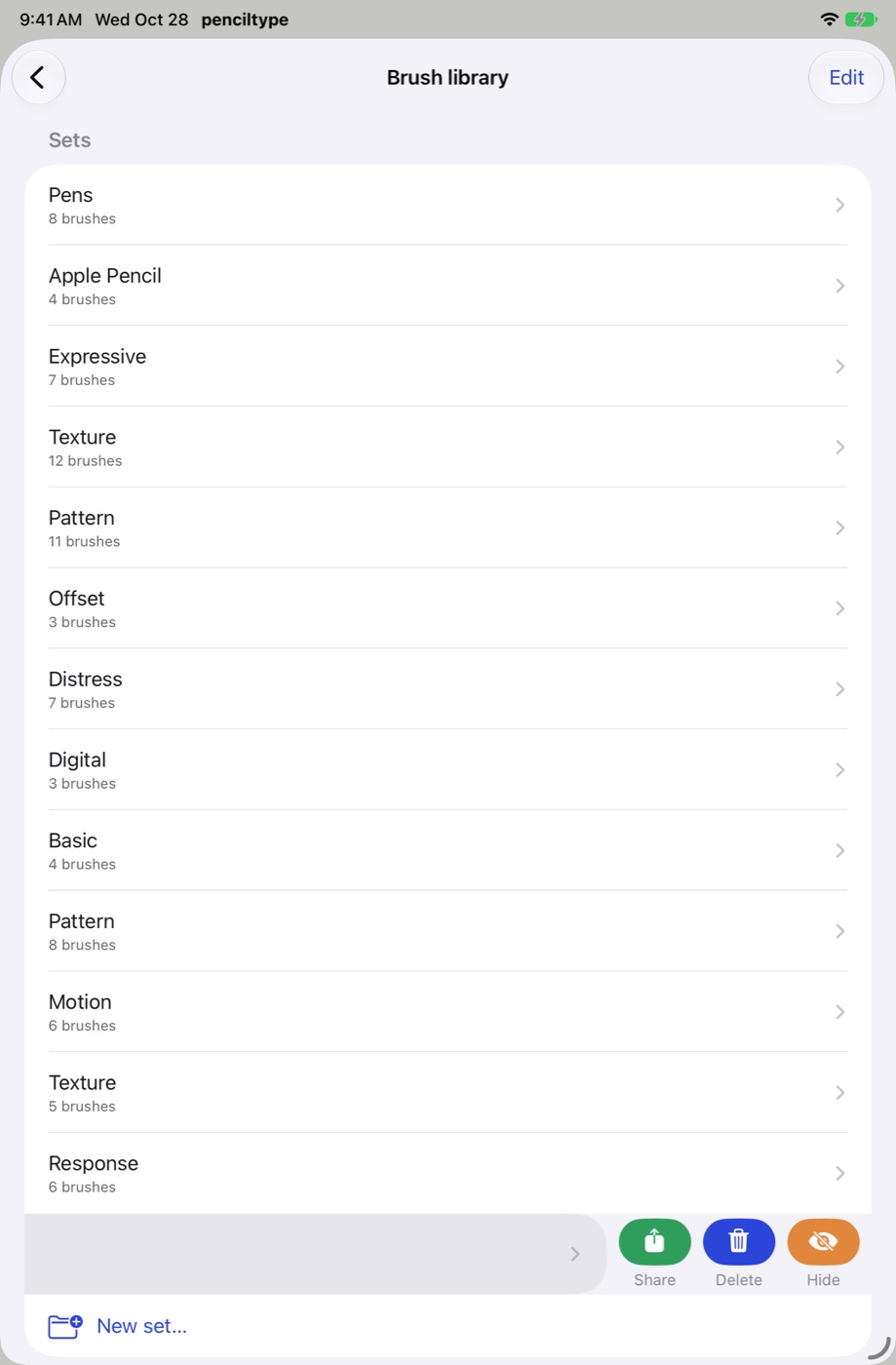
Swipe left on a set for Hide (orange; Show on a hidden set), Delete (your own sets except My brushes) and Share (green).
A set's page
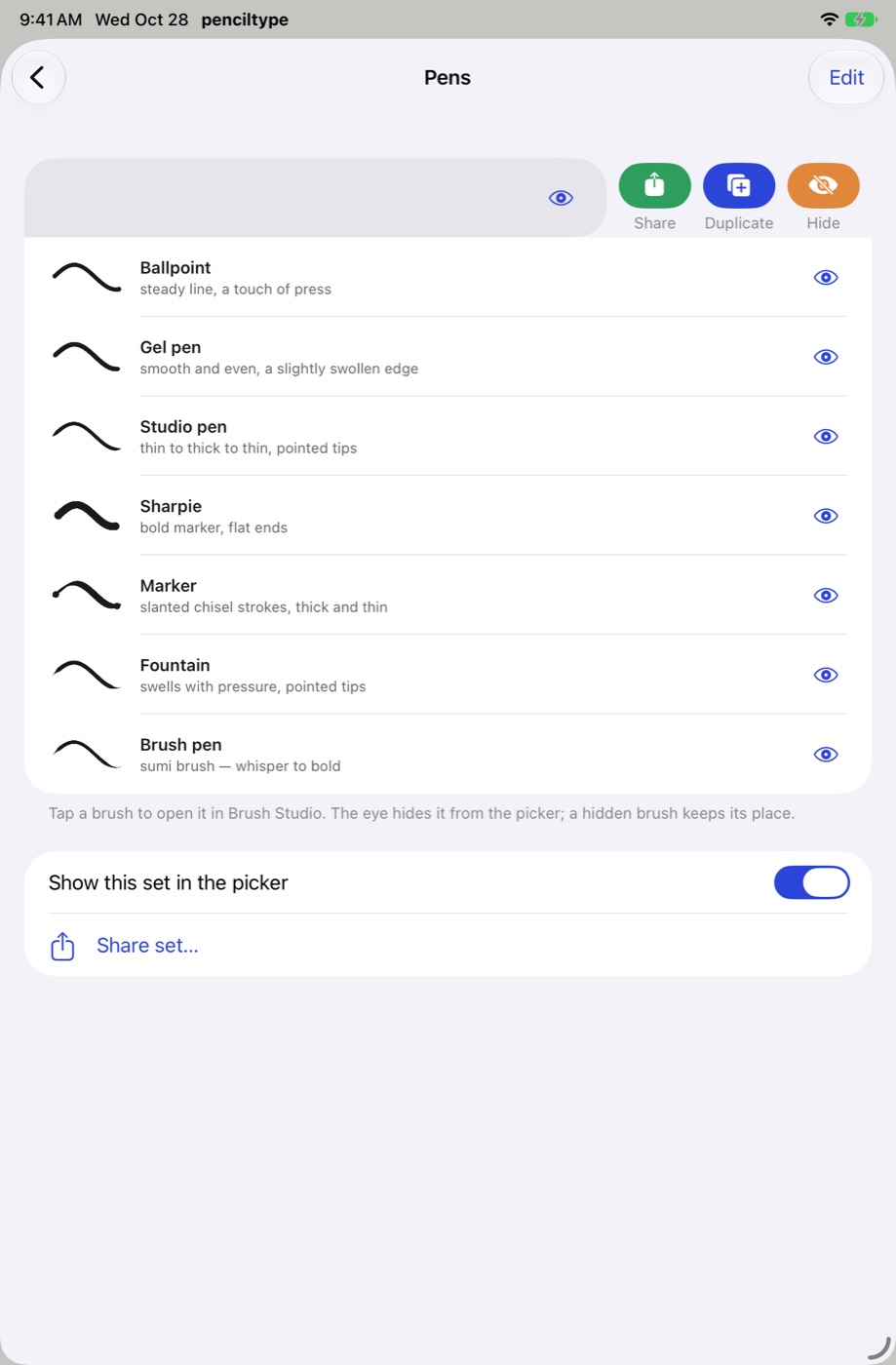
Tap a set to see its brushes. The page is titled with the set's name.
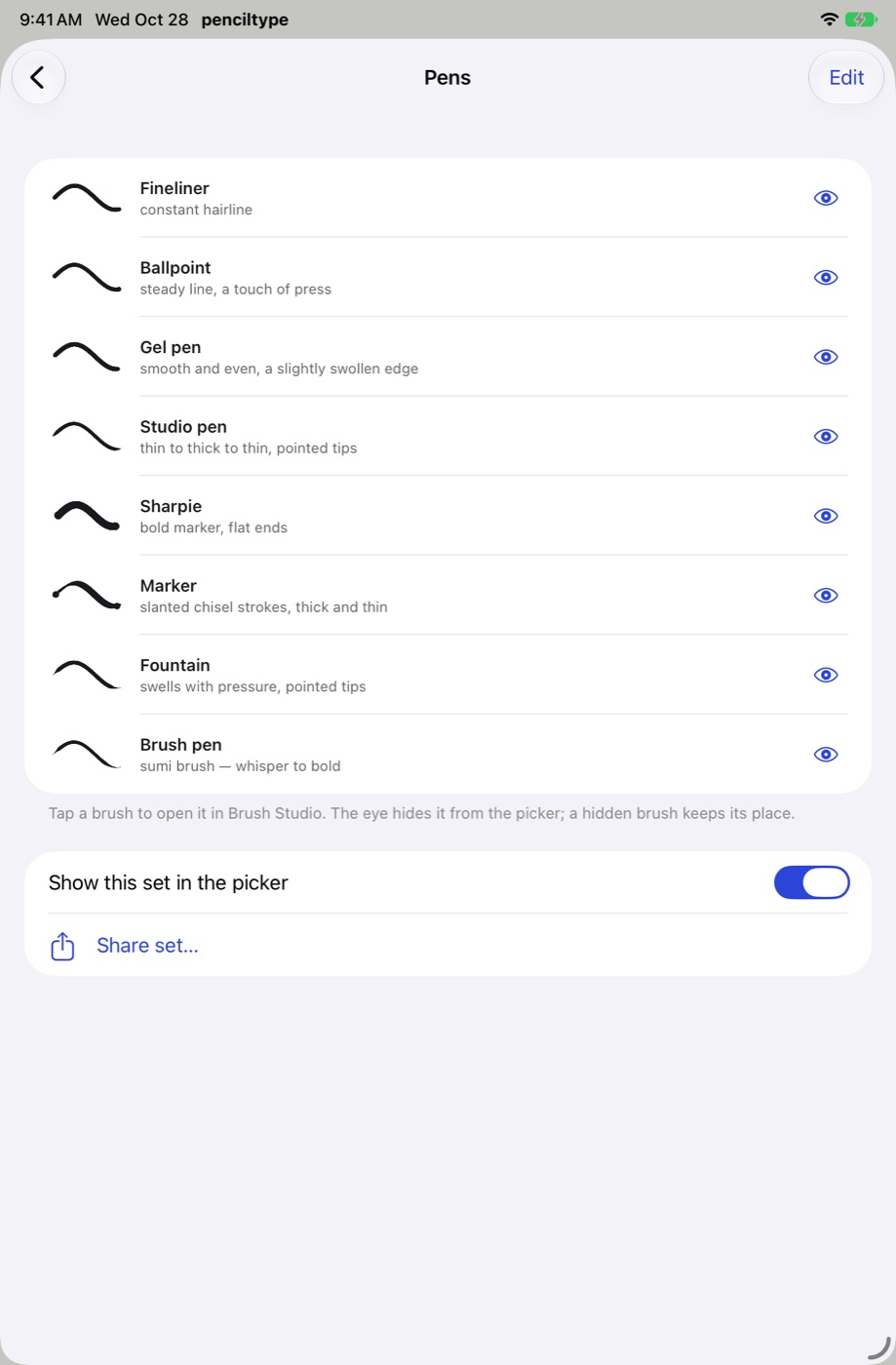
- A brush
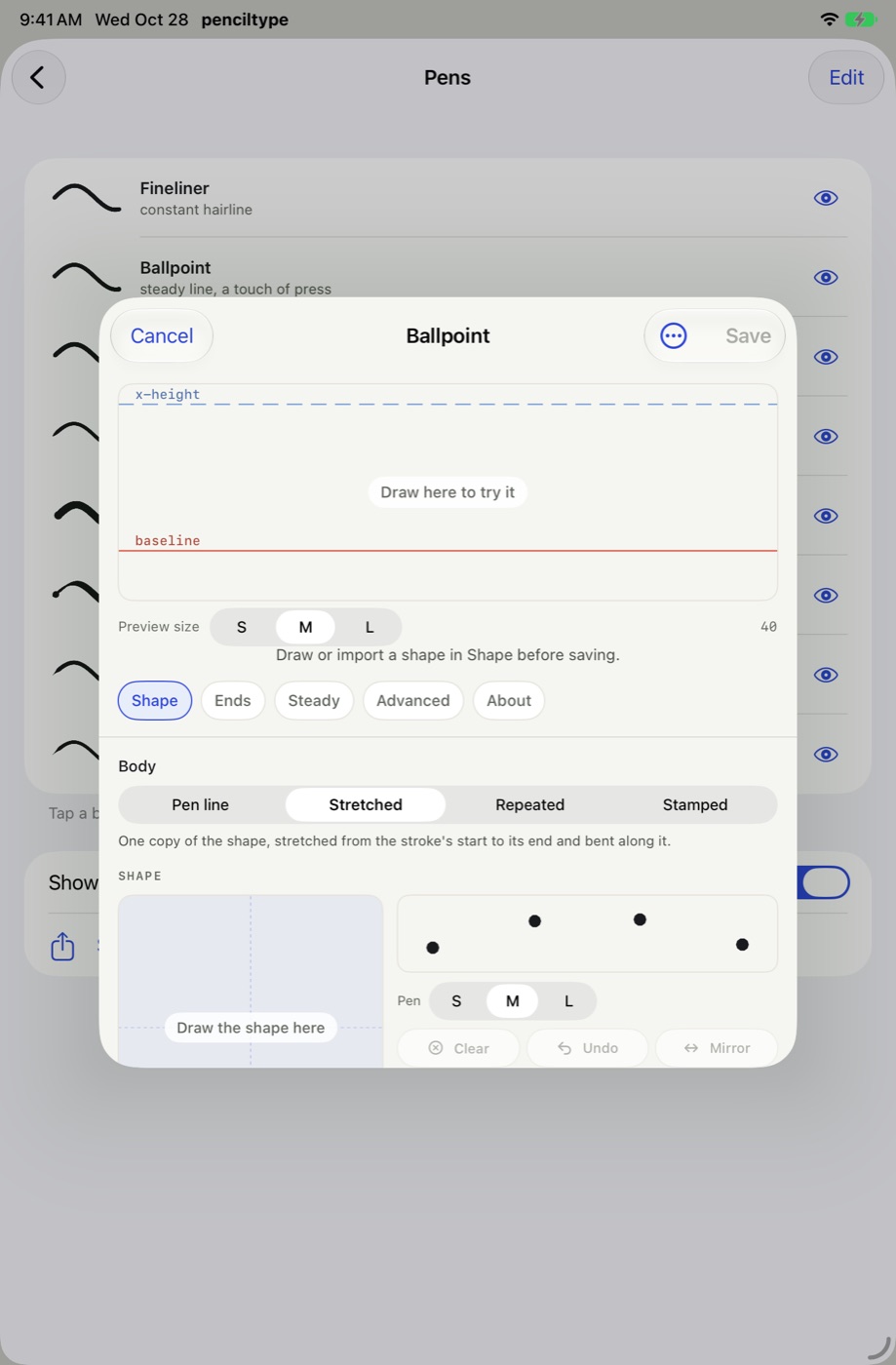
- Its swatch, name, description, Edited on a changed built-in and a pin on a pinned brush. Tap it to open it in the Brush Studio.
- The eye
- At the right of each brush: Hide from the picker, or Show in the picker on a hidden one. A hidden brush keeps its place, dimmed with its eye crossed out. Here, unlike the picker, you can hide your own brushes too.
- Edit
- At the top right: drag to reorder the set's brushes.
- Show this set in the picker
- A switch at the foot of the page: hides or shows the whole set.
- Rename set…, Share set…, Delete set…
- As in the set's menu. Built-in sets have only Share set….
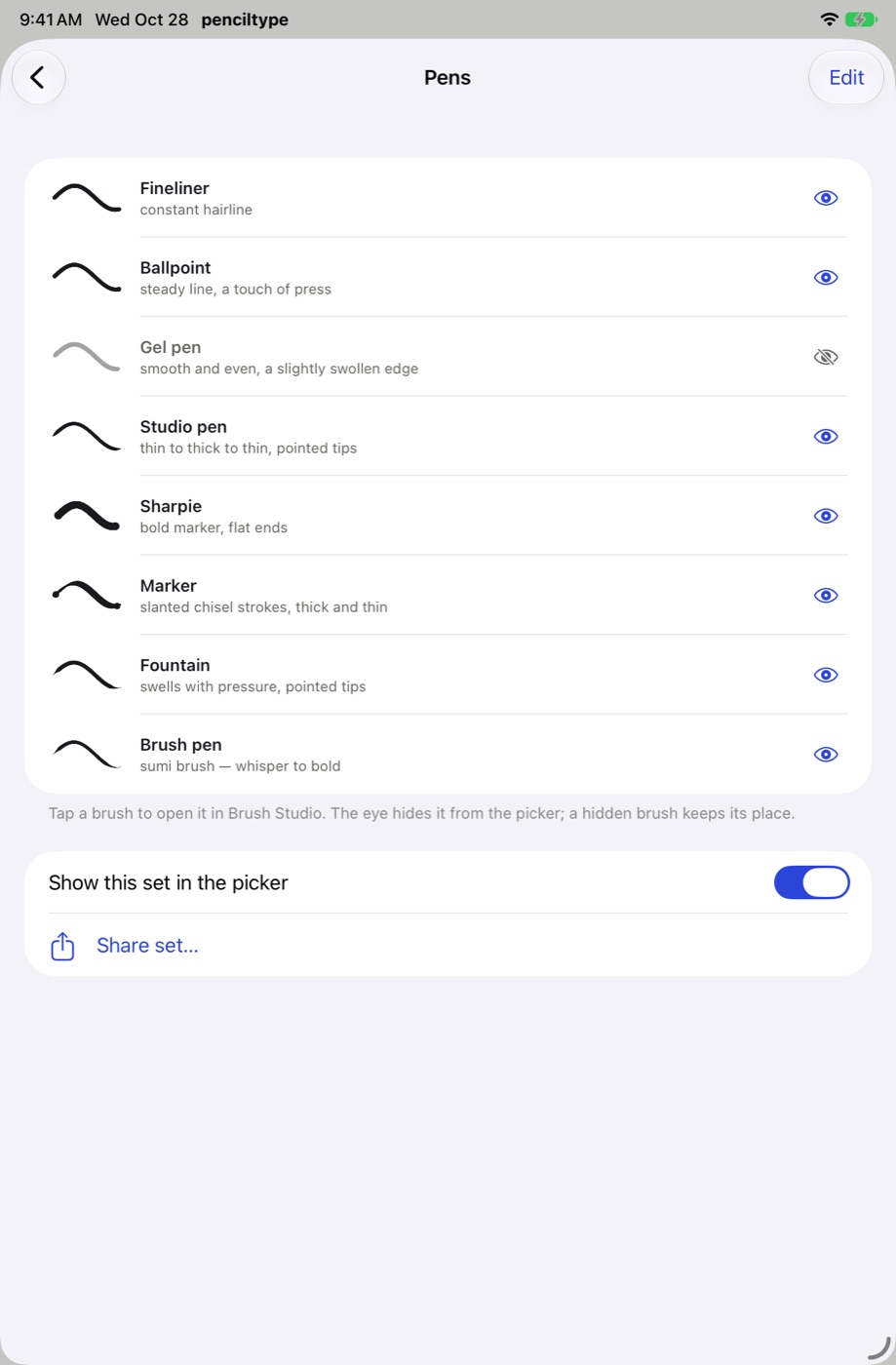
A set with no brushes says “No brushes yet. Move or copy brushes here from the picker, or import a file.” The footer reads: “Tap a brush to open it in Brush Studio. The eye hides it from the picker; a hidden brush keeps its place.” If a set is deleted while you're looking at it (on another device, say), the page says This set is gone.
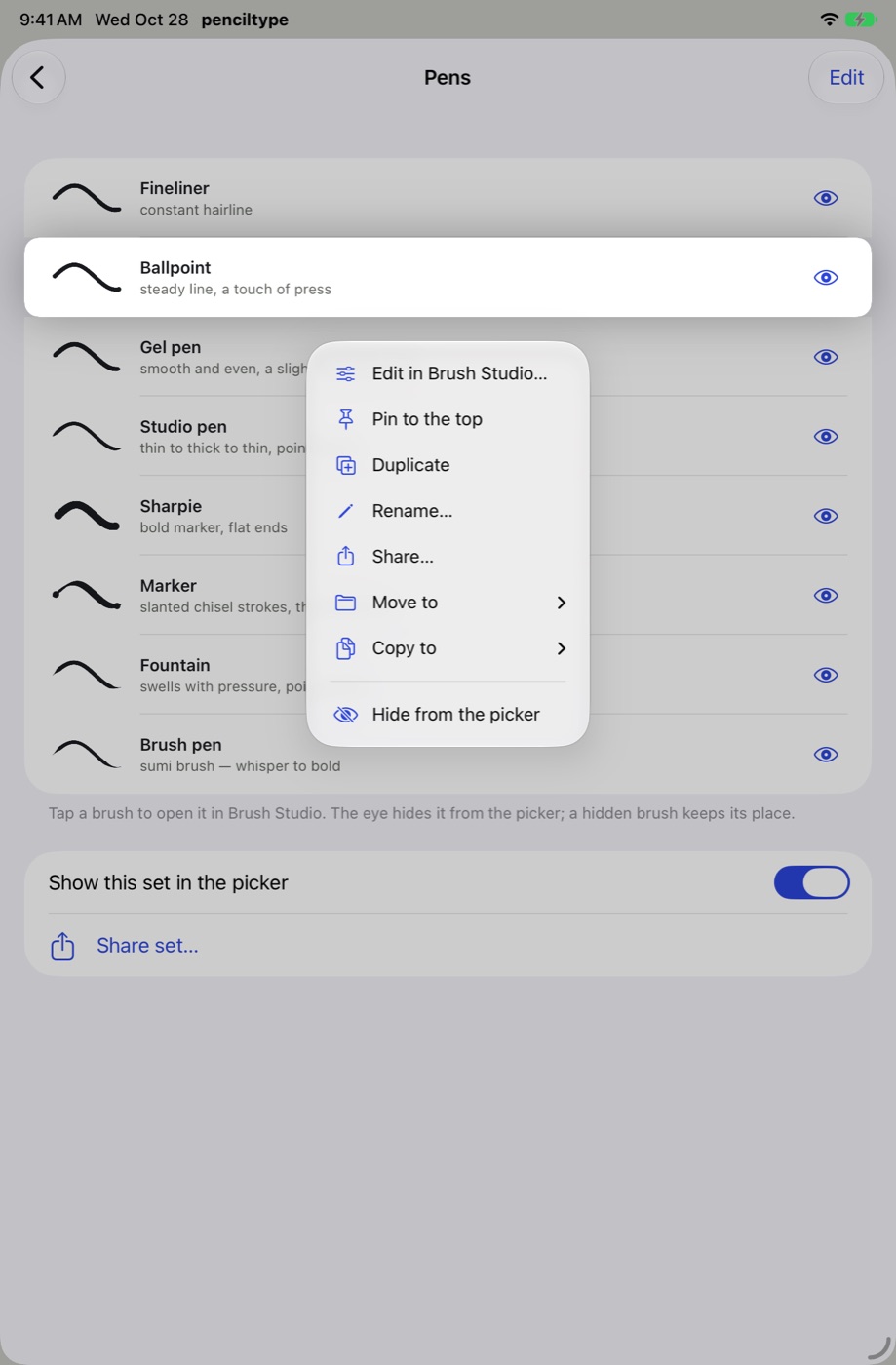
A brush's menu and swipes on the set page
Touch and hold a brush for Edit in Brush Studio…, Pin to the top (or Unpin), Duplicate, Rename…, Share…, Move to ▸, Copy to ▸, Reset to original (when there are changes to drop), Hide from the picker (or Show in the picker) and, on your own brushes, Delete…. They work as in the picker.
Swipe left for Delete (your own, shown brushes) or Hide/Show, then Duplicate and Share.
A brush opened in the Studio from here has no font behind it, so the Studio can't save shapes into a font (“Open the Studio from a font to save shapes into it.”), and saving doesn't change any pen.
Recently used
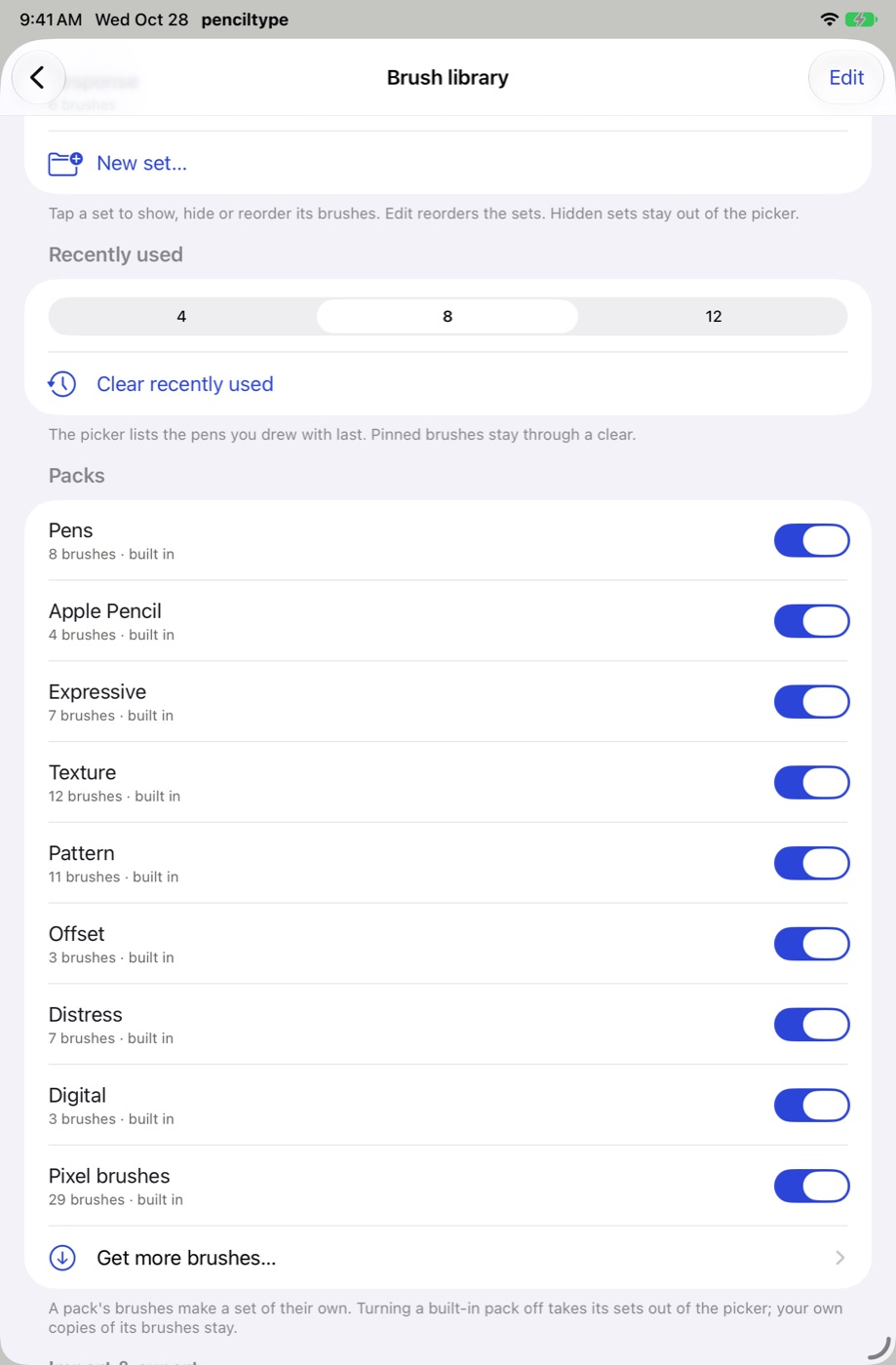
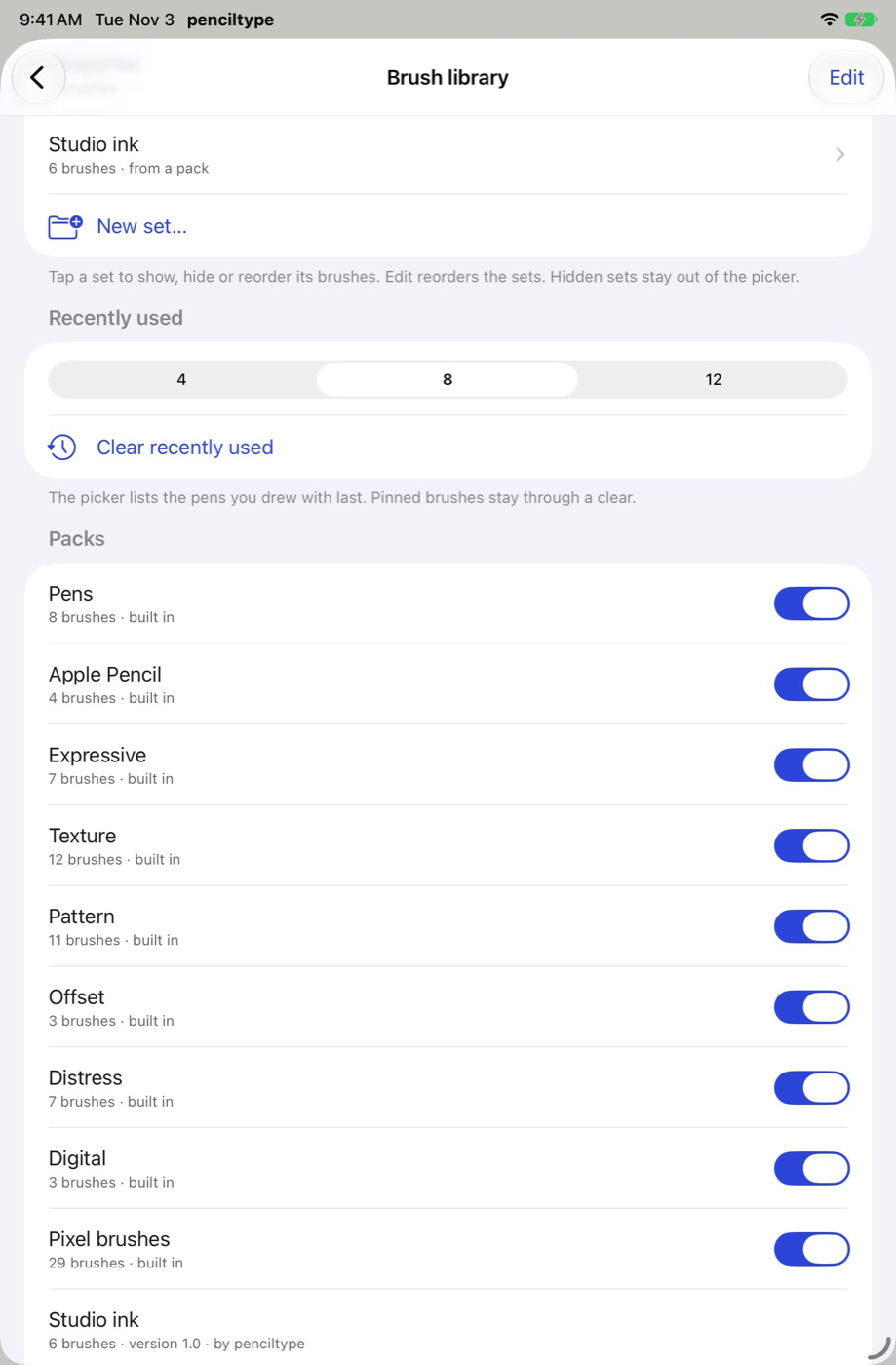
Show sets how many pens the picker's Recently used remembers: 4, 8 (to begin with) or 12. Clear recently used empties the list (it's dimmed when the list is empty). “The picker lists the pens you drew with last. Pinned brushes stay through a clear.”
Packs
A pack is a bundle of brushes that arrives as a set of its own. penciltype's own brushes come as built-in packs; you can add more.
Built-in packs
Each built-in pack (Pens, Apple Pencil, Expressive, Texture, Pattern, Offset, Distress, Digital and Pixel brushes) has a switch, captioned with its brush count and “built in”. Turn one off to take its sets out of the picker; turn it on to bring them back. Copies you've made of its brushes stay.
Installed packs
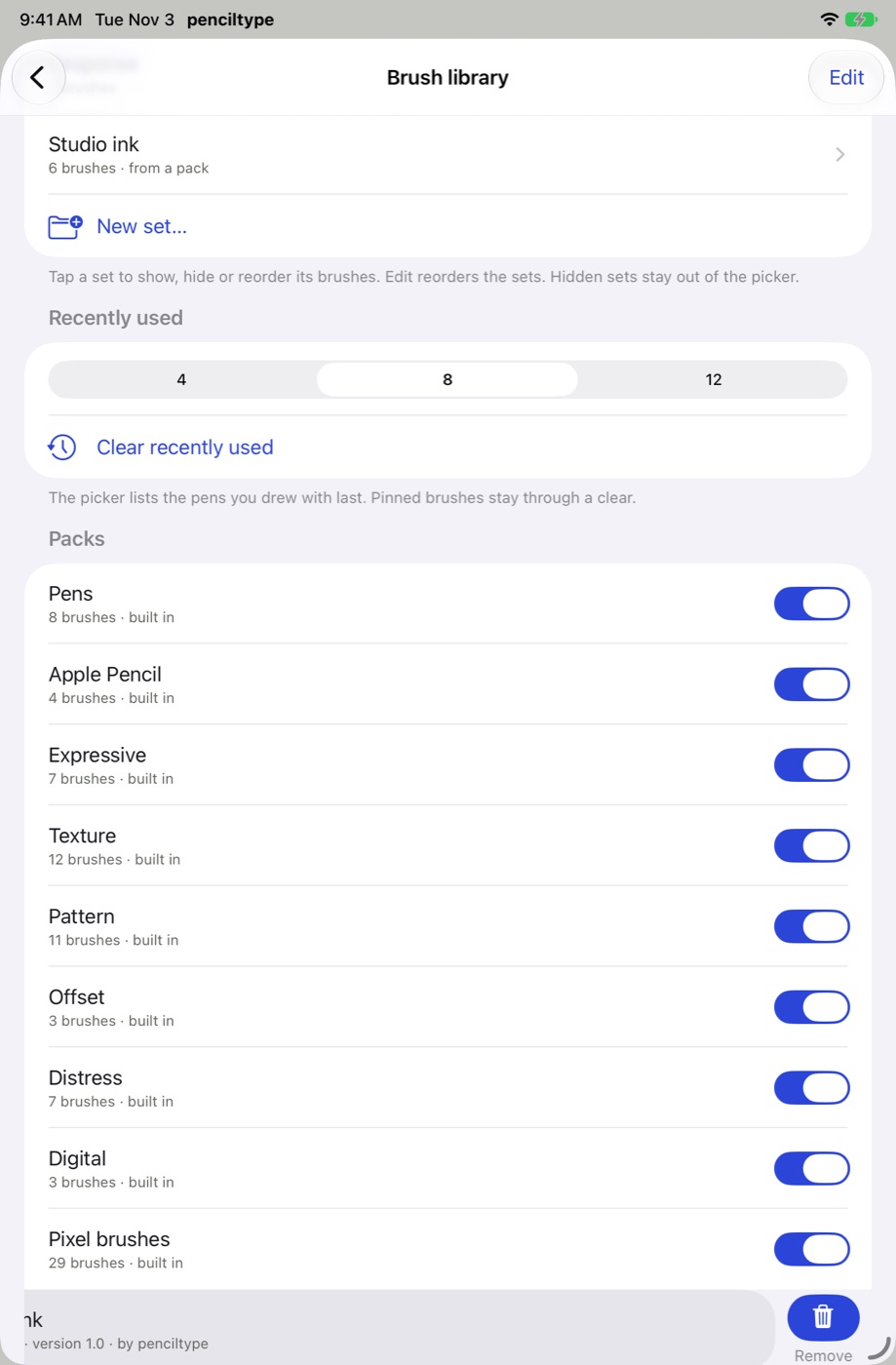
A pack you've added is listed with its name, brush count, version and author. Touch and hold it for Visit the pack's page (when the pack has a web link) and Remove pack…; or swipe left for Remove.
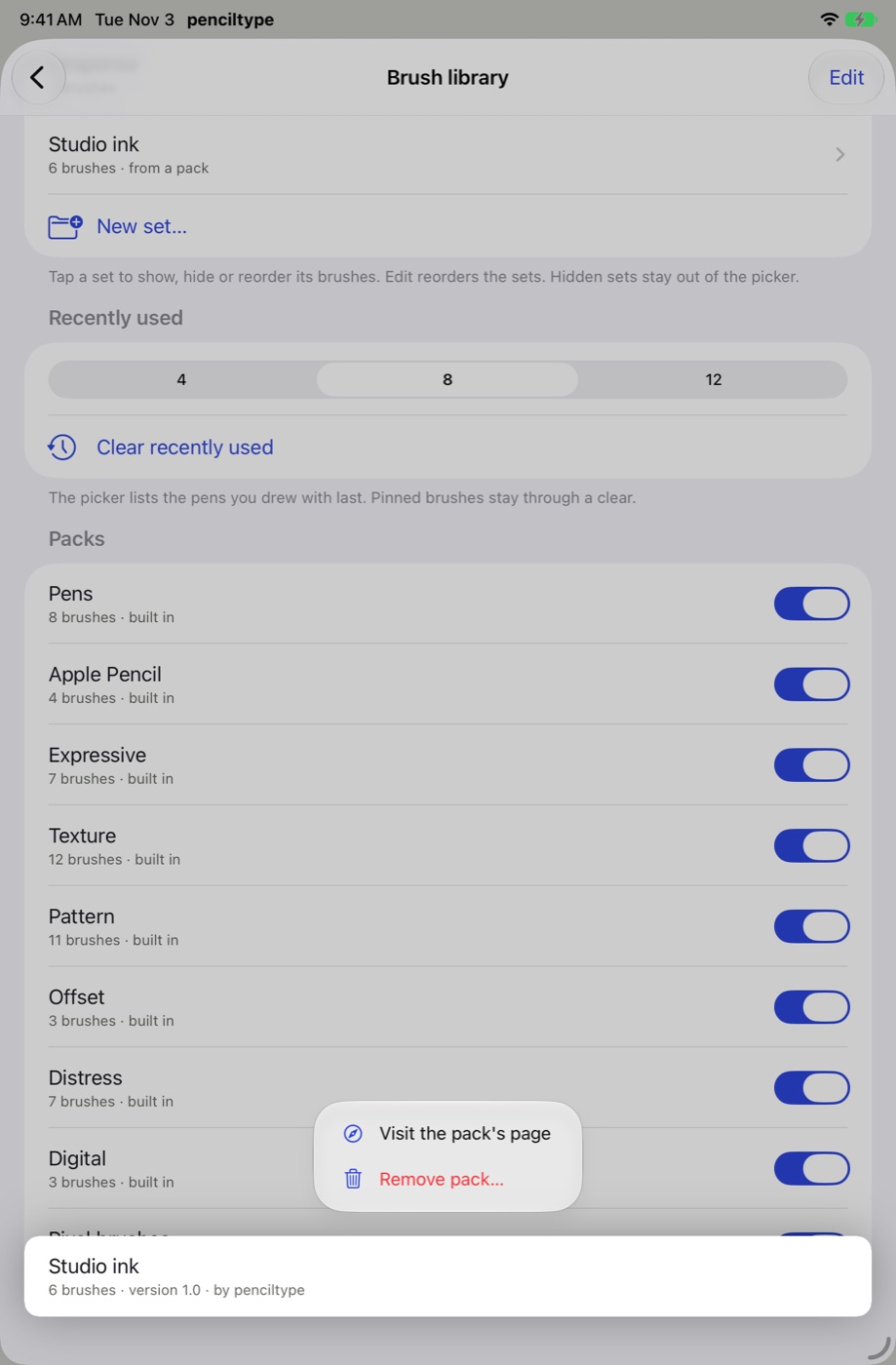
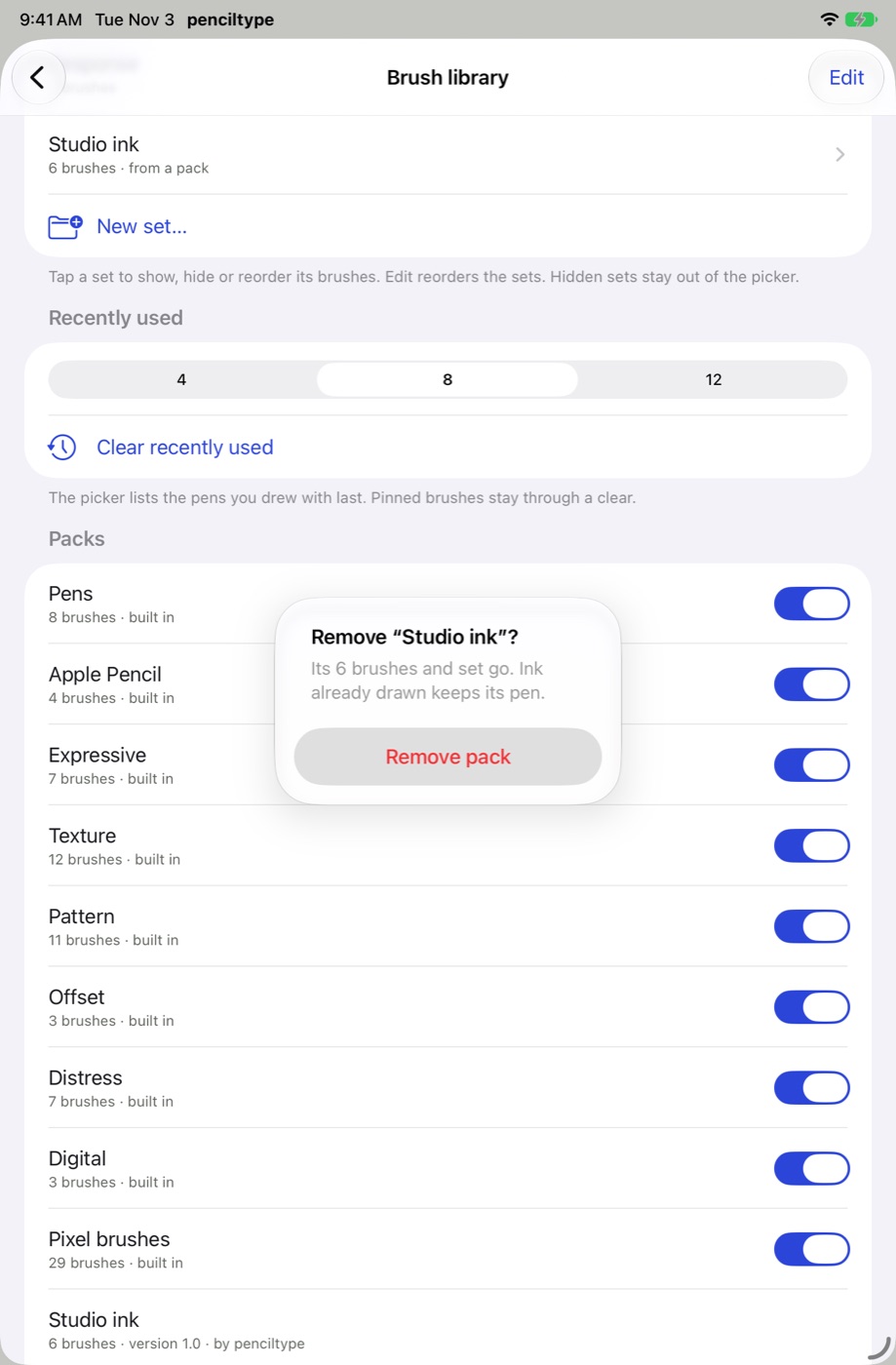
Removing asks first: “Remove “pack”? Its n brushes and set go. Ink already drawn keeps its pen.” Tap Remove pack, or Cancel.
The footer: “A pack's brushes make a set of their own. Turning a built-in pack off takes its sets out of the picker; your own copies of its brushes stay.”
Get more brushes
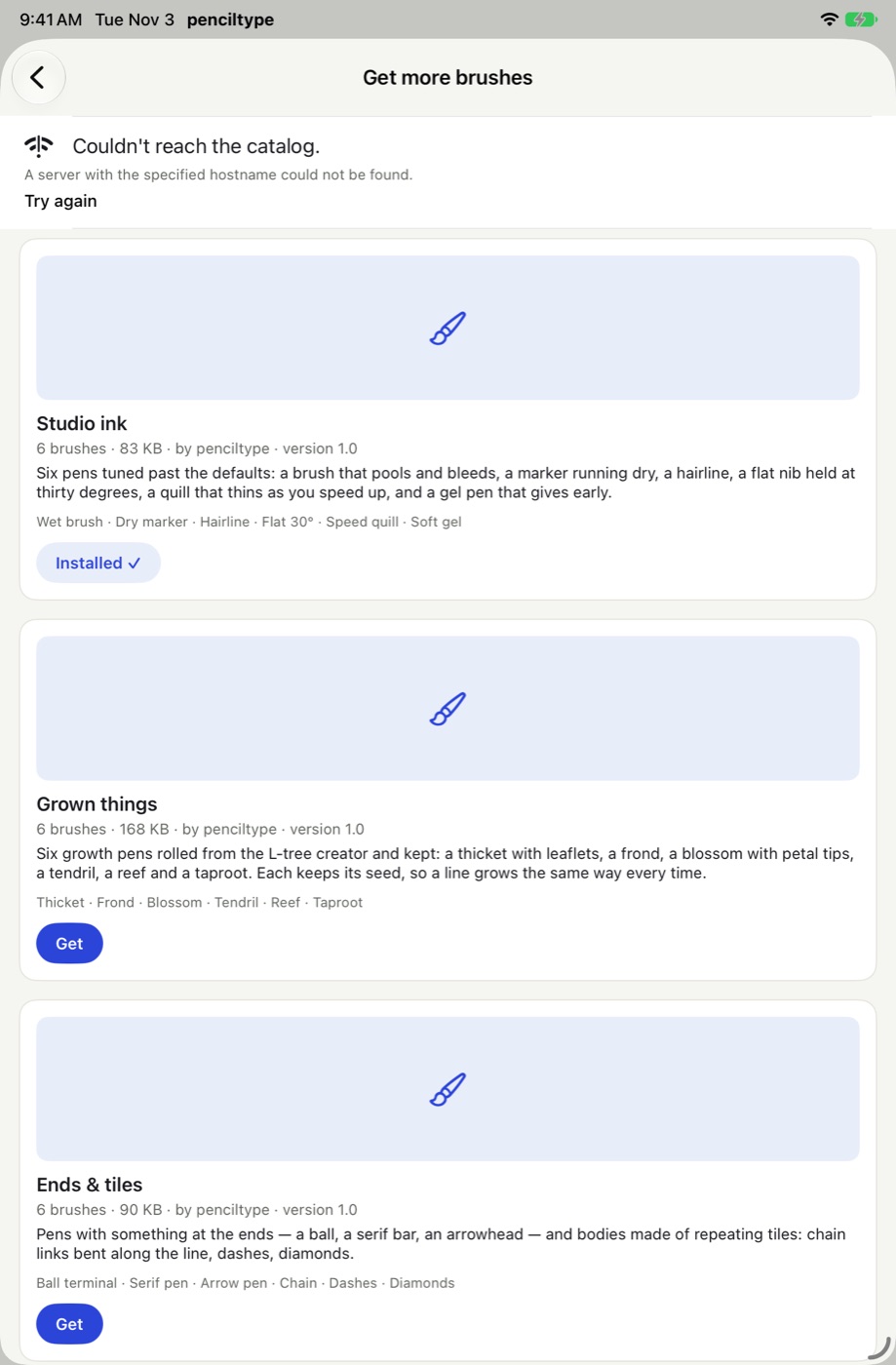
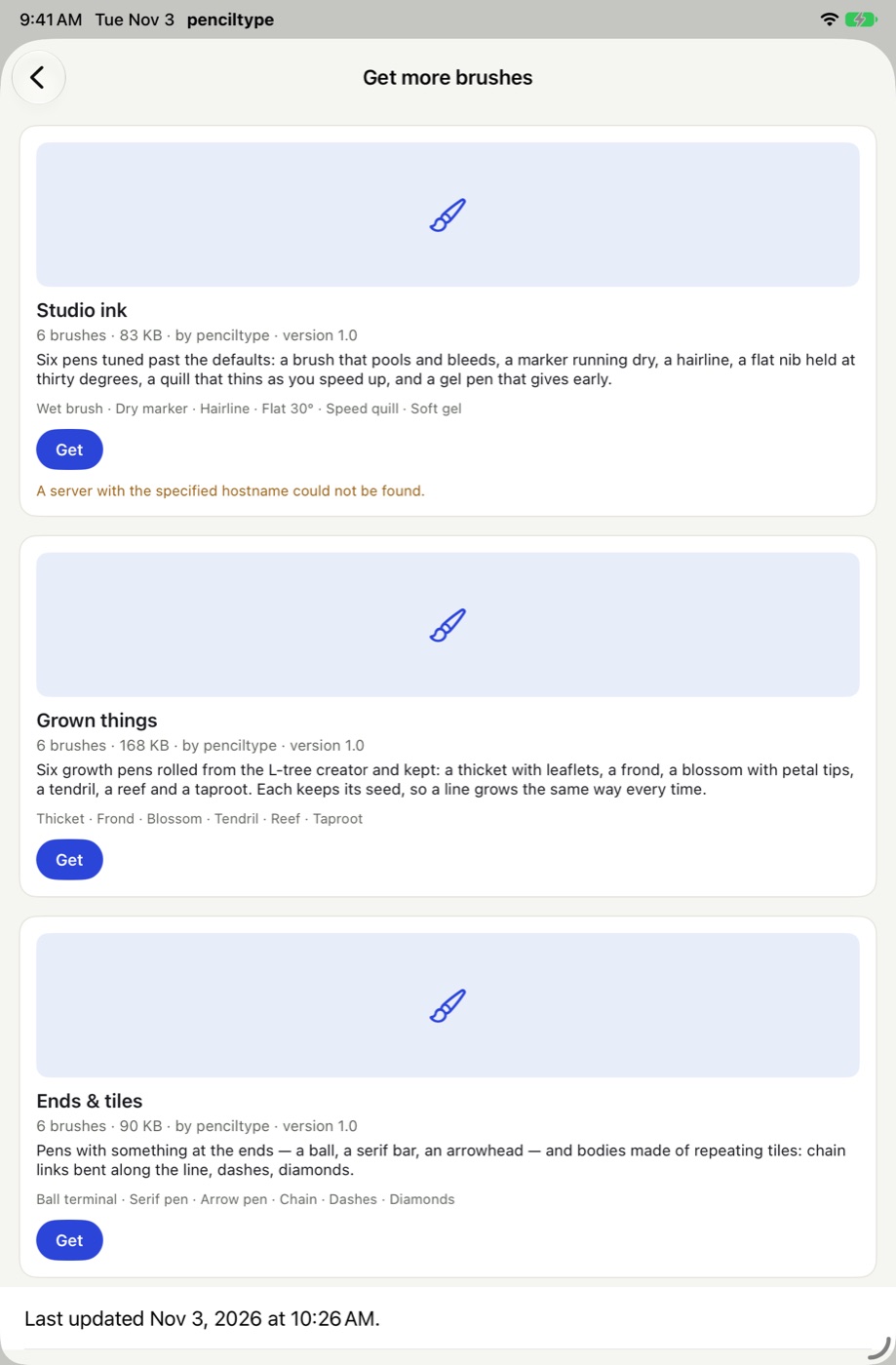
Settings › Brush library › Get more brushes… (under Packs) lists the packs published on penciltype.com. Each card shows the pack's cover, name, brush count, size, author and version, a description, and the names of its brushes.
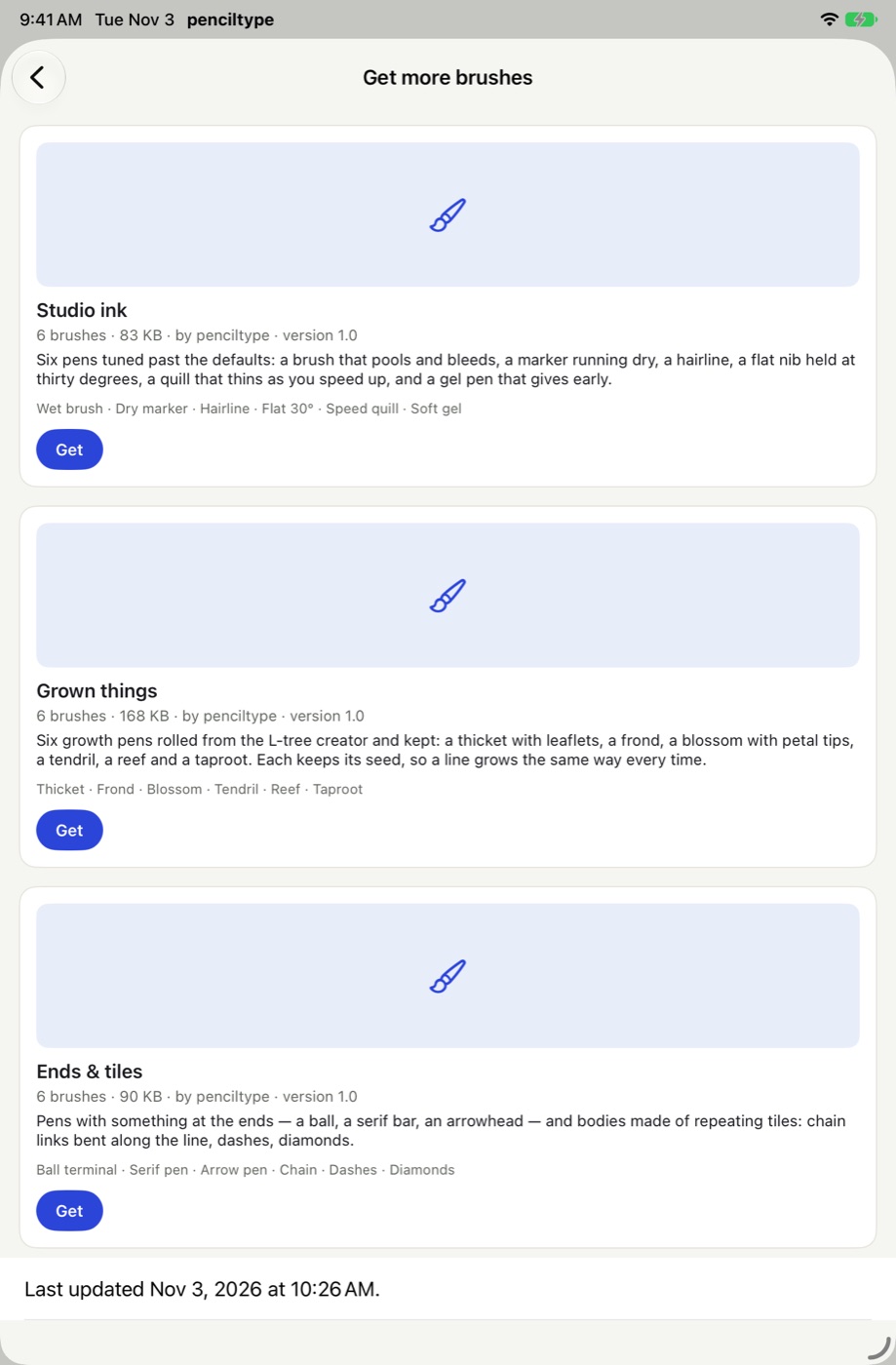
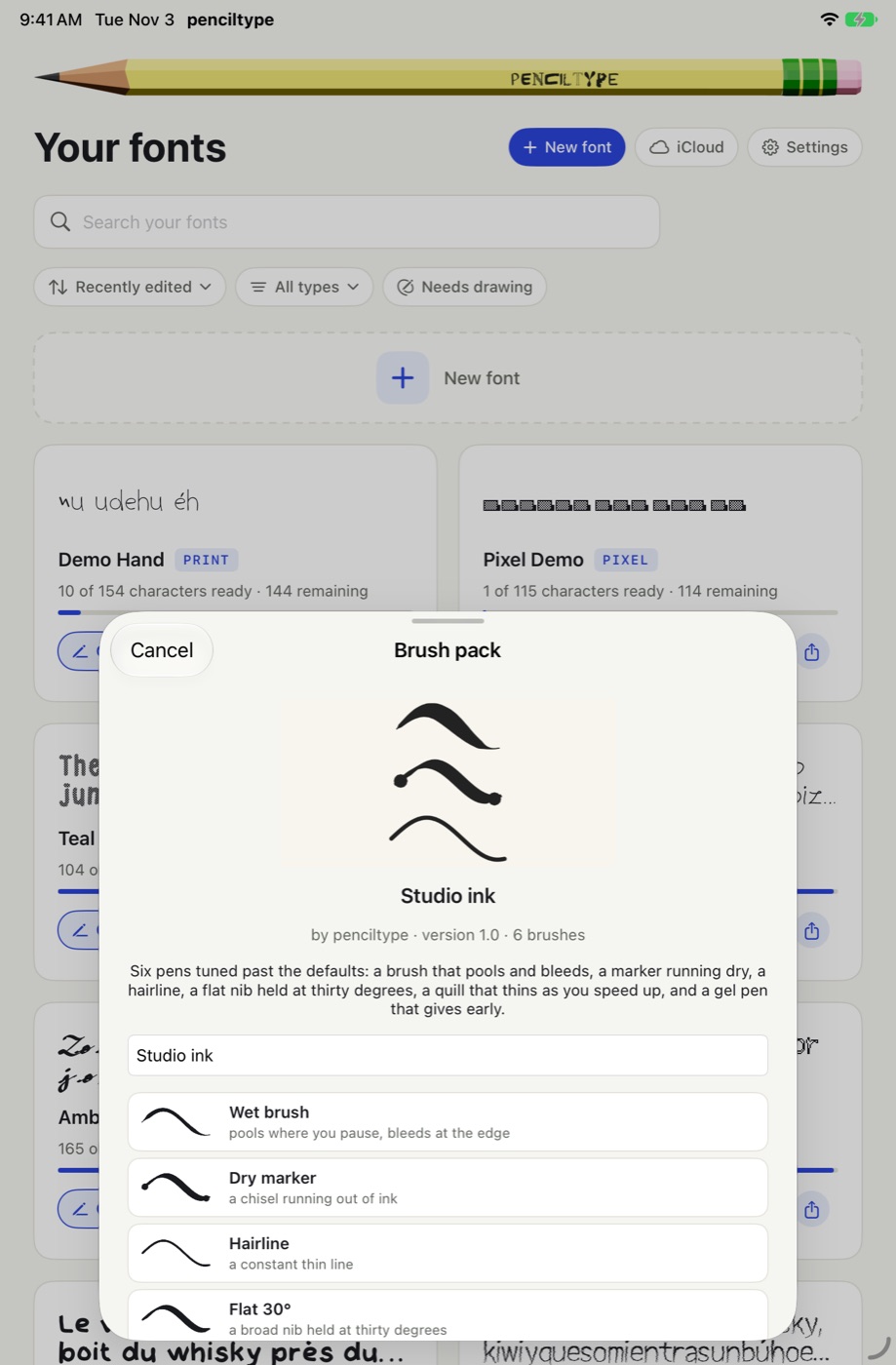
- Get downloads the pack (showing Downloading… and a progress bar), checks it, and opens the pack's import sheet. Tap Add n brushes (see importing a pack).
- A pack you already have reads Installed ✓. When a newer version is listed, the button reads Update. Updating keeps your pins, your hidden brushes and the sets you've moved its brushes to.
- Pull the list down to refresh it. The foot of the list says when it was last updated.
When something goes wrong
- The first time you open it, Loading the catalog… shows with a spinner.
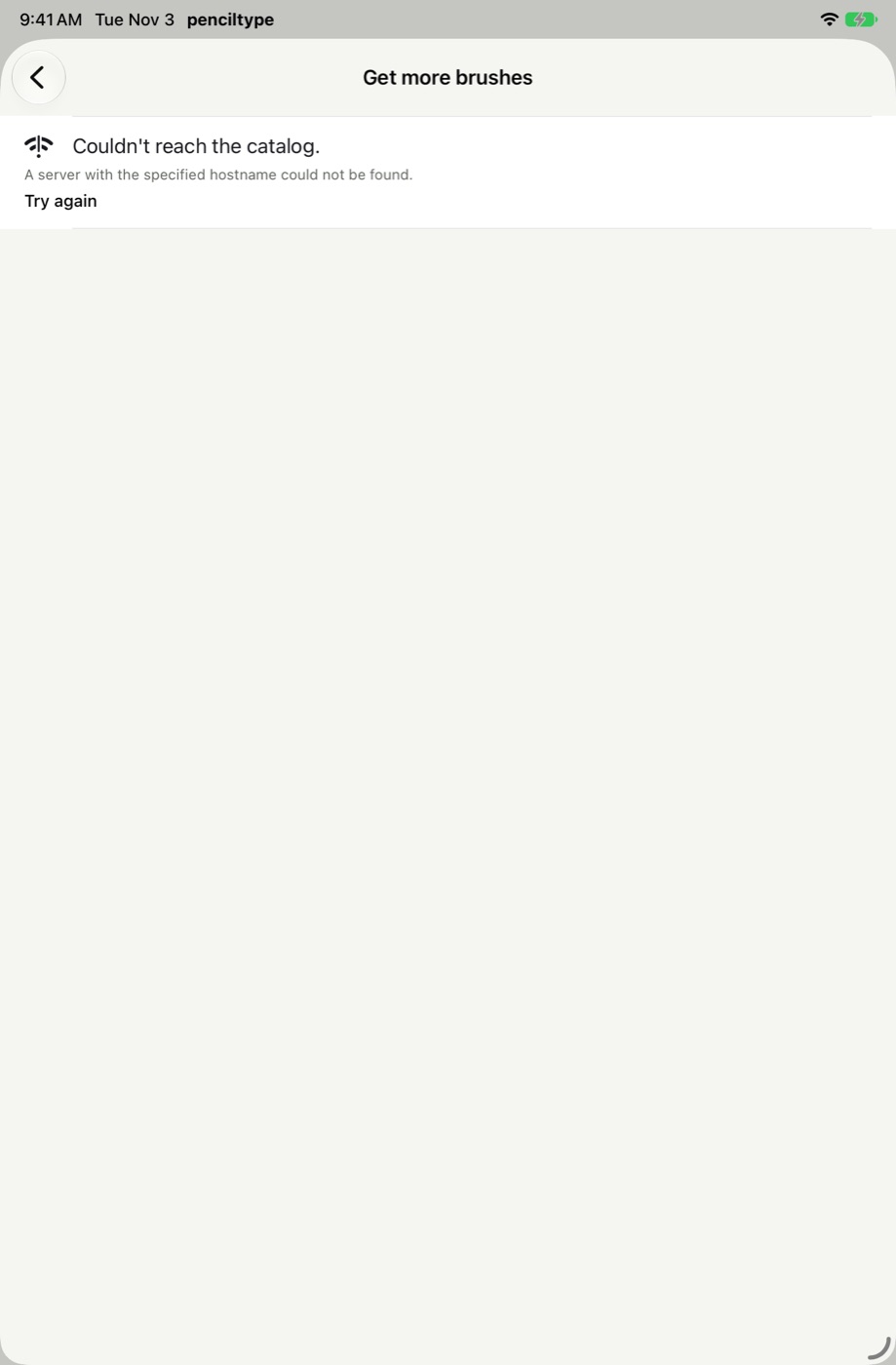
- If the catalog can't be reached, Couldn't reach the catalog. shows with the reason and a Try again button, above the last copy you loaded (if you've loaded one). You can still read it, and see what you have installed.
- If the catalog has no packs, it says No packs yet: “New packs appear here as they're published.”
- If a download fails, the reason appears under its card: “This pack's download link isn't on penciltype.com.”, “The download didn't complete.”, “The downloaded file isn't the size the catalog lists.”, or “The downloaded file doesn't match the catalog's checksum.”
This is the only part of penciltype that goes online. It fetches from penciltype.com and nothing else, and it sends nothing about you or your fonts.
Import & export
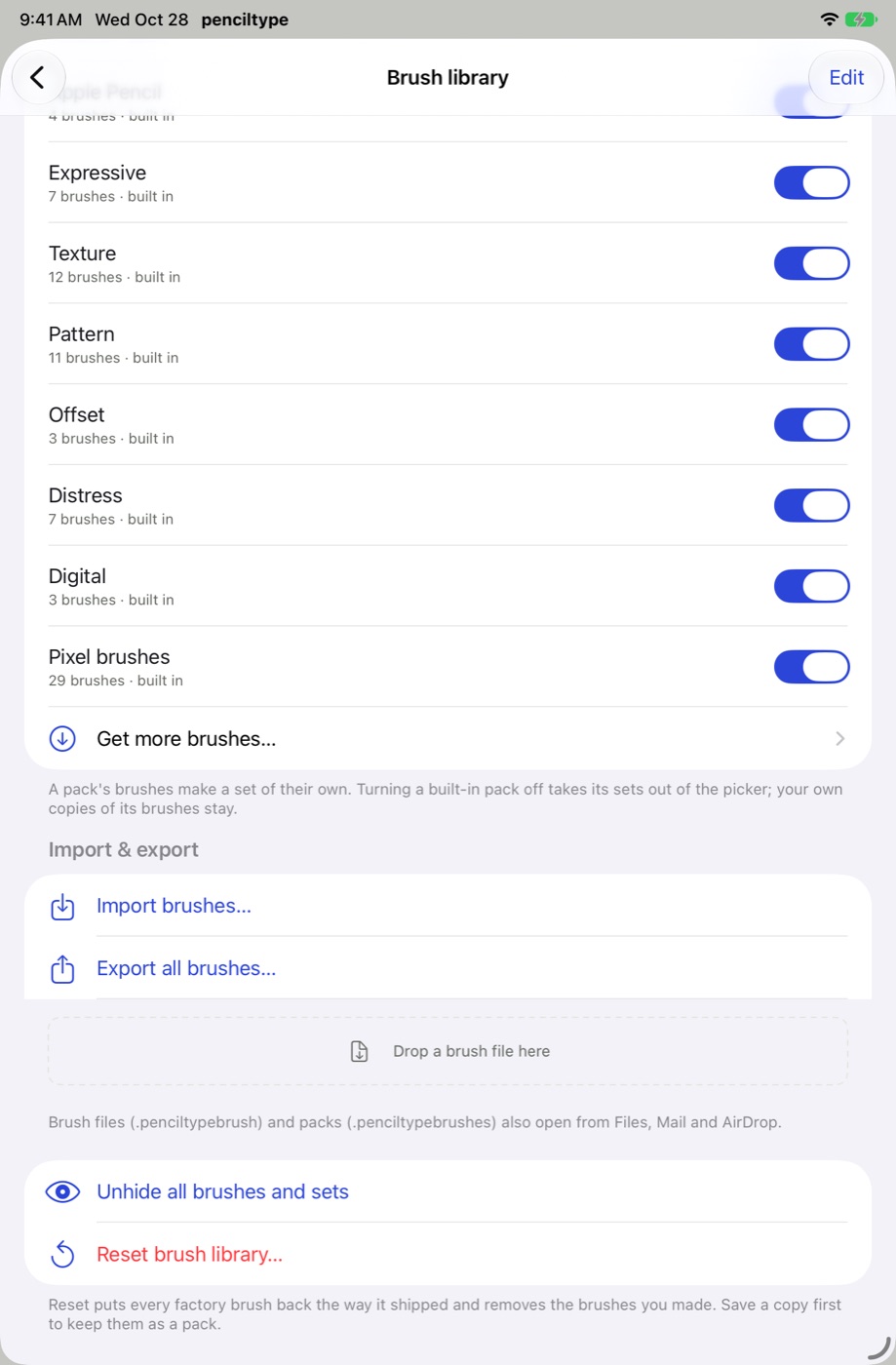
- Import brushes…
- Opens Files to pick a brush file or pack (see Importing brushes).
- Export all brushes…
- Writes every set you can see as one pack, “penciltype brushes.penciltypebrushes”, ready to send.
- Drop a brush file here
- iPad and Mac: drag a brush file or pack from Files (or the Finder) onto the dashed box to import it.
“Brush files (.penciltypebrush) and packs (.penciltypebrushes) also open from Files, Mail and AirDrop.”
Unhide all, and resetting the library
Unhide all brushes and sets shows everything you've hidden, brushes and sets alike.
Reset brush library… starts over: “Reset puts every factory brush back the way it shipped and removes the brushes you made. Save a copy first to keep them as a pack.” It asks first:
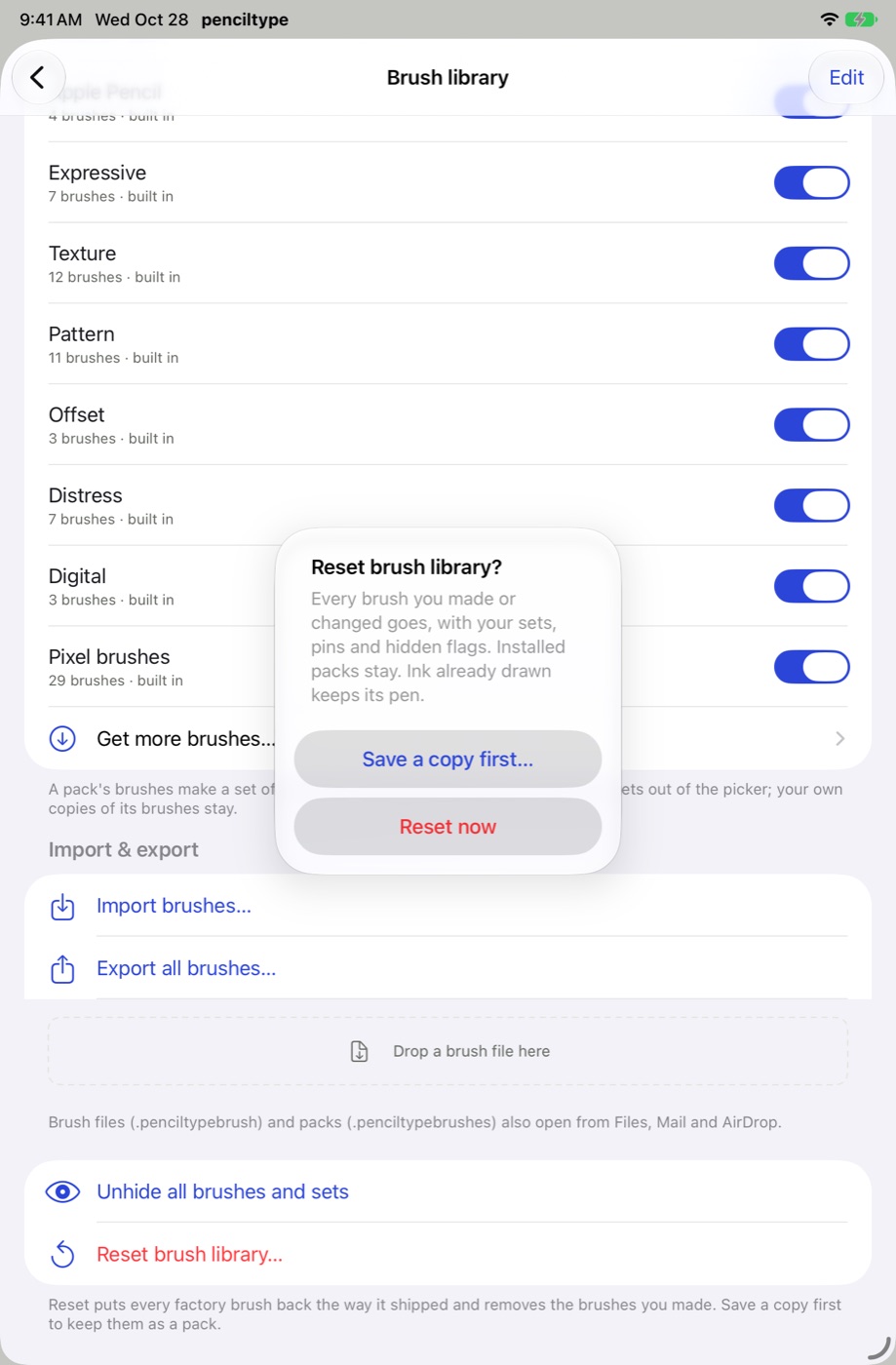
- Save a copy first…
- Writes your whole library as a pack and shows it ready to share (save it to Files, say). The reset waits until you choose Reset brush library… again. A spinner shows on the button while the copy is written.
- Reset now
- Deletes every brush you made or changed, your sets, pins, hidden flags and Recently used. The built-in sets come back fresh. Installed packs stay. Ink already drawn keeps its pen.
- Cancel
- Leaves everything as it is.
What syncs
With iCloud on (see Backups and iCloud), your brush library travels with the rest of your library: your brushes and their settings, your sets and their order, pins, hidden brushes and sets, and installed packs. Two things stay on each device: Recently used (and how long it is), and which sets you've folded in the picker.
On the Mac
On a Mac, swiping a row with a mouse or trackpad isn't something you'd think to try, so in the picker every brush has a ⋯ button at its right (Brush actions). Click it for the same menu you'd get by touching and holding the row on iPad. Everything else in the library works the same, clicking where you'd tap.