

Your finished font
When you draw the last character your font asks for, penciltype marks the moment: a page that sets “Congratulations!” in your new font, throws confetti cut from your own letters, and shows you the ways on.
When the last character lands
Draw the last missing character on the canvas and lift the pen. Once the pen has rested for a moment (each new stroke restarts the wait, so you can finish the letter), a banner rises above the pen bar: All selected characters are ready, with Review font. Tap Review font to open the finished-font screen. Or keep drawing: the banner's × hides it and leaves the canvas as it is.
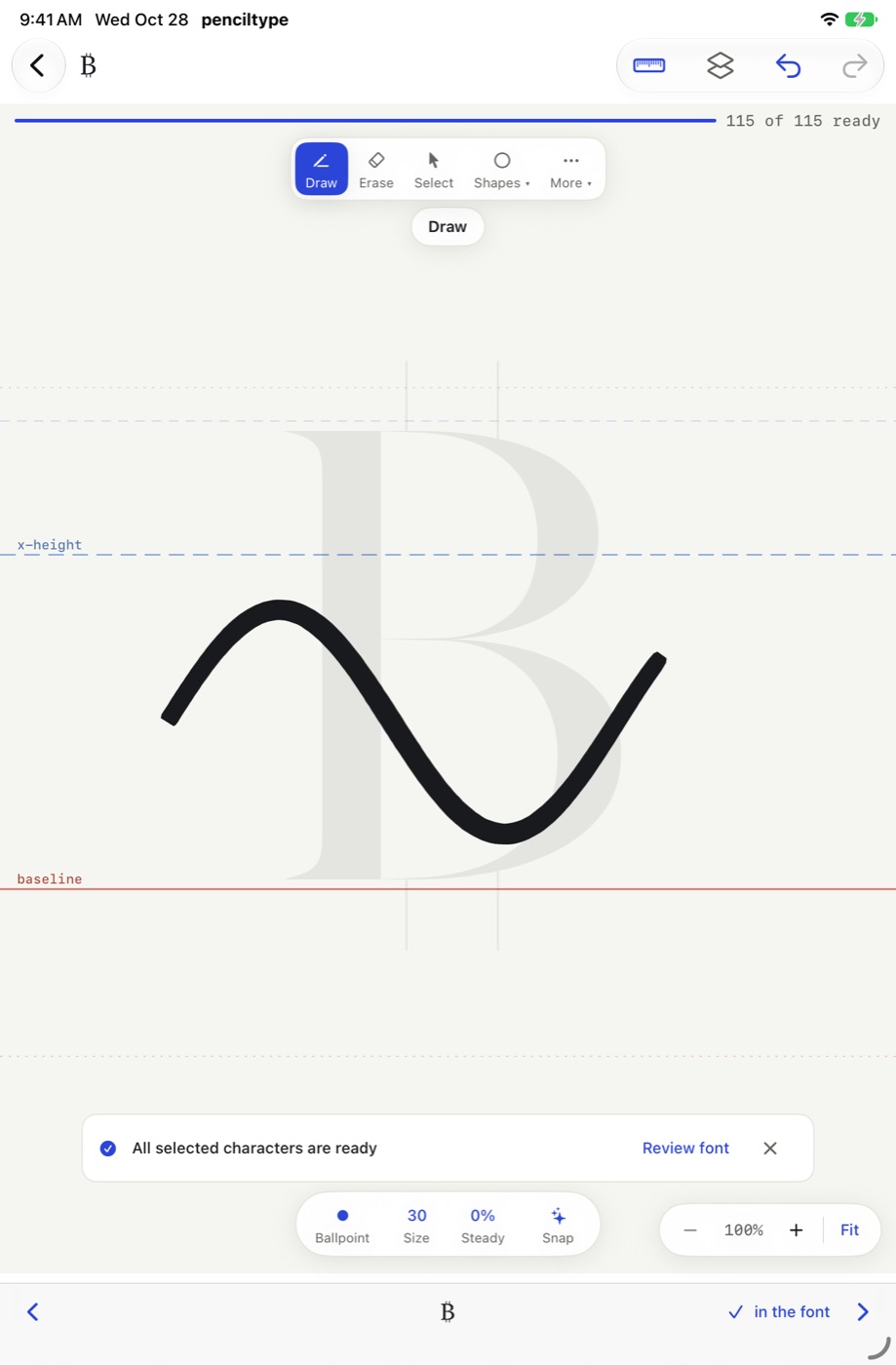
“Every character” means every character in the font's current set: its languages, symbols, extras, letter pairs and words. Characters the font makes for you, like composed accents, count as ready.
Congratulations!
The finished-font screen opens over the letter grid. (The canvas leaves the way back, so Keep editing takes you to the grid, not the last letter.)
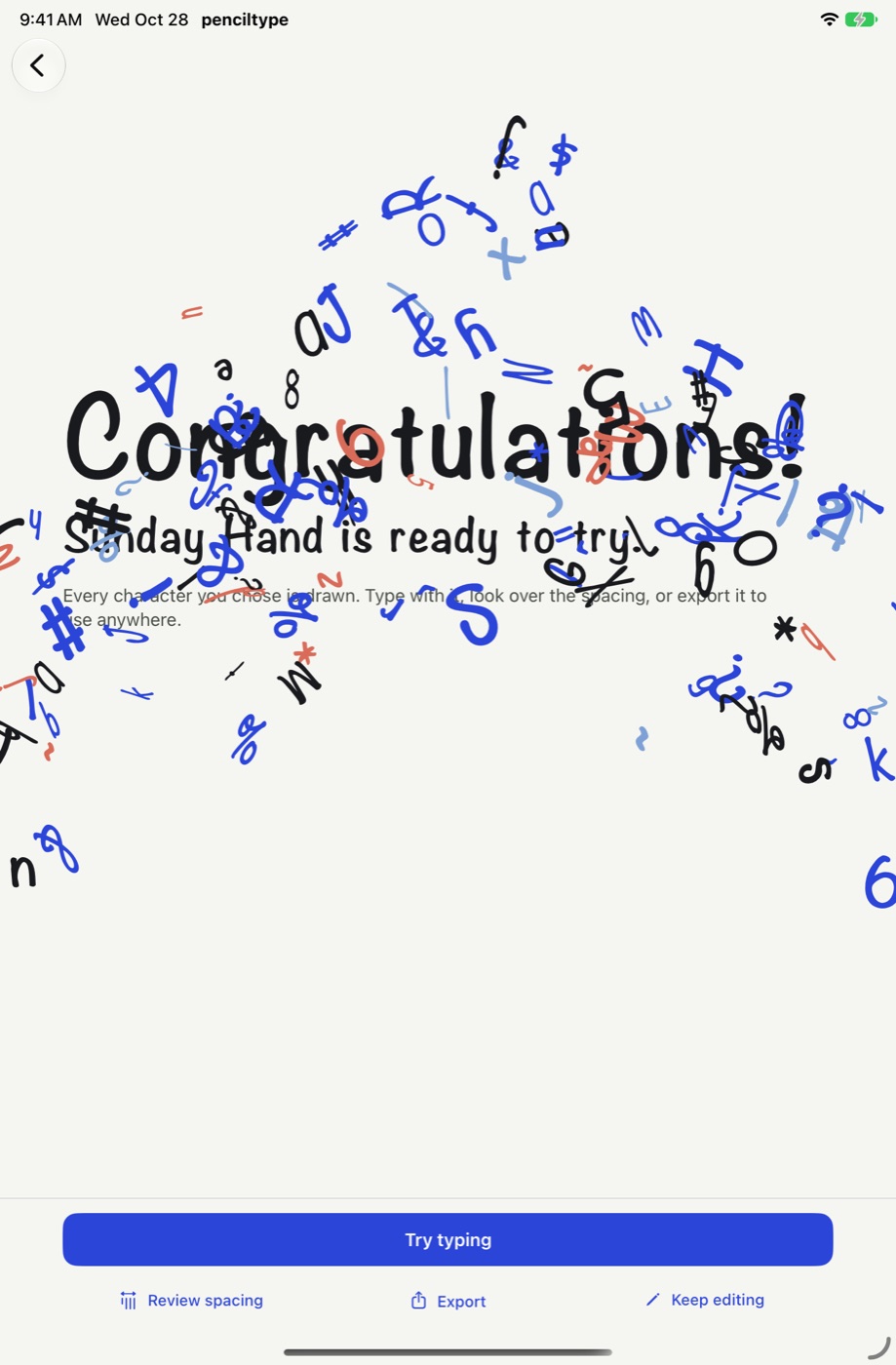
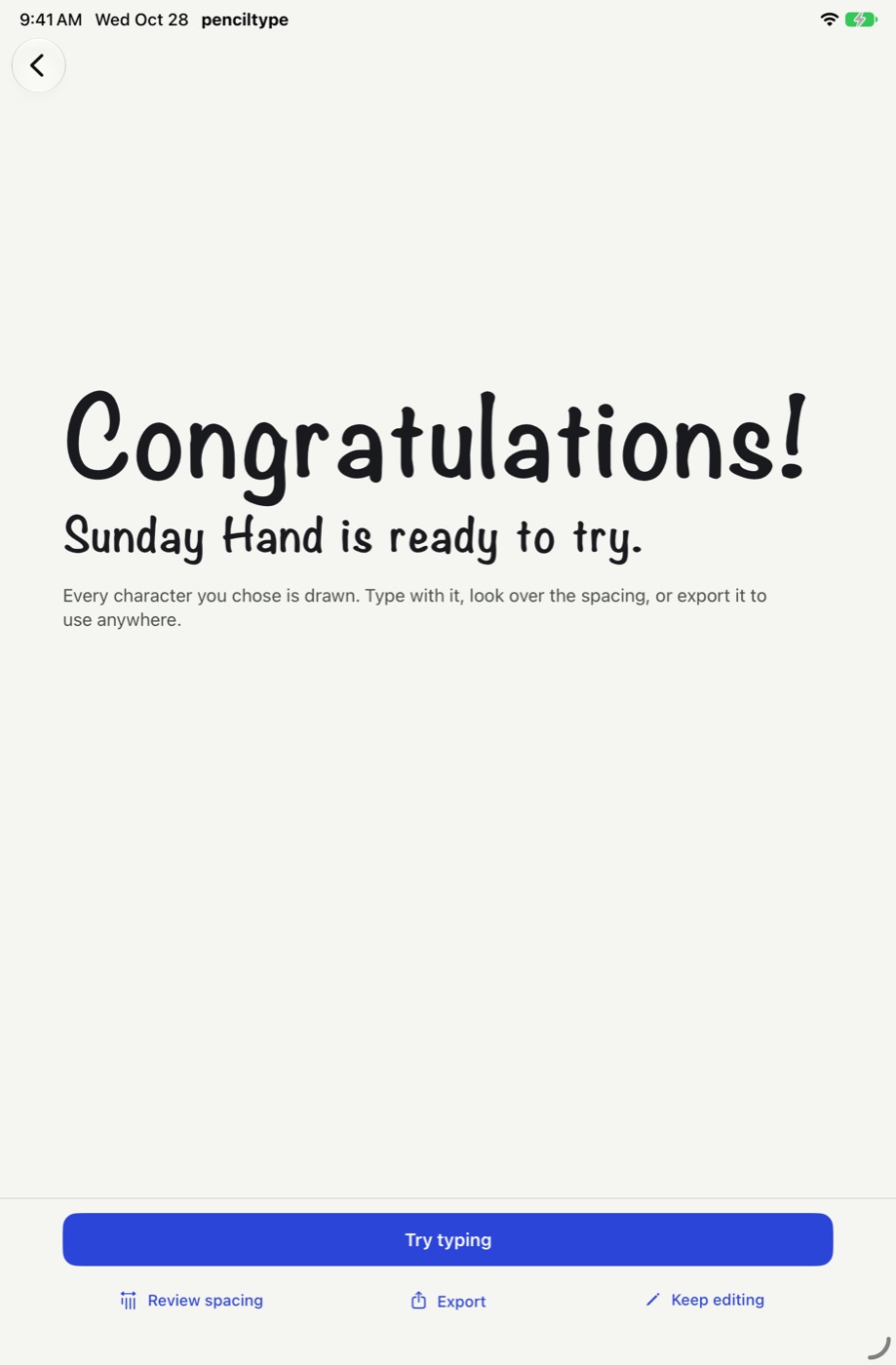
- Congratulations! is set in your new font, sized to fill the column. (If your font can't spell the translated word, it says it in English.)
- Under it, “Sunday Hand is ready to try.”, also in your font.
- Then, in the app's own type: “Every character you chose is drawn. Type with it, look over the spacing, or export it to use anywhere.”
- A one-time burst of confetti made from your font's own letters, digits and symbols, in blue, ink and red, with a success tap you can feel. The confetti only fires once per visit. With Reduce Motion on, there's no confetti, just a plain fade.
Where to go next
Four buttons sit along the bottom:
- Try typing
- Opens Preview your font, so you can type with it straight away.
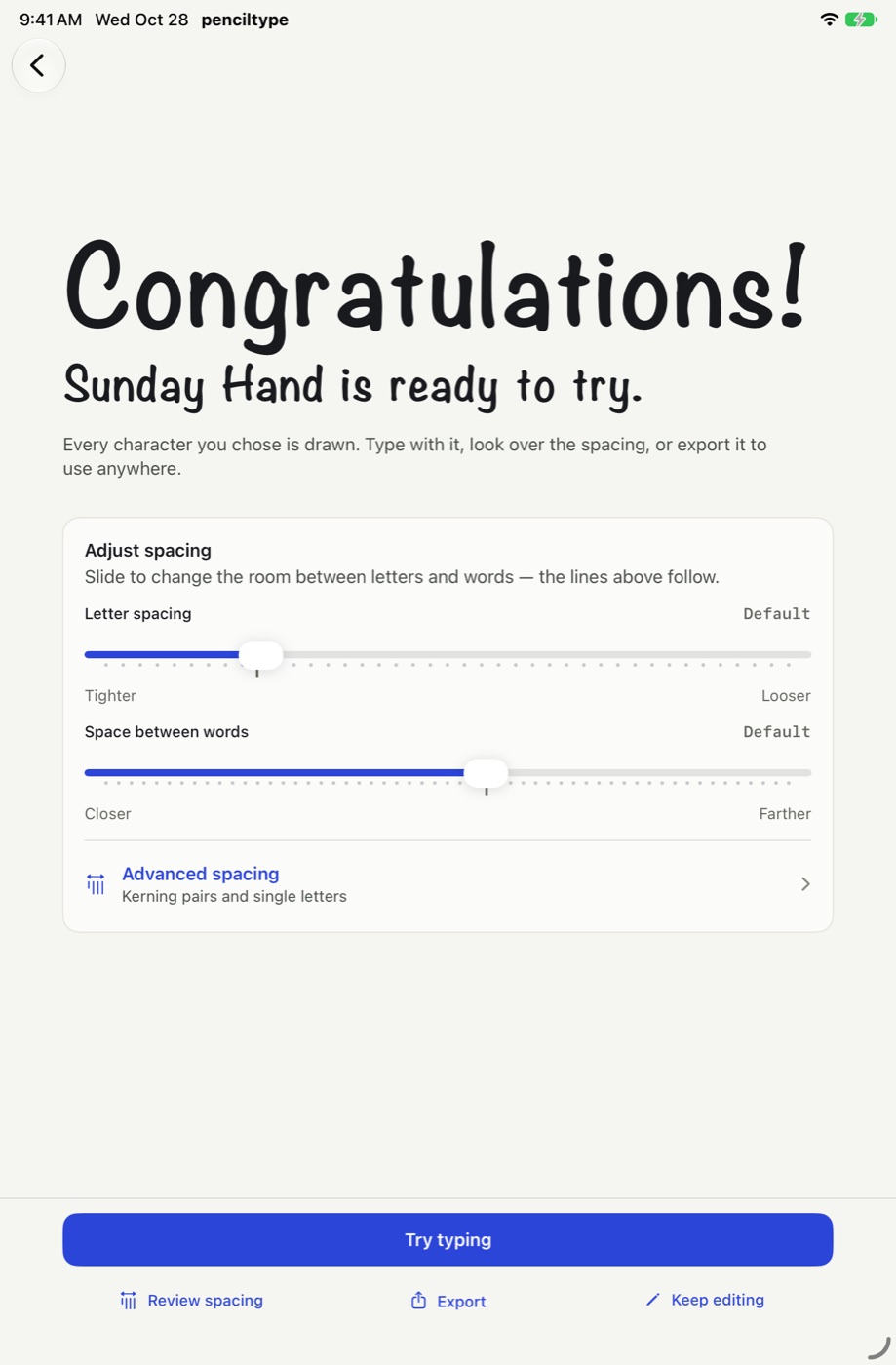
- Review spacing
- Unfolds an Adjust spacing panel under the text (“Slide to change the room between letters and words — the lines above follow.”): the same Letter spacing and Space between words sliders as the Spacing screen, with Undo spacing changes, Show original and a link to Advanced spacing. Tap Review spacing again to fold it away.
- Export
- Opens Export & install, to install the font or share it.
- Keep editing
- Back to the letter grid.
If the four labels don't fit side by side (on a narrow phone, or with large text), they stack. On iPad and Mac the page is a centred column held a little above the middle; on iPhone it reads from the top.
Coming back from Advanced spacing doesn't fire the confetti again. The banner, and so this screen, only comes when a canvas visit finishes a font that wasn't finished when you opened it: touching up letters of a font that's already complete doesn't bring it back. Everything on this screen is also on the grid.