Response
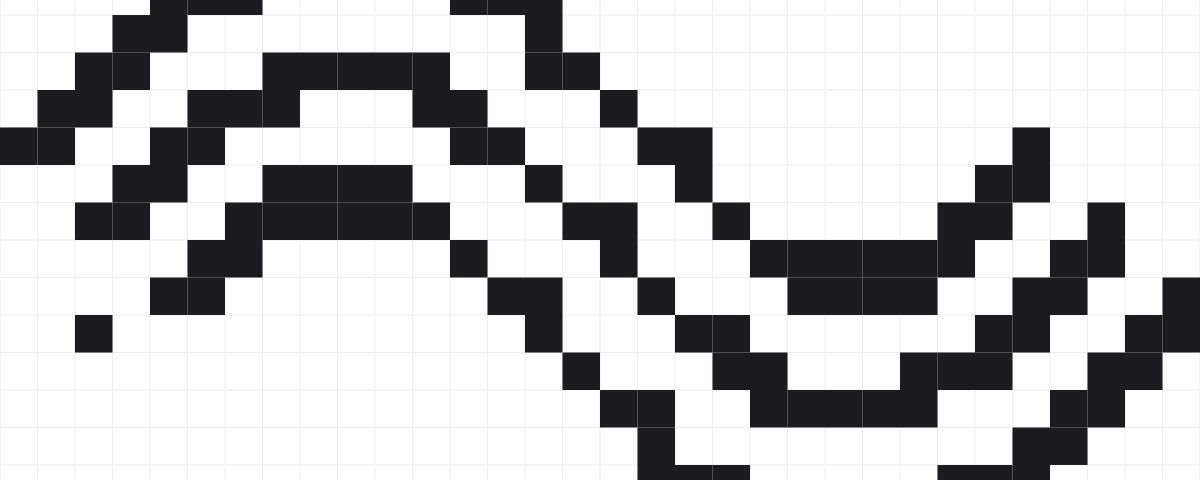
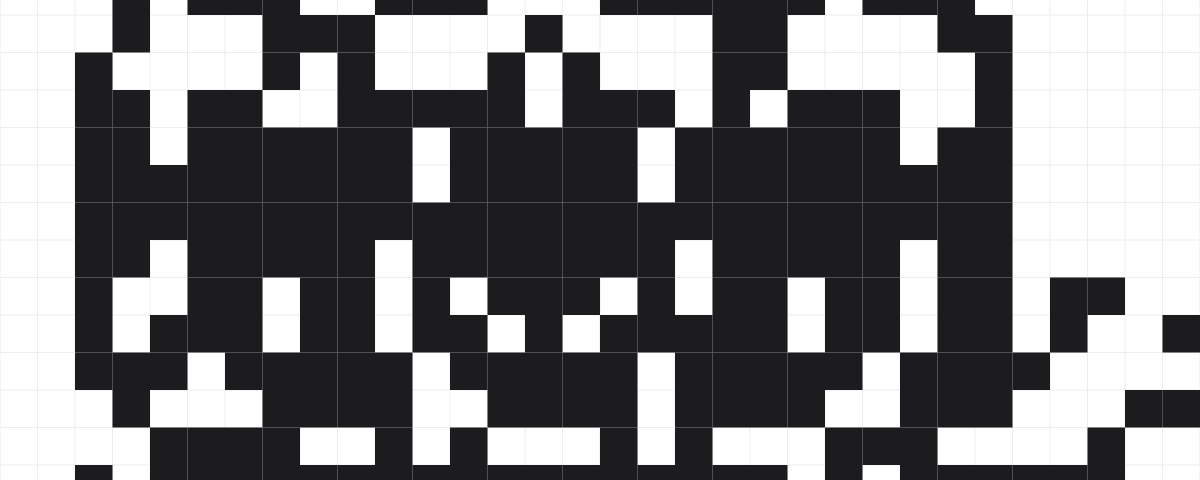
Stamps that respond to height, speed or time, plus the hollow outline and two shaped stamps: a diagonal chisel and a rake.
How these brushes work
- Pixel brushes
- For pixel fonts, drawn on a grid of cells spanning the em. A drag stamps a square of Size × Size cells every half cell along its path; each mode then shapes the stamp, filters it through a pattern fixed to the grid, shears its rows, or adds copies, growth or wear. Cells are stored as they are painted, so randomness is baked in; erasing keeps the fixed patterns (dither, scanlines, stipple, hatches, tiles, crackle, weighted) and erases a plain square for the rest.
The brushes
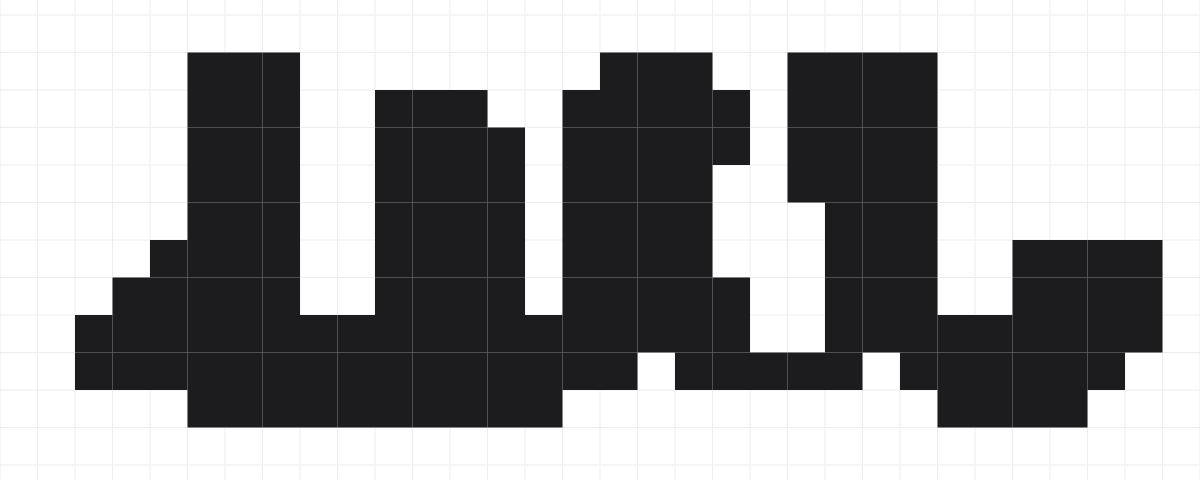
Weighted
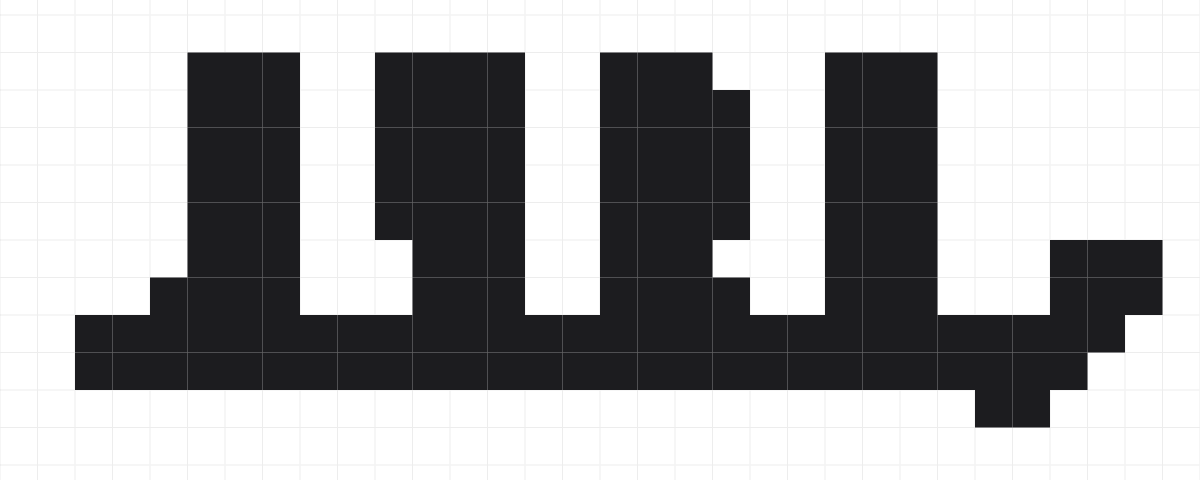
heavy at the baseline, thin up top
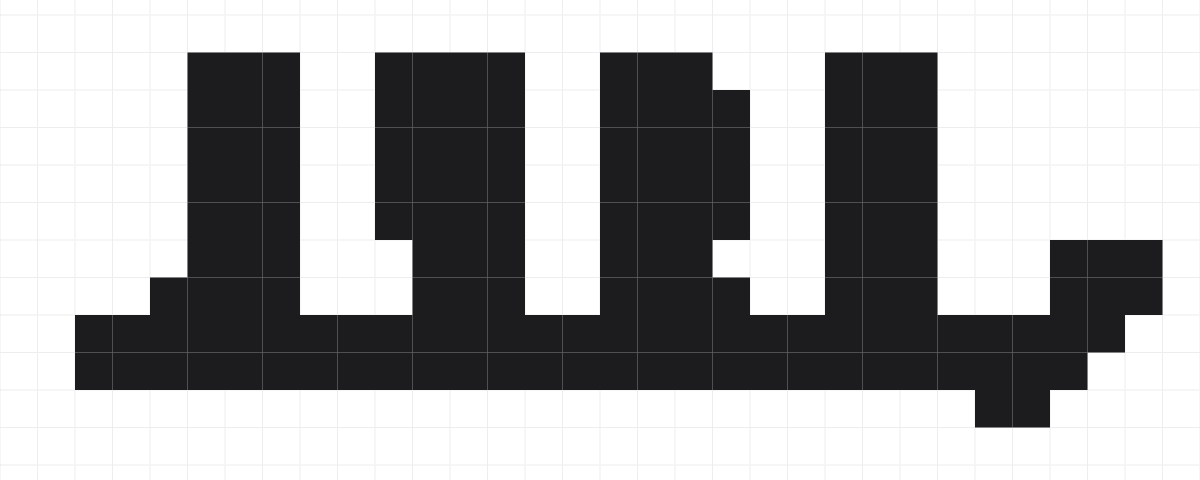
Shown at size 3 on a 32-cell grid
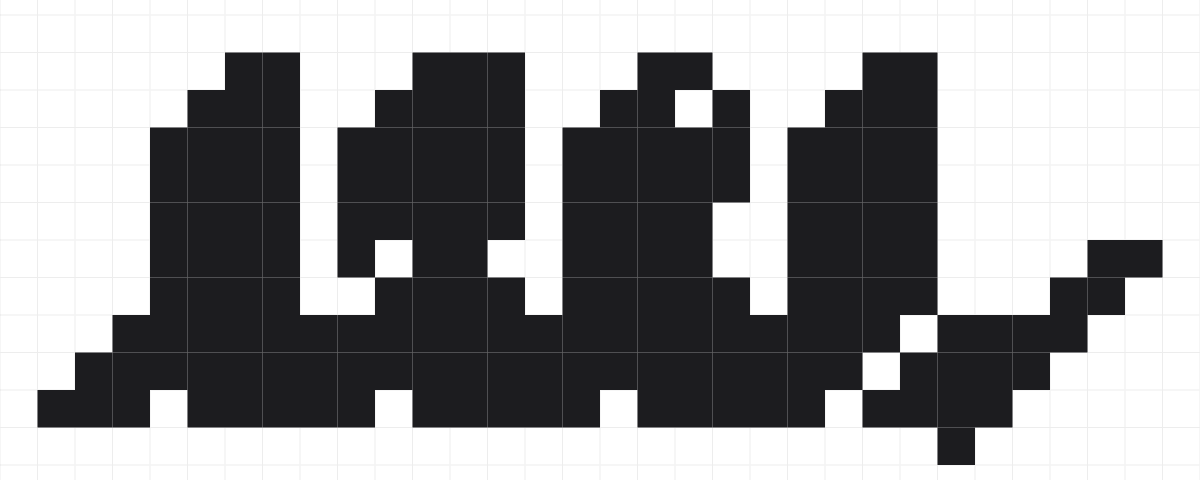
Stamp size follows height in the em: with the default Heavy at the baseline it is the full Size near the bottom of the grid (the descender) and shrinks to 1 cell toward the top. Weight contrast fades the range toward the middle size, and Band tears shears rows sideways like Glitch (painting only). Erasing with it uses the same varying stamp.
Reads: nothing but where you draw
With a finger: Works the same with a finger, an Apple Pencil or a mouse; only where you paint matters.
| Setting | Range | Factory | What it does |
|---|
| Heavy side Options page | Choices: Heavy at the baseline, Heavy up top, Heavy on the left, Heavy on the right | Heavy at the baseline | Which edge of the em the stamp is heaviest toward (down, up, left or right). |
| Weight contrast Options page | 0% – 100% (Even … Strong) | 100% | How far the width swings from thin to thick; 0% is an even middle weight. |
| Band tears Options page | 0% – 100% (None … Many) | 0% | Tears horizontal bands sideways on a grid shared by the whole glyph, like Glitch. |
Tips
- Every letter gets the same weight at the same height, so a whole font stays consistent.
- Pick Heavy on the left or right for weight that grows across the advance.
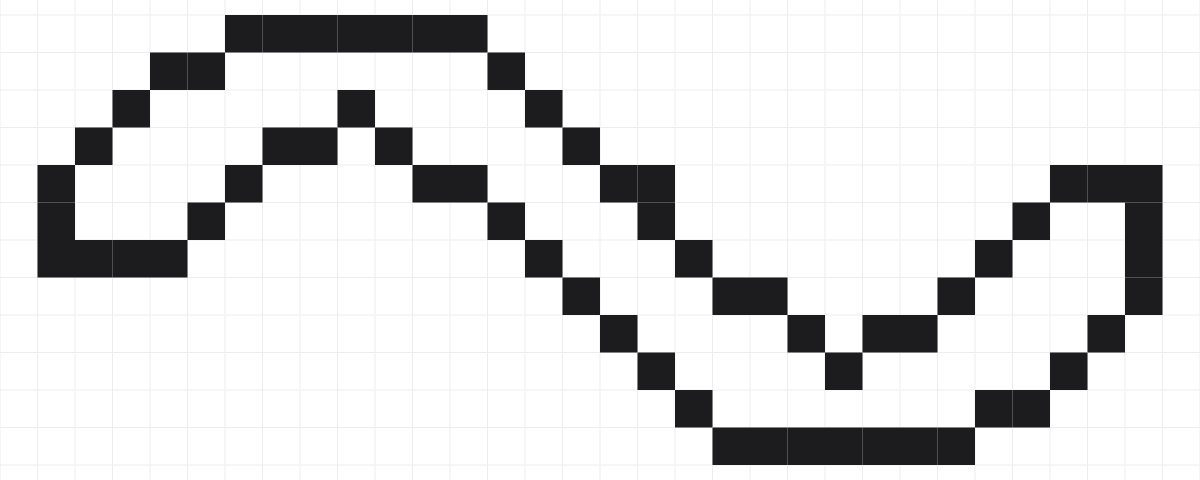
Speed
drag fast for thin, slow for fat — or flip it
Shown at size 3 on a 32-cell grid
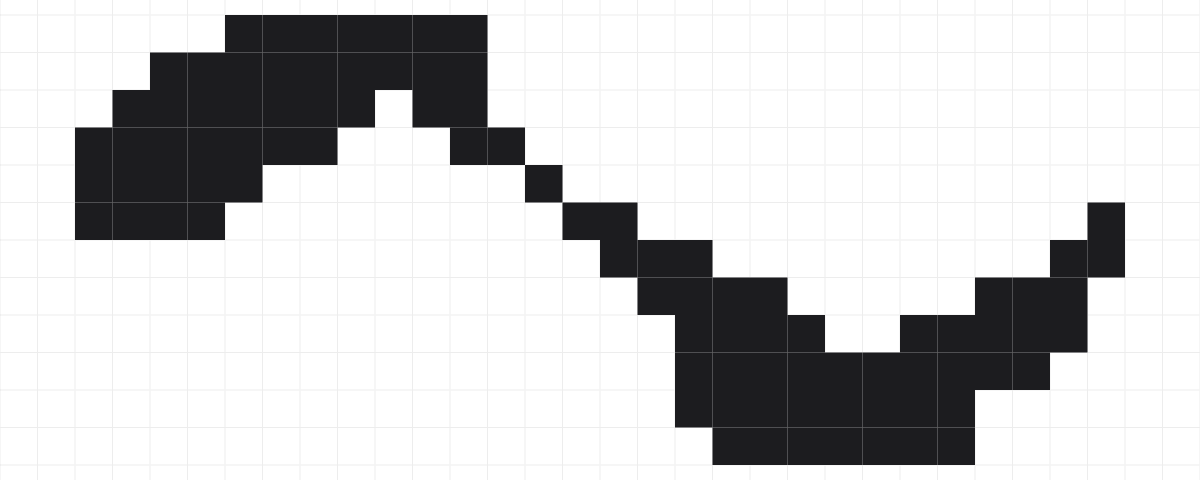
Stamp size follows the drag's pace (lightly smoothed): about 900 font units a second gives the middle size, slower grows toward the full Size and faster shrinks toward 1 cell (flip it with Fast strokes). Until you move, the stamp is the middle size. Erasing with it clears a plain square.
Reads: speed
With a finger: Works the same with a finger, an Apple Pencil or a mouse; only your pace matters.
| Setting | Range | Factory | What it does |
|---|
| Fast strokes Options page | Choices: thinner, fatter | thinner | Whether drawing faster makes the line thinner (and slower fatter) or the reverse. |
| Speed response Options page | 0% – 100% (Subtle … Strong) | 70% | How hard the width follows your pace; 0% is a constant middle width. |
Tips
- Needs a Size of 3 or more to have sizes to move between.
- Flick through thin joins and slow down on stems.
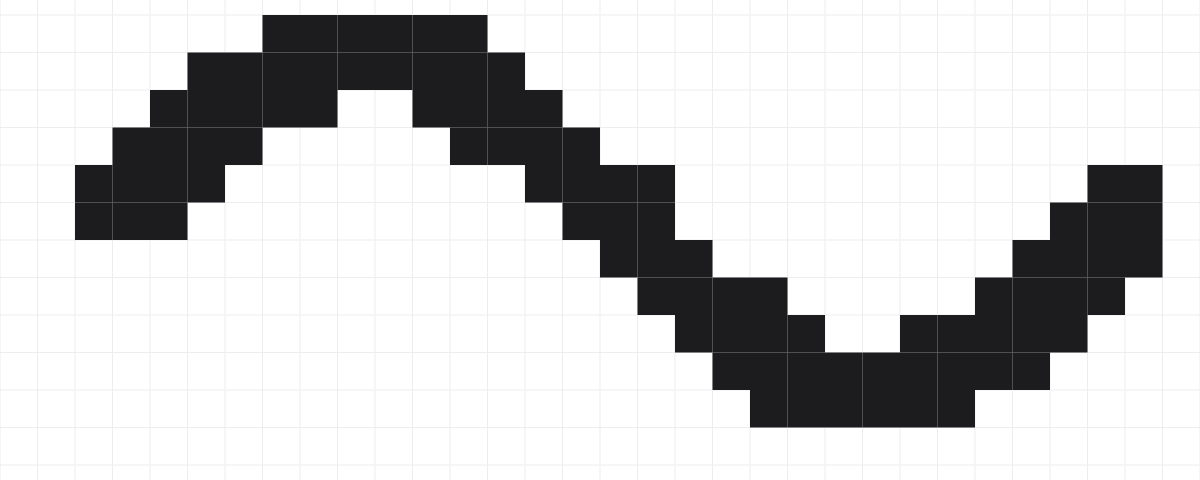
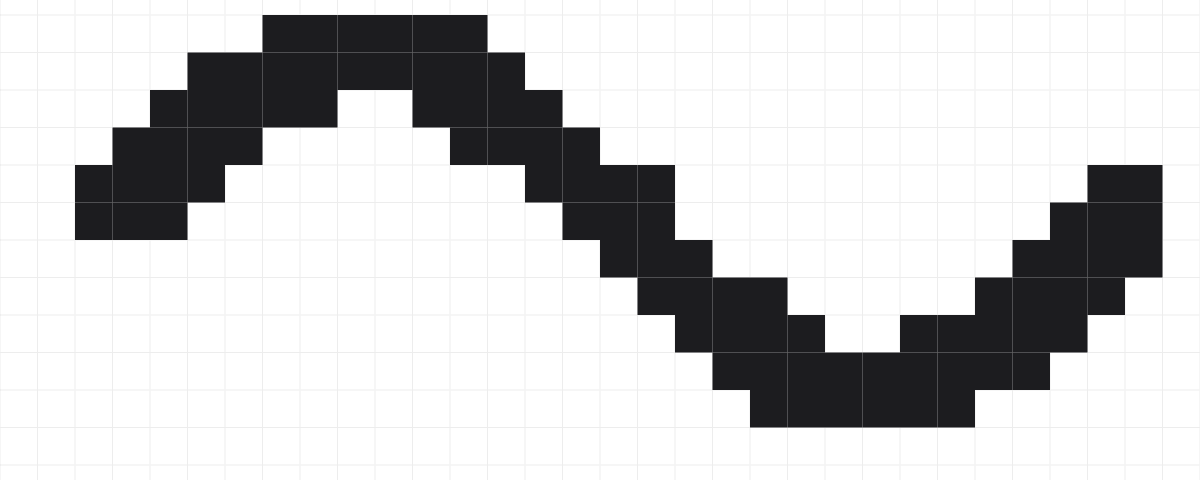
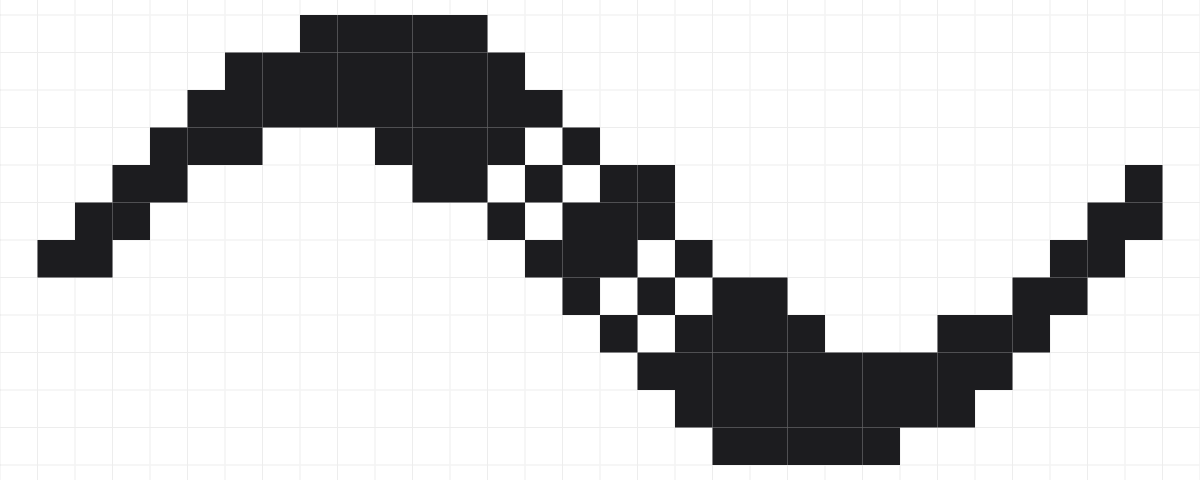
The stamp breathes between 1 cell and Size on a 0.8-second cycle counted from the moment you touch down (a Size 1 brush still swells to 2). Slow drags therefore get more swells per distance. Erasing with it clears a plain square.
Reads: speed
With a finger: Works the same with a finger, an Apple Pencil or a mouse; only the timing matters.
No settings of its own beyond size.
Tips
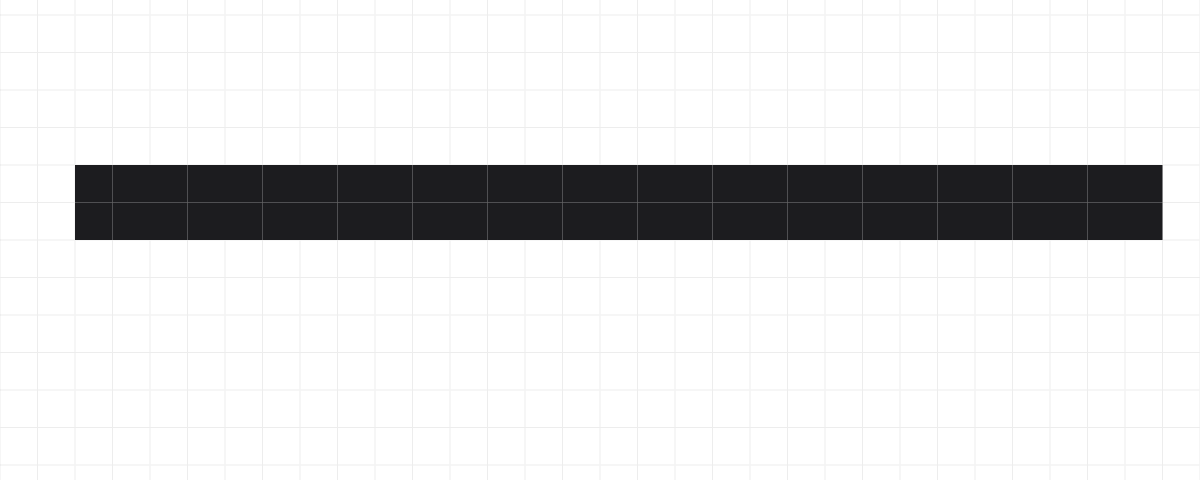
- Drag at an even pace for evenly spaced beads of weight.
- Larger sizes make the swell more visible.
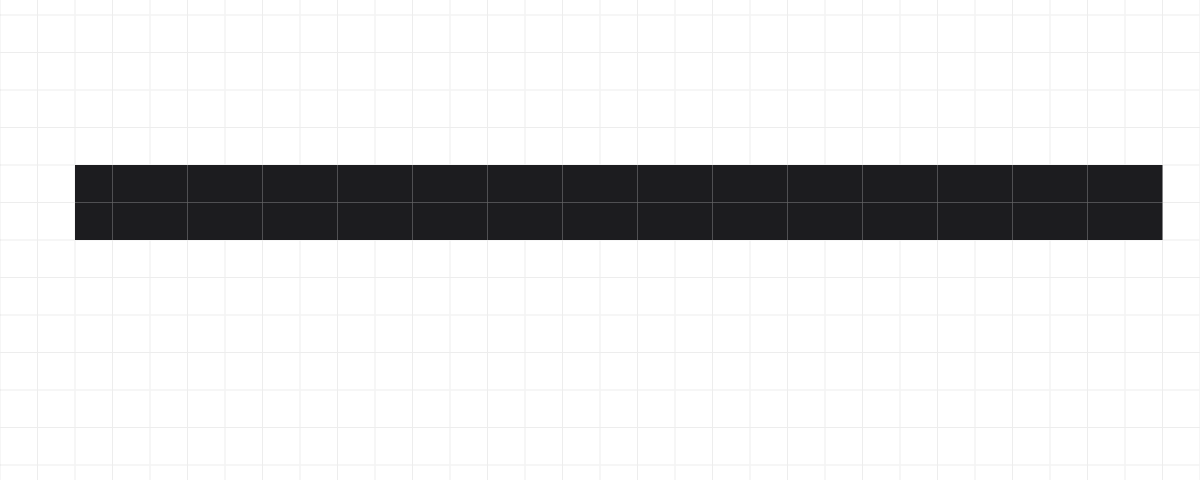
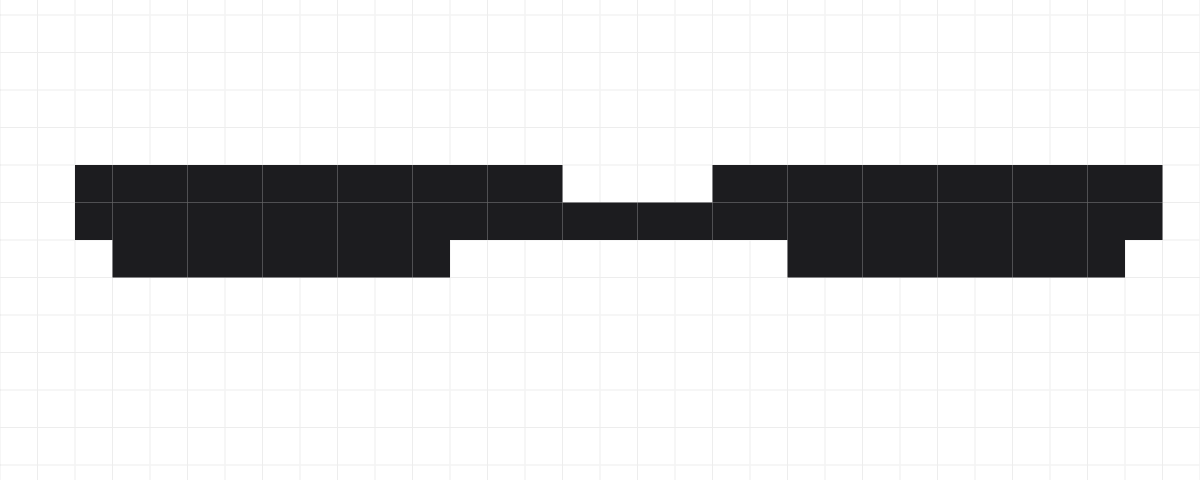
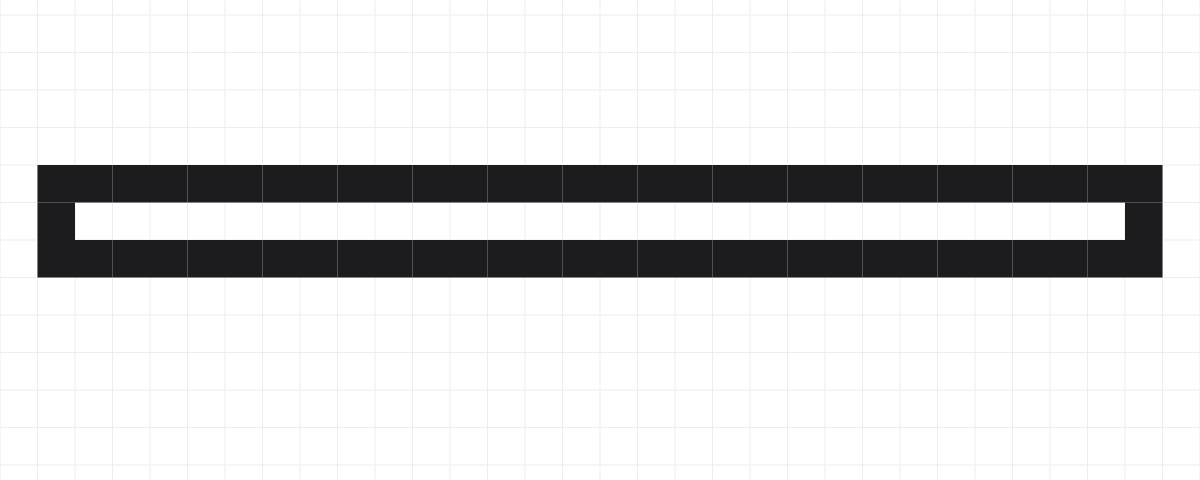
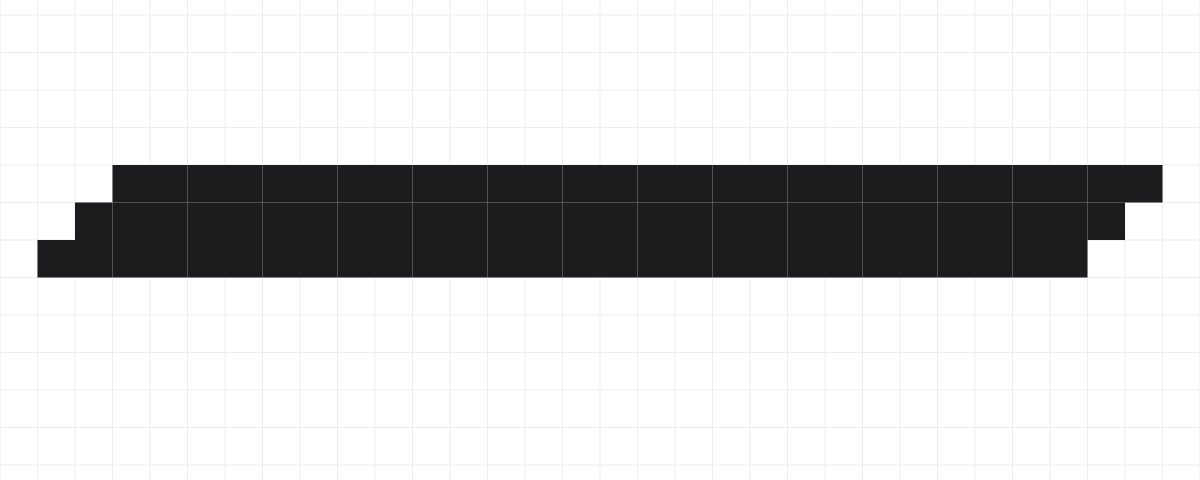
Keeps only the rim of what a solid brush would have painted during this drag: cells whose four neighbours are all covered are carved back out as you go (unless they were already ink before the drag), leaving a hollow tube one cell thick. The tube stays hollow even where the stroke crosses itself. Erasing with it clears a plain square.
Reads: nothing but where you draw
With a finger: Works the same with a finger, an Apple Pencil or a mouse: pixel brushes never read pressure or tilt, only where you drag.
No settings of its own beyond size.
Tips
- Use Size 3 or more: smaller stamps have no inside to carve, so the line stays solid.
- Ink that existed before the drag is never carved, so outline over a letter adds rims without hollowing it.
Chisel
thick on one diagonal, thin on the other
Shown at size 3 on a 32-cell grid
Paints a diagonal bar inside the Size × Size square — rising (45°) or falling (135°) — Nib thickness cells thick (a third of Size by default). Dragging across the bar paints wide and dragging along it paints thin, so one diagonal is thick and the other thin. Erasing with it clears a plain square.
Reads: direction
With a finger: Works the same with a finger, an Apple Pencil or a mouse; only your drag direction matters.
| Setting | Range | Factory | What it does |
|---|
| Nib angle Options page | Choices: 45°, 135° | 45° | The bar's slant: rising (45°) or falling (135°). |
| Nib thickness Options page | 1 – 16 | 1 | The bar's thickness in cells. |
Tips
- Use Size 4 or more for visible thick-thin contrast.
- Choose the Nib angle so your downstrokes cross the bar.
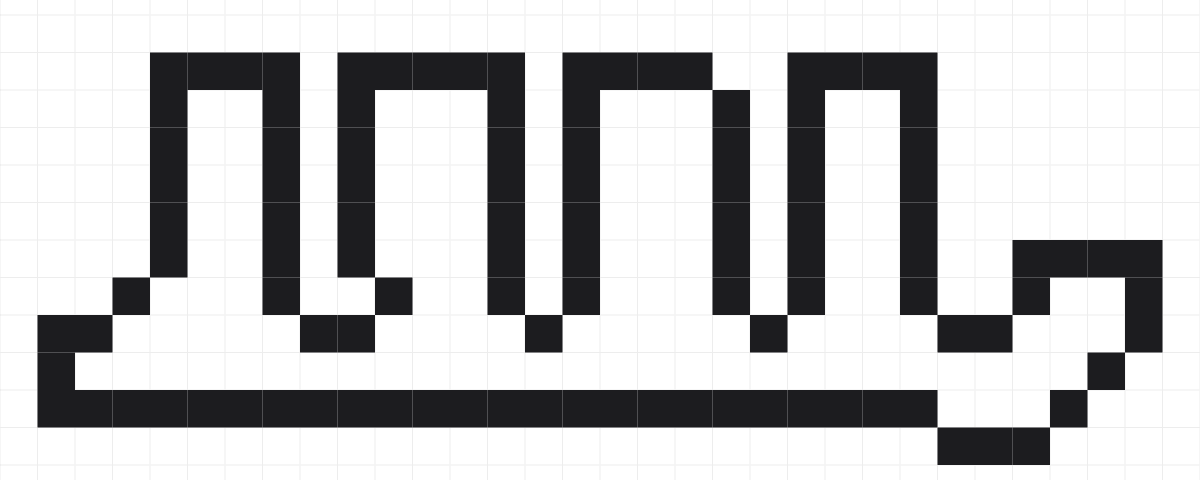
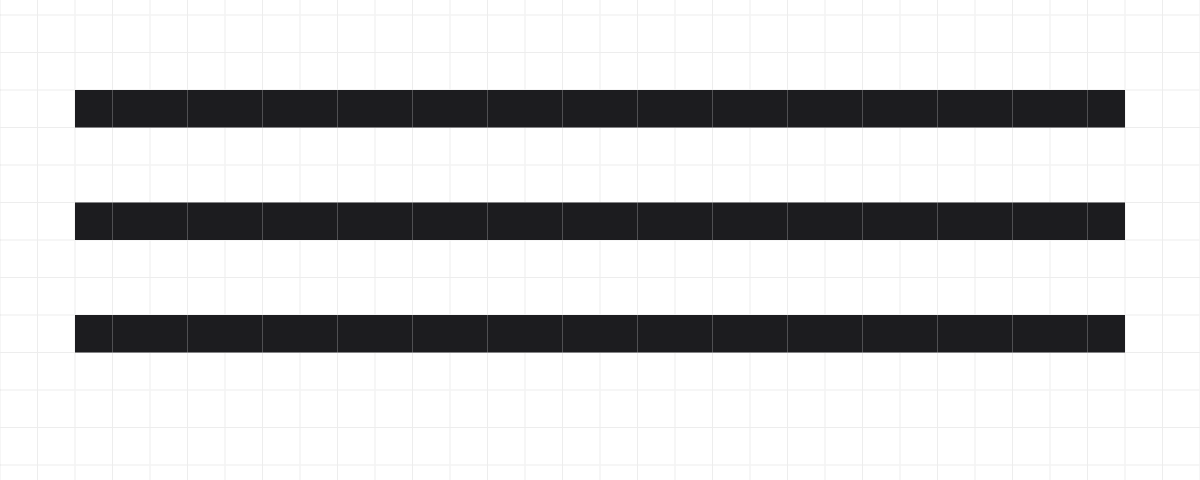
Paints Tine count single cells (3 by default) spread Tine spacing cells apart across your drag direction (stacked vertically while the touch is still), so one gesture paints parallel lines. Each tine is one cell wide whatever the Size; Size only sets the default spacing. Erasing with it clears a plain square.
Reads: direction
With a finger: Works the same with a finger, an Apple Pencil or a mouse; only your drag direction matters.
| Setting | Range | Factory | What it does |
|---|
| Tine count Options page | Choices: 1, 2, 3, 4, 5, 6 | 3 | How many parallel lines one drag paints. |
| Tine spacing Options page | 1 – 16 | 3 | Cells between tines. Also sized by the Pattern chip on the bottom bar. |
Tips
- Great for inline and multi-line display letters in one stroke.
- Diagonal drags round each tine to the nearest cell, so lines can step; straight drags stay cleanest.