

Mix fonts and Compare copies
Two tools on the shelf work with more than one font at a time. Mix fonts makes a new font whose letters are dealt at random from several of yours, like a ransom note. Compare copies helps you choose between two versions of a font after a sync conflict.
Mix fonts
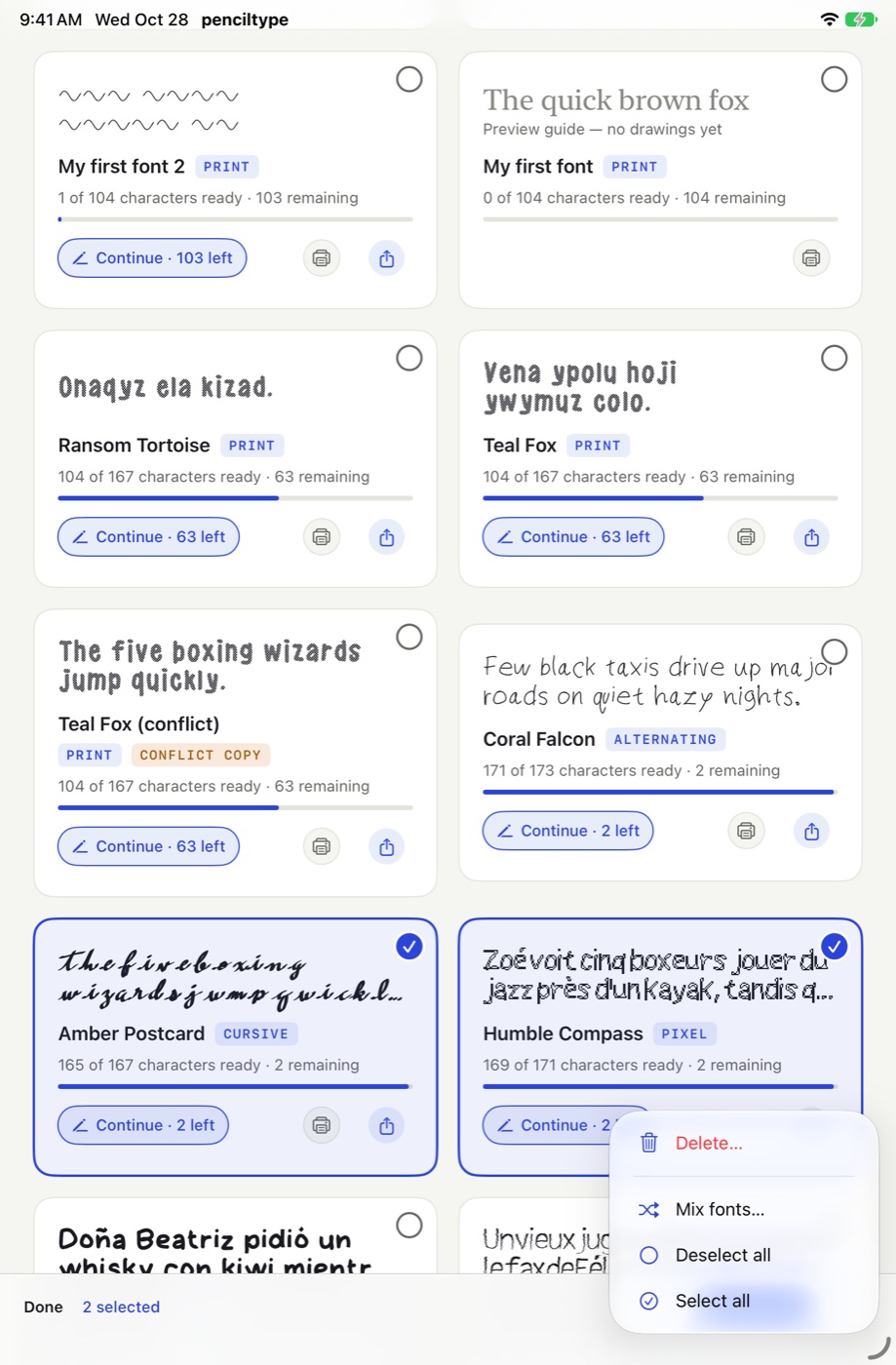
On Your fonts, tap Select and pick two or more fonts. Then tap More actions (…) › Mix fonts….
The Mix fonts sheet shows a sample sentence set in the mix itself. Each character any of the fonts has drawn comes from one of the fonts that drew it, chosen at random, and the sample uses only characters the mix has. What you see is exactly what you'll get.
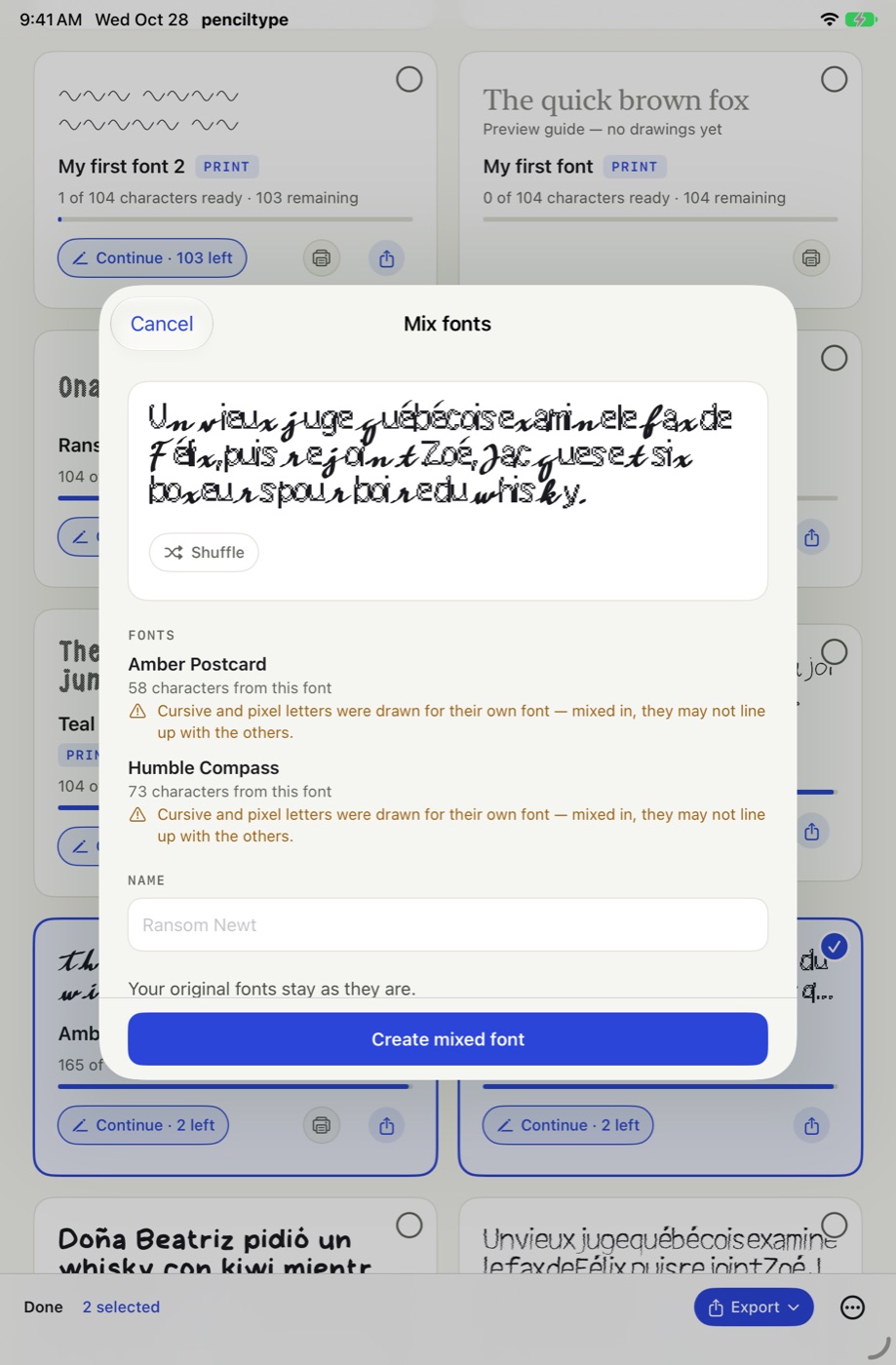
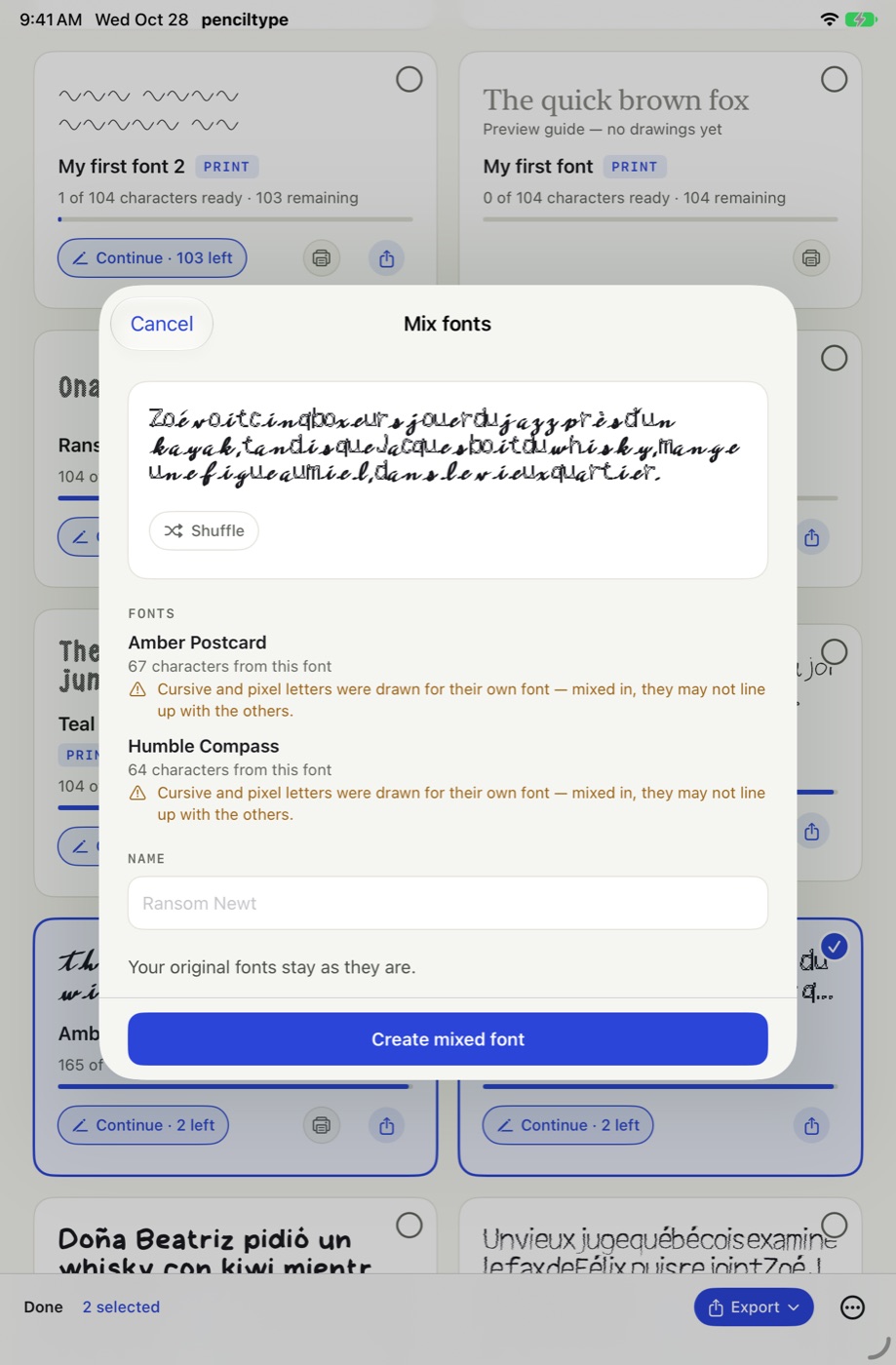
- Shuffle
- Deals the characters out again. Keep tapping until you like it. While a deal is being built, the sample says Preparing preview.
- Fonts
- Each font in the mix and how many characters come from it (“58 characters from this font”). Under a cursive or pixel font, a note warns that its letters were drawn for their own kind of font and may not line up with the others.
- Name
- The new font's name. Leave it empty to use the suggestion shown, such as “Ransom Walrus”.
- Create mixed font
- Makes the font, leaves select mode and opens the new font's grid.
- Cancel
- Closes the sheet; nothing is made.
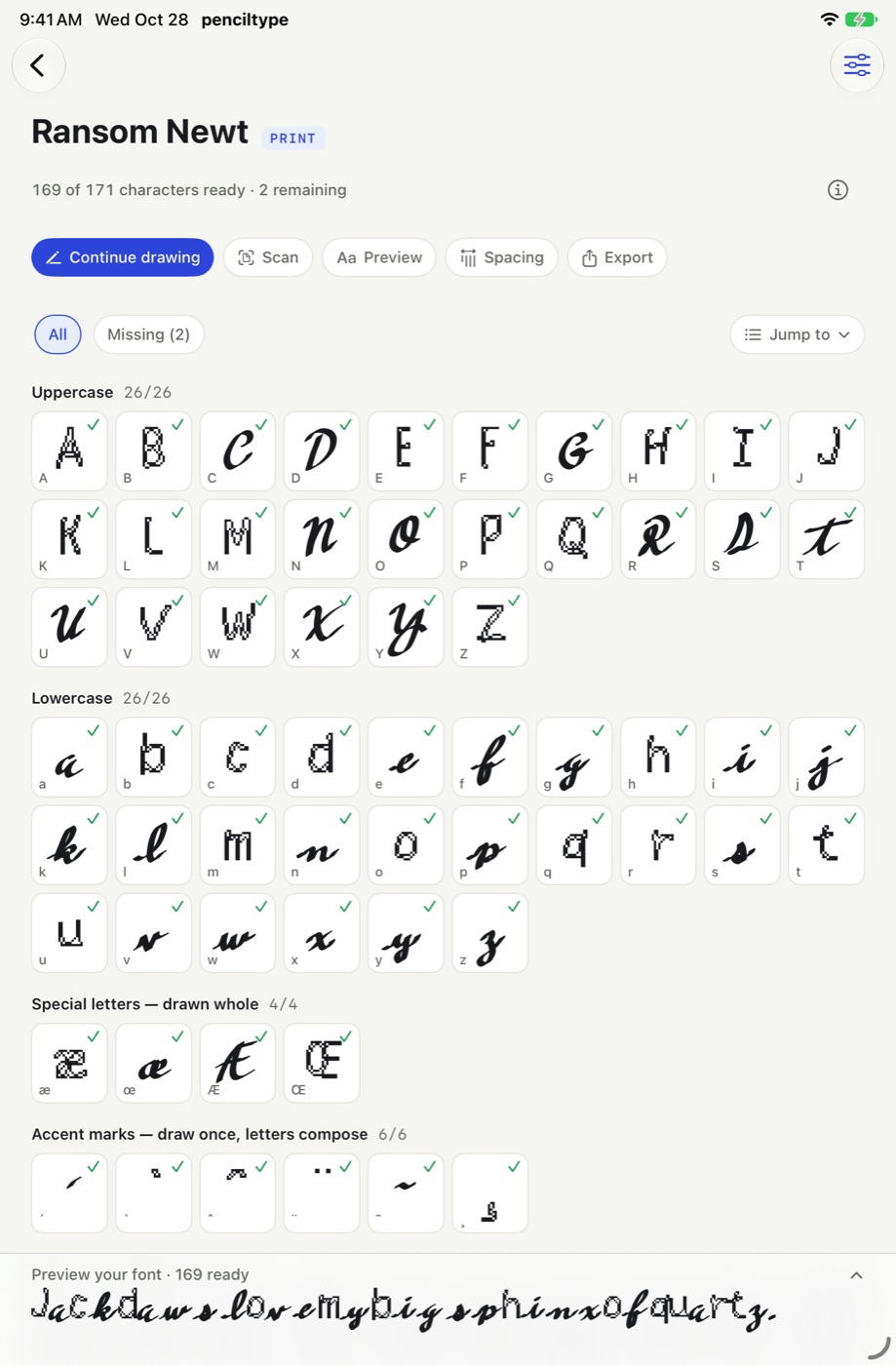
Your original fonts never change. The mix is an ordinary Print font: you can redraw any of its letters, and it starts with your default designer name. Its spacing and line positions come from the first of the picked fonts in shelf order; its languages, symbols, letter pairs and words are everything the picked fonts have between them.
When there's nothing to mix
If none of the picked fonts has any drawn letters, the sheet says “The selected fonts have no drawn letters yet — draw a few first.” and Create mixed font stays dimmed. In the rare case that the mix still can't be made, an alert says Something went wrong with the same words. Draw a few letters in one of the fonts and try again.
Recovered copies
With iCloud sync, you might change the same font on two devices before they've had a chance to catch up. penciltype never throws either version away: one wins, and the other comes back as a separate font with the same name and an amber RECOVERED COPY badge. Its card says “Saved when this font changed on two devices at once.” and has a Compare copies button.
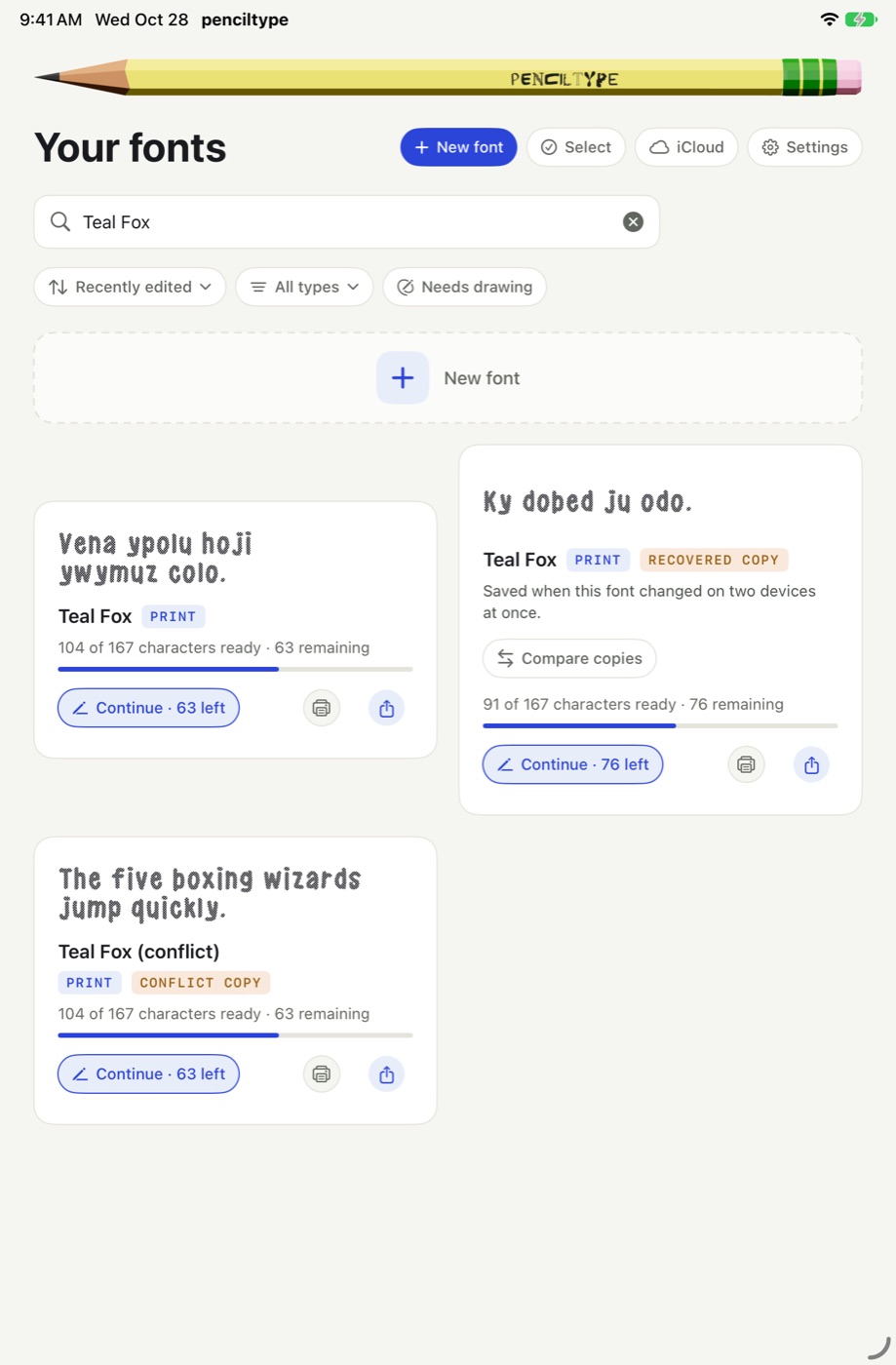
Copies made by older versions of penciltype were named “Name (conflict)”. They show a CONFLICT COPY badge only, without the note or Compare copies, because they aren't linked to the original. Compare them by eye and delete the one you don't want with Select › Delete….
Compare copies
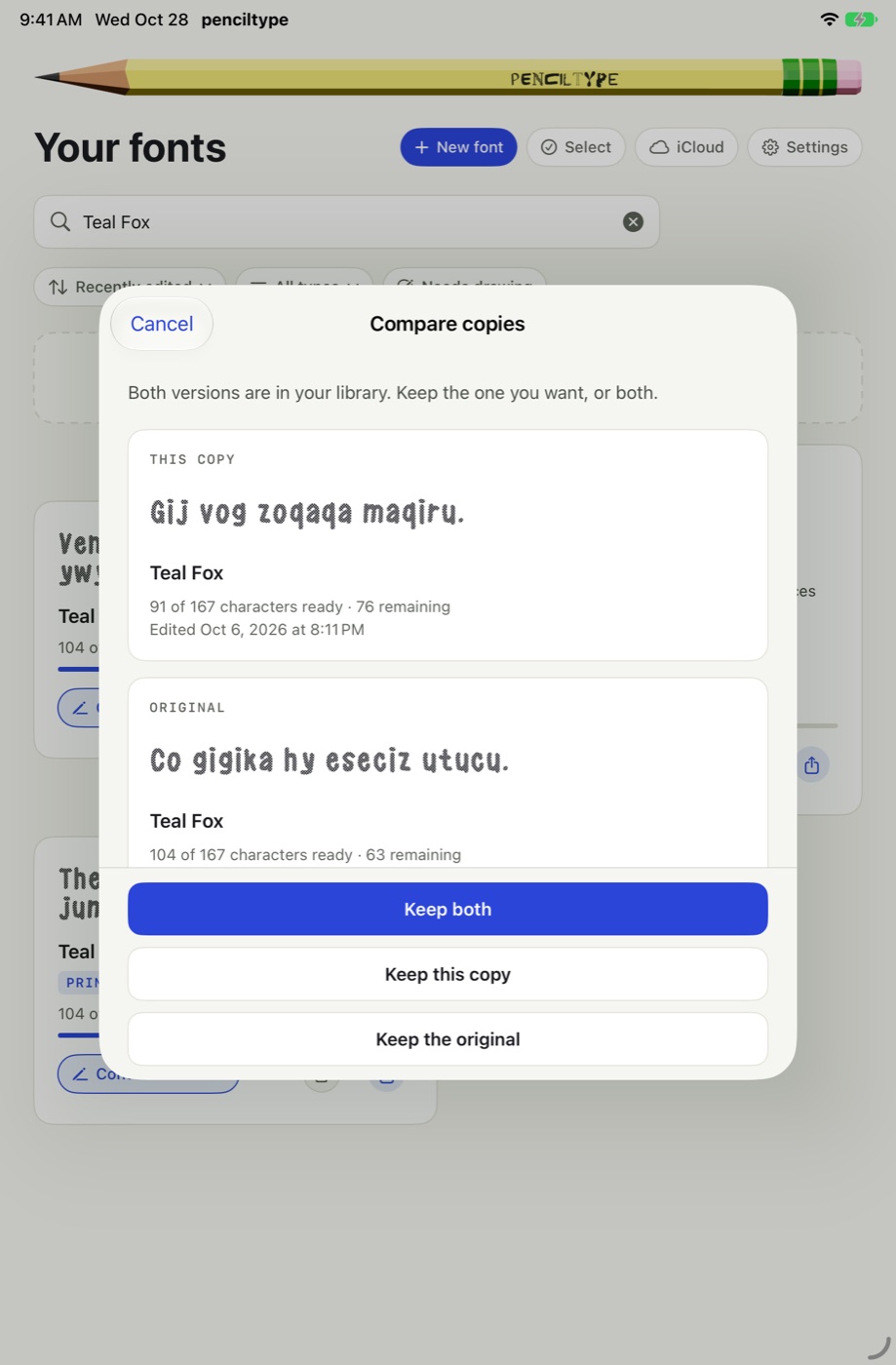
Tap Compare copies on the recovered copy's card. The sheet shows This copy and the Original, side by side where the sheet is wide enough and one above the other where it isn't (on iPhone, and in the narrower sheet on a small iPad), each with its sample, name, how many characters are ready and when it was last edited. Choose:
- Keep both
- Both stay. The badge goes, and if both have the same name the copy is renamed (“Teal Fox 2”).
- Keep this copy
- Deletes the original; the copy becomes an ordinary font.
- Keep the original
- Deletes the copy.
- Cancel
- Decide later; both stay as they are.
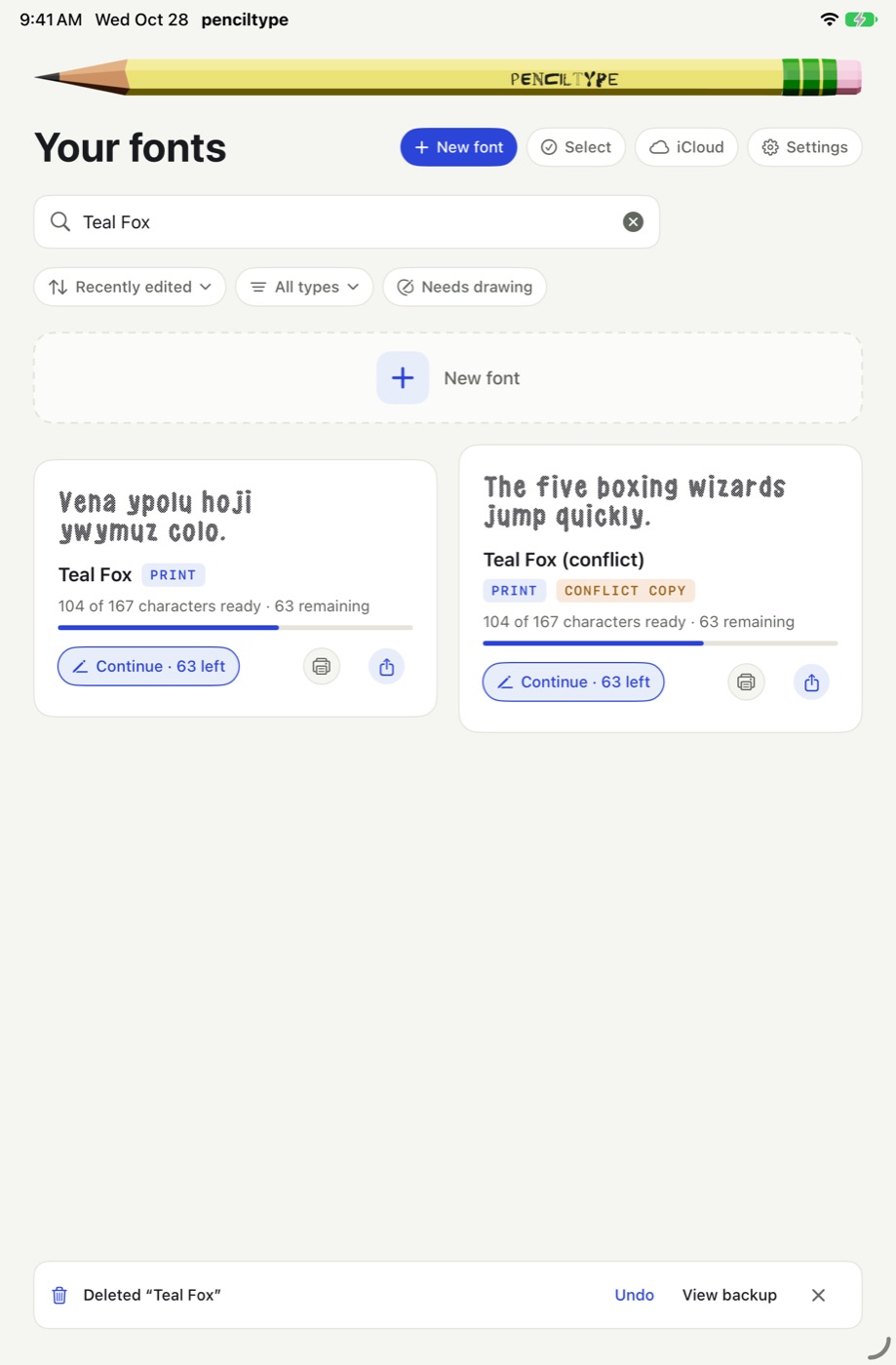
Deleting here works like any other delete: a restore point is saved first, and the shelf offers Undo. With iCloud sync on, a font deleted here is deleted from your other devices too, and the sheet says so.
If the original has since been deleted, the sheet says “The original font is no longer in your library.” and offers only Keep this copy, which simply removes the badge.