

The brush picker
The brush picker is where you choose the pen you draw with. It holds every brush in your library, sorted into sets, with a search, your recent pens at the top, and the tools to copy, rename, hide, pin and organise brushes.
Opening the picker
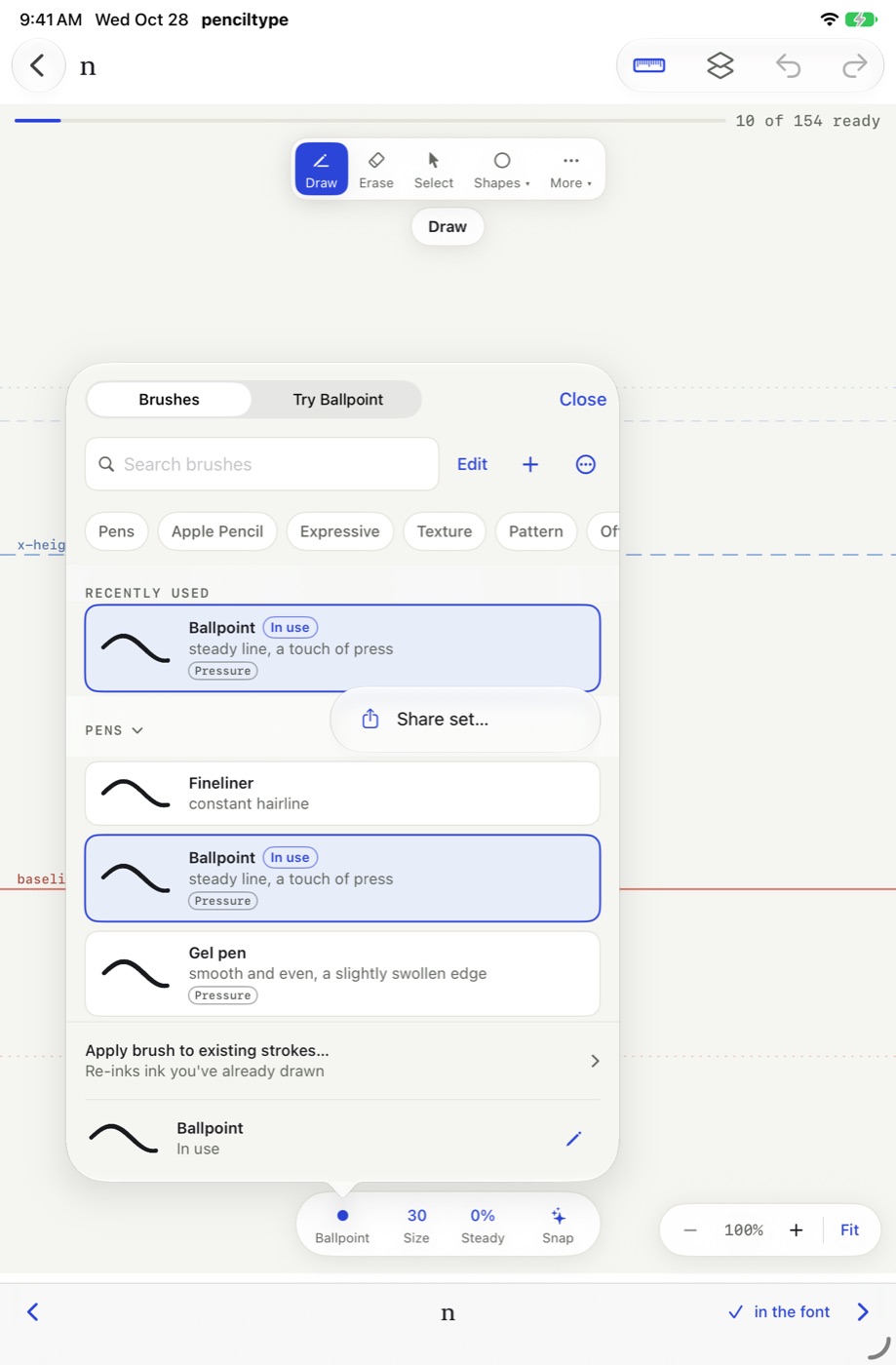
On the canvas, tap the first chip on the pen bar at the bottom of the screen: it shows a dot and the name of the pen you're drawing with (Ballpoint, say). The picker opens over the canvas: as a popover on iPad and Mac, as a full-height sheet on iPhone.
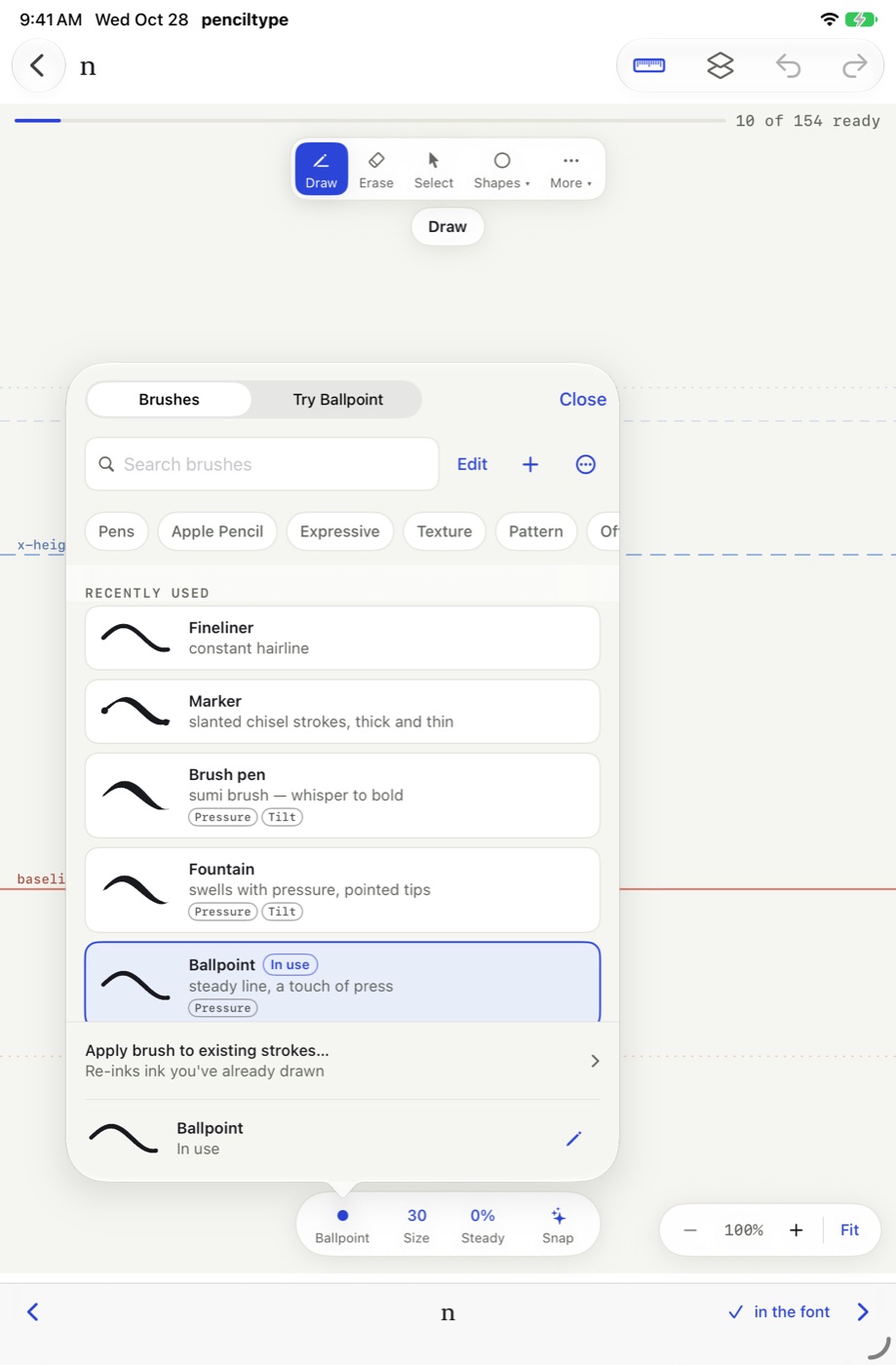
The picker has two pages, chosen with the switch at its top left:
- Brushes
- Every set in your library, with search, set chips and Recently used. Covered on this page.
- Brush options, or Try brush
- The settings and a scratch pad for the brush you've picked. It's named after that brush: Crosshatch options when the brush has settings to change, Try Ballpoint when there's only the pad to offer. See Brush options.
Close at the top right closes the picker.
Picking a brush
Tap a brush to pick it. Its row gets an outline, and its swatch and name appear at the foot of the picker: that's what your pen will be once the picker closes. Nothing changes on the canvas yet, so you can tap your way through several brushes, or try them on the Options page, before you decide.
When the picker closes, the brush you picked becomes the pen for every stroke you draw from then on. It closes the same way however you close it: Close, a tap outside the popover on iPad and Mac, or a swipe down on iPhone. The pen keeps the font's own size and steadying, which live on the pen bar (Size and Steady), not in the picker.
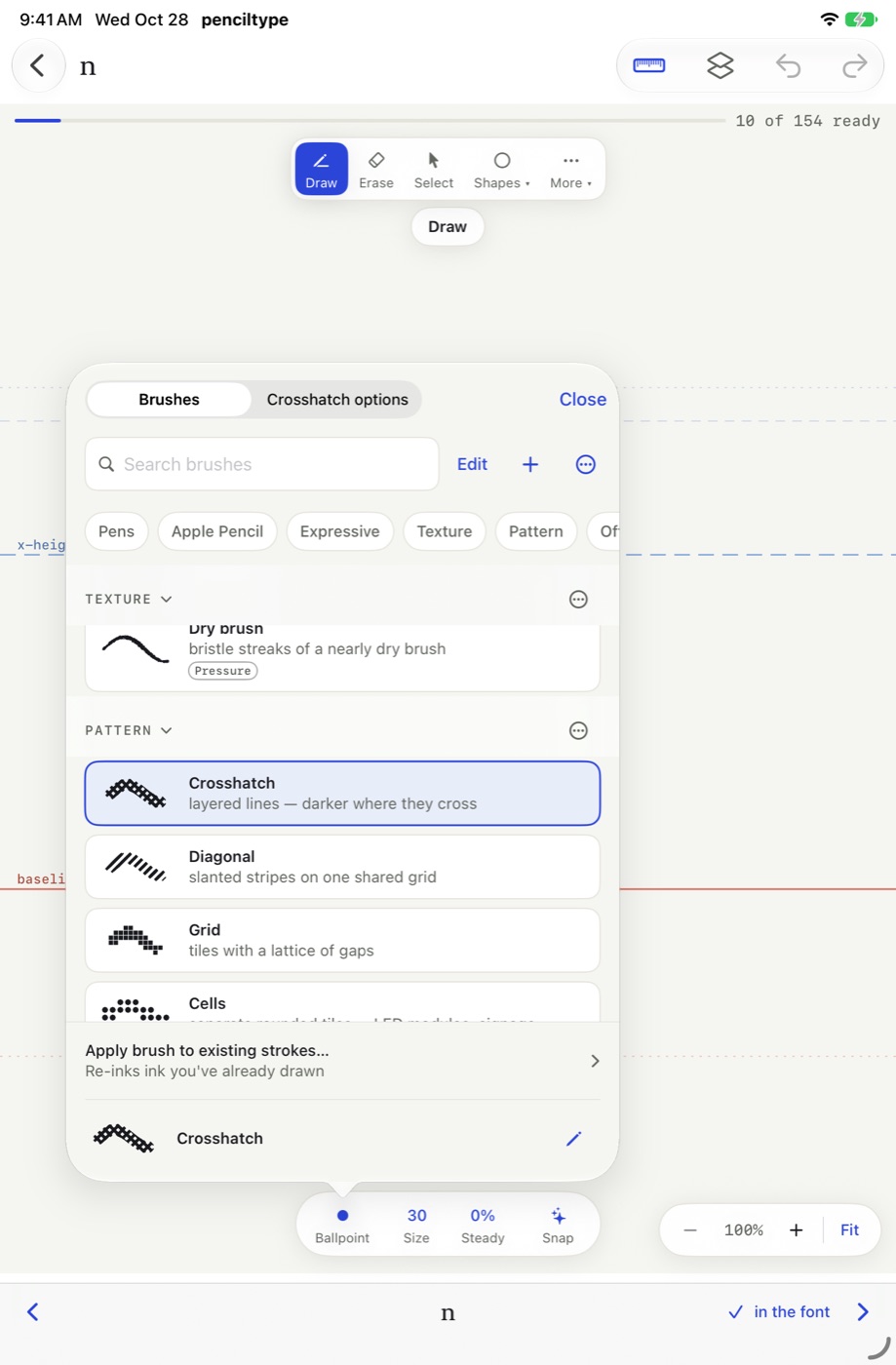
Picking a brush never changes ink you've already drawn. Every stroke remembers the pen it was drawn with, so one font can mix pens. To redraw existing strokes with a different pen, use Apply brush to existing strokes… (below).
The foot of the picker
- Apply brush to existing strokes…
- “Re-inks ink you've already drawn.” Puts the brush you picked into the pen and opens the Re-ink sheet, where you choose between this character and the whole font. See Re-inking strokes. Only on vector fonts.
- The swatch and name
- The brush you've picked. Under the name, In use means it's already the pen you're drawing with; With your settings means you've changed its settings on the Options page, so the pen will draw with your changes. Nothing under the name means another brush, just as it comes.
- The pencil button
- Opens the picked brush in the Brush Studio, with any settings you've changed. The picker closes first.
The Brushes page
From the top down:
- Search brushes, then Edit (reorder), + (new brushes and sets) and ⋯ (the library).
- A strip of set chips, one per set: Pens, Apple Pencil, Expressive, Texture, Pattern, Offset, Distress, Digital, then My brushes, your own sets and any packs you've installed. Slide the strip sideways to see them all.
- Recently used, once you've drawn with a few pens or pinned one.
- Each set under its header, in your library's order.
- At the very end: “Strokes remember their pen, so one font can mix pens. Size and steadying live in the bottom bar.”
What a row shows
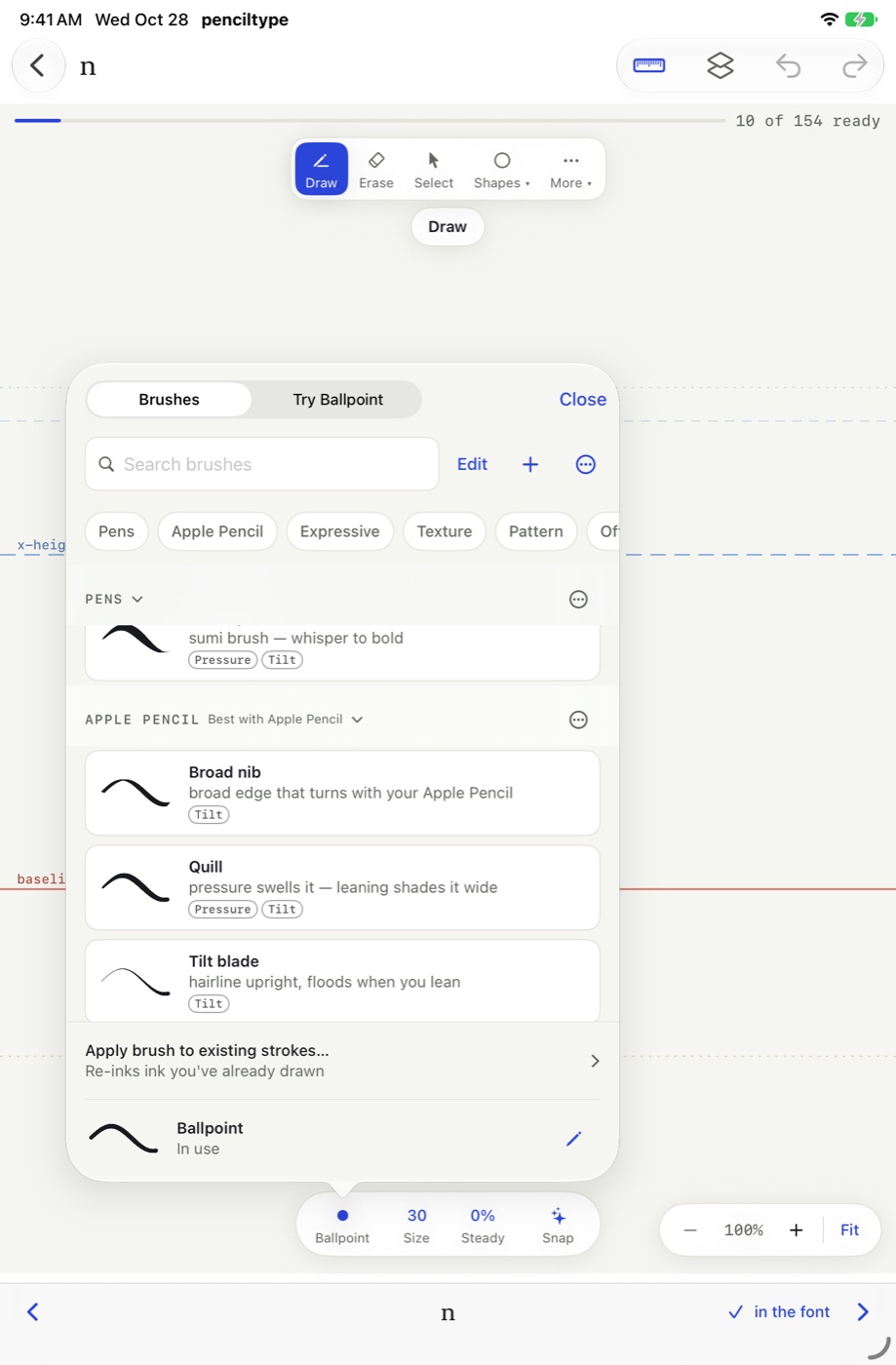
- Swatch
- A short stroke drawn with the brush, at your pen's size, the way your hand would draw it (with pressure if you draw with an Apple Pencil, at an even weight with a finger). The picked brush's swatch follows its settings as you change them.
- Name and description
- The brush's name and a one-line description of what it does.
- Tags: Pressure, Tilt, Roll
- What the brush reads from your hand. See capability tags. A tag your hand can't give is faint.
- In use
- The pen the font is drawing with now.
- Edited
- A built-in brush you've changed. Reset to original in its menu takes your changes off.
- Hidden
- A hidden brush that's showing anyway (see Hiding brushes). Its name and swatch are dimmed.
- A small dot after the name
- On the picked brush, while you've changed its settings on the Options page.
- A pin
- At the row's top right: a pinned brush.
What you can do with a row
| Gesture | What it does |
|---|---|
| Tap | Picks the brush. |
| Tap the picked brush again | Opens its Options page. |
| Double-tap the picked brush | Opens it in the Brush Studio. |
| Touch and hold | The brush's menu (see The brush menu). |
| Swipe left | Hide (or Unhide, or Delete for your own brushes) and Duplicate. |
| Swipe right | Pin or Unpin. A full swipe does it at once. |
When the picker opens, the list scrolls to the brush you're drawing with.
Jumping to a set, folding sets
Tap a chip to jump to that set. If the set was folded, it unfolds.
Tap a set's title to fold it away; tap again to unfold it. A folded set shows how many brushes it holds, and the chevron beside it turns. The picker remembers which sets you've folded, the next time you open it (and in the pixel picker too).
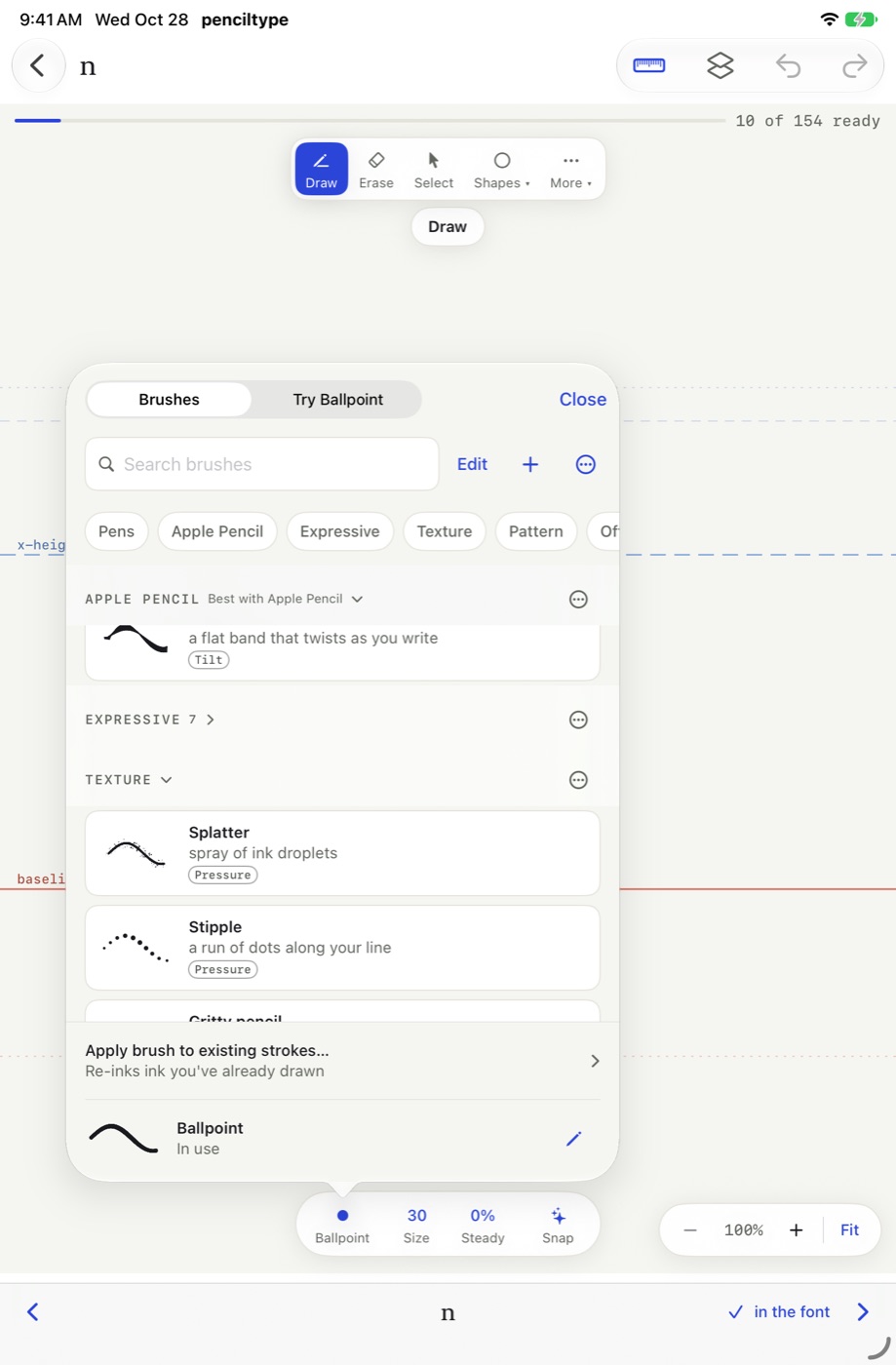
Beside a set's title you may see:
- Best with Apple Pencil, on the Apple Pencil set.
- n hidden, when some of its brushes are hidden (see Hiding brushes).
- ⋯ at the right: the set's menu (see Your own sets).
Searching
Type in Search brushes at the top of the page. The list narrows to brushes whose name, description, tags or set match what you typed, ignoring capitals and accents. So “tilt” finds every brush that reads tilt, and “pencil” finds the Apple Pencil set's brushes as well as pencil-like ones.
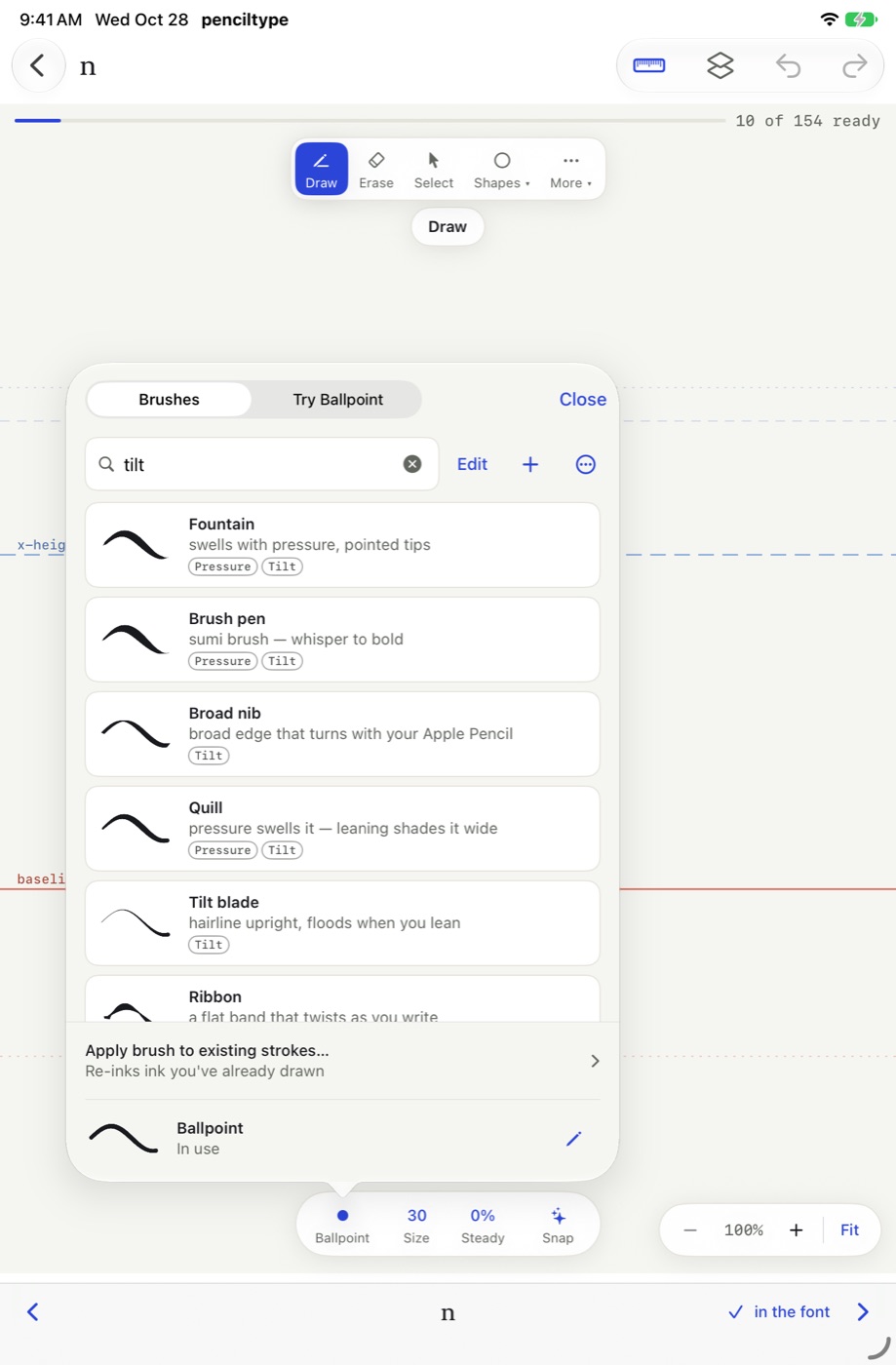
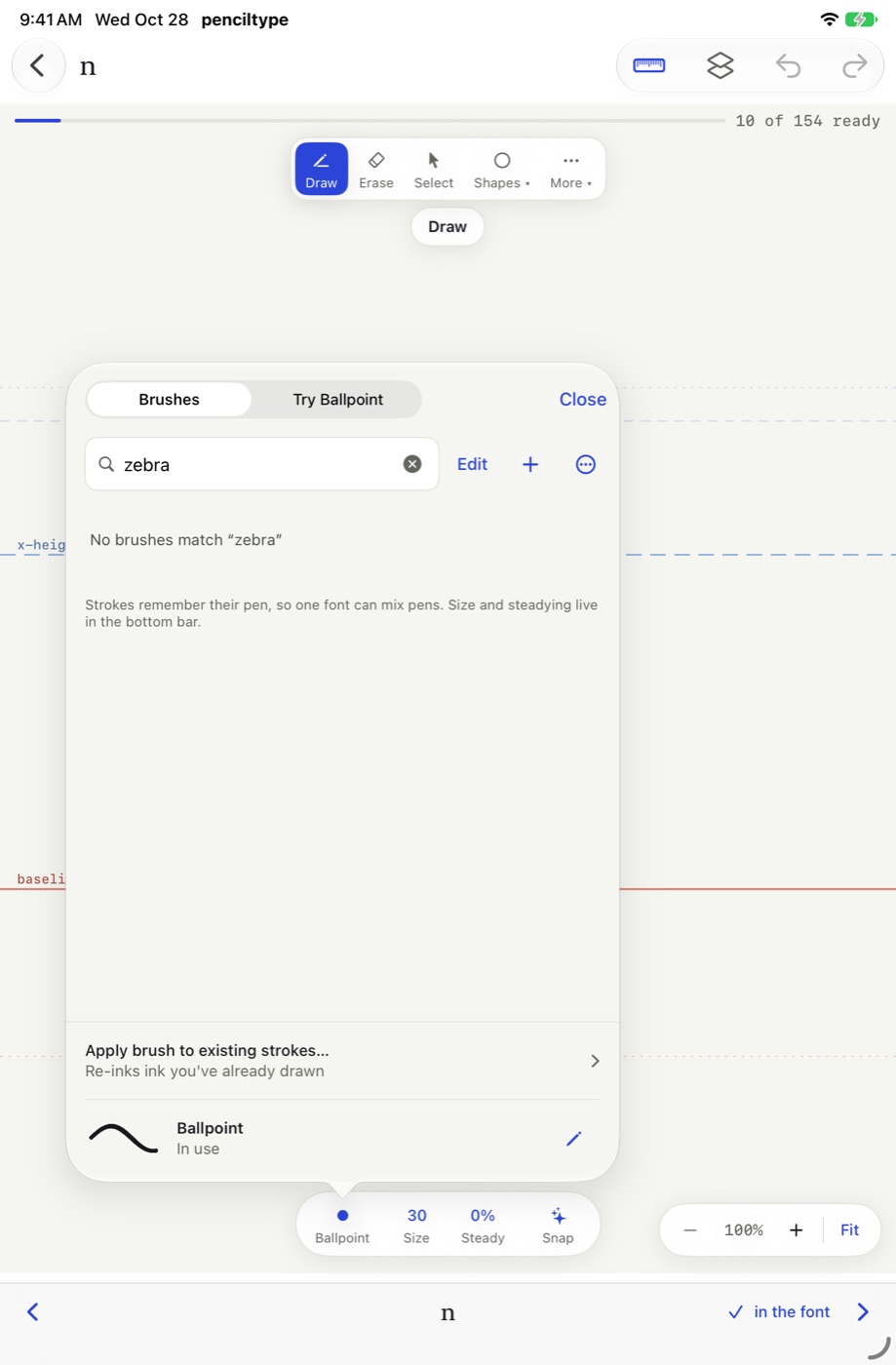
While you search, the set chips, Recently used and the set headers step aside, and the results list every match once per set it's in. Results work like any row: tap, touch and hold, swipe. Hidden brushes never show up in a search. Tap the × in the field (Clear search) to get the sets back.
Recently used and pinned brushes
Recently used sits at the top of the list. It shows the pens you last drew with on this device, newest first. A pen joins it when its ink lands on a letter, not when you browse or try it in the picker. The section appears once you've drawn with two pens, or pinned one.
Pinned brushes lead the section, each with a pin, in the order you pinned them. To pin a brush, swipe right on it and tap Pin (a long swipe pins it at once), or touch and hold it and choose Pin to the top. Unpin it the same way (Unpin).
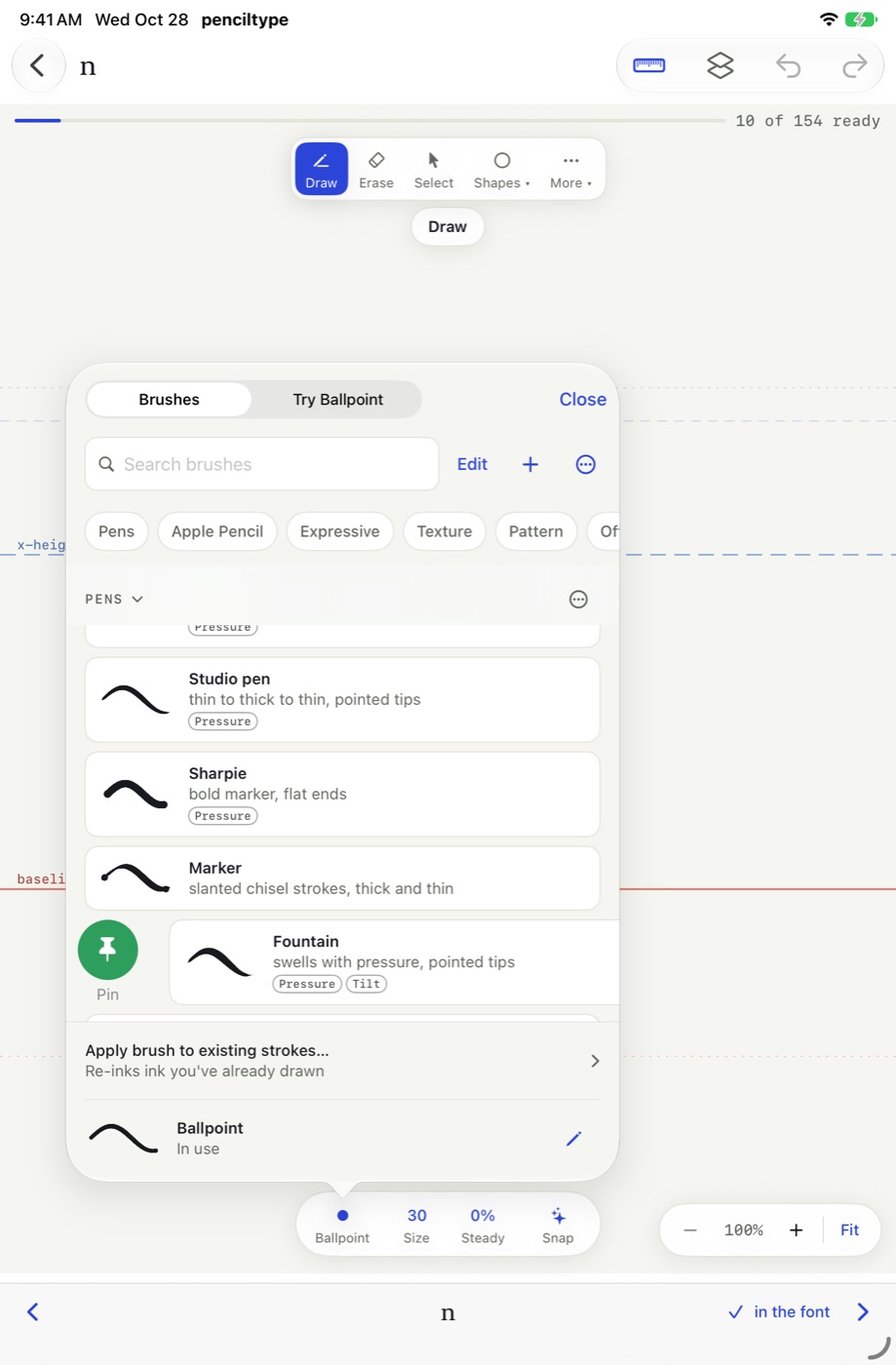
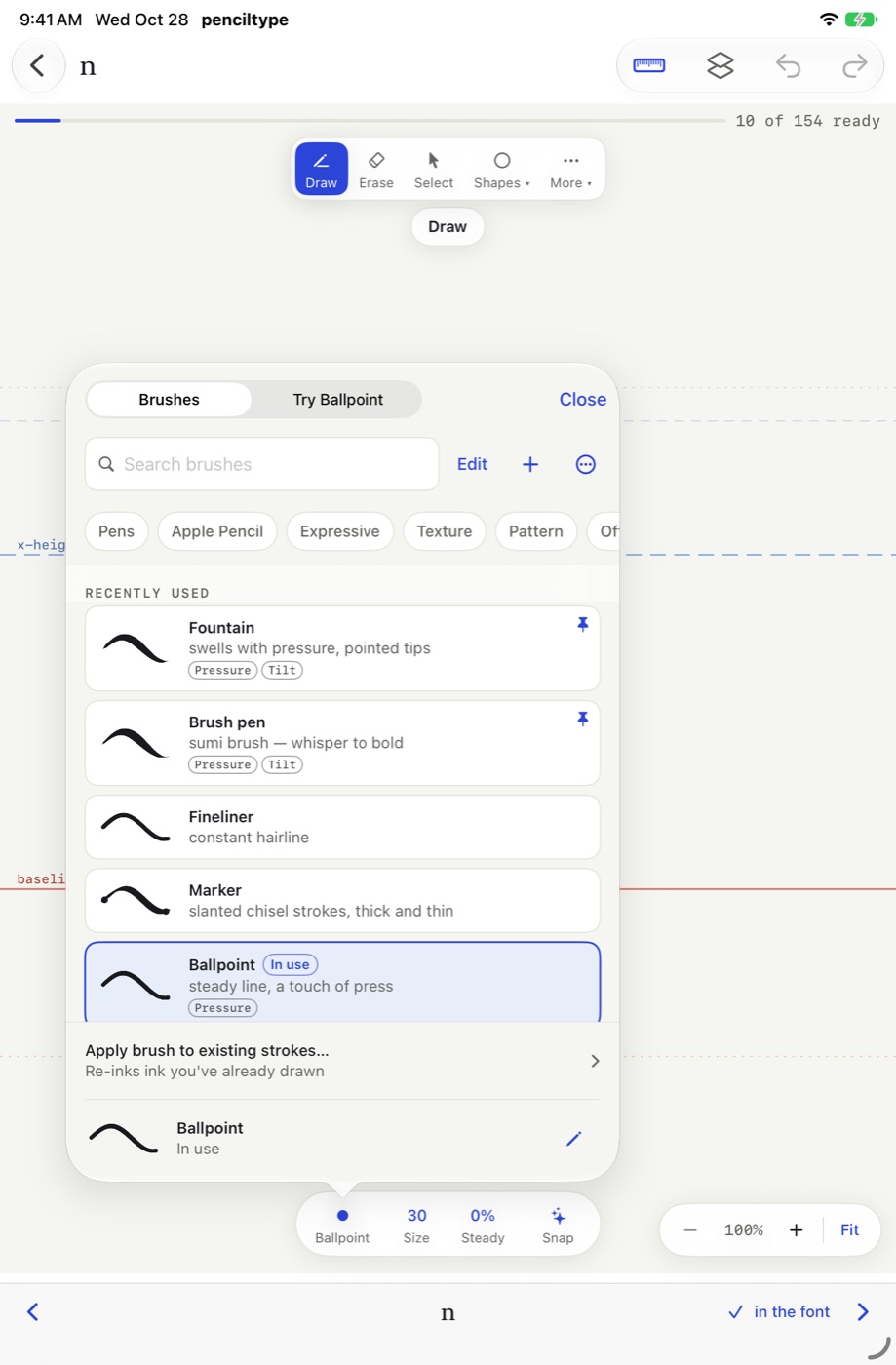
Pinned brushes also lead the quick pen switcher.
- Pins stay when you clear Recently used, and they sync to your other devices with the rest of your library. Recently used stays on the device.
- Clear Recently used with ⋯ › Clear recently used. Choose how many pens it remembers (4, 8 or 12; 8 to begin with) in Settings › Brush library › Recently used.
Find in library
A brush in Recently used also lives in a set. To see it there, touch and hold it and choose Find in library: the picker unfolds its set (and shows it even if it's hidden), scrolls to it and rings it so you can spot it. VoiceOver says which set it was found in. New brushes you make in the picker (a duplicate, Save as new, an import) are rung the same way. With Reduce Motion on, the ring fades in instead of pulsing.
The brush menu
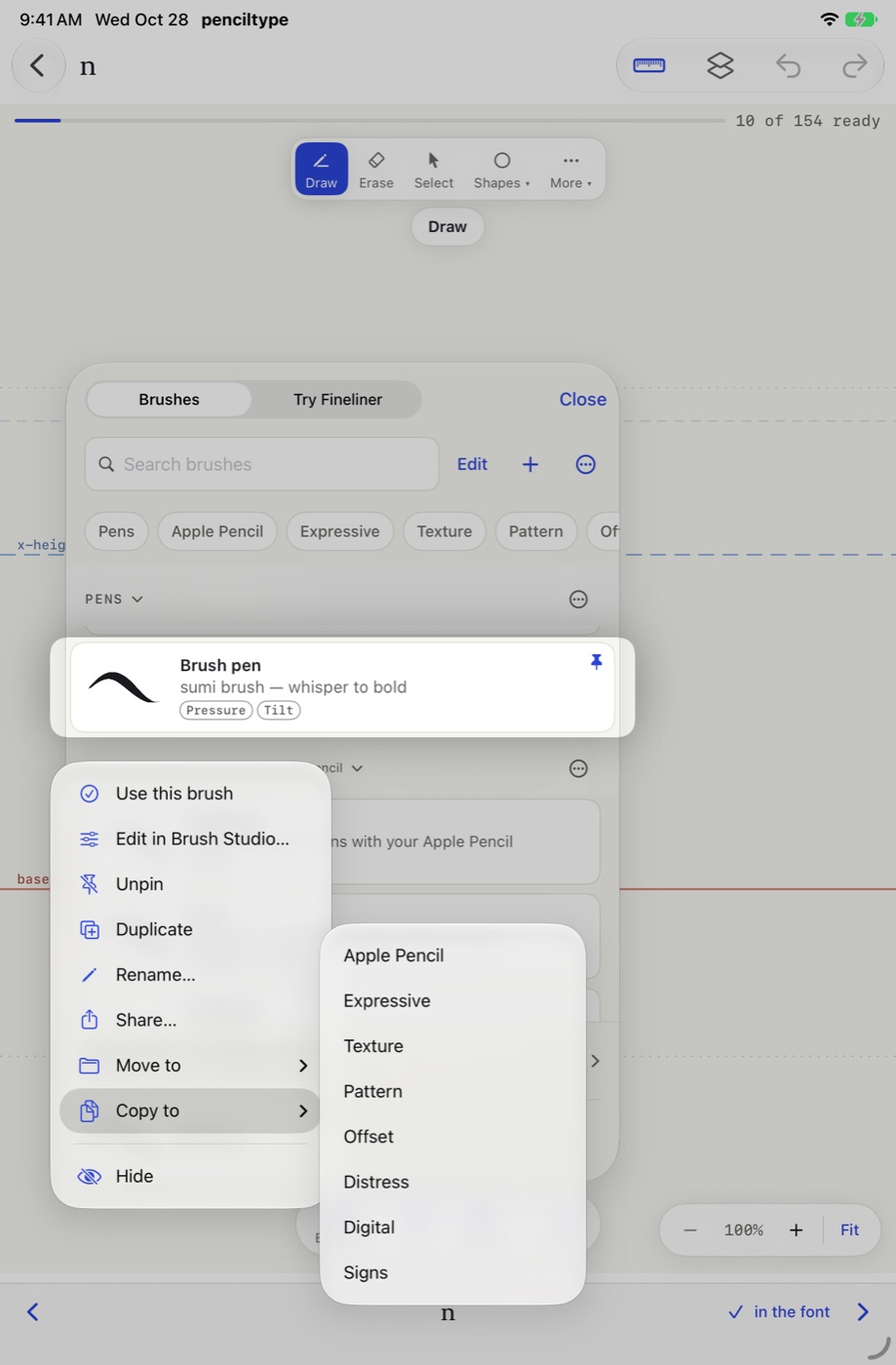
Touch and hold any brush for its menu. Some items only appear when they apply.
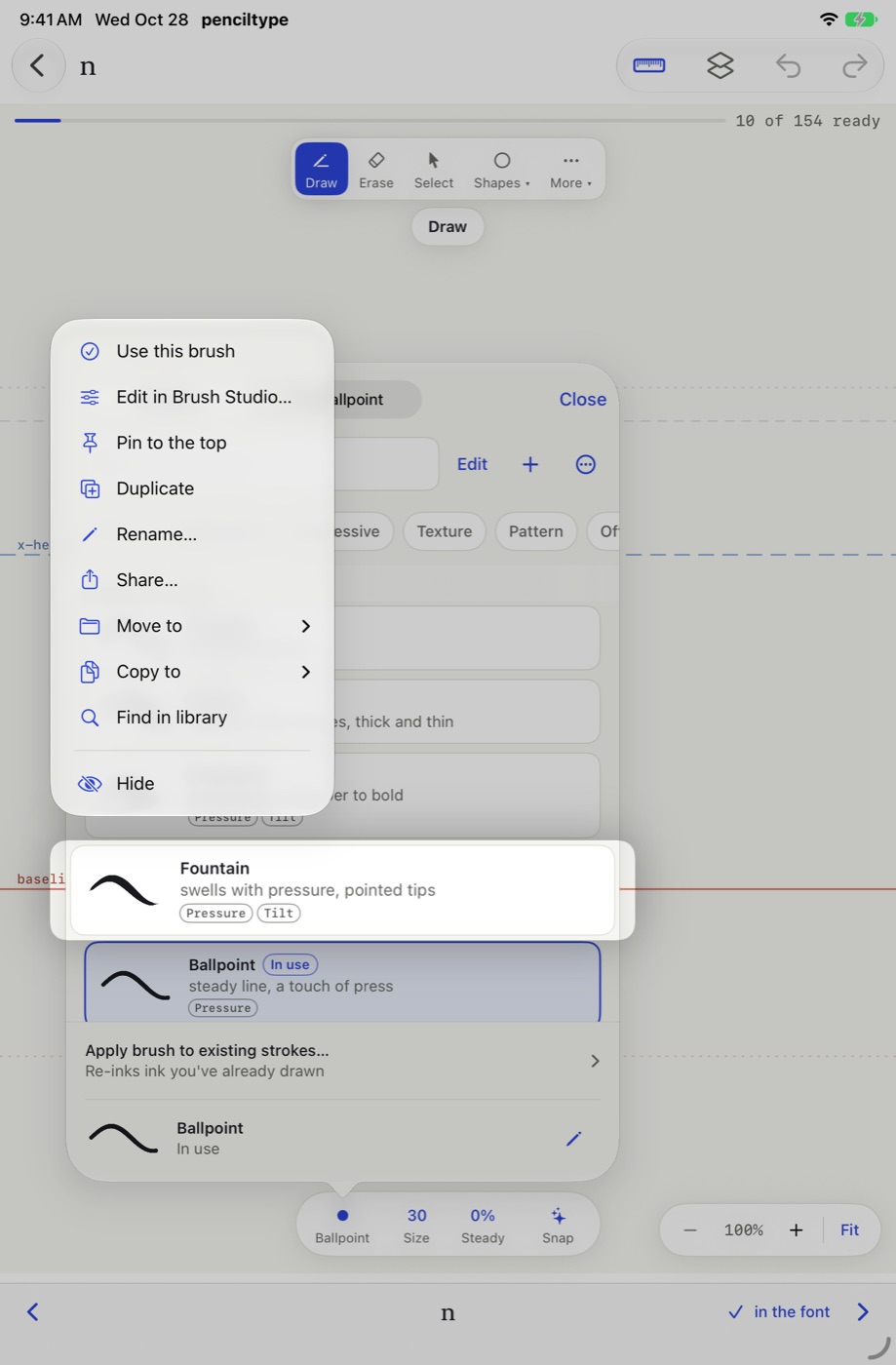
- Use this brush
- Puts the brush straight into your pen and closes the picker, in one step.
- Edit in Brush Studio…
- Opens the brush in the Brush Studio. The picker closes first.
- Update brush with these settings
- Only on the picked brush, while you've changed its settings on the Options page: saves your settings onto the brush. See Updating a brush.
- Pin to the top / Unpin
- Pins the brush at the head of Recently used, or takes the pin off.
- Duplicate
- Makes a copy of the brush that's yours to change (see Your own brushes).
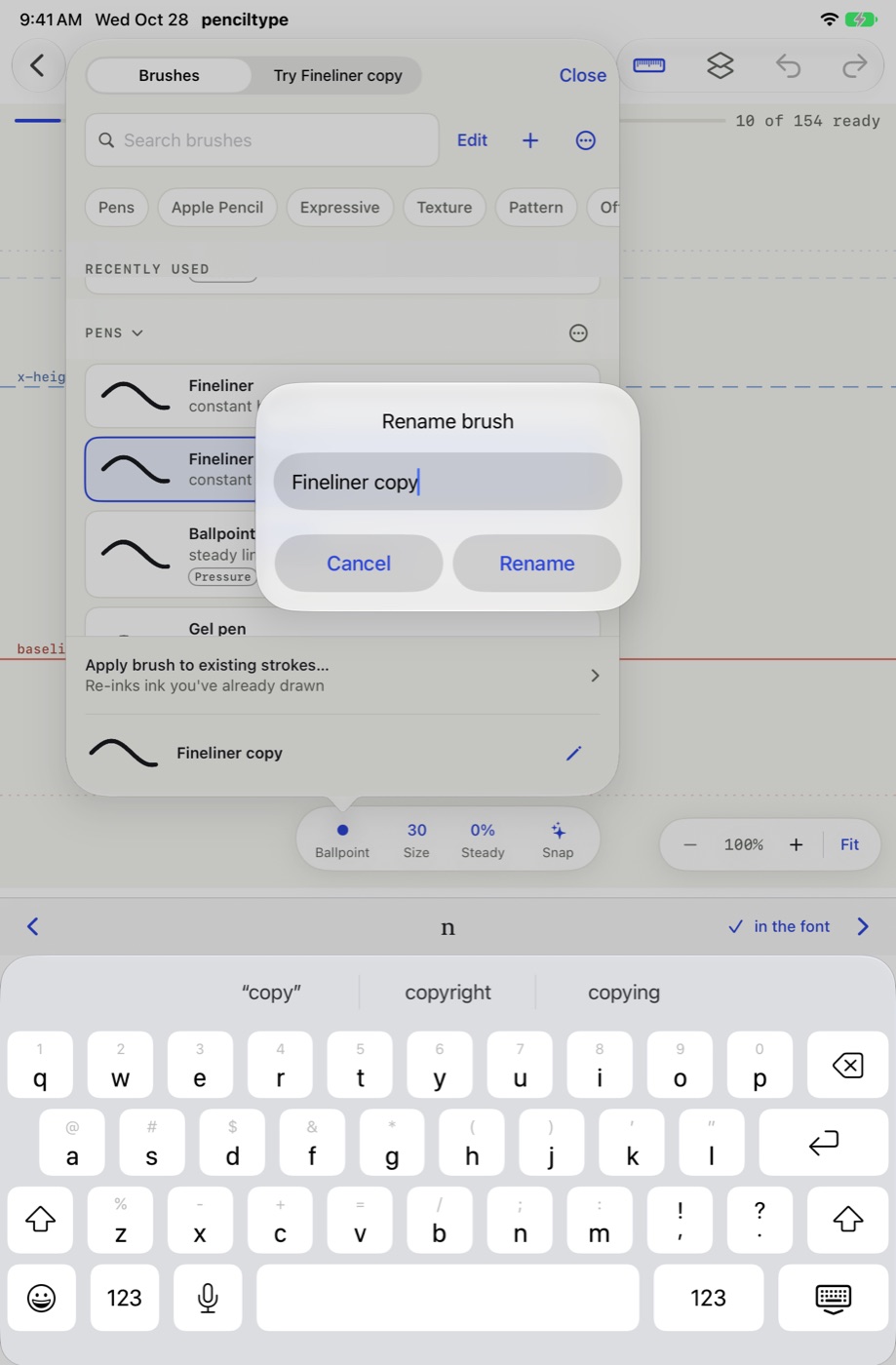
- Rename…
- Asks for a new name (up to 80 characters). Rename saves it; an empty name is ignored. You can rename built-in brushes too.
- Share…
- Writes the brush to a file to send. See Sharing brushes.
- Move to ▸
- A list of sets: the brush leaves the sets it's in and joins the one you choose.
- Copy to ▸
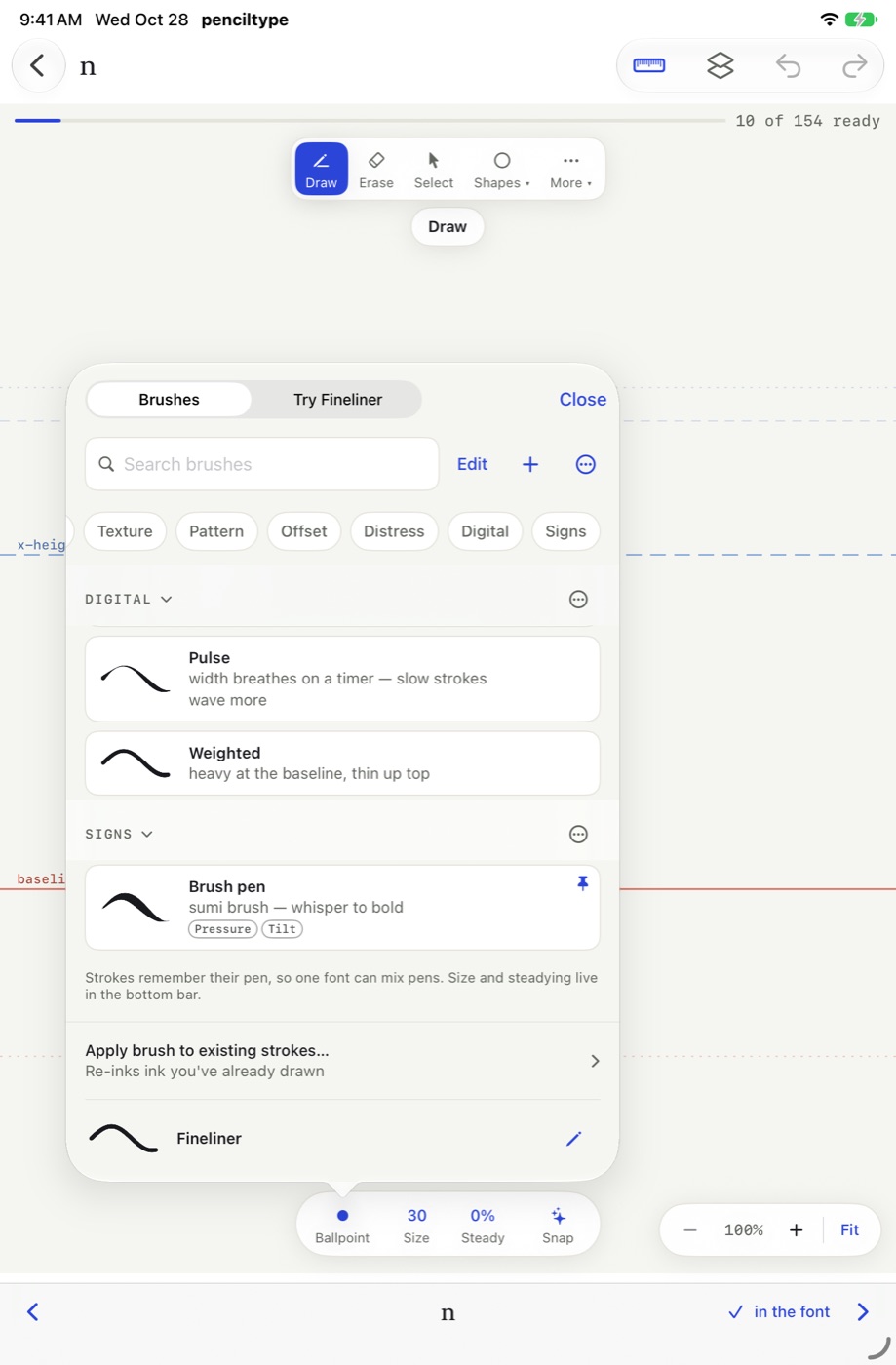
- The same list: the brush joins that set as well, staying where it is. A brush can be in several sets.
- Reset to original
- Only when there's something to undo. A built-in brush goes back to the way it shipped, dropping your changes; a brush of your own goes back to its reset point (see reset points).
- Find in library
- Only on rows in Recently used (above).
- Hide / Unhide / Delete…
- Last in the menu: Hide on a built-in brush, Unhide on a hidden one, Delete… on a brush of your own.
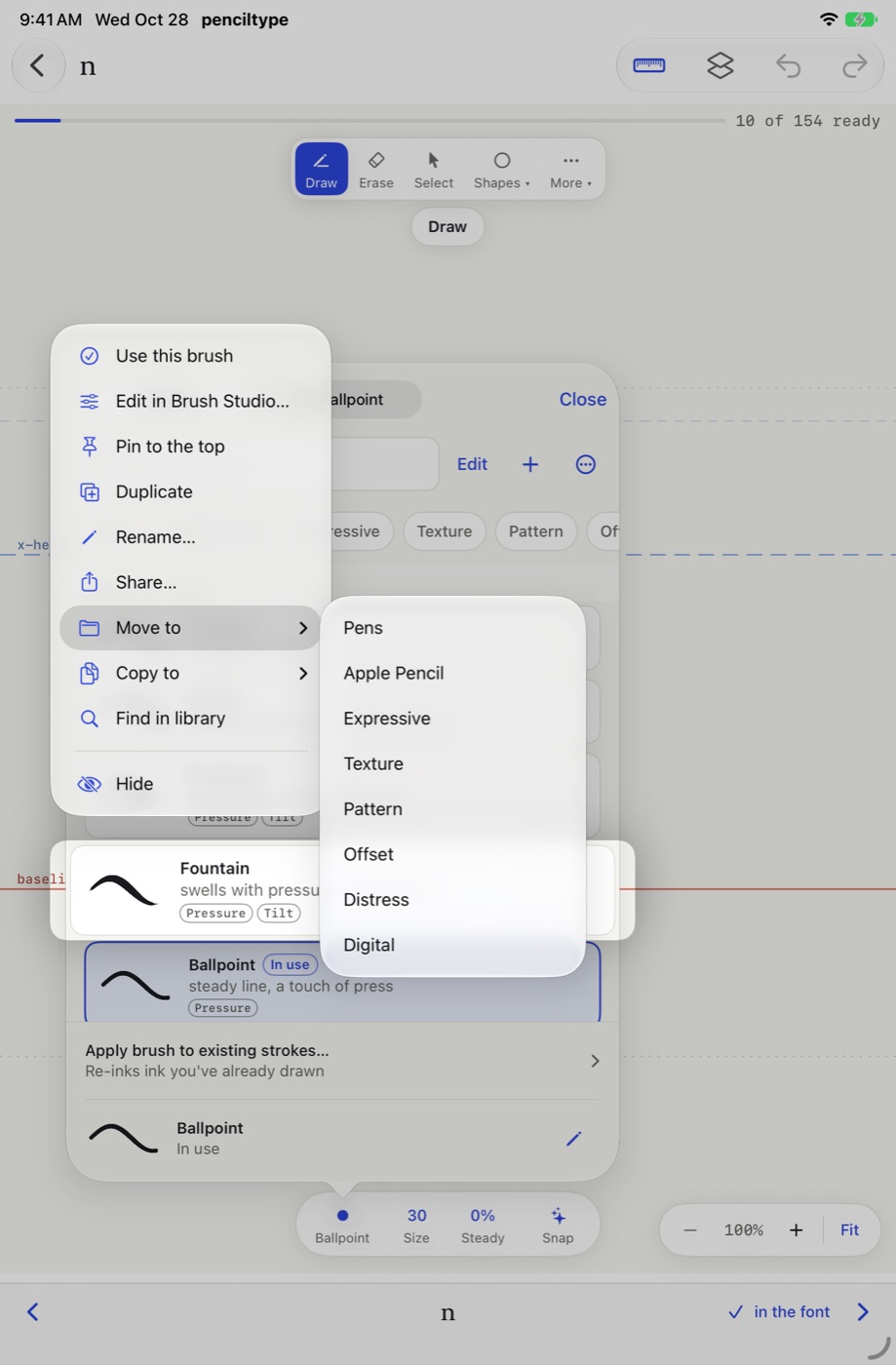
Move to and Copy to list your own sets, installed packs' sets and the built-in sets of the same kind (vector or pixel), but not the set the row is in. They're left out of the menu when there's nowhere to go.
Swiping a brush
Swipe left on a brush for two buttons:
- Hide (orange) on a built-in brush, Unhide on a hidden one, or Delete (red) on a brush of your own.
- Duplicate.
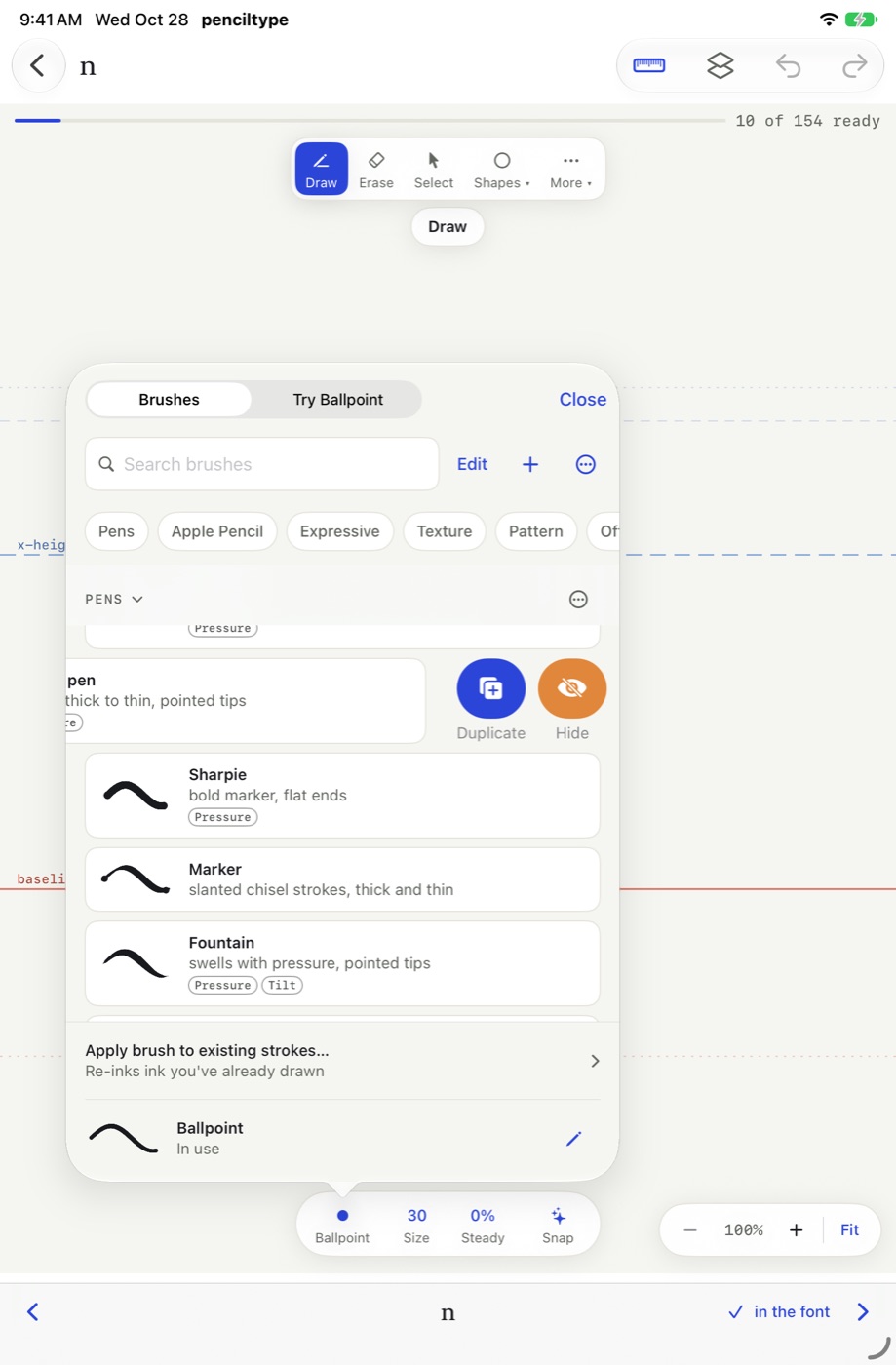
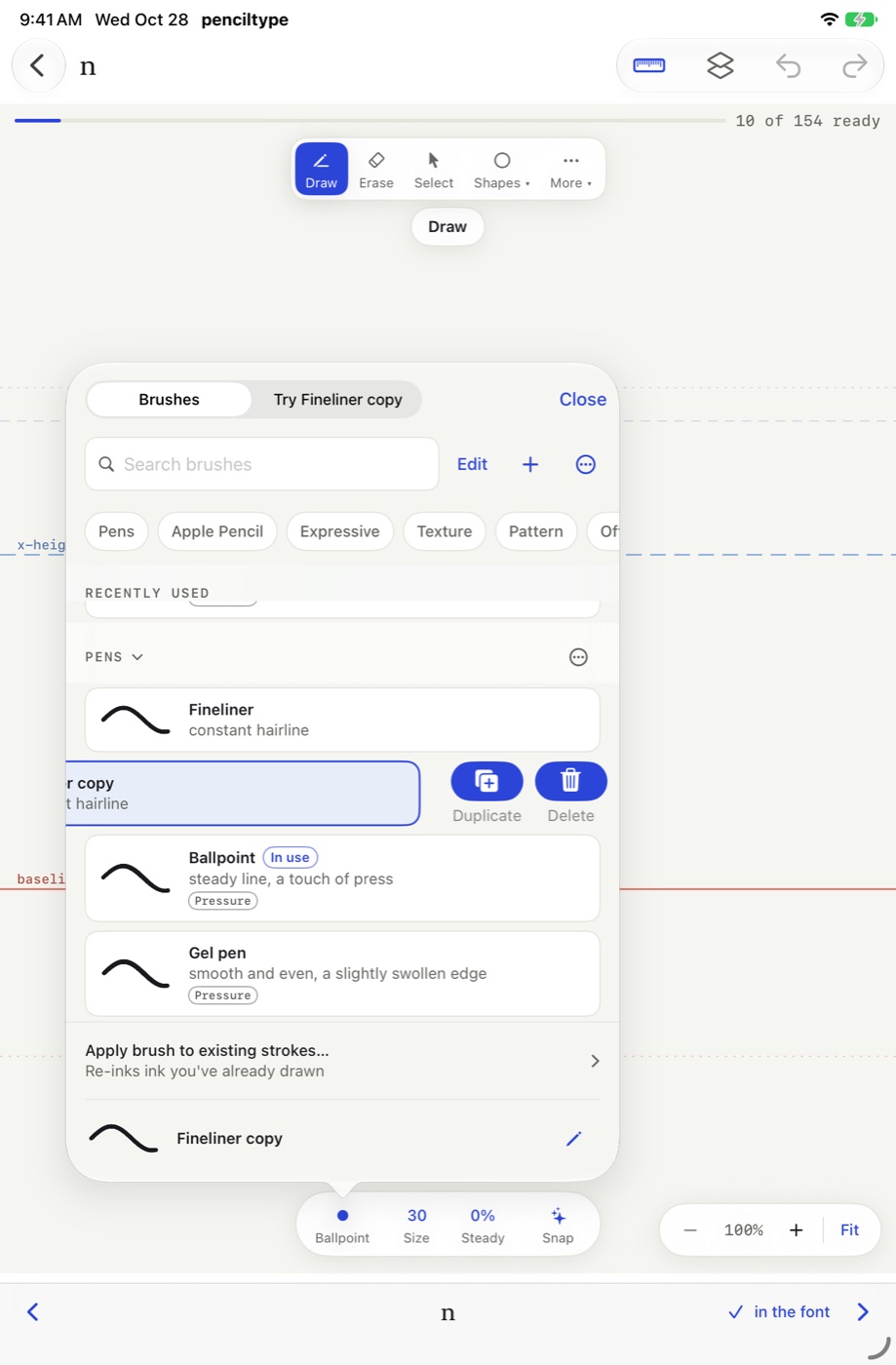
Swipe right for Pin (see Recently used and pinned brushes).
Hiding brushes
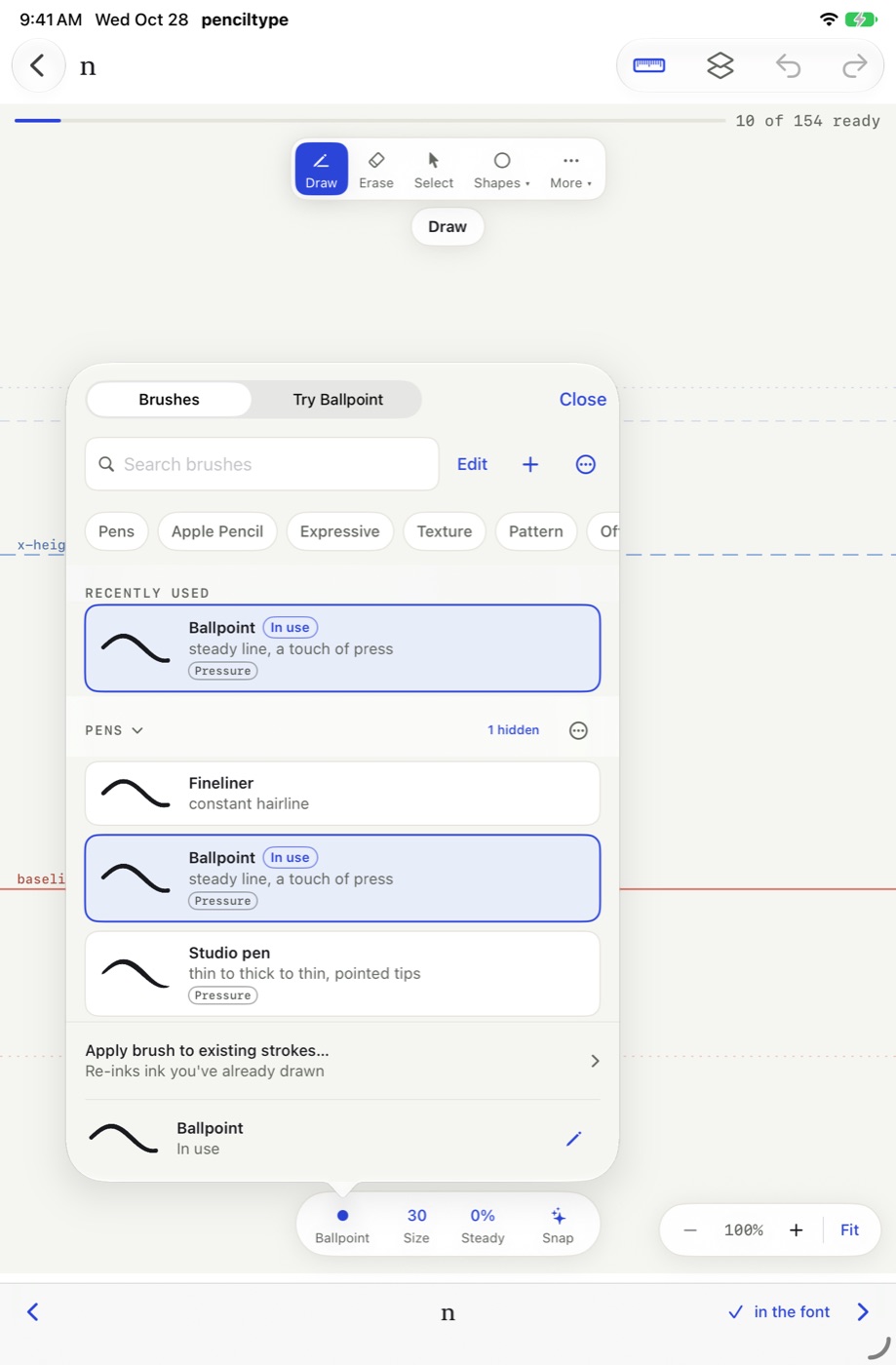
Built-in brushes can't be deleted, but you can hide the ones you never use, so the picker shows only what you want. Swipe left on a brush and tap Hide, or touch and hold it and choose Hide.
The set's header then says how many of its brushes are hidden, for example 1 hidden. Tap it to see them in their places, flagged Hidden and dimmed; tap Hide hidden to fold them away again.
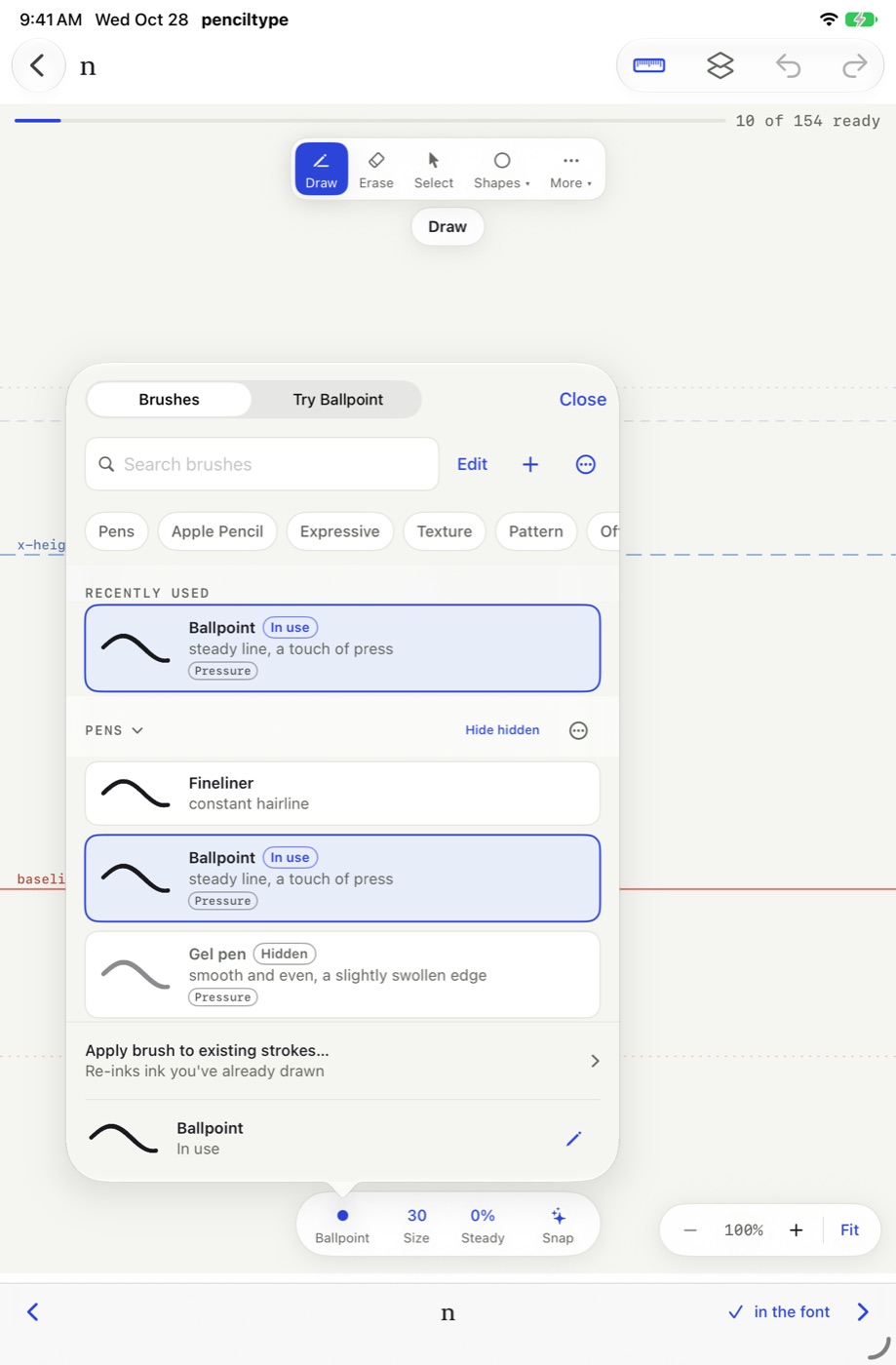
To show a hidden brush again, swipe left on it and tap Unhide, or choose Unhide from its menu. ⋯ › Unhide all brushes shows every hidden brush and every hidden set at once.
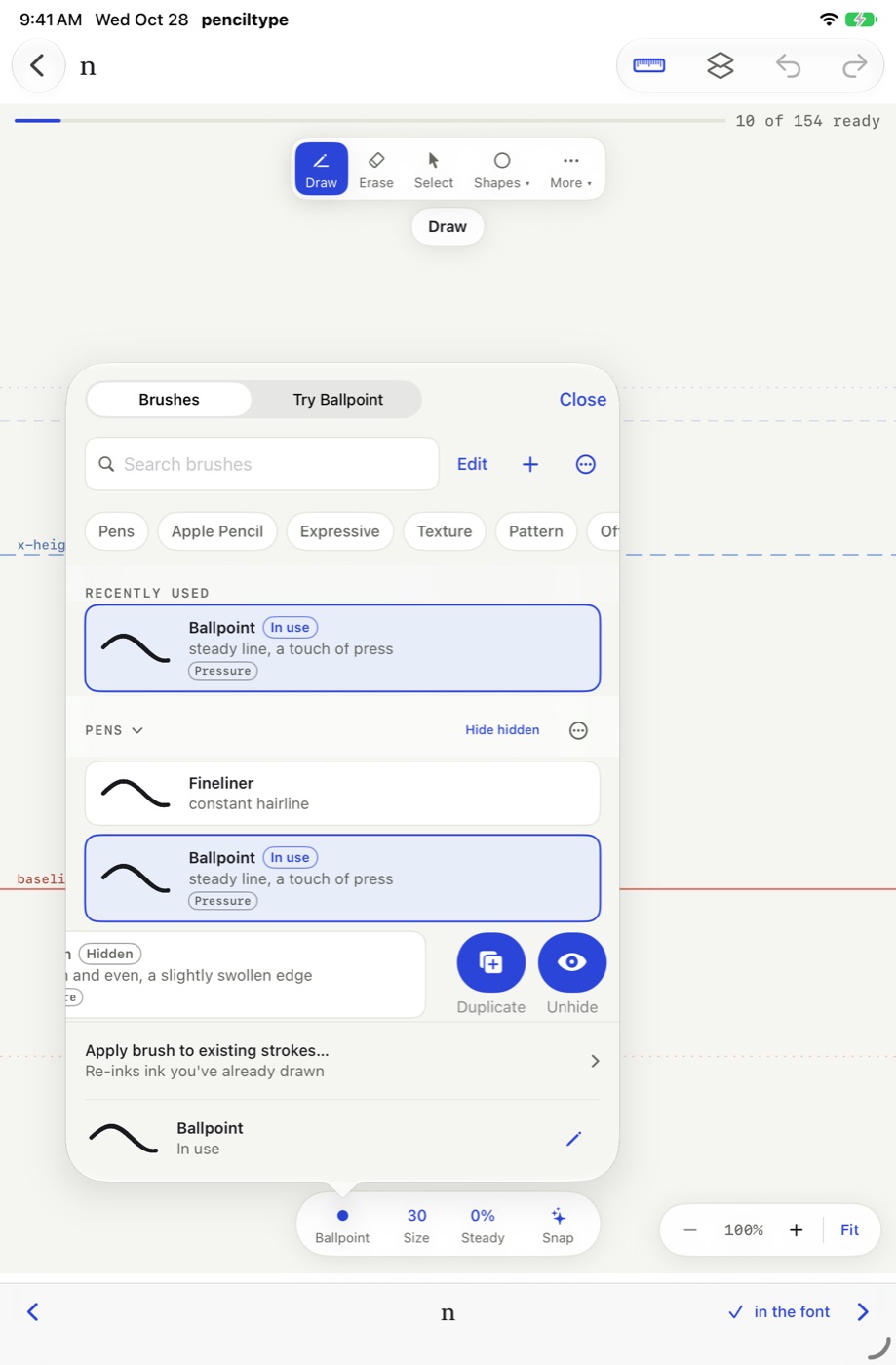
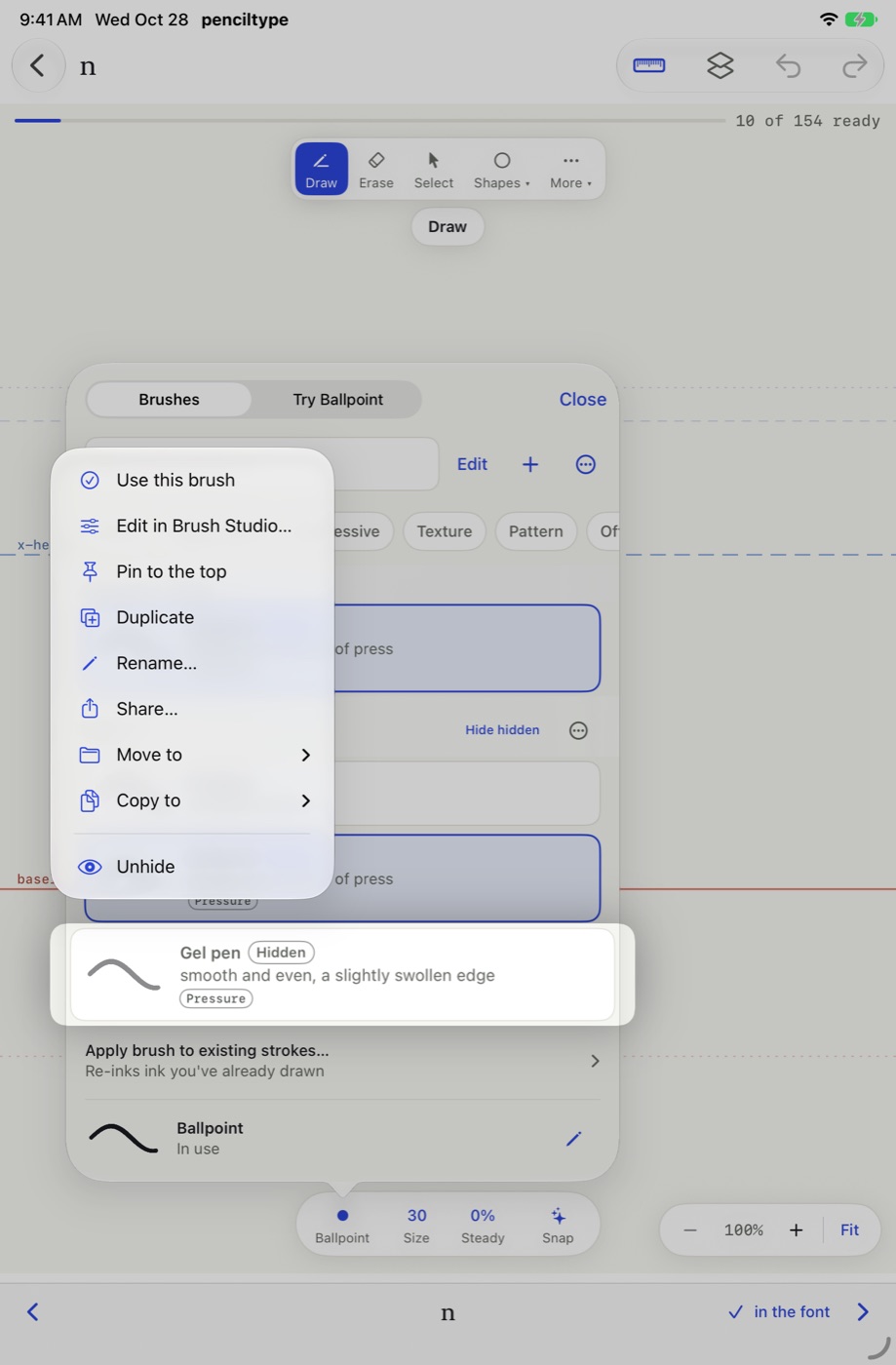
- A hidden brush stays in the list, flagged, while it's the brush you've picked or the pen you're drawing with.
- Hidden brushes don't show up in searches or in files you share.
- Your own brushes are deleted in the picker rather than hidden. To hide one of your own, use its eye in Settings › Brush library (see a set's page).
- Whole sets are hidden from Settings › Brush library, and built-in packs can be switched off there (see The brush library).
- The picker forgets which sets you've shown hidden brushes in when it closes.
Your own brushes
A brush of your own is one you've duplicated, saved, made in the Studio or imported. You can change it, rename it and delete it.
Duplicating
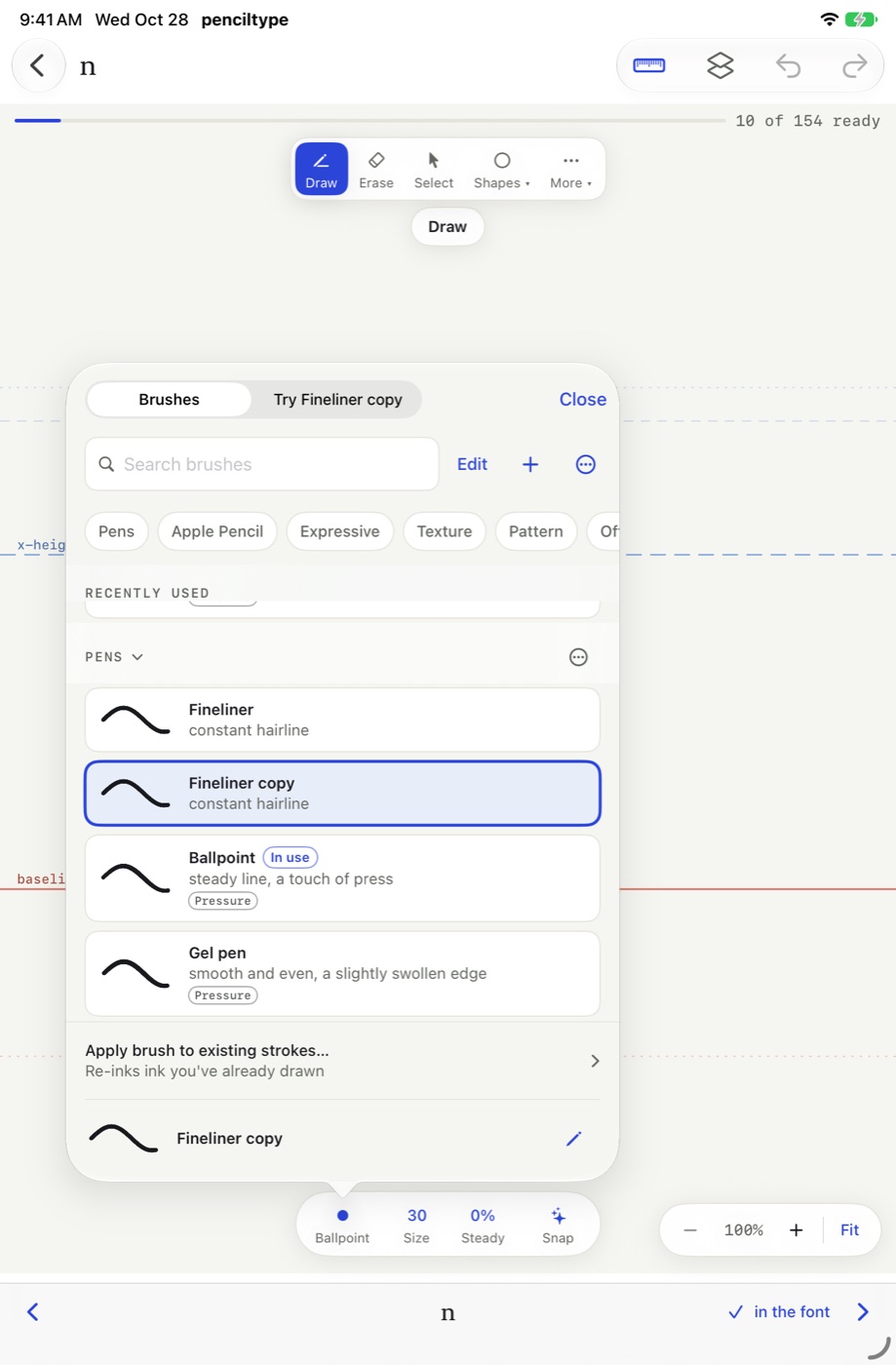
Swipe left on any brush and tap Duplicate (or choose Duplicate from its menu, or + › Duplicate “brush” for the brush you've picked). The copy, named “brush copy”, appears right after the original and becomes the brush you've picked; the picker rings it so you can see it.
Deleting
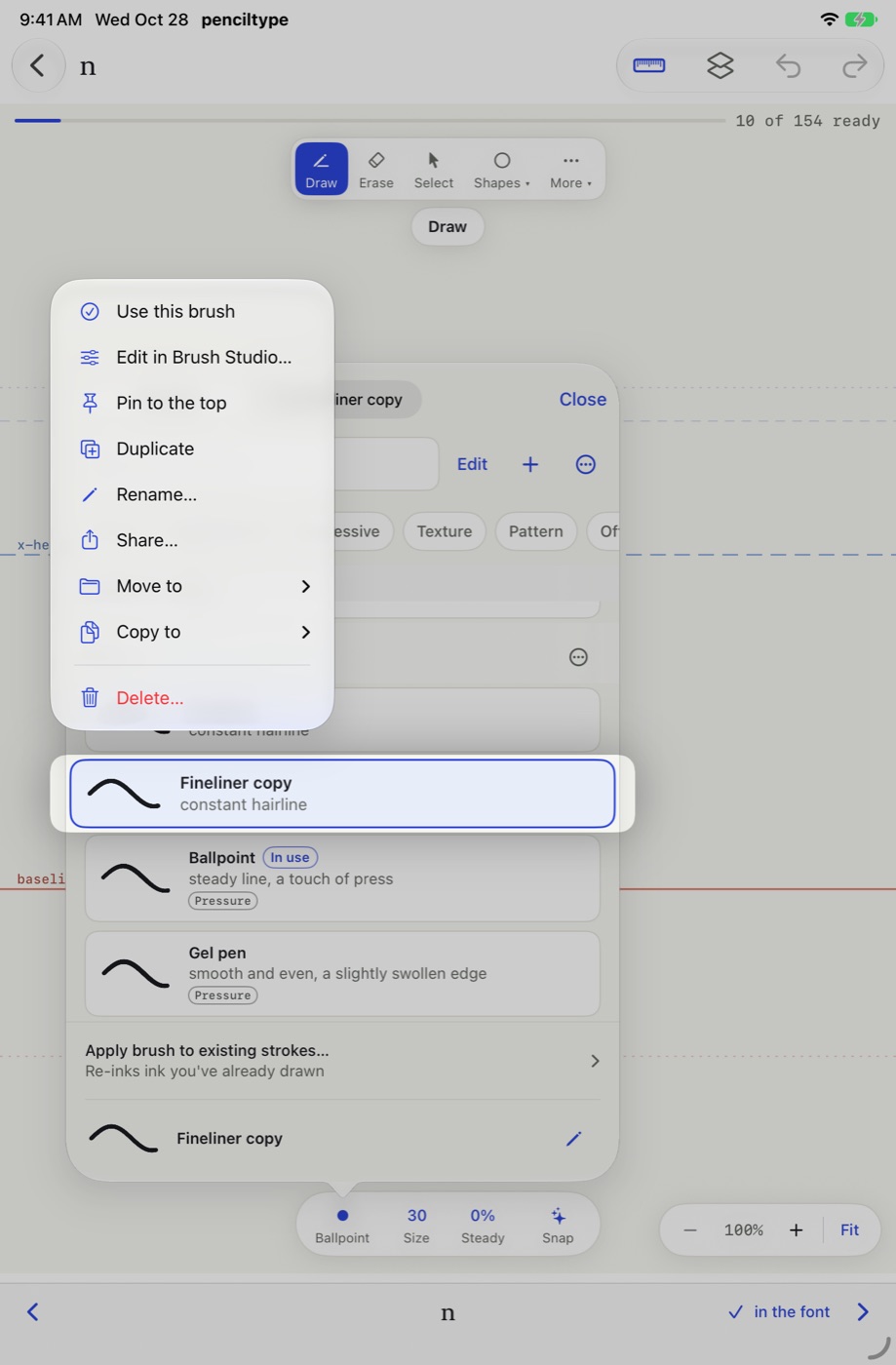
Swipe left on a brush of your own and tap Delete (or choose Delete… from its menu). The picker asks “Delete “brush”?”: “Ink already drawn keeps its pen. This can't be undone.” Tap Delete brush to delete it, or Cancel.
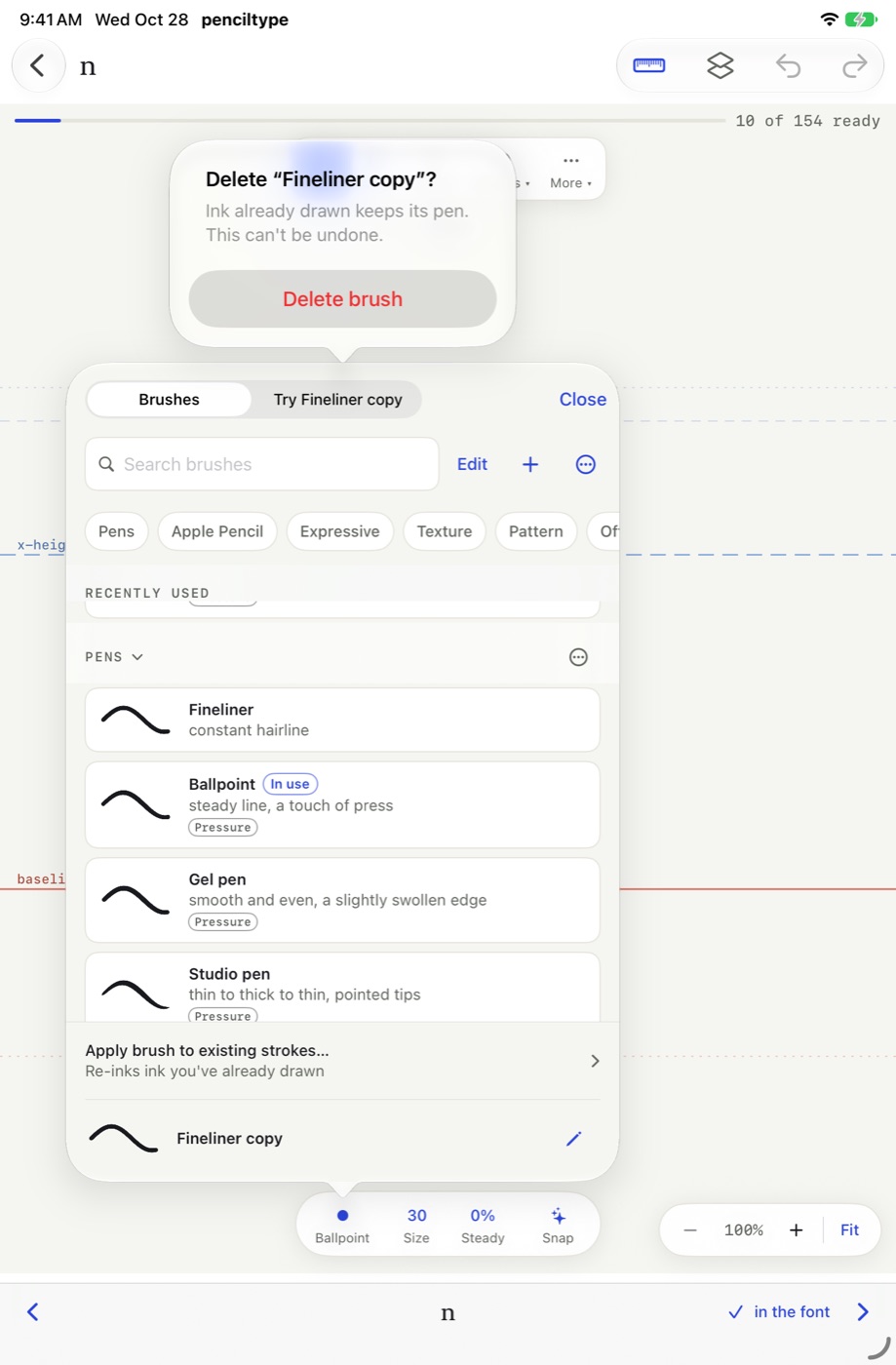
Strokes already drawn with a deleted brush keep their look.
The + menu
Tap + beside the search field.
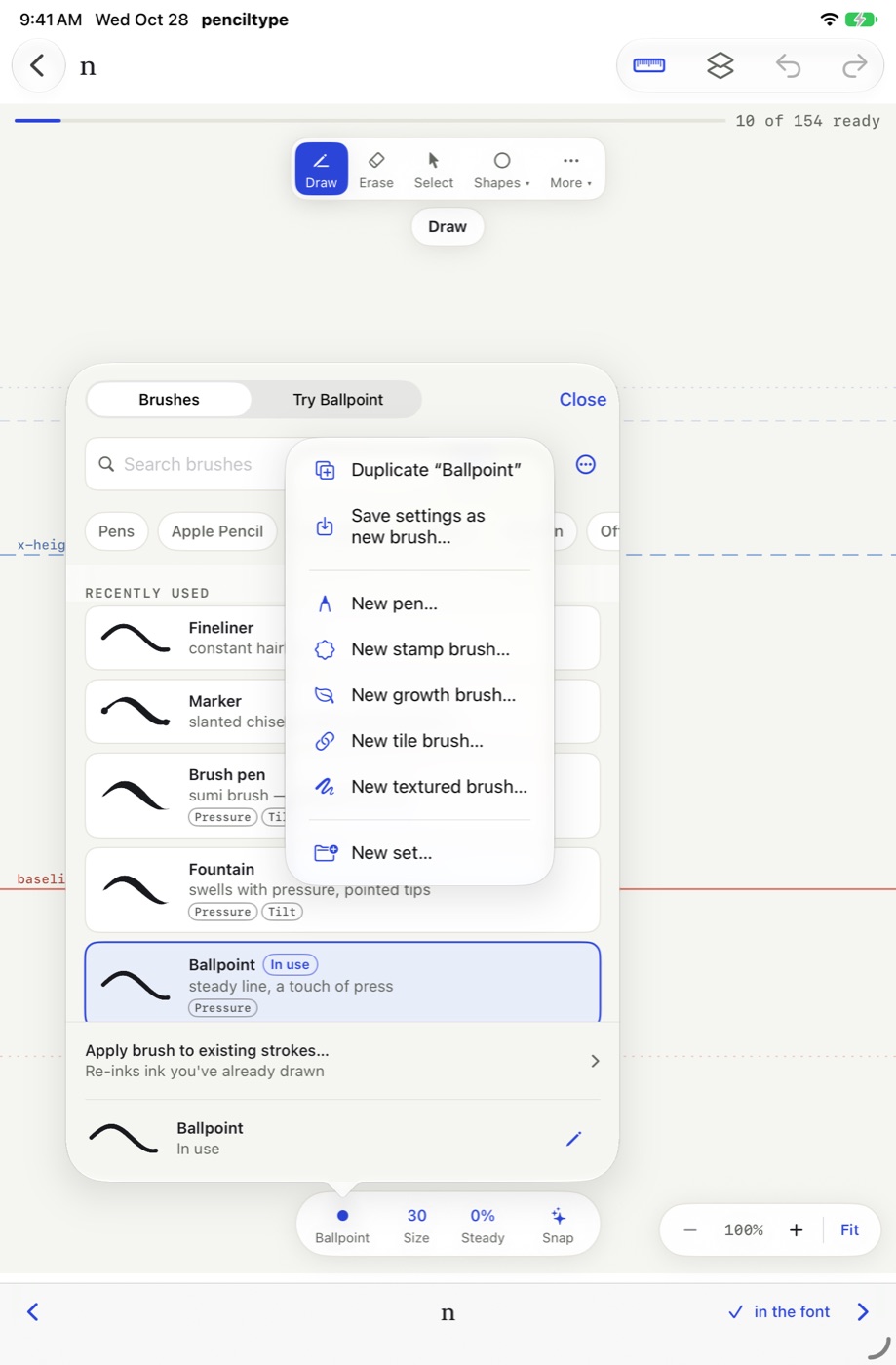
- Duplicate “brush”
- Copies the brush you've picked as your own, picks the copy and rings it. Absent when the picked brush isn't one from the library.
- Save settings as new brush…
- Asks for a name and saves the picked brush, with the settings you've changed on its Options page, as a brush of your own in My brushes. See Saving as a new brush.
- New pen…, New stamp brush…, New growth brush…, New tile brush…, New textured brush…
- Open the Brush Studio on a fresh brush of that kind. See New brushes.
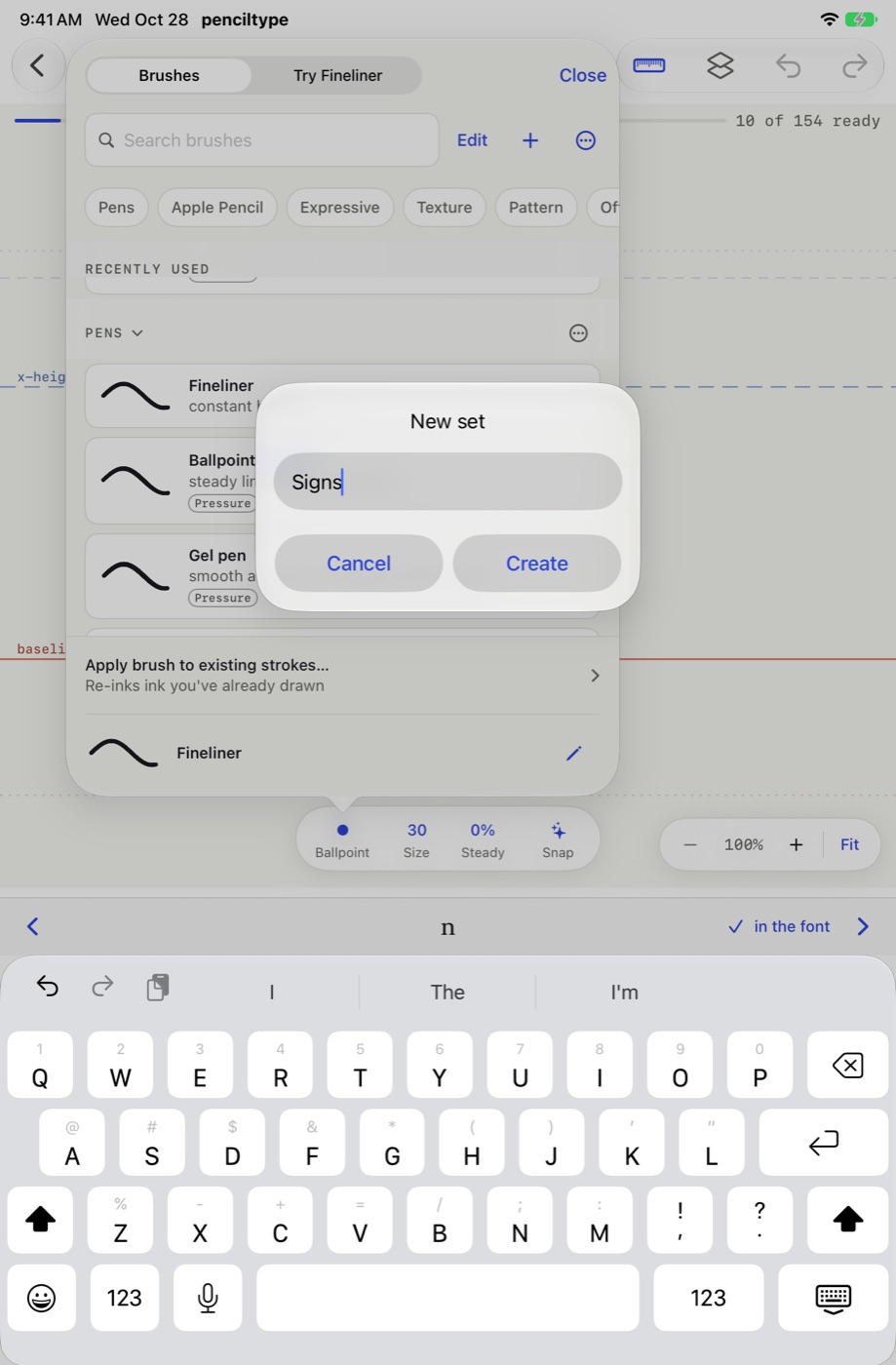
- New set…
- Asks for a set name. Create adds an empty set of your own at the end of the library.
The ⋯ menu
Tap ⋯ at the right of the search field.
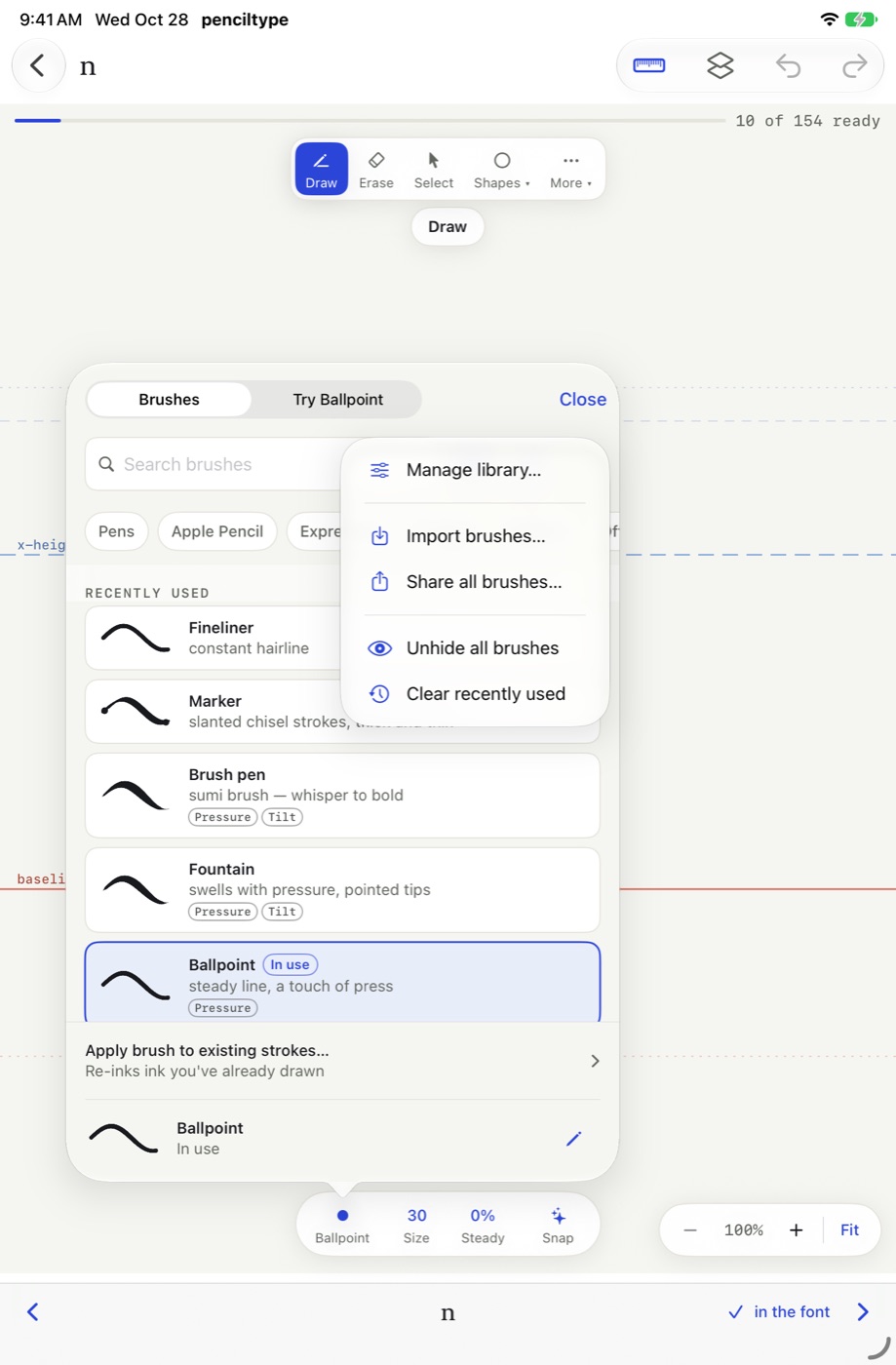
- Manage library…
- Closes the picker and opens the Brush library over the canvas.
- Import brushes…
- Opens Files to pick a brush file or pack. See Importing brushes.
- Share all brushes…
- Writes every set you can see (vector and pixel) as one pack, “penciltype brushes.penciltypebrushes”, ready to send. See Sharing brushes.
- Unhide all brushes
- Shows every hidden brush and every hidden set again.
- Clear recently used
- Empties Recently used on this device. Pins stay.
Reordering brushes
Tap Edit beside the search field. Every brush gets a handle at its right: drag a brush up or down within its set. Tap Done when you're finished.
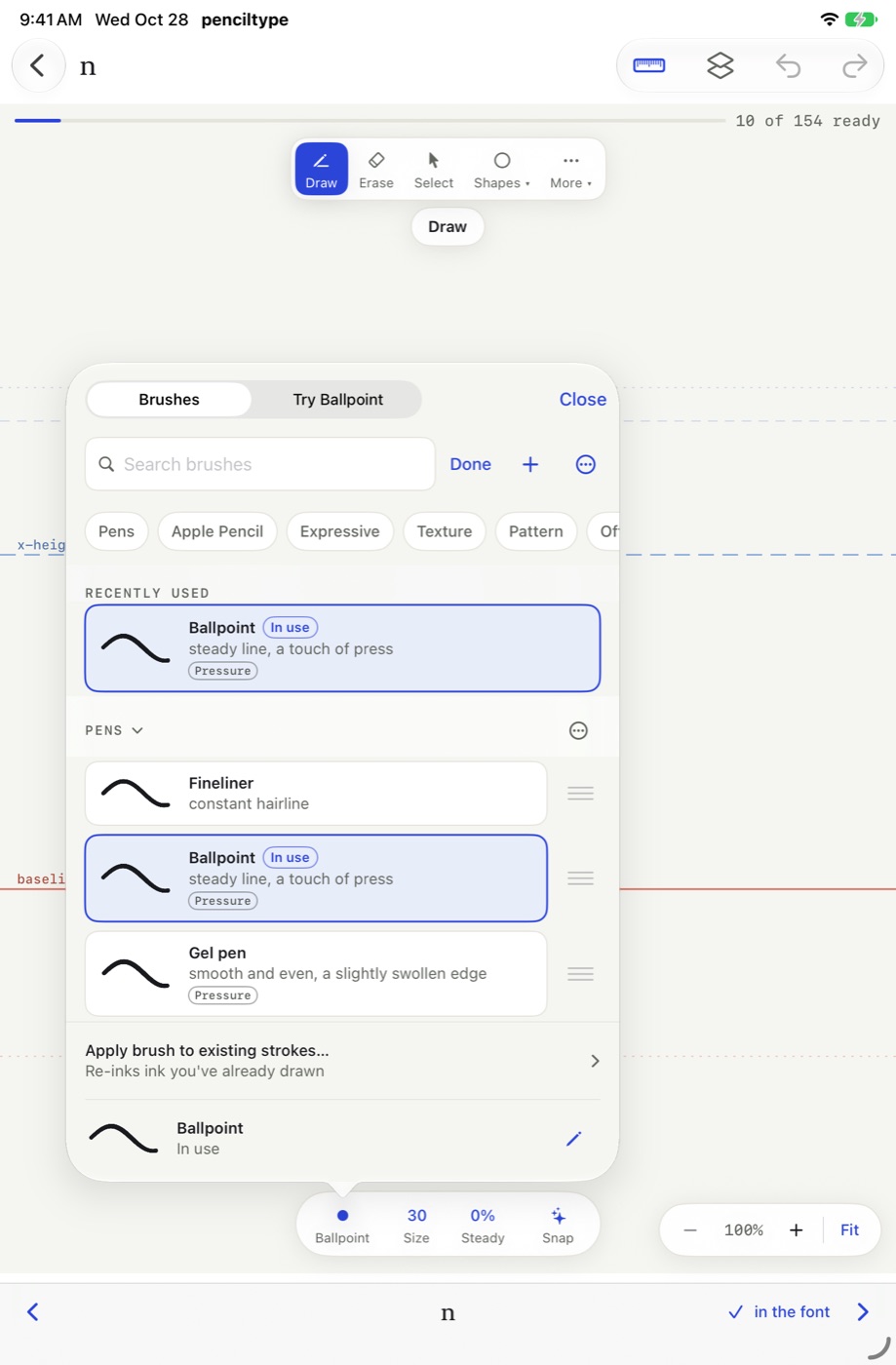
- The new order is the set's order everywhere, and it syncs to your other devices.
- Hidden brushes keep their places while you reorder the others.
- Rows in Recently used can't be reordered.
- To reorder the sets themselves, use Edit in Settings › Brush library. You can also reorder a set's brushes on its page there.
- The picker always opens out of Edit mode.
Your own sets
Sets keep brushes together. Besides the built-in sets you have My brushes, where brushes you save land, and you can make sets of your own: + › New set….
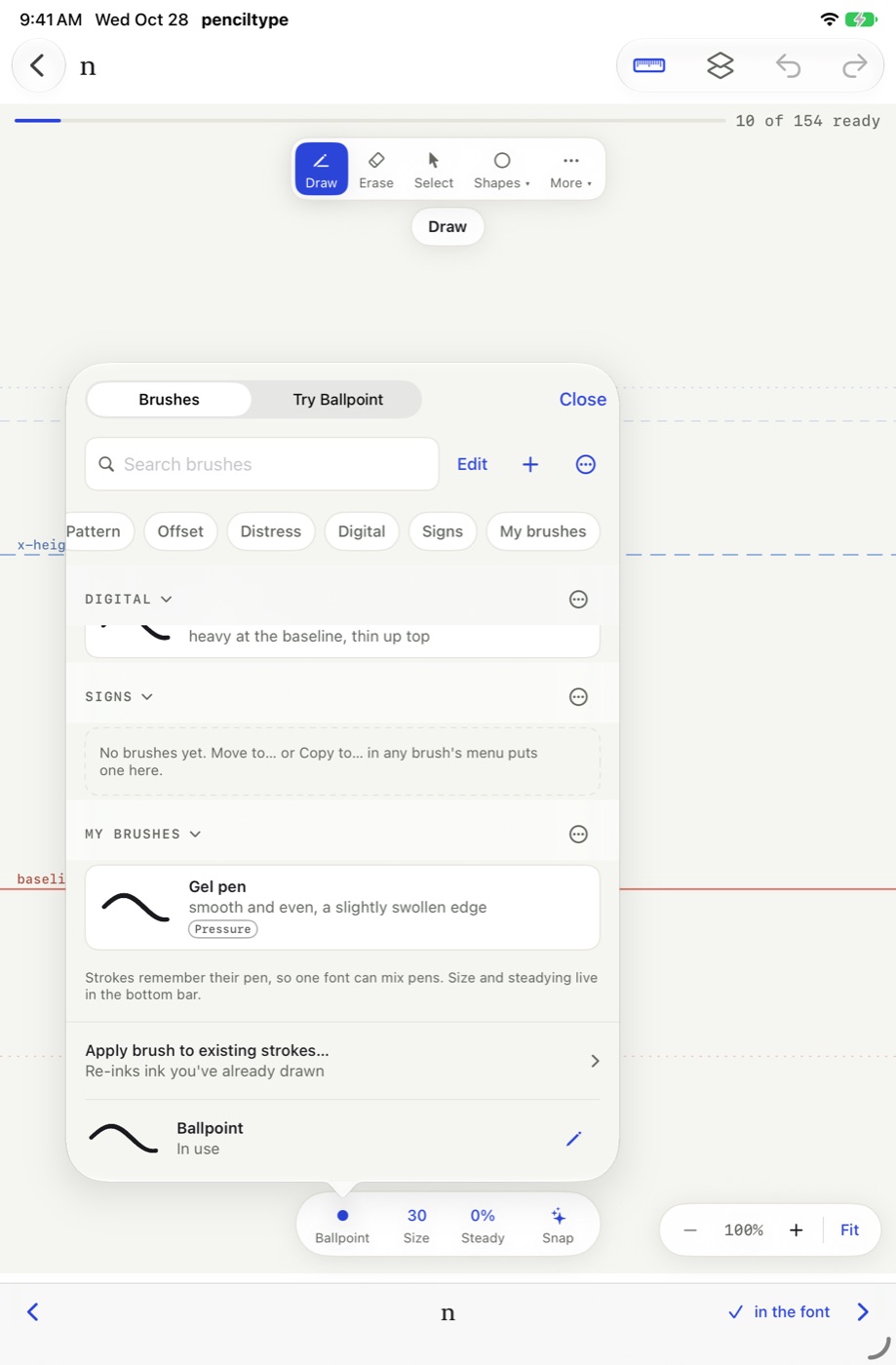
A new set is empty and says so with a dashed note: “No brushes yet. Move to… or Copy to… in any brush's menu puts one here.” Touch and hold a brush and use Move to ▸ or Copy to ▸ to fill it. (An empty set's chip doesn't jump anywhere; scroll to the end of the list to see it.)
A set's ⋯ menu
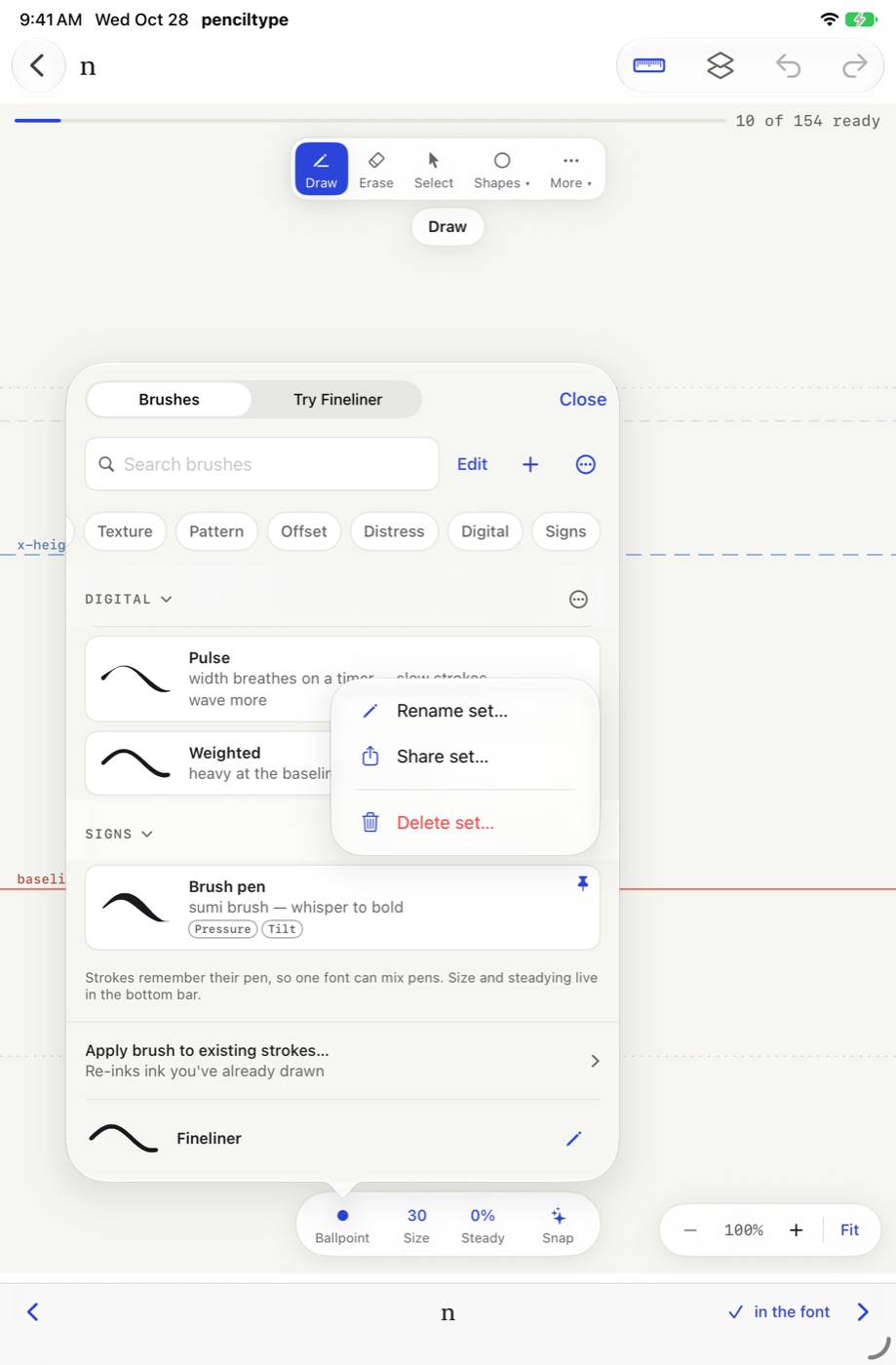
Tap ⋯ at the right of a set's header (Set actions):
- Rename set…
- Your own sets and installed packs' sets. Asks for the new name.
- Share set…
- Writes the set's brushes (not the hidden ones) as a pack named after the set, ready to send.
- Delete set…
- Your own sets and packs' sets, but not My brushes.
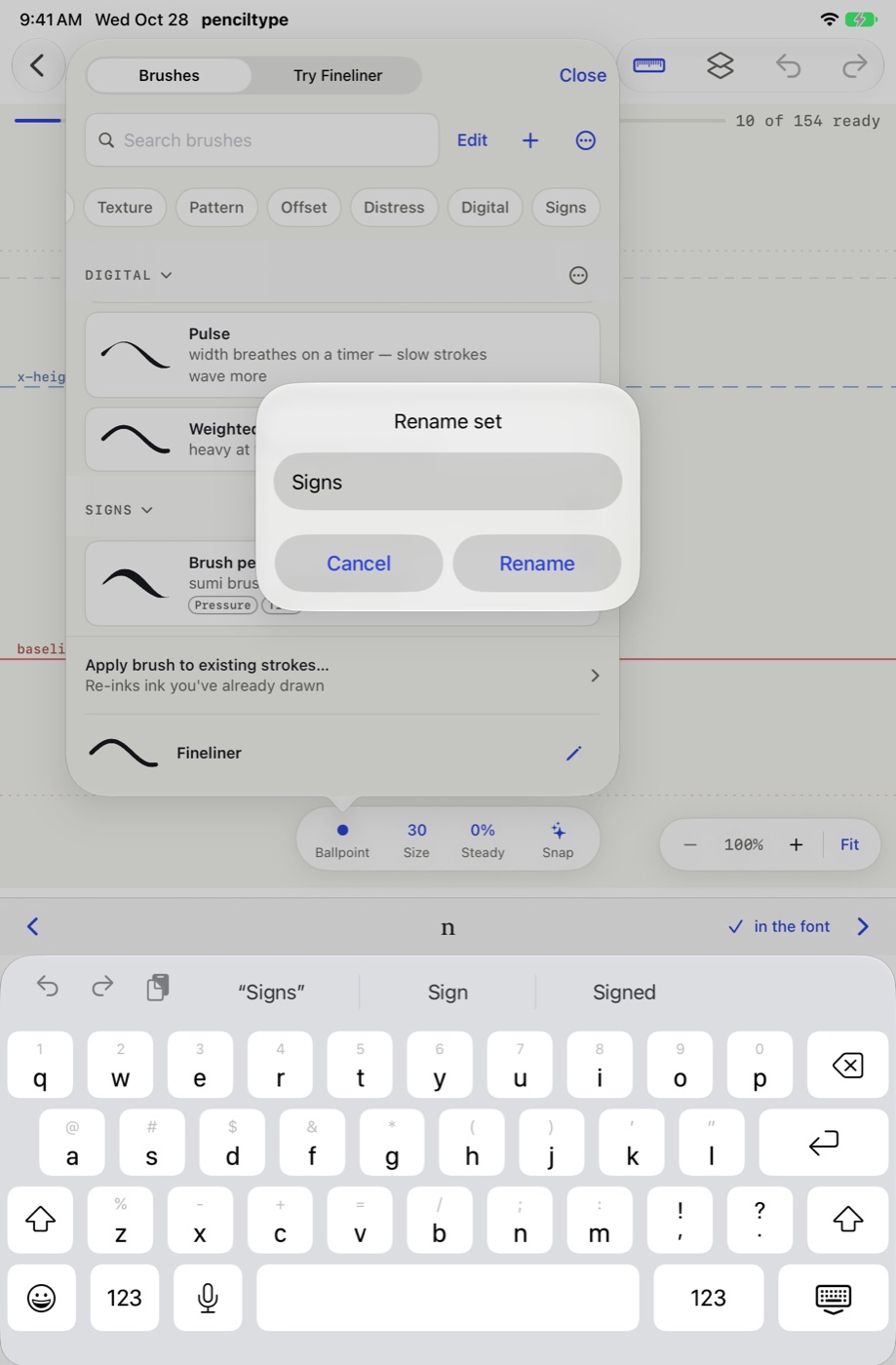
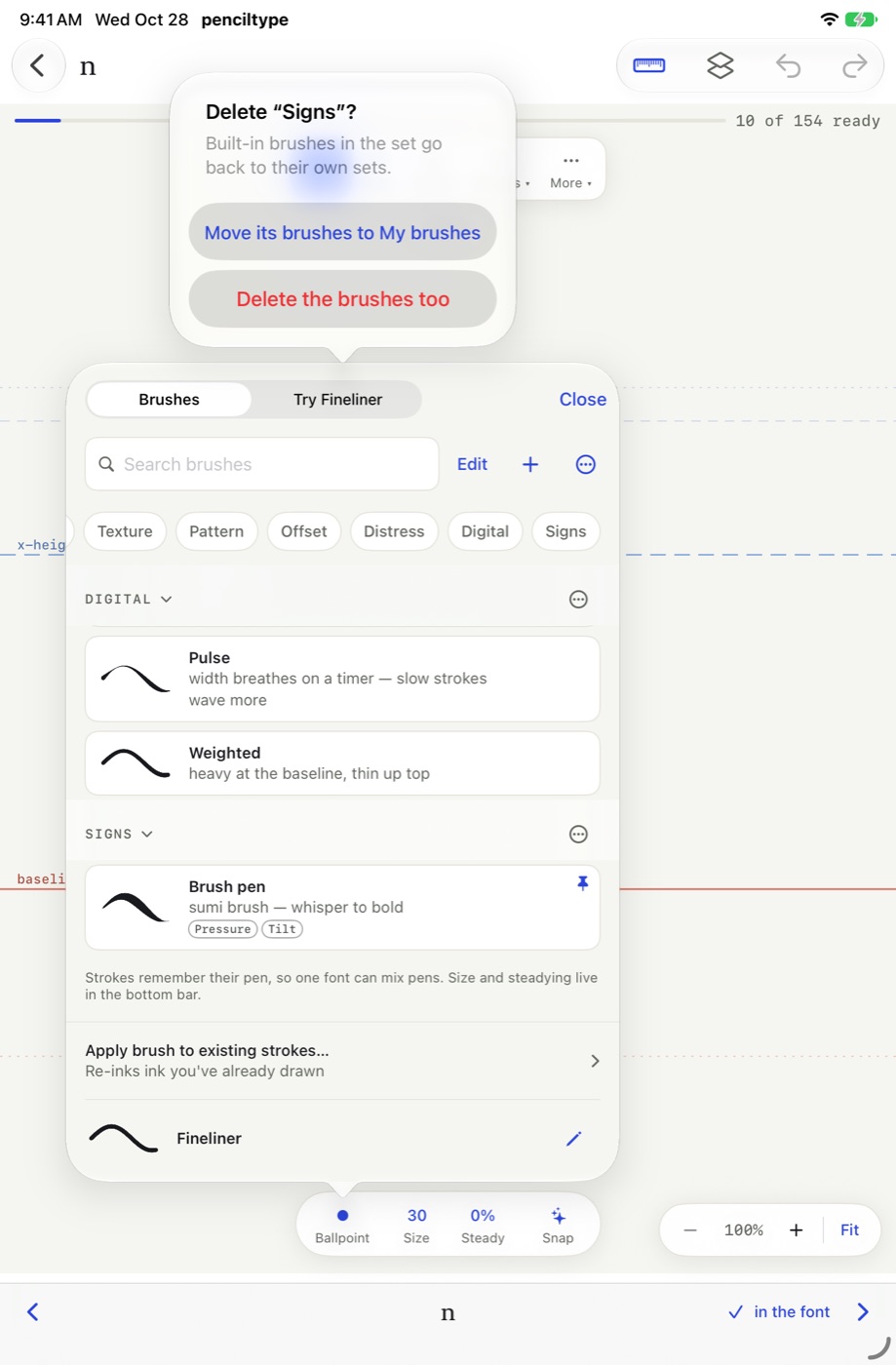
Deleting a set asks what to do with your brushes in it (“Built-in brushes in the set go back to their own sets.”):
- Move its brushes to My brushes deletes the set; brushes of yours that were only in it move to My brushes.
- Delete the brushes too deletes the set and the brushes of yours that were only in it.
- Cancel keeps everything.
Built-in sets can't be renamed or deleted, only hidden (from Settings › Brush library). My brushes can be renamed but not deleted.
The pixel brush picker
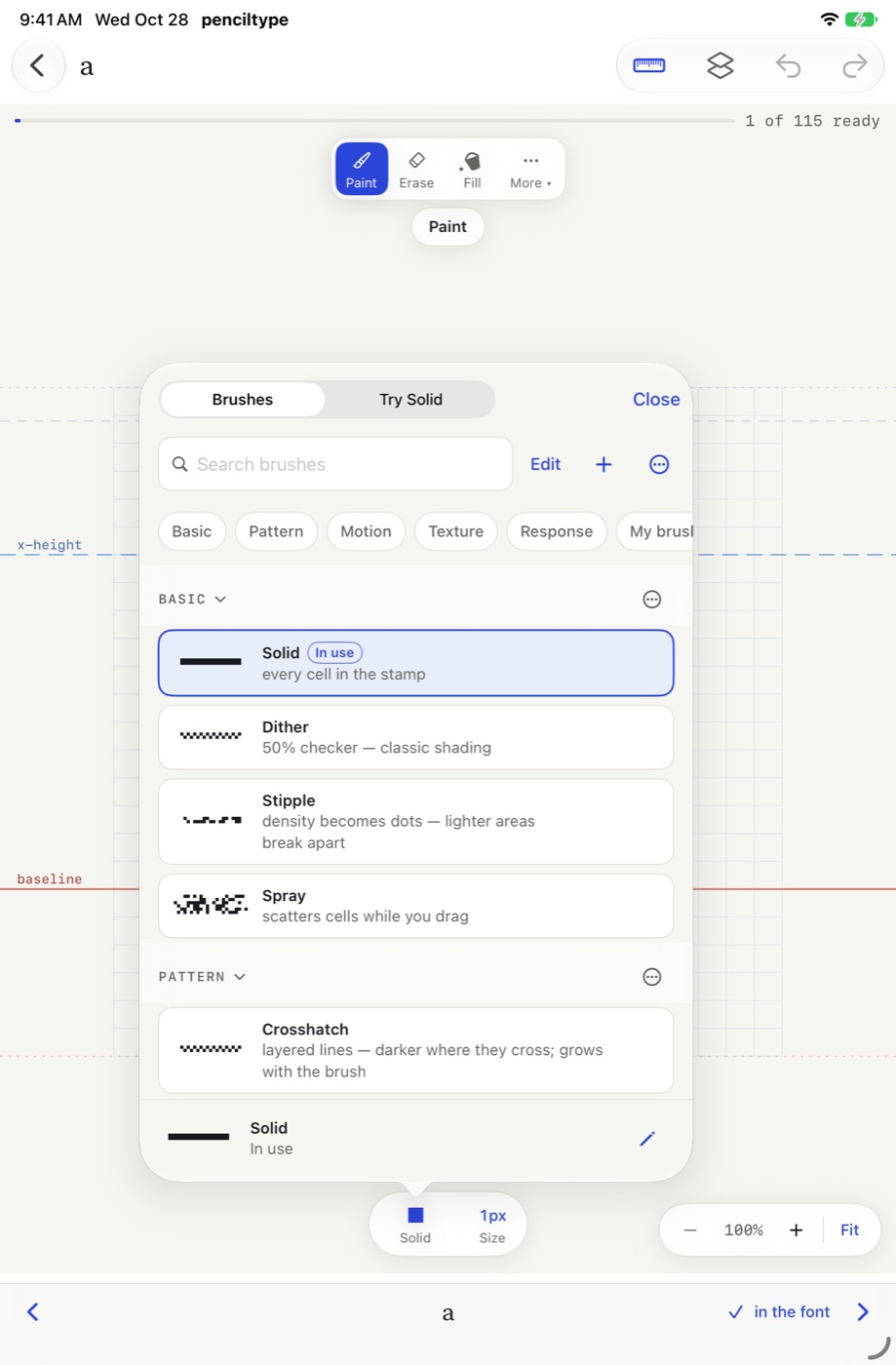
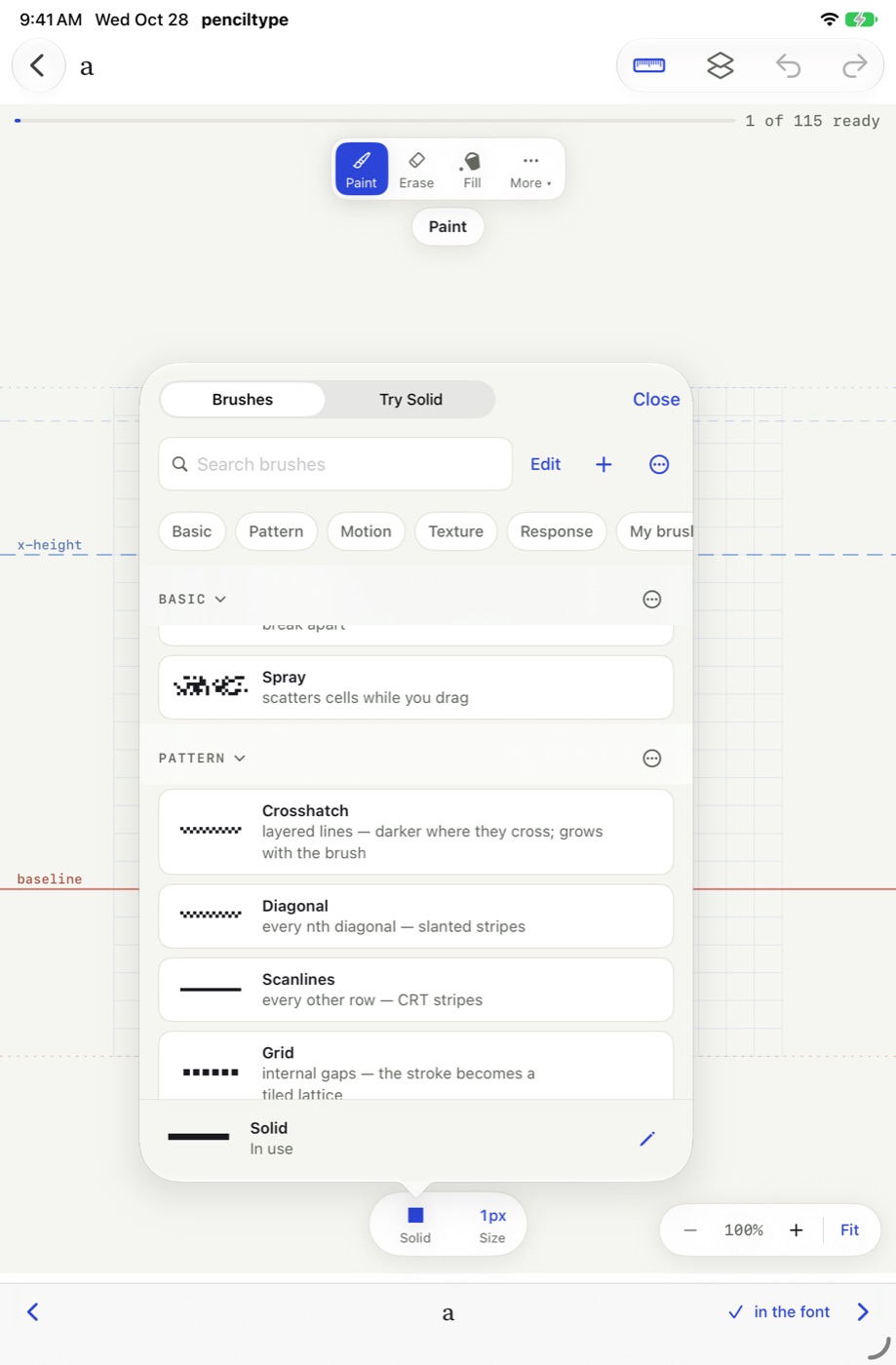
On a pixel font the first chip on the pen bar is the pixel brush (Solid, say), and it opens the pixel brush picker. It works like the vector one, over the pixel sets: Basic, Pattern, Motion, Texture and Response, then your own sets and packs' pixel sets.
What's different:
- There's no Apply brush to existing strokes…: pixel fonts aren't re-inked.
- Rows carry no Pressure, Tilt or Roll tags: pixel brushes read nothing from the hand.
- The footer reads: “Paint fills cells, erase clears them. Two-finger tap undoes. Size and the pattern knob live in the bottom bar.”
- Closing the picker puts the brush's mode and options into the font; the stamp size stays the pen bar's.
- The + menu has Duplicate “brush”, Save settings as new brush…, New pixel brush… (the Studio on a fresh Solid brush) and New set….
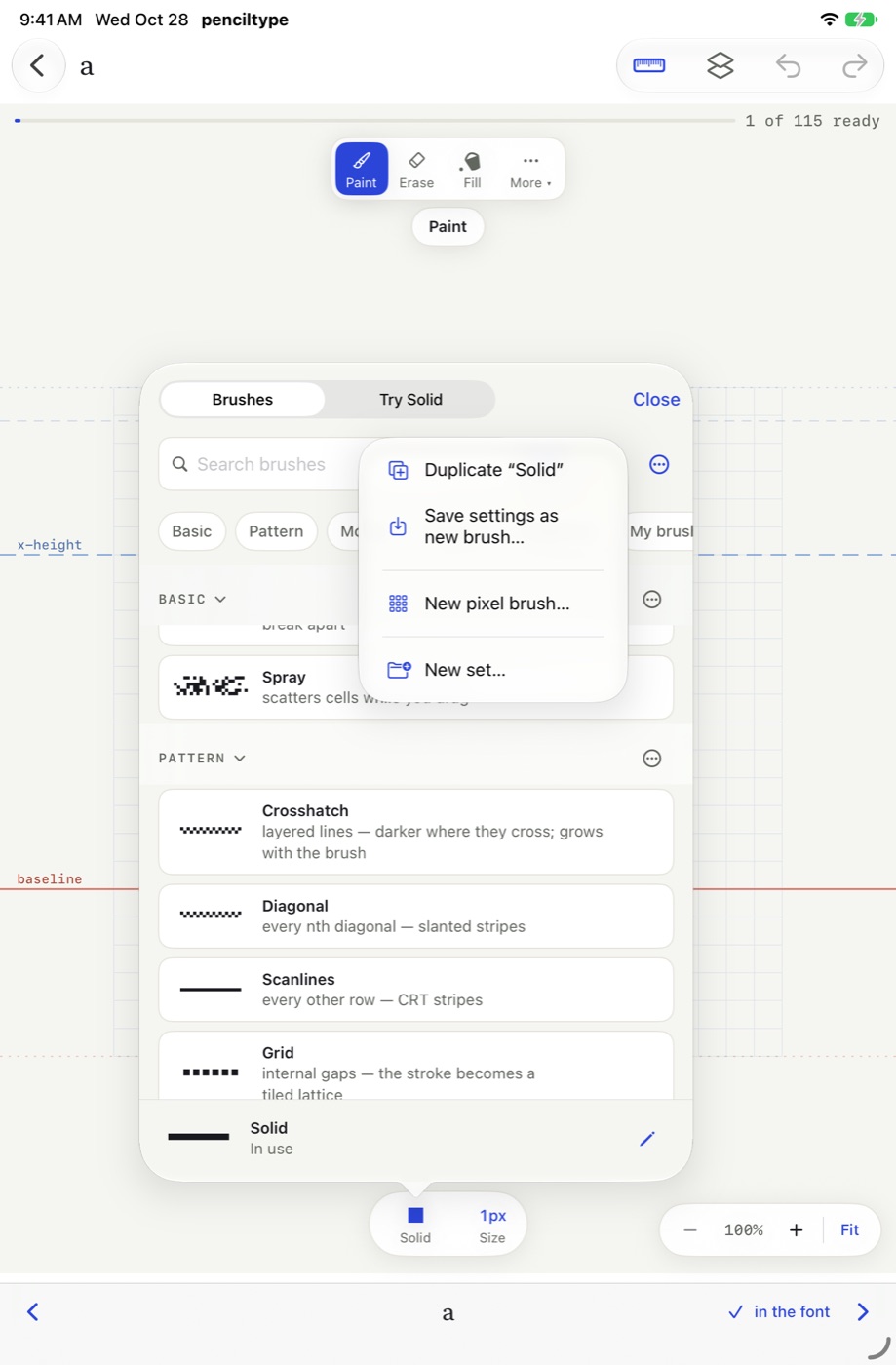
Search, Edit, the ⋯ menu, rows, swipes, menus, set menus and their prompts are the same as in the vector picker.
The quick pen switcher (Apple Pencil Pro)
With an Apple Pencil Pro, squeeze the Pencil while you draw on a letter: a strip of pens appears just above the Pencil's tip (or above the pen bar, if the Pencil isn't hovering). It holds up to six pens: your pinned brushes first, then the ones you used recently. If you have fewer than two of those, it fills up from the Pens set.
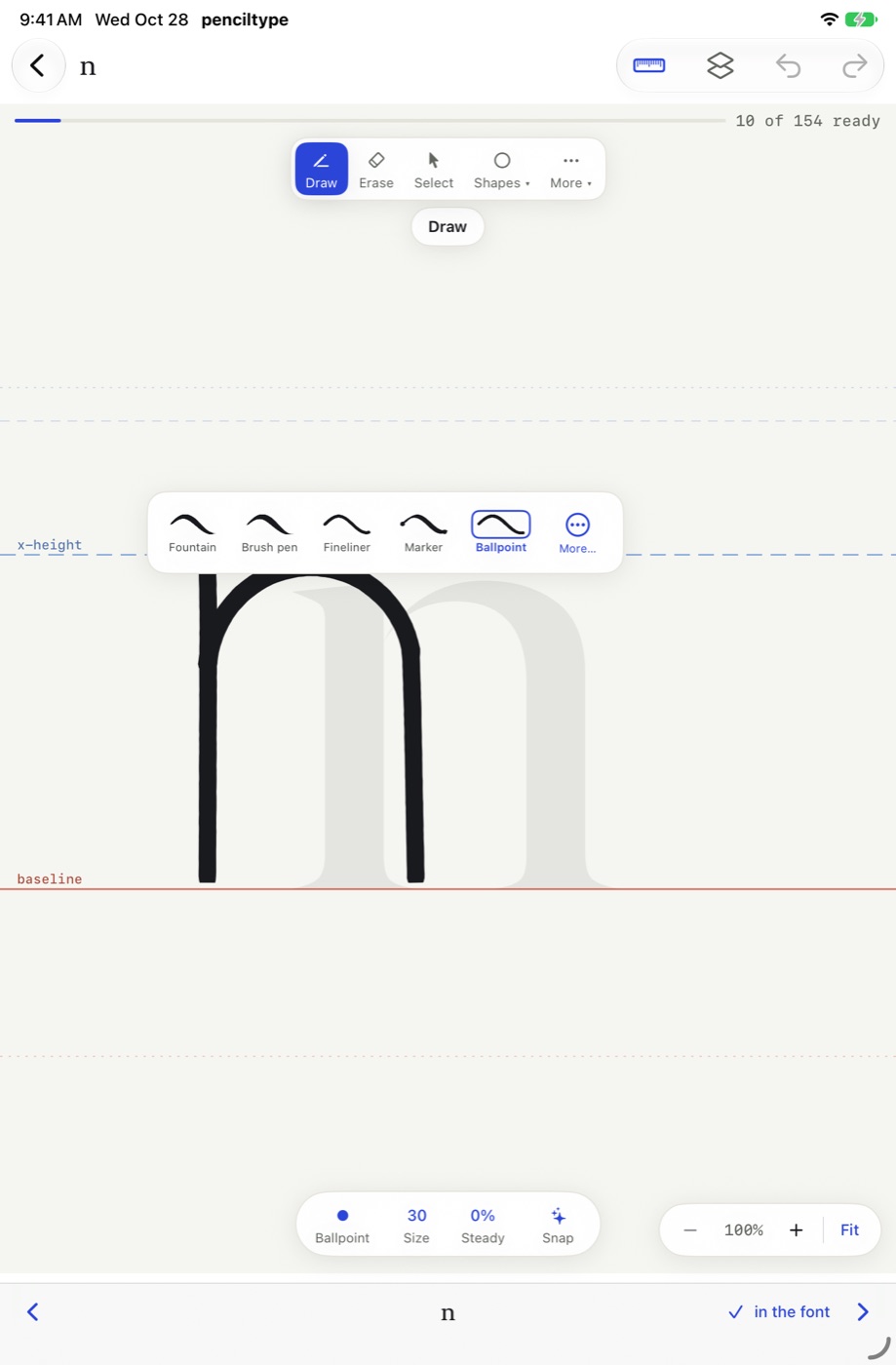
- Tap a pen to switch to it. It keeps the font's size and steadying, and the strip closes.
- The pen you're drawing with is outlined, its name in bold.
- More… closes the strip and opens the full brush picker.
- Squeeze again, or tap anywhere else, to close it.
- On a pixel font, a squeeze opens the pixel brush picker instead.
- With Reduce Motion on, the strip fades in rather than growing.
What a squeeze does follows Settings › Apple Pencil › Squeeze on your iPad. The strip appears when that's set to show a palette (Show Color Palette, Show Ink Attributes or Show Contextual Palette). Set to Switch Eraser or Switch Previous Tool, a squeeze does that instead.
Double-tap
On an Apple Pencil with double-tap (2nd generation or Pro), a double-tap opens the brush picker (the pixel picker on a pixel font), when the iPad's double-tap setting is Show Color Palette or Show Ink Attributes. Set to Switch Eraser or Switch Previous Tool, it does that instead.