

Generated letters
Some characters you never have to draw: penciltype builds them from ones you have. An é is your e with your ´ on top; a ‘ is your ’ turned round; in a Pieces font, n is built from the Stem and Shoulder you drew once. Their canvases show where they come from and let you take over when you want to.
On the grid, these characters carry the Generated or Partly generated mark (see What the marks mean). Which helpers a font uses is set in Font settings.
Composed accents
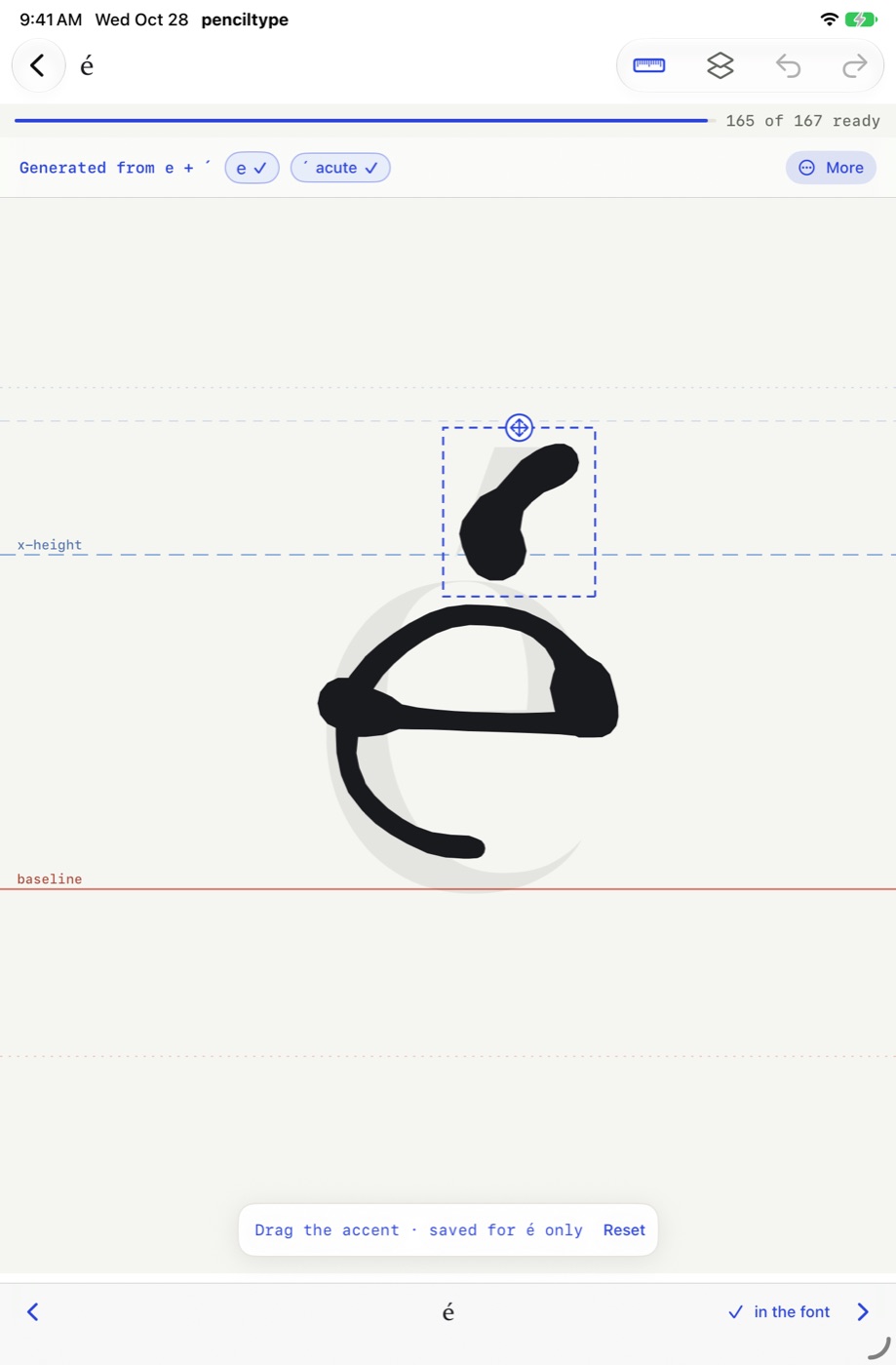
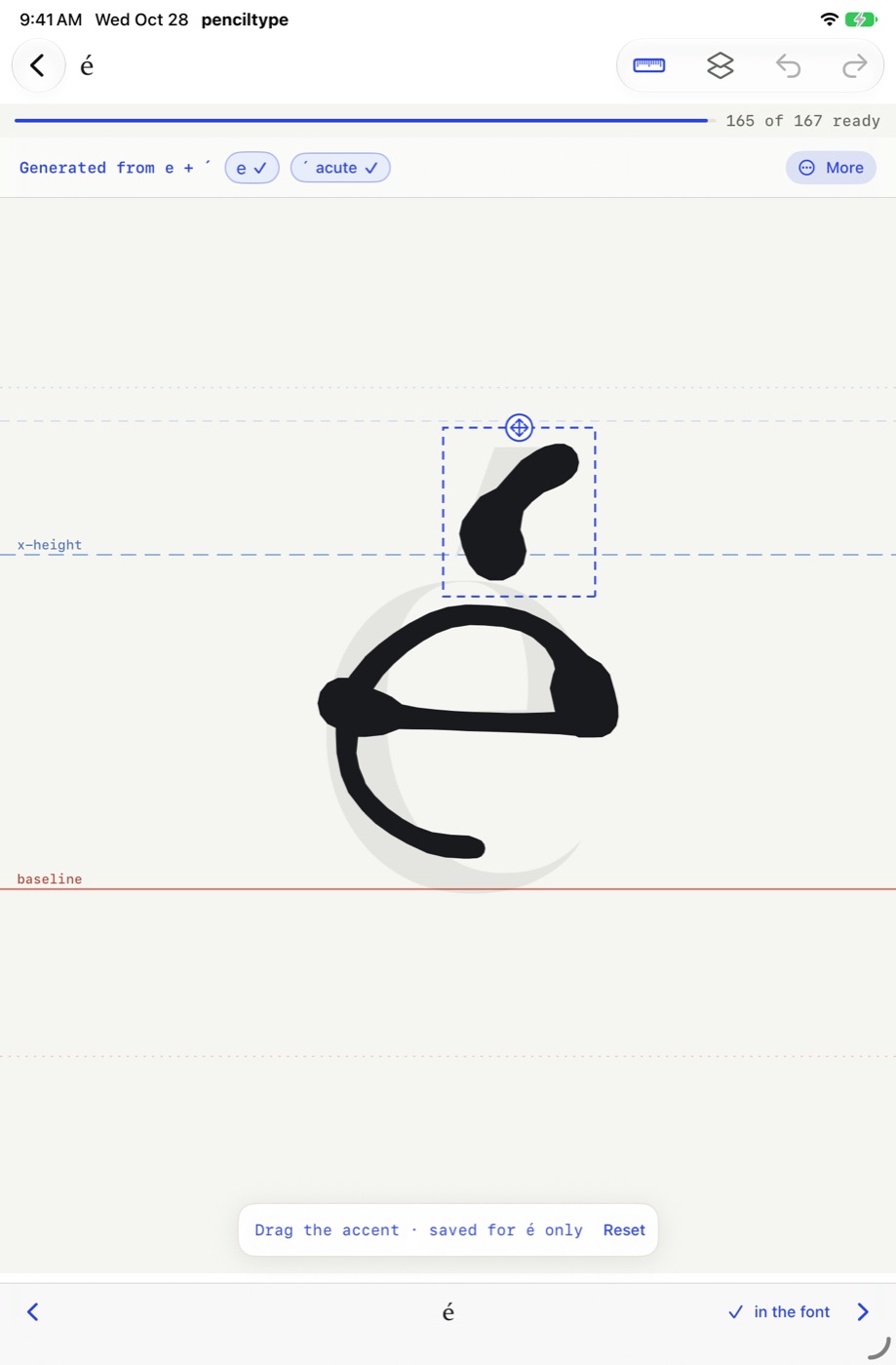
With the accent helper on, an accented letter is composed from its base letter and its mark as soon as both are drawn. Open one — say é — and the canvas changes:
- A banner under the navigation bar reads Generated from e + ´, with a chip for each part: e ✓ and ´ acute ✓. A chip shows ✓ when the part is drawn and a pencil when it still needs drawing; tap a chip to open that part's canvas.
- The tool strip and pen bar are gone: there is nothing to draw here, only the accent to place. In the pen bar's place a note says Drag the accent · saved for é only, with Reset.
- A dashed box with a four-way knob marks the accent. (For marks below the letter, such as the cedilla, the knob is on the bottom edge.)
Nudging the accent
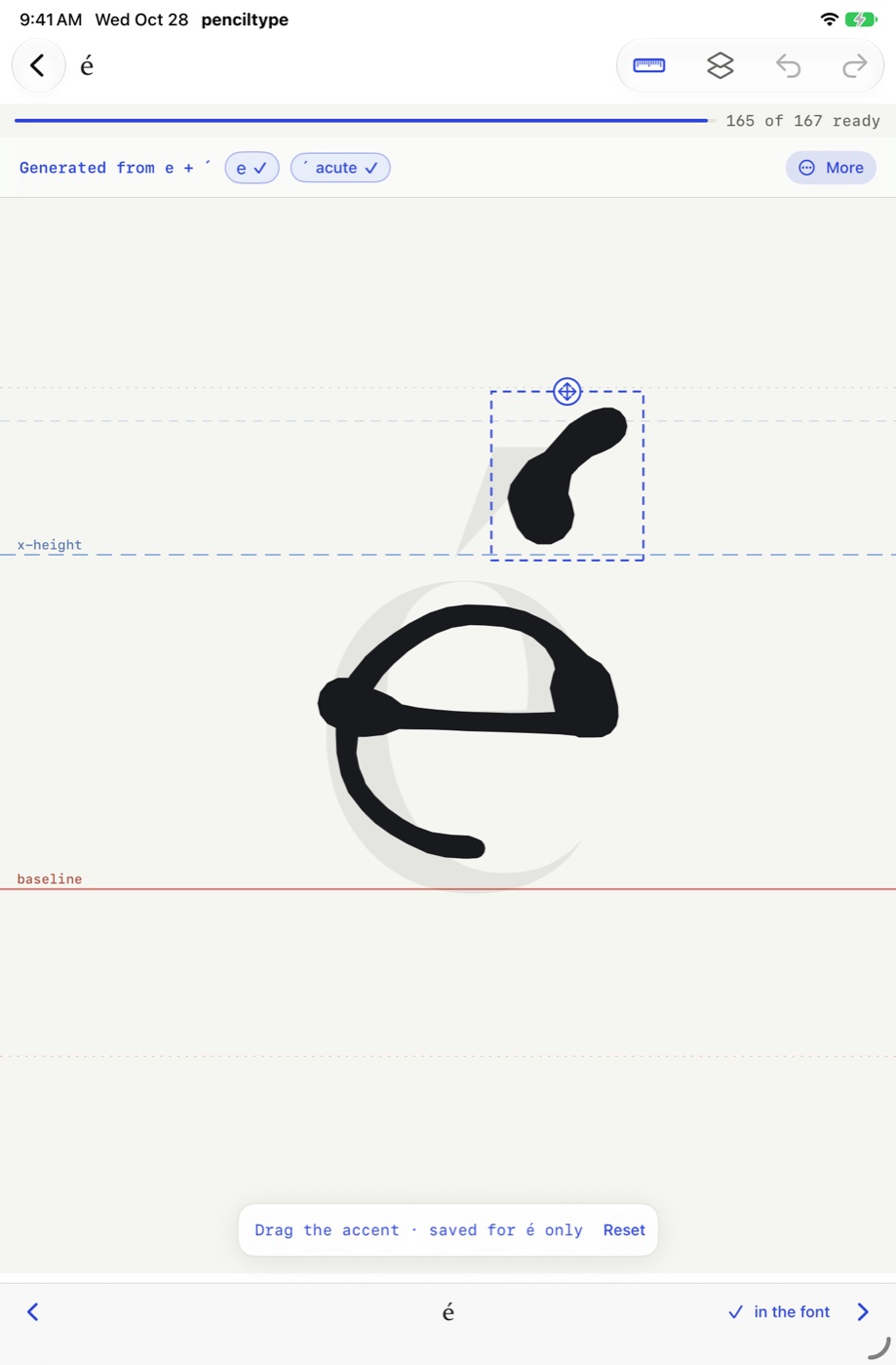
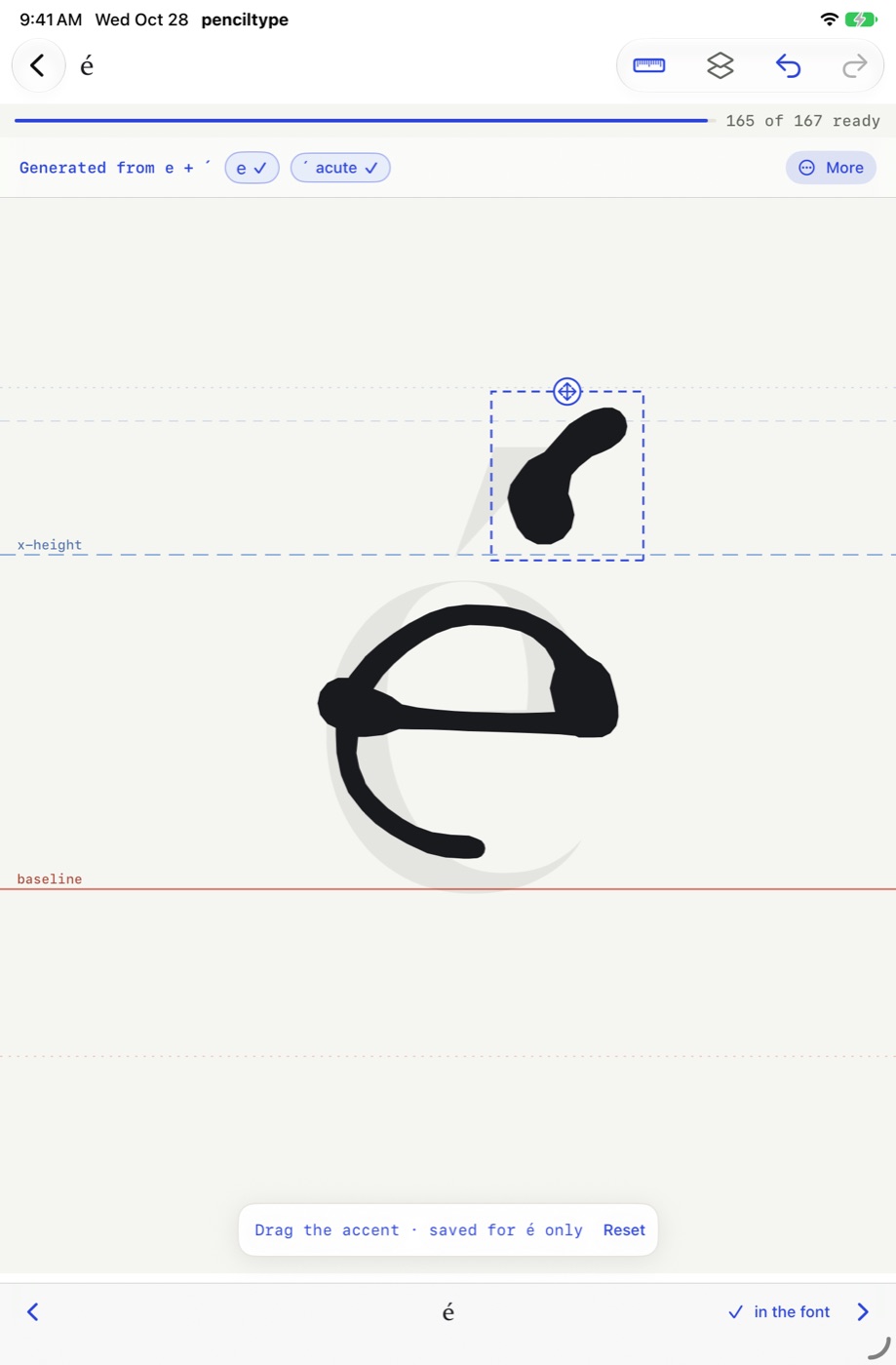
Drag anywhere on the canvas — on the accent or not — to move the accent for this letter only. The e itself and every other letter using ´ are unaffected. Each drag is one undo step (Move accent). Reset in the note puts the accent back where the composer places it.
The More menu
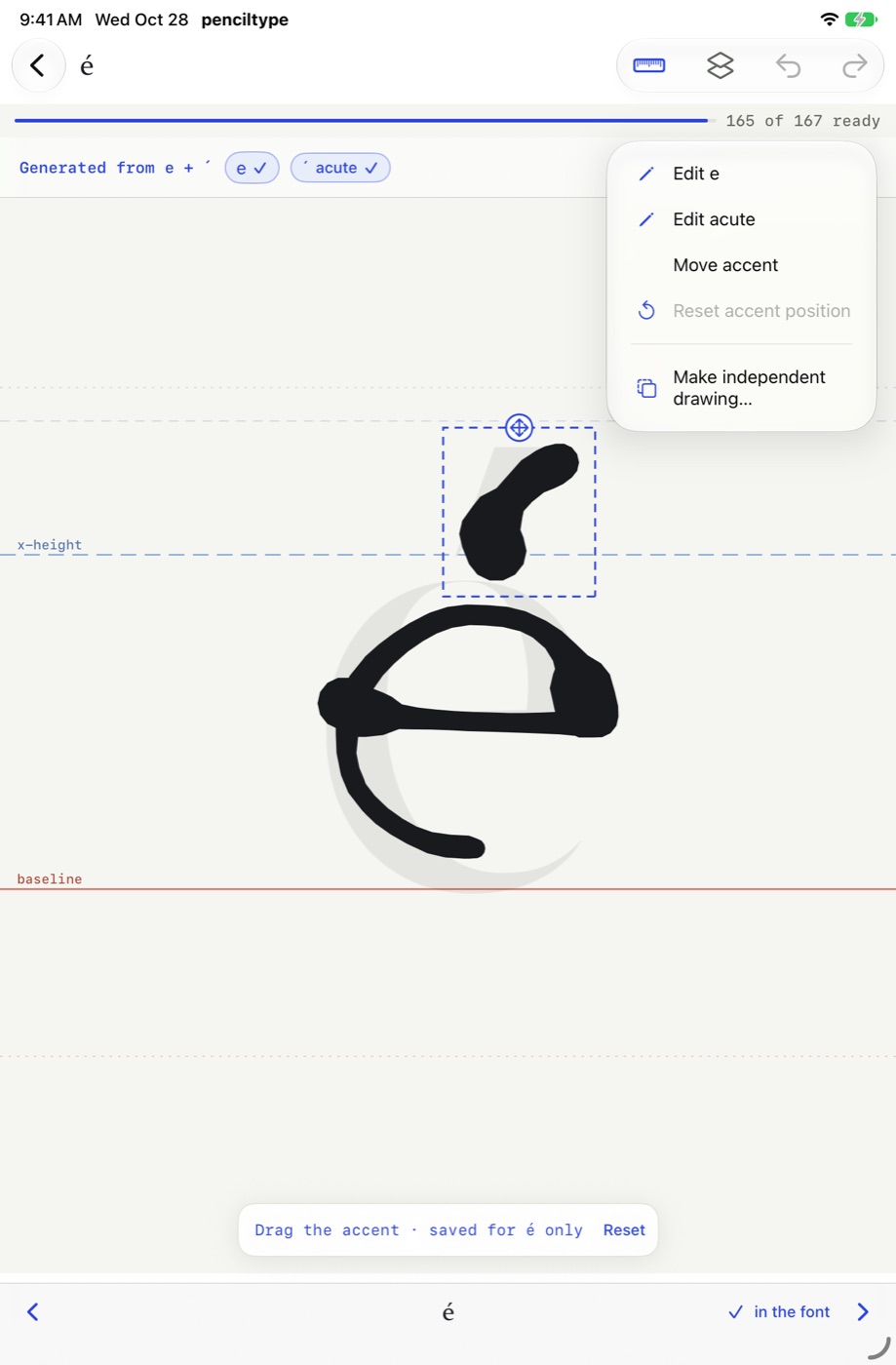
Tap More at the end of the banner:
- Edit e / Edit acute
- Open the base letter's or the mark's canvas.
- Move accent
- Lights up the accent's handle for a moment, so you can see where to drag.
- Reset accent position
- Clears your nudge (dimmed when there is none).
- Make independent drawing…
- Turns é into its own drawing — see below.
If one part isn't drawn yet, the banner says Draw both and é fills itself in and has no menu. With the accent helper off in Font settings, there is no banner and every accented letter is drawn whole, like any other.
Making a letter your own
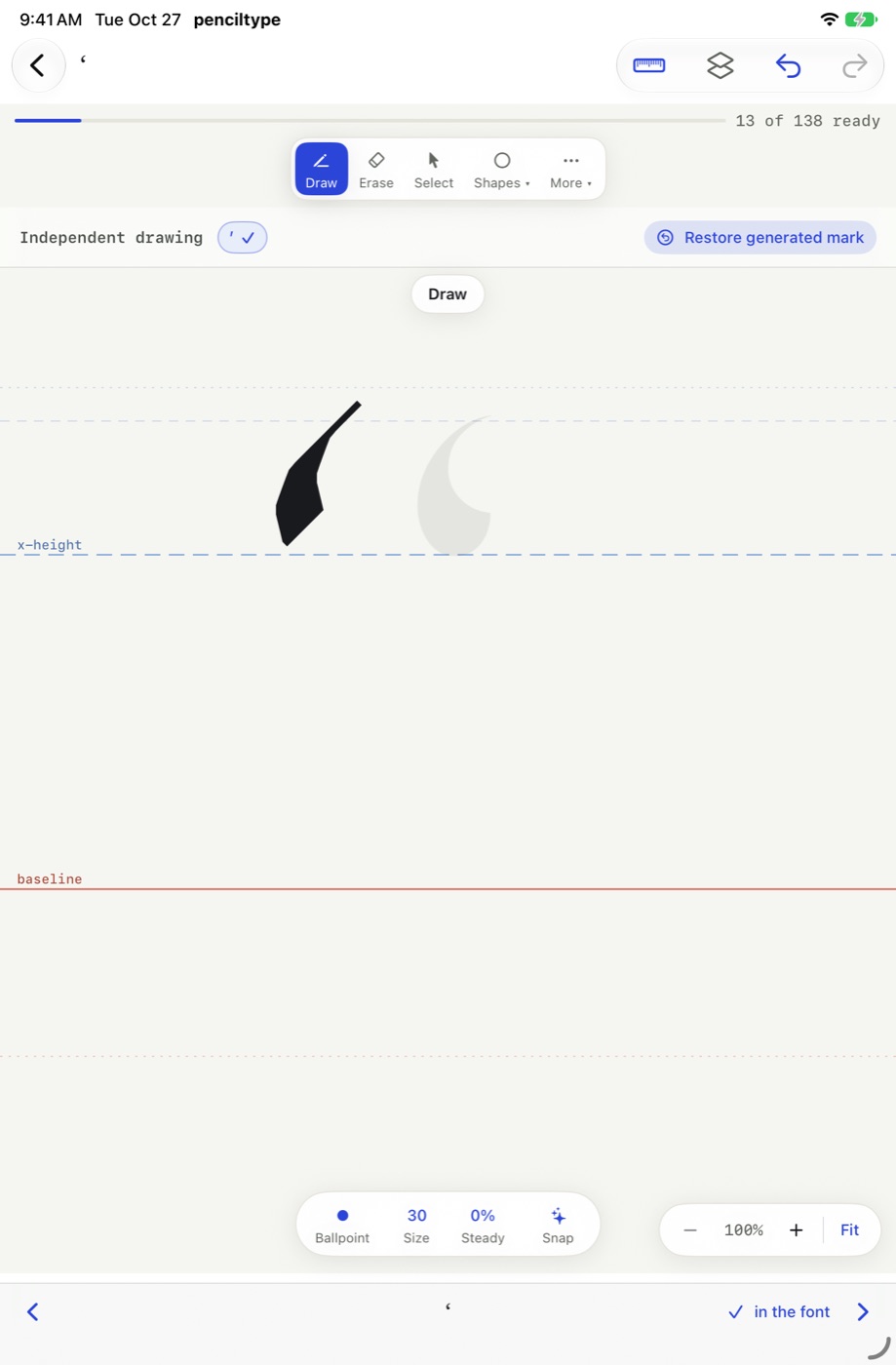
Sometimes the generated version isn't quite right — the accent should join the letter, or the ‘ should be drawn differently. You can take any generated character over:
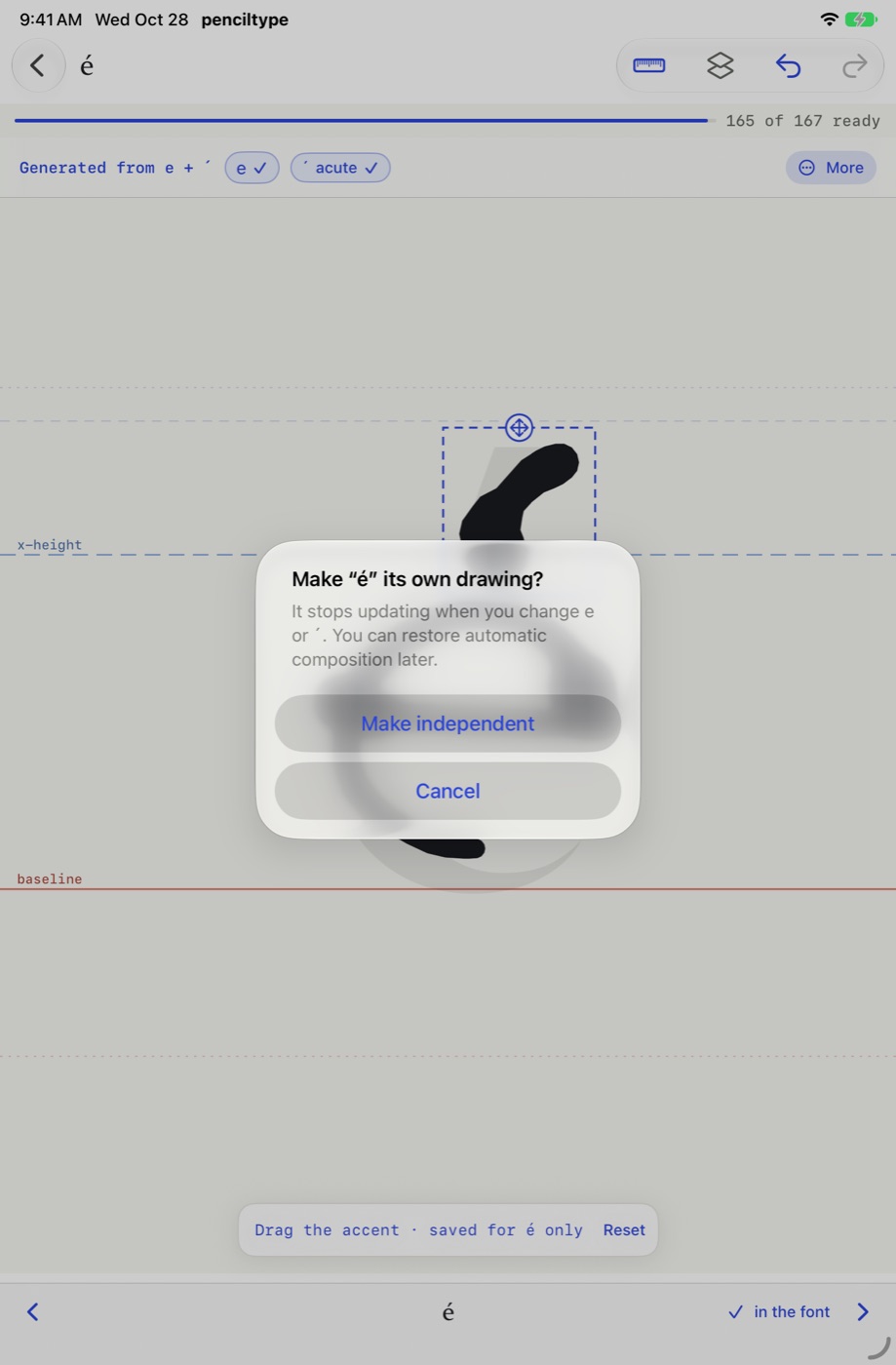
- For a composed accent or an assembled letter, choose More › Make independent drawing…. penciltype asks first — Make “é” its own drawing? It stops updating when you change e or ´. You can restore automatic composition later. — and Make independent copies the generated form onto the canvas as an ordinary drawing you can edit with every tool. Cancel keeps it generated.
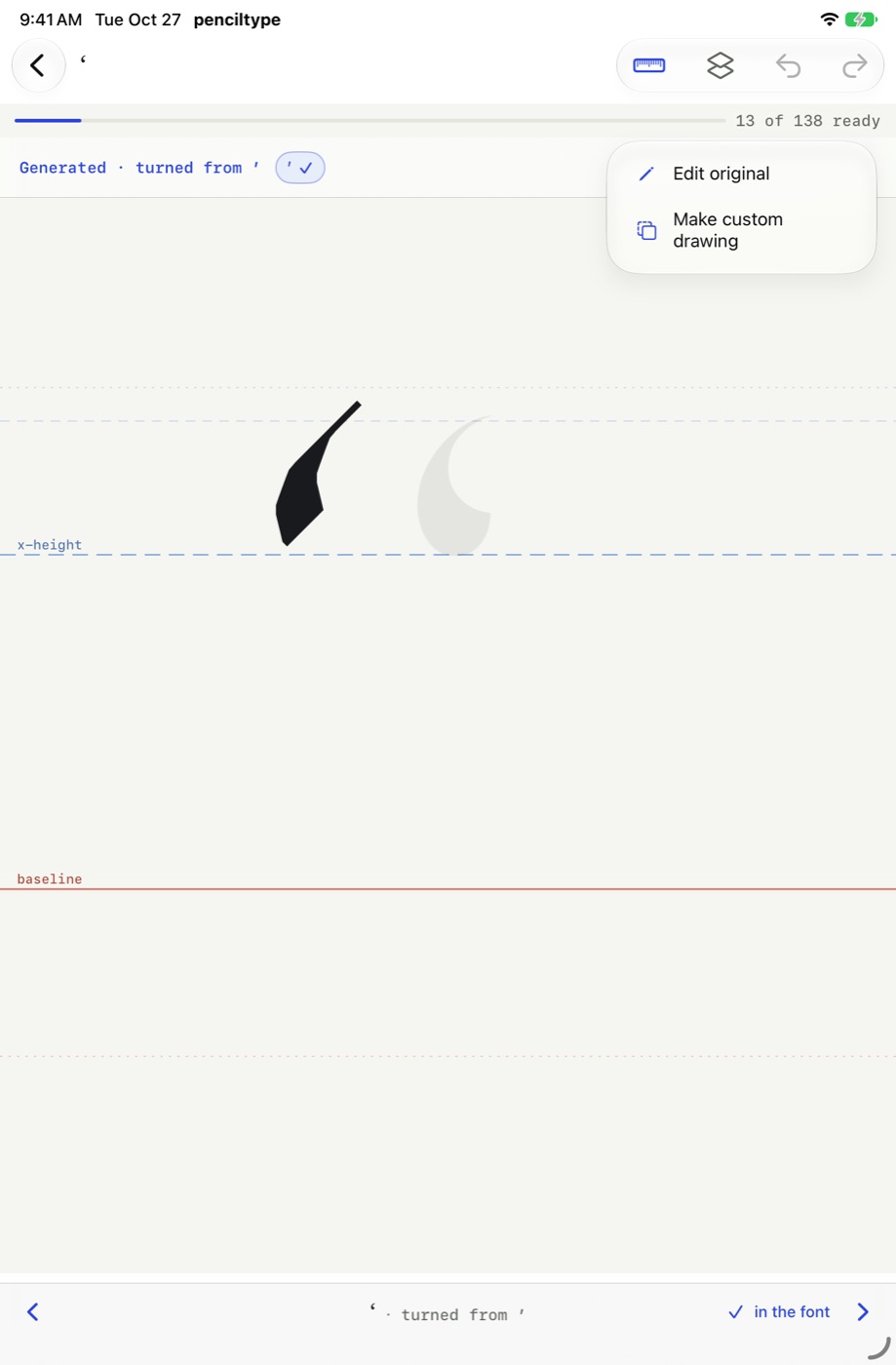
- For turned punctuation, choose More › Make custom drawing. It copies the mark onto the canvas straight away (no question; Undo takes it back).
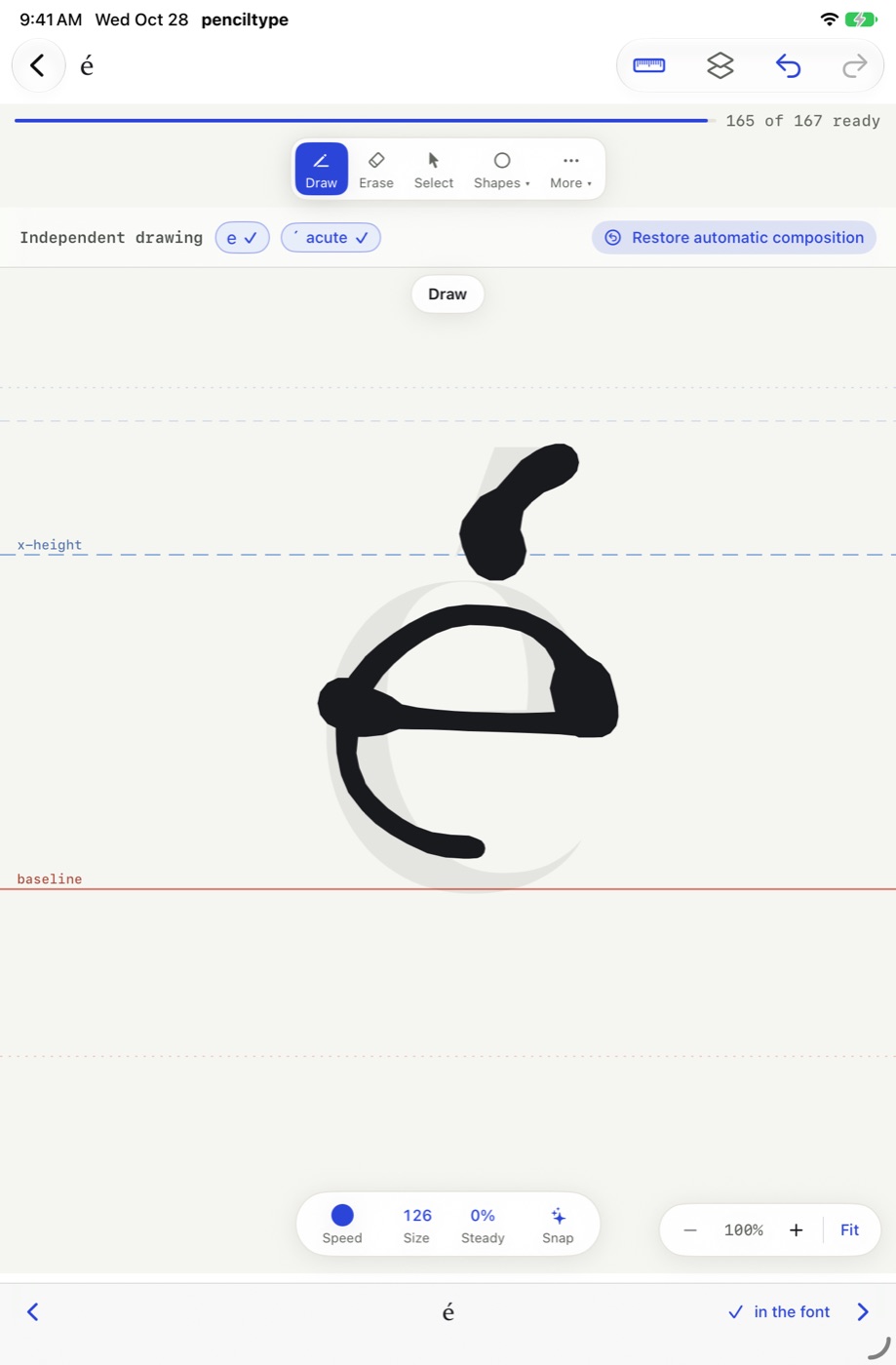
Once a character is your own drawing, its banner reads Independent drawing, still with chips for its parts, and offers a way back: Restore automatic composition, Restore automatic assembly or Restore generated mark. Restoring clears your drawing so the character is generated again (one undo step). Where space is short, the restore button is just its icon. Clearing the drawing with Clear… does the same — the generated form returns.
Part chips, and the Edit … rows in the More menus, open a character's parts on their own canvases: the base letter, the mark, each piece, or the original mark a punctuation character is turned from.
Pieces fonts
A font with Pieces on (set when you create it; see Making a new font) has twelve shared parts — Stem, Tall stem, Descender, Round, Shoulder, Bar, Slash, Open curve, Tail, Dot, Ear and Ess. You draw each once, in the grid's Pieces — draw once, used everywhere section, and every letter with a recipe is assembled from them.
Drawing a piece
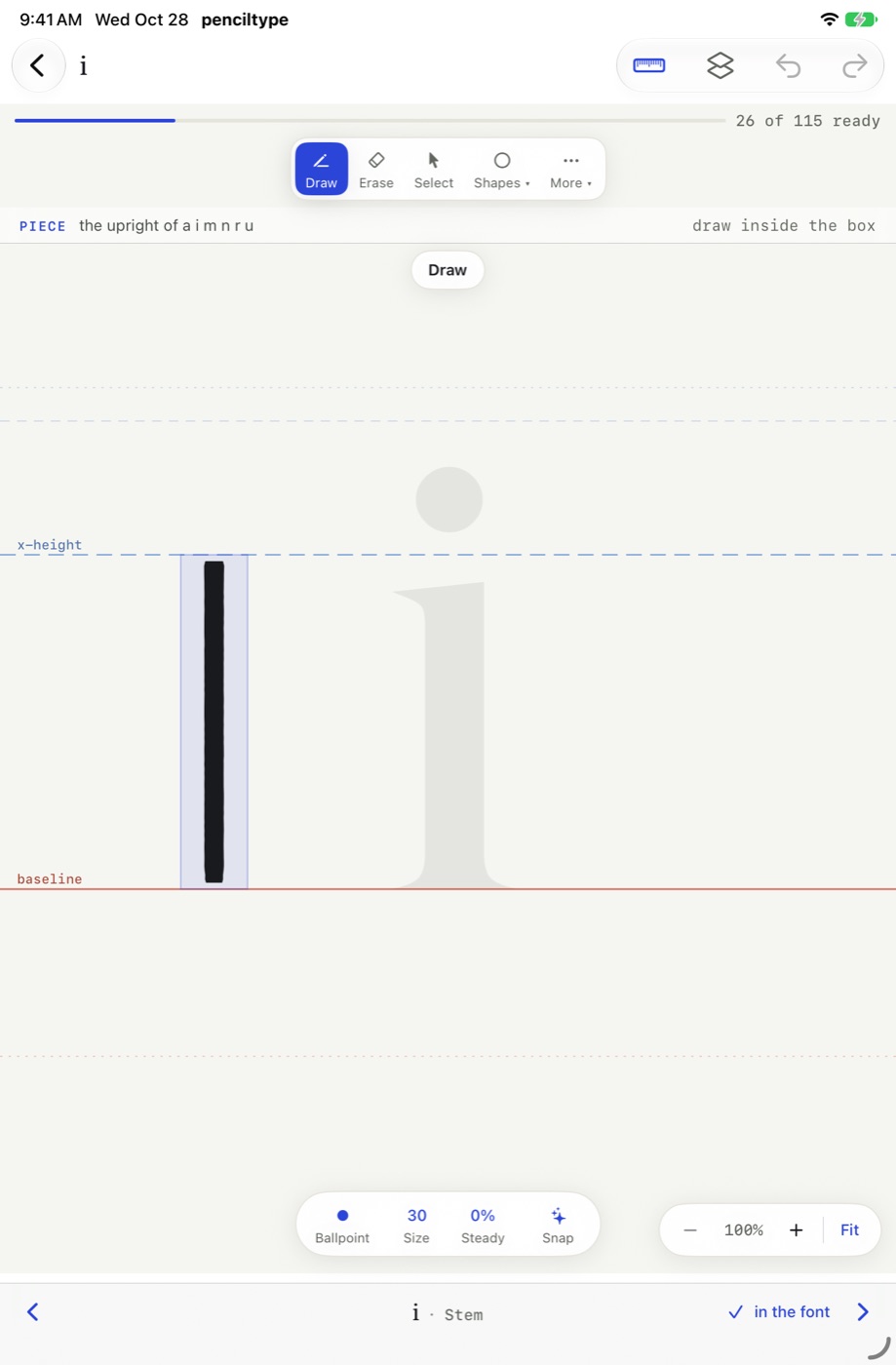
A piece's canvas has a PIECE banner saying where the piece is used (for the Stem, the upright of a i m n r u and more) and draw inside the box: a ghosted target box shows where the piece's ink belongs, so every letter built from it comes out coherent. ‹ and › in the letter bar step through the twelve pieces, and Clear… reads Clear piece.
Assembled letters
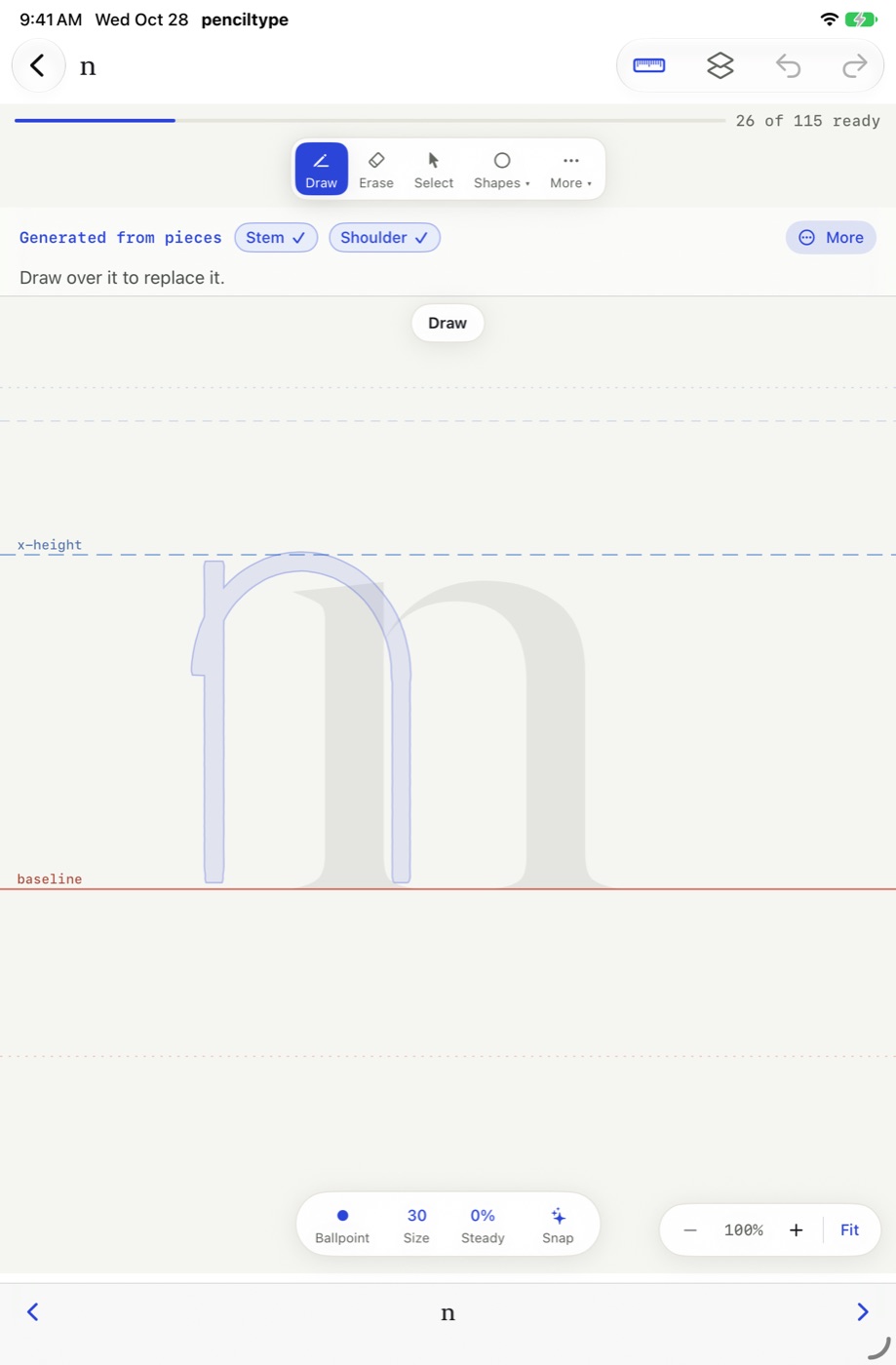
Open a letter with a recipe, such as n, and its banner reads Generated from pieces, with a chip for each piece it uses (Stem ✓, Shoulder ✓). The assembled letter is ghosted on the canvas. Unlike a composed accent, an assembled letter keeps all its tools: when every piece is drawn the banner says Draw over it to replace it, and drawing turns the letter into your own drawing. While some pieces are still missing it says More pieces sharpen it; with none drawn, Draw the pieces and n builds itself.
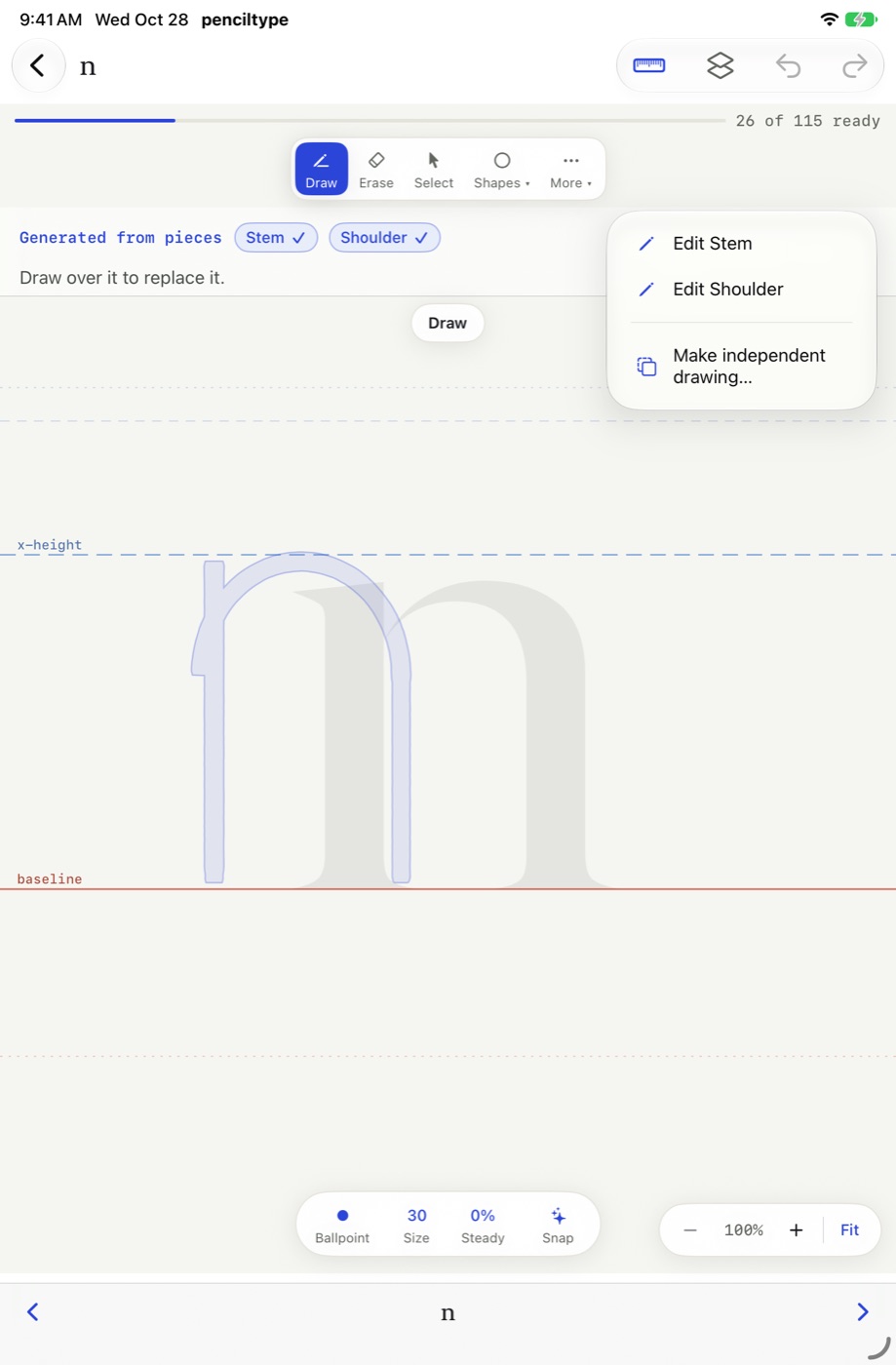
The banner's More menu has Edit rows for each piece and Make independent drawing…, which asks first and then stops the letter following its pieces. Over a hand-drawn version, Restore automatic assembly brings the assembled form back.
Turned and mirrored punctuation
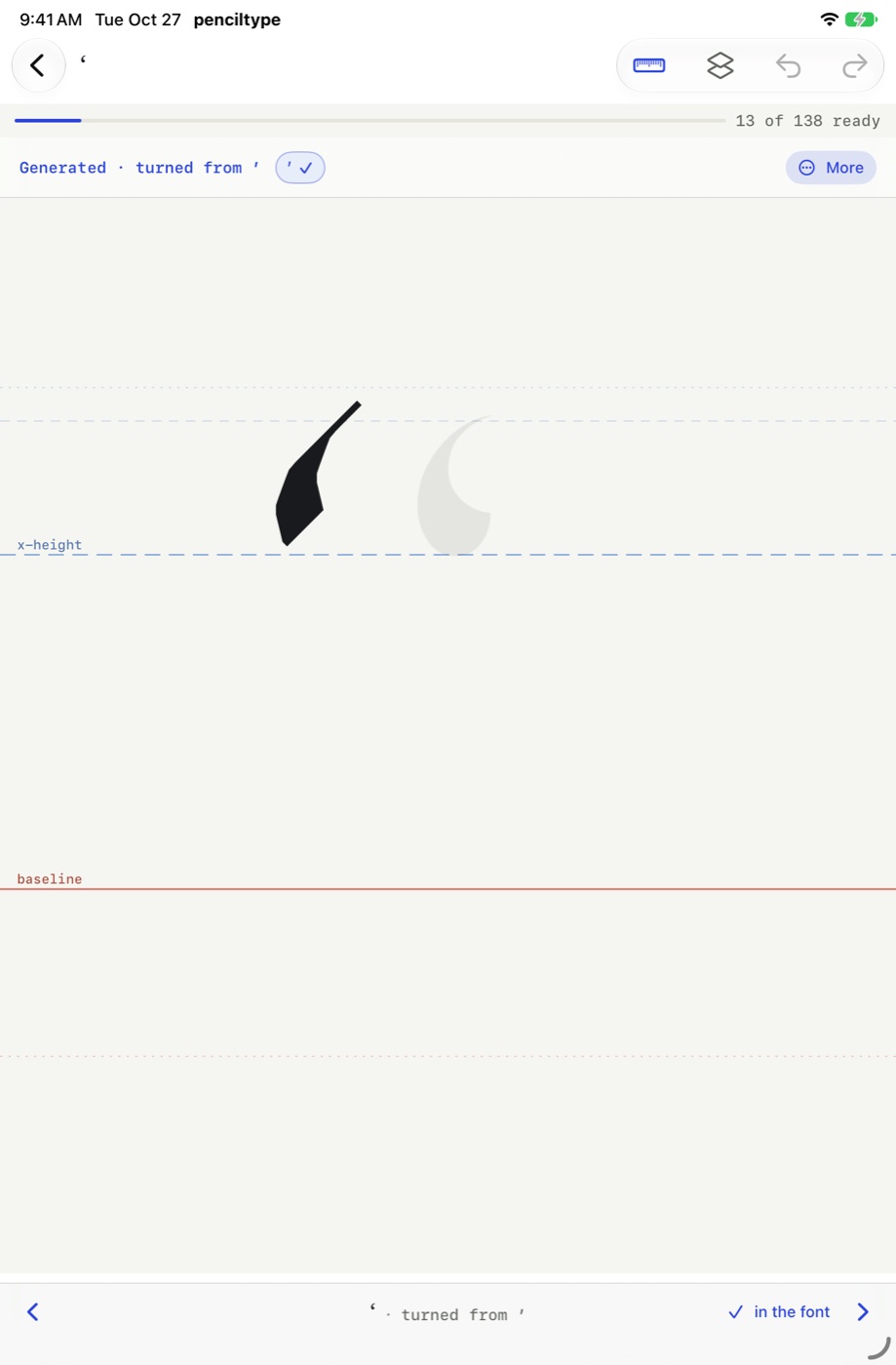
Paired punctuation is made from its partner: draw ’ and you get ‘ (turned), draw ( and you get ) (mirrored), draw ’ and the low „ marks follow (lowered). Open one and its banner reads Generated · turned from ’ (or mirrored from (, lowered from ’), with a chip for the original. The letter bar's caption says turned from ’ too.
The mark is shown solid, as the font ships it, and the canvas is read-only — touches do nothing, and there is no tool strip or pen bar. To change it, either edit the original (More › Edit original, or tap its chip), or take it over with More › Make custom drawing.
Generated paired marks are skipped when you step with ‹ and › unless the font's Stop on generated marks is on.