

Backups and iCloud
penciltype keeps your fonts safe in three ways: restore points it saves on the device, backup files you can keep anywhere, and iCloud sync between your devices. This chapter covers all three, and how to get fonts back.
Restore points
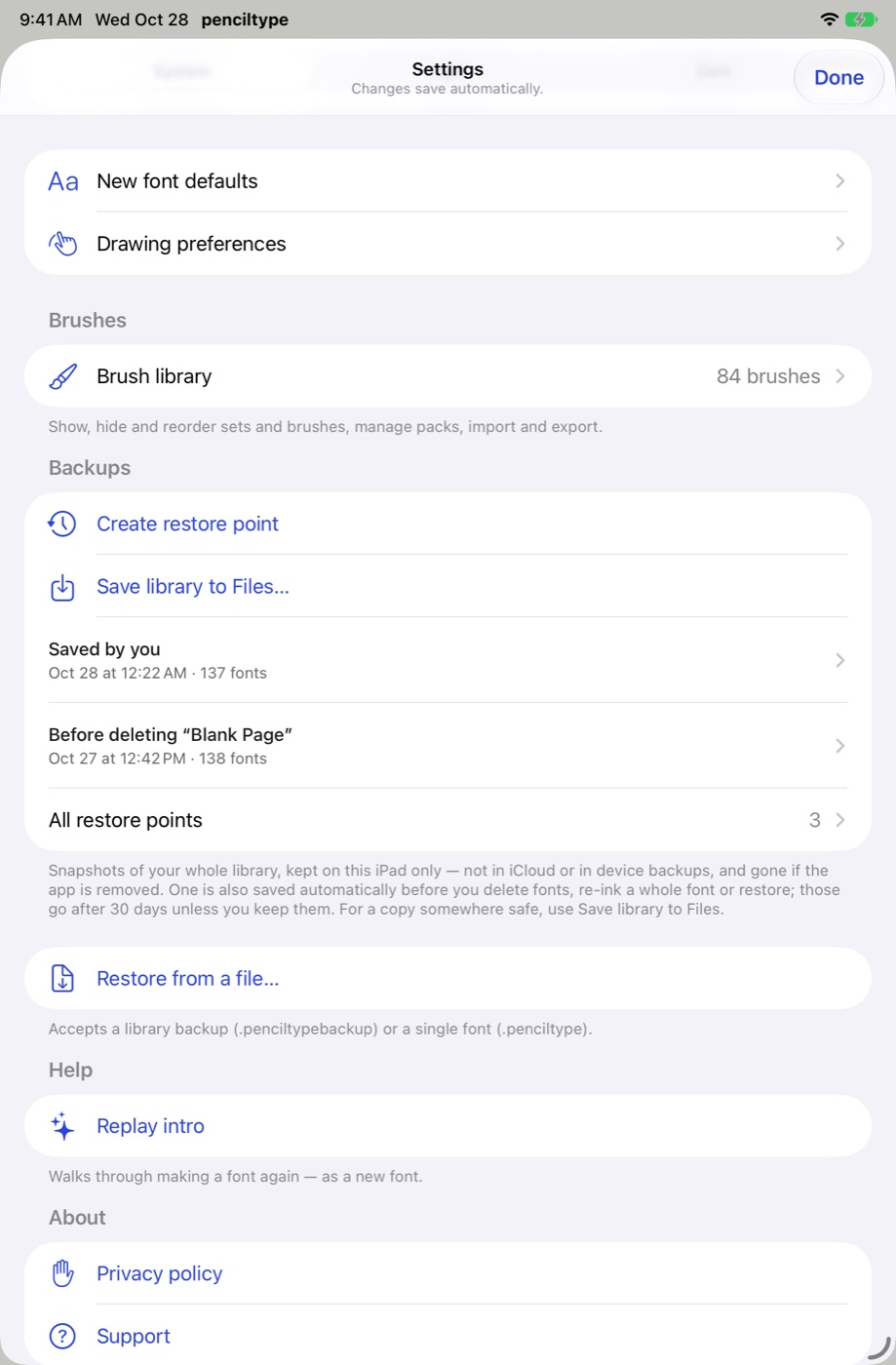
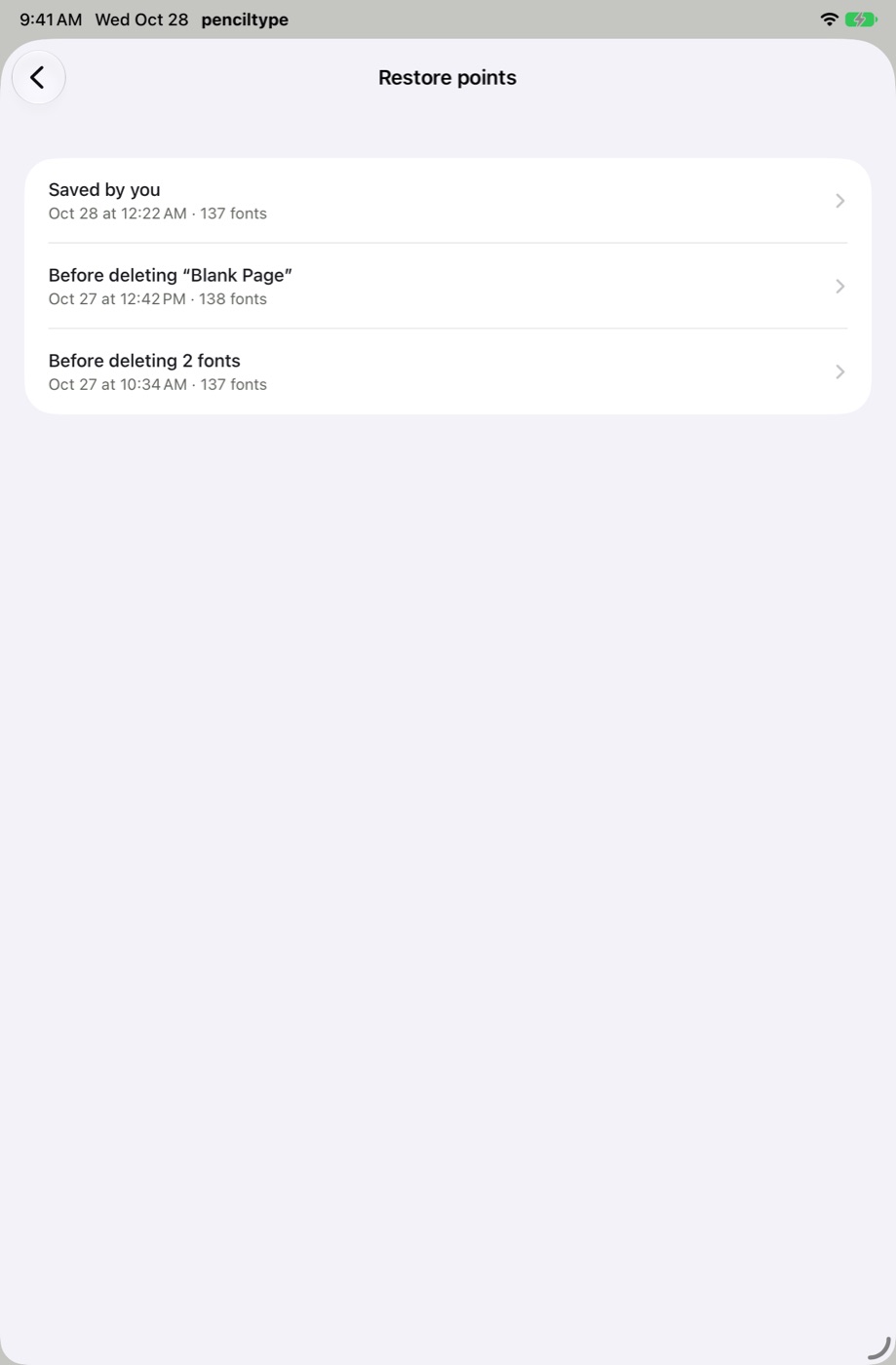
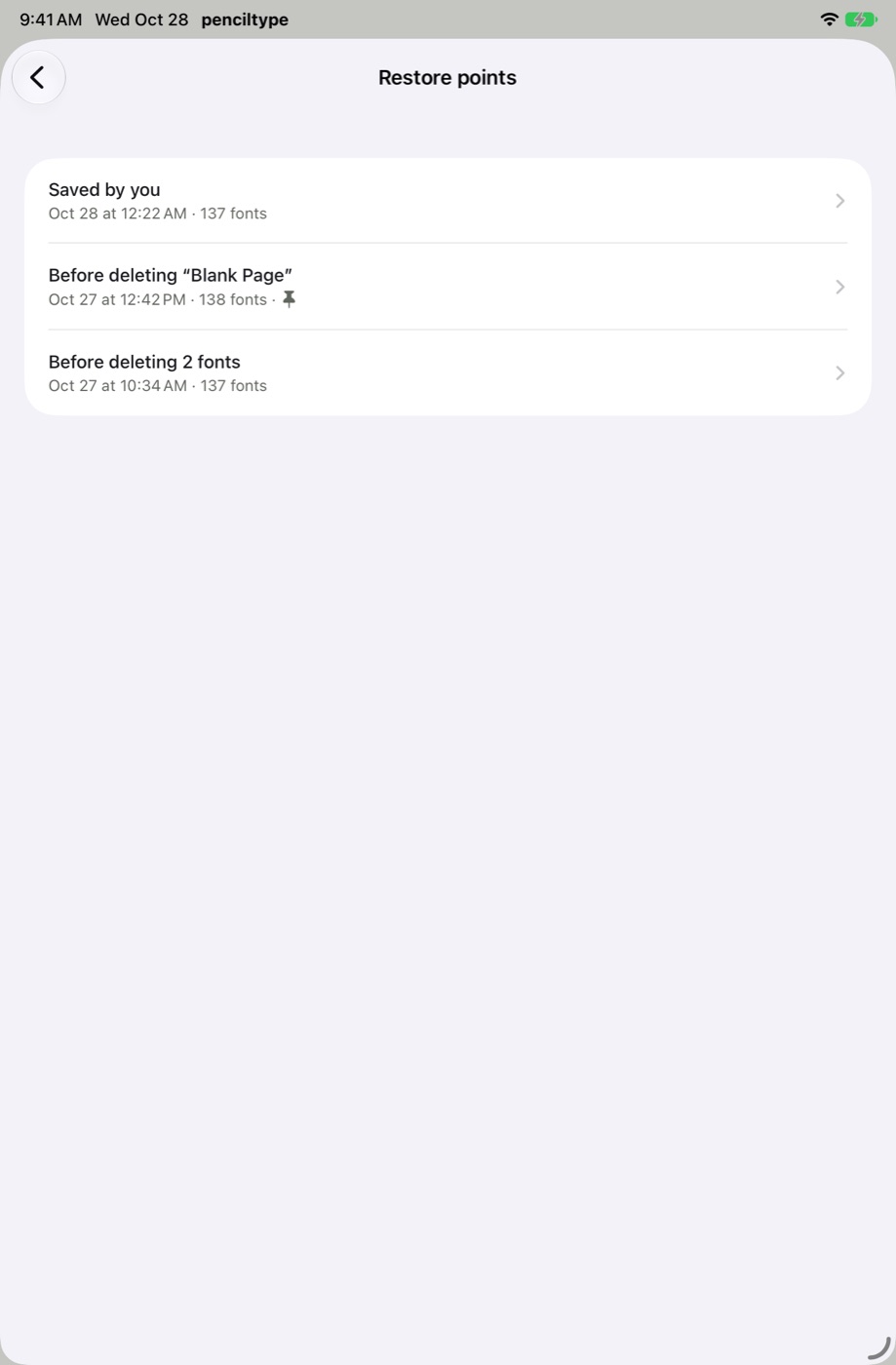
A restore point is a snapshot of your whole library at one moment. You'll find them in Settings › Backups: the newest two are listed there, and All restore points (shown once you have more than two) lists every one. Each row gives the reason it was made, then the date and how many fonts it holds, for example Before deleting 2 fonts · Oct 27 at 10:34 AM · 137 fonts.
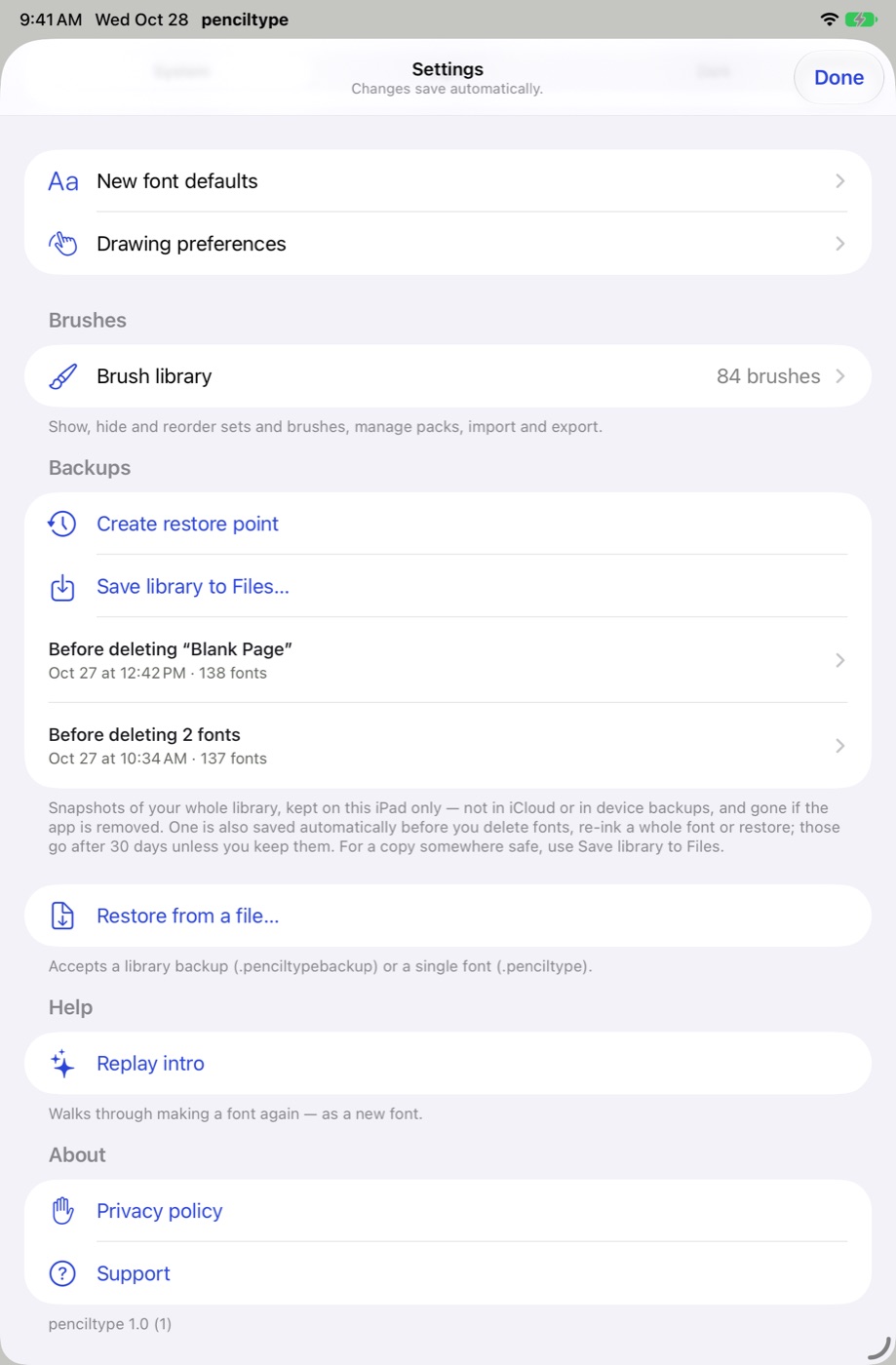
penciltype saves one automatically before anything that could lose work:
- Before deleting “Name” or Before deleting 3 fonts: before you delete fonts, including in Compare copies, and before a font deleted on another device is deleted here.
- Before re-inking “Name”: before you re-ink a whole font.
- Before restoring: before a restore changes your fonts.
- Before replacing your library: when you choose to save first before replacing your library.
Ones you make yourself are titled Saved by you.
Restore points take almost no space, because they share the unchanged parts of your fonts. They're kept on this device only: not in iCloud, not in the device's own backups, and they're gone if you delete the app. For a copy somewhere safe, save a backup file.
How long they last
Automatic points are removed after 30 days, and only the newest ten are kept (re-ink points keep to their own newest three, so experimenting with pens never pushes out a delete's point). Deleting several things in a row shares one point. To keep an automatic point for good, keep it. Points you make yourself, and Before replacing your library points, never expire.
Making a restore point
Tap Settings › Backups › Create restore point. A spinner shows while it saves, then a Saved by you point heads the list. The button is dimmed while your library is loading and when you have no fonts.
If the point can't be written, for example because the device is full, you'll see Couldn't save a restore point with the reason. Free up some space and try again.
Keeping and deleting restore points
In the list (on Settings, or under All restore points):
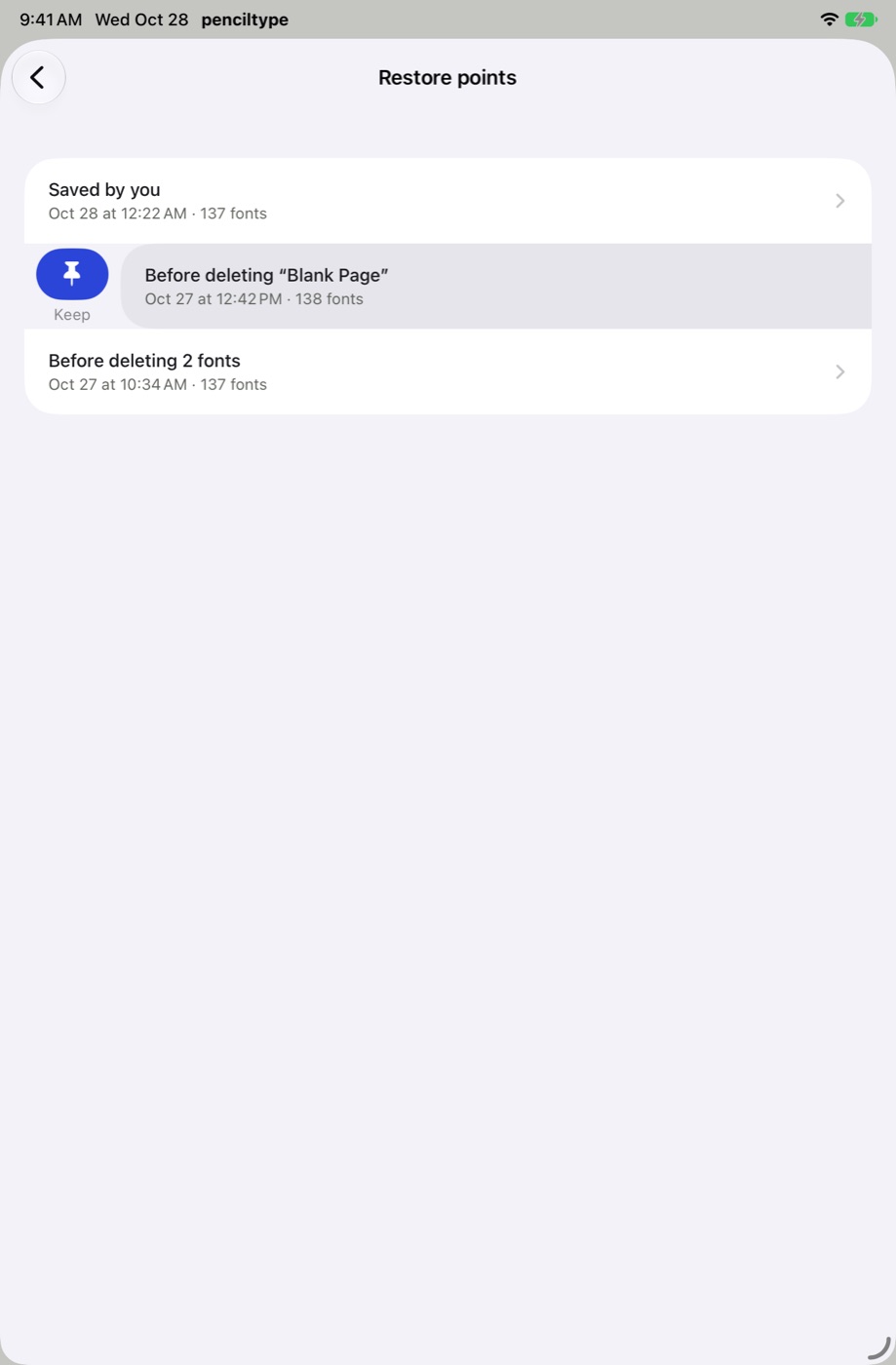
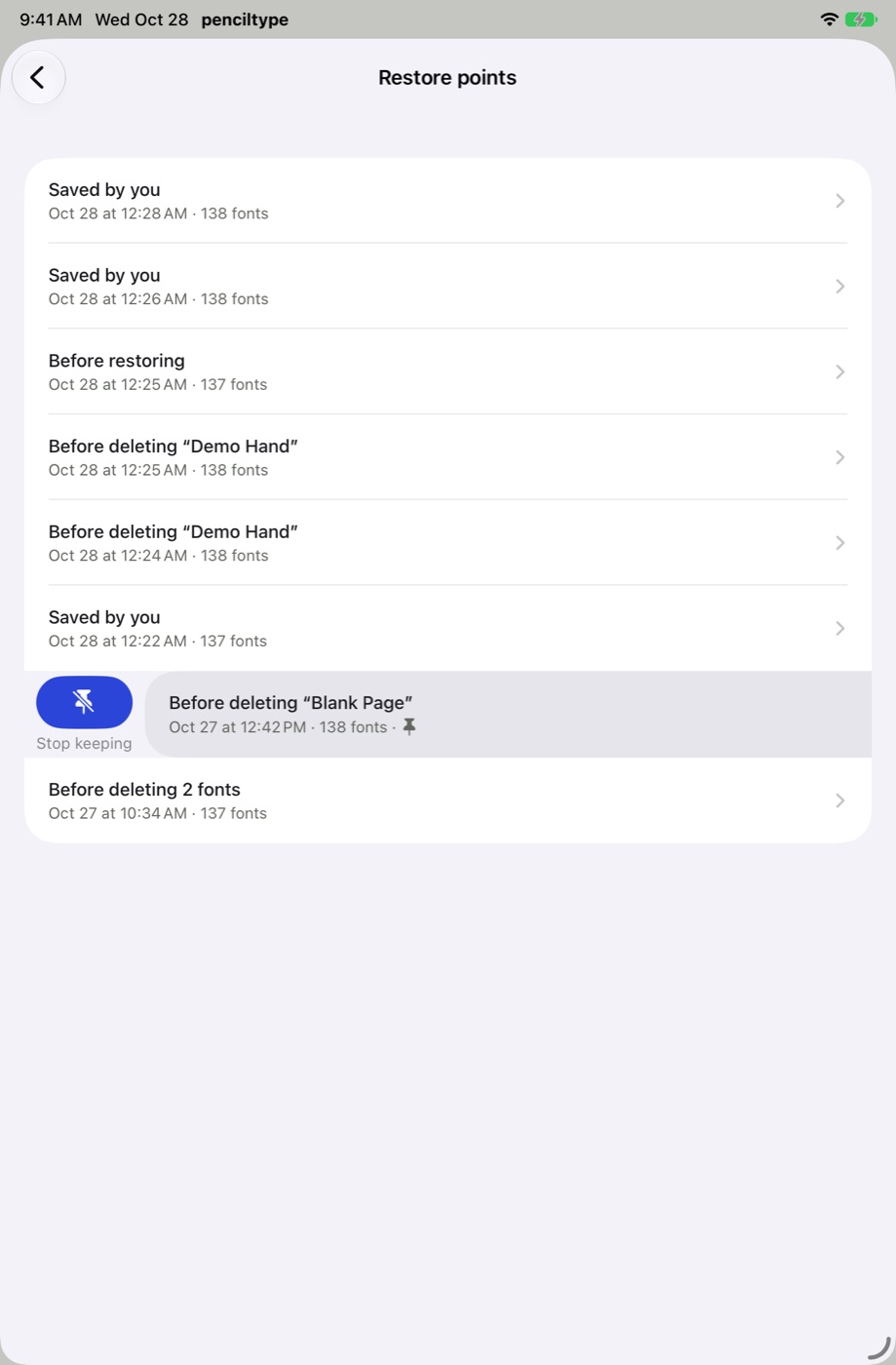
- Swipe right on an automatic point and tap Keep: it gets a pin and never ages out. Swipe right again for Stop keeping. Points you made, and Before replacing points, are always kept, so they have no swipe right.
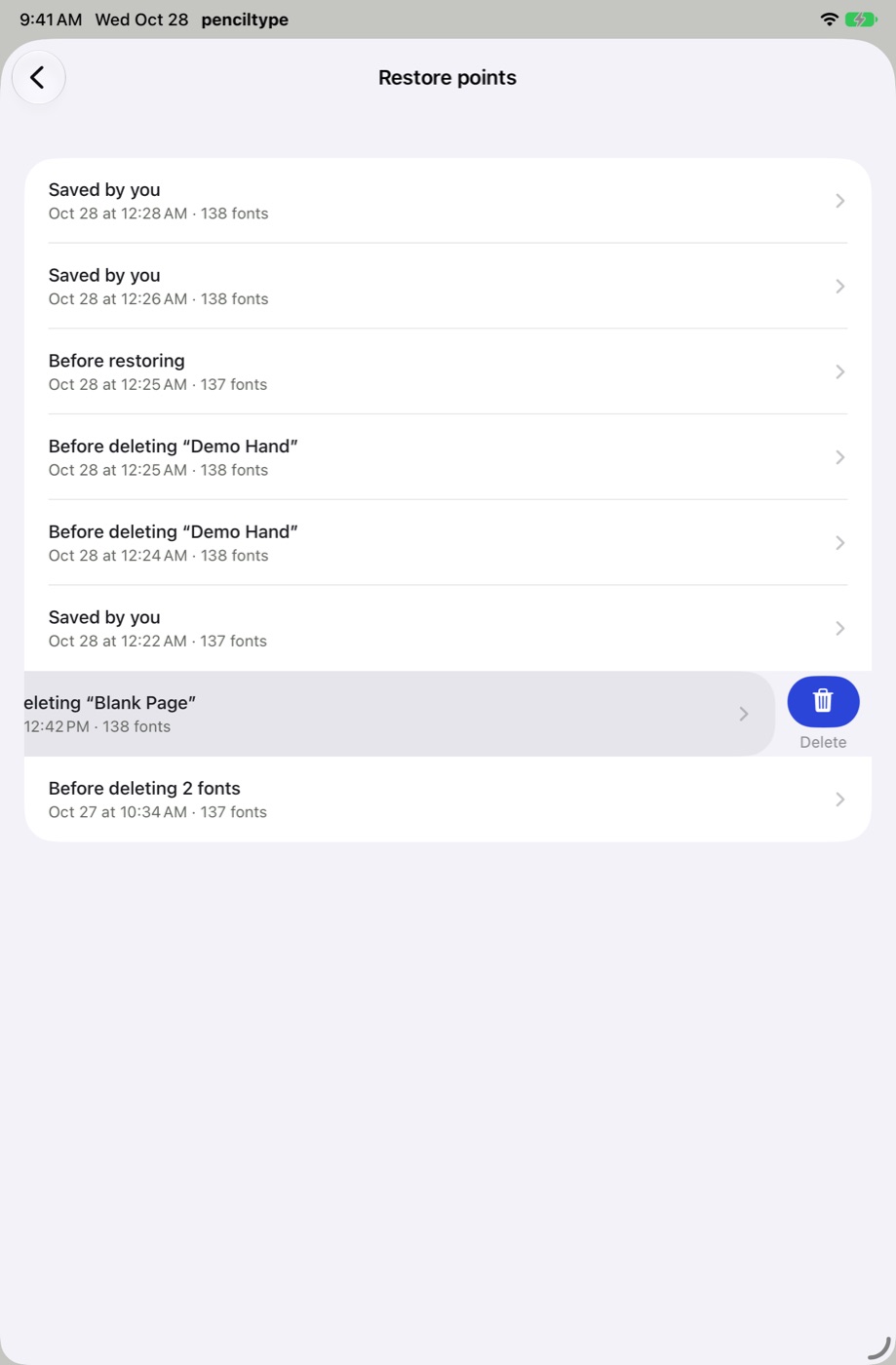
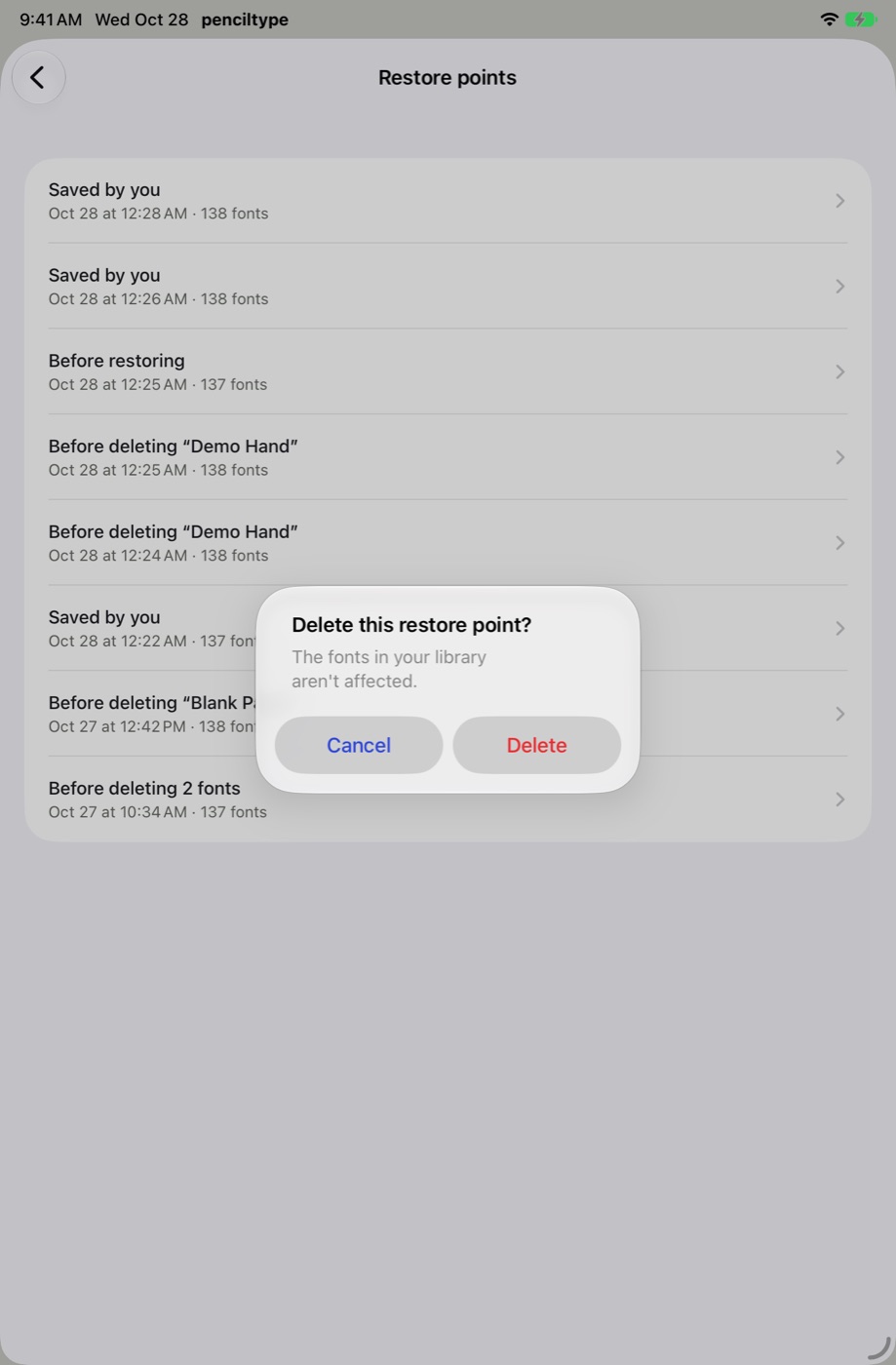
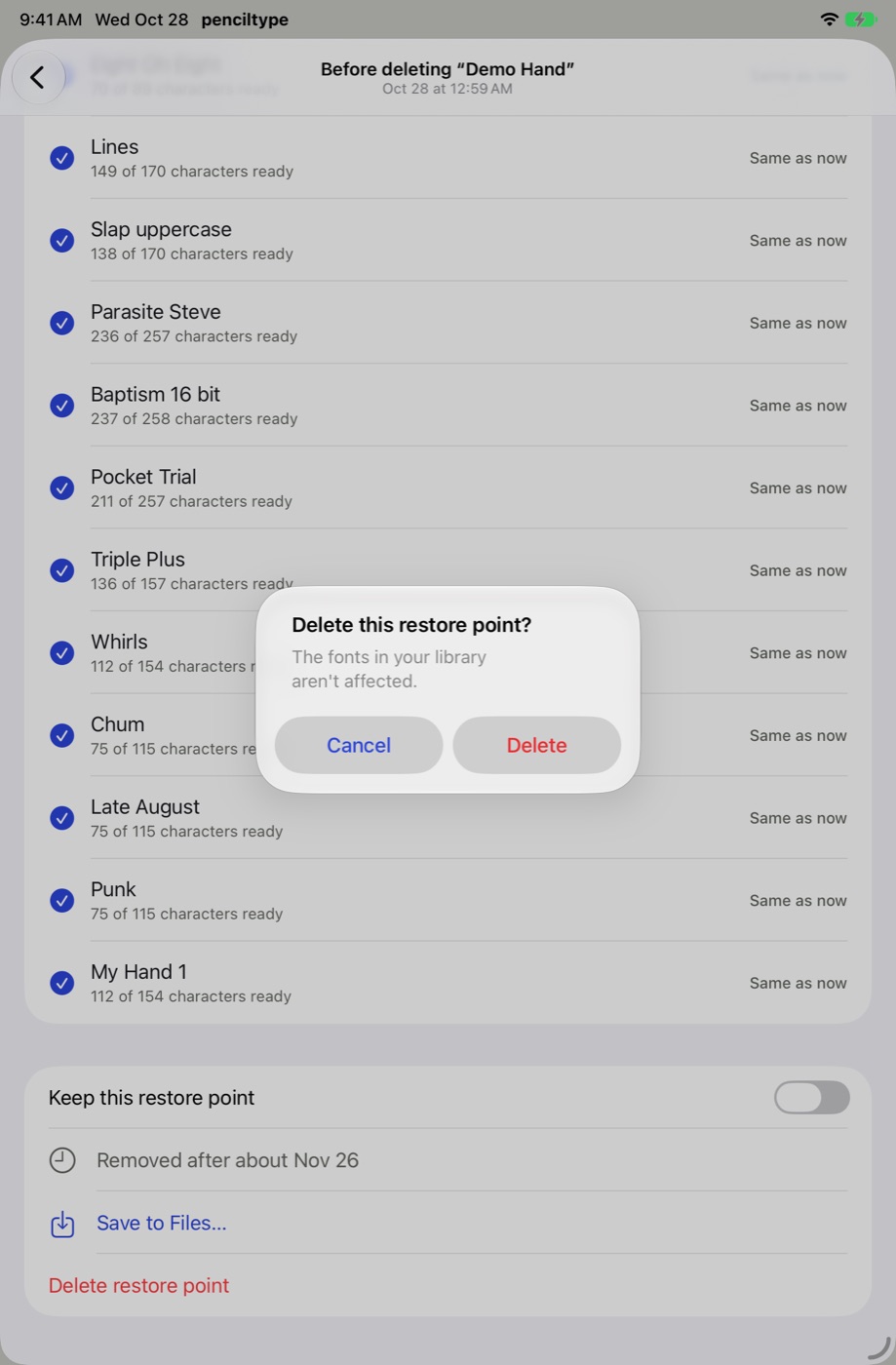
- Swipe left and tap Delete to remove a point. penciltype asks first; your fonts aren't affected.
On a Mac, swipe with two fingers on the trackpad. The same controls are at the bottom of each point's own screen (below).
Undoing a delete
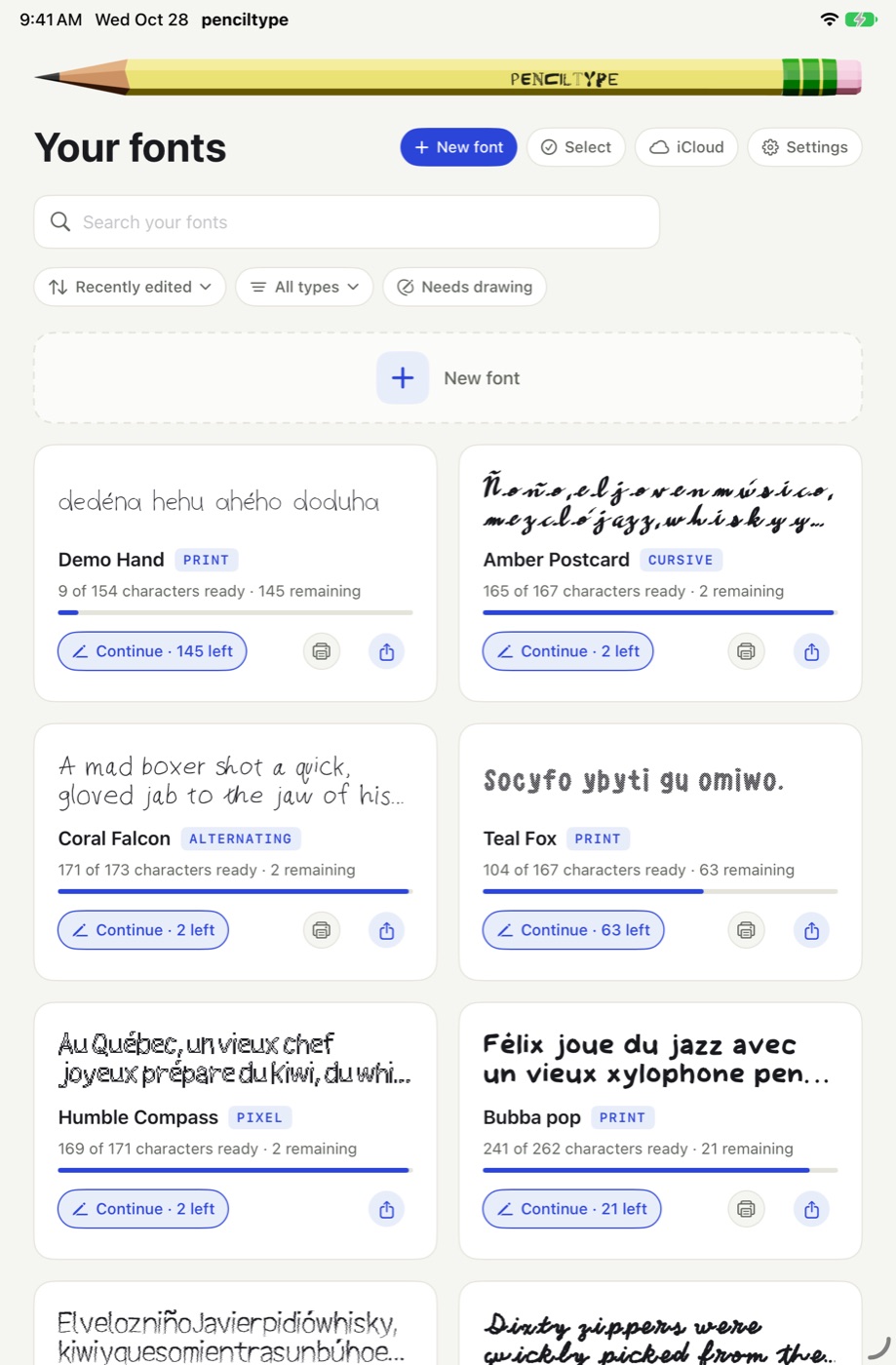
Right after you delete fonts, a banner at the bottom of Your fonts says Deleted “Name” (or Deleted 3 fonts). Undo brings just those fonts back from the restore point saved a moment before. View backup opens that restore point in Settings, so you can look before deciding. The × hides the banner; the fonts stay deleted, and the point stays in Settings for 30 days.
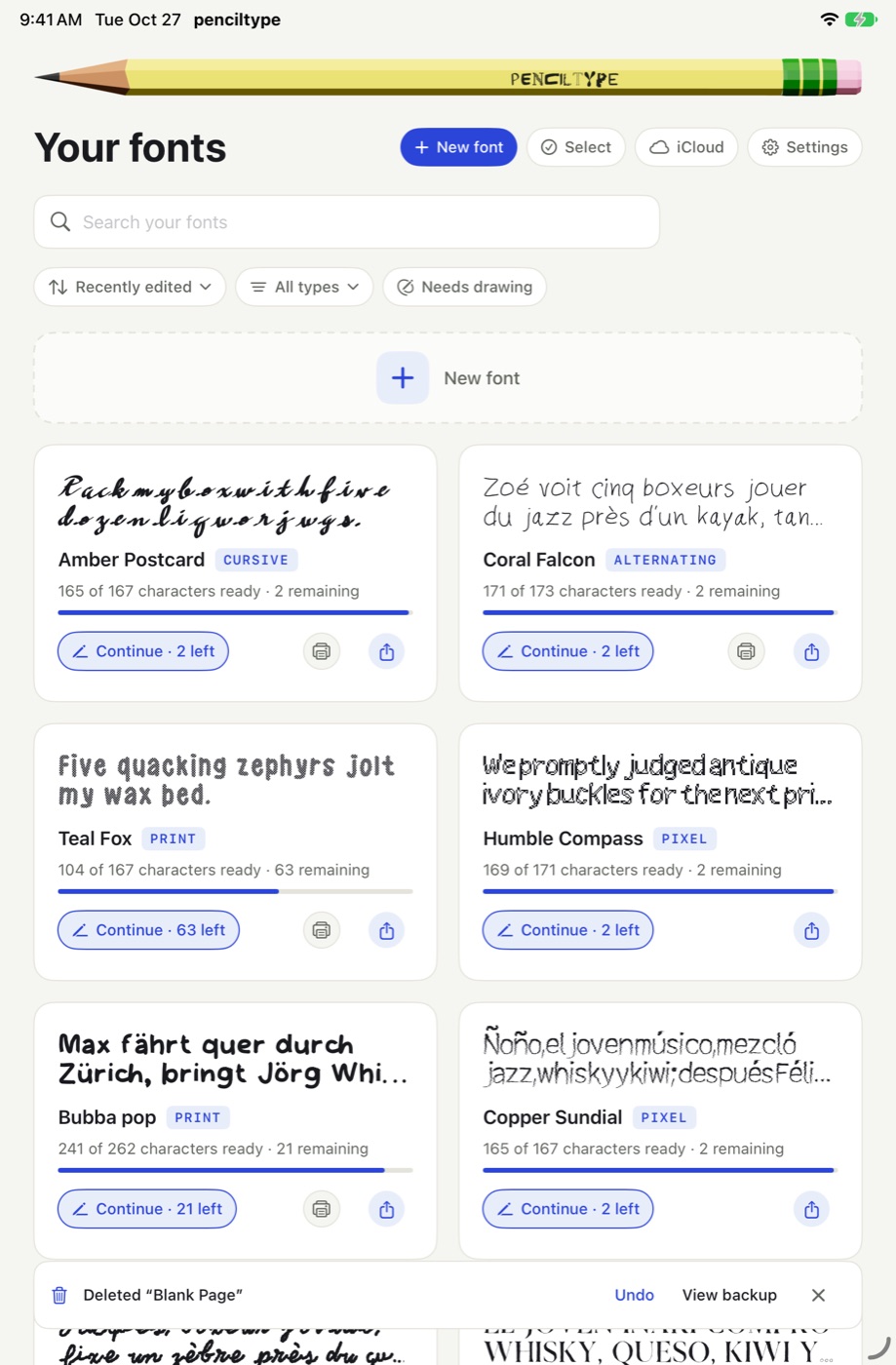
The banner never times out, but it goes away at your next change to the library (a new font, an import, a sync, a restore or another delete). After that, the restore point is still there: open it in Settings and restore the font from it.
Restoring
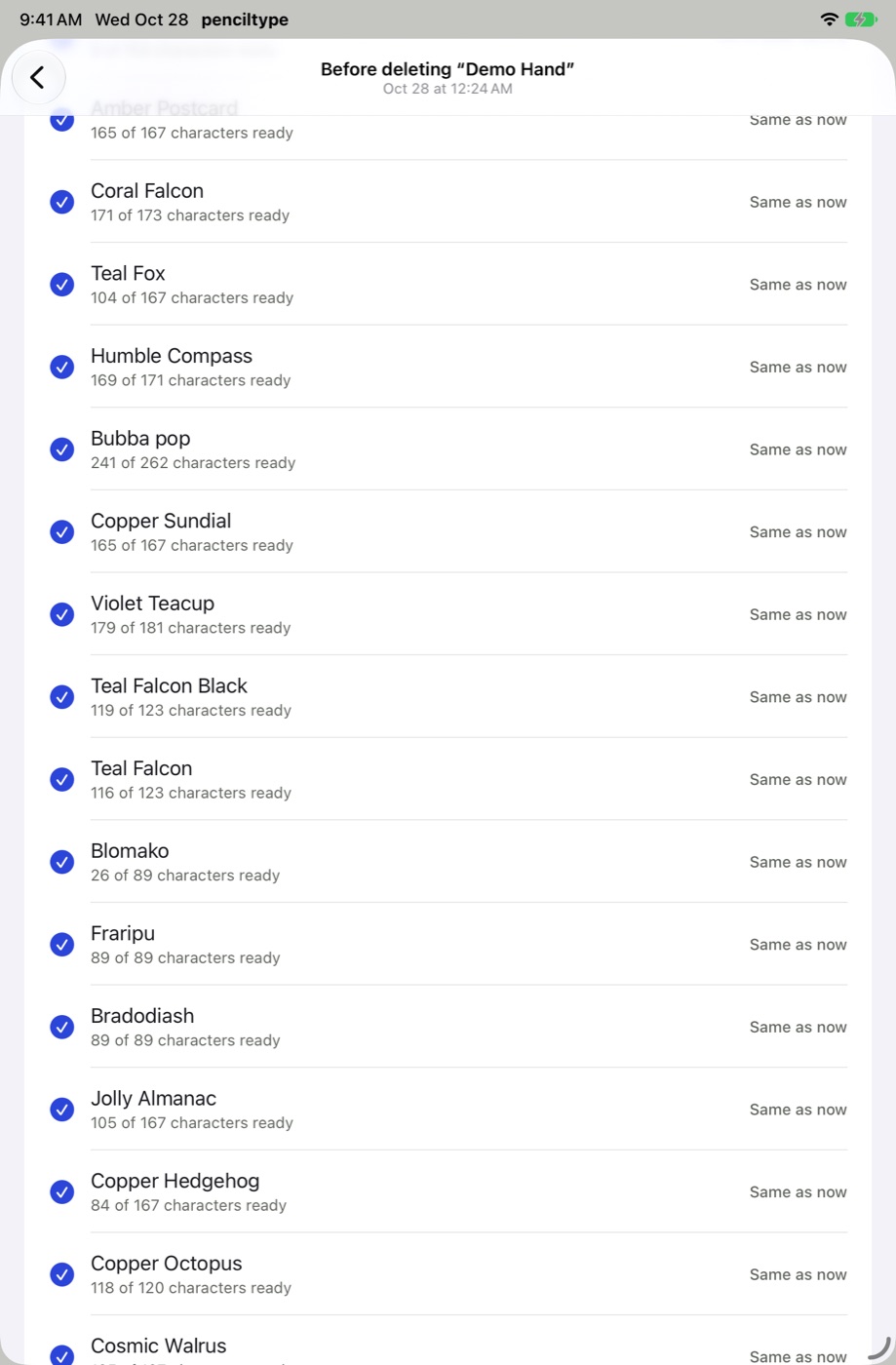
Tap a restore point (or View backup on the Undo banner). Its screen is titled with the reason and the date, and shows everything you need to decide:
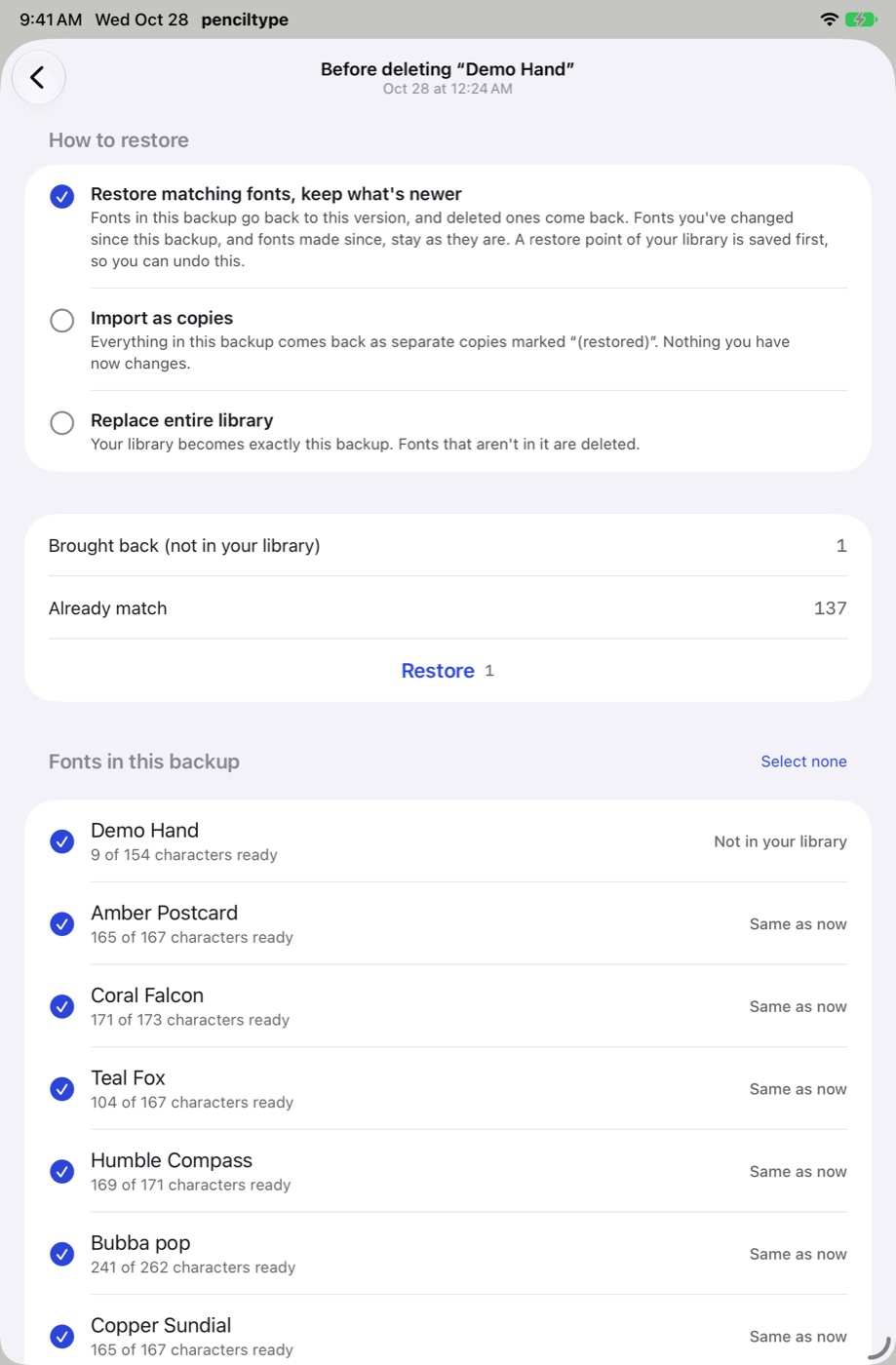
How to restore
- Restore matching fonts, keep what's newer
- The usual choice. Fonts in this backup go back to the version in it, and fonts you've deleted since come back. Fonts you've changed since the backup, and fonts you've made since, stay as they are. A restore point of your library is saved first, so you can undo this.
- Import as copies
- Everything in the backup comes back as separate copies named “Name (restored)” (then “Name (restored 2)”…). Nothing you have now changes.
- Replace entire library
- Your library becomes exactly this backup. Fonts that aren't in it are deleted — also from your other devices, while iCloud sync is on.
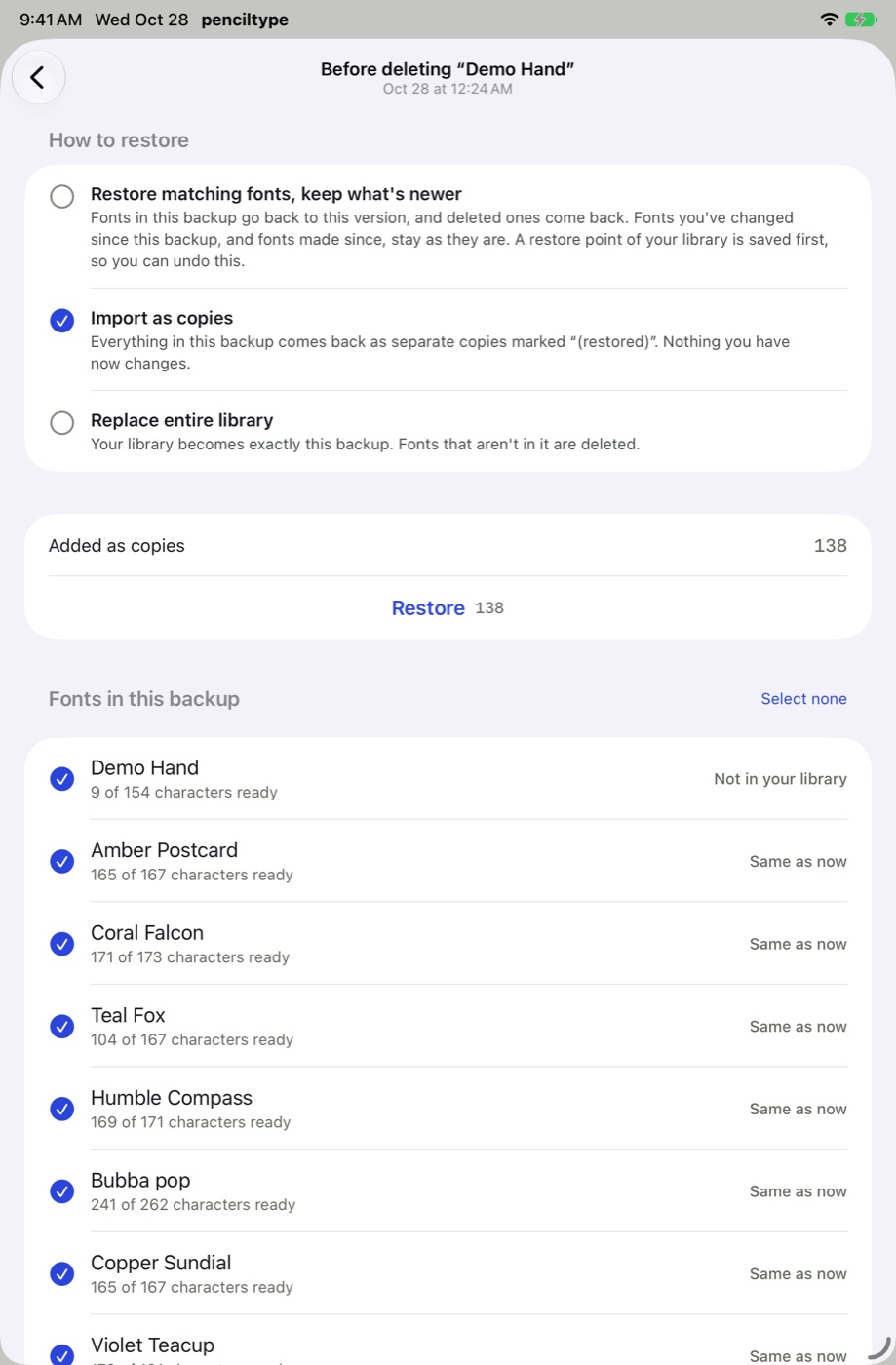
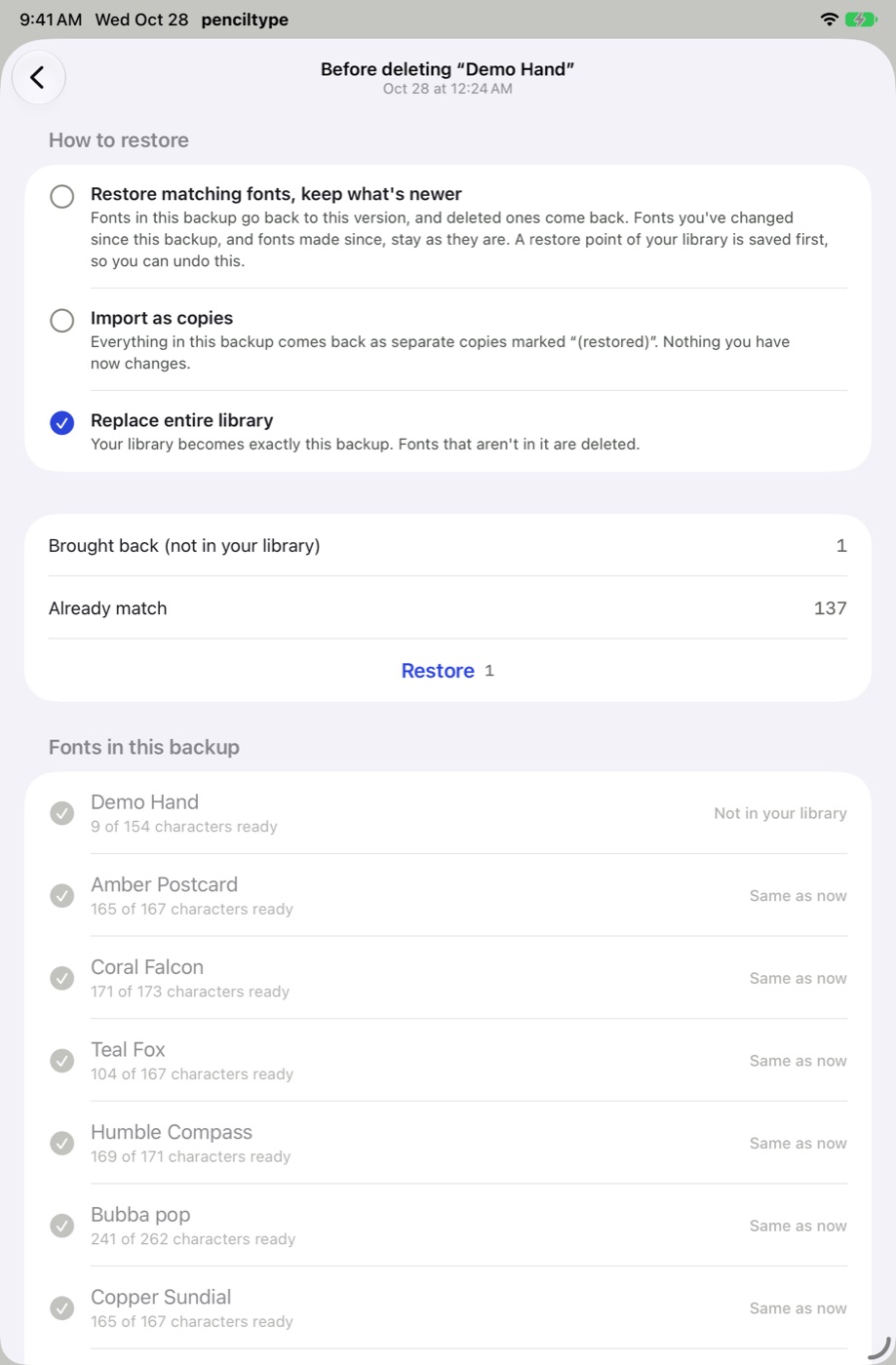
Under the choices, a summary counts what will happen: Restored to the backup's version, Changed since this backup — kept, Brought back (not in your library), Kept (not in this backup), Already match, Added as copies, and, in red, Removed. The Restore button shows how many fonts it will change. If there's nothing to do, it says Nothing to restore — your library already matches this backup.
Choosing fonts
Fonts in this backup lists every font in the point with a tick, its progress and how it compares with now: Same as now, Changed since this backup, Newer in backup or Not in your library. Untick fonts you don't want back; tick a font that's Changed since this backup to roll it back anyway. Select all / Select none sit above the list when there are two fonts or more. Replace always takes every font, so the ticks are greyed out for it. Changing the choice above resets the ticks.
Running the restore
Tap Restore. penciltype first saves a Before restoring point of your library (so you can undo the restore), then restores font by font: Saving a restore point…, then Restoring 1 of 3…. When it's done, Settings closes and you're back on the shelf. A restore clears each letter's undo history.
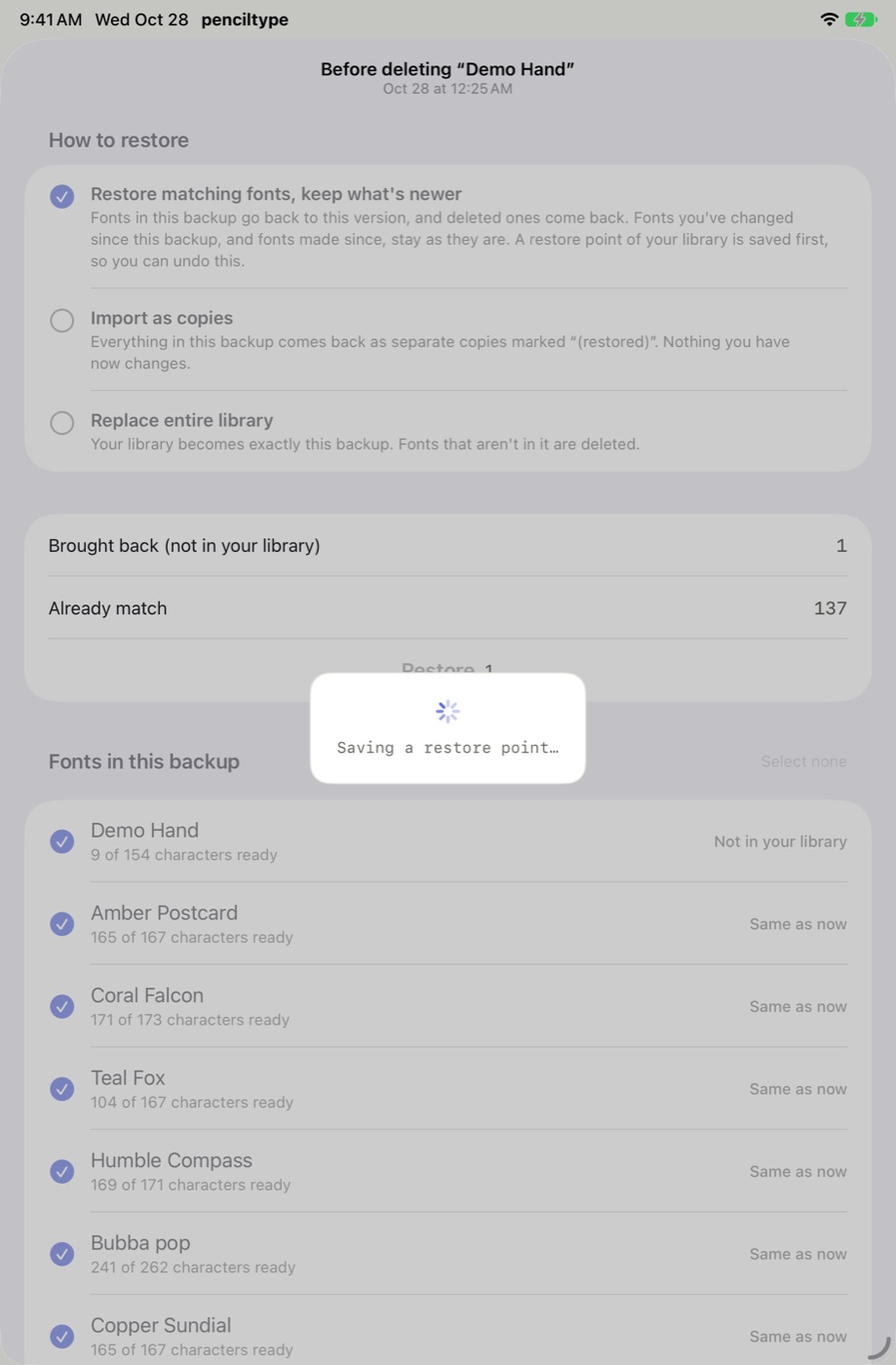
If you switch away mid-restore, penciltype asks the system for time to finish.
When replacing would delete fonts
If Replace entire library would delete or overwrite fonts you have now, penciltype asks Save your library first?:
- Save, then replace
- Saves a Before replacing your library point (kept for good), then replaces.
- Replace without saving
- Replaces with no safety point.
- Cancel
- Does nothing.
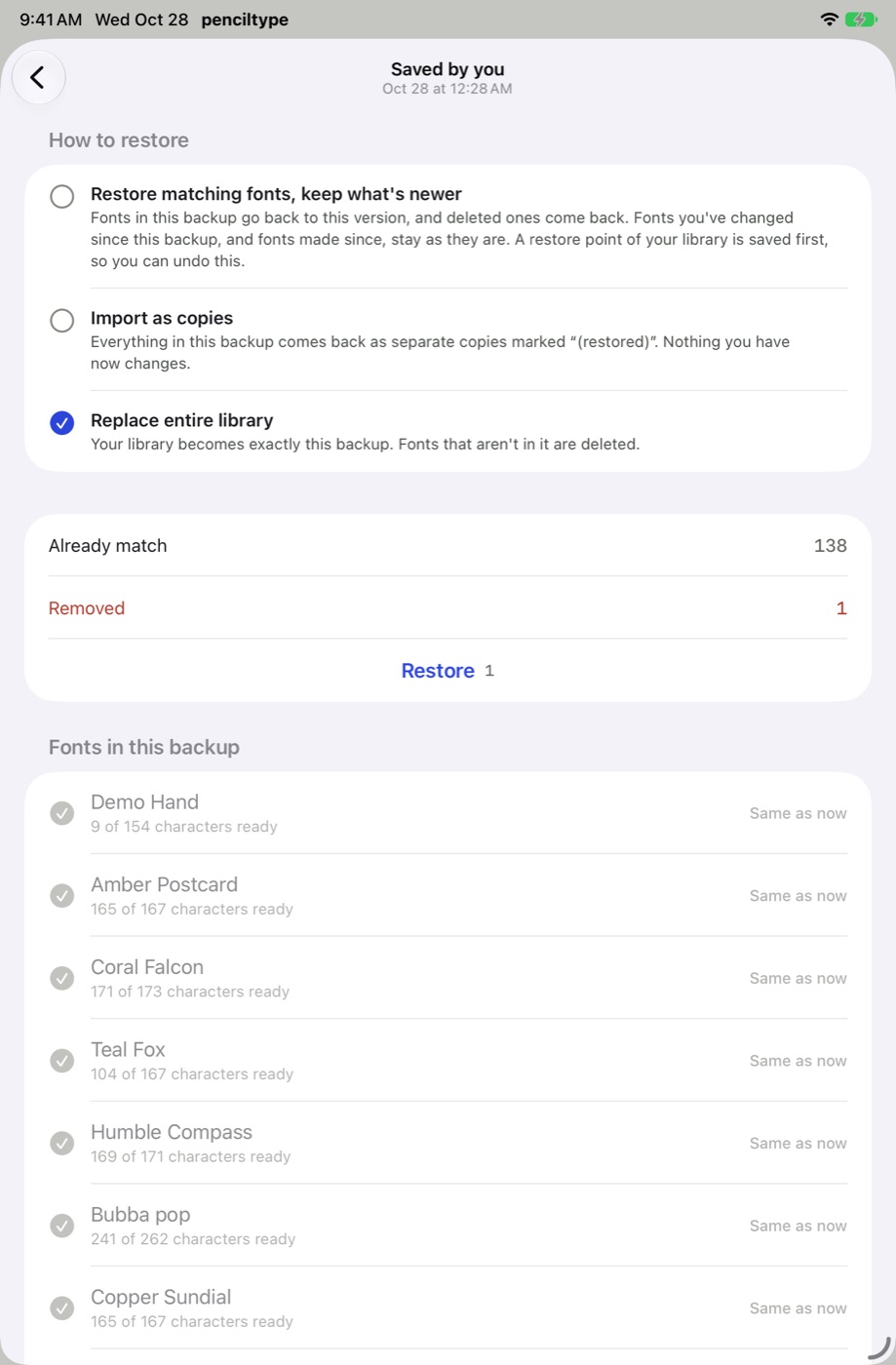
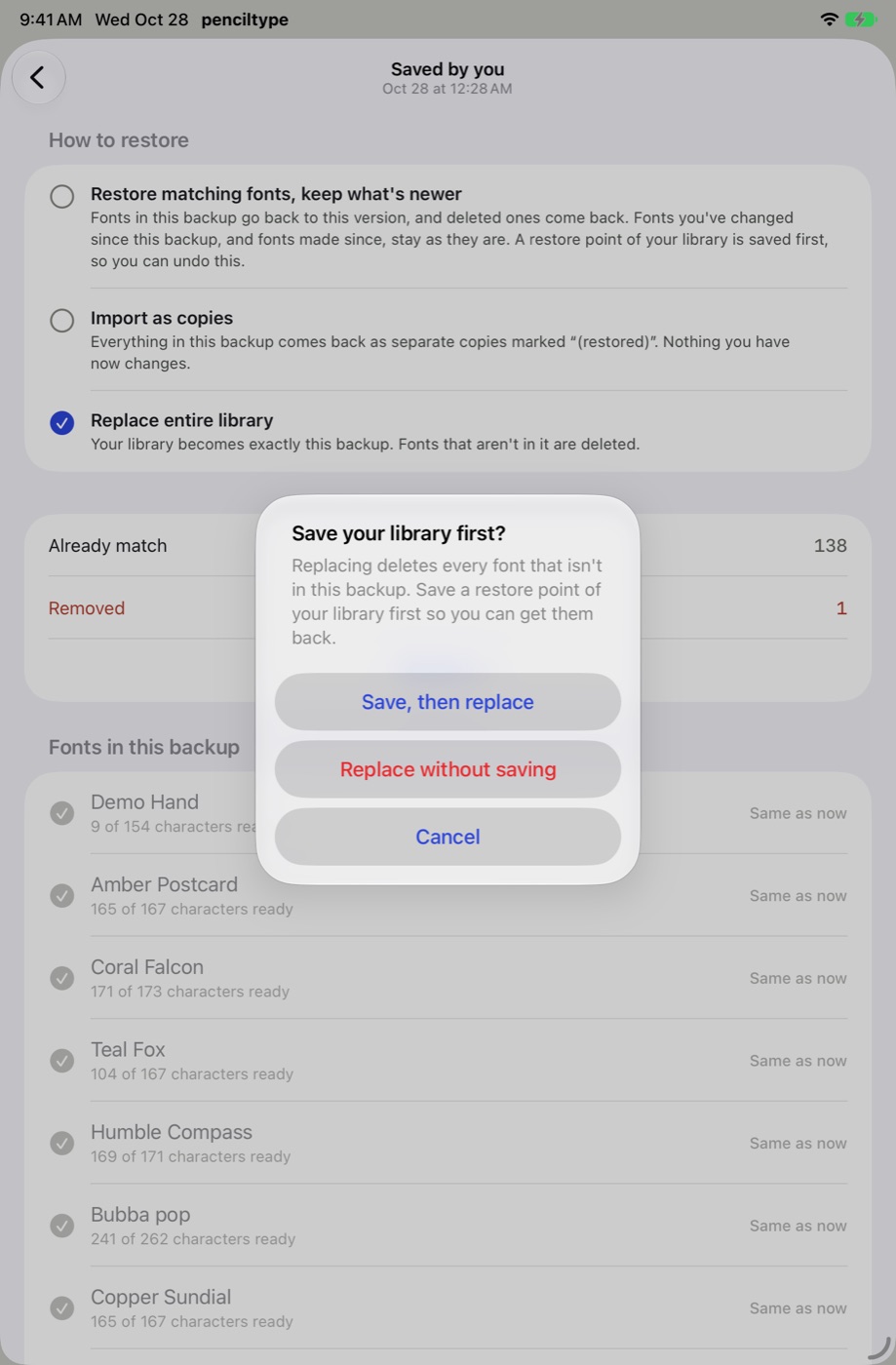
With iCloud sync on, the message adds that the fonts are deleted on your other devices too.
Two other messages can appear when you restore:
- Couldn't restore: “Your library is still loading — try again in a moment.”, or “Couldn't save a restore point of your library first, so nothing was changed.” Nothing has changed; try again once the library has loaded or there's more space.
- Some fonts couldn't be restored: “1 font in this backup couldn't be read and were skipped.” The fonts that could be read were restored. OK closes Settings.
The restore point itself
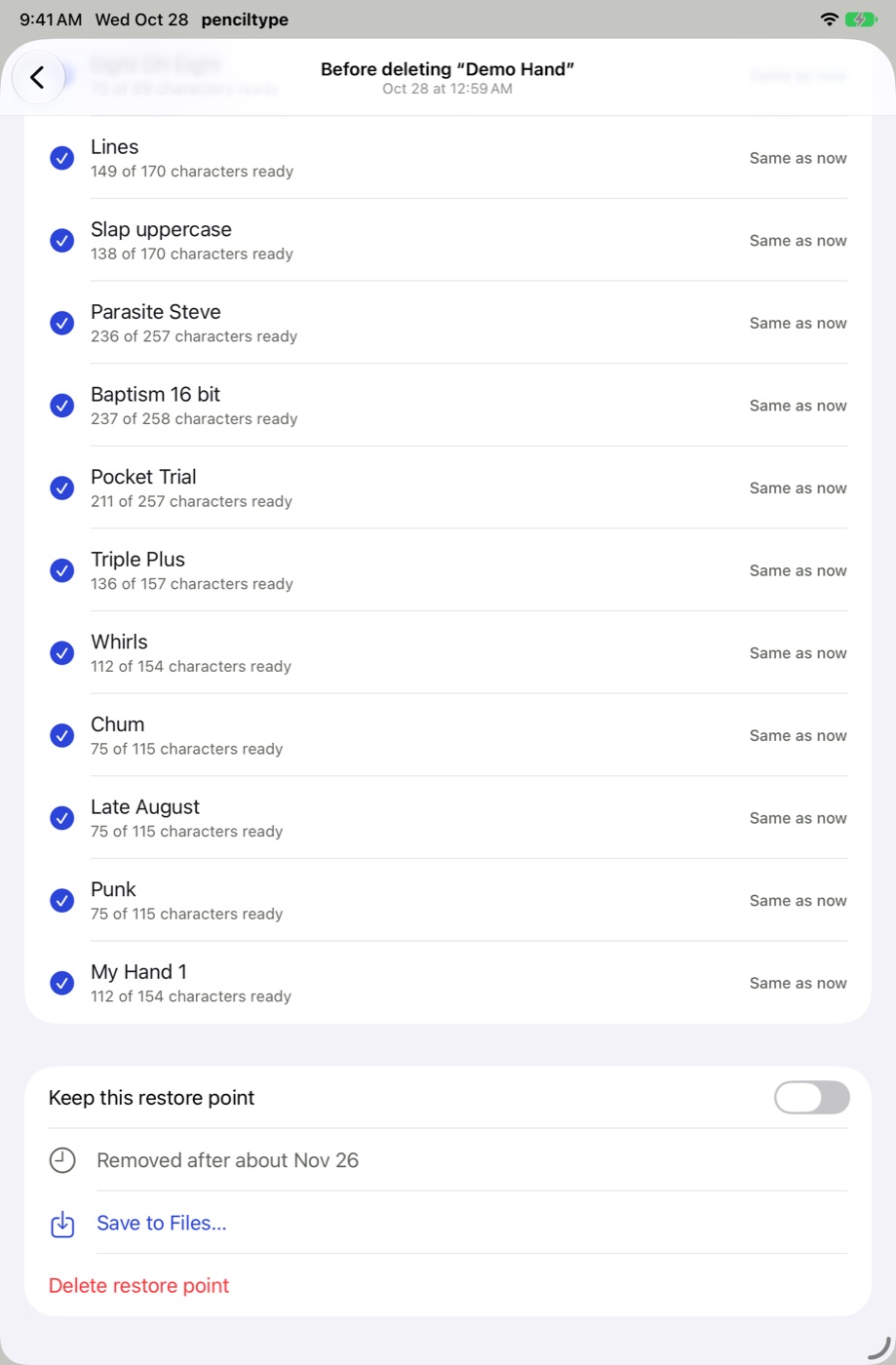
At the end of a restore point's screen:
- Keep this restore point
- On automatic points only. On keeps it for good; off lets it go after 30 days. The line under it says Removed after about Nov 26, or Kept.
- Save to Files…
- Saves this point as a backup file (named “penciltype backup” and its date and time) wherever you choose in the Files browser.
- Delete restore point
- Asks first, then deletes the point and goes back.
If the point's setting can't be changed (the device is full, say), you'll see Couldn't change this restore point and the switch springs back.
Backup files
A backup file holds your whole library in one file ending in .penciltypebackup. Keep it in iCloud Drive, on another drive, or send it to another device. It's the way to keep your fonts safe if the device is lost or the app is deleted.
Tap Settings › Backups › Save library to Files…. After a moment (Preparing backup file…), the Files browser opens: choose a folder (On My iPad, iCloud Drive or another location) and tap Save. The file is named “penciltype backup” followed by the date and time.
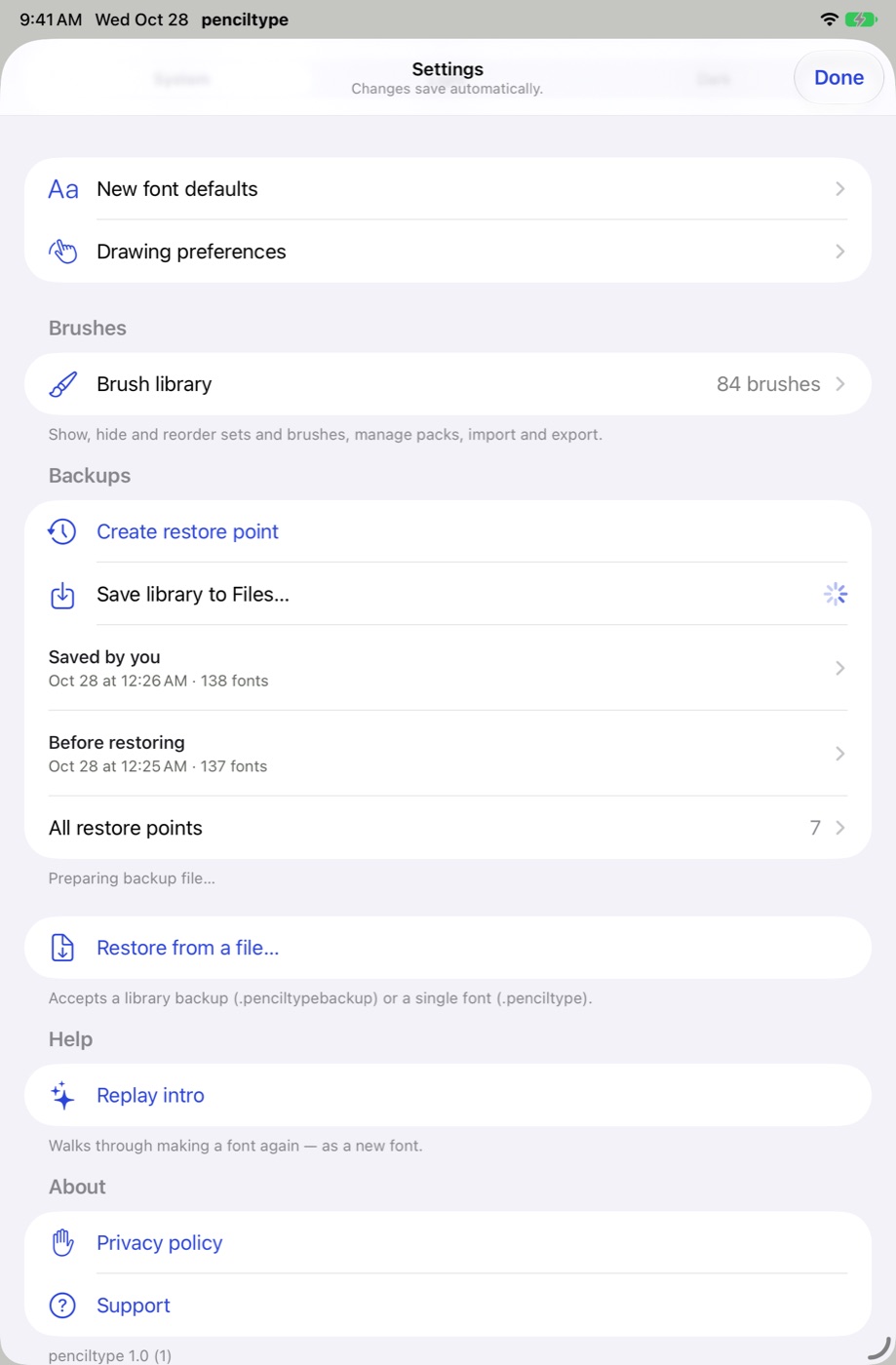
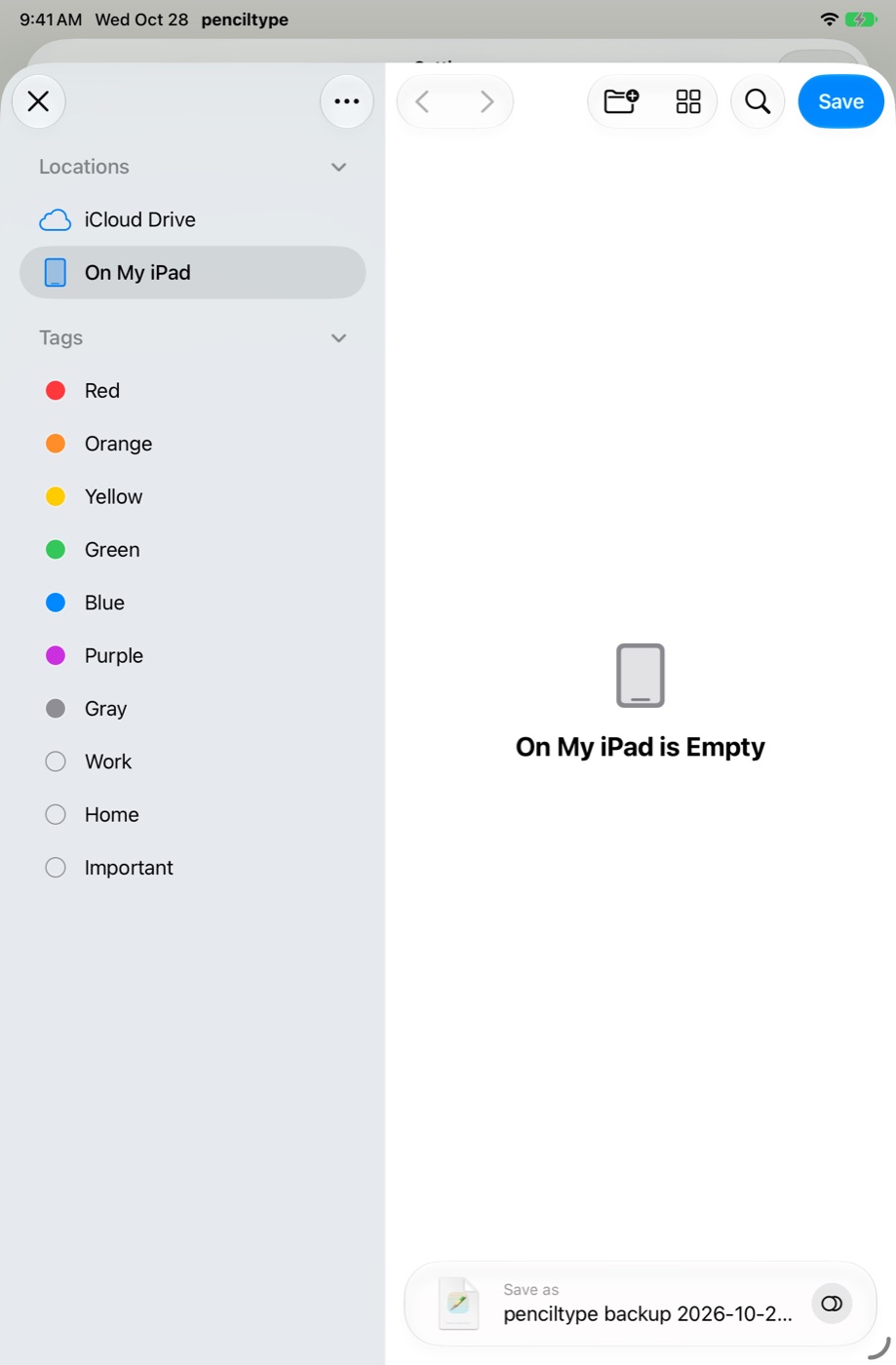
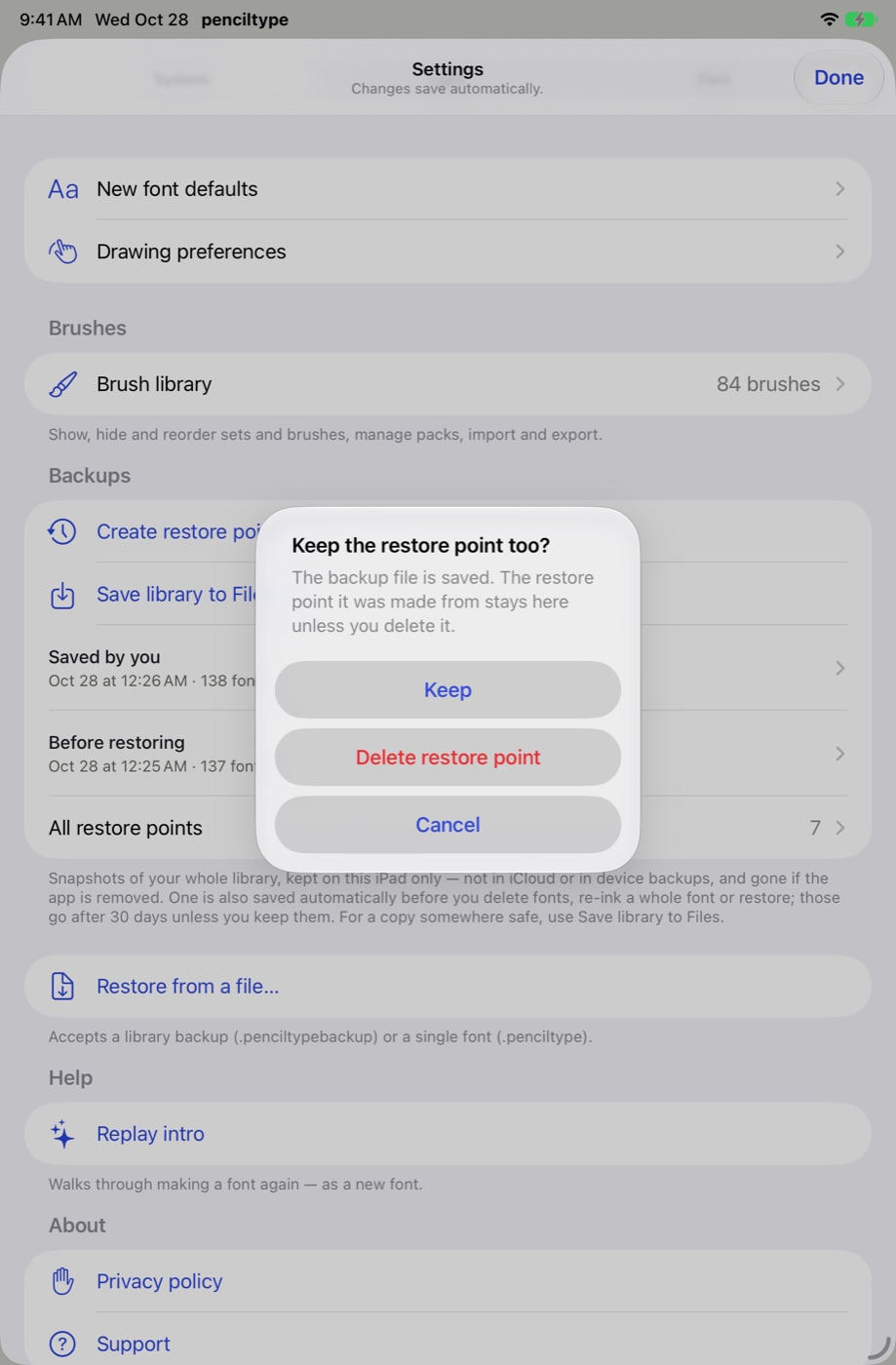
A backup file is made from a restore point. If your newest point already matches your library exactly, that one is used; otherwise penciltype makes a Saved by you point for it, and once the file is saved asks Keep the restore point too? Tap Keep (or Cancel) to leave it on the device too, or Delete restore point to remove it; the file is saved either way.
To save an older point as a file instead, open it and tap Save to Files… (above).
If the file can't be written you'll see Couldn't save the backup file with the reason.
Restoring from a file
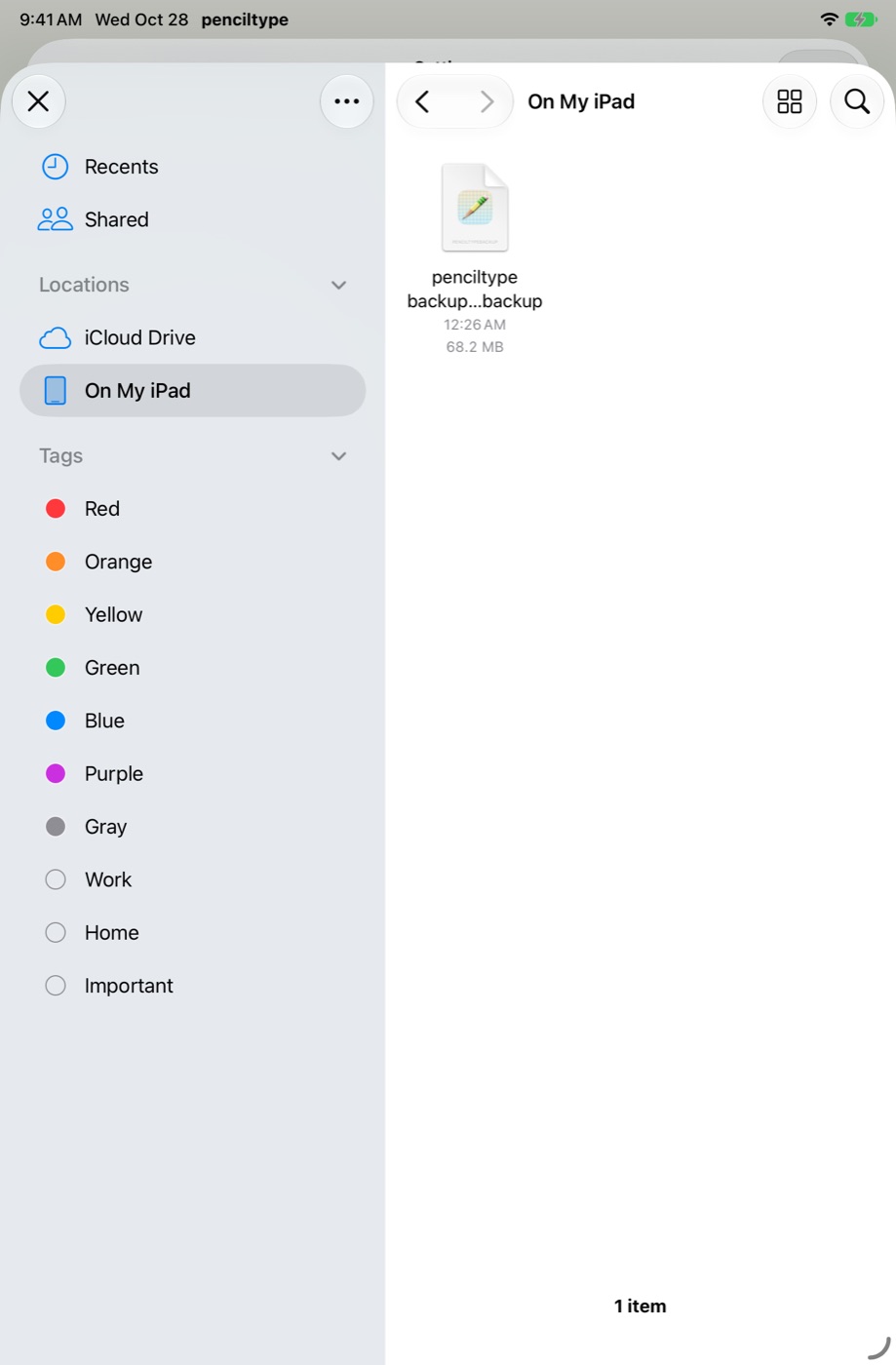
Tap Settings › Backups › Restore from a file… and pick the file in the Files browser. It accepts a library backup (.penciltypebackup) or a single font's file (.penciltype, made with Back up project in Export and install or Font settings). The file opens on a screen just like a restore point's, titled Restore backup — October 28 (the day it was made, with the file name under it) or Restore “Font name”, with the same choices and font list.
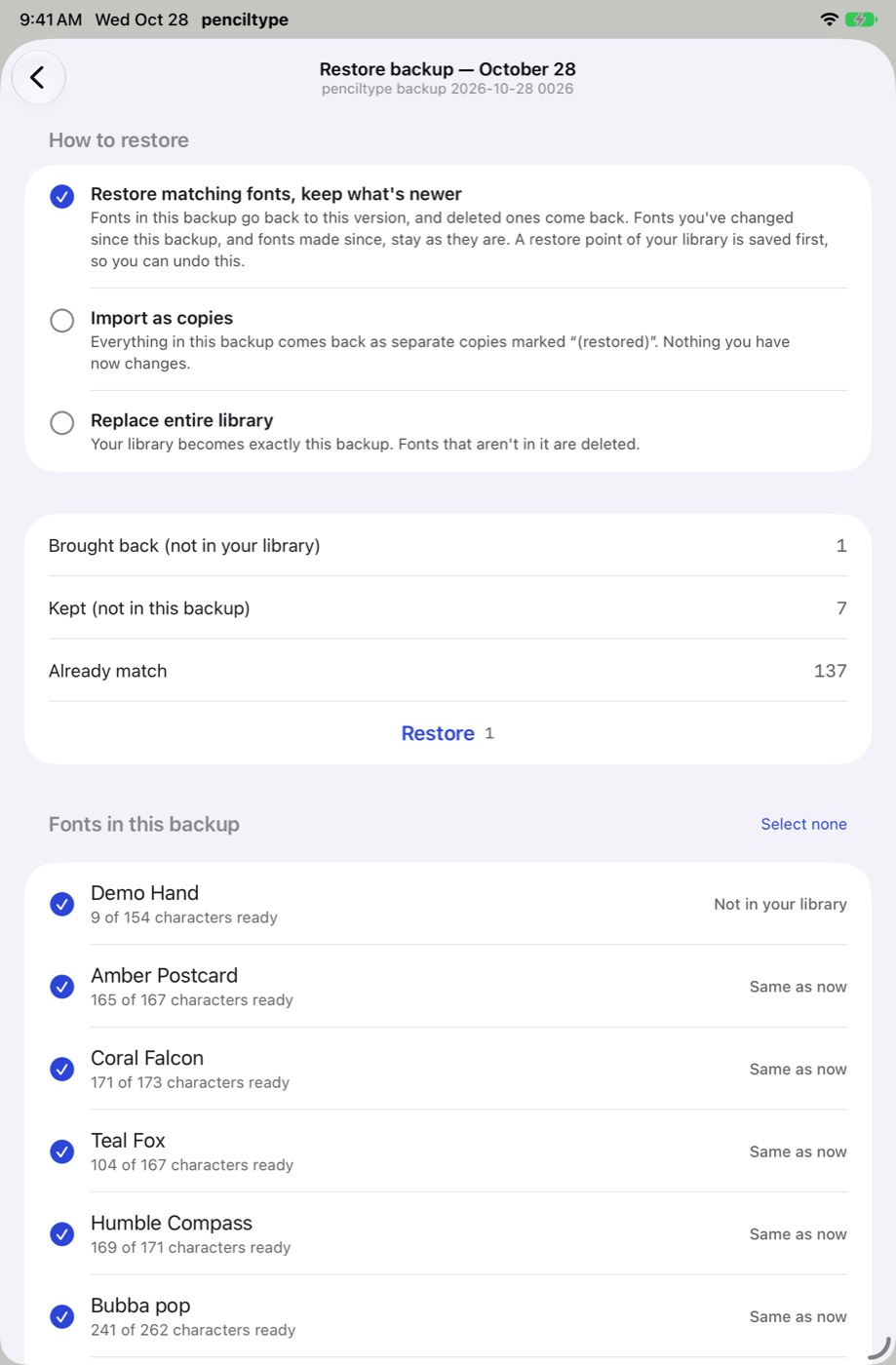
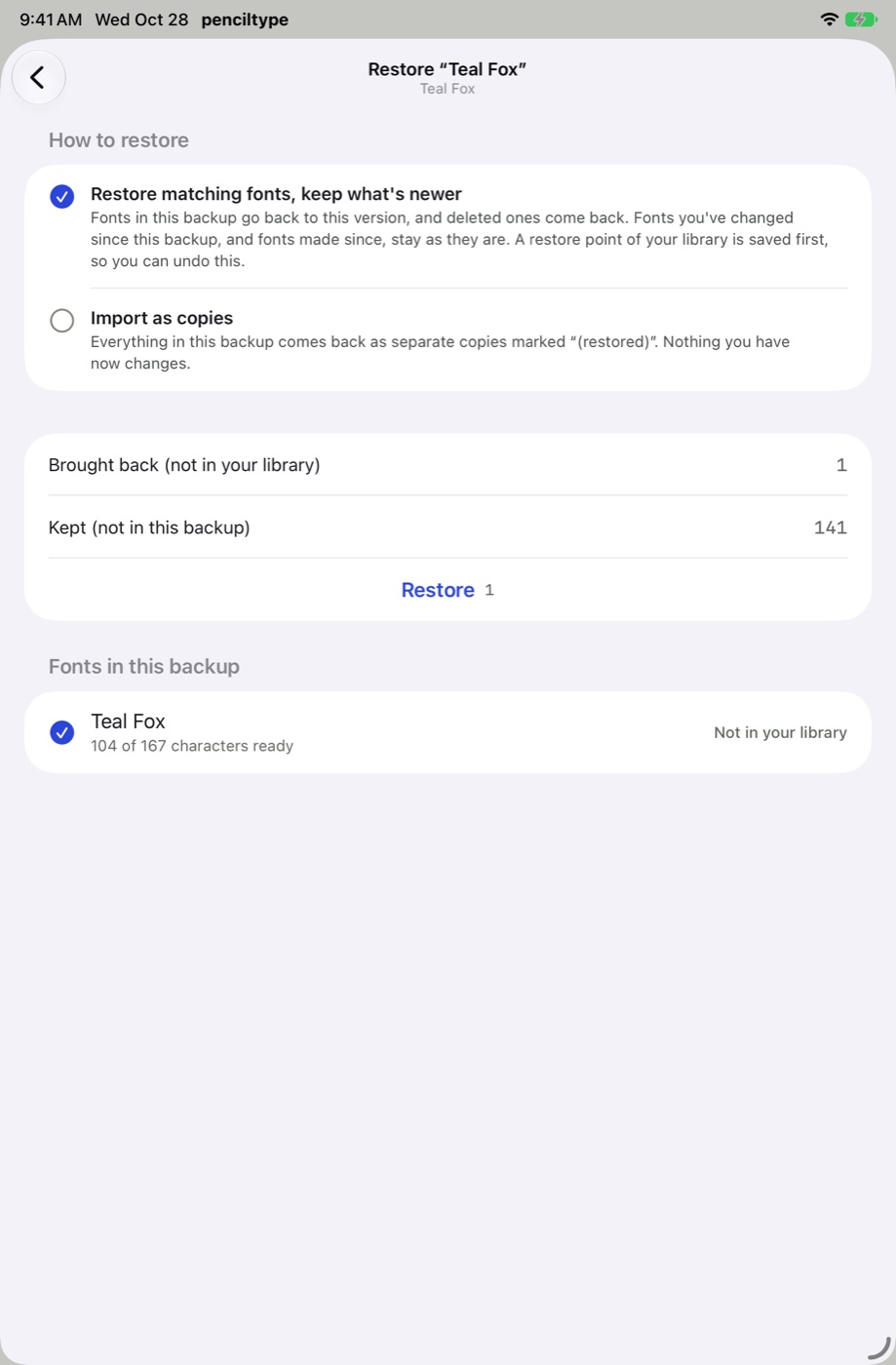
A single font's file offers only the first two choices (there's no library to replace). Restoring it puts that font back to the file's version, or brings it back if you'd deleted it; if your copy is newer, it's kept unless you tick it.
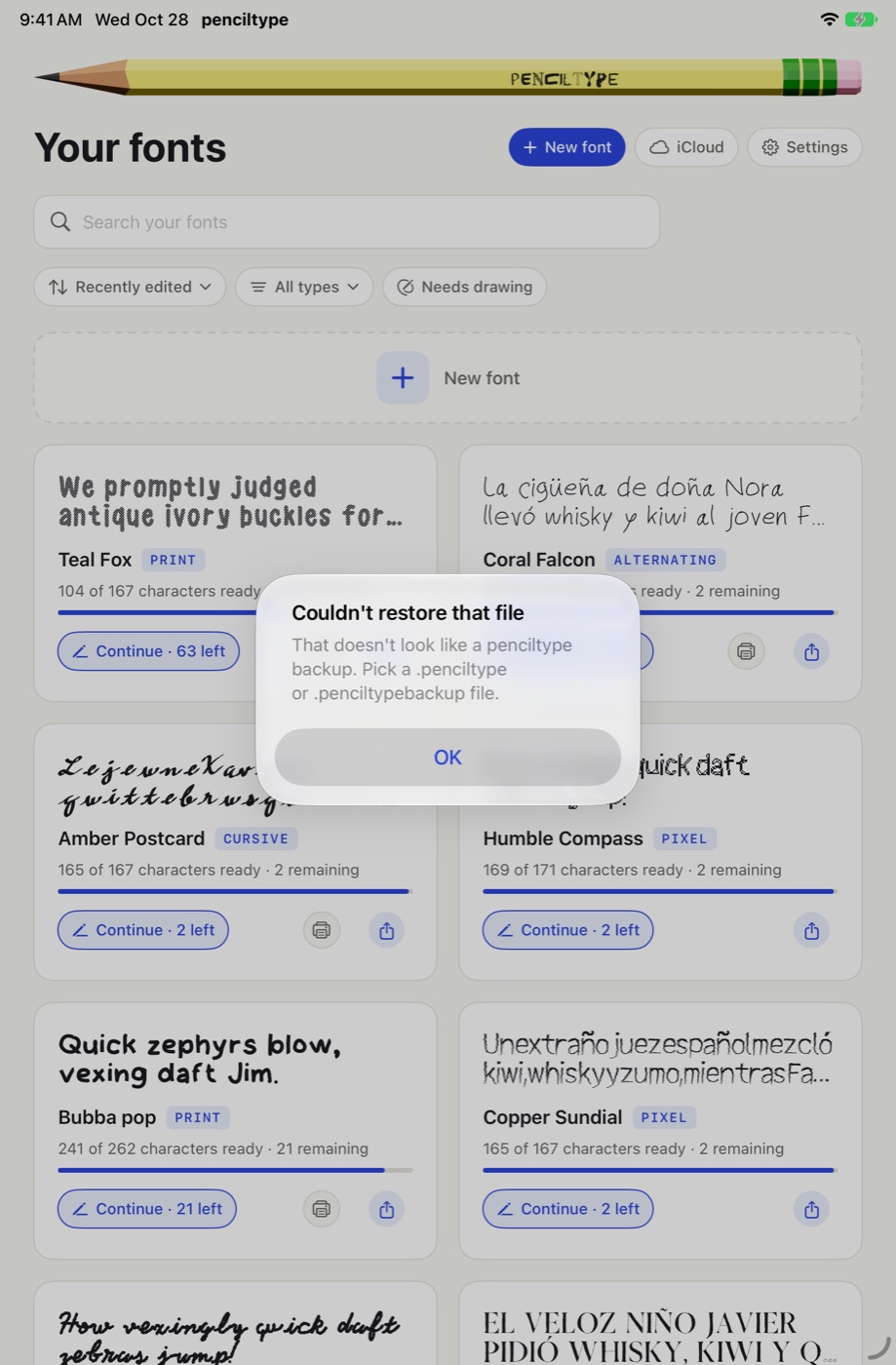
If the file isn't one penciltype can read, you'll see Couldn't restore that file: “That doesn't look like a penciltype backup. Pick a .penciltype or .penciltypebackup file.” A backup made by a newer version of penciltype says “This backup was made by a newer version of penciltype. Update the app to restore it.”
Files from other apps
penciltype opens four kinds of file. Tap one in Files, in Mail, or after an AirDrop, and choose penciltype:
| File | What it is | What happens |
|---|---|---|
| .penciltypebackup | A whole library | Settings opens on Restore backup — date. |
| .penciltype | One font | Settings opens on Restore “Name”. |
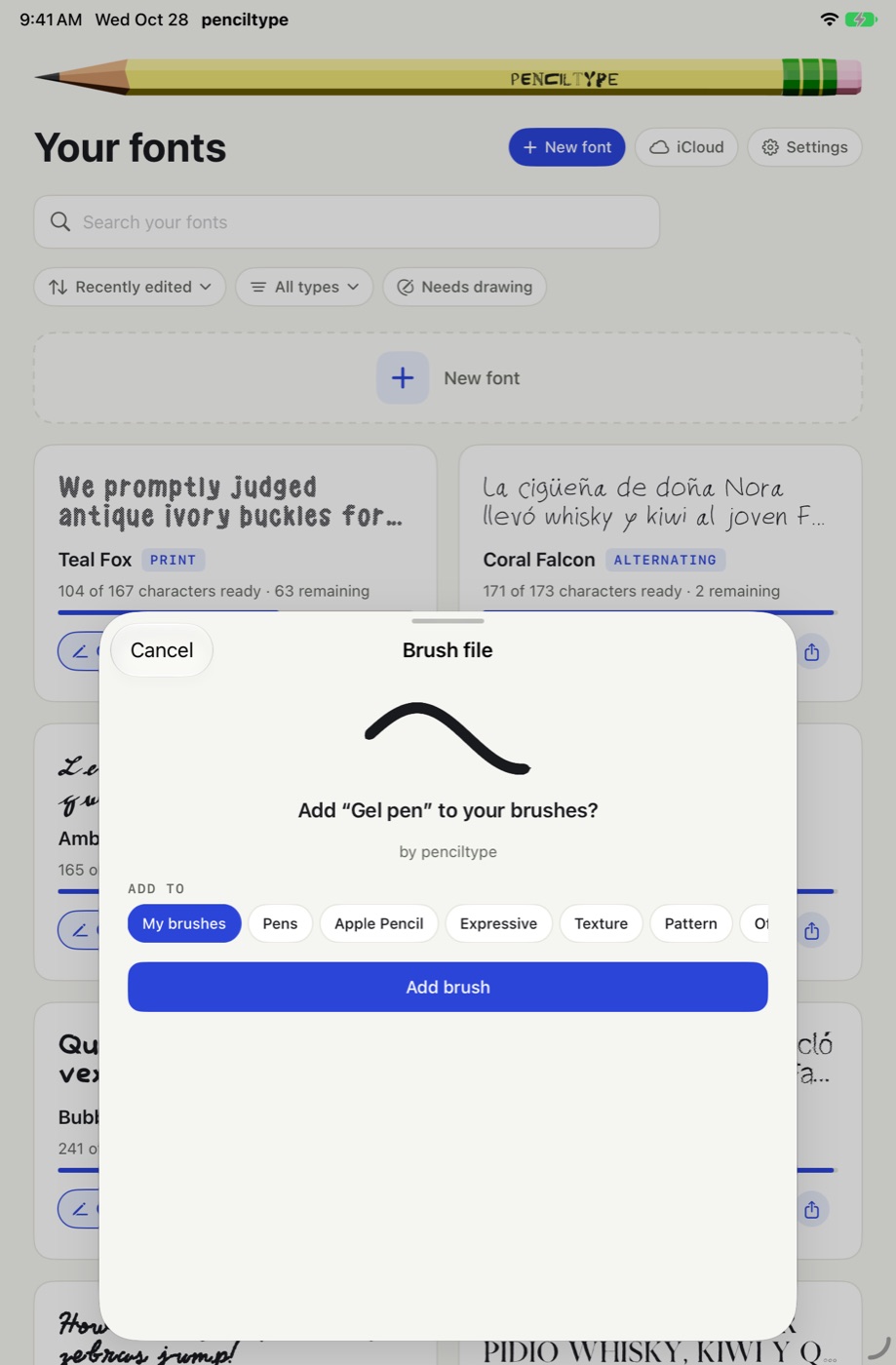
| .penciltypebrush | One brush | The brush sheet asks where to add it. |
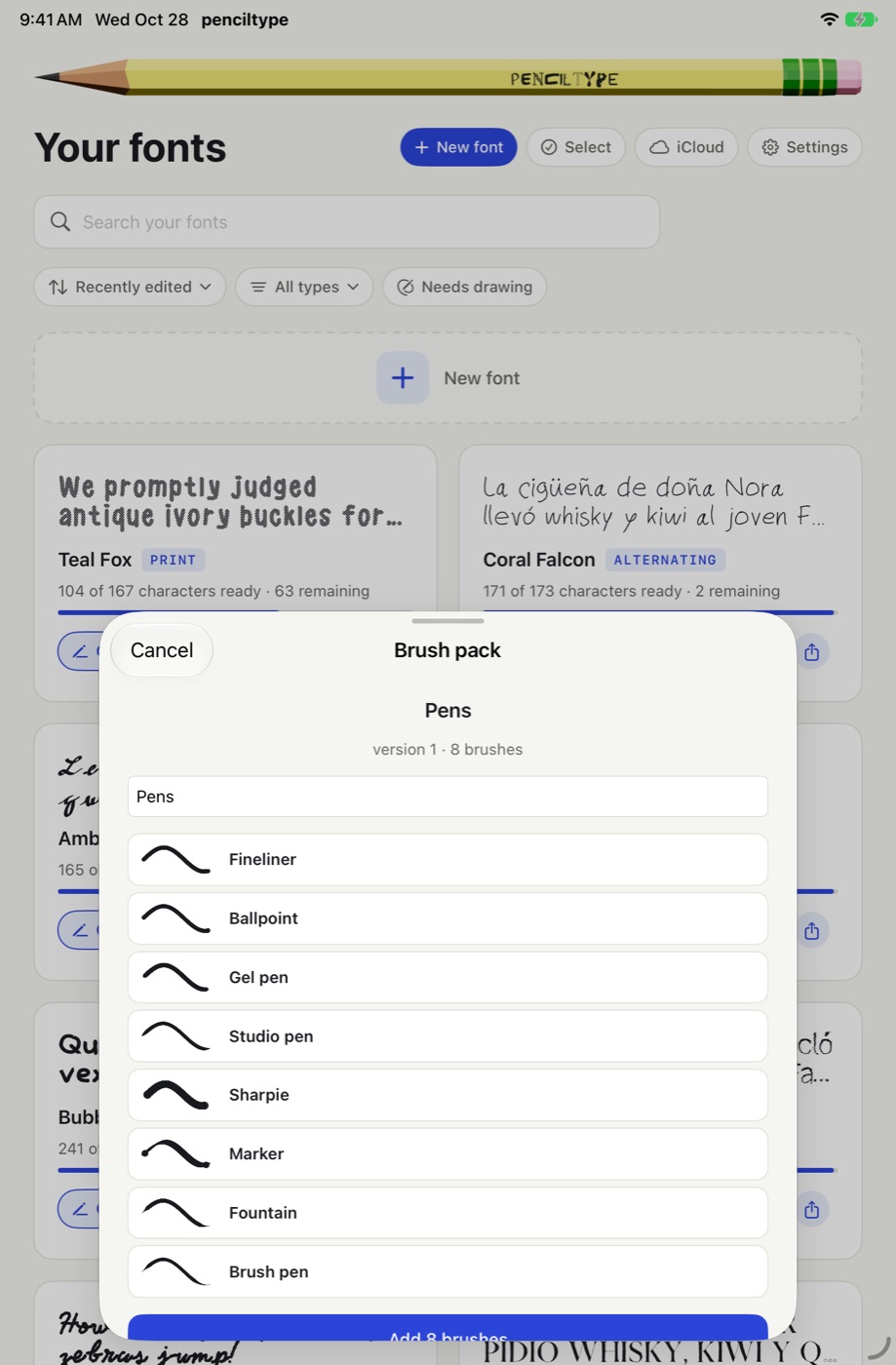
| .penciltypebrushes | A brush pack | The brush sheet offers to add or update the pack. |
Whatever you were doing, any open sheet closes and the file's screen comes up. If the app was just starting, it waits for the splash and the intro. penciltype always makes its own copy of the file; the original is never changed.
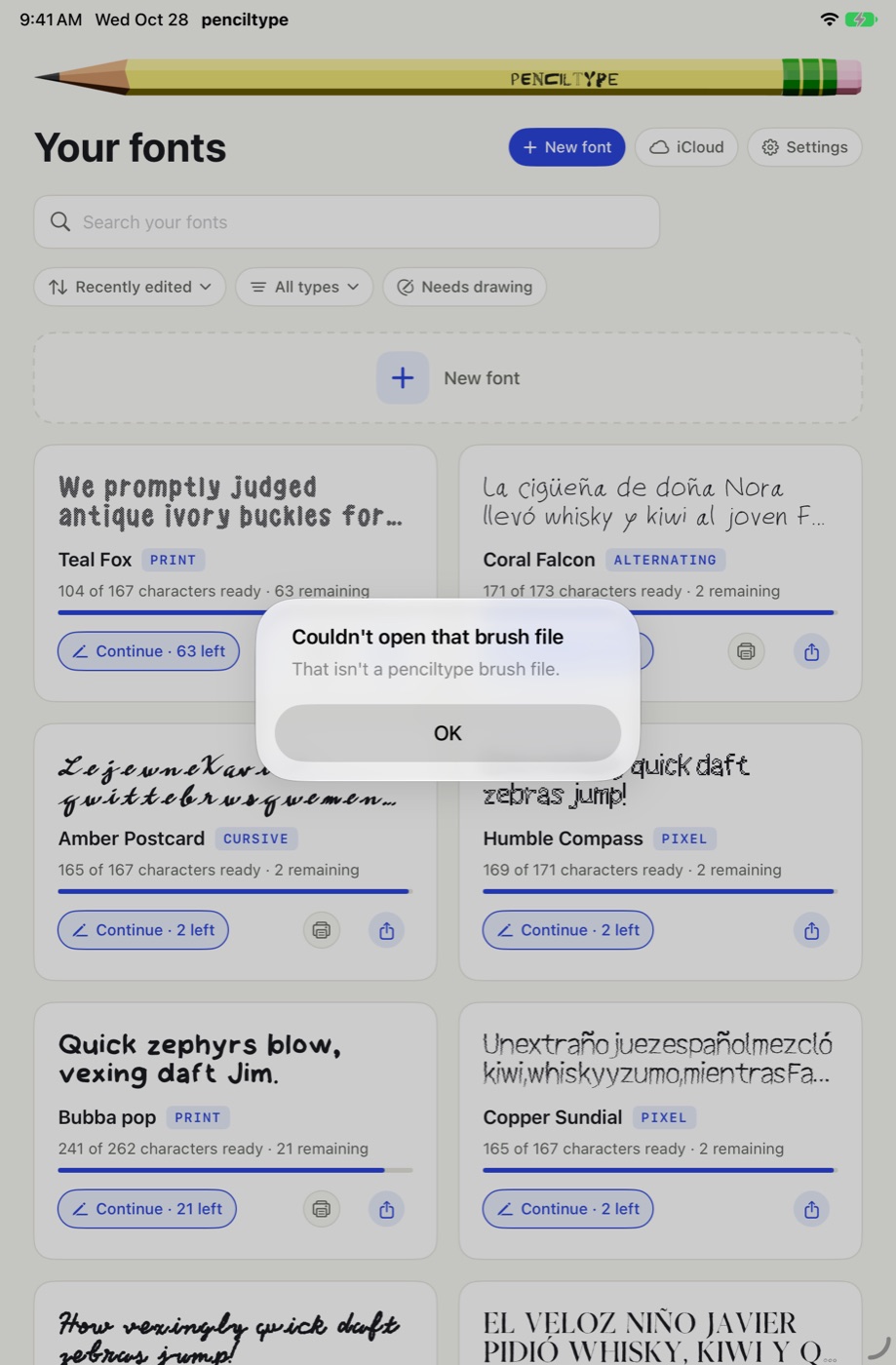
penciltype also answers to one kind of link, penciltype://. All it does is bring the app to the front: it's how the Safari page you install a font from sends you back to penciltype (see Export and install).
Brush files are covered in full in Sharing brushes. A backup or font file penciltype can't read shows Couldn't restore that file over the shelf (shown above).
iCloud sync
With iCloud sync on, your fonts (and your brush library) stay the same on every iPhone, iPad and Mac signed into your Apple Account. Your library always lives on the device; sync keeps a copy in your iCloud Drive and brings changes from your other devices.
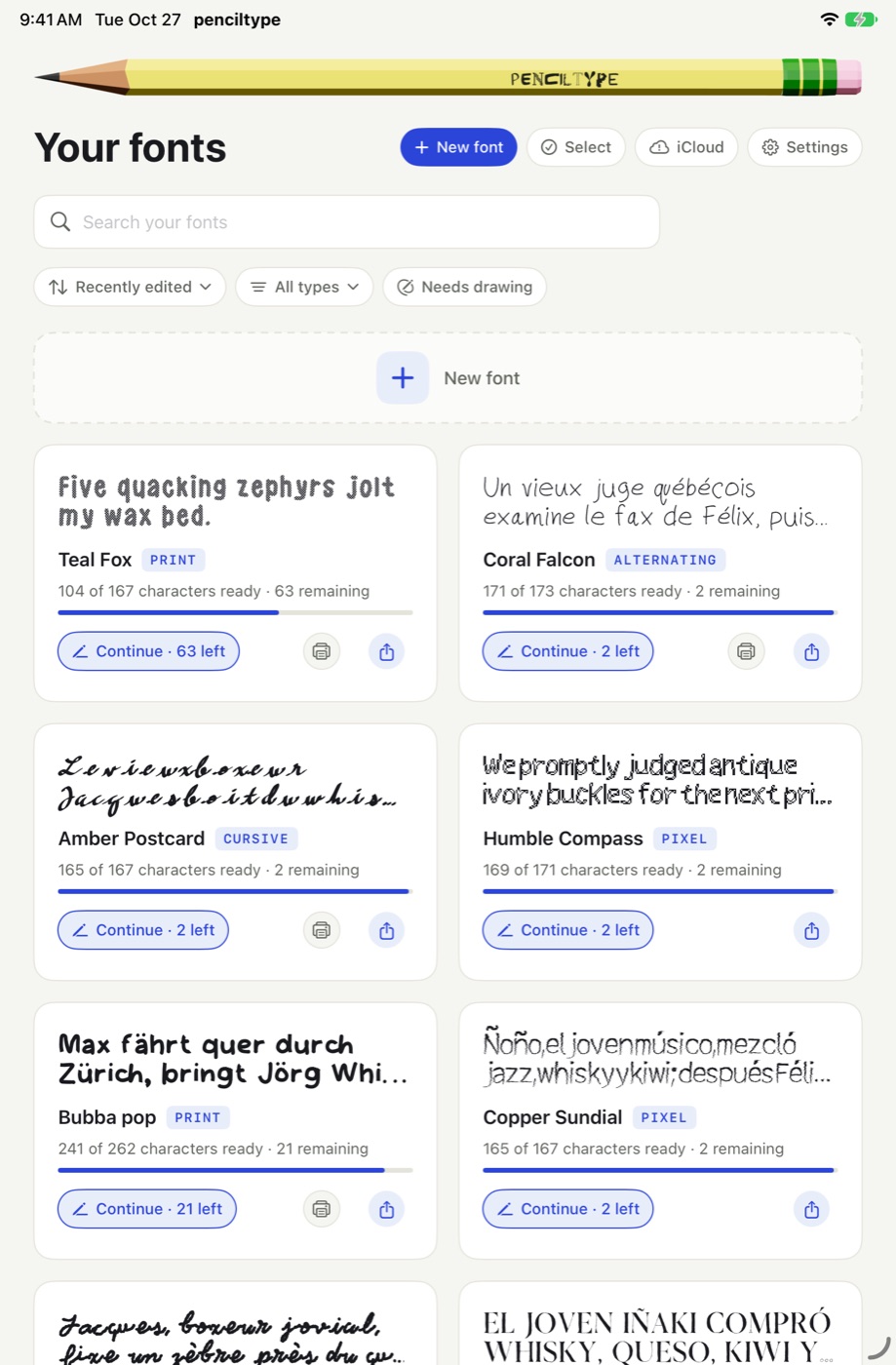
Sync is off until you turn it on, and the only place to do that is the iCloud button on Your fonts:
- Make sure the device is signed into iCloud (in the Settings app; on Mac, System Settings) with iCloud Drive on.
- On Your fonts, tap iCloud. The menu says Your fonts stay here and sync to all your devices.
- Tap Sync with iCloud. There's no confirmation; sync starts at once.
Once sync is on, the New font sheet's last line changes from “No account, nothing leaves this iPad.” to Syncing with your iCloud Drive. On a new device with no fonts, the shelf says Loading your fonts from iCloud… while your fonts arrive (and the intro is skipped).
What the iCloud button tells you
| Button | Menu says | What it means |
|---|---|---|
| Cloud | Your fonts stay here and sync to all your devices. | Sync is off. Sync with iCloud turns it on. |
| Spinner | Connecting to iCloud… | Sync is starting. |
| Cloud with down arrow | Downloading 3… | Fonts are arriving from your other devices. |
| Cloud with up arrow | Uploading 2… | Your changes are going up. |
| Cloud with checkmark | Checking iCloud for changes… / Up to date | All in step. |
| Cloud with exclamation mark | Last upload failed — will retry | The next change, or the next check, tries again. |
While sync runs, the button is blue and the menu offers Stop syncing. Uploads wait a couple of seconds after each change, so drawing doesn't send every stroke on its own.
When sync can't run
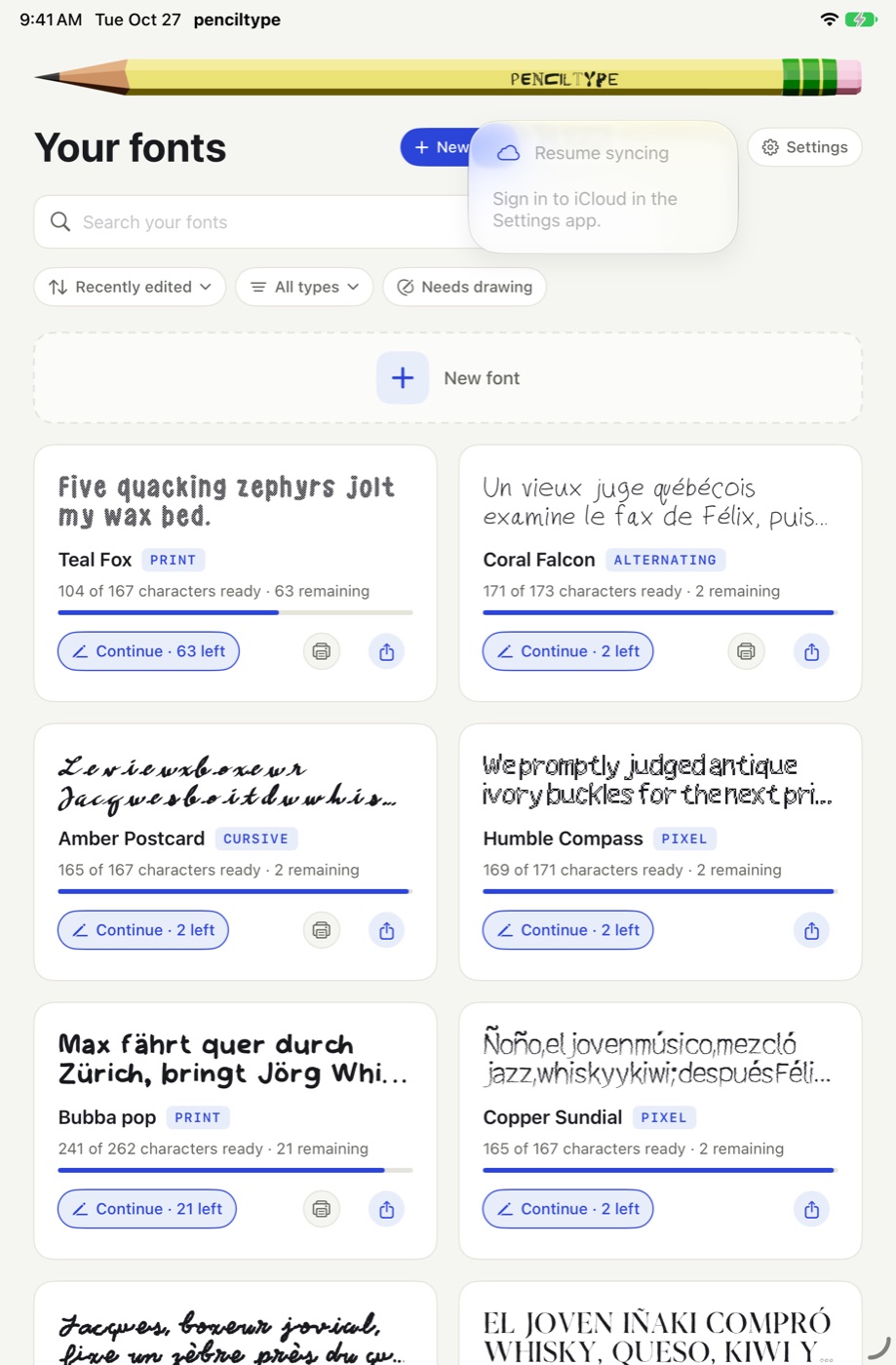
- Not signed in, sync off: the menu says Sign in to iCloud in the Settings app. (on Mac, System Settings) and Sync with iCloud is dimmed.
- Sync on, but signed out: the button shows an exclamation mark and the menu says the same; sync picks up again by itself when you sign in. Try again retries now; Stop syncing turns it off.
- iCloud Drive is off for penciltype: “Turn it on in the Settings app, then try again.” Turn it on, then tap Try again.
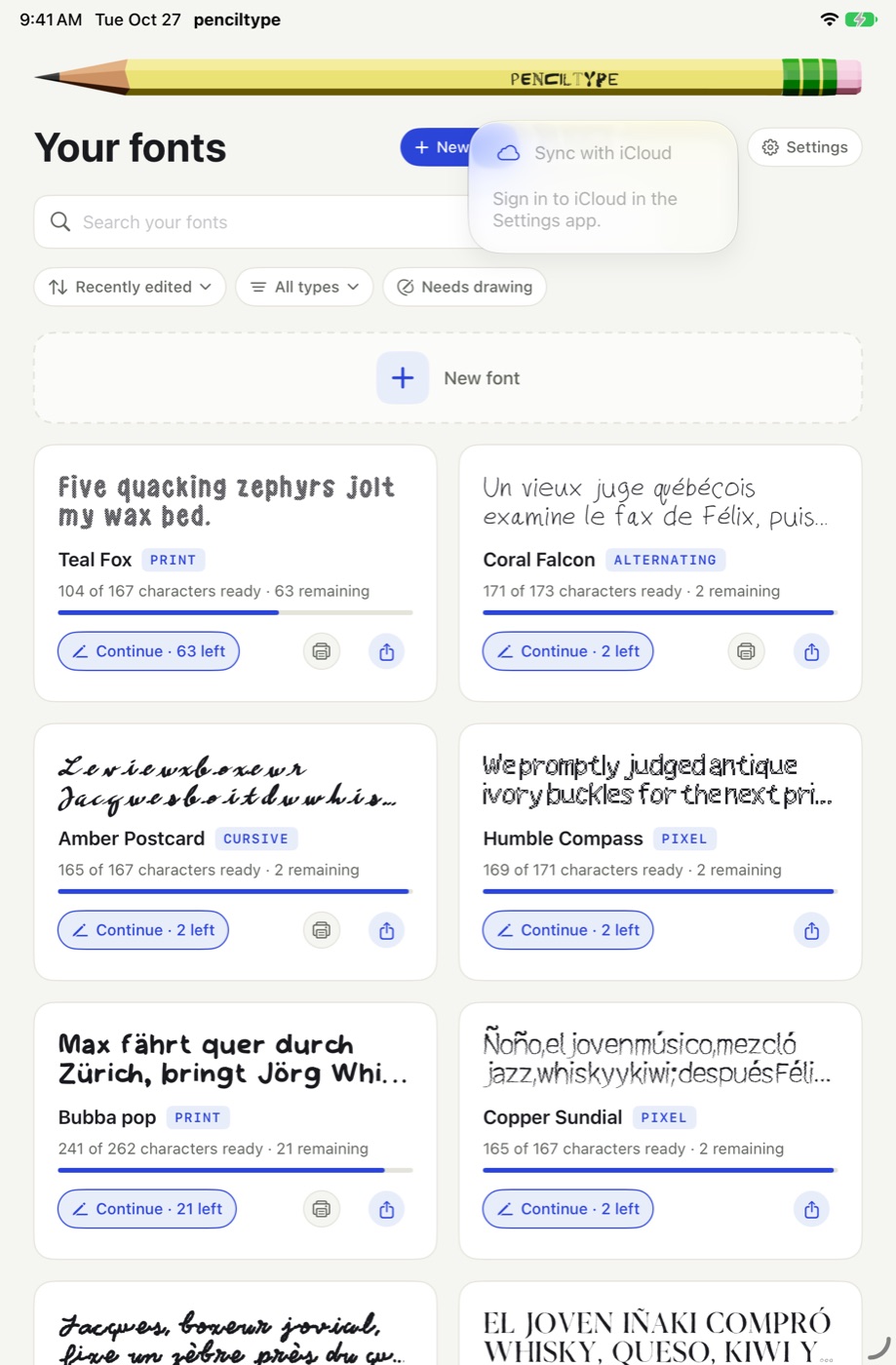
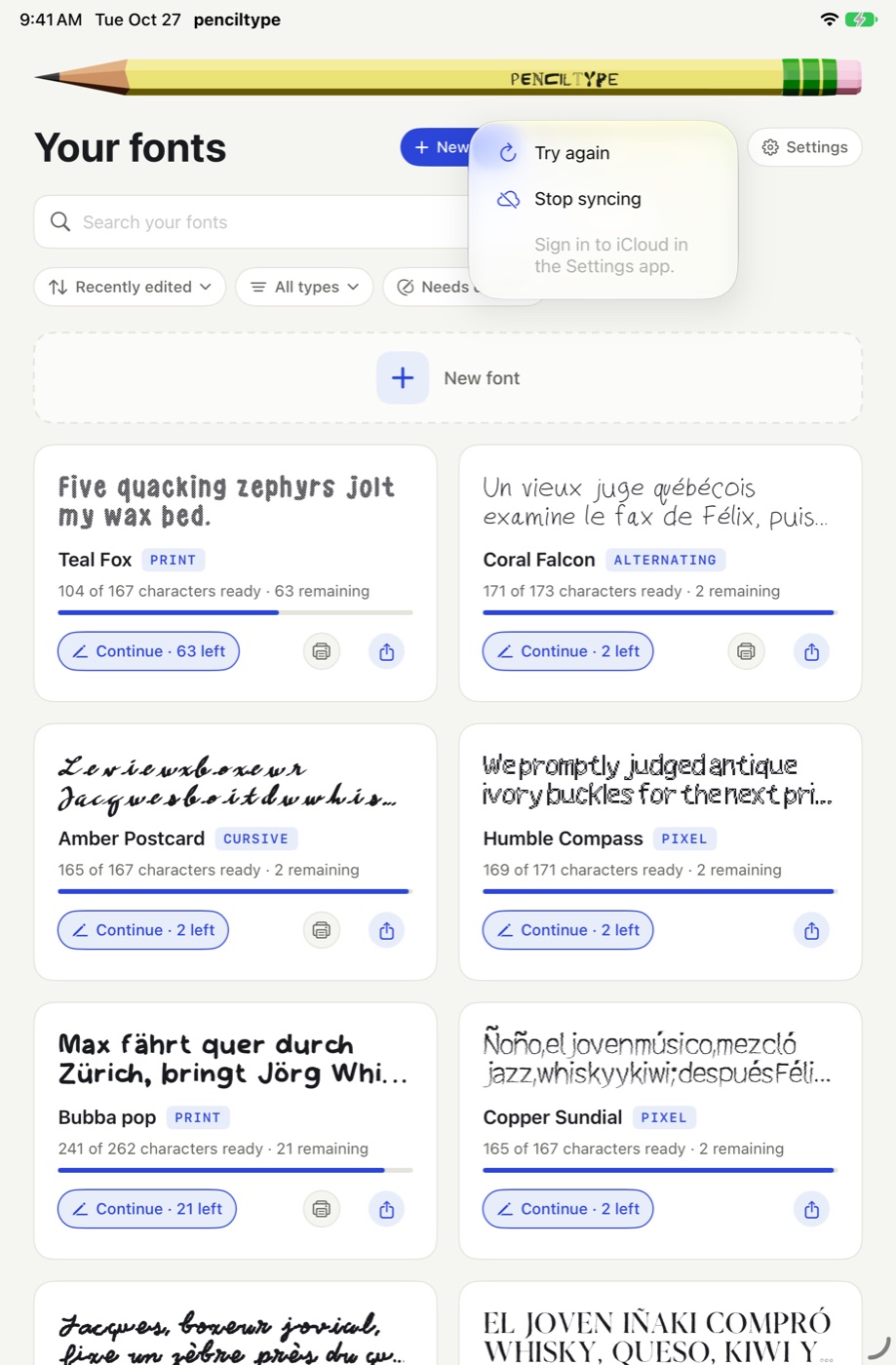
When the device's Apple Account changes
If the device signs into a different Apple Account, penciltype pauses sync, so one person's fonts never pour into another's iCloud. The menu says Paused — this device's iCloud account changed. and Resume to sync with the account signed in now. Tap Resume syncing to sync with the new account. The pause lasts, even across restarts, until you resume.
Stopping sync
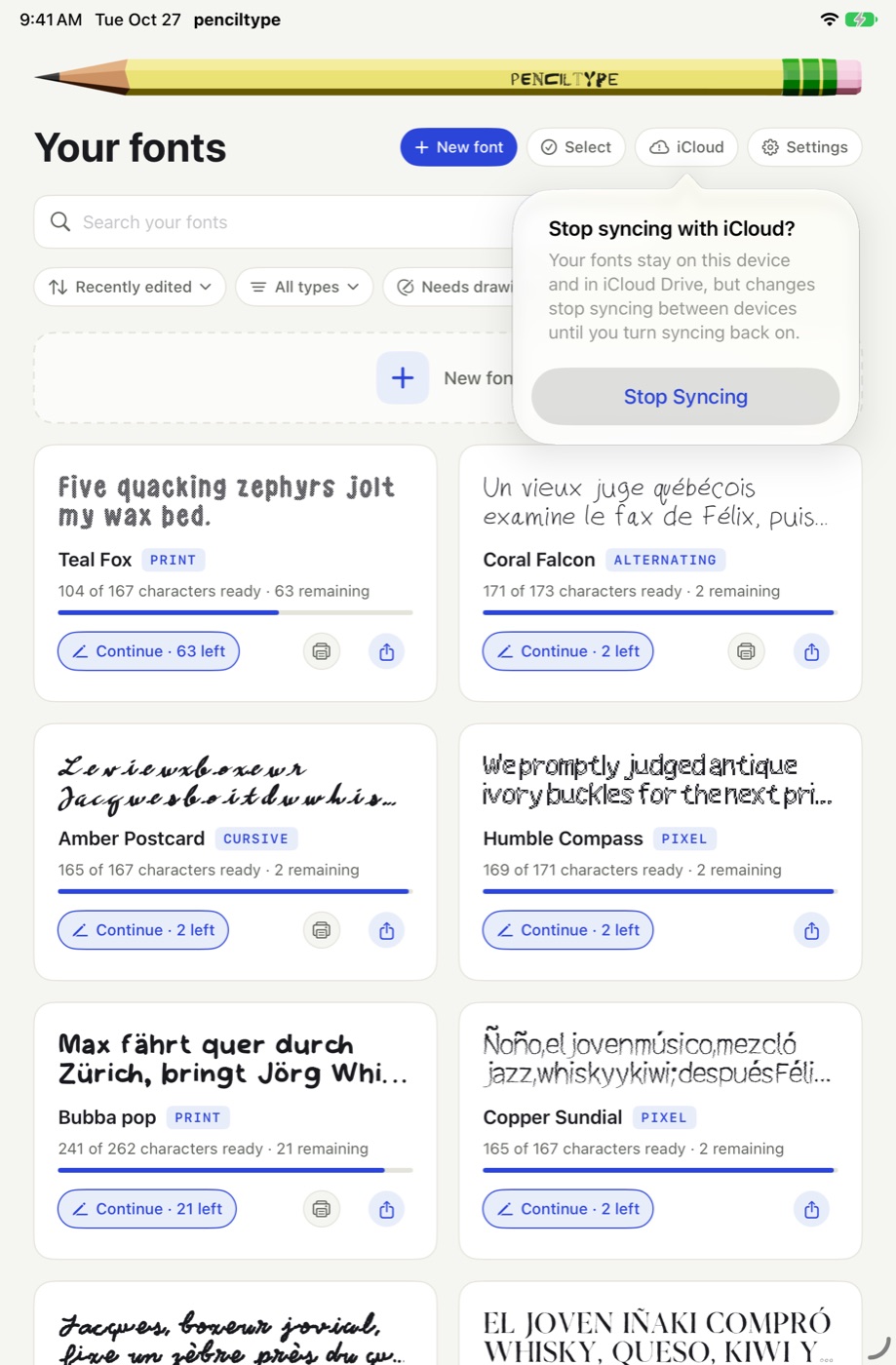
Tap iCloud › Stop syncing, then Stop Syncing in the confirmation. Sync stops on this device only. Nothing is moved or deleted on either side: your fonts stay here and in iCloud Drive. Turn it back on later and it catches up without making duplicates.
Deleting on another device
A font you delete on one device is deleted on the others too. Before that happens, each device saves a Before deleting restore point of its library, so you can still get the font back there. If you edit the font on one device while it's being deleted on another, the edit wins and the font stays.
Recovered copies
If the same font is changed on two devices before they've had a chance to sync, neither version is thrown away: the one that didn't win comes back as its own font, marked RECOVERED COPY. Compare copies shows the two side by side so you can keep one or both. See Compare copies.