Joins and versions
Cursive fonts join each letter to the next, and Alternating fonts take turns between several versions of a letter. Both give a letter more than one form, and the canvas has a row under the tool strip for choosing which form you're drawing.
Drawing a cursive letter
In a cursive font, each letter meets the one before it and hands off to the one after. Three dashed rails run across the canvas at the join heights — low, mid and high (the high rail is the x-height, so it shares that label). On them sit the letter's pins:
- Green triangle — joins in
- Where the join from the previous letter comes in (only on a form that joins in from a rail).
- Orange square — joins out
- Where the join to the next letter leaves.
The pins follow your ink: draw the letter and they settle where the stroke meets the rail. Draw anywhere — with any tool but Select the pins are just marks, and a stroke can start right on one.
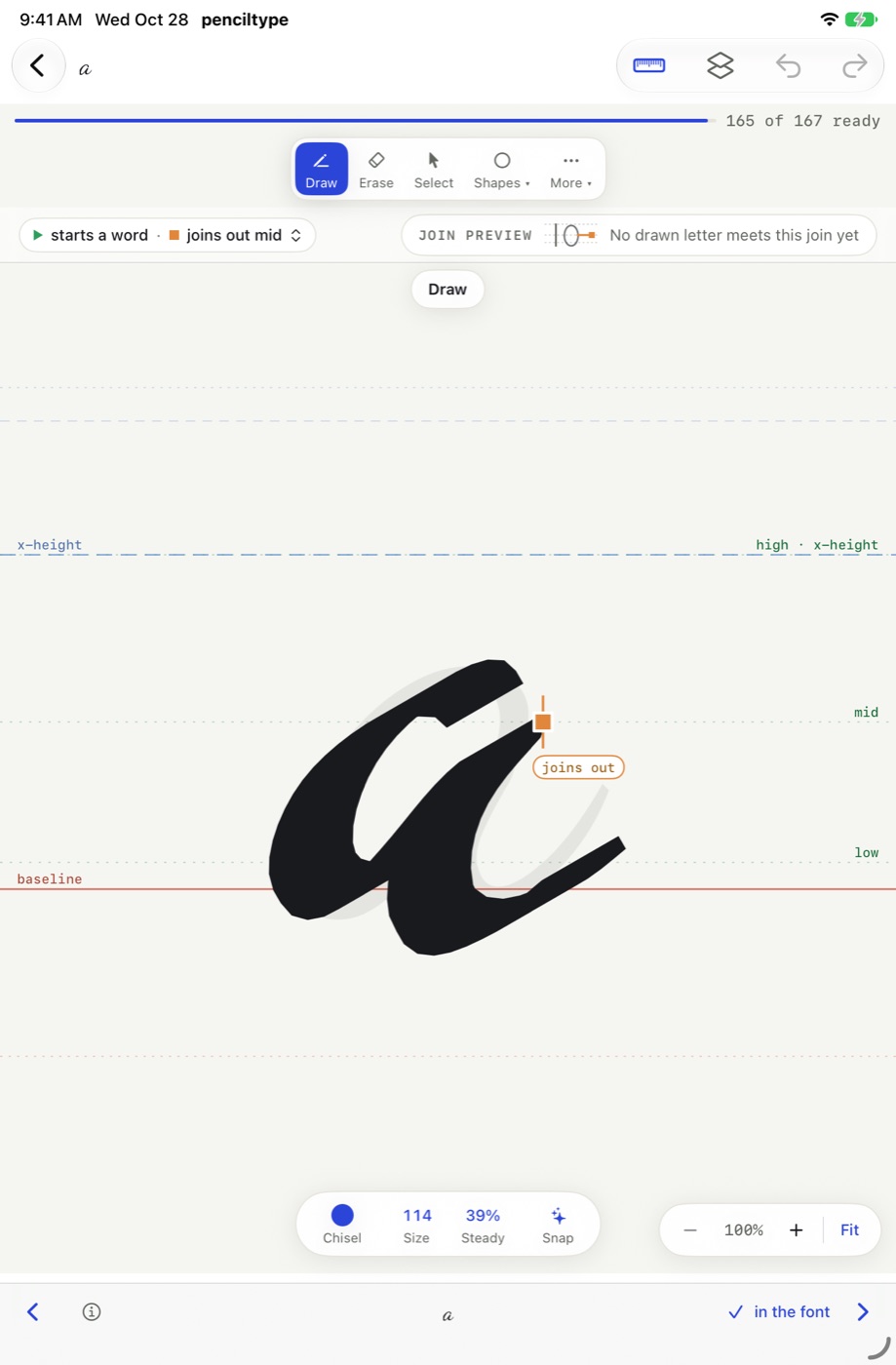
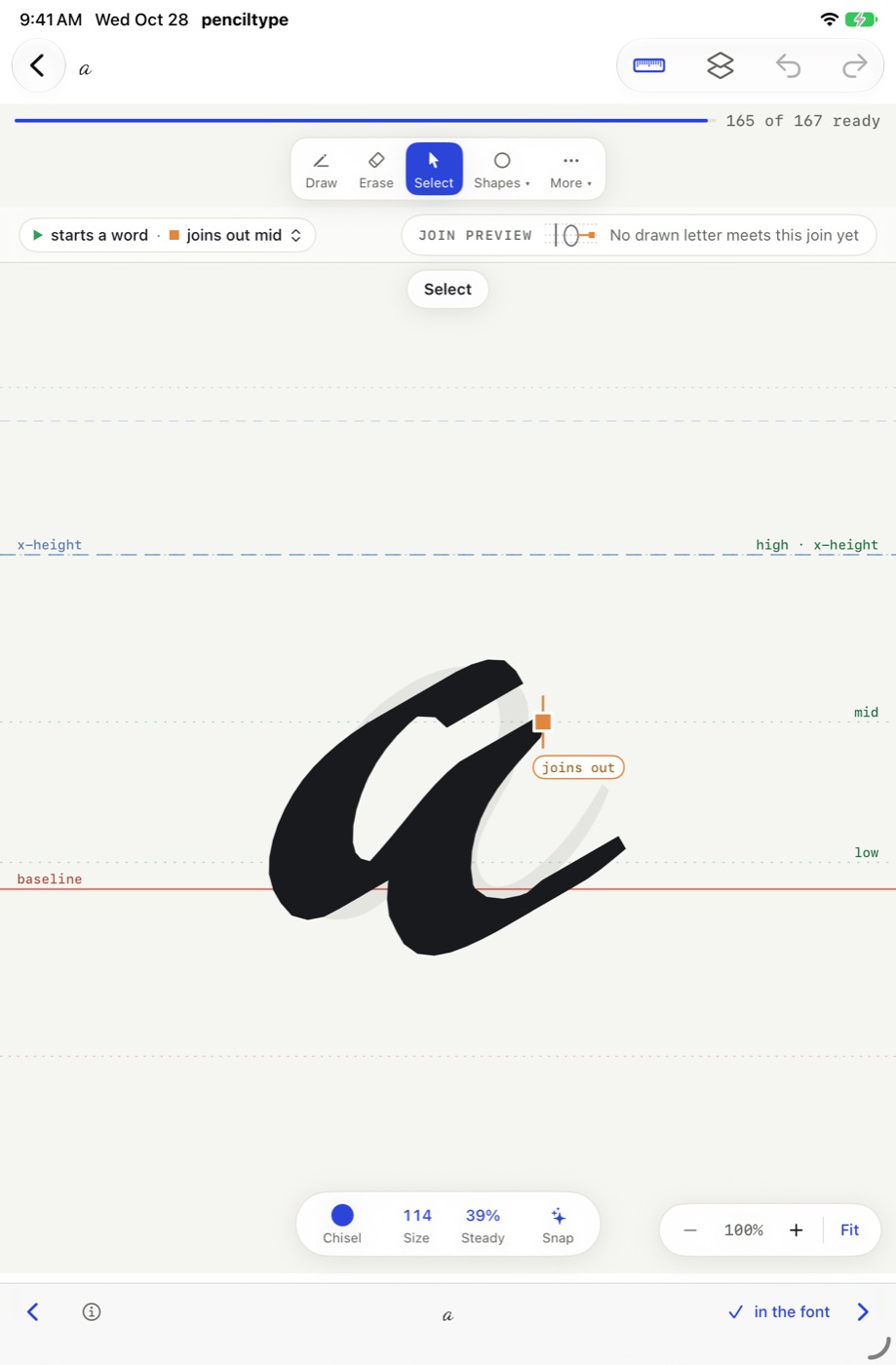
Under the tool strip, the join selector says which form of the letter is on the canvas and where it hands off — ▶ starts a word · ■ joins out mid — and on iPad and Mac the join preview sits beside it. Accents (unless join forms were made for one) and generated letters have no join selector.
Moving the join pins
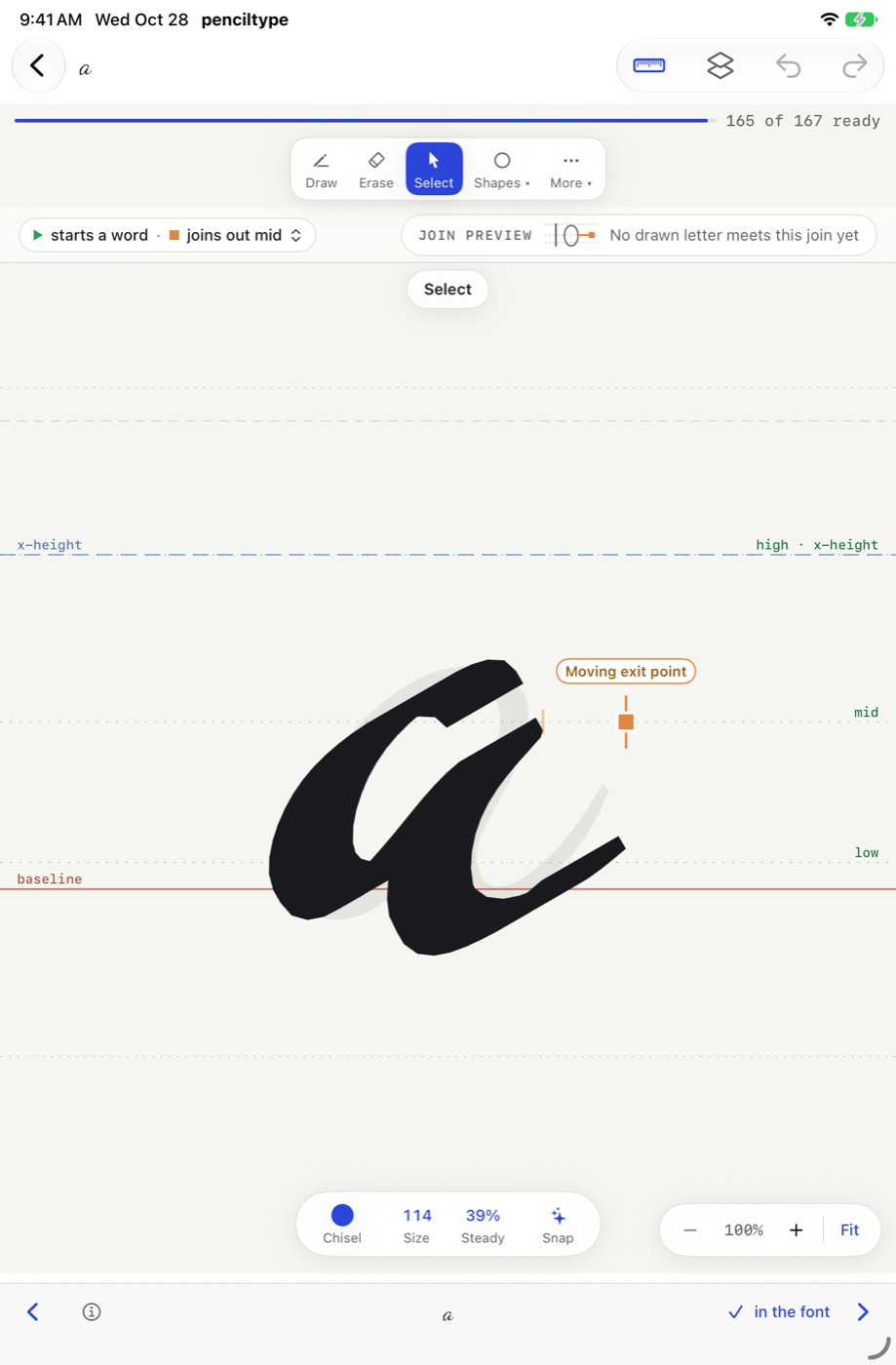
Pick Select, then drag a pin along its rail to set exactly where the join comes in or leaves. A label above the pin says Moving entry point or Moving exit point while you drag, with a light tap of feedback as you grab it. Small ticks on the rails mark where the ink meets them: drop a pin near its tick and it snaps back to following the ink. Each drag is one undo step (Move join point).
Join forms
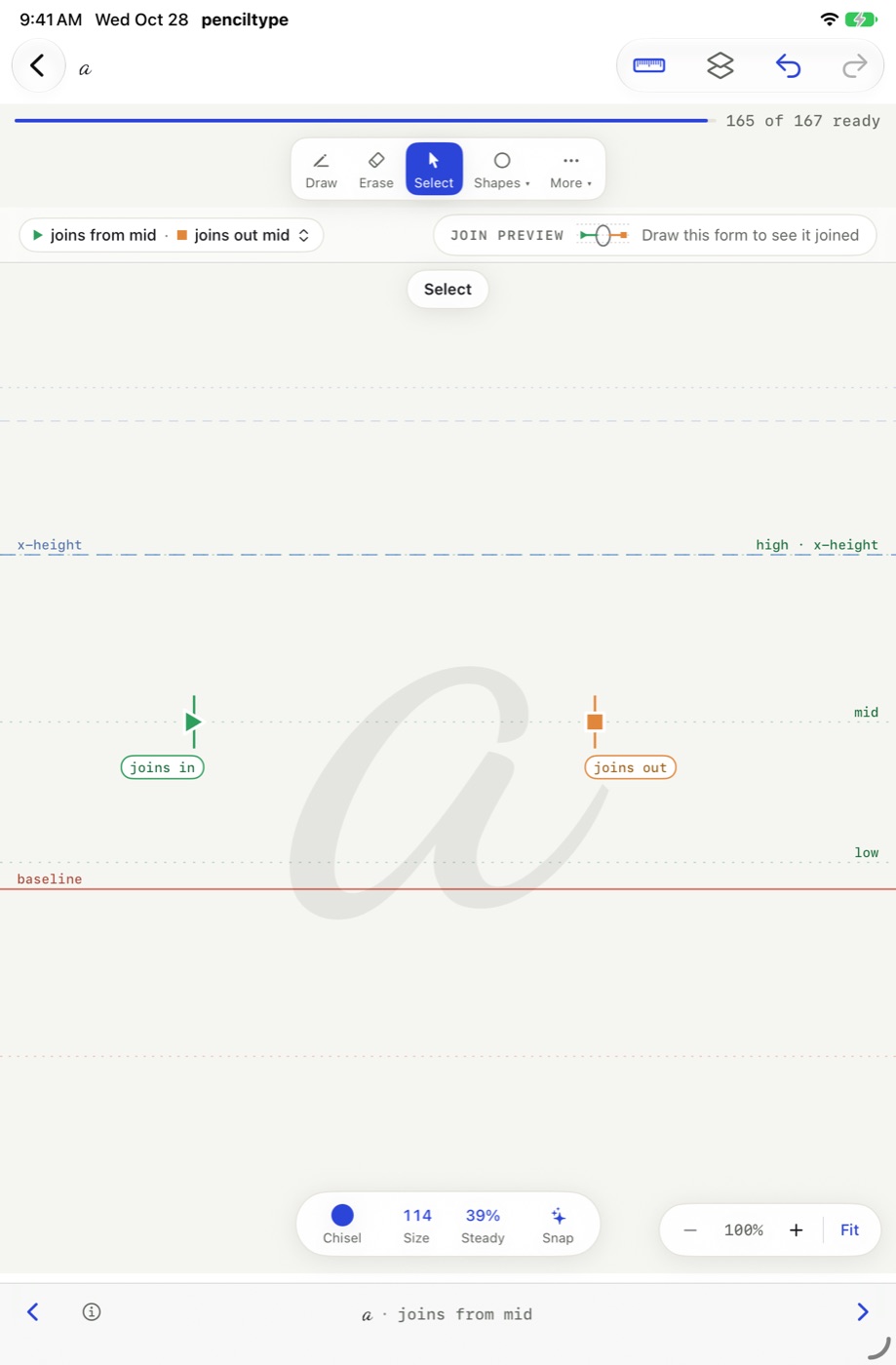
A cursive letter can look different depending on where the join comes in. Each letter can have one form for each entry: starts a word, joins from low, joins from mid and joins from high. When you type, the font picks the form that matches where the previous letter left off. Until you add join forms, the starts-a-word form is used everywhere.
Tap the join selector to open the join picker:
- entry
- The four forms, each with a little diagram of its join. A green dot means the form is drawn, a faint dot that it's still empty. Tap a form to show it on the canvas; a form that doesn't exist yet has an Add capsule — tap it to make the form (one undo step).
- exit
- joins out low, joins out mid, joins out high: where this form hands off to the next letter.
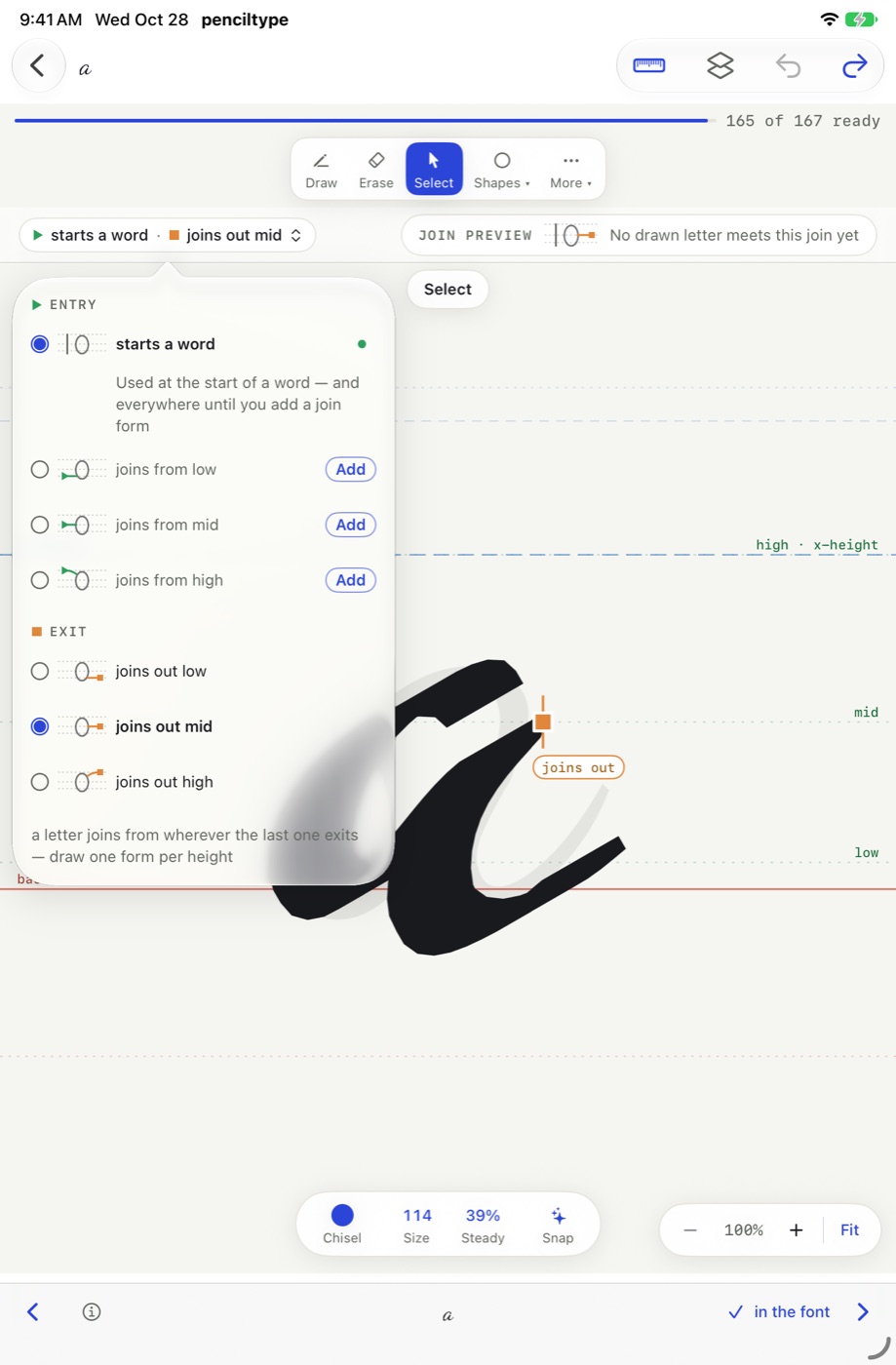
A letter's first ink, and every new join form, take their exit from Settings › Drawing preferences › New letters exit (low, mid or high; mid at first). The footnote in the picker sums it up: a letter joins from wherever the last one exits — draw one form per height.
Walking a cursive letter's forms
In a cursive font, › in the letter bar first visits the join forms you've turned on in Settings › Drawing preferences before moving to the next letter — starts a word, then joins from low, mid and high. The letter bar's caption says which form is up. A missing form is made on the spot when you arrive (without an undo step), and removed again if you leave it without ink. With Lowercase letters only on, capitals, numerals and punctuation keep just the word-start form. Accents and generated letters are a single stop.
The join preview
The JOIN PREVIEW chip shows the form on the canvas joined to a real neighbour, outlines placed pin to pin: after a letter that hands off where this form comes in, or before one that takes in where it leaves. Tap it to choose which neighbour — only drawn letters that really meet this join are offered (up to 30). If this form has no ink yet it says Draw this form to see it joined; if no drawn letter meets the join, No drawn letter meets this join yet. Accent marks have no preview.
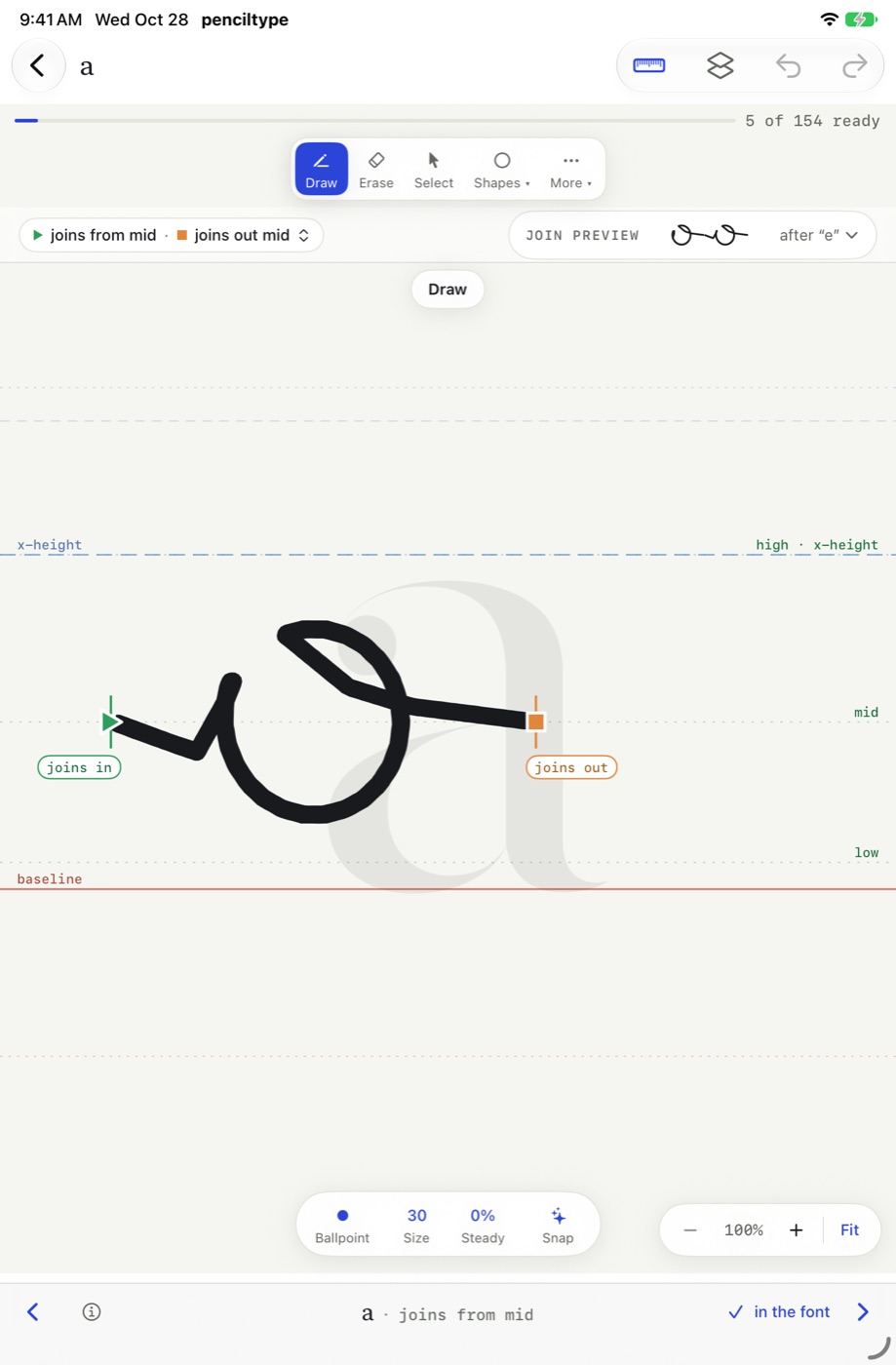
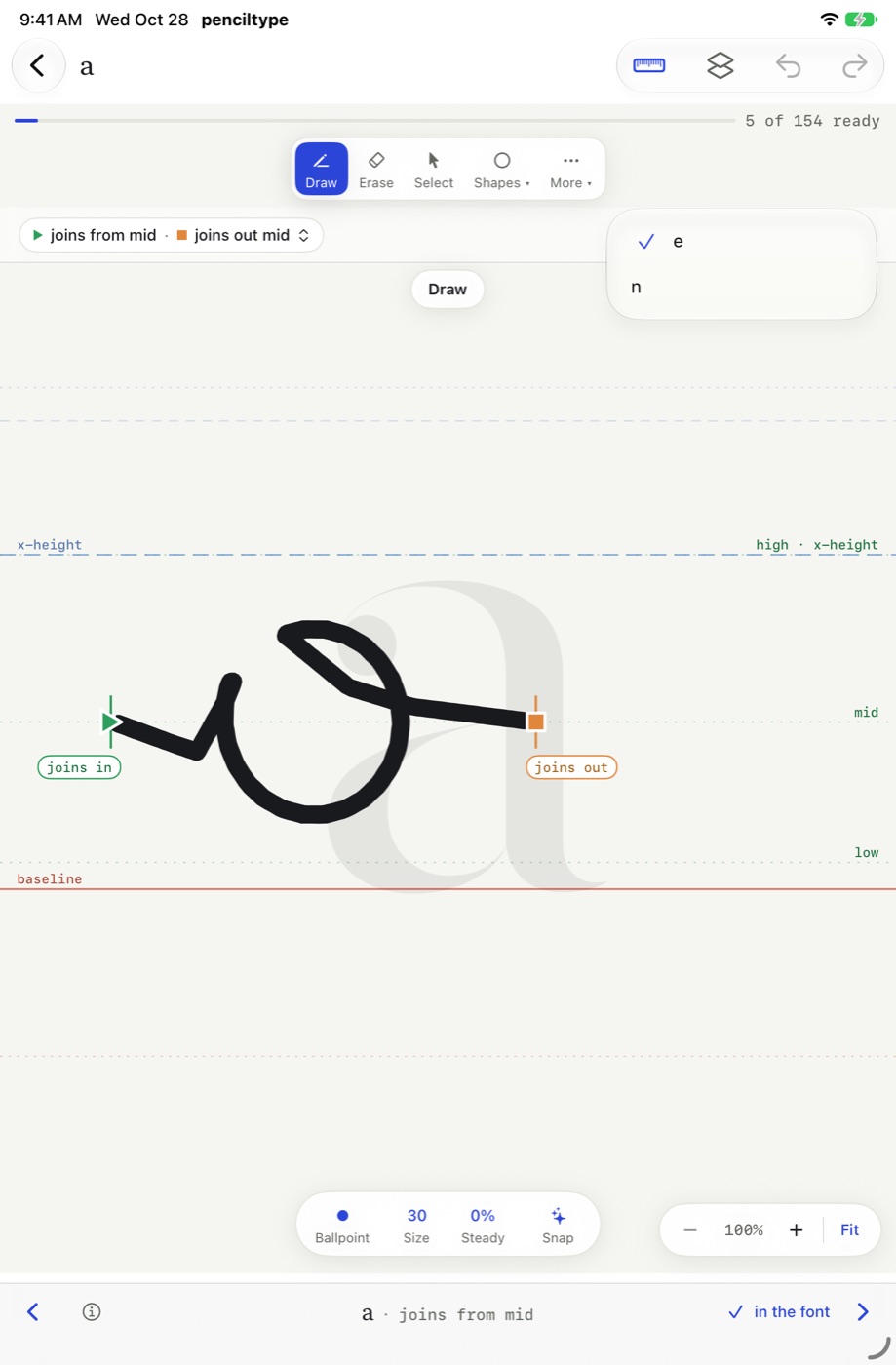
On iPad and Mac the preview sits in the join selector's row. On iPhone it floats over the foot of the canvas, just above the pen bar.
Alternating versions
In an Alternating font, each letter can have up to three versions, and typing takes turns between them so repeated letters vary — the way handwriting does. A row of tabs under the tool strip picks the version you're drawing:
- ‹ ›
- Step to the previous or next version (never past the last one that exists).
- version 1
- The main drawing.
- version 2, version 3
- The alternates. A green dot means the version is drawn.
- + version N
- Adds the next version and shows it, up to three. Versions are only made here, never by stepping.
Below the tabs, the letter is typed four times in the font as it stands, cycling through your versions, with the caption Typing takes turns between your versions, so repeated letters vary. (While the font is rebuilding you see outlines; before anything is drawn, the faint guide letter.)
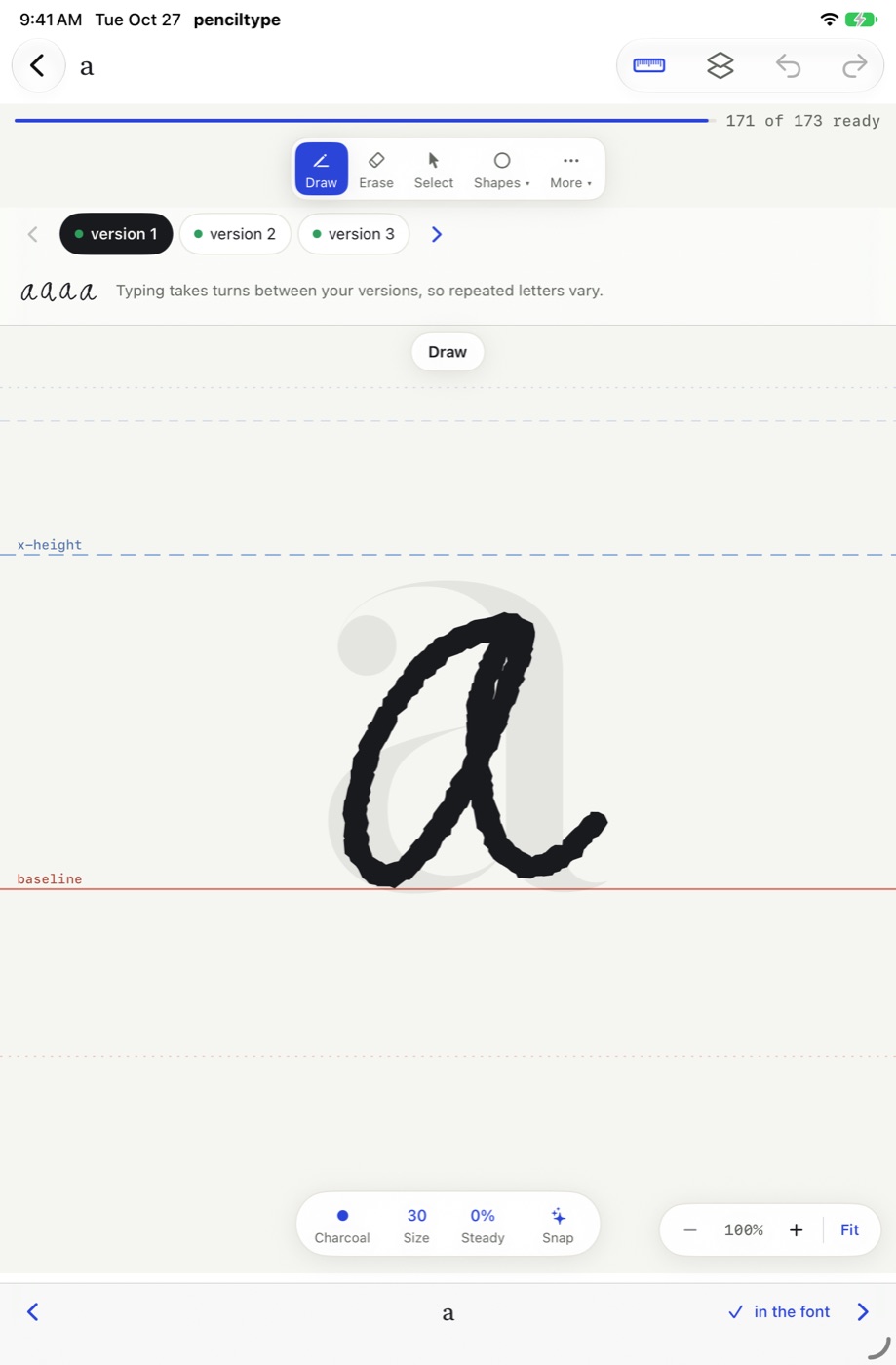
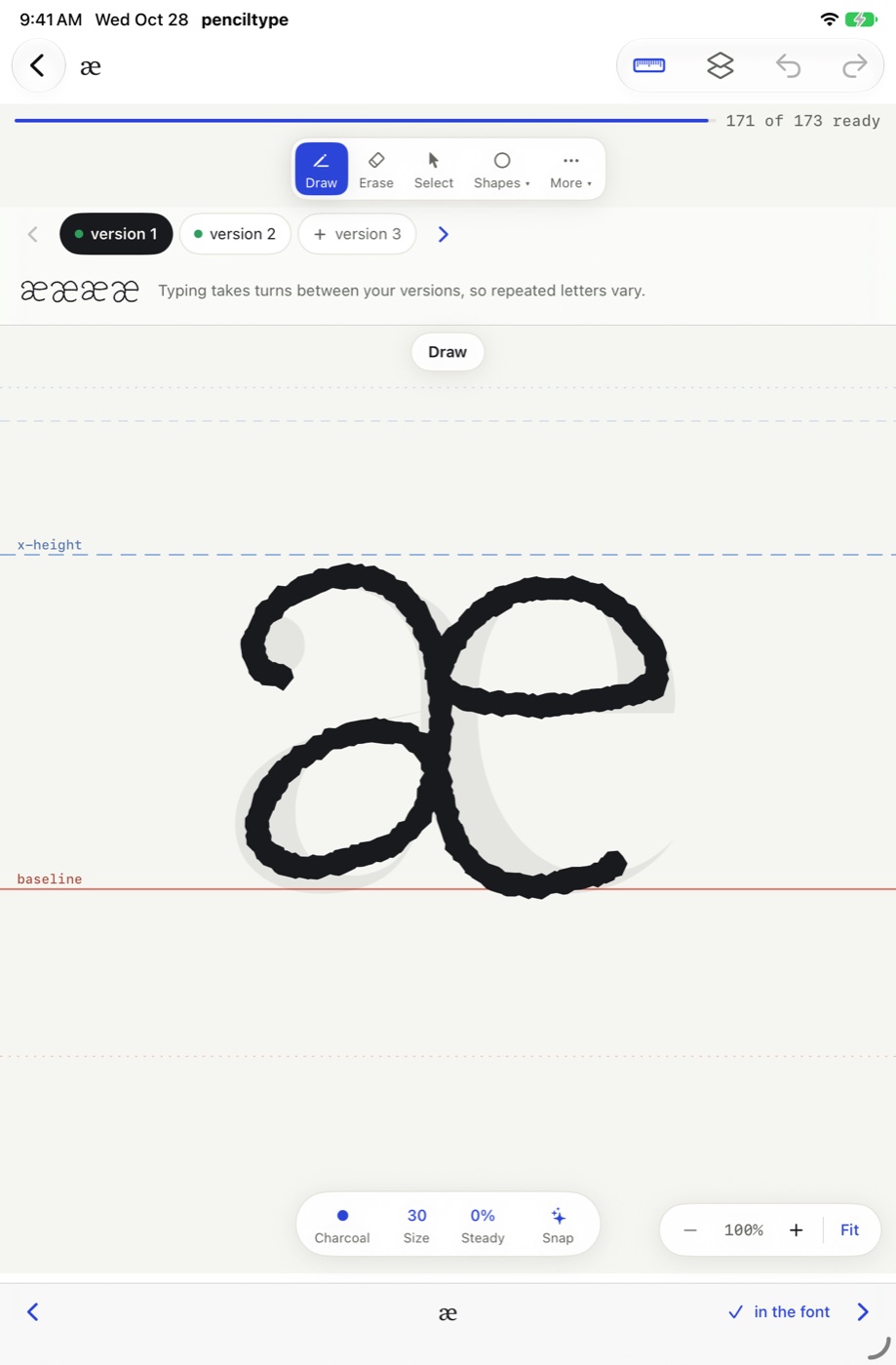
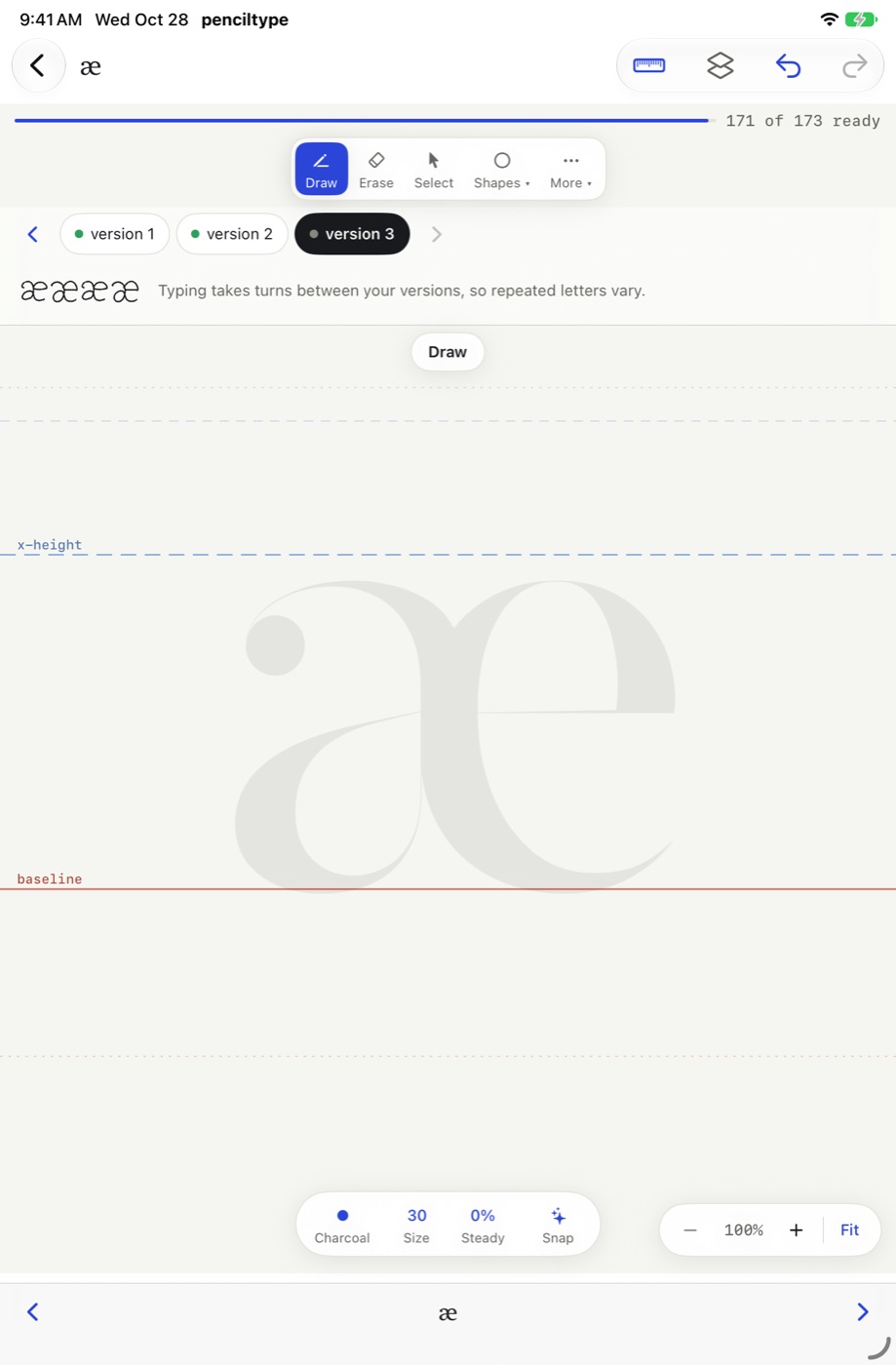
In versions 2 and 3, the tracing guide shows the guide face's stylistic alternates where it has them, so you draw something different.
Removing a version
Press and hold the tab of version 2 or 3 and choose Remove version N. penciltype asks first and says what happens to the numbering — Remove version 2 of “a”? Version 3 becomes version 2. Version 1 has no menu; clearing it is covered below.
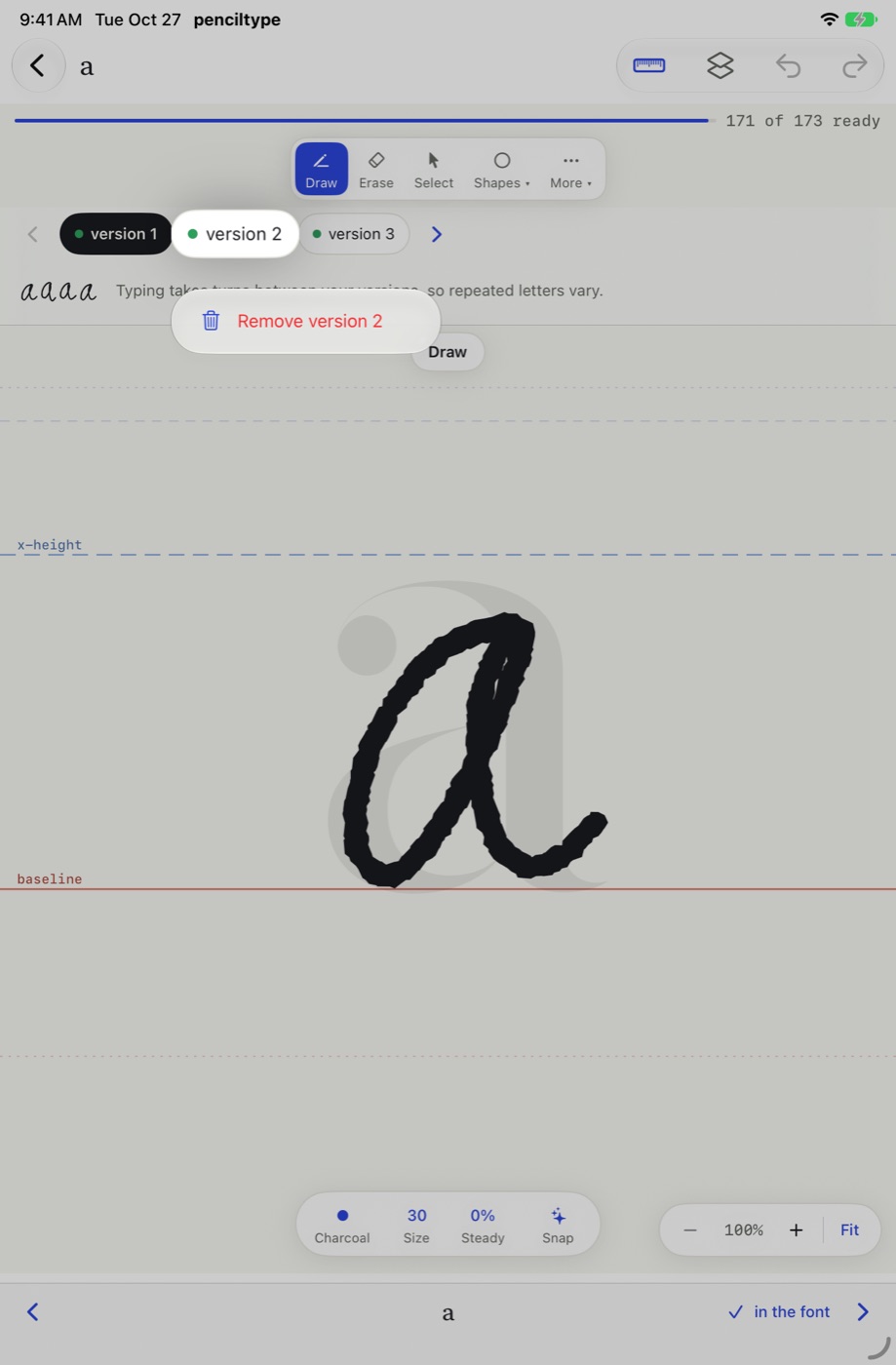
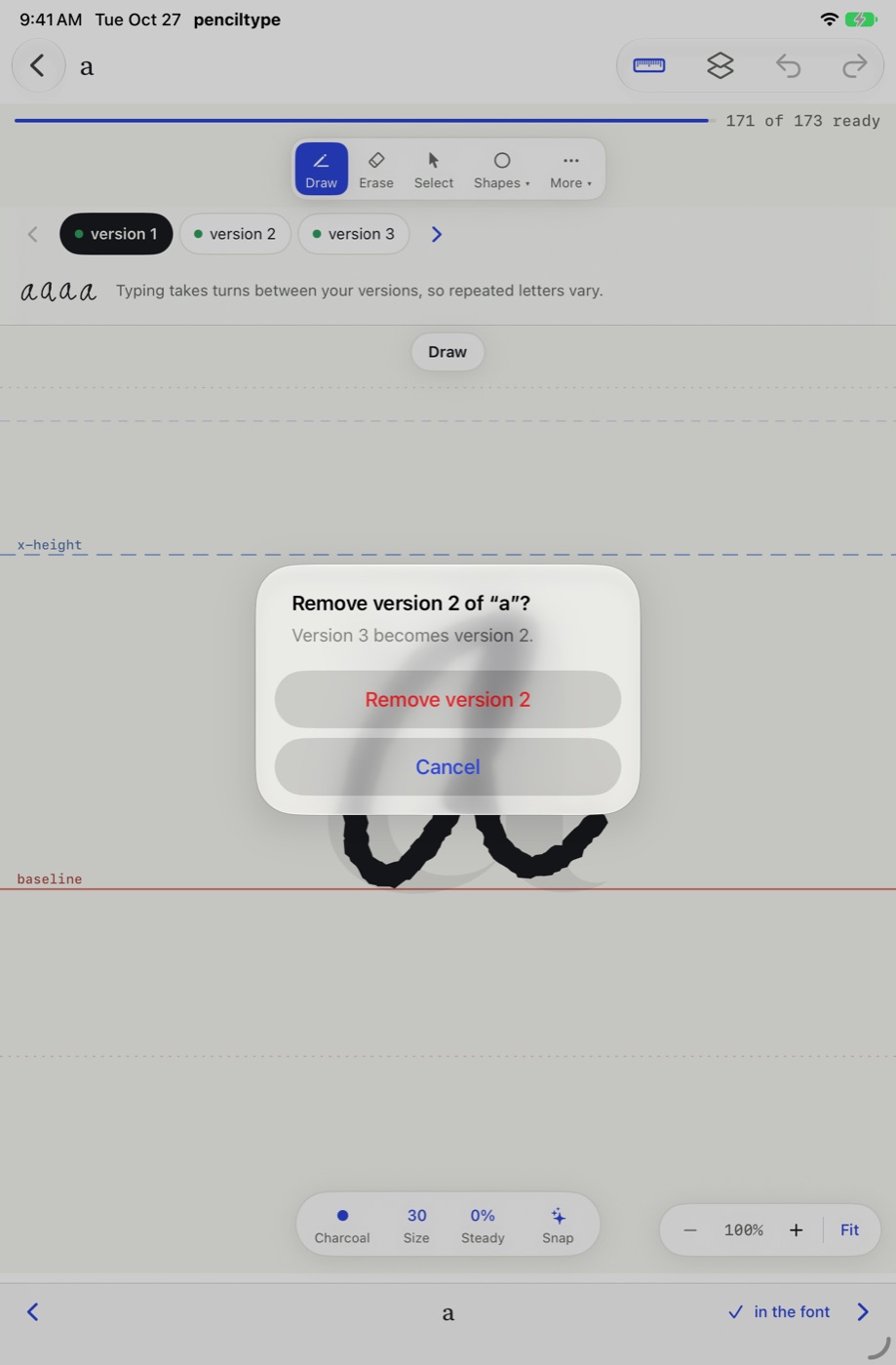
Empty forms tidy themselves away: a version or a join form left without ink is removed when you leave the letter. The first form always stays.
On iPhone the tabs scroll sideways and the caption is hidden. Generated letters have no version tabs.
Clearing a letter
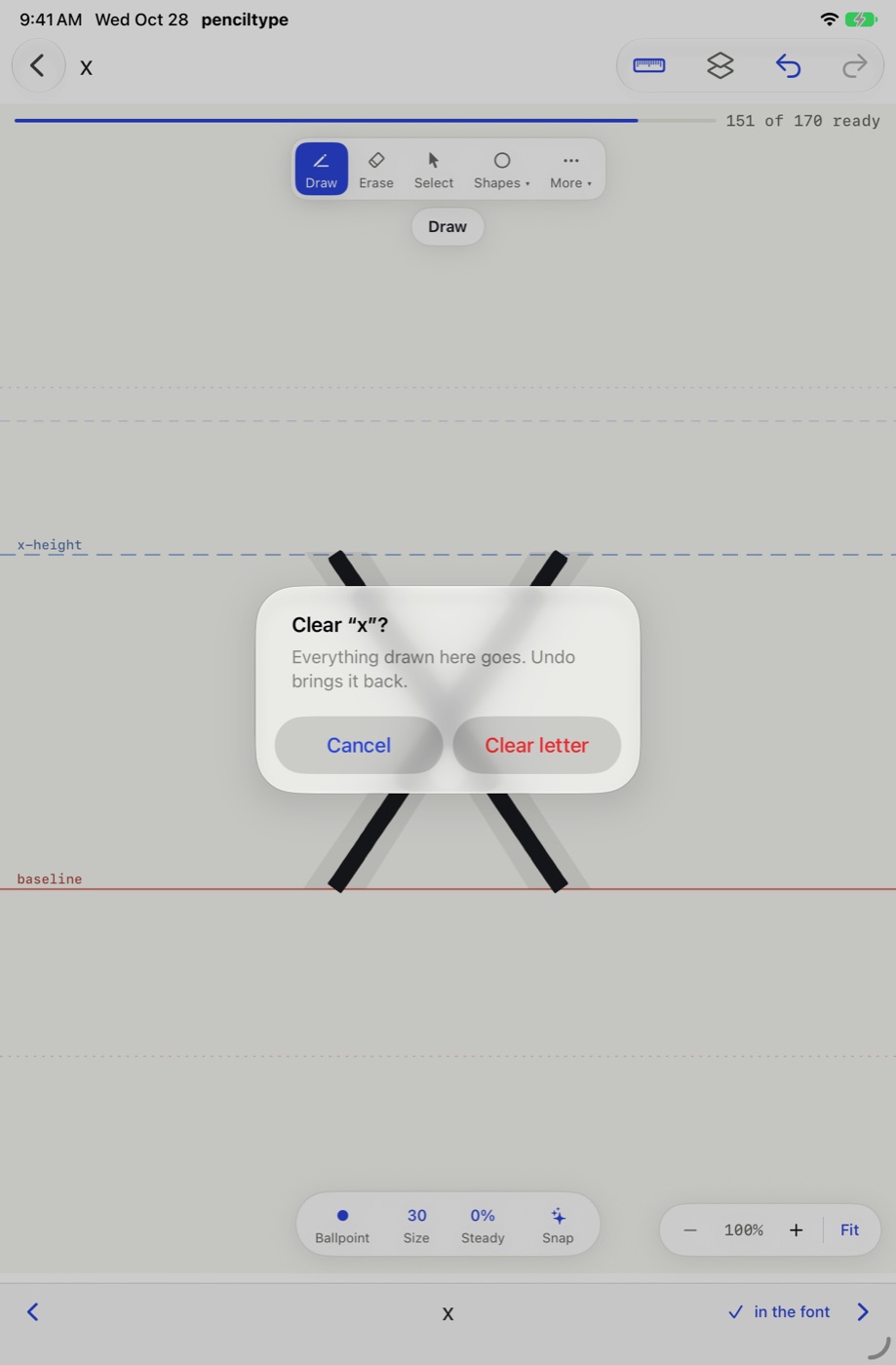
More ▾ › Clear… empties the form on the canvas. It always asks first, in words that say exactly what goes:
| On the canvas | The question | The button |
|---|---|---|
| A letter | Clear “a”? Everything drawn here goes. Undo brings it back. | Clear letter |
| Your drawing of a character the font could make | …Everything drawn here goes and the generated form returns. Undo brings it back. | Clear letter |
| A piece | Clear “Stem”? | Clear piece |
| Version 1, with other versions drawn | Clear “a”, version 1? Until you draw version 1 again, version 2 is used as the main “a”. | Clear version 1 |
| Version 2 or 3 | Remove version 2 of “a”? Version 3 becomes version 2. | Remove version 2 |
| A cursive word-start form, with join forms | Clear the initial form of “a”? | Clear initial form |
| A cursive join form | Remove the “from mid” form of “a”? | Remove |
Cancel keeps everything. Join forms and alternate versions are removed outright; the main form is emptied. A stroke in progress or a waiting snapped shape goes with it. Clear… is dimmed when there is nothing to clear (though an empty join form or version can still be removed).
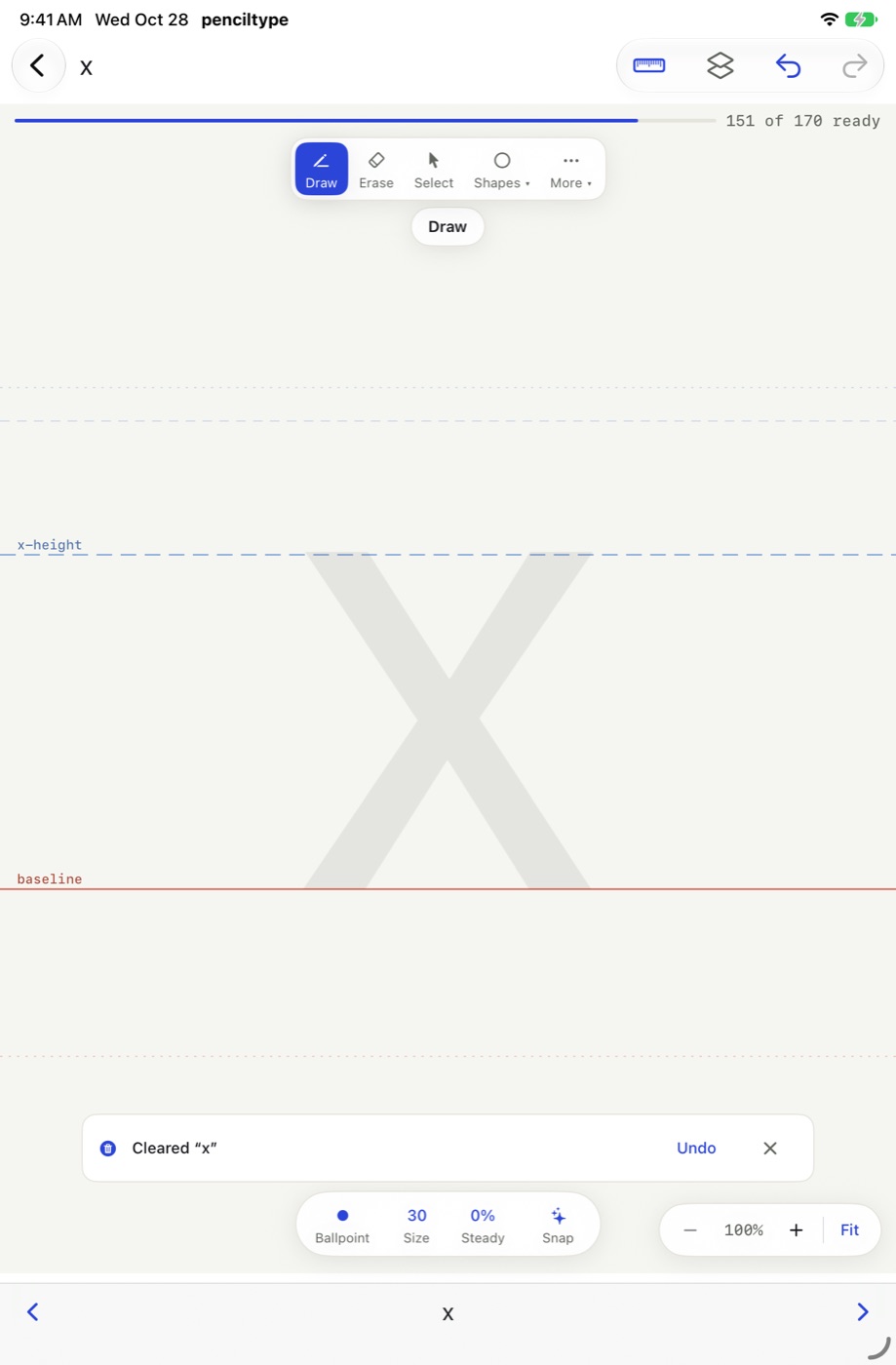
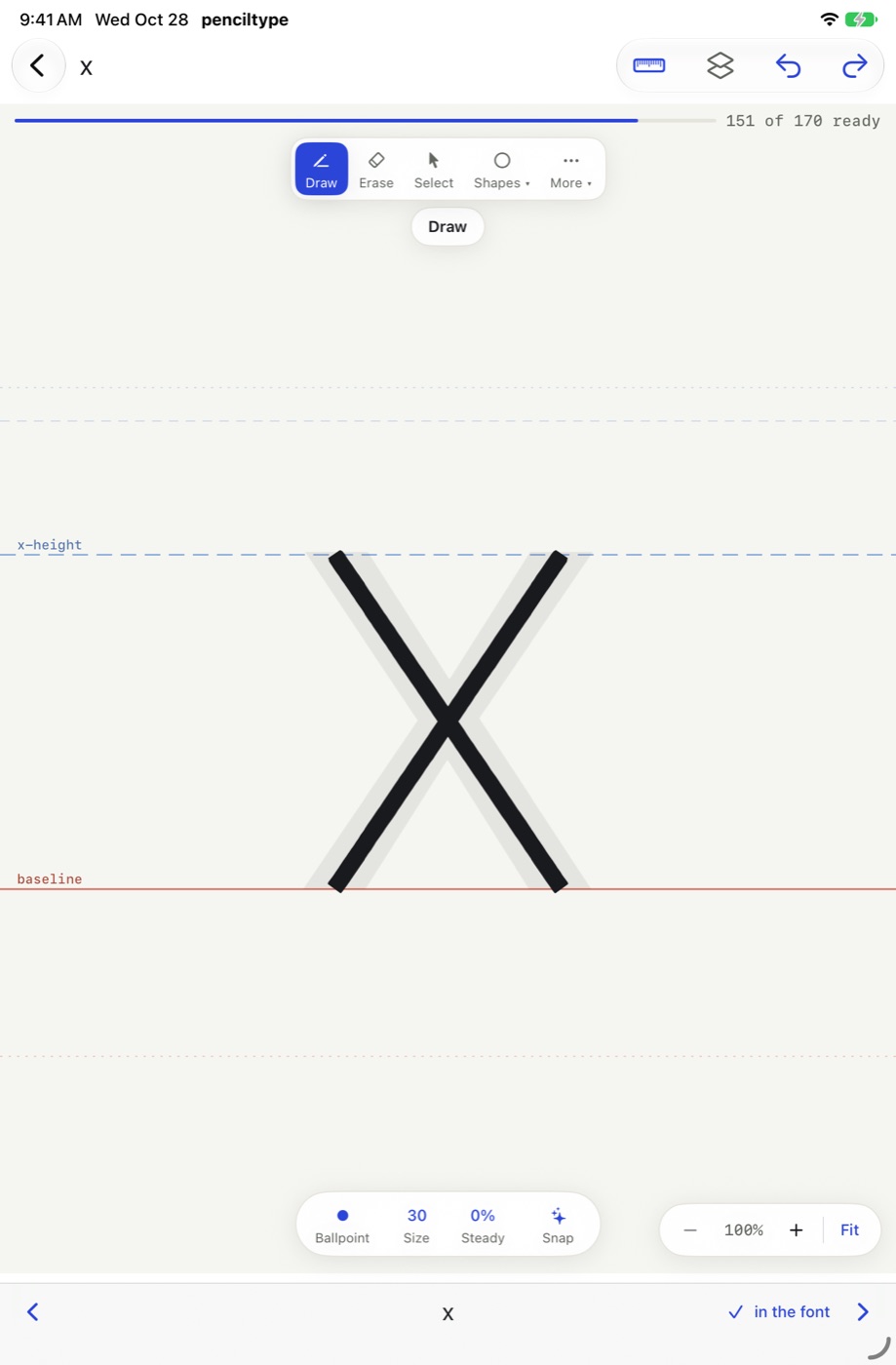
After clearing, a banner above the pen bar says Cleared “x” with Undo, which brings the form back and shows it. The banner hides itself after six seconds, or as soon as you undo or redo anything else; × hides it at once, and Undo stays in the toolbar.