

Spacing
Good letters with bad spacing still look clumsy. Spacing is where you set how much room sits around every letter and between words, and, in Advanced spacing, pull particular pairs together or give one letter more room. Every change shows in your own font as you drag.
Spacing
On the letter grid, tap Spacing in the row of chips (it's available once one character is ready). You can also get here from Font settings › Spacing, and the finished-font screen has the same controls under Review spacing.
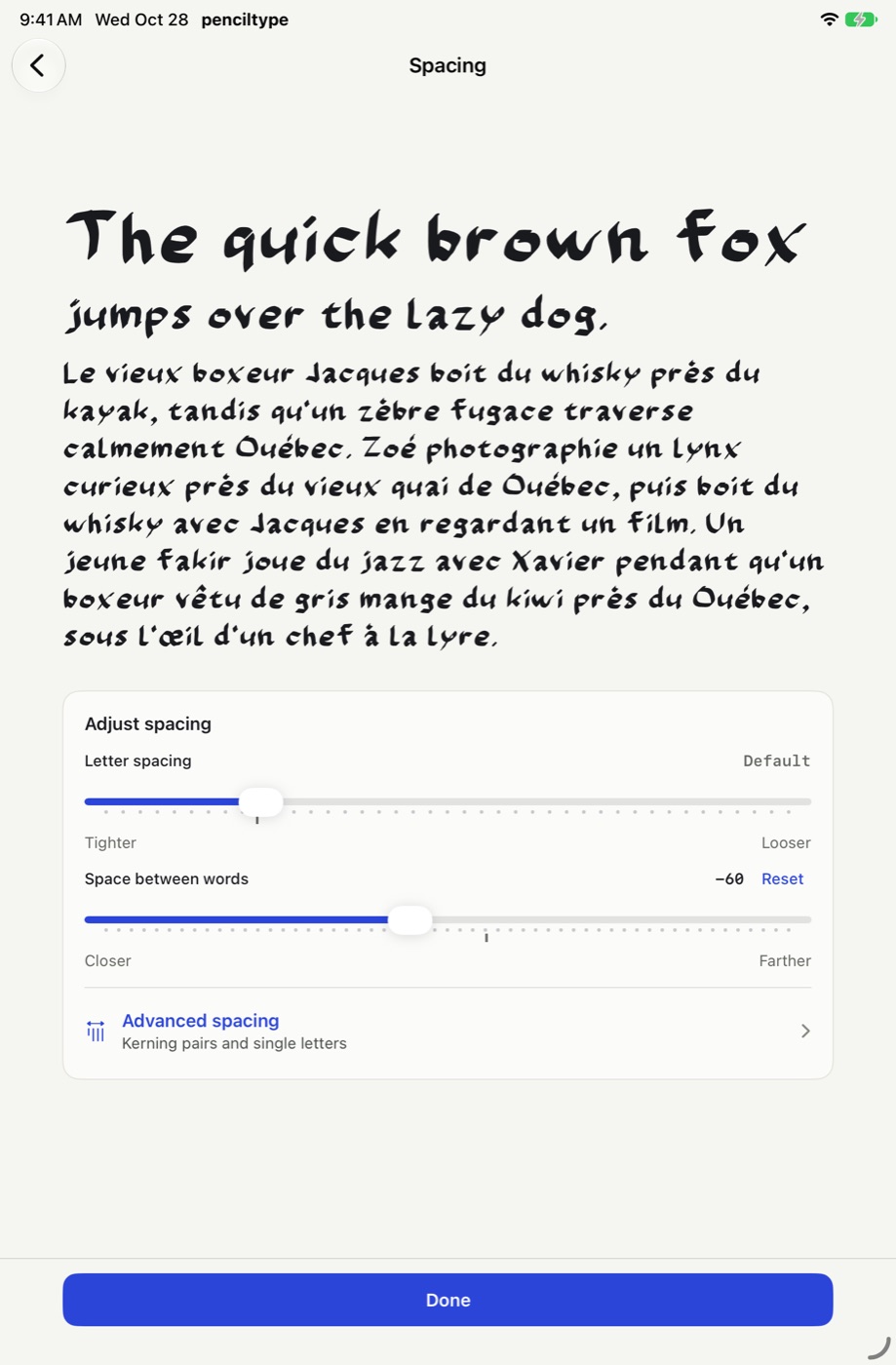
The top of the screen sets a few pangrams in your font: “The quick brown fox jumps over the lazy dog.” and others. If your font has a language other than English, they're in the first such language that has pangrams. Under them, the Adjust spacing panel has two sliders:
- Letter spacing
- The room on either side of every letter, from Tighter to Looser (0 to 200 in font units, in steps of 5; the default is 45). The reading beside the name says Default, or how far you've moved it, such as +20 or −10.
- Space between words
- The width of the space bar, from Closer to Farther (60 to 600, in steps of 10; the default is 360). Turn it up if words run together.
Once a slider has moved off its default, a Reset button beside its name puts it back.
Pixel fonts start from spacing that fits their grid: letter spacing of half a cell and a word space of four cells. Reset returns there.
For a cursive font, Letter spacing works differently: it opens or tightens the joins (−100 to 300, default 0). Looser opens every join, gaps and all; tighter tucks letters into each other. The Spacing screen of a cursive font has no Advanced spacing link, and if you open Advanced spacing from Font settings it has only the Font spacing panel.
When you're done, tap Done at the bottom to go back to the grid.
Changes show as you drag
You don't have to let go to see a change: the lines of text above follow the slider step by step. When you let go, the real font is rebuilt with the new spacing, and nothing jumps, because the preview already looked like the result. This is true on every spacing control in the app: here, in Advanced spacing, and on the finished-font screen.
Comparing and undoing
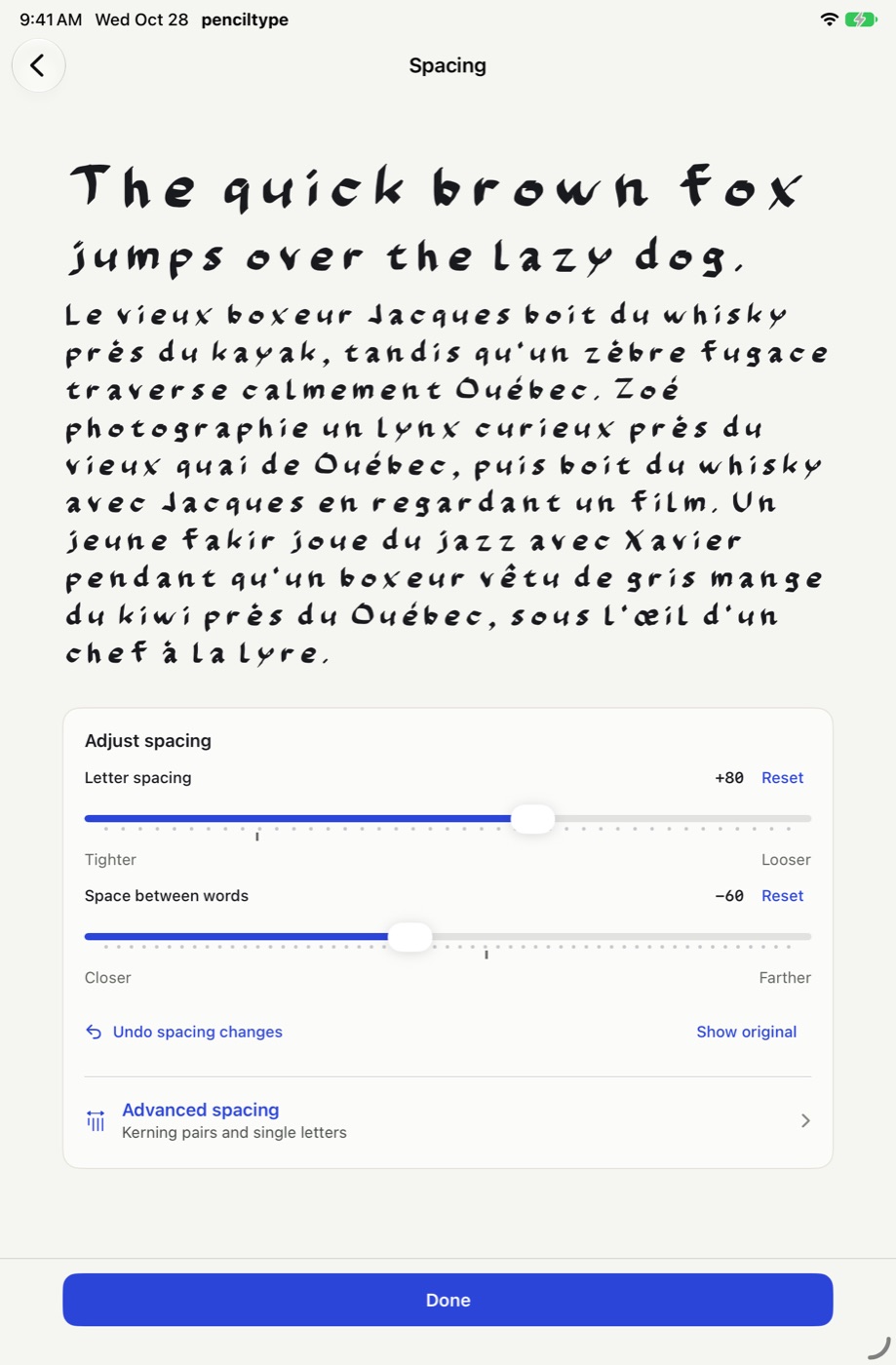
As soon as you change anything on this visit, two more controls appear under the sliders:
- Undo spacing changes
- Puts everything back the way it was when you opened the screen: both sliders, and any pairs and letters you tuned in Advanced spacing on the way.
- Show original
- Hold up the old spacing for comparison: while it's on, the lines above are set with the spacing you opened the screen with. Tap it again, or move a slider, to see your changes.
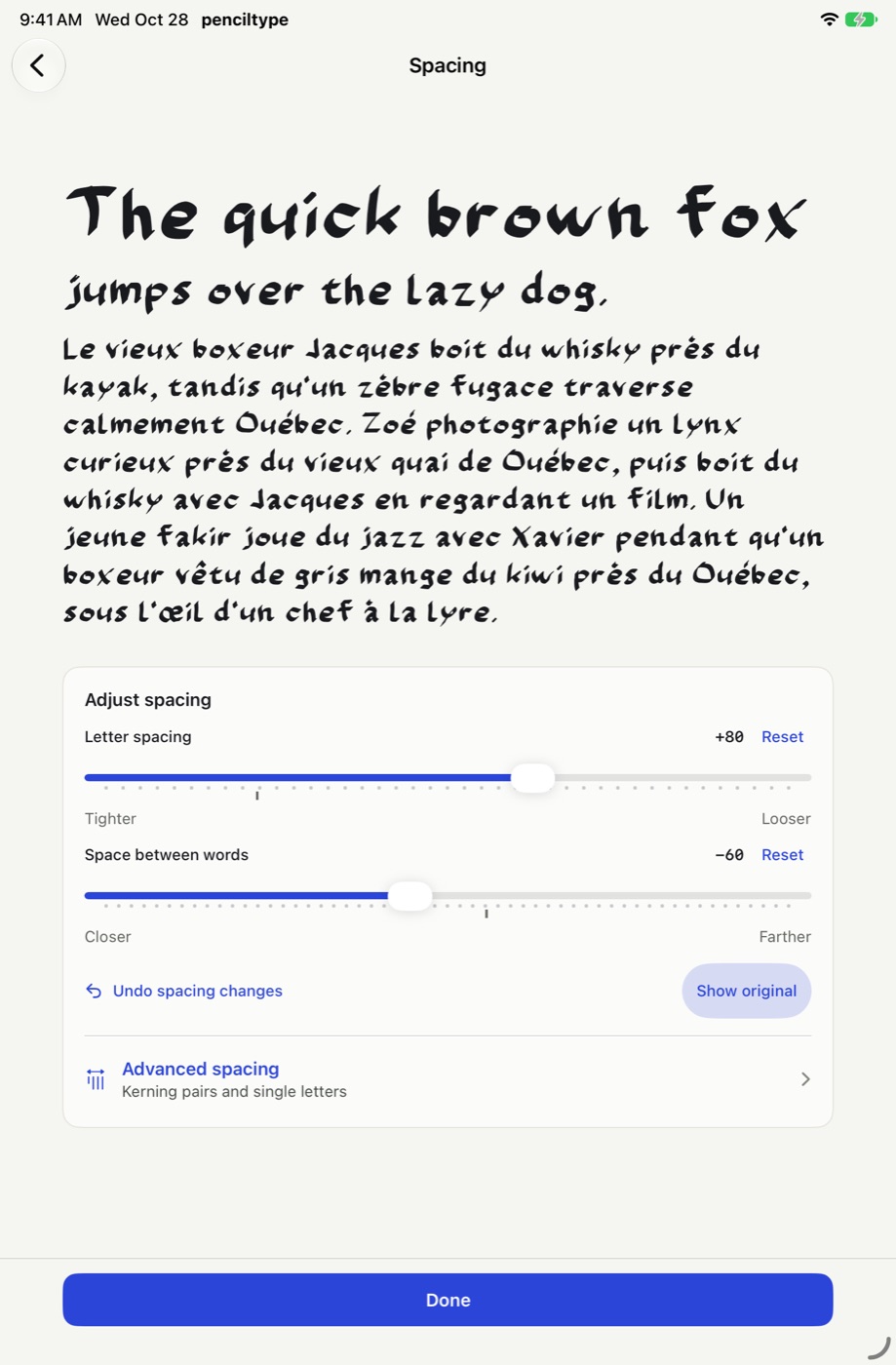
Changes save as you make them; Undo spacing changes is the way back. Advanced spacing on its own has no undo, so if you go there from this screen and want to back out, come back here and use Undo spacing changes.
Advanced spacing
Tap Advanced spacing (“Kerning pairs and single letters”) at the bottom of the Spacing screen, or Advanced spacing in Font settings.
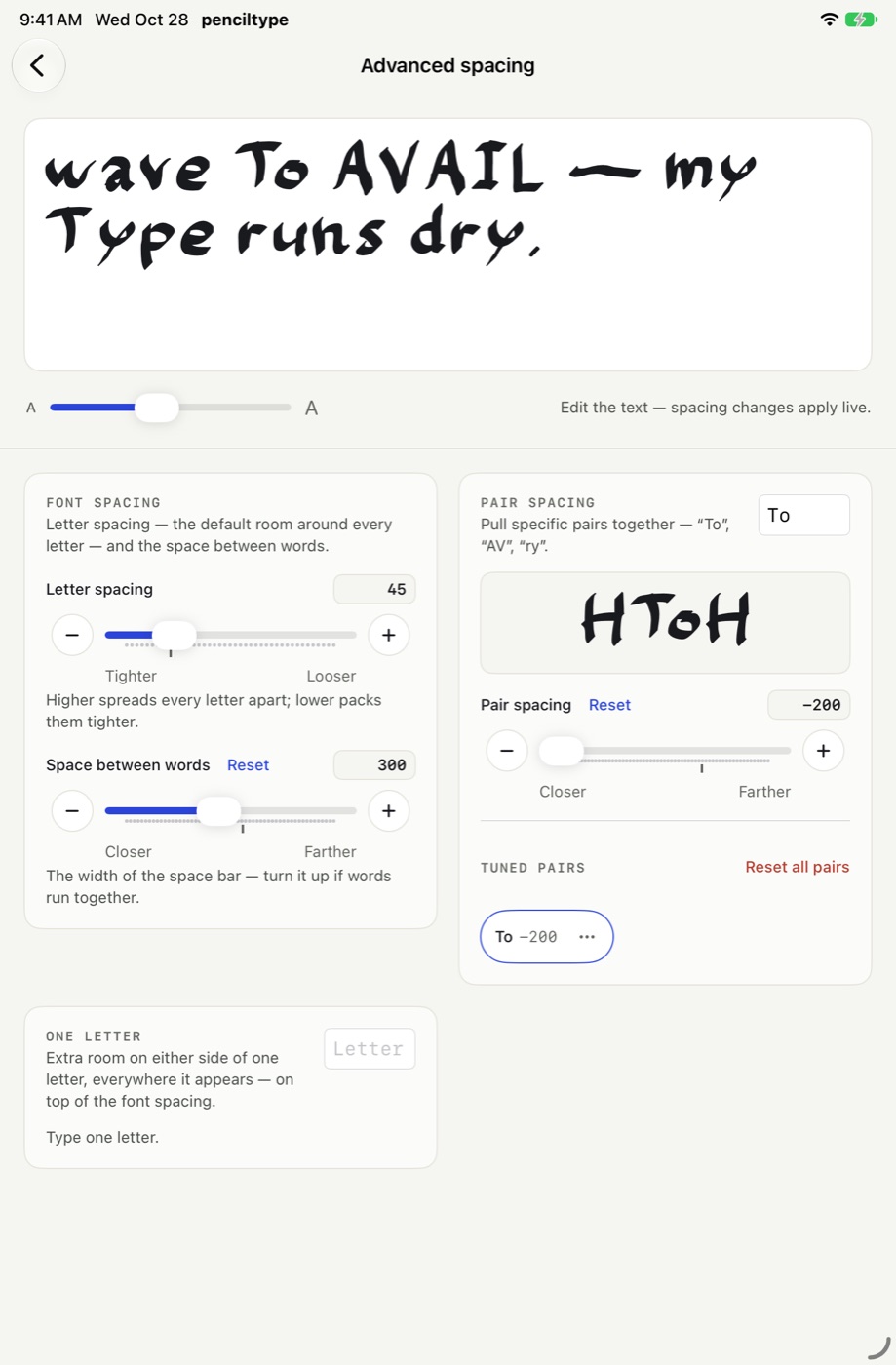
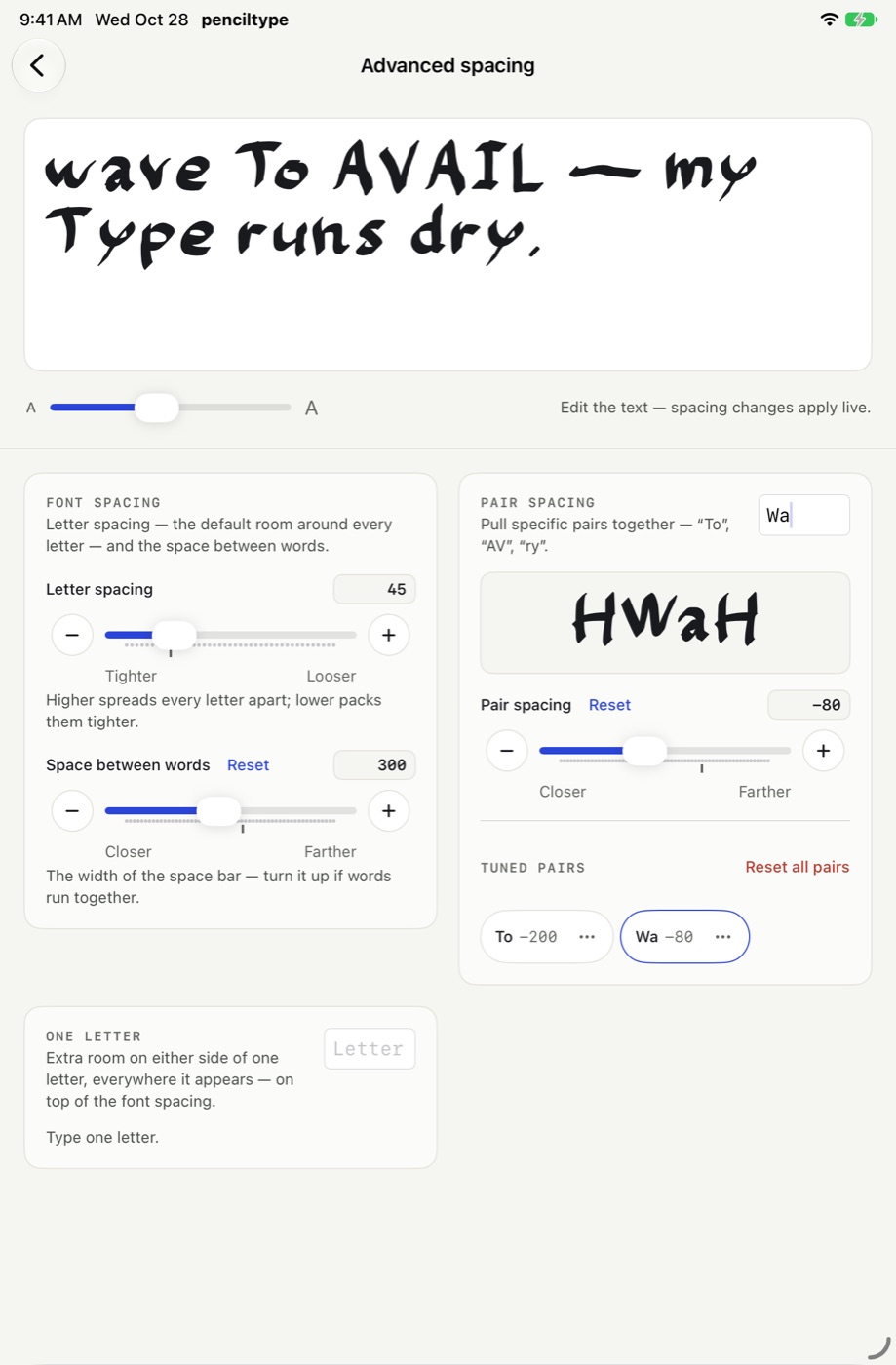
At the top is a specimen in your font, “wave To AVAIL — my Type runs dry.”, which you can edit: tap it and type whatever you want to check (Edit the text — spacing changes apply live.). The slider under it sets the specimen's size (22 to 96 points). Neither the text nor the size is remembered. Below are three panels.
Font spacing
The same two values as on the Spacing screen, with more control: a value box, − and + buttons that step by 5 (or 10), and Reset.
- Letter spacing: higher spreads every letter apart; lower packs them tighter.
- Space between words: the width of the space bar; turn it up if words run together.
Pair spacing
Pull specific pairs together, like “To”, “AV” or “ry”, where the shapes leave a gap the general spacing can't fix. Type two characters into the Pair field (it keeps the last two you type). The pair appears large between two H's so you can judge it, with a Pair spacing slider from Closer to Farther (−200 to 100). Zero means no adjustment, and setting it back to zero removes the pair. Until the field holds exactly two characters it says Type exactly two letters.
Every pair you've tuned is listed under TUNED PAIRS as a chip with its value. Tap a chip to load it into the field and slider. Reset all pairs clears every pair after asking.
One letter
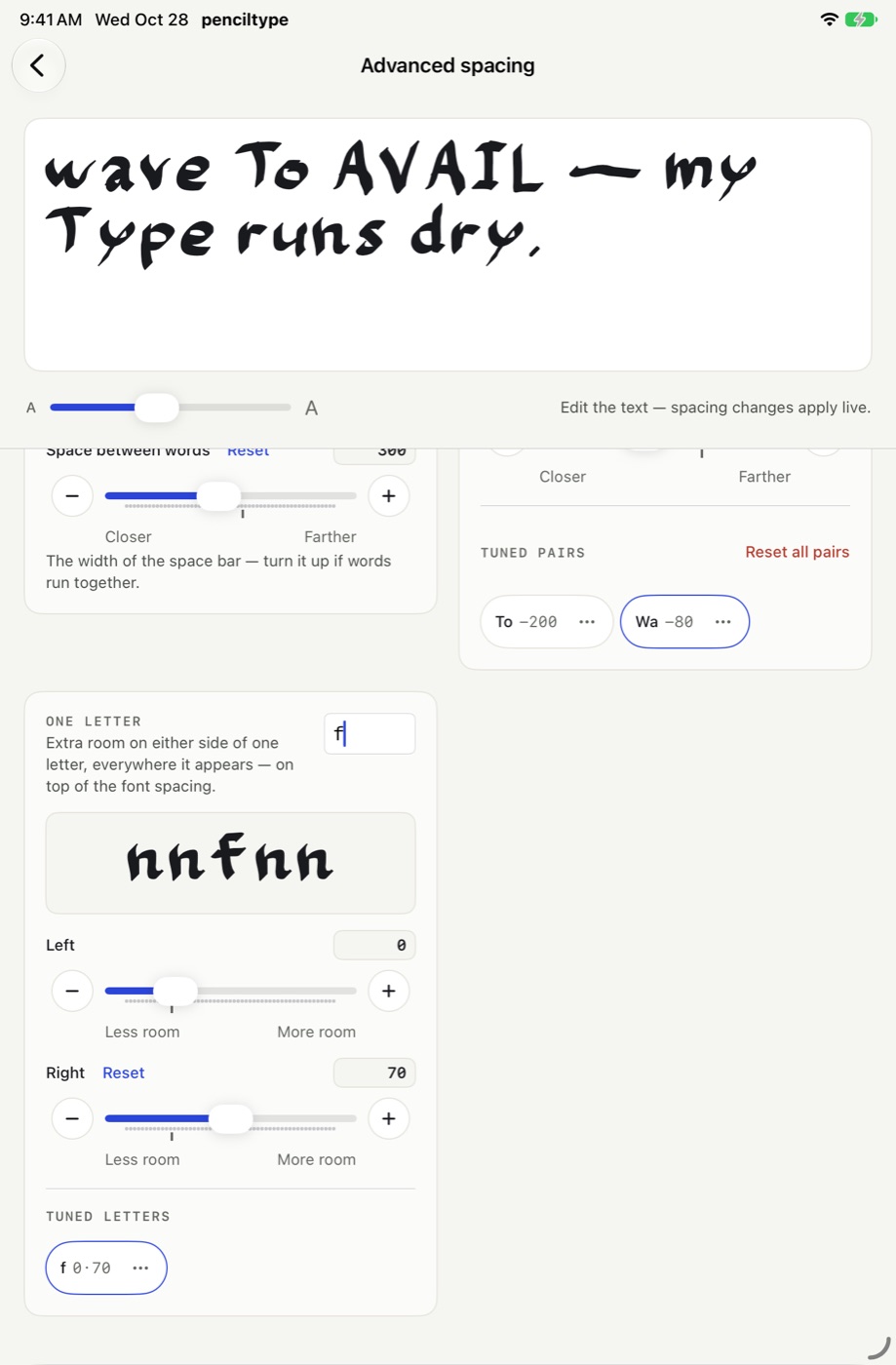
Extra room on either side of one letter, everywhere it appears, on top of the font spacing. Type a character into the Letter field, then move Left and Right (−60 to 200, from Less room to More room). The letter is shown between n's. Tuned letters are listed under TUNED LETTERS as chips like “f 0·70” (left·right). Until the field holds one character it says Type one letter.
Cursive fonts show only the Font spacing panel: their letters join, so pairs and single-letter room don't apply.
Editing and resetting tuned pairs and letters
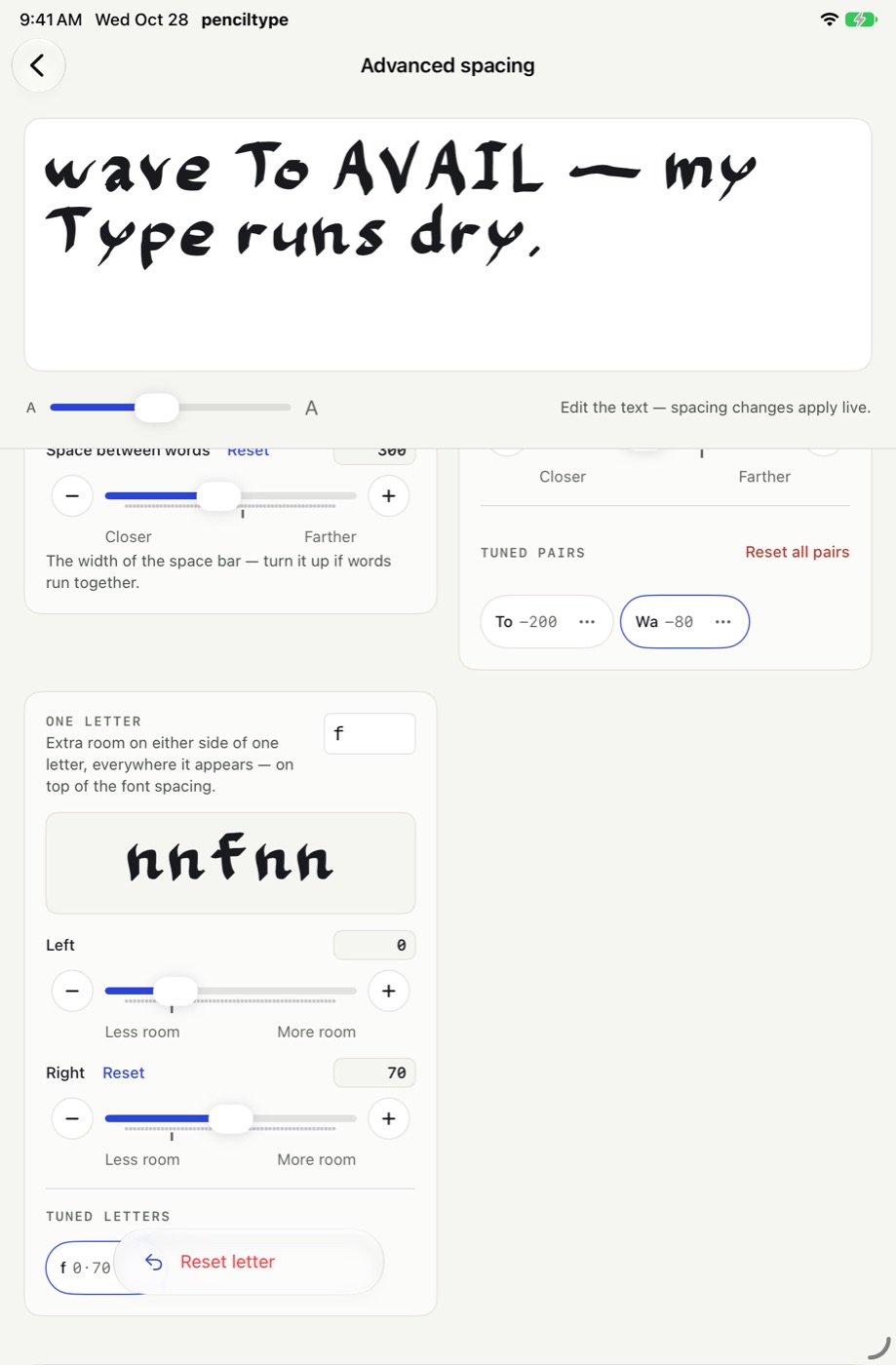
Each chip has a … button (More actions):
- On a pair: Edit pair loads it into the Pair field and slider; Reset pair removes its tuning straight away.
- On a letter: Reset letter puts both its sides back to the font spacing.
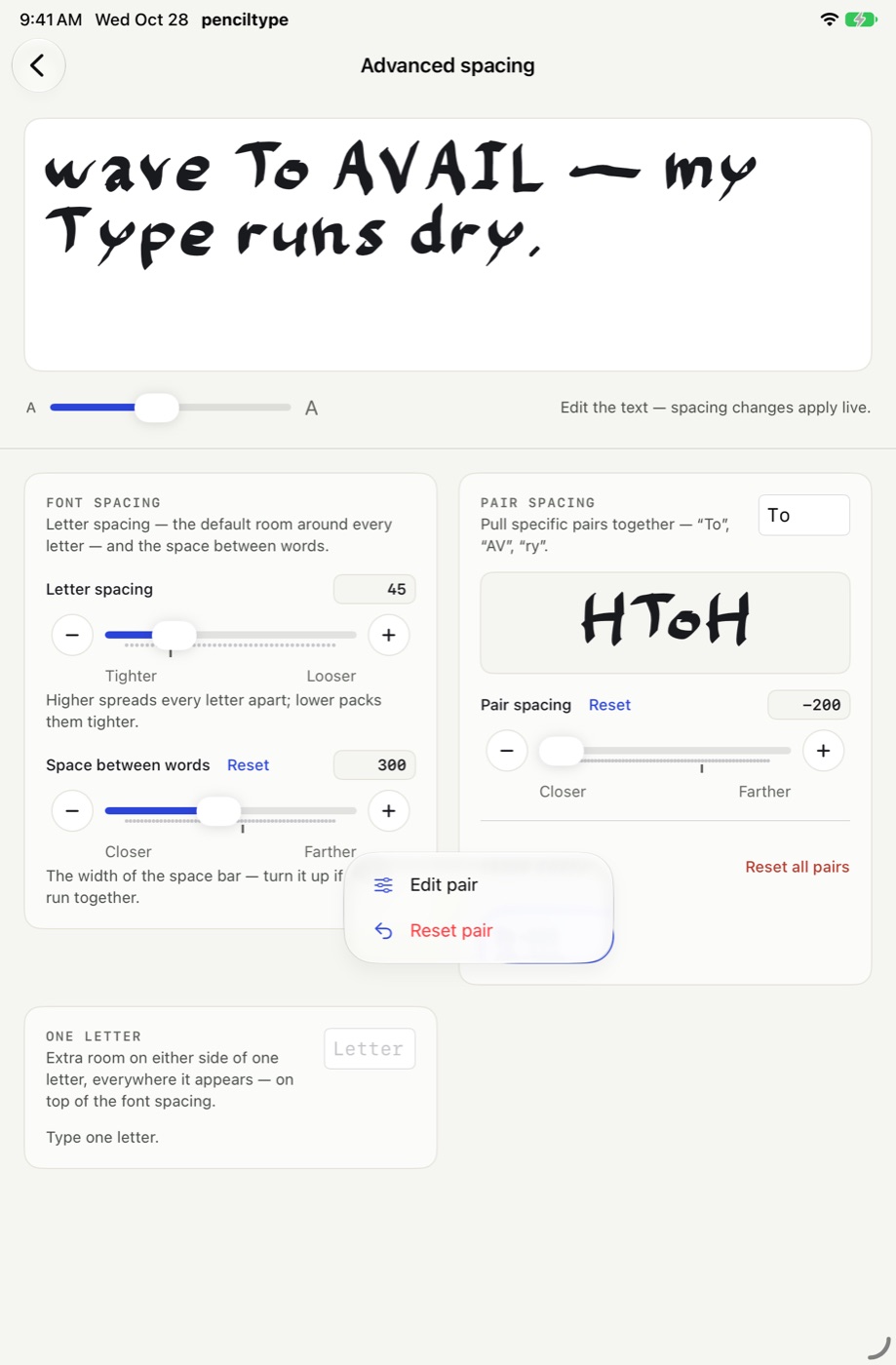
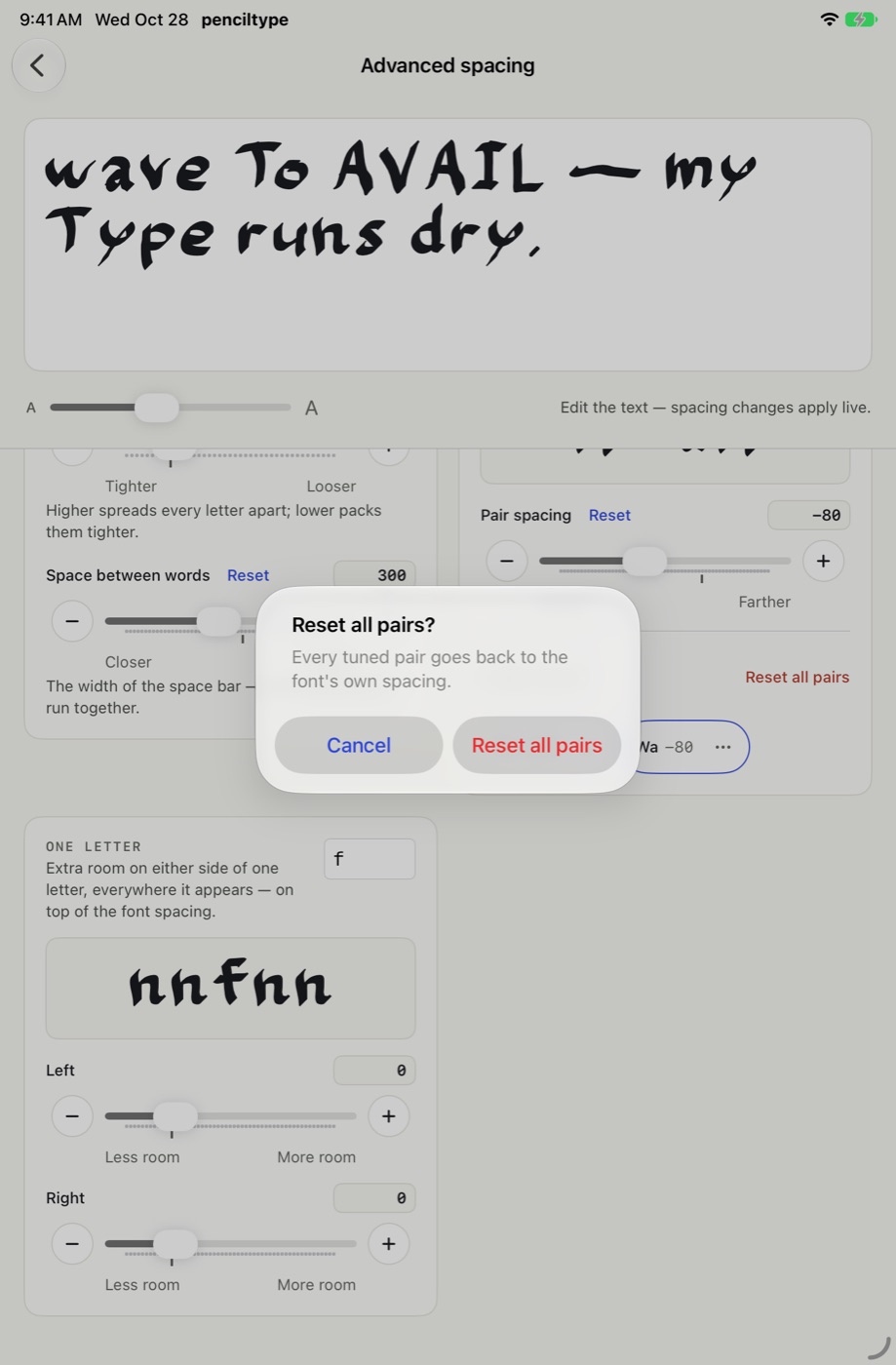
Reset all pairs, at the right of the TUNED PAIRS heading, asks Reset all pairs? (“Every tuned pair goes back to the font's own spacing.”). Tap Reset all pairs to clear them, or Cancel. Single pairs and letters reset without asking.