

Docs
Everything penciltype does, screen by screen: from your first letter to every one of the brushes.
Start here
- Welcomepenciltype turns your handwriting into a real font. You draw each letter once, with Apple Pencil or a finger. You can also scan letters you wrote on paper. penciltype then builds a font you can install and type with in any app.
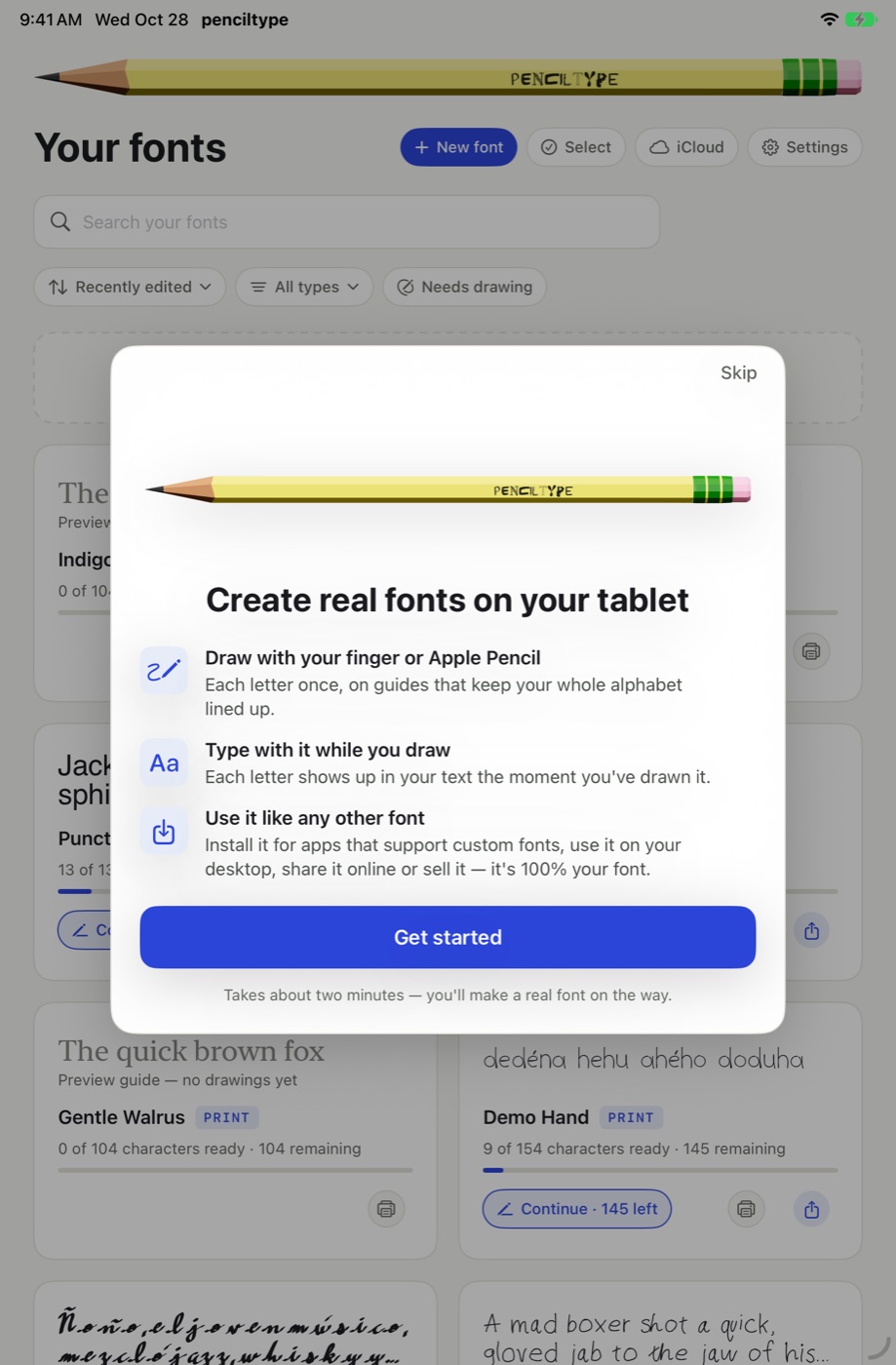 Getting startedThe first time you open penciltype, a short intro walks you through making a real font: you name it, draw the letters of one short sentence, and see that sentence typed back in your own hand. It takes about two minutes. After that, a few hints show up as you need them.
Your fonts
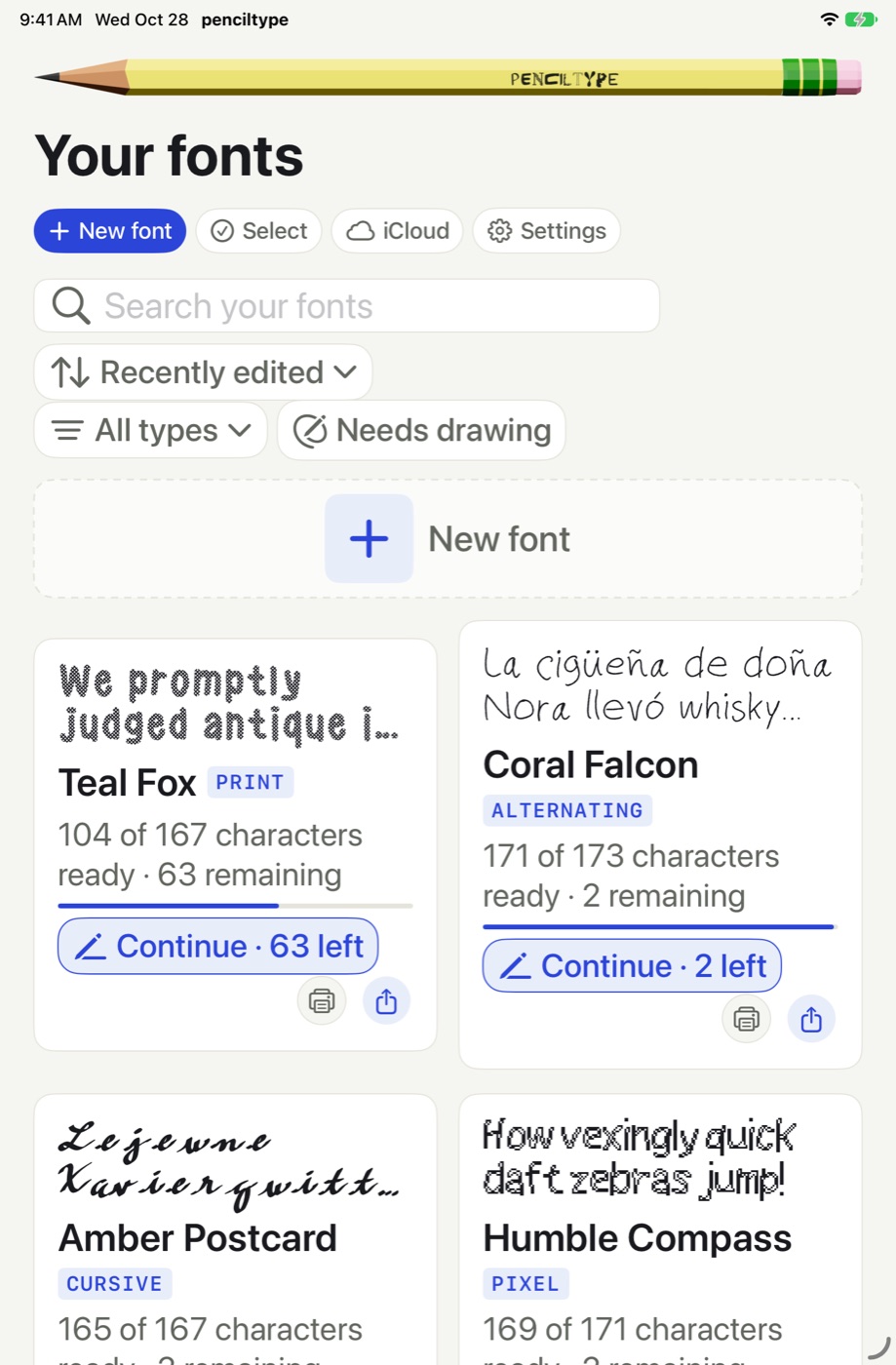
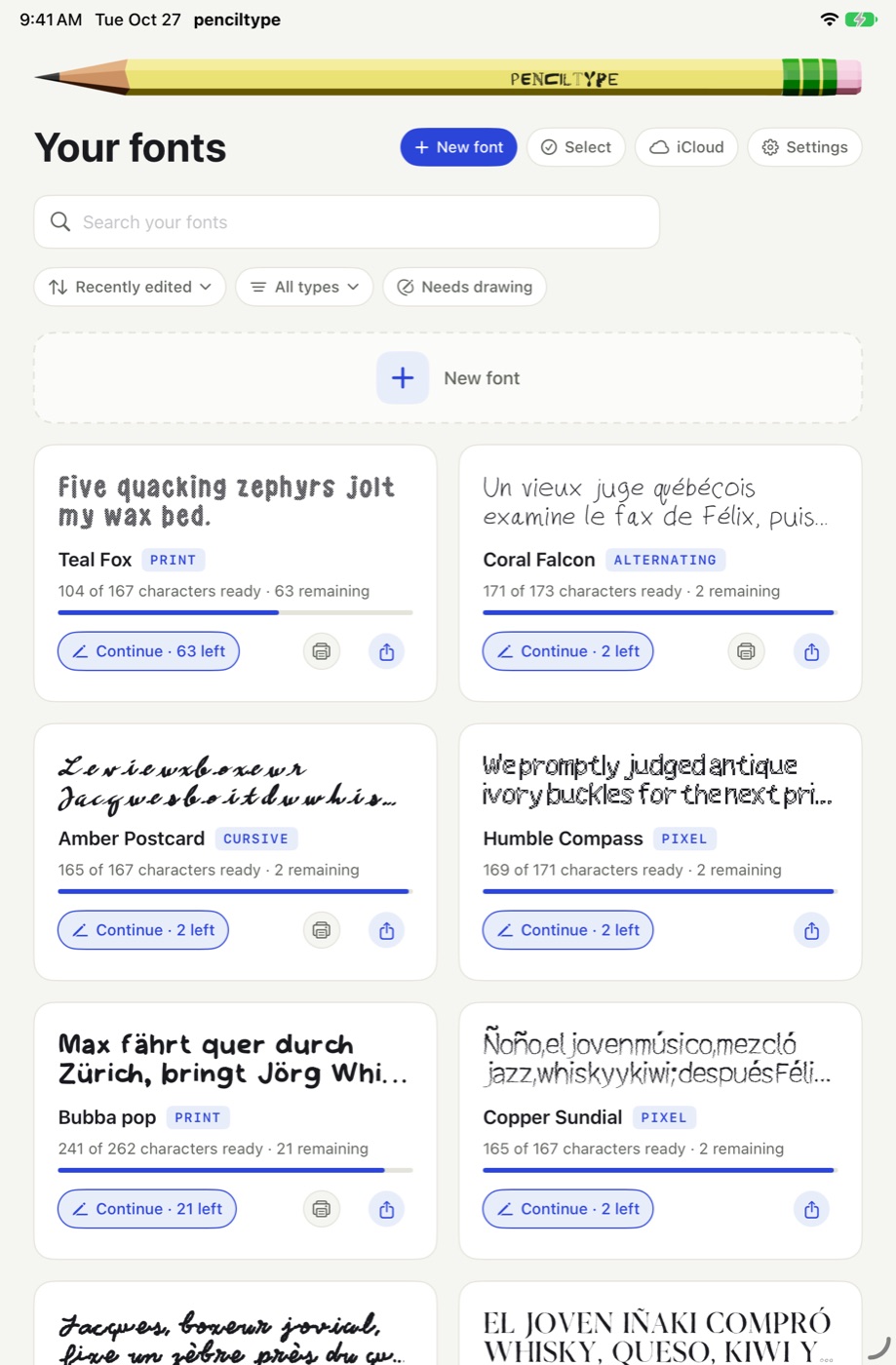 Your fontsYour fonts is the first screen you see and the one you come back to. It holds every font you've made, as a shelf of cards, each written in its own font. From here you start new fonts, pick one up where you left off, and export, mix or delete several at once.
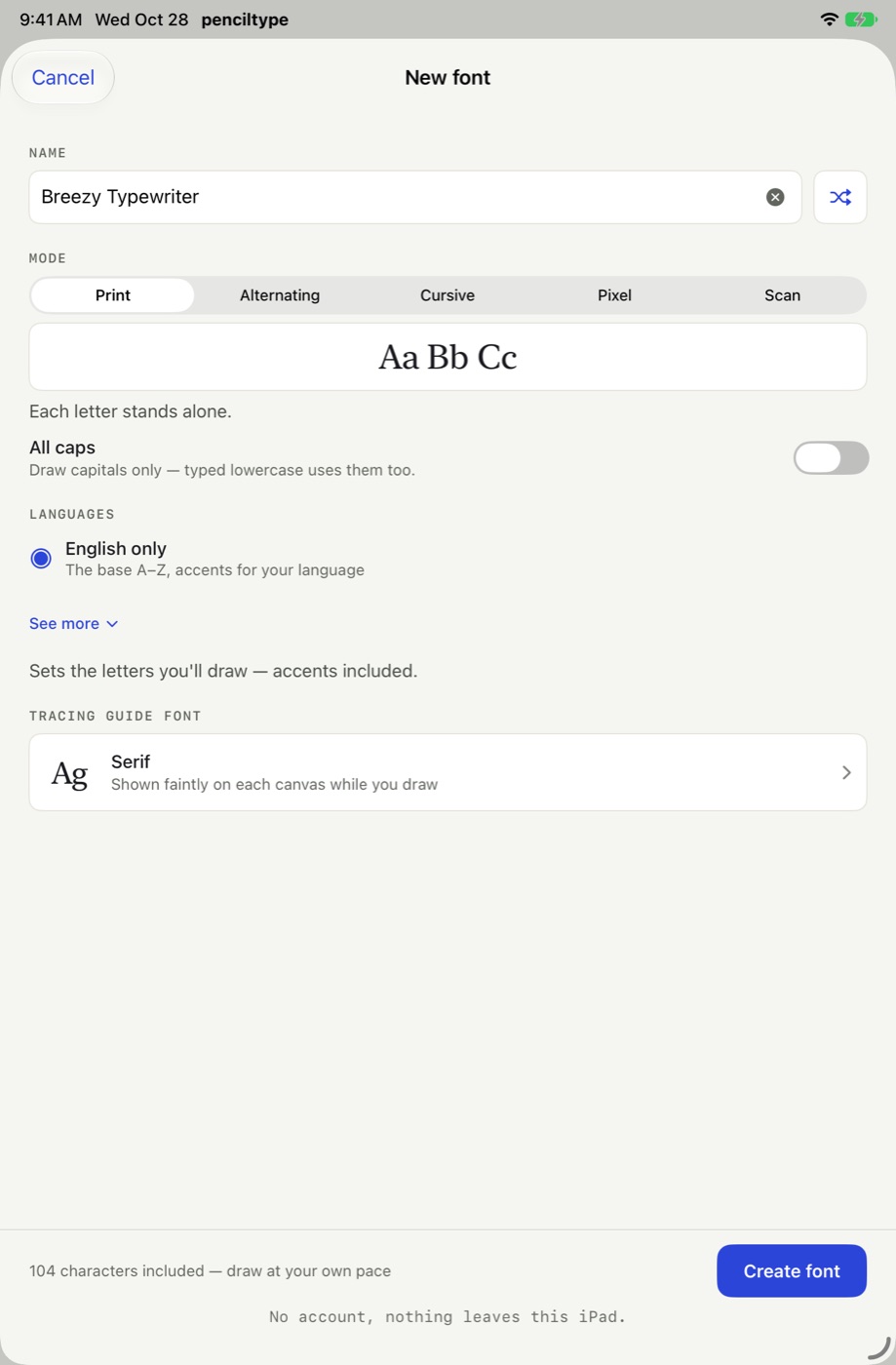 Making a new fontEvery font starts in the New font sheet. You give it a name, choose what kind of font it is and which languages it covers, and pick the letter you'll trace over. All of it can be changed later, so don't worry about getting it right first time.
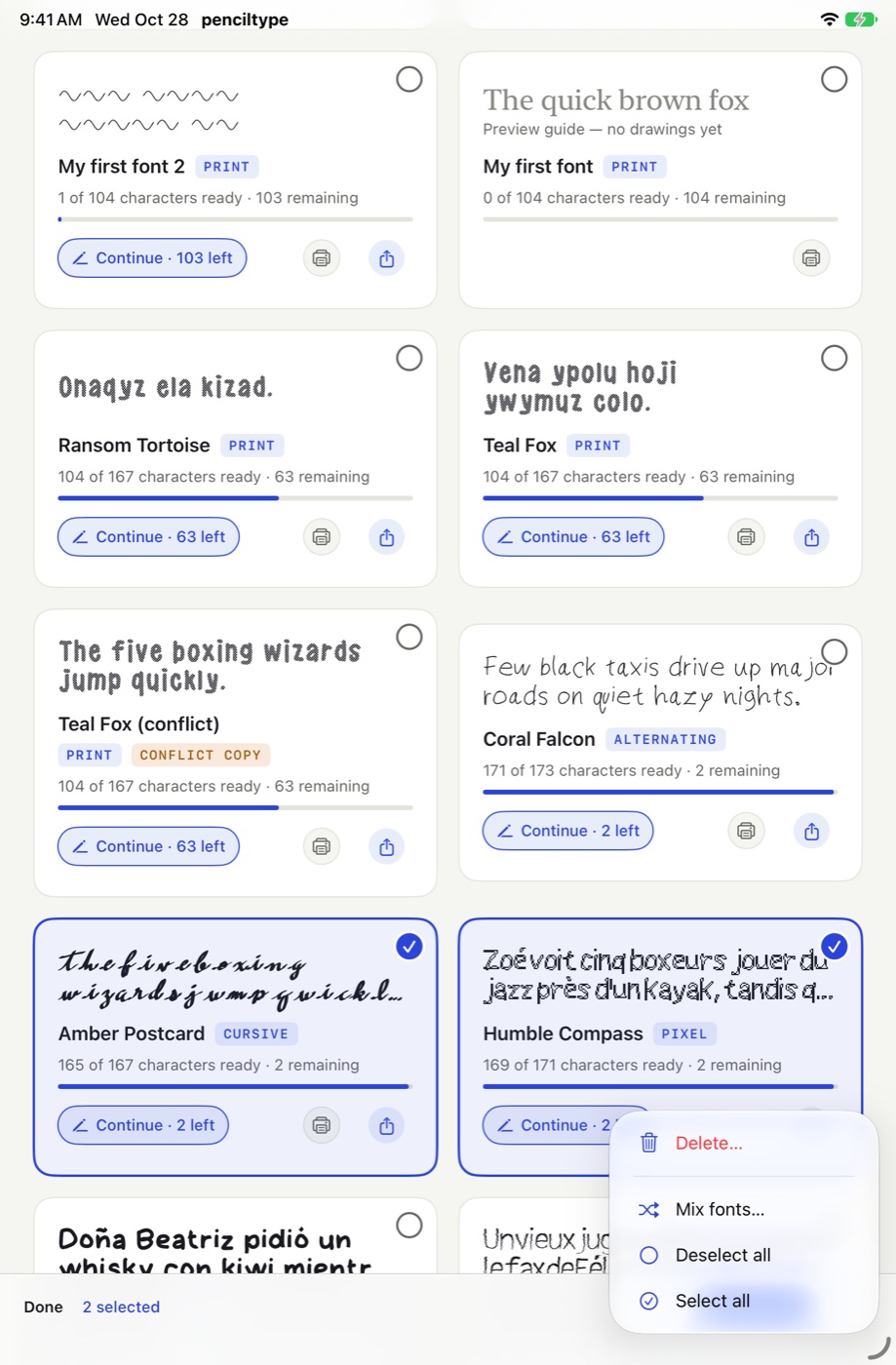 Mix fonts and Compare copiesTwo tools on the shelf work with more than one font at a time. Mix fonts makes a new font whose letters are dealt at random from several of yours, like a ransom note. Compare copies helps you choose between two versions of a font after a sync conflict.
Inside a font
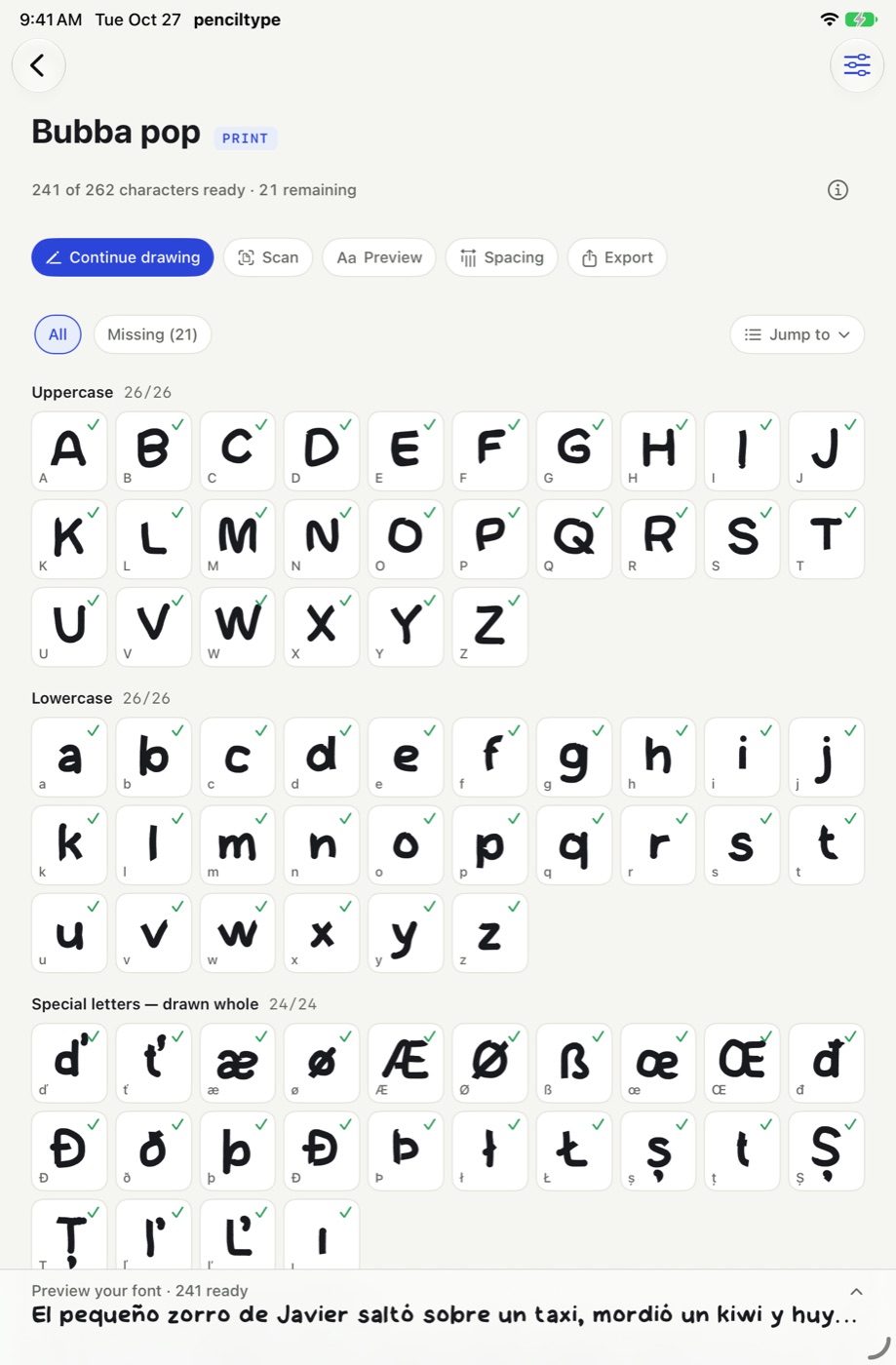 The letter gridOpen a font from the shelf and you land on its letter grid: one tile for every character the font asks for, in the order you'd draw them. It shows what's done, what's left, and what the font can make for you, and every other part of the font is a tap away from here.
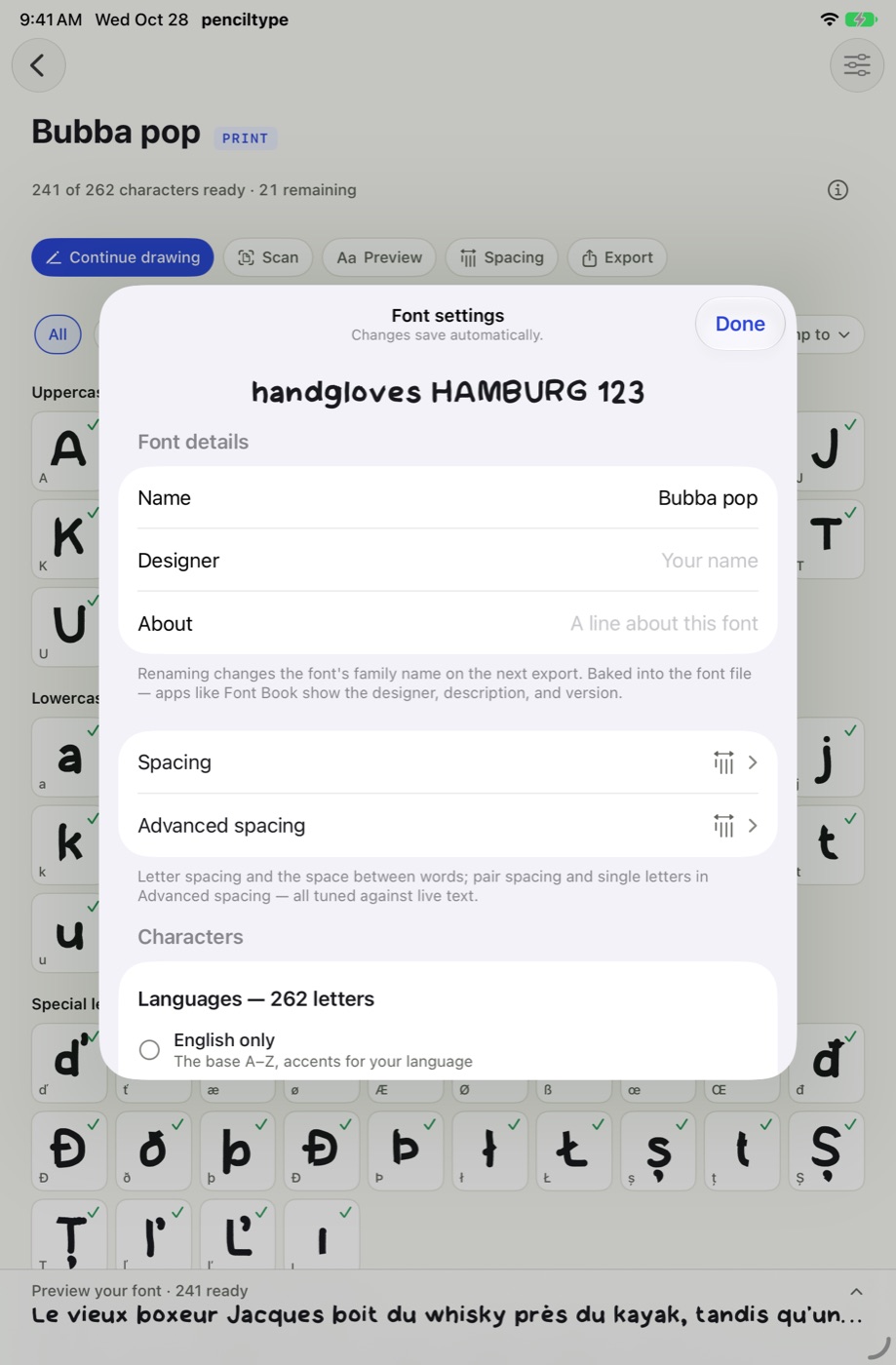 Font settingsEverything about one font that isn't drawing: its name and details, which characters it has, the ghost letter you trace, where the guide lines sit, and what you can do with the whole project.
Drawing letters
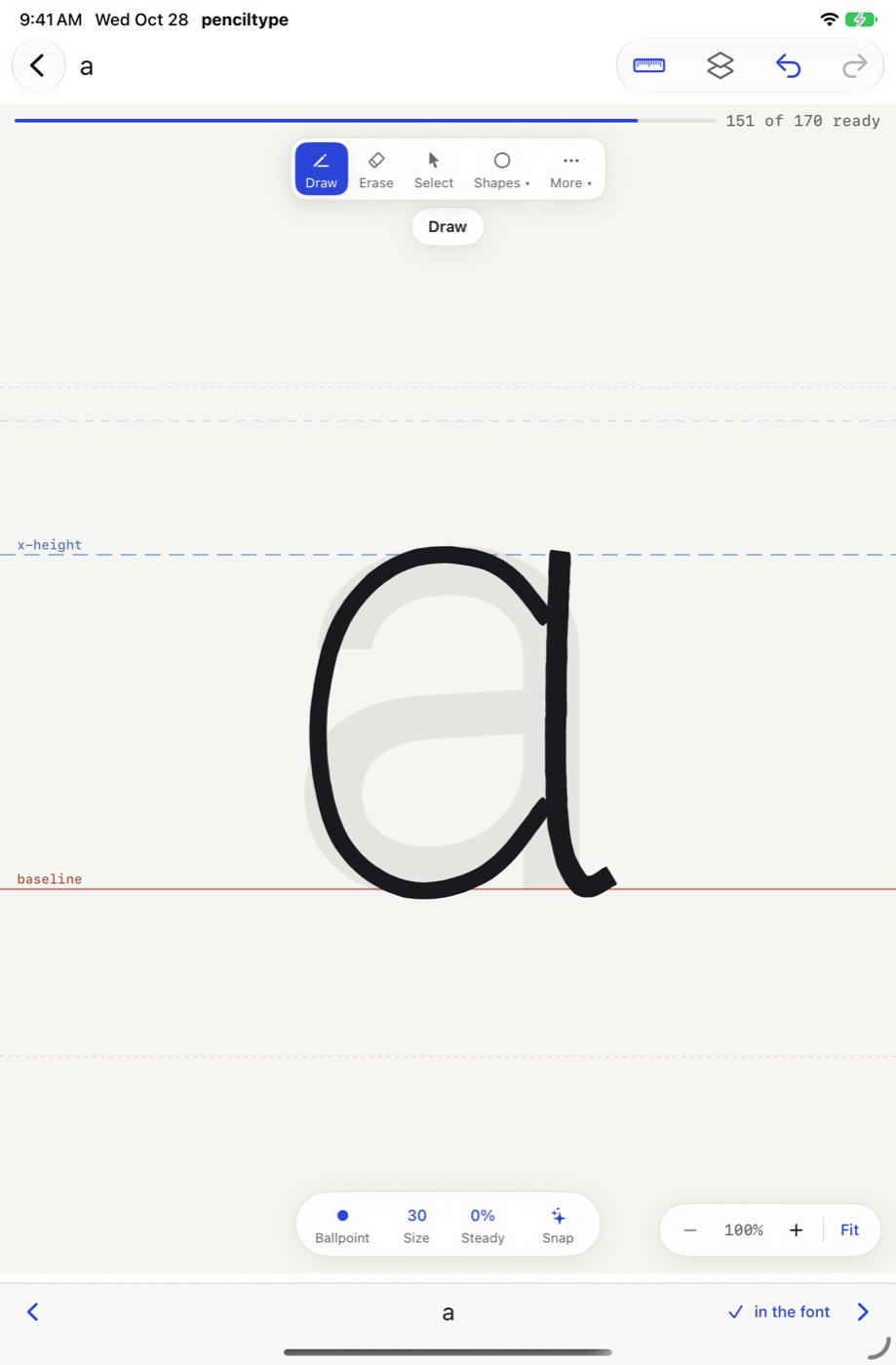 The canvasThe canvas is where you draw one character at a time. Everything you draw is saved as you go, and what you see on the canvas is exactly what goes into the font.
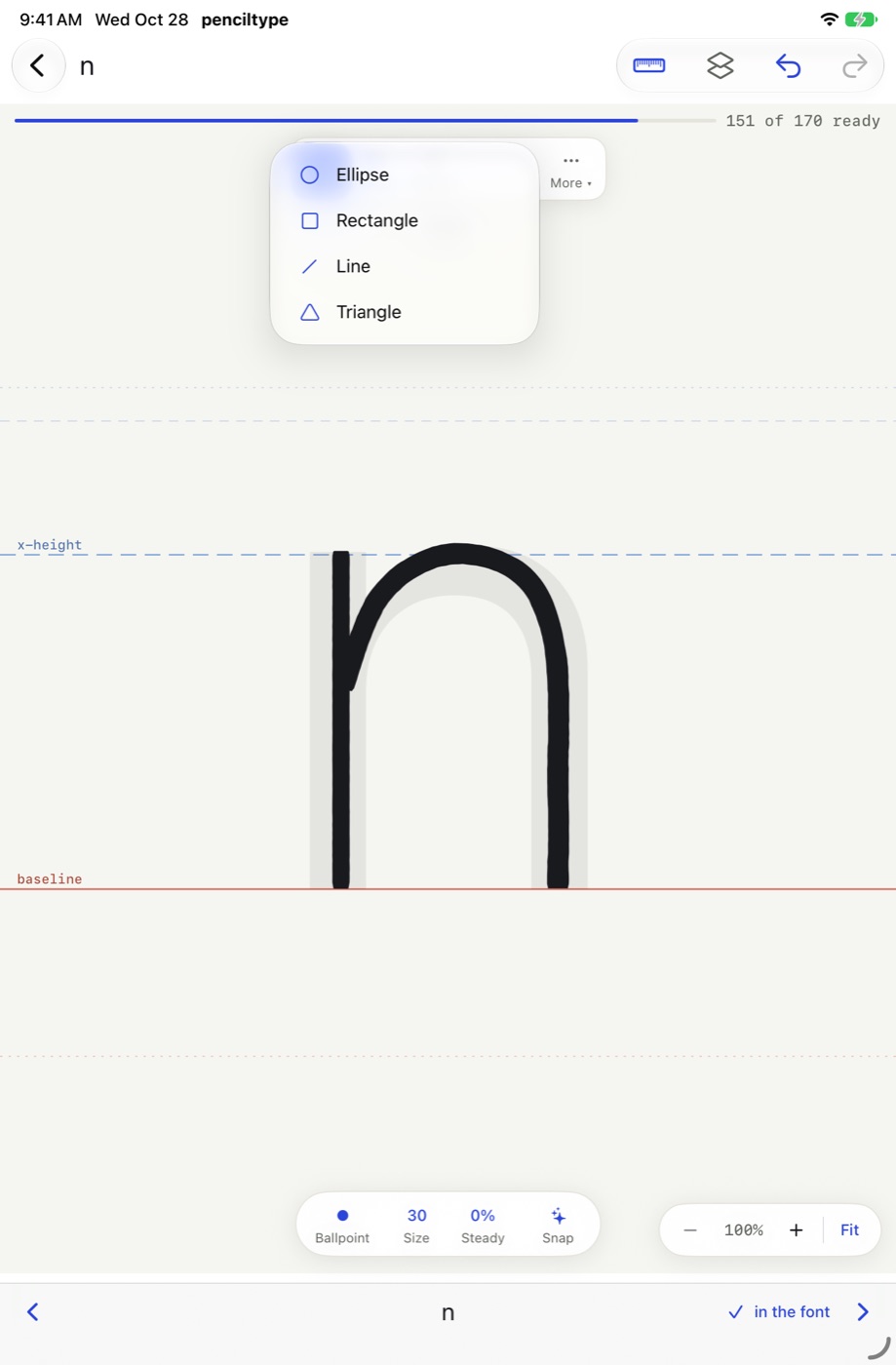 Drawing toolsThe tool strip at the top of the canvas holds the tools; the pen bar at the bottom holds the pen they draw with. This chapter goes through every tool, the bars that appear under the strip, and every chip on the pen bar.
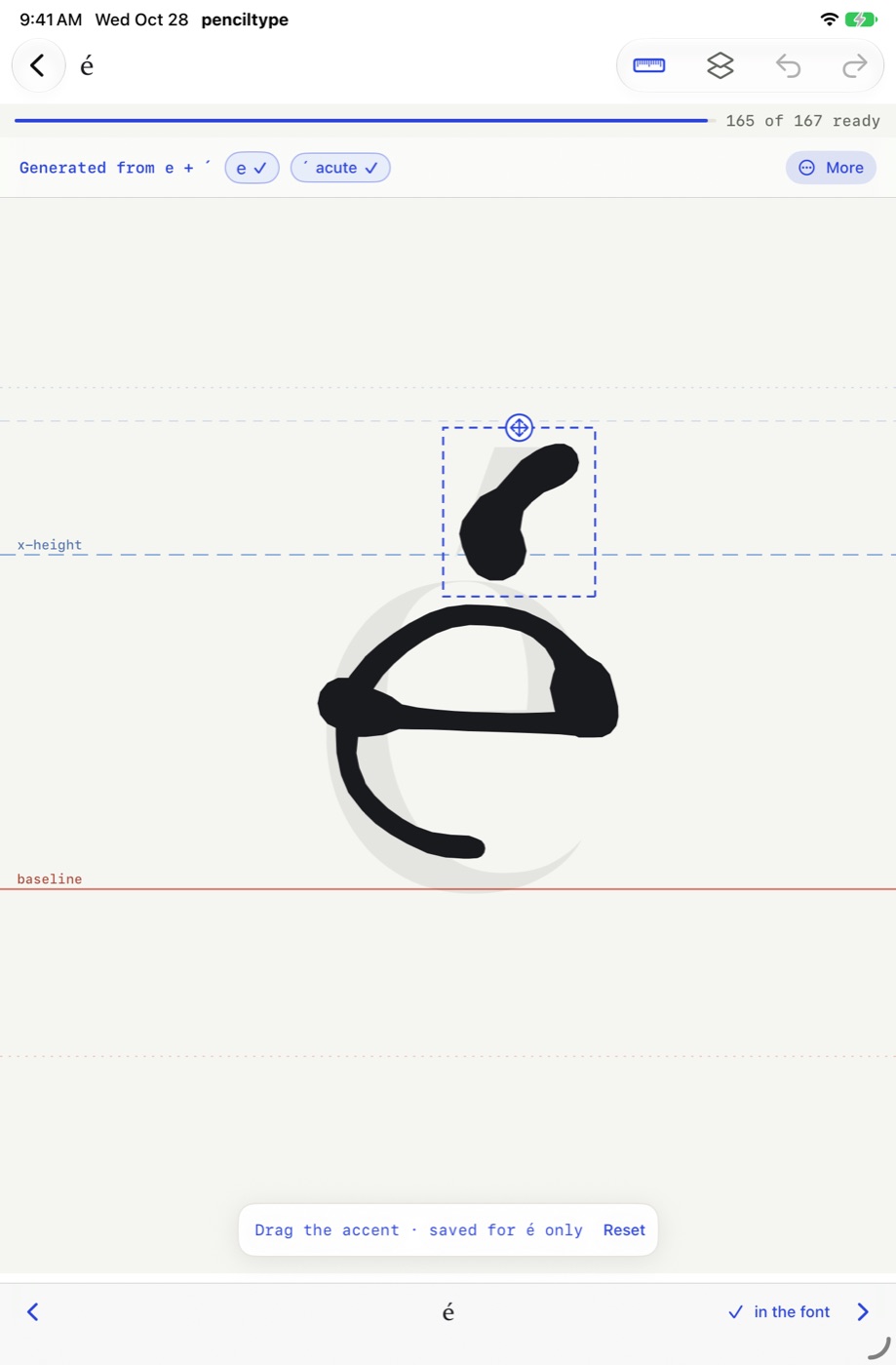 Generated lettersSome characters you never have to draw: penciltype builds them from ones you have. An é is your e with your ´ on top; a ‘ is your ’ turned round; in a Pieces font, n is built from the Stem and Shoulder you drew once. Their canvases show where they come from and let you take over when you want to.
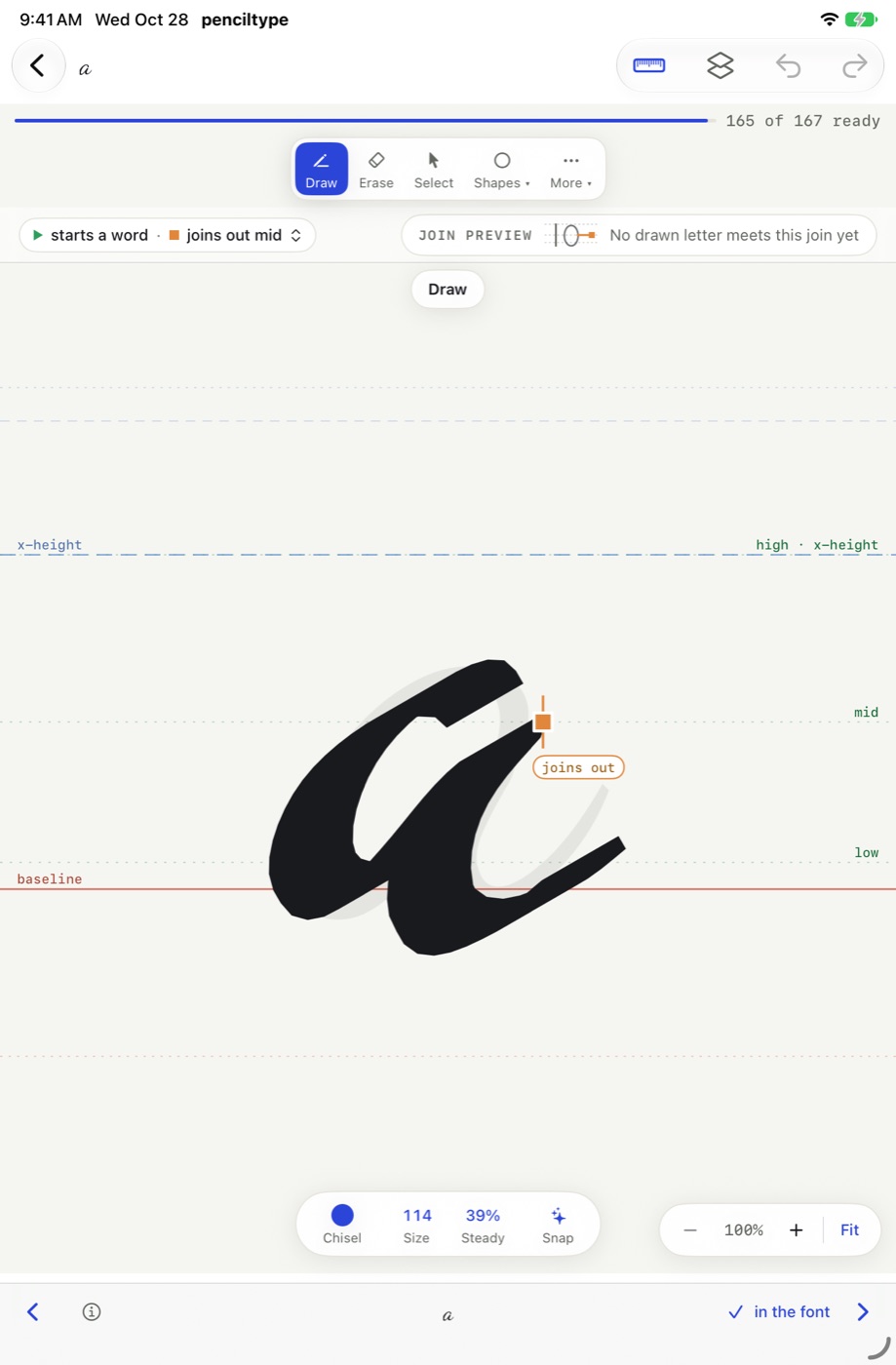 Joins and versionsCursive fonts join each letter to the next, and Alternating fonts take turns between several versions of a letter. Both give a letter more than one form, and the canvas has a row under the tool strip for choosing which form you're drawing.
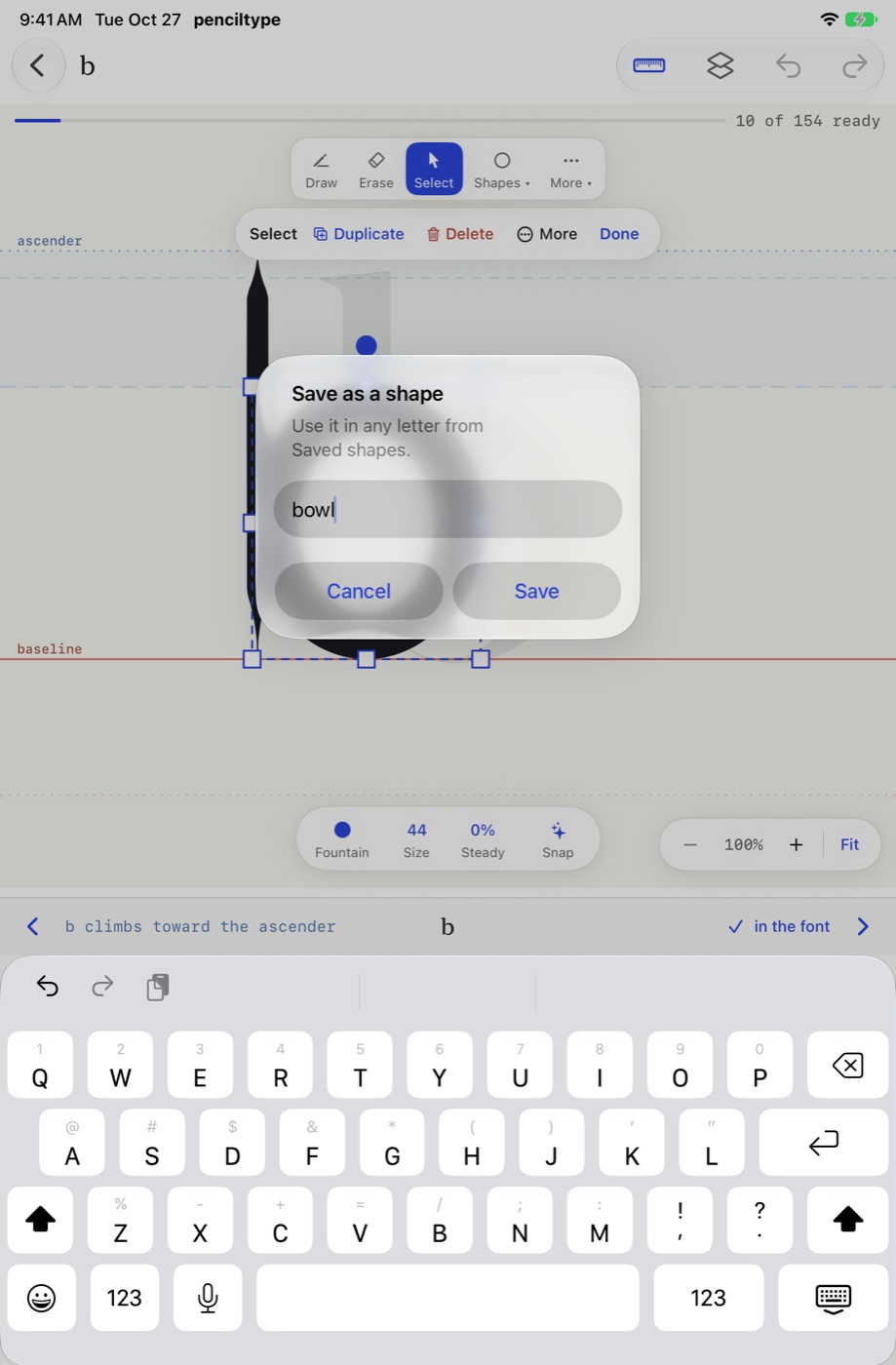 Artwork and shapesDraw a bowl once and reuse it in b, d, p and q; bring a drawing in from paper or another app; give a brush a shape of its own. This chapter covers saved shapes, importing artwork, and the piece pad in Brush Studio.
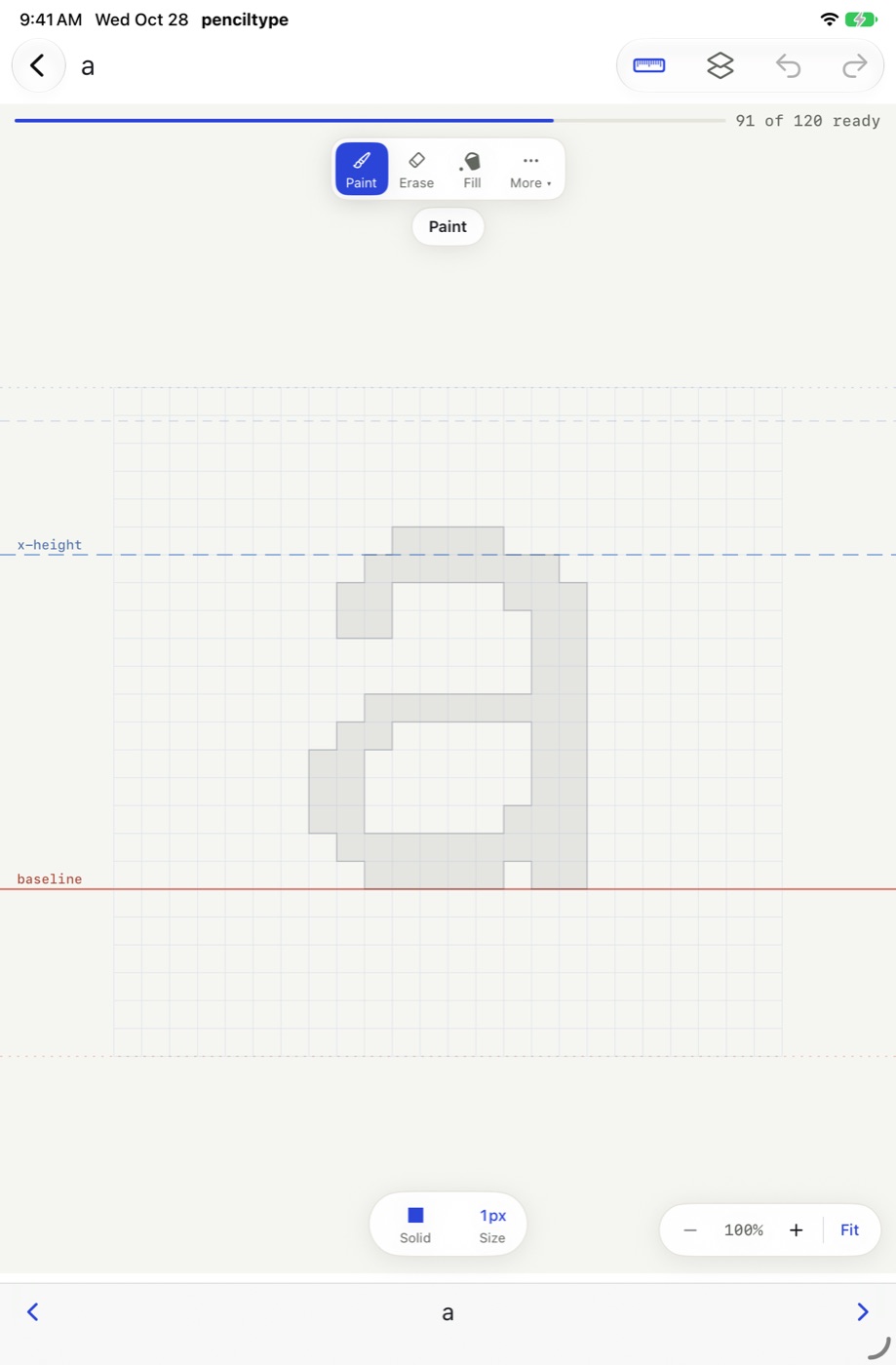 Pixel fontsIn a pixel font every letter is drawn on a grid of square cells, like a bitmap font from an old computer. The canvas works the same way as in any font, with tools and a pen bar made for cells.
Scanning
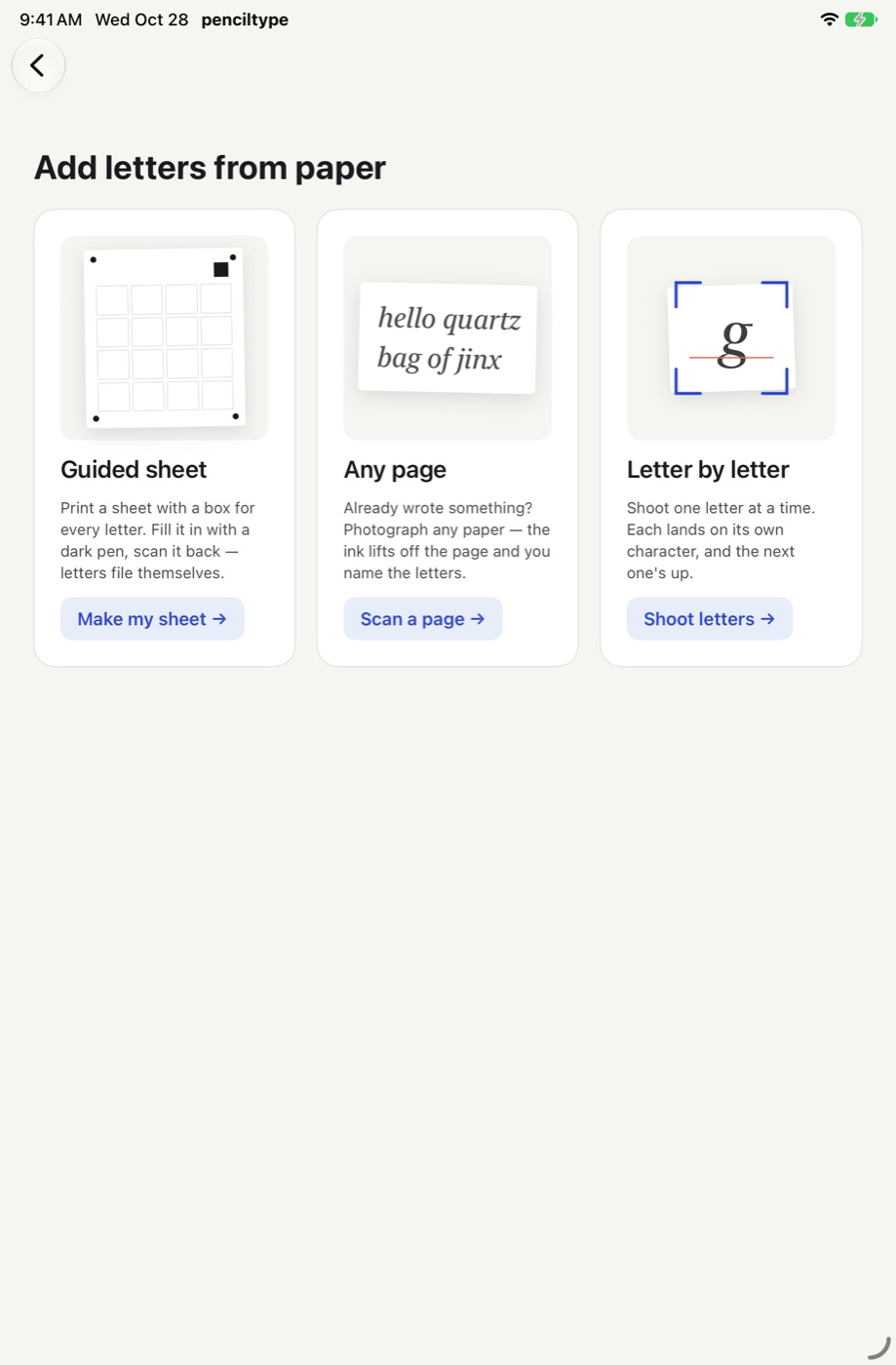 ScanningIf you'd rather write with a pen, penciltype can lift your letters off paper. Print a sheet with a box for every letter, photograph any page you've already written, or shoot one letter at a time. Whichever you pick, you check every letter before it goes into the font, and you can undo the whole import afterwards.
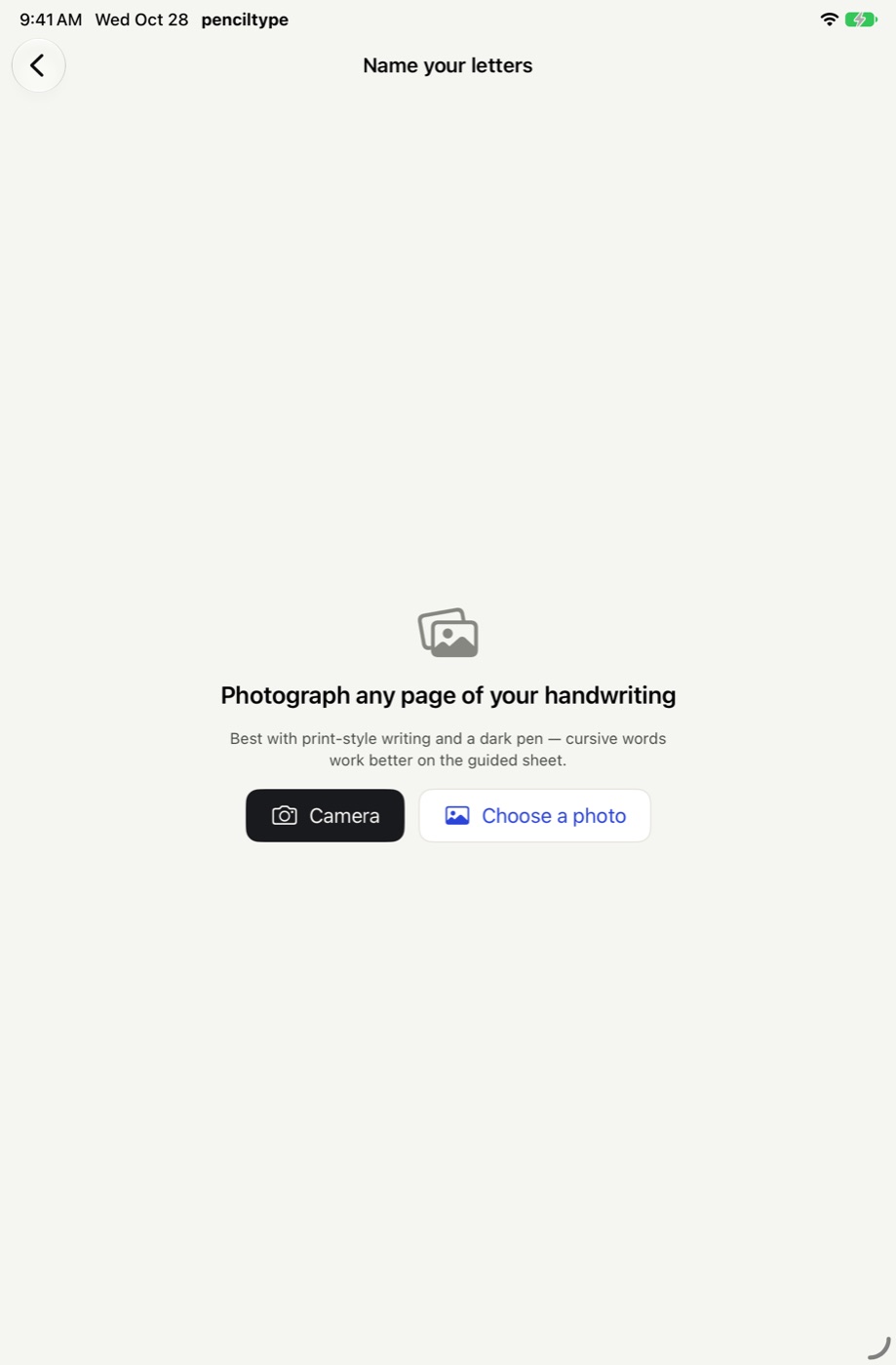 Any page: free scanAlready wrote something? Photograph any page — a notebook, a card, a letter — and penciltype lifts the ink off it. Each separate mark becomes a card; the handwriting reader names the ones it can, and you name the rest. Then you check them like any other scan.
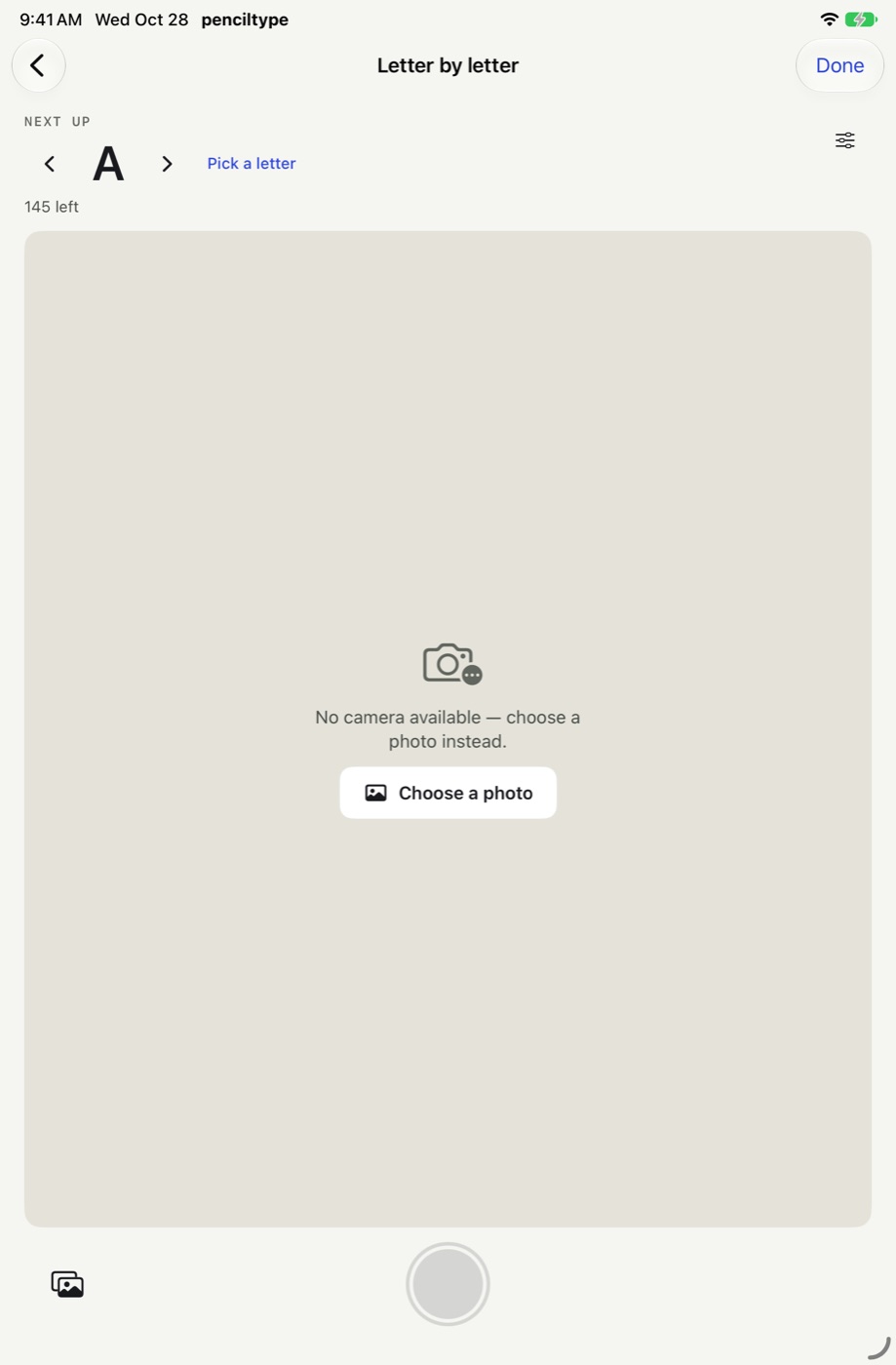 Letter by letterShoot one letter at a time with the camera. The character that's up is shown big at the top; frame your letter, set two lines, tap Place, and the next character comes up. It's the quickest way to fill a few gaps, or to borrow a letter from a sign, a label or an old note.
Brushes
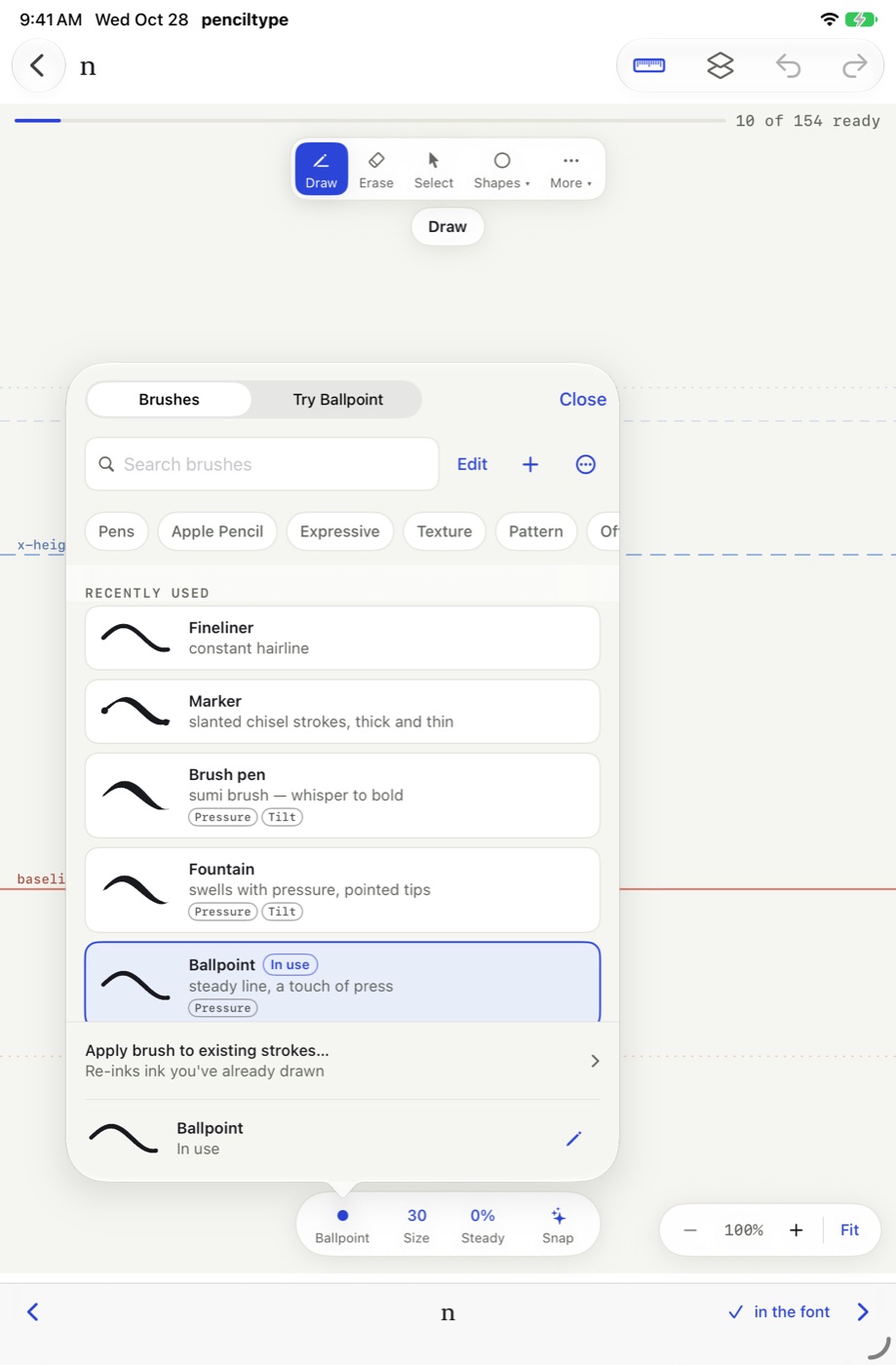 The brush pickerThe brush picker is where you choose the pen you draw with. It holds every brush in your library, sorted into sets, with a search, your recent pens at the top, and the tools to copy, rename, hide, pin and organise brushes.
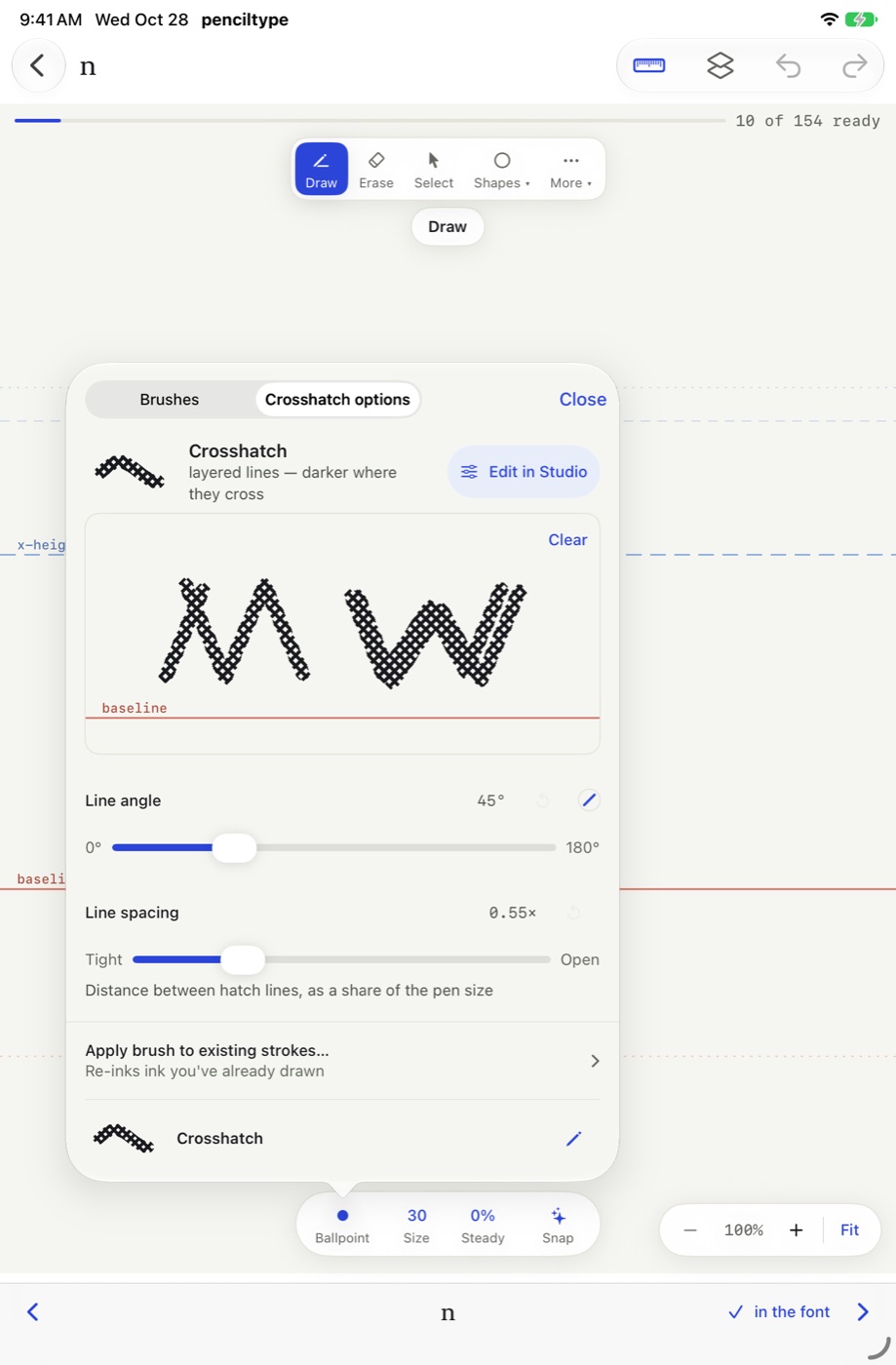 Brush optionsThe picker's second page belongs to the brush you've picked. It has a pad to try the brush on and that brush's own settings, so you can tune it before you draw with it, and keep the result as it is, onto the brush, or as a new brush.
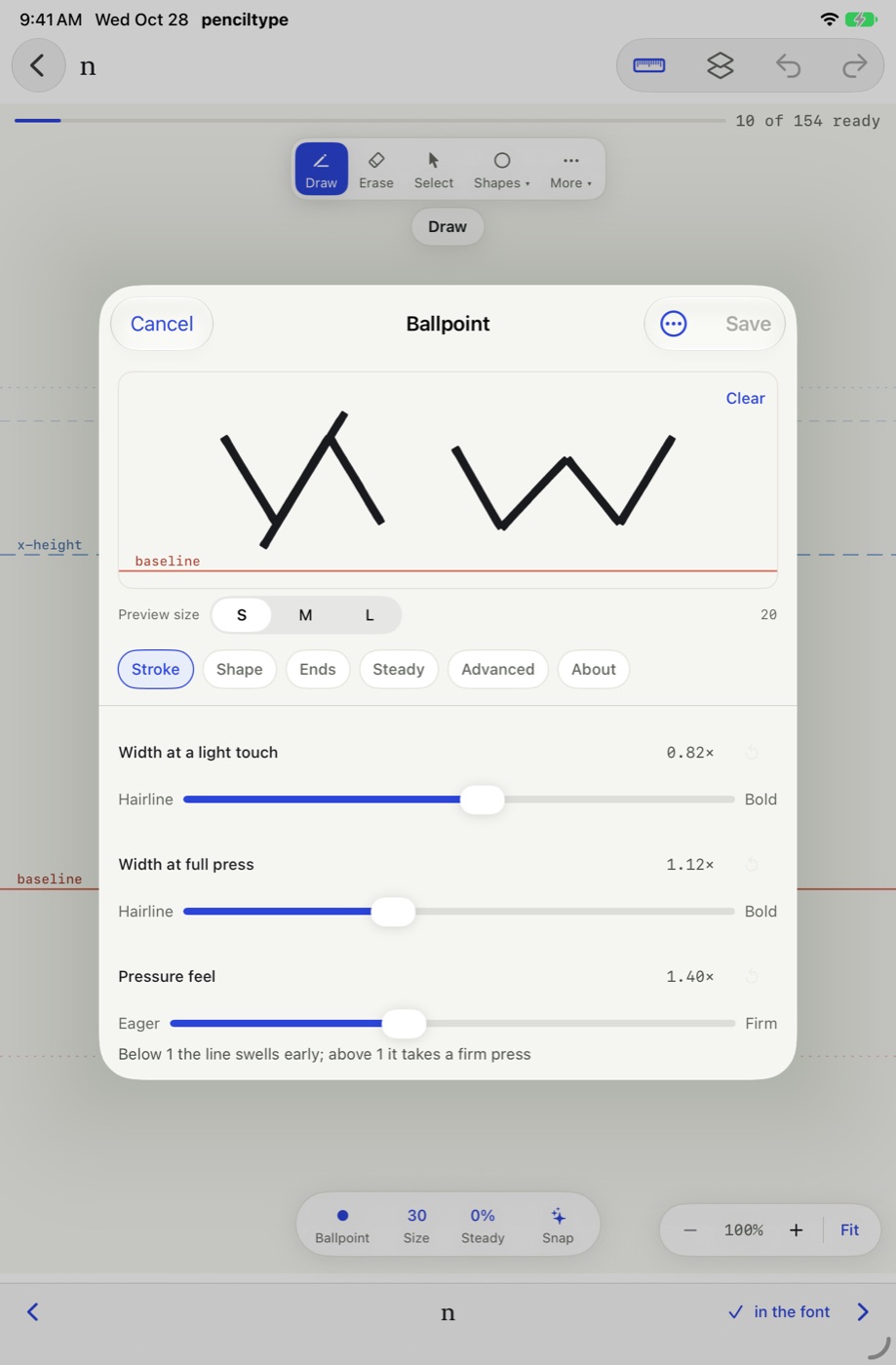 Brush StudioThe Brush Studio holds every setting of one brush, sorted onto panels, with a pad that redraws as you change anything. Use it to tune a brush beyond its Options page, or to make a brush of your own from scratch: a pen, a stamp, a growing vine, a chain of tiles.
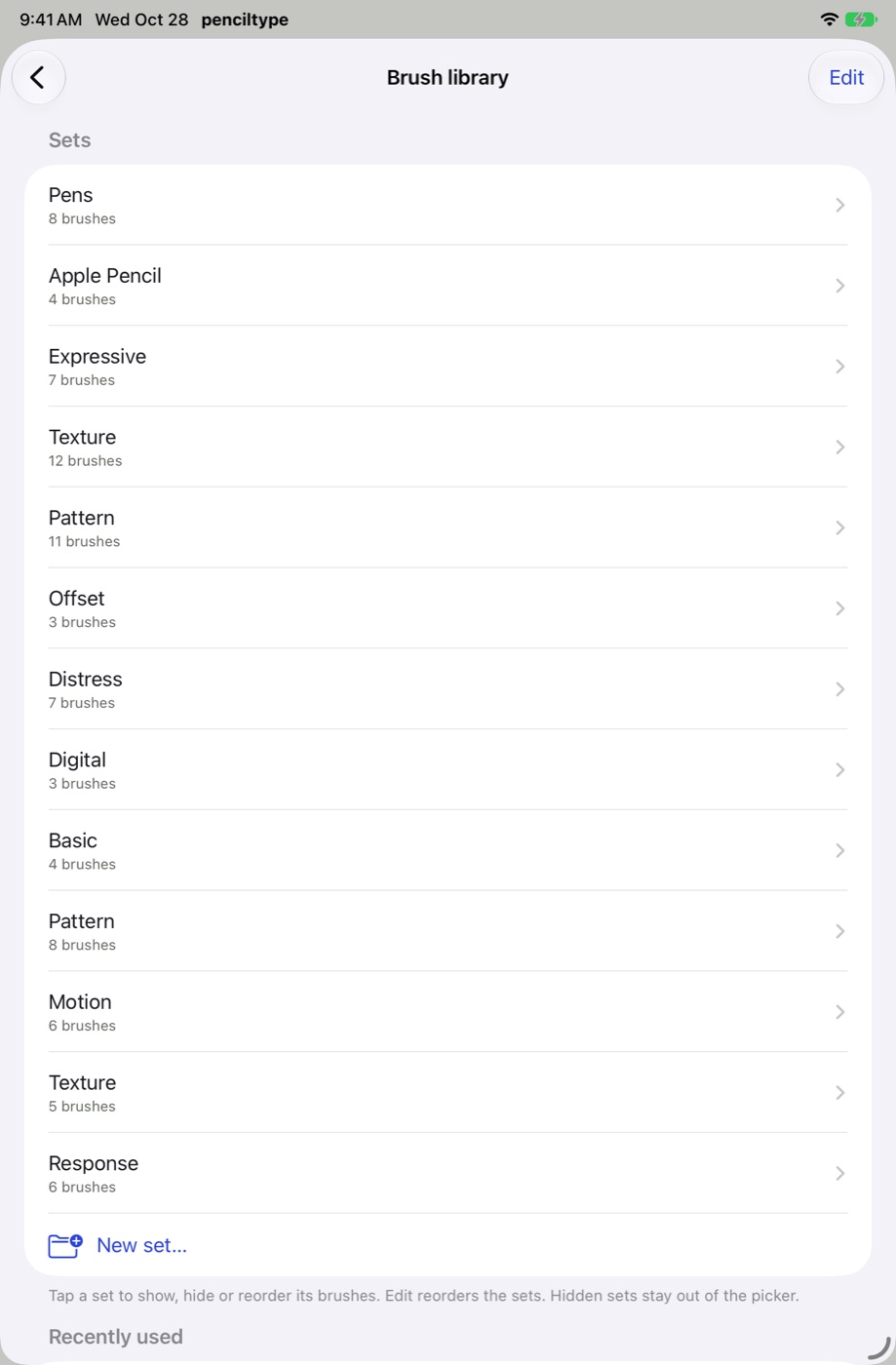 The brush libraryEvery brush you can pick lives in your brush library. The picker is for choosing; the library screen is for looking after it all: showing, hiding and ordering sets, packs of brushes, files in and out, and starting over.
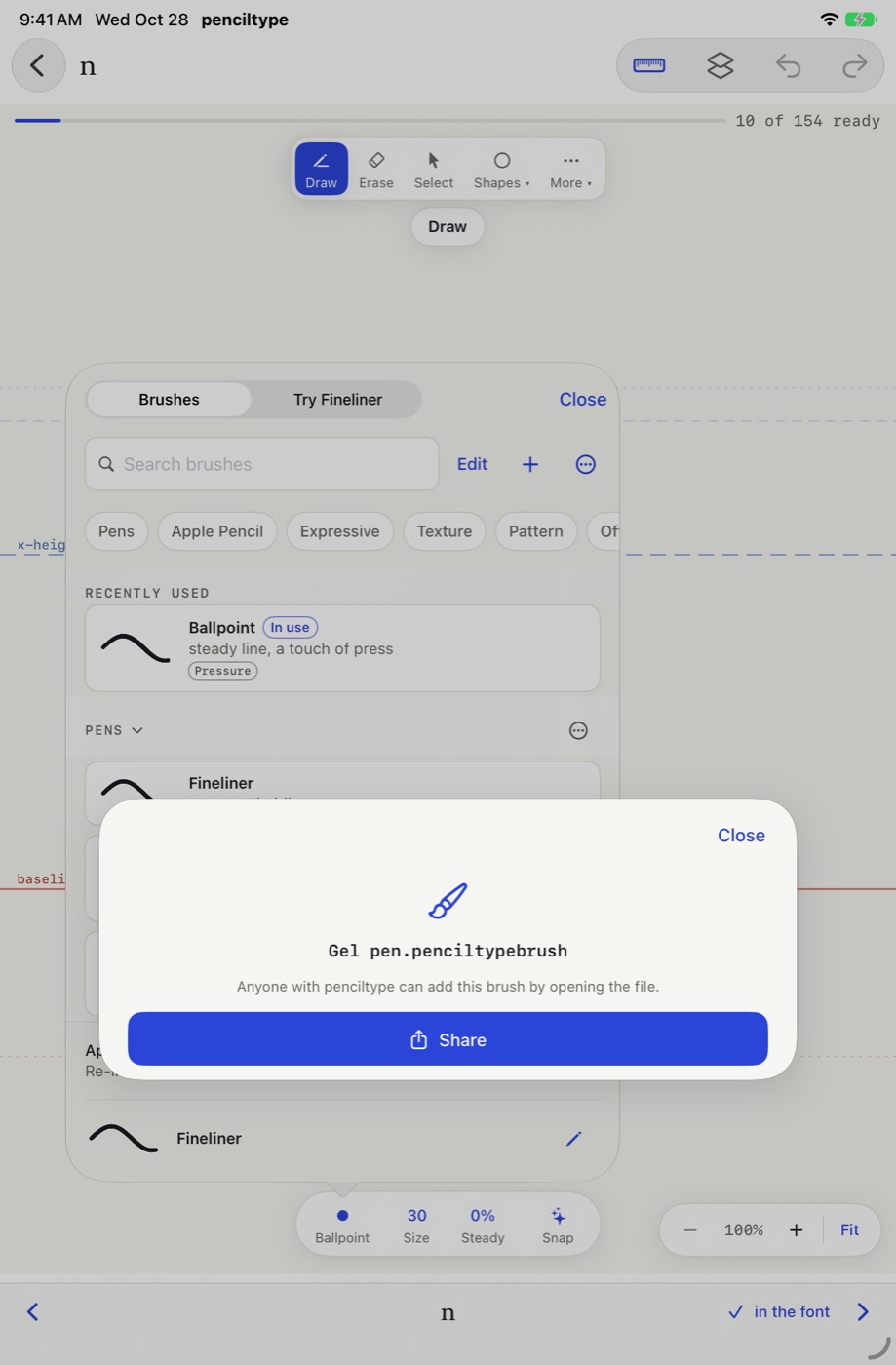 Sharing brushesA brush you've made can travel: send it to a friend, keep a copy in Files, or move a whole set to another device without iCloud. Brushes go out as files, and come back in by opening those files.
Finishing a font
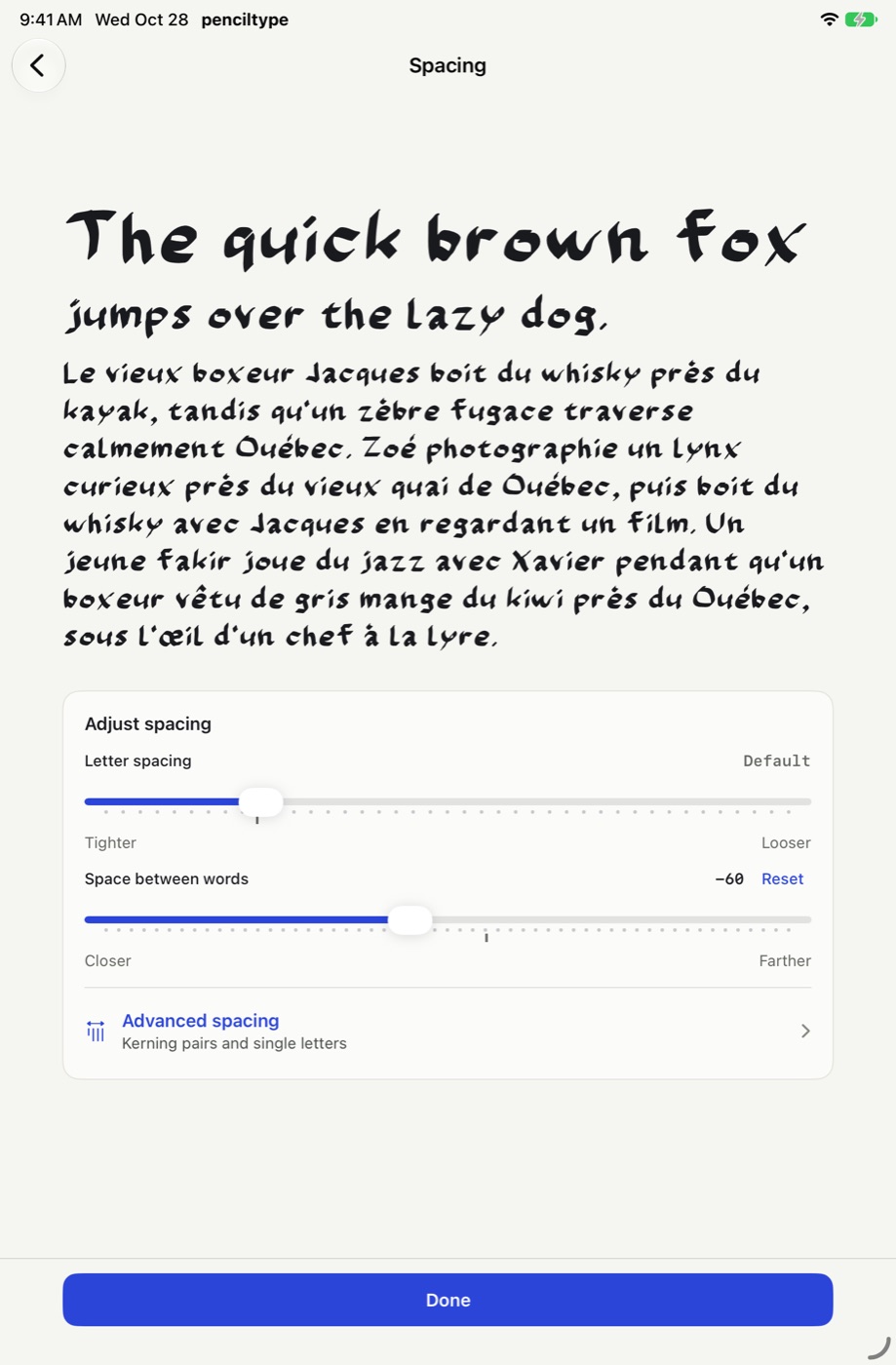 SpacingGood letters with bad spacing still look clumsy. Spacing is where you set how much room sits around every letter and between words, and, in Advanced spacing, pull particular pairs together or give one letter more room. Every change shows in your own font as you drag.
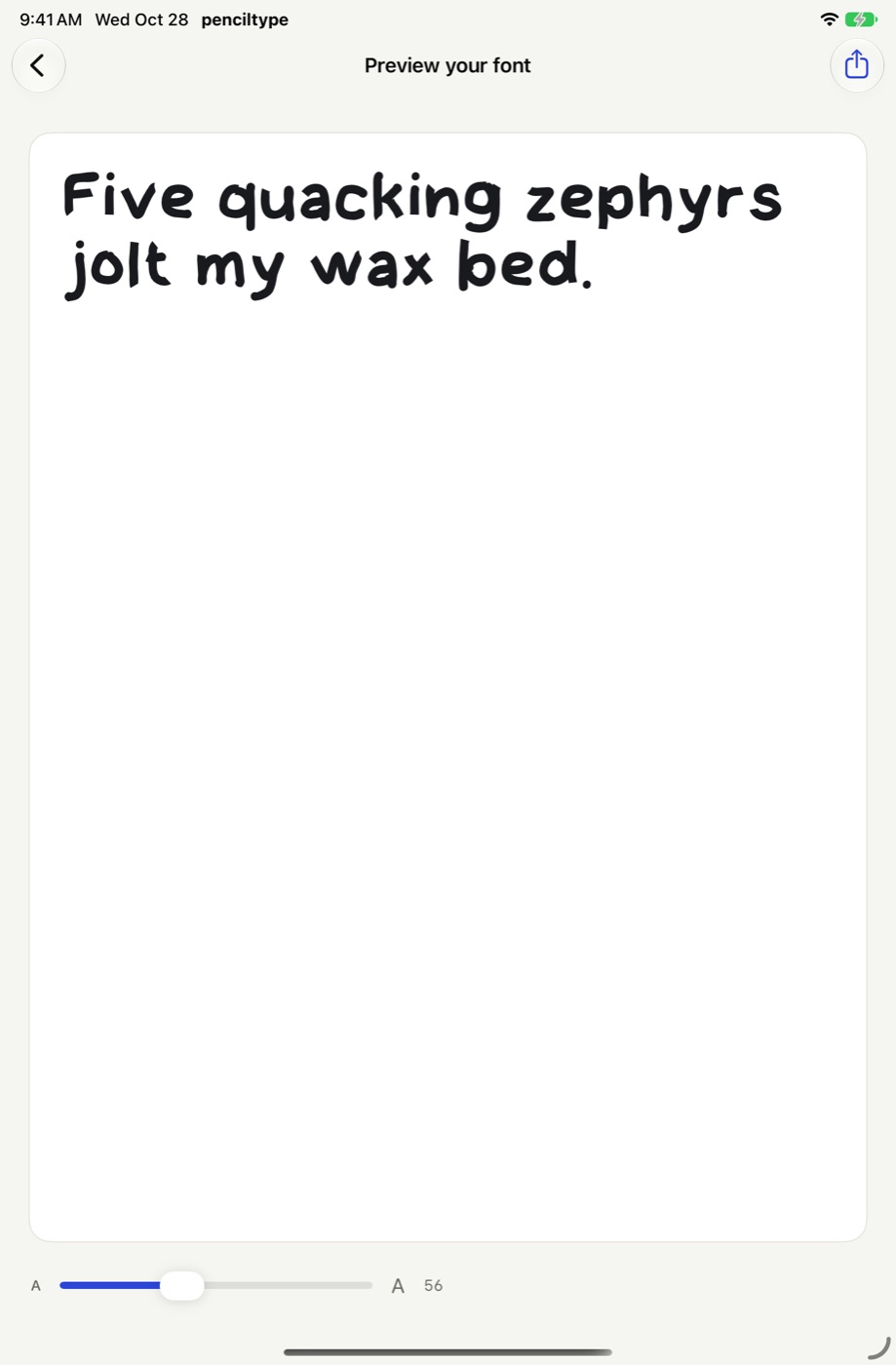 PreviewThe Preview page is a type tester for the font you're making: type anything and it's set in your handwriting, live, as the font stands right now.
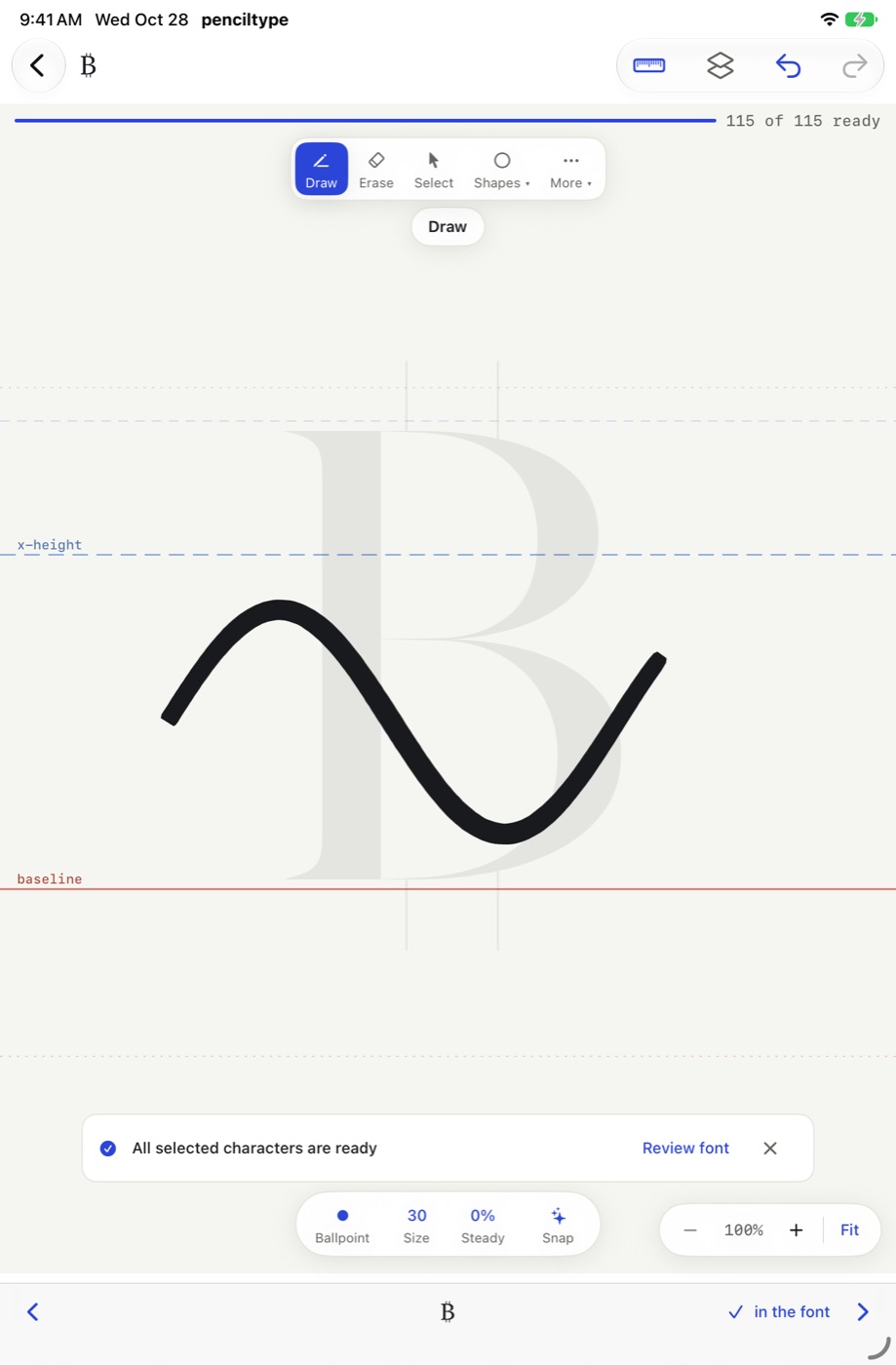 Your finished fontWhen you draw the last character your font asks for, penciltype marks the moment: a page that sets “Congratulations!” in your new font, throws confetti cut from your own letters, and shows you the ways on.
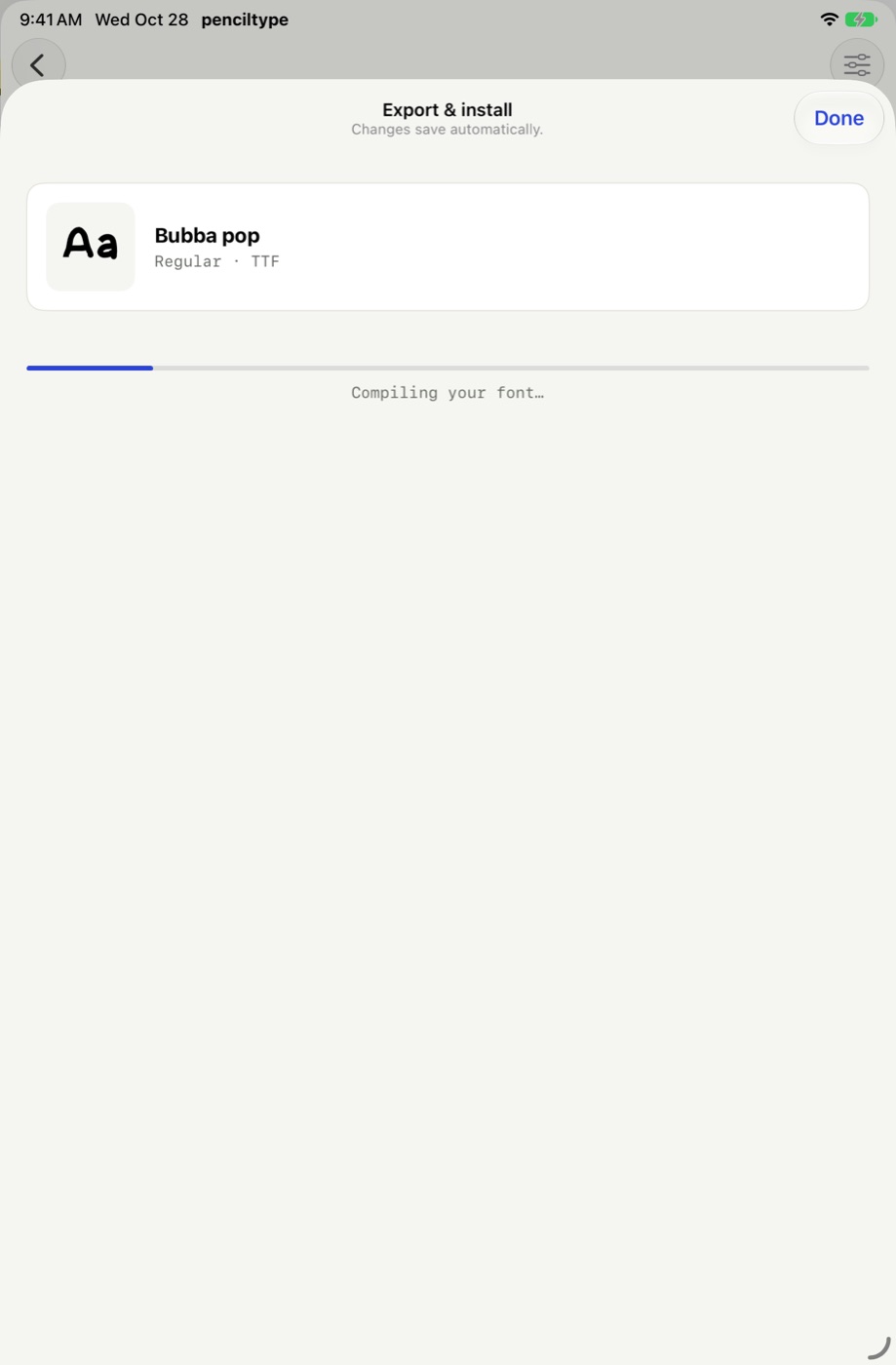 Export and installExport & install turns your drawings into a real TrueType font, then puts it to work: installed on this device so other apps can use it, shared as a file, or packed up for a website.
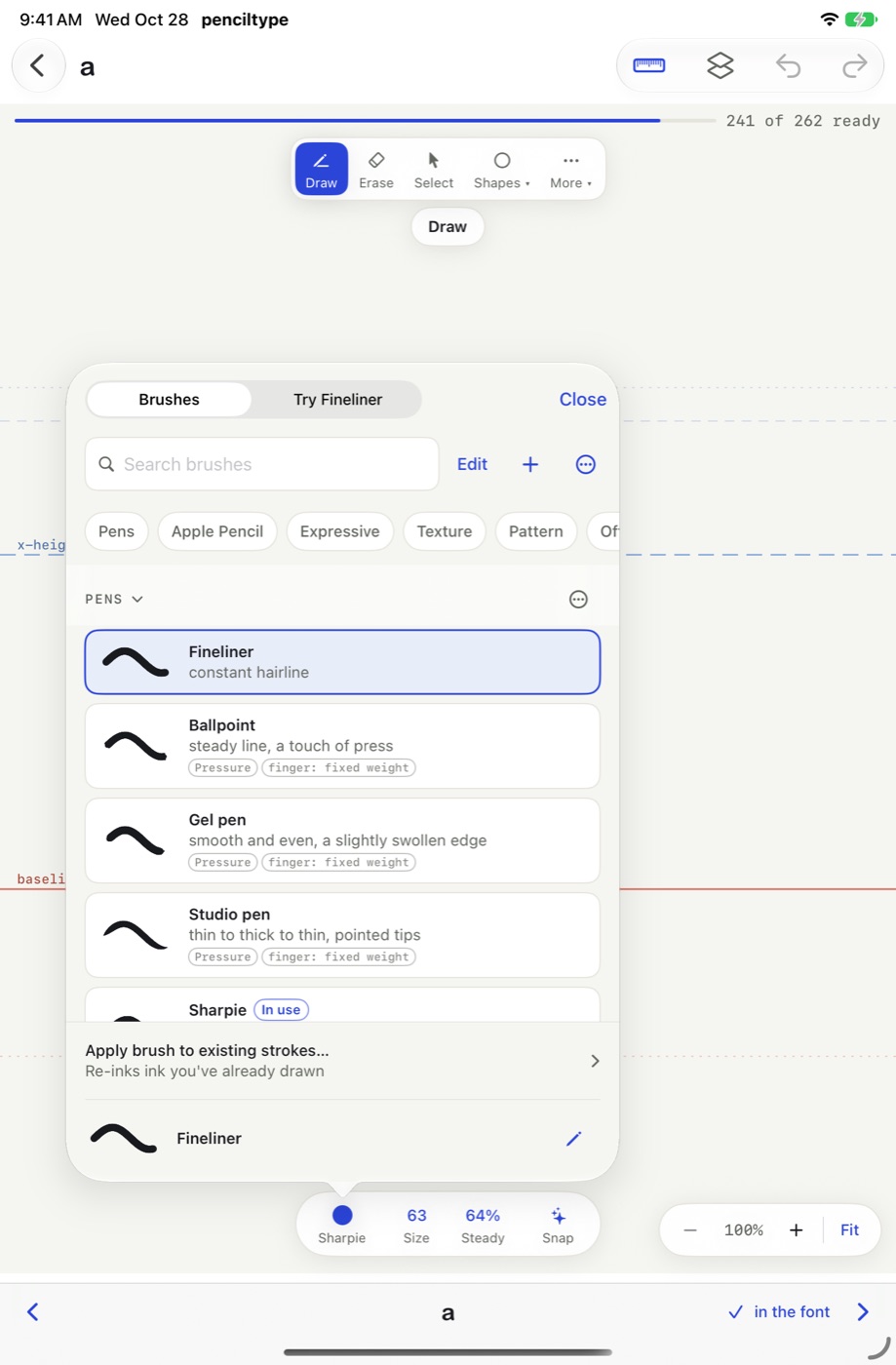 Re-ink a fontPicking a new pen never changes ink you've already drawn. When you do want that, say to try your whole font in a fountain pen, re-ink it: every stroke keeps its path, and takes the new pen.
Library and settings
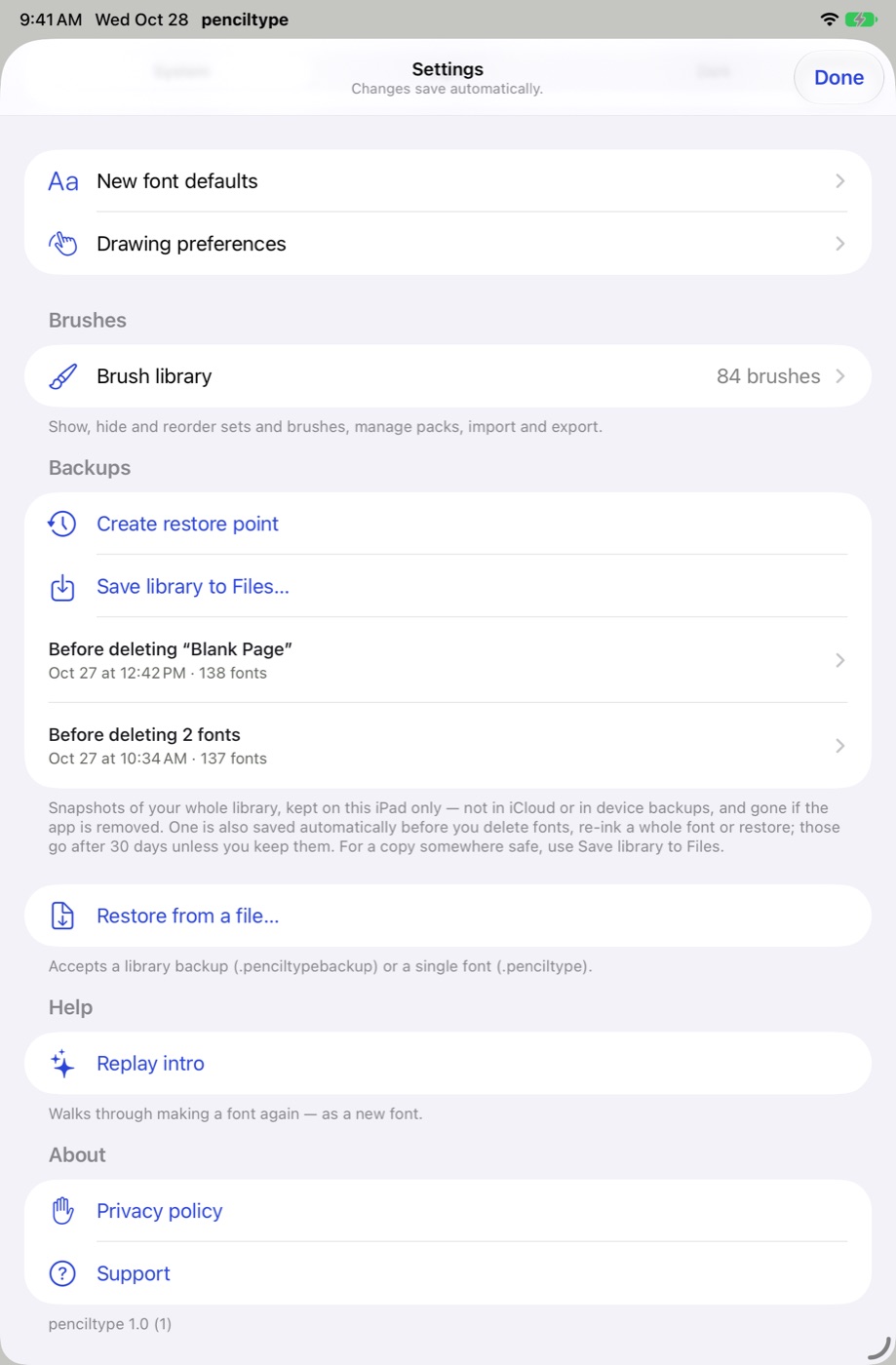 Backups and iCloudpenciltype keeps your fonts safe in three ways: restore points it saves on the device, backup files you can keep anywhere, and iCloud sync between your devices. This chapter covers all three, and how to get fonts back.
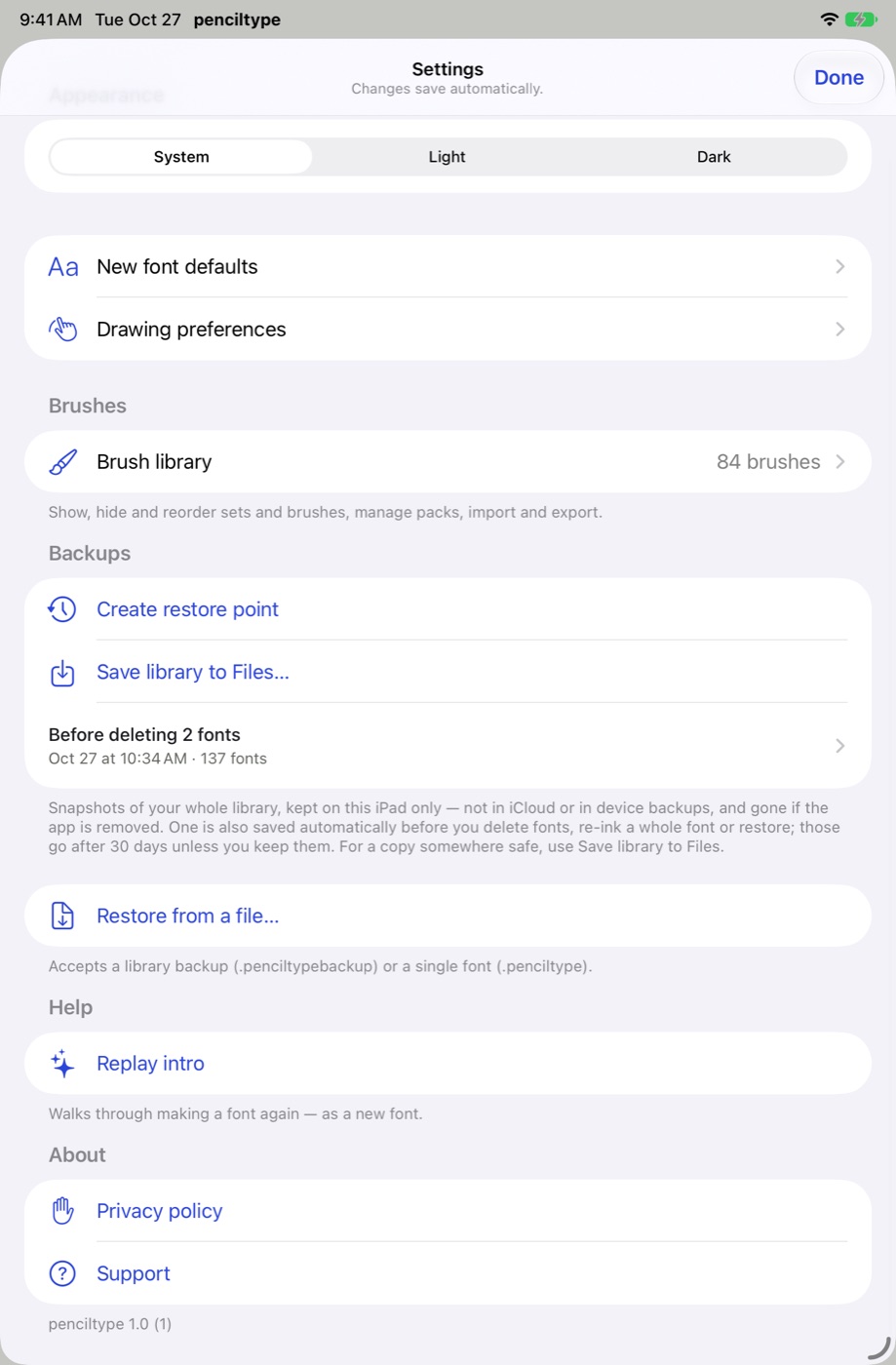 SettingsSettings holds the choices that apply across the whole app: how it looks, what new fonts start with, how drawing behaves, and your backups. Everything a single font can change about itself lives in that font's Font settings instead.
Brush reference
- How to read the brush referenceEach brush in penciltype has an entry here. It says what the brush is, how it reacts to your hand and what settings it has. Three samples, drawn by the app's own brush engine, show how it looks.
- Pens (brushes)The parametric pen family's factory recipes, from the constant Fineliner through ballpoint, gel and inking pens to the bold Sharpie, the chisel Marker, the Fountain and the whisper-to-bold Brush pen.
- Apple Pencil (brushes)Best with Apple Pencil: pens that read how you hold it — its lean and the way it points — for broad edges, tilt shading, hairline-to-flood blades and twisting ribbons.
- Expressive (brushes)Fixed-angle broad nibs, dry media (rake, rough pencil, charcoal), the finger-friendly Flex pen and the pace-driven Speed pen.
- Texture (brushes)Sprays and grit, the image-stamping Art brush, L-tree growth and five grain brushes (rough paper, chalk, crayon, canvas, dry brush) that ship real texture as outlines.
- Pattern (brushes)Hatches, tile mosaics, halftone dots and bitmap effects laid on one grid shared by the whole glyph, so crossing strokes share a single texture.
- Offset (brushes)Copies that trail the stroke — an outlined drop shadow and fading outlined echoes — and rows that sway sideways.
- Distress (brushes)Worn, blooming, scattered, cracked, fuzzed, dripping and clustered ink, each with one strength knob.
- Digital (brushes)The hollow Outline, the time-driven Pulse and the position-driven Weighted pen.
- Basic (pixel brushes)The plain pixel stamps: solid squares, a 50% dither checker, a fixed random dot field and a spray can.
- Pattern (pixel brushes)Cell patterns fixed to the grid — hatches, diagonals, scanlines, lattices, separate cells, bricks, weave and chunky blocks — whose period follows the brush size.
- Motion (pixel brushes)Copies and displacement: an offset shadow, trailing echoes, swaying rows, row tears, wandering cells and drips.
- Texture (pixel brushes)Edge damage on the grid: worn borders, blooming neighbours, fuzz, diagonal cracks and magnetic clusters.
- Response (pixel brushes)Stamps that respond to height, speed or time, plus the hollow outline and two shaped stamps: a diagonal chisel and a rake.
- Ends & tiles (catalog pack)A catalog pack (CC0) of three pens with pieces at their ends (a ball, a slab serif, an arrowhead) and three tile brushes (chain links, dashes, diamonds).
- Grown things (catalog pack)A catalog pack (CC0) of six L-tree growth brushes rolled in the growth creator and kept with their seeds, so each line grows the same way every time.
- Studio ink (catalog pack)A catalog pack (CC0) of six pen-family brushes tuned past the factory recipes: a pooling, bleeding brush, a crisp marker, a hairline, a flat nib at 30°, a pace-thinned quill and an eager gel pen.
Reference
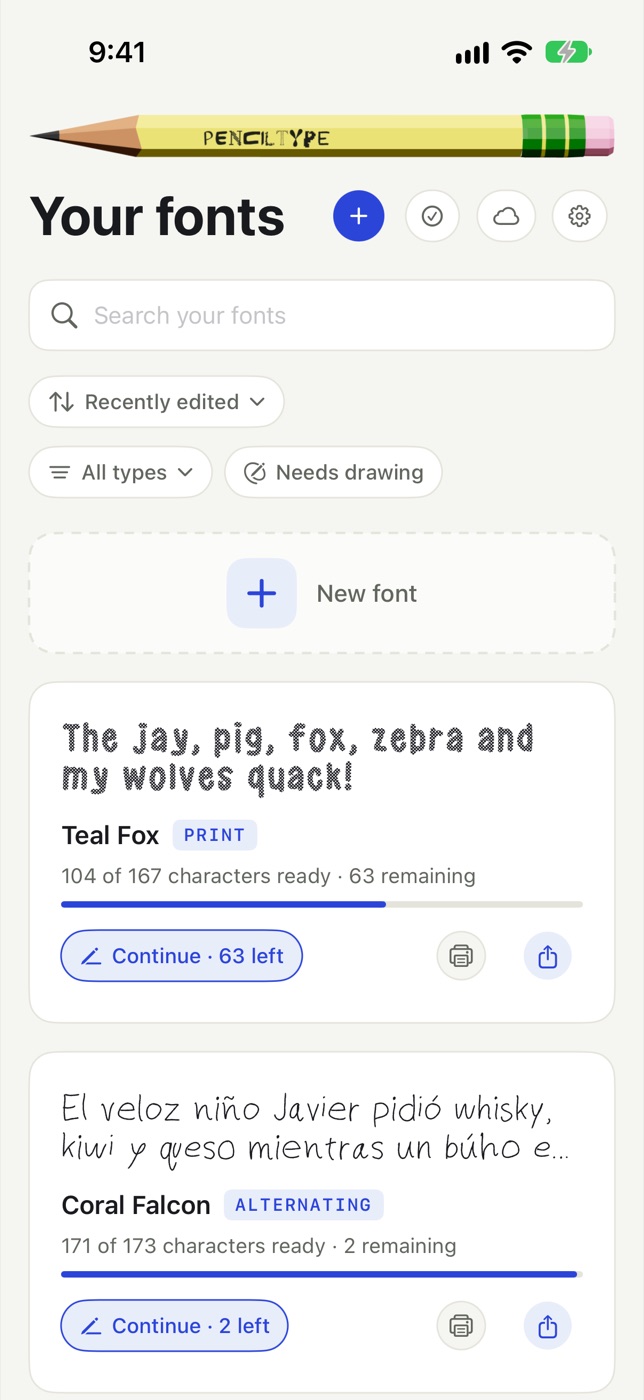 iPhone and Macpenciltype is one app on iPhone, iPad and Mac. Your fonts, brushes and settings work the same everywhere. What changes is the layout, which follows the width of the window, and what your device can sense and do.
 Accessibilitypenciltype follows your device's accessibility settings: larger text, VoiceOver, Reduce Motion and light or dark appearance. This page says what changes in the app for each.