Font settings
Everything about one font that isn't drawing: its name and details, which characters it has, the ghost letter you trace, where the guide lines sit, and what you can do with the whole project.
Opening Font settings
On the letter grid, tap the slider icon at the top right. You can also get here from Export & install: Font settings › Project actions closes the export sheet and opens Font settings over the grid.
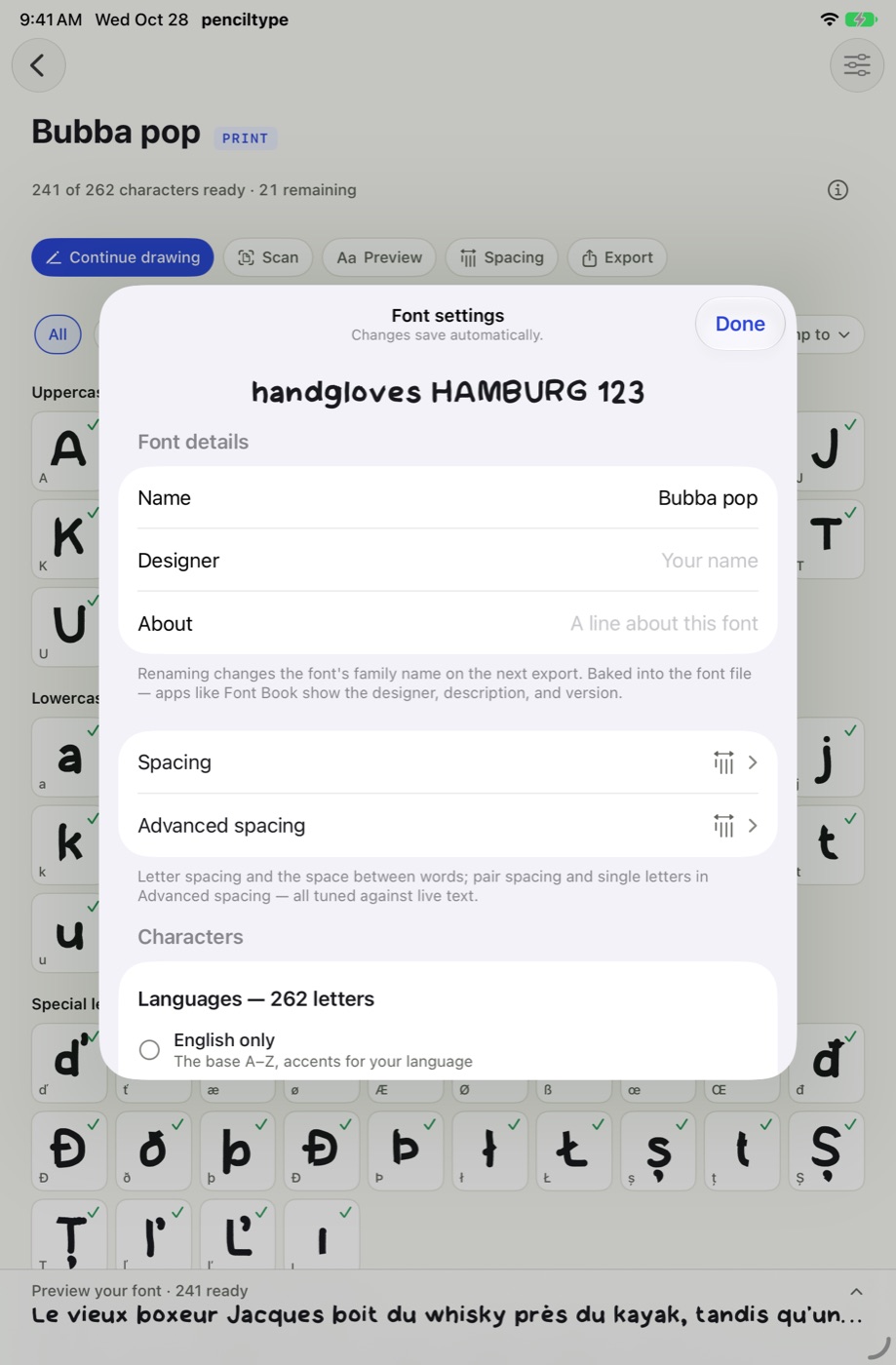
The sheet opens with a live sample, handgloves HAMBURG 123, set in the font as it is now (it appears once the font has compiled). Below it the settings are grouped into Font details, Characters, Drawing guides, Advanced and Project actions. The sheet is long: scroll to see it all.
Changes save automatically. Every change is written the moment you make it and the font is rebuilt, so there's nothing to save and nothing to cancel. Done just closes the sheet.
Font details
- Name
- The font's name, as it shows on the shelf and in every app that uses the font. Renaming changes the font's family name the next time you export it.
- Designer
- Your name (the field says Your name until you fill it in).
- About
- A line about the font, up to three lines long (A line about this font).
The designer, the description and the version (under Advanced) are baked into the font file. Apps like Font Book show them.
Under the details, Spacing and Advanced spacing close the sheet and open the spacing screens. A cursive font's footer here mentions only letter spacing and the space between words, because cursive fonts have no pair or single-letter spacing.
Characters: languages and symbols
The Characters section decides which tiles the letter grid asks you to draw.
Languages
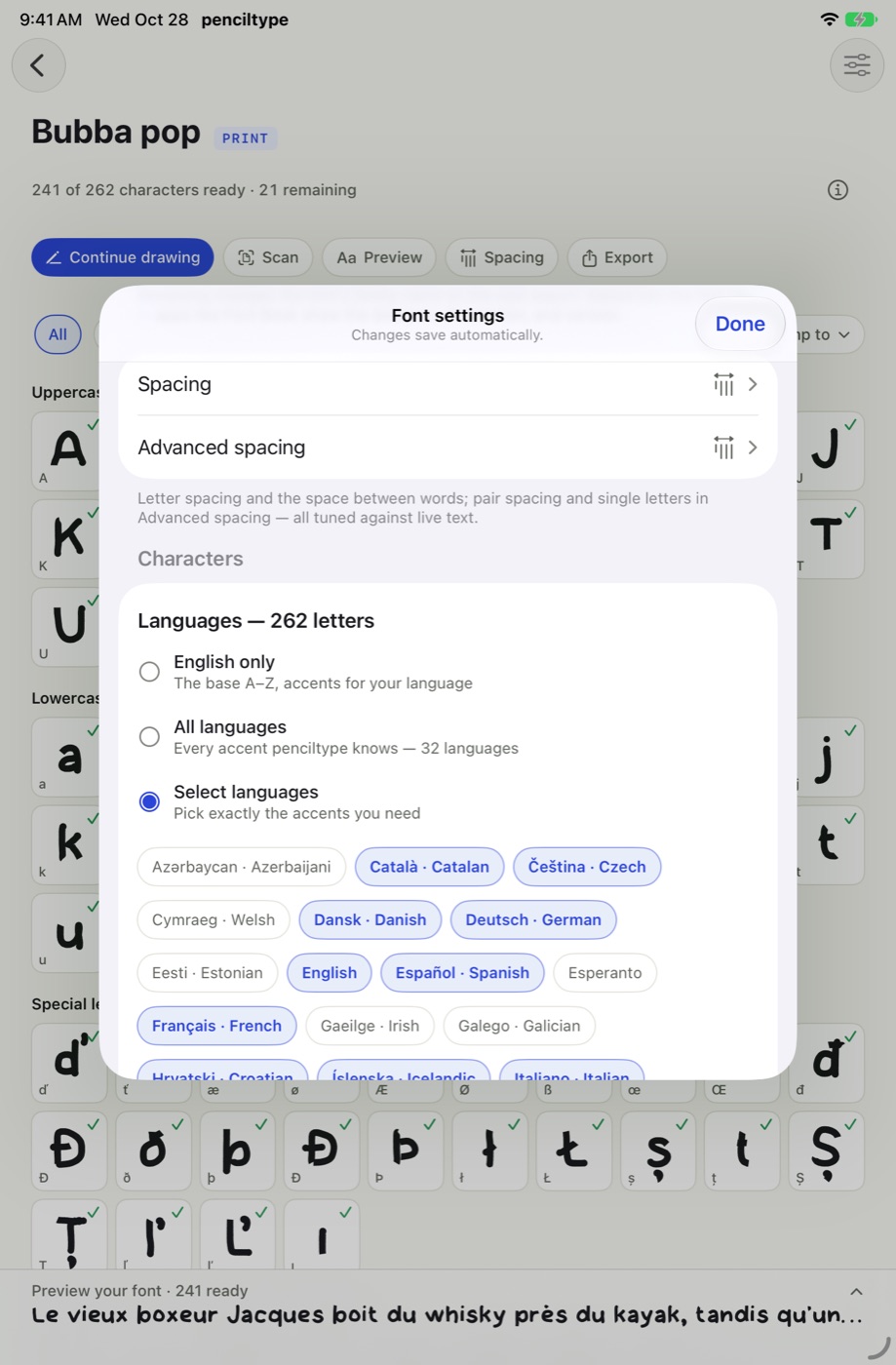
The heading counts the letters the font asks for, for example Languages — 262 letters. Choose one of three:
- English only (or your language only)
- The base A–Z, plus the accents for your device's language. On a device set to English this reads English only; on one set to, say, German, Deutsch only. If penciltype doesn't know your device's language, it's English.
- All languages
- Every accent penciltype knows: 32 languages, from Azərbaycan to Tiếng Việt.
- Select languages
- Pick exactly the accents you need. A chip appears for each language, named in its own language and yours (for example Français · French). Tap chips to turn languages on and off. English can't be turned off.
Symbols
The heading counts how many of the 69 symbols are on, for example Symbols — 32 of 69. Each chip adds or removes one symbol from the grid: maths (% ‰ ° # * + − × ÷ ± = ≠ ≈ ≤ ≥), brackets and marks (_ [ ] { } < > ~ ^ | \), numbers (∞ √ µ π ½ ¼ ¾ ¹ ² ³), typography (• § ¶ † ‡ © ® ™ № ª º ′ ″), arrows and doodles (← → ↑ ↓ ★ ♥ ✓ ♪), and currencies ($ ¢ € £ ¥ ₹ ₩ ₽ ₫ ₿ ₺ ₼).
A new font starts with the symbols on the iPhone and iPad keyboard's symbol pages, plus your local currency. If you've changed the set, Use the keyboard's symbols puts it back.
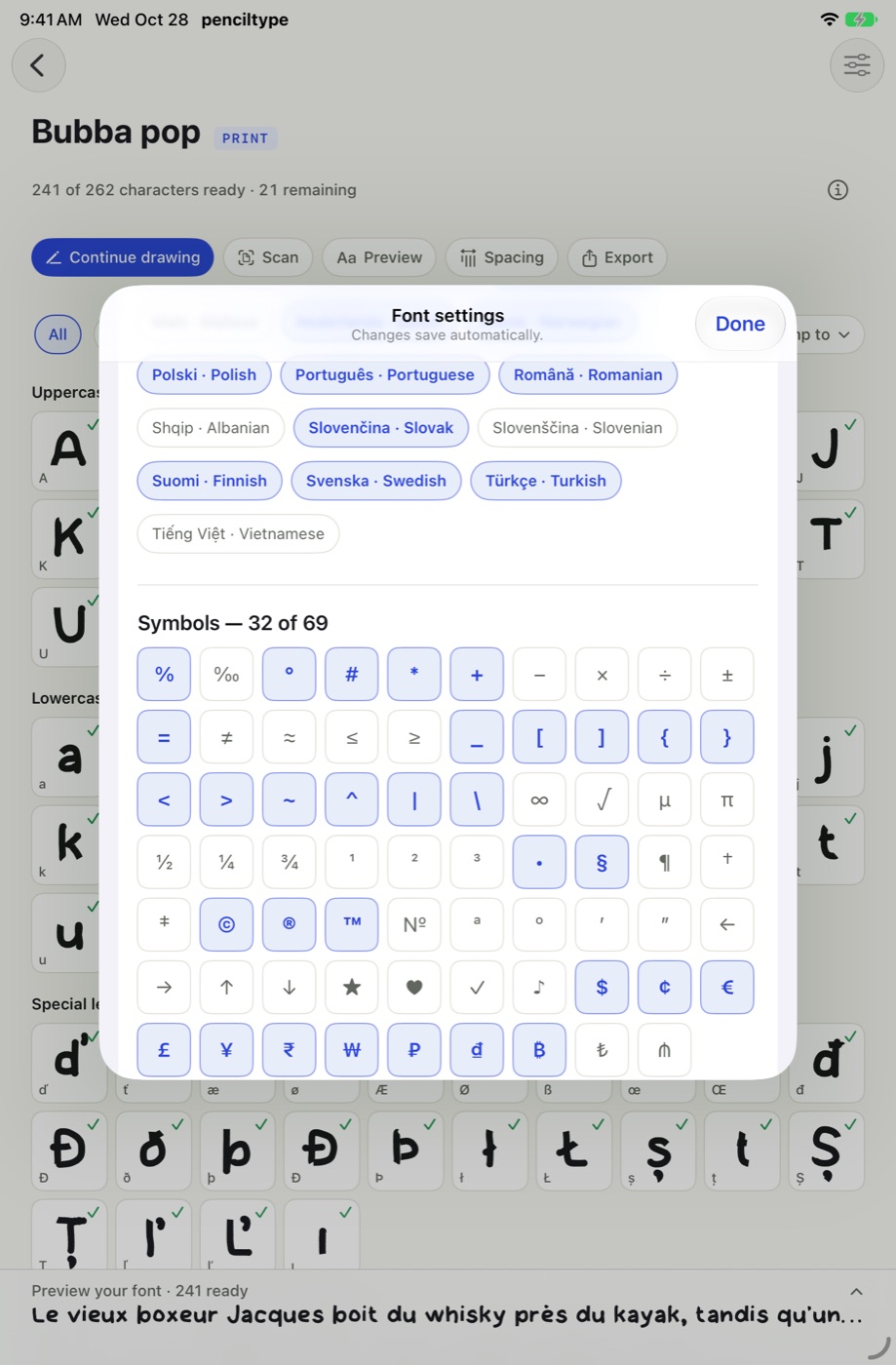
Anything you've drawn stays in the font. Turning a language or a symbol off only takes its tiles off the grid; your ink is kept, and comes back if you turn it on again.
Accents, capitals and punctuation
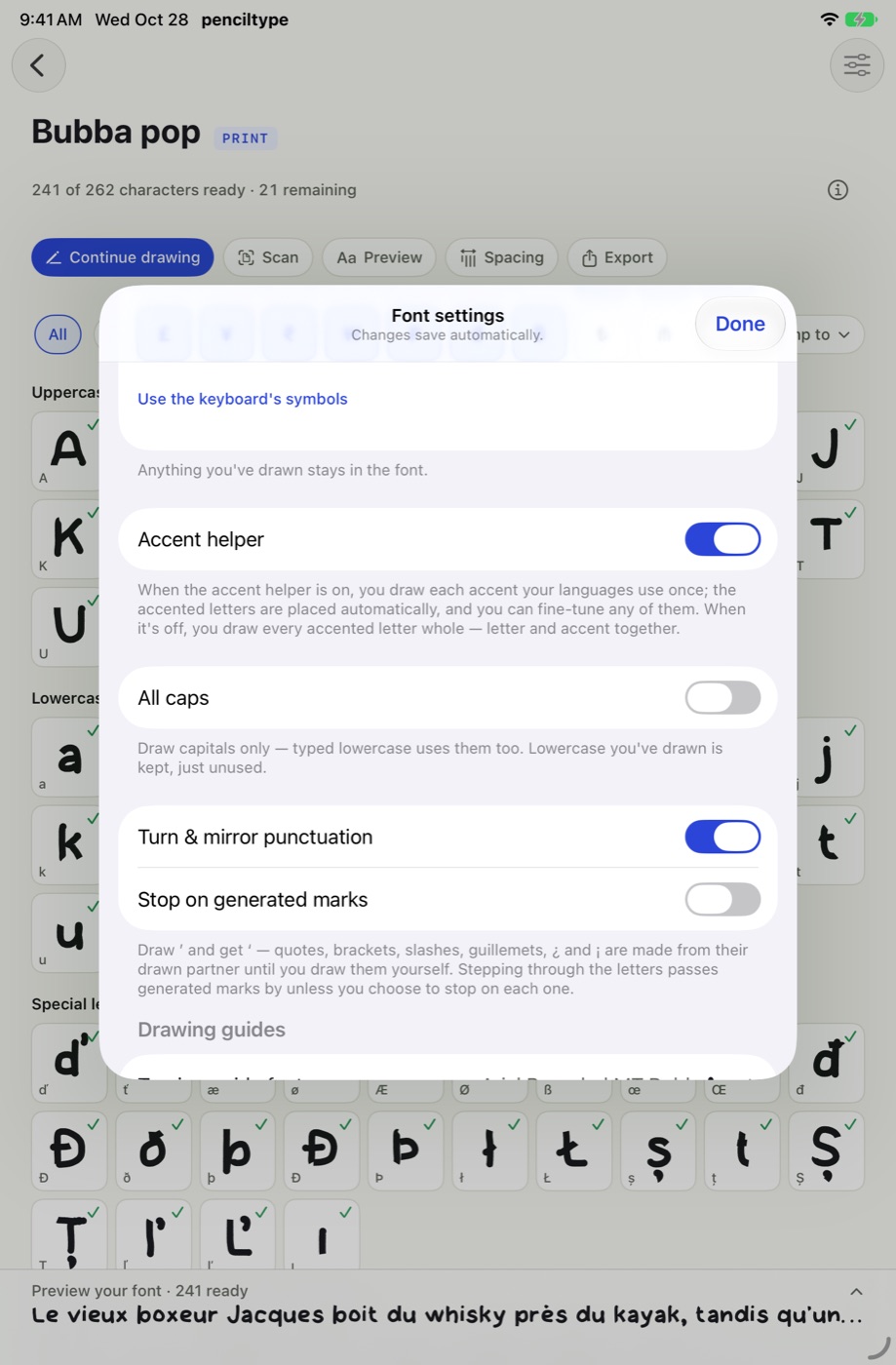
Accent helper
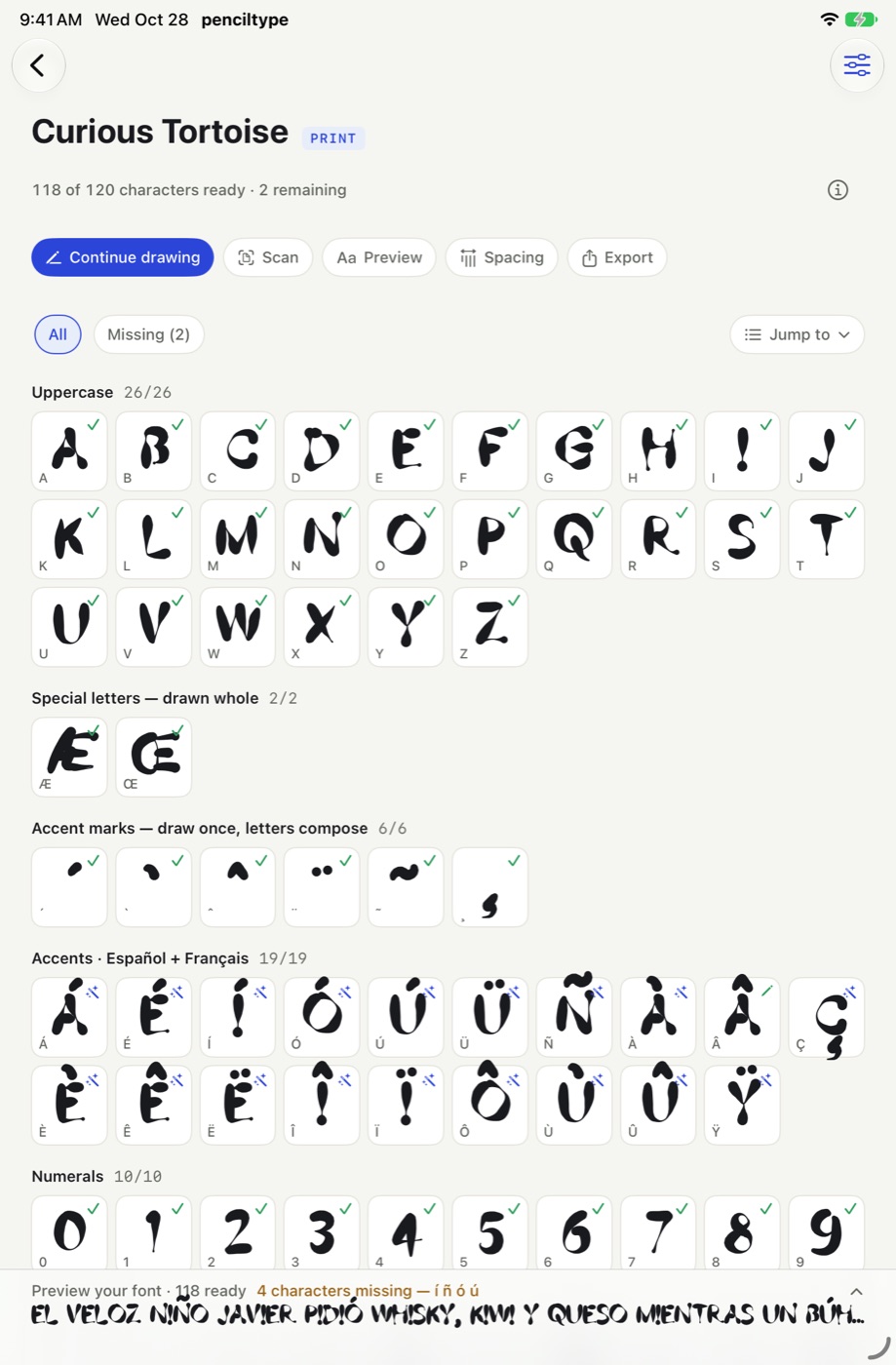
On (the default), you draw each accent mark your languages use once, and the accented letters are placed over their base letters automatically. You can still fine-tune any of them on its own canvas. The grid then has an Accent marks — draw once, letters compose section, and the accented letters show the Generated mark.
Off, you draw every accented letter whole, letter and accent together, and the accent marks section goes away.
Some letters have no letter-plus-mark shortcut and are always drawn whole, whatever the switch says: æ, œ, ß, ø, ł and friends, and ď, ť, ľ, Ľ and ģ, whose marks sit differently. Vietnamese letters with two marks stack the second mark over an already-composed letter.
All caps
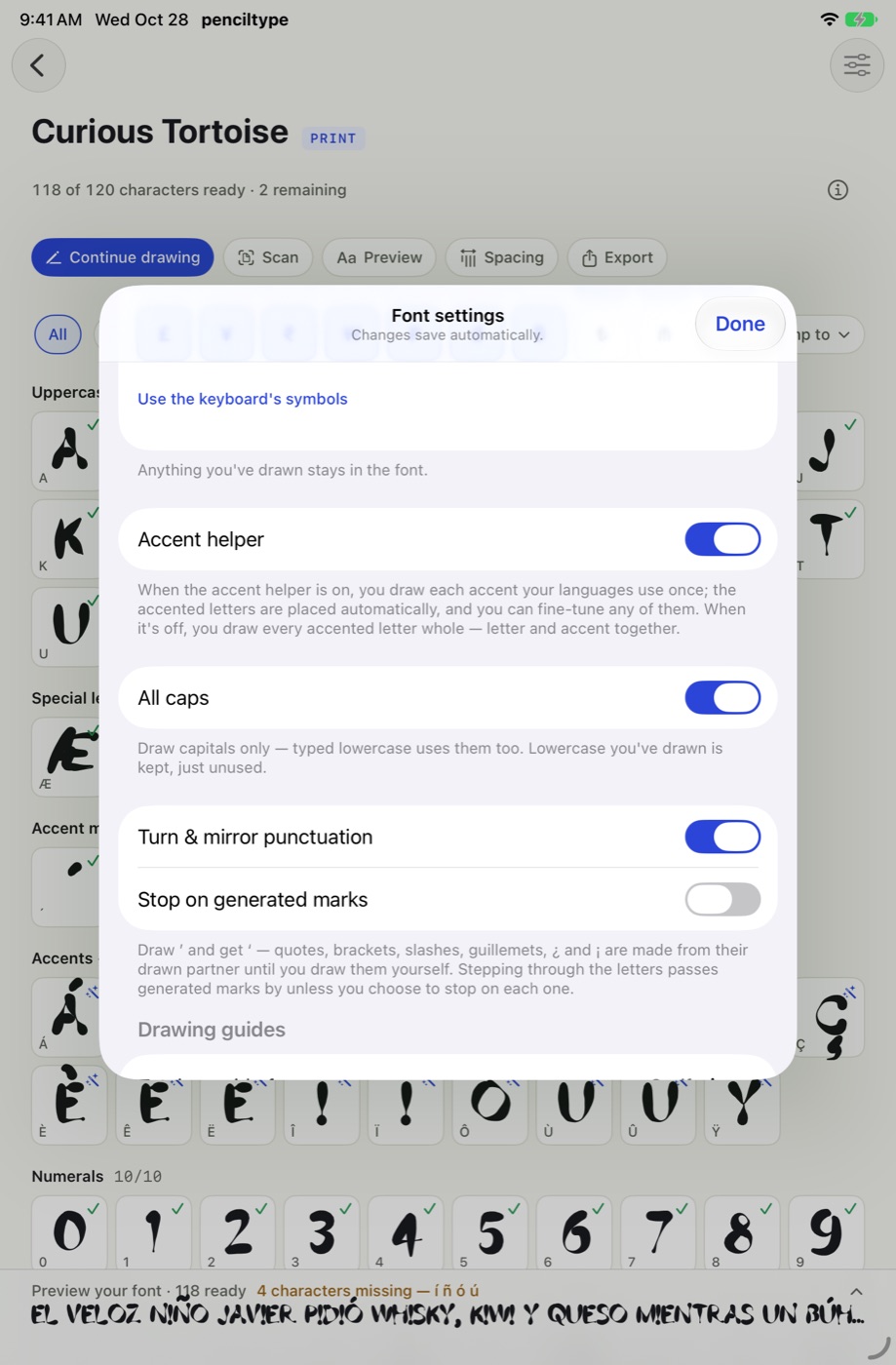
For header and display fonts: draw capitals only, and typed lowercase uses them too. The lowercase rows leave the grid. Lowercase you've already drawn is kept, just unused, and comes back if you turn All caps off. Letter pairs and words are stored and shown in capitals. Cursive fonts don't have this switch.
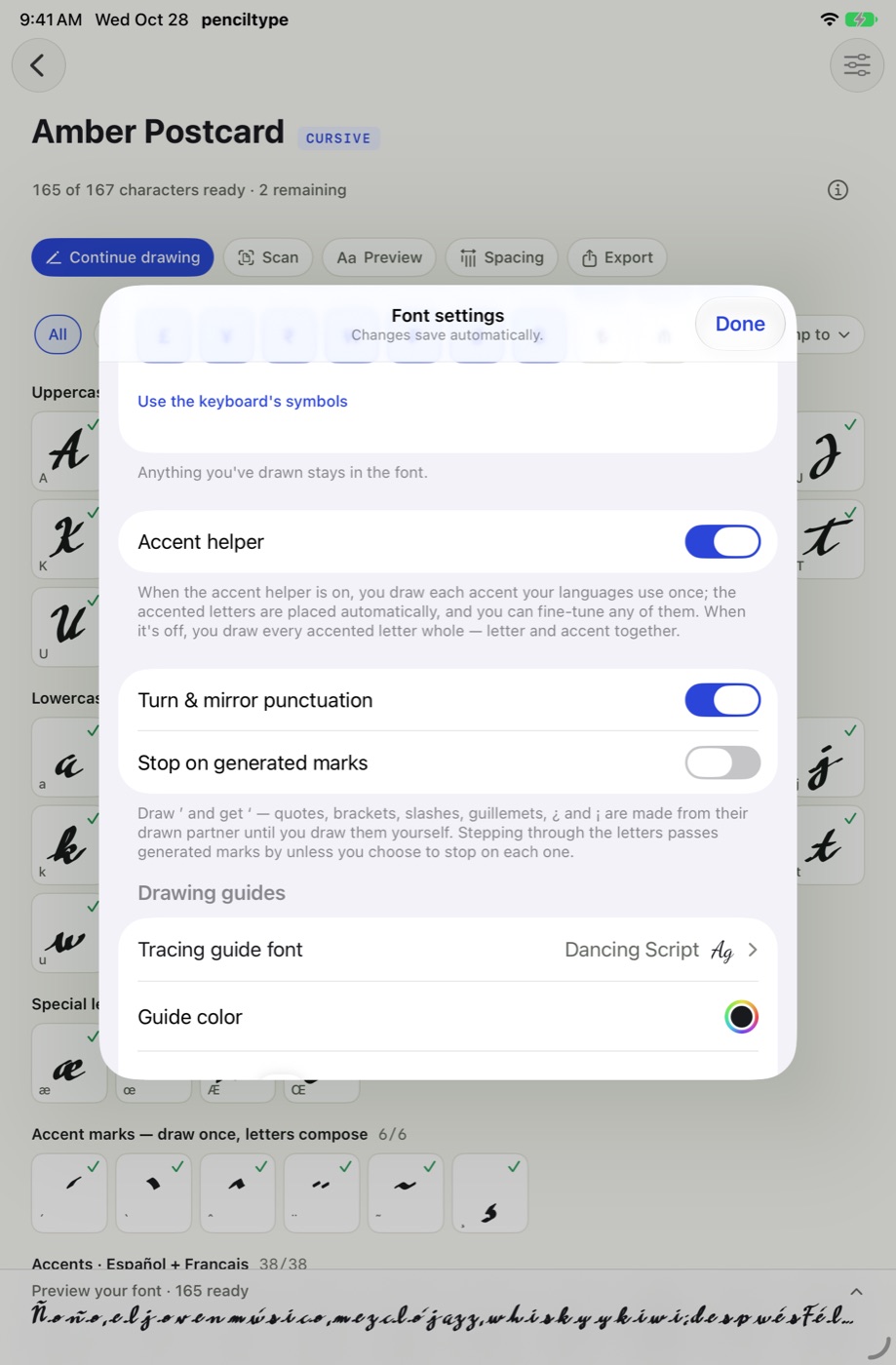
Turn & mirror punctuation
Draw ’ and get ‘. With this on, a punctuation mark you haven't drawn is made from its drawn partner:
- turned: ‘ “ ¿ ¡ and ↑ ↓,
- mirrored: ( ) [ ] { } < > / \ « » ‹ › ≤ ≥ ← →,
- lowered: ‚ „ from ’ ”.
Drawing the mark yourself always wins. These marks show the Generated mark on the grid, and the Missing view groups each pair as “Draw « or » — the other is made from it”.
Stop on generated marks (only available while Turn & mirror is on): when you step through letters on the canvas, it stops on each generated mark, with its turned shape ghosted so you can trace it or keep it. Off, stepping passes them by.
Drawing guides
The ghost letter behind the canvas, and in the grid's undrawn tiles.
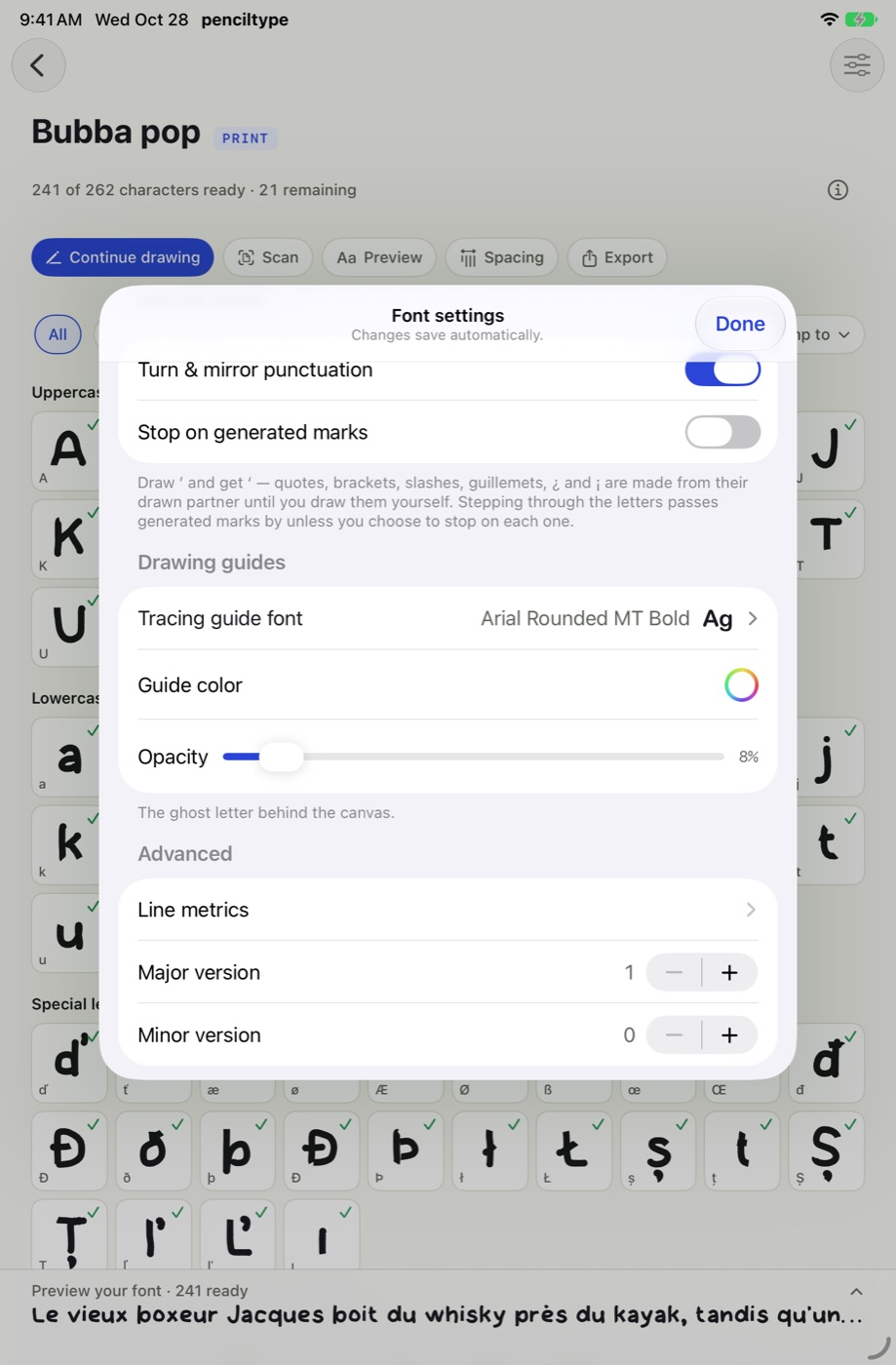
Tracing guide font
The row shows the face in use and a sample. Tap it to choose another; your pick applies straight away and the list closes.
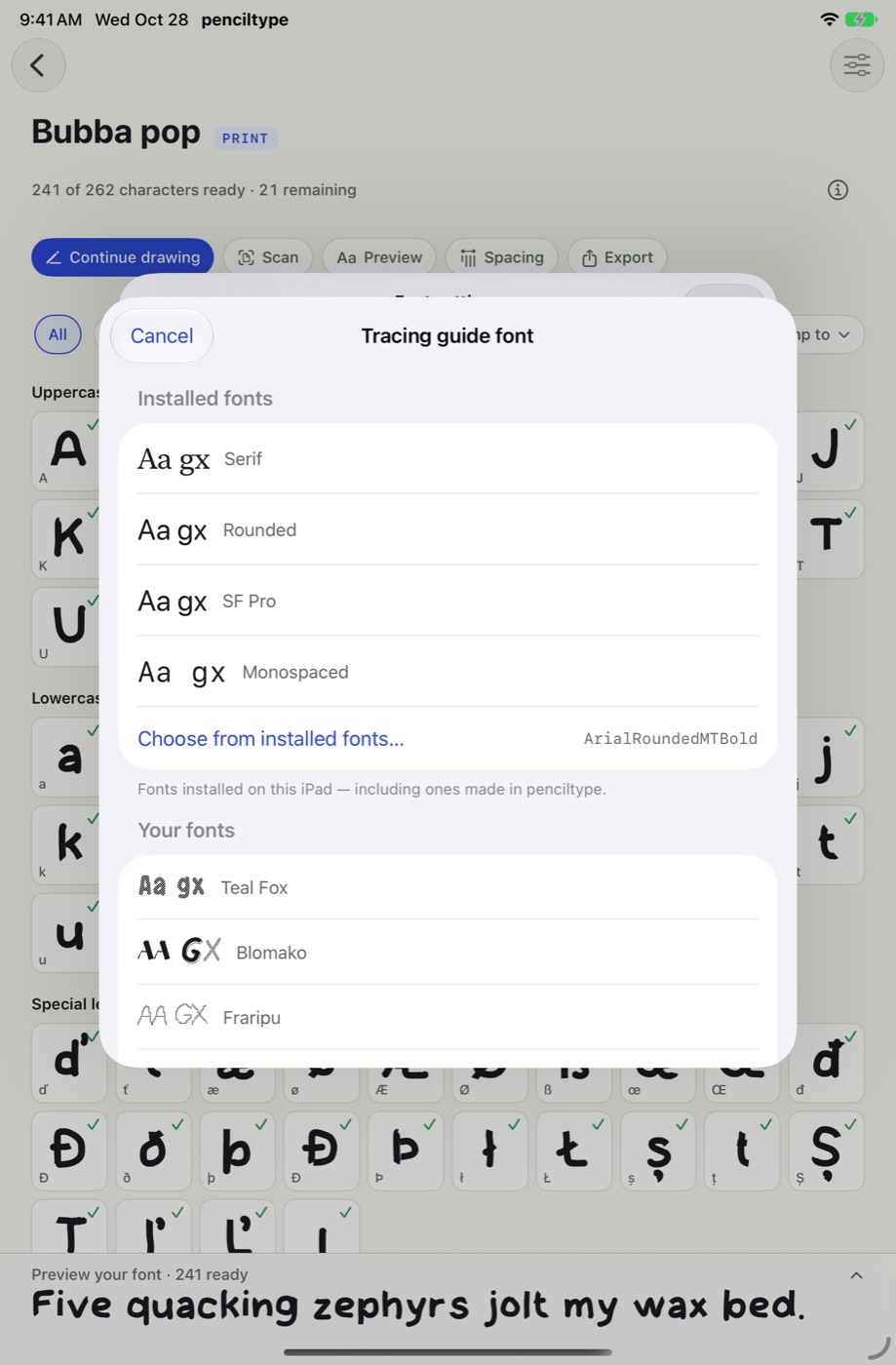
Each kind of font offers faces that suit it:
| Kind | Faces under Installed fonts |
|---|---|
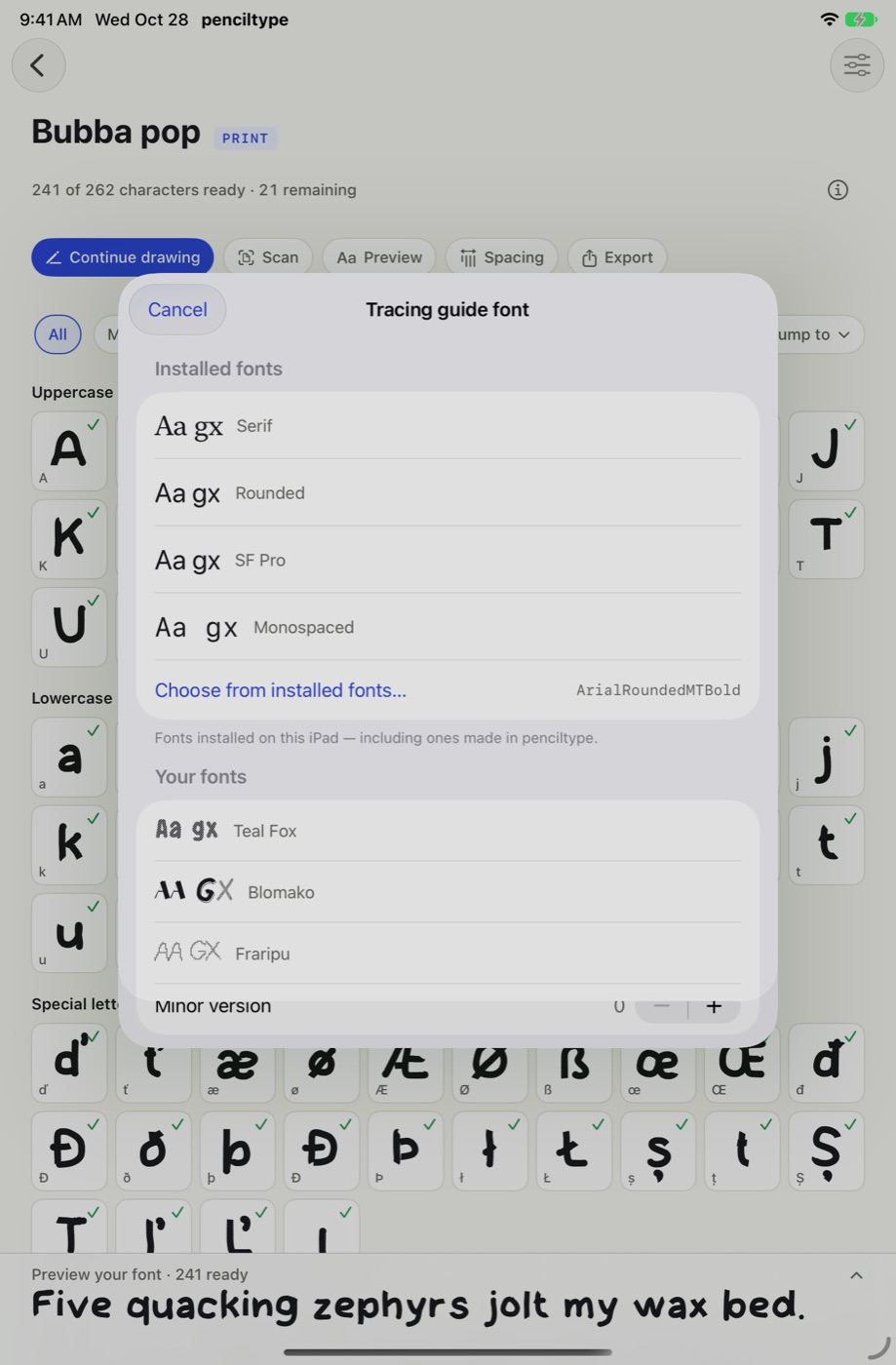
| Serif (the default), Rounded, SF Pro, Monospaced | |
| Alternating | Caveat (the default, which cycles three forms of each letter), Serif, Rounded, SF Pro, Monospaced |
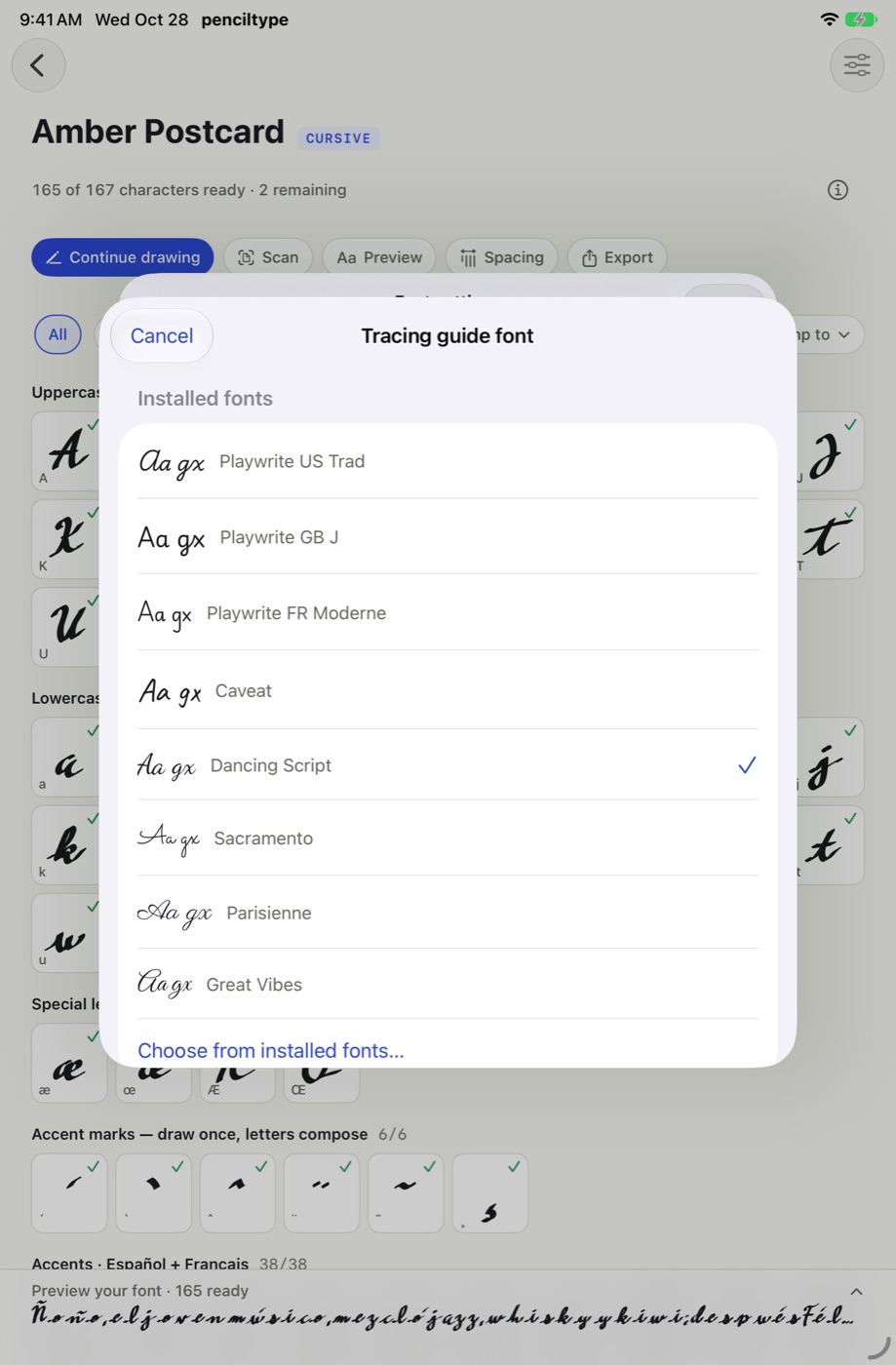
| Cursive | Playwrite US Trad (the default), Playwrite GB J, Playwrite FR Moderne, Caveat, Dancing Script, Sacramento, Parisienne, Great Vibes: open-source handwriting faces whose letters join, so you can trace how their entries and exits meet |
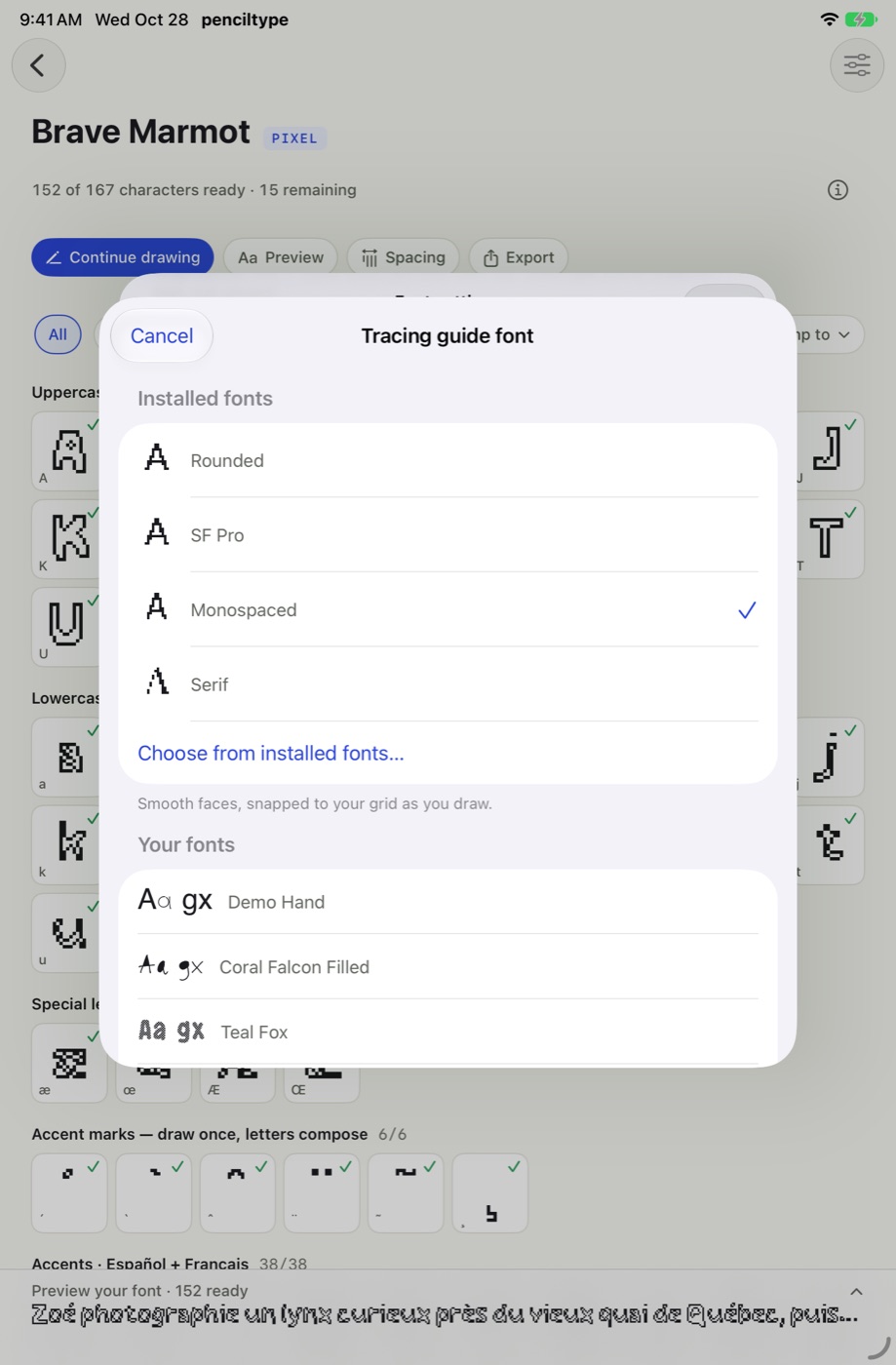
| Pixel | Rounded (the default), SF Pro, Monospaced, Serif, each shown snapped to your font's grid |
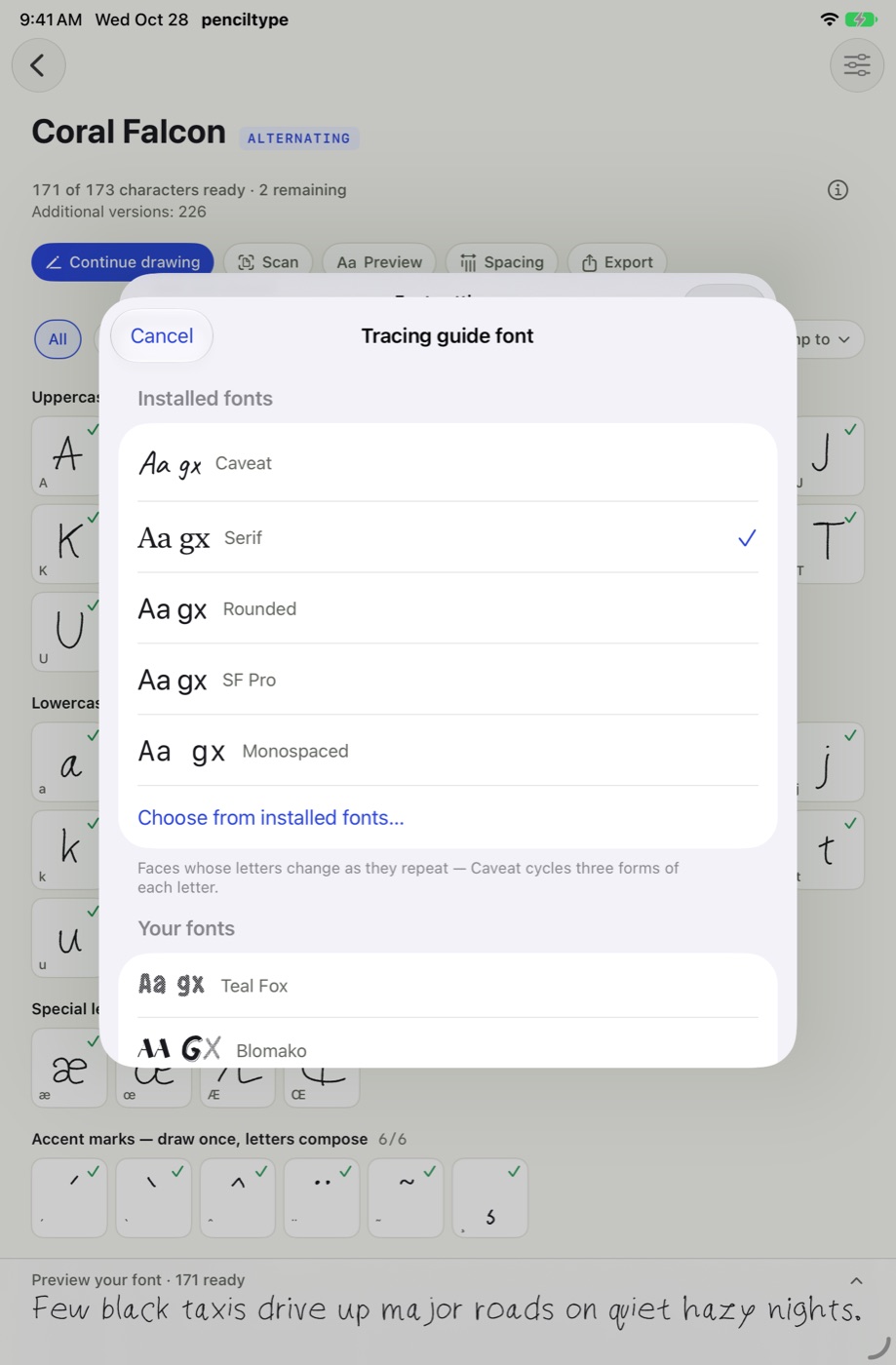
Two more ways to pick:
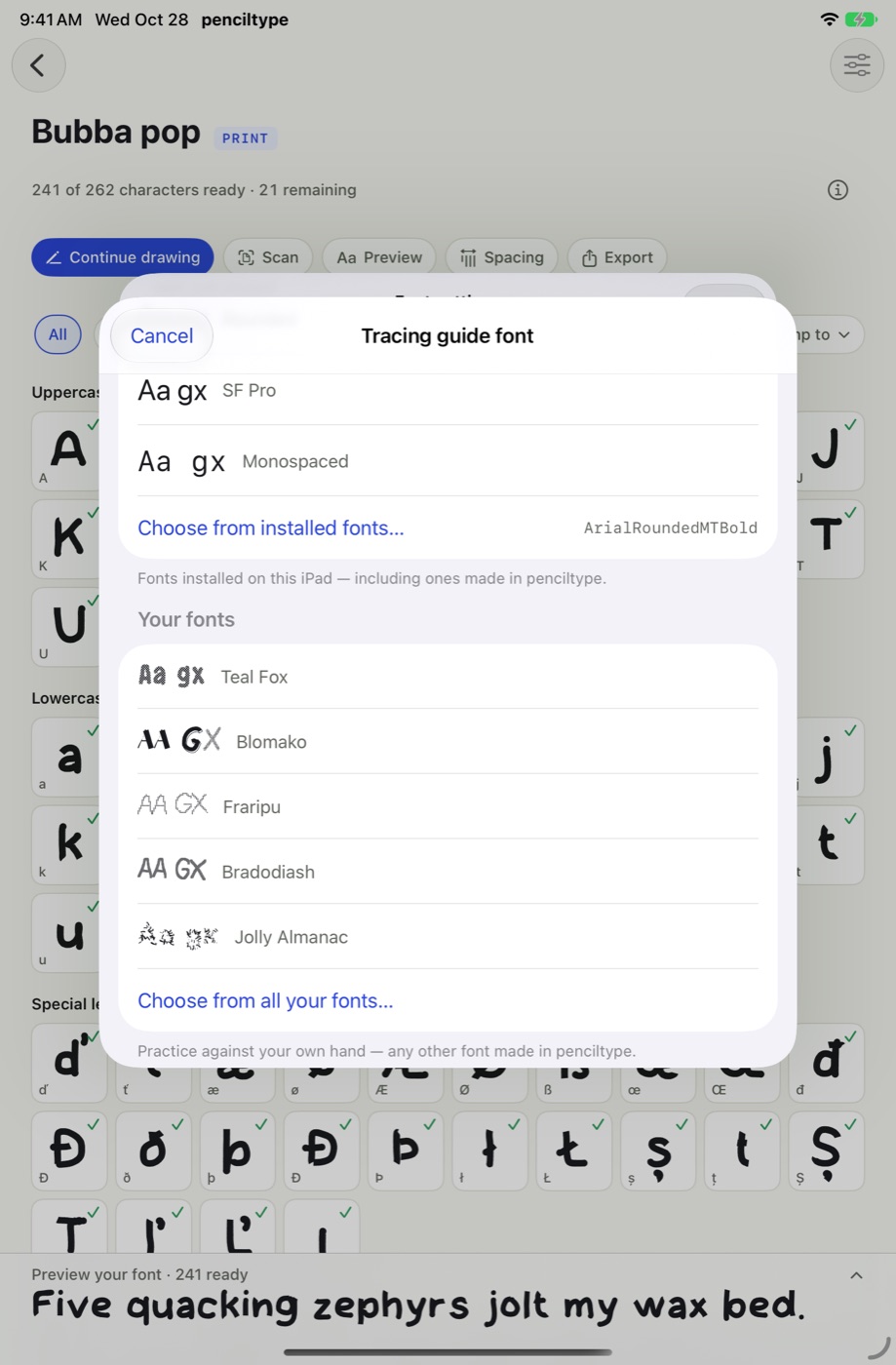
- Choose from installed fonts…
- Opens the system font picker, with every font installed on the device, including penciltype fonts you've installed. Pick a family and both lists close. The × goes back.
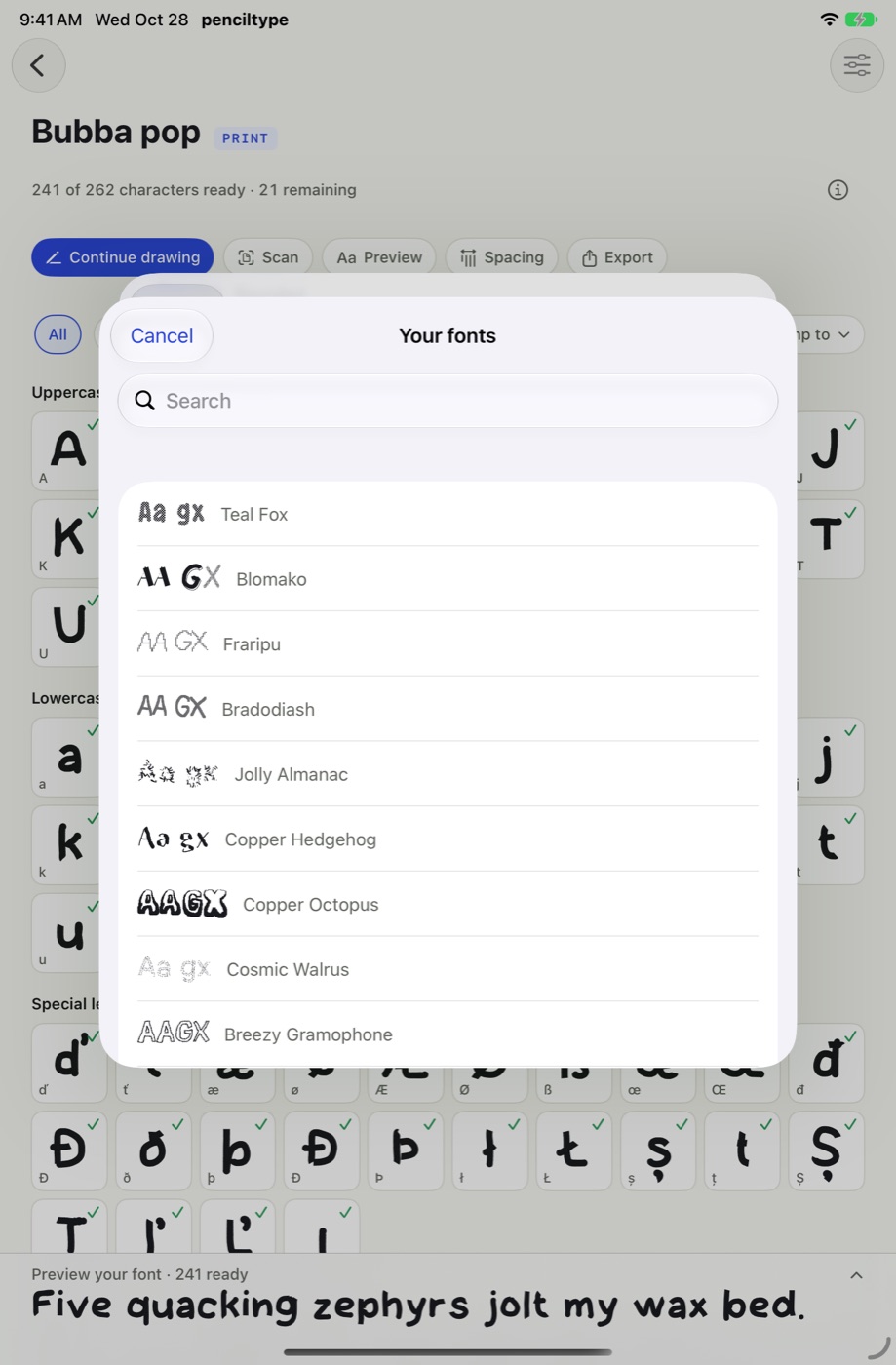
- Your fonts
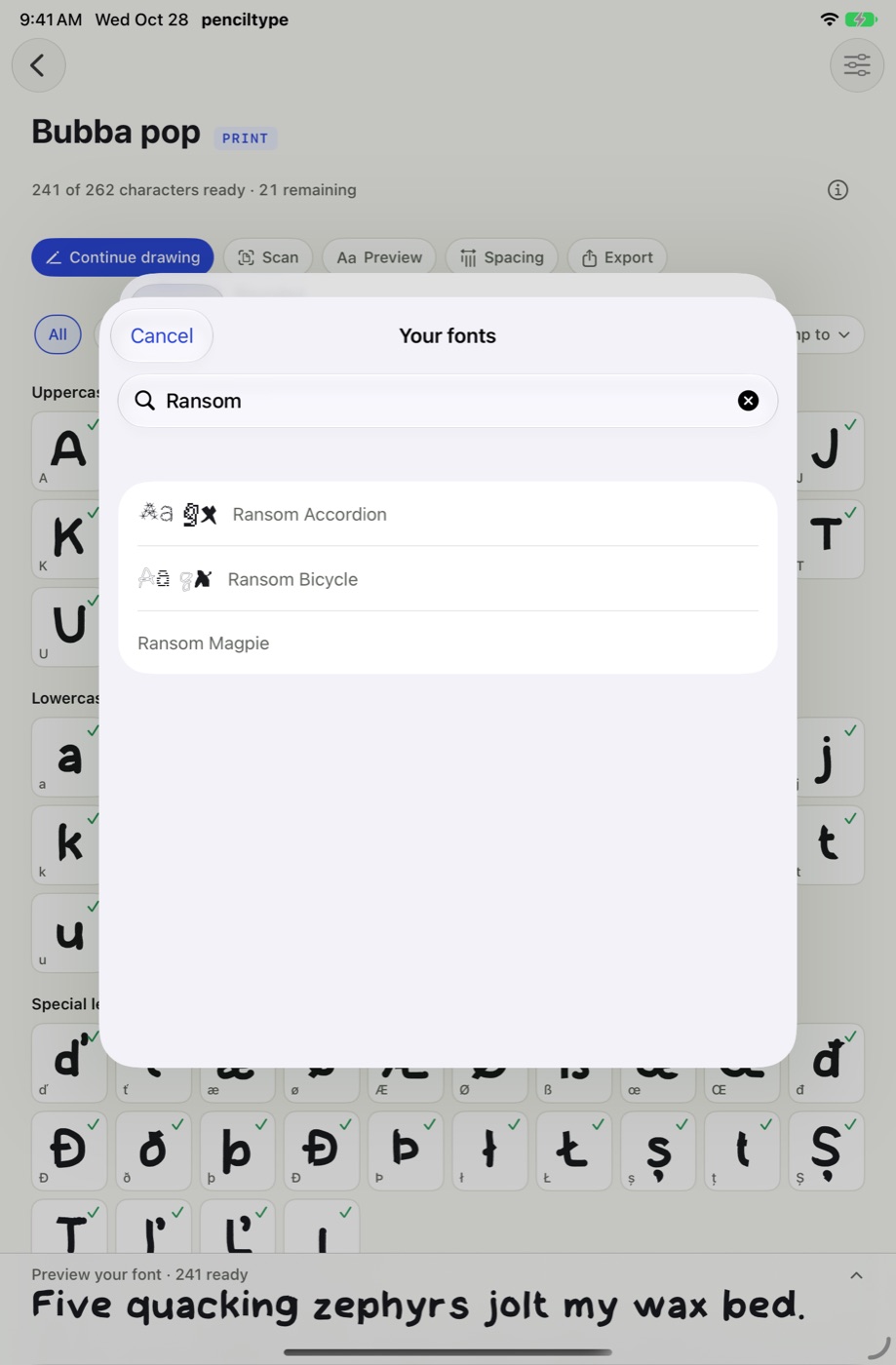
- Your other penciltype fonts with ink in them, newest first: practise against your own hand. The five newest are listed; if you have more, Choose from all your fonts… opens a searchable list of all of them. The font you're editing never lists itself.
Guide color and Opacity
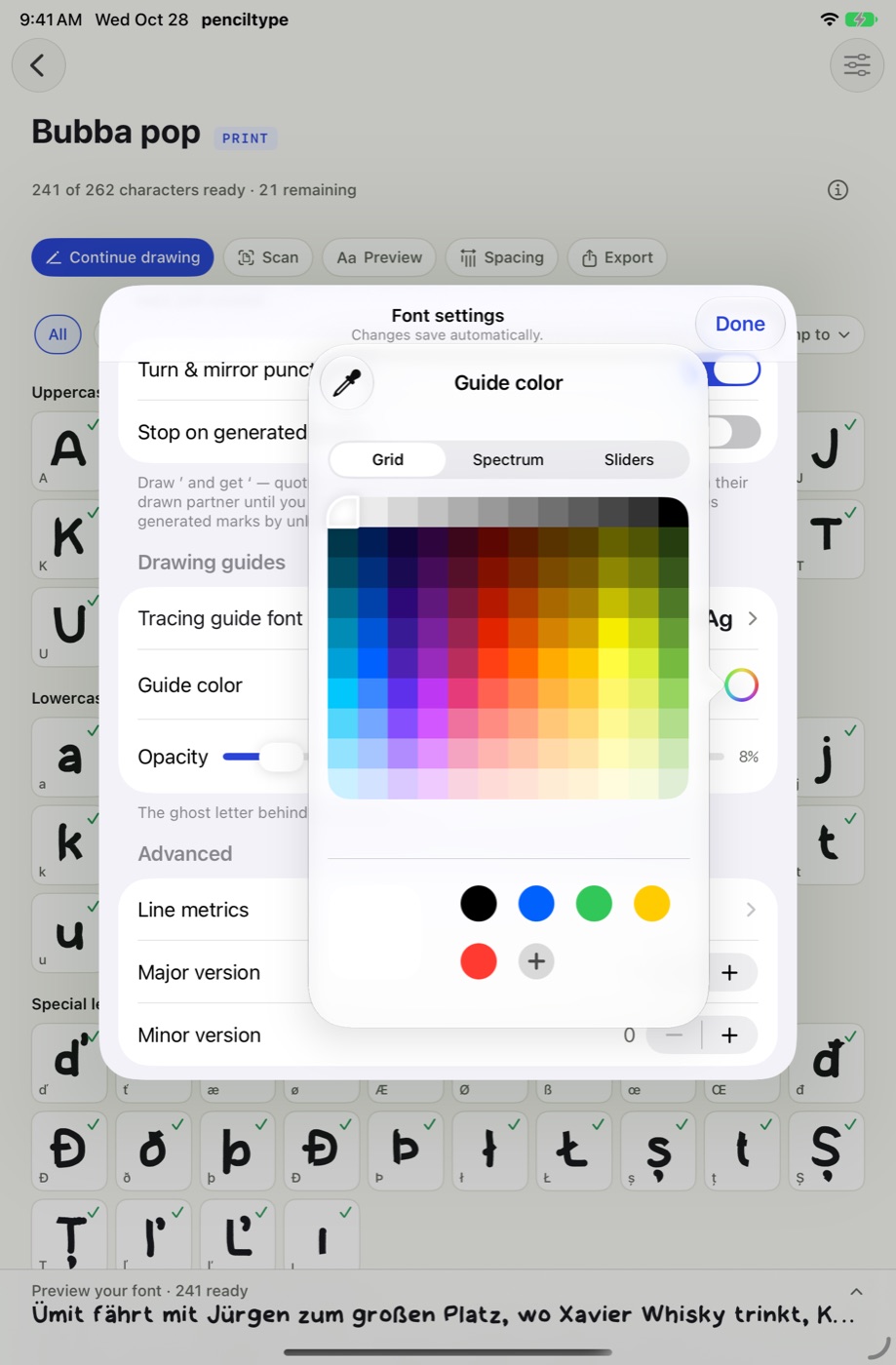
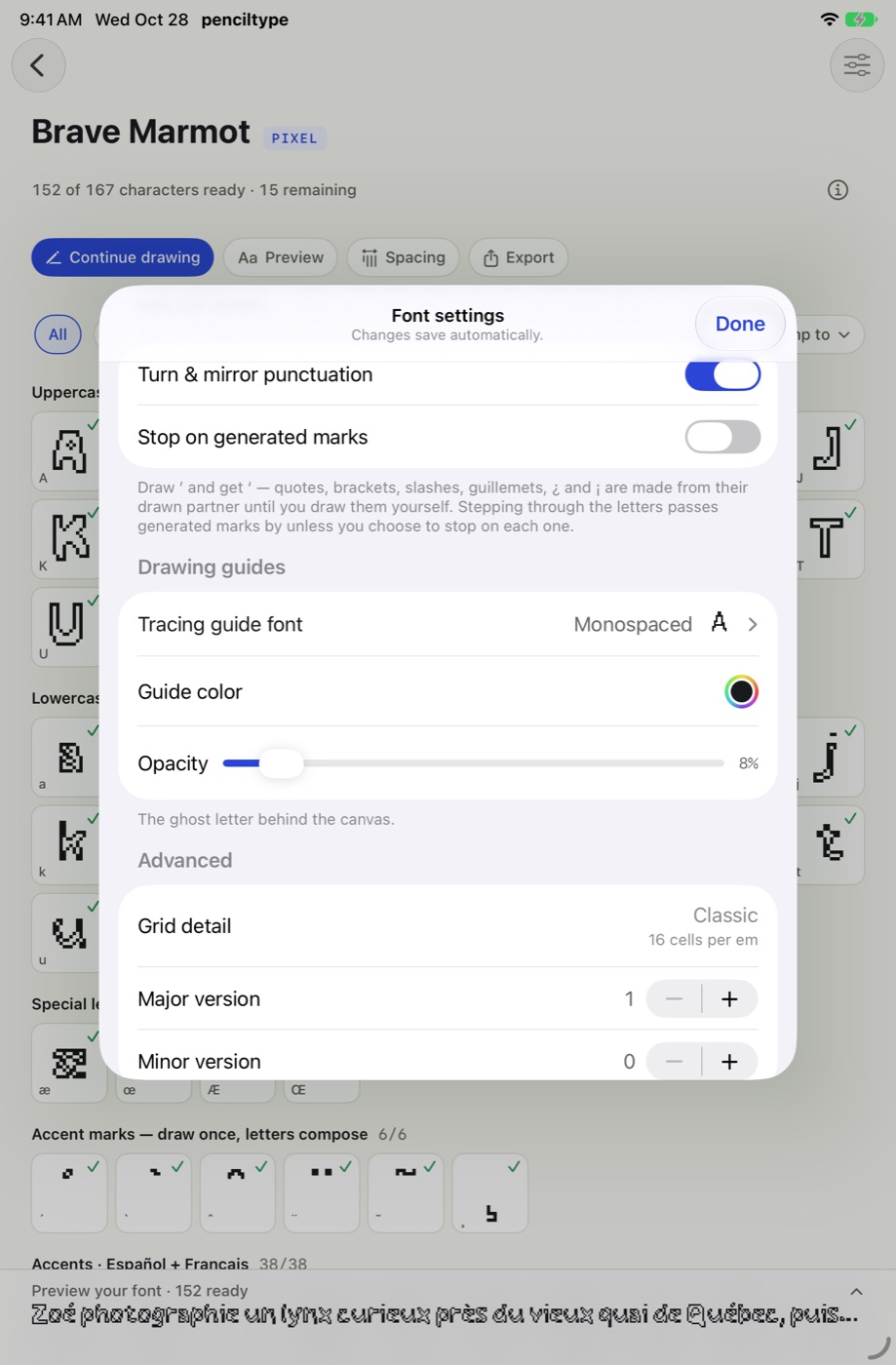
Guide color opens the system colour picker (grid, spectrum or sliders, and an eyedropper). The colour you pick tints the ghost letter. Opacity sets how strong the ghost is, from 0 to 100% (8% by default). The ghost starts out in your ink colour.
Advanced: line metrics, grid detail and version
Line metrics
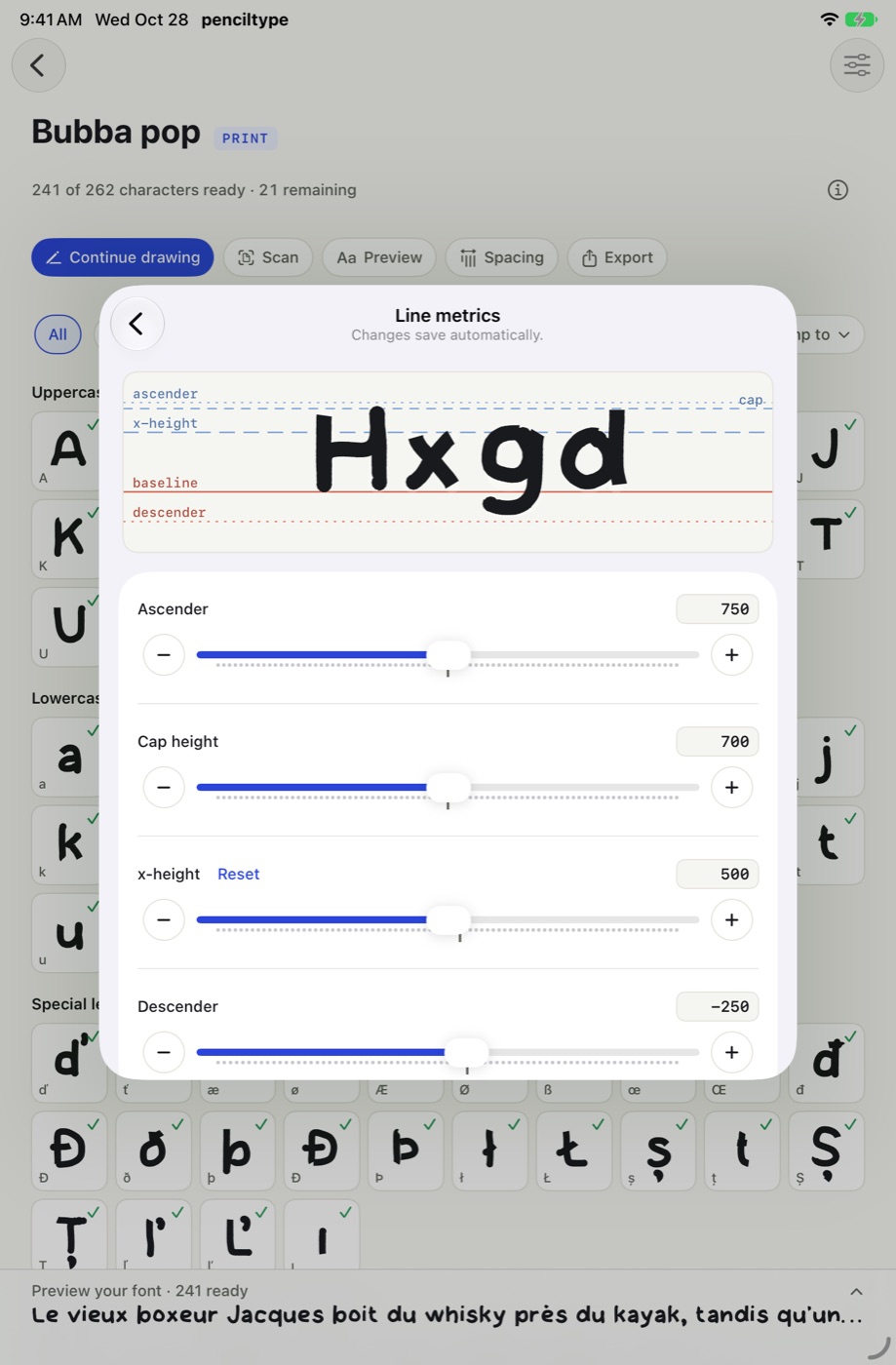
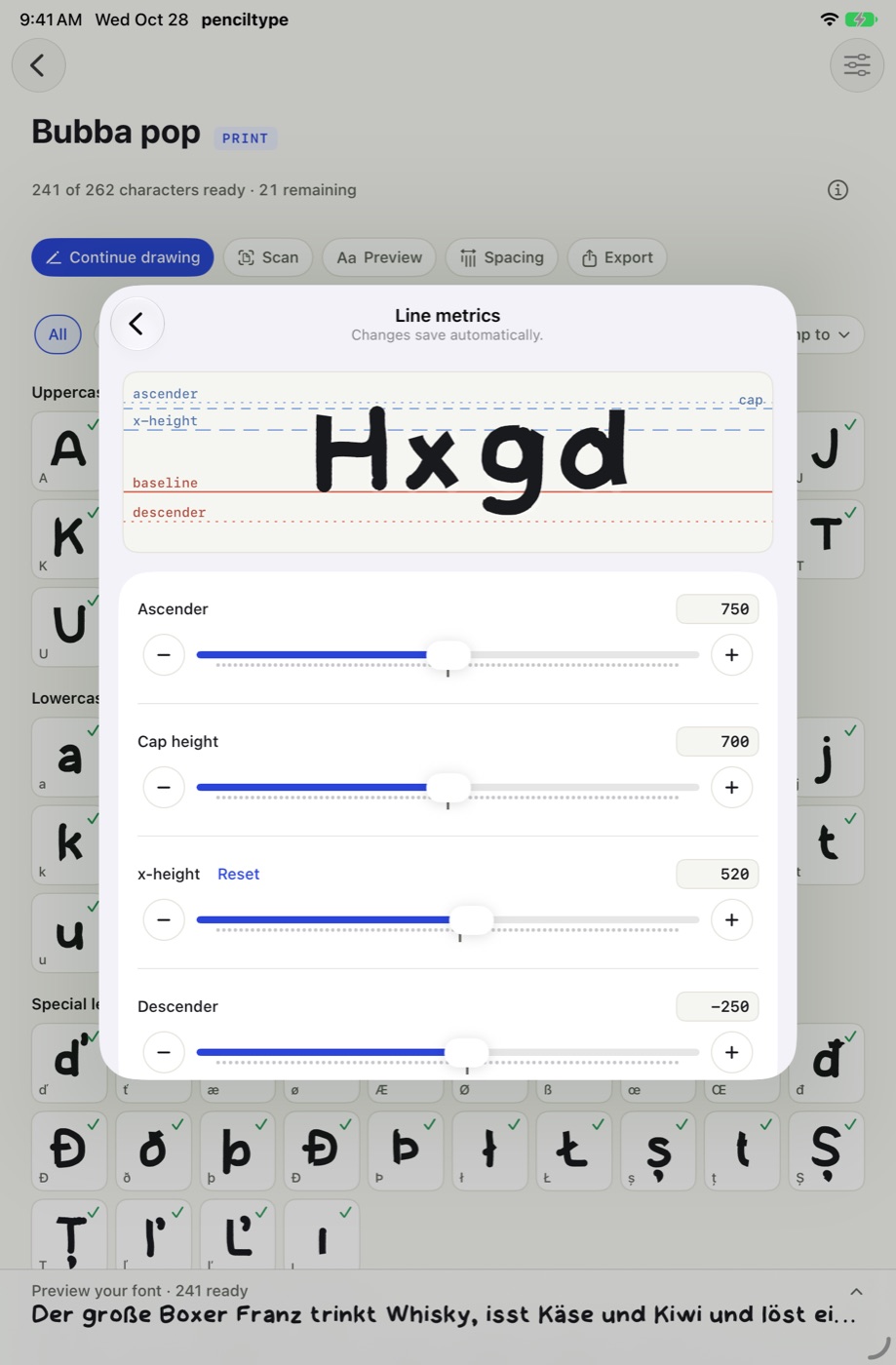
Tap Line metrics to set where the four guide lines sit. The page shows the guide lines over your own letters H, x, g and d, with the tracing guide ghosted behind, and the lines move as you drag.
| Line | Range | Default |
|---|---|---|
| Ascender | 550 to 950 | 750 |
| Cap height | 500 to 900 | 700 |
| x-height | 300 to 700 | 500, or the x-height of the tracing guide face |
| Descender | −450 to −80 | −250 |
Drag a slider, or tap − and + to move a line by 5. A tick under each track marks the default; once a line moves off it, a Reset button appears for that line. The numbers are font units with the baseline at 0, out of 1,000 to the em.
Moving a line doesn't rescale your ink. It moves the line you draw against on the canvas and the font's vertical metrics (how much room the font asks for above and below the text).
Grid detail (pixel fonts)
Pixel fonts have no line metrics: the tile grid spans the full em and sets the vertical proportions. Instead, Advanced shows Grid detail, read-only: the grid's name and how many cells per em it has (Chunky 8, Classic 16, Fine 32, Finer 64 or Ultra fine 128, or just the count for an imported grid such as 24). The grid is chosen when you create the font. Default spacing on pixel fonts follows the cell size.
Version
Major version (1 to 99) and Minor version (0 to 99) set the version number baked into the exported font, for example 1.0. Bump it when you share an updated font, so people can tell copies apart.
Project actions
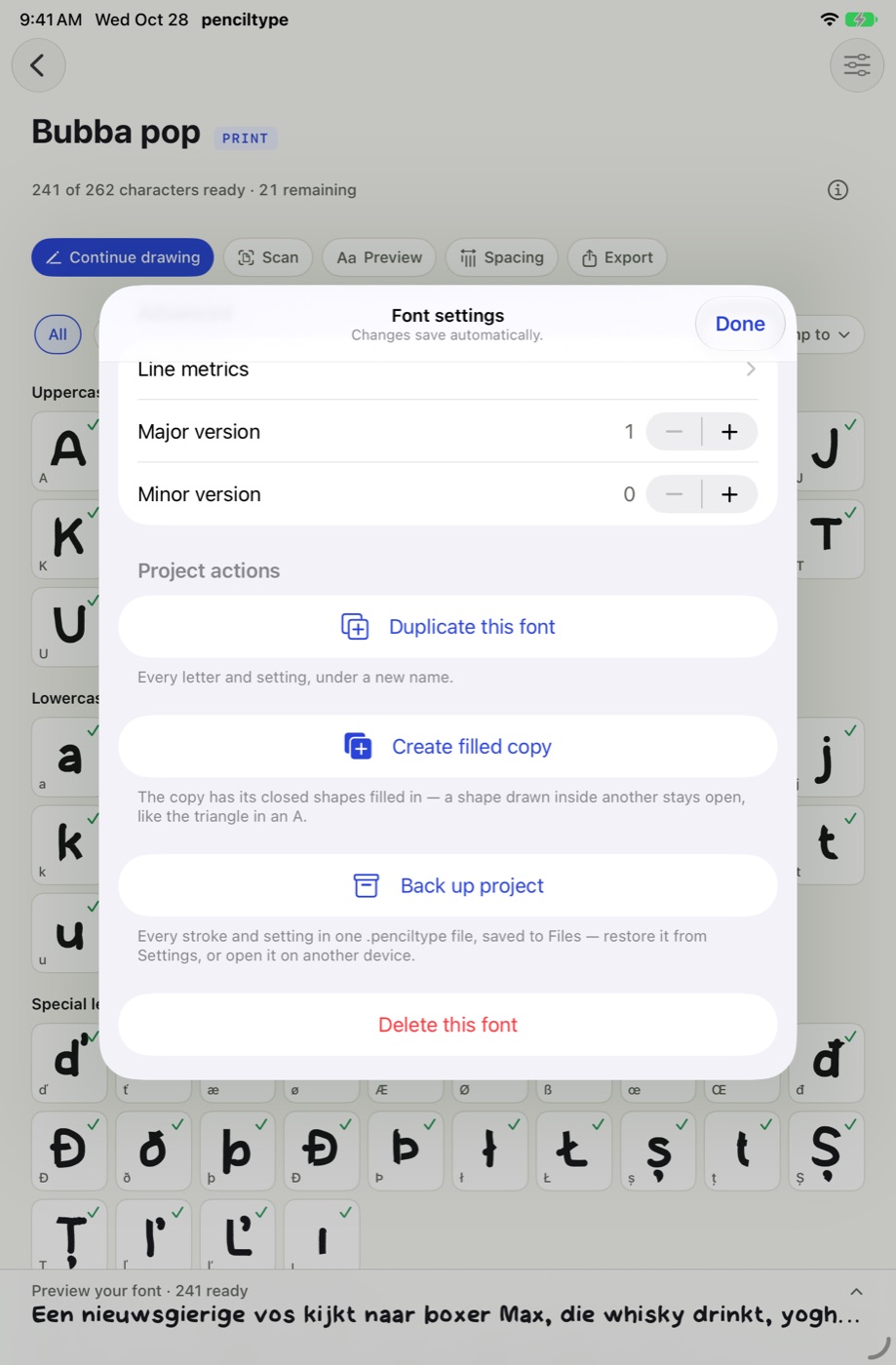
Duplicate this font
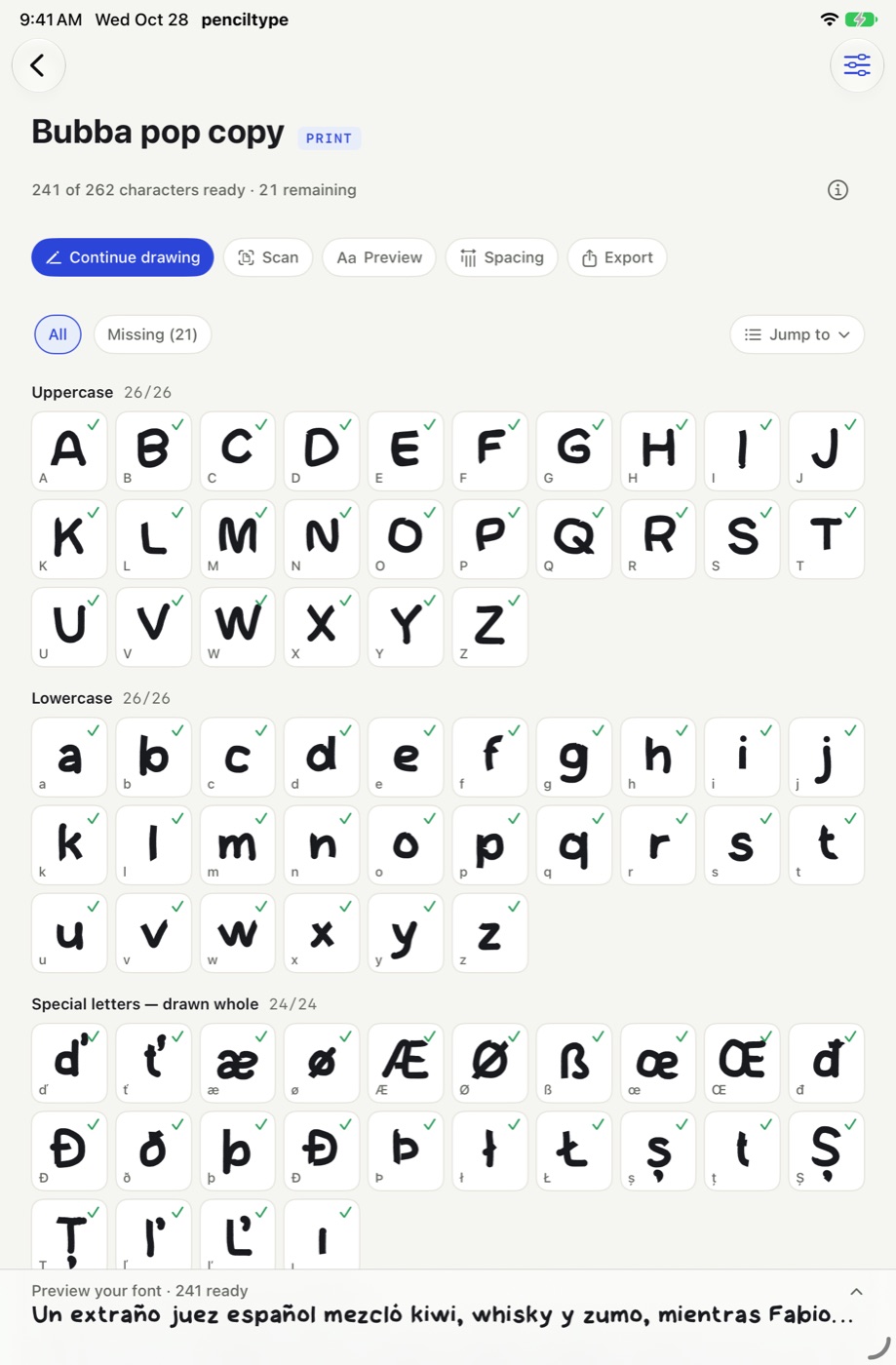
Makes a full copy, every letter, setting and tuned pair, named “Bubba pop copy” (then “copy 2” and so on). The sheet closes and the copy's grid opens, so you can try something out without touching the original.
Create filled copy
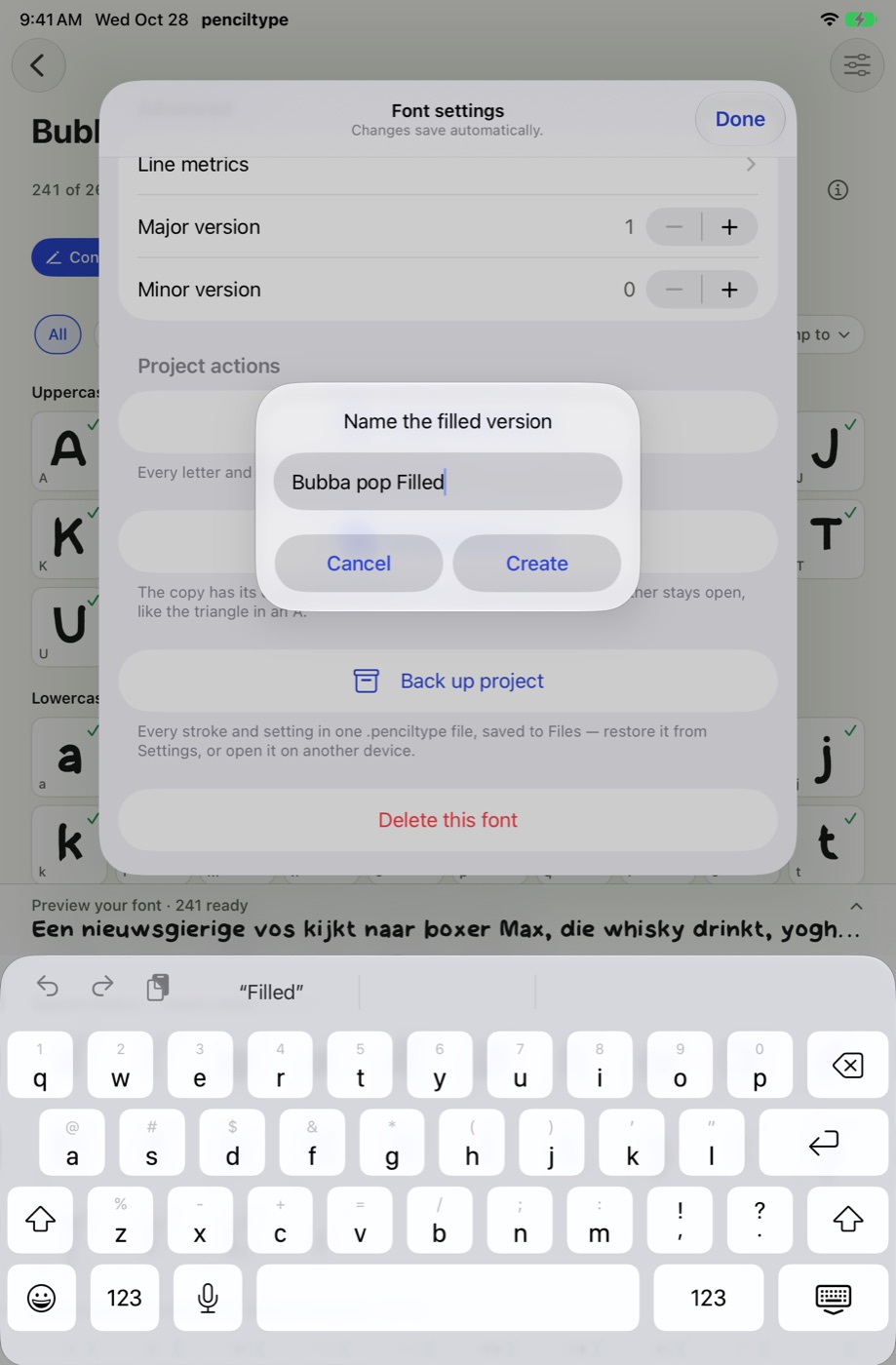
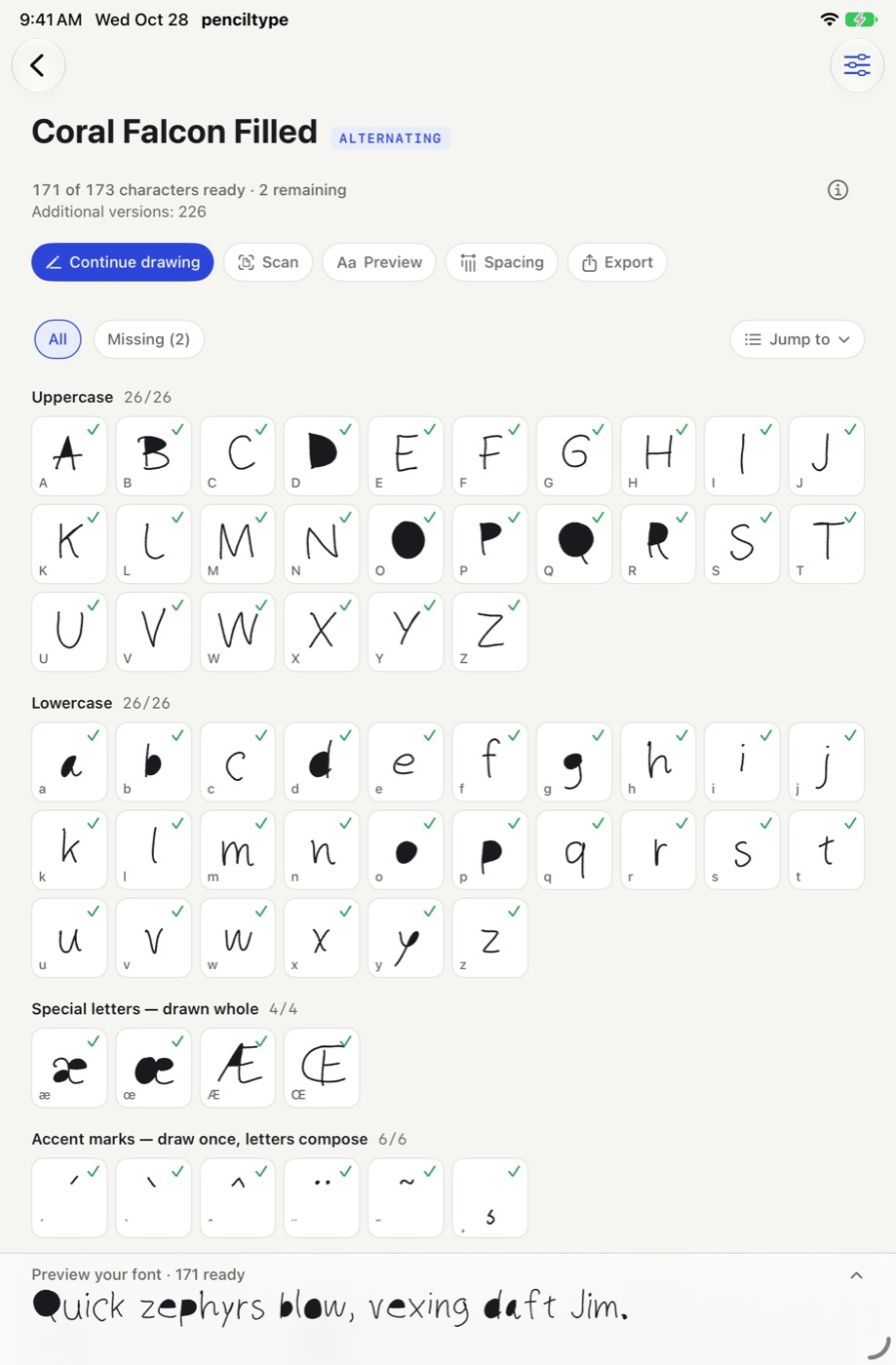
Makes a new font with every closed shape filled in: the counters of a, b, d, e, o and the like become solid. A shape drawn inside another stays open, like the triangle in an A. The original isn't touched.
Tap Create filled copy, and an alert, Name the filled version, suggests a name such as “Coral Falcon Filled”. Change it if you like, then tap Create. A spinner shows beside the row while the copy is built; then the sheet closes and the new font opens. If you clear the name, the suggested one is used.
Back up project
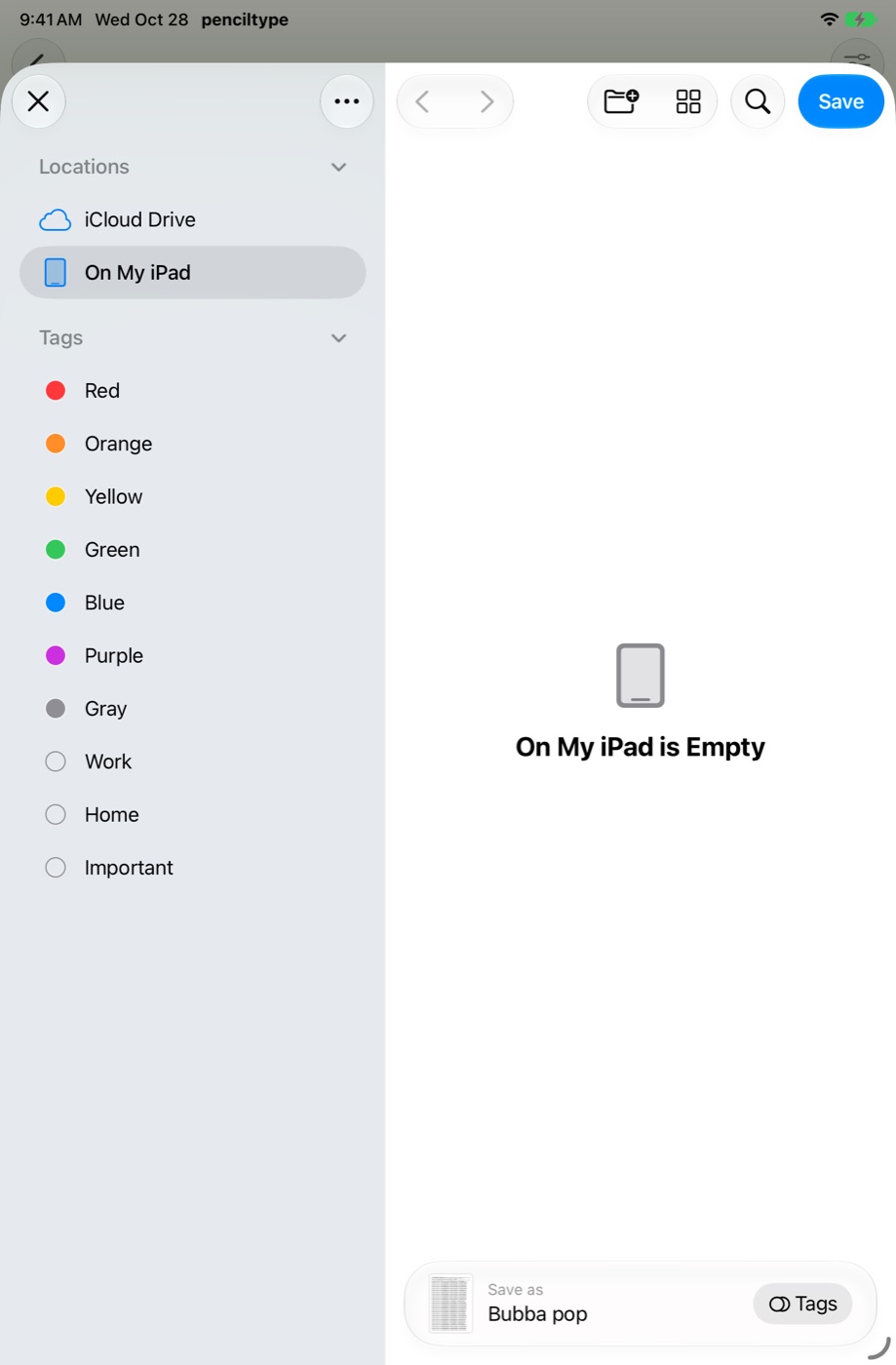
Saves every stroke and setting of this font in one .penciltype file. Tap Back up project; after a moment the Files browser opens. Choose a folder and tap Save, or close it with × to throw the file away. You can restore the file from Settings › Backups, or open it on another device. (Export & install has a Back up project row too, which hands the same file to the share sheet instead.)
If the file can't be written or moved, an alert says Couldn't save the backup file, with the reason (for example “The font couldn't be written as a file.”) and OK.
Delete this font
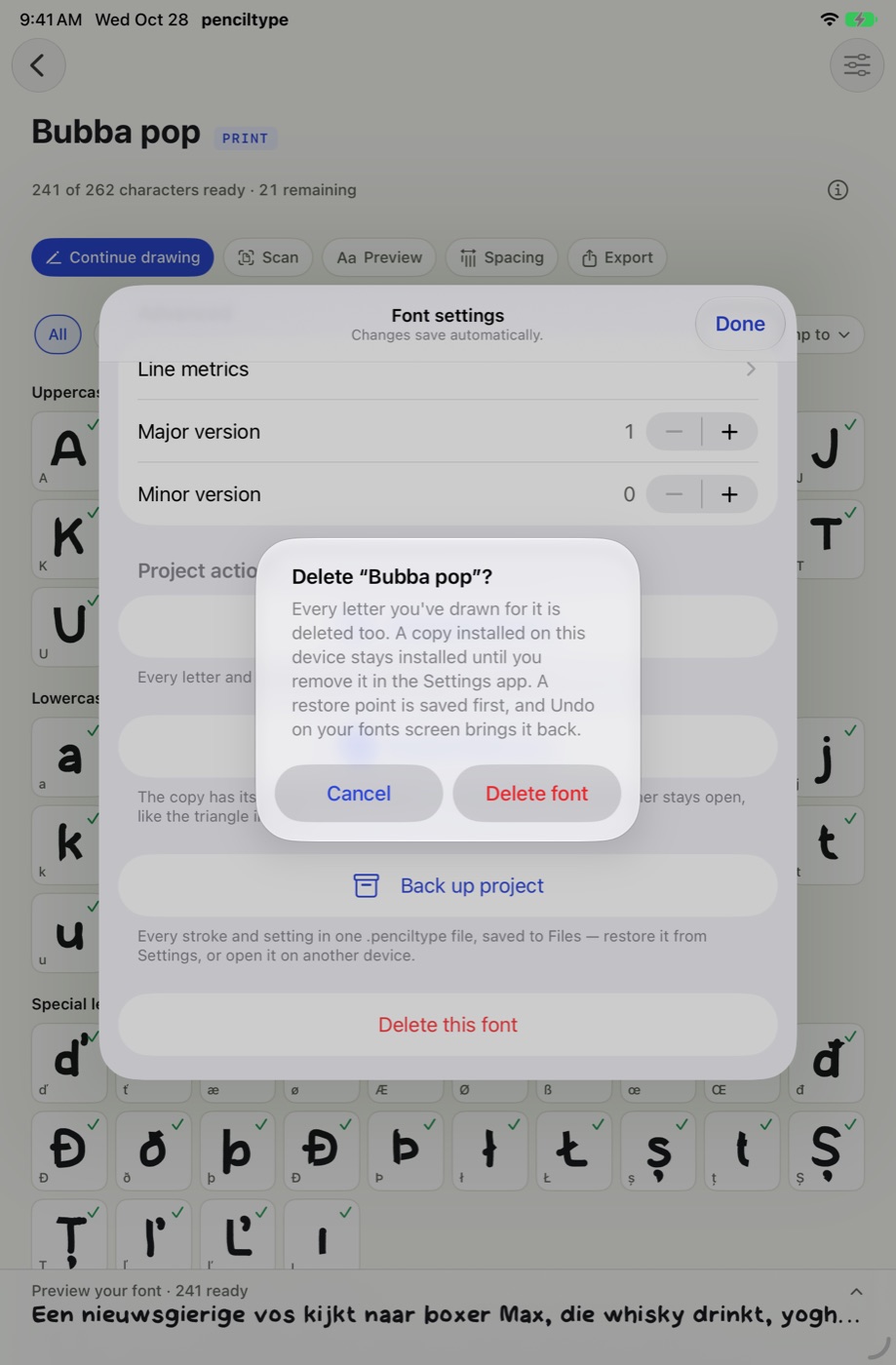
At the very end. An alert asks Delete “Bubba pop”?: “Every letter you've drawn for it is deleted too. A copy installed on this device stays installed until you remove it in the Settings app. A restore point is saved first, and Undo on your fonts screen brings it back.” Tap Delete font to delete it, or Cancel.
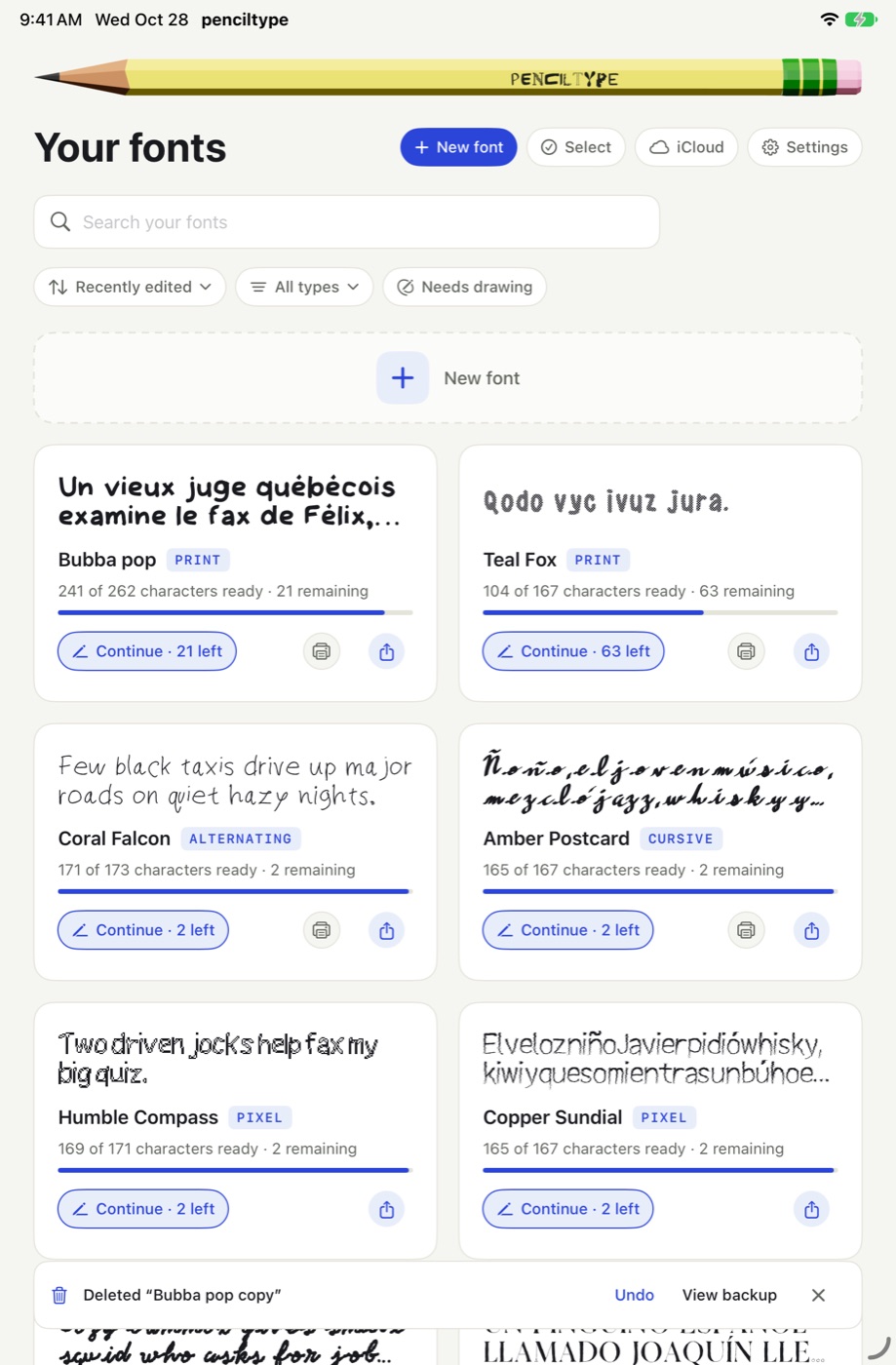
Deleting closes the sheet and takes you back to the shelf, where an Undo banner brings the font back (see Your fonts). Copies you've installed through a font profile stay installed until you remove them in the Settings app (see Updating and removing an installed font).