

Making a new font
Every font starts in the New font sheet. You give it a name, choose what kind of font it is and which languages it covers, and pick the letter you'll trace over. All of it can be changed later, so don't worry about getting it right first time.
Opening the New font sheet
On Your fonts, tap New font at the top, or the dashed New font card. It's also offered when a search or filter finds nothing, and as Create another font at the end of the intro.
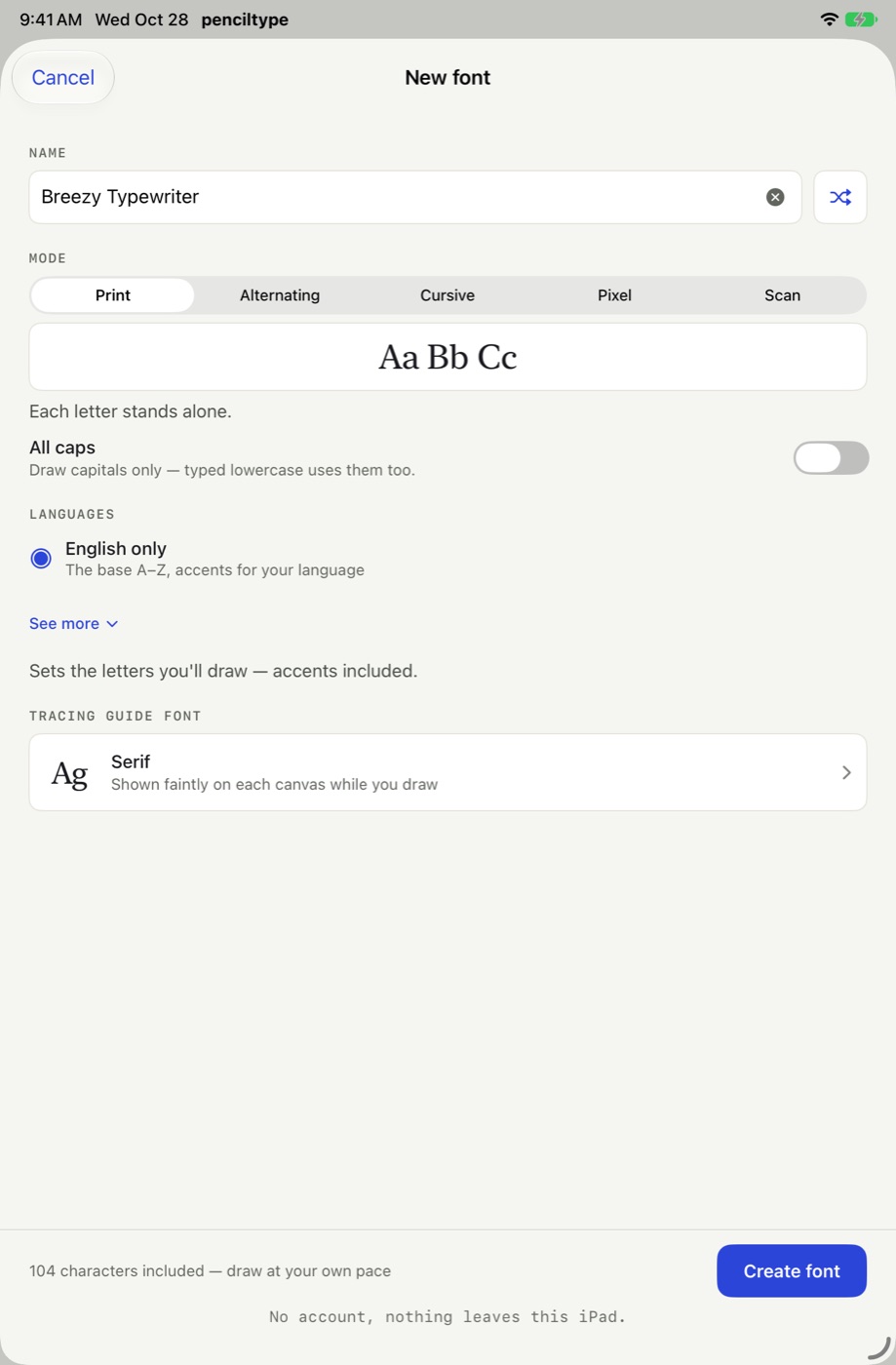
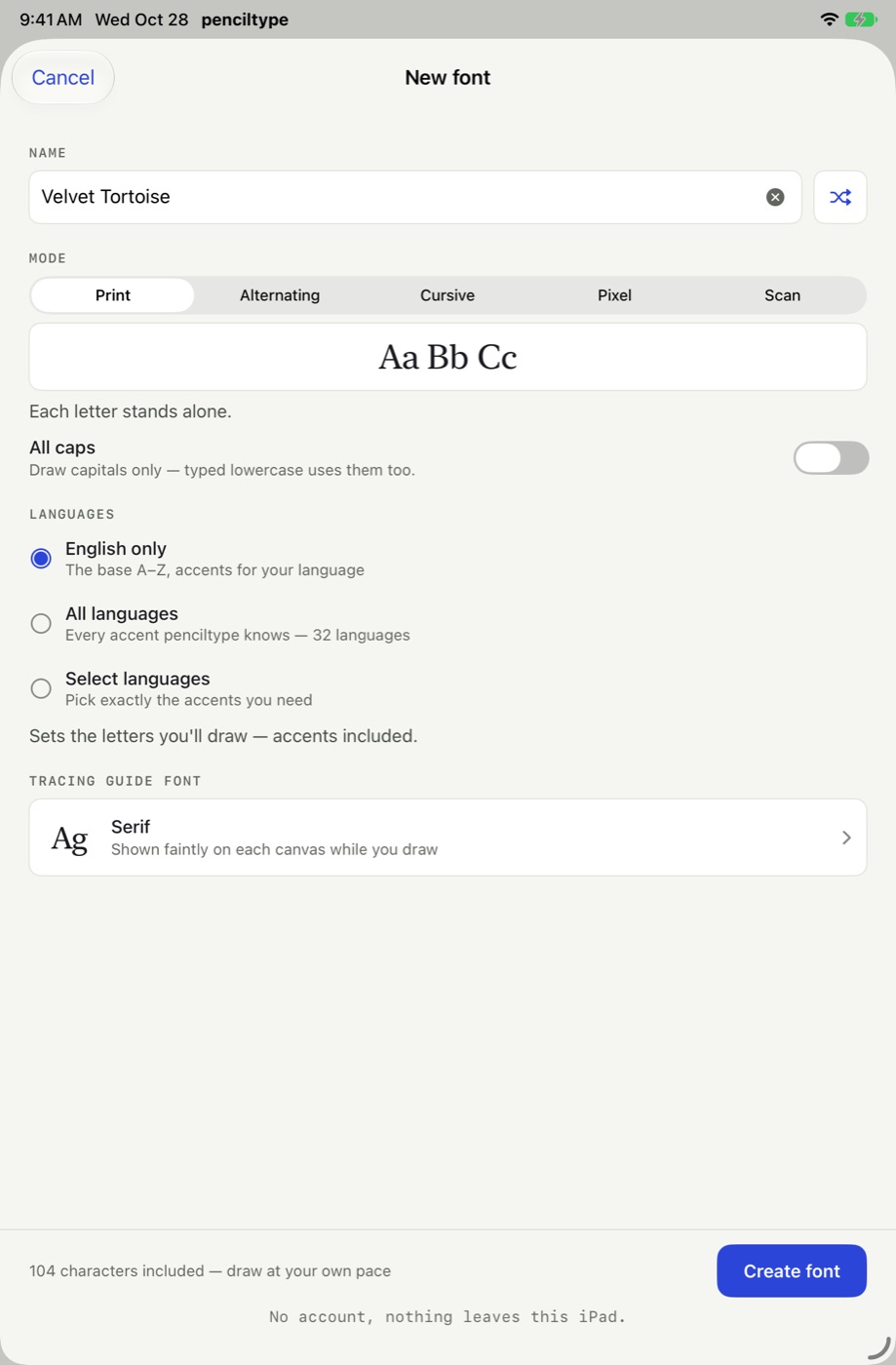
From top to bottom:
- Name
- A suggested name is already filled in. Keep it, type your own, or tap the shuffle button for another. More below.
- Mode
- The kind of font: Print, Alternating, Cursive, Pixel, or Scan to start from paper. A picture shows what each looks like, with a line saying what it means.
- All caps
- Draw capitals only. More below.
- Languages
- Which accents and letters the font covers. More below.
- Tracing guide font
- The faint letter shown behind the canvas while you draw. More below.
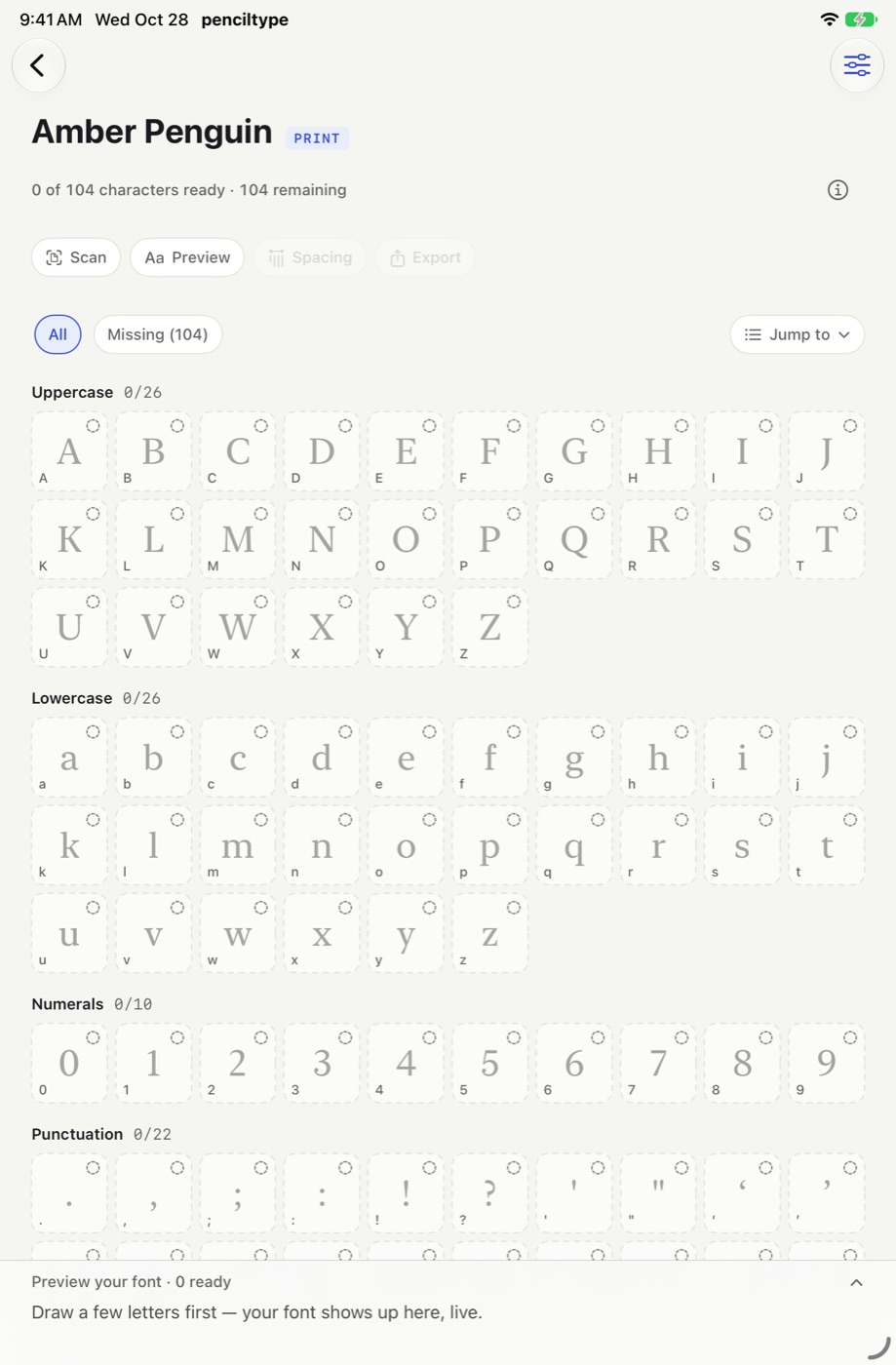
The footer counts every character the font will ask you to draw, for example 104 characters included — draw at your own pace for English only, and updates as you change languages or All caps. Tap Create font to make the font; its letter grid opens, ready for you to start. Cancel closes the sheet without making anything.
The name
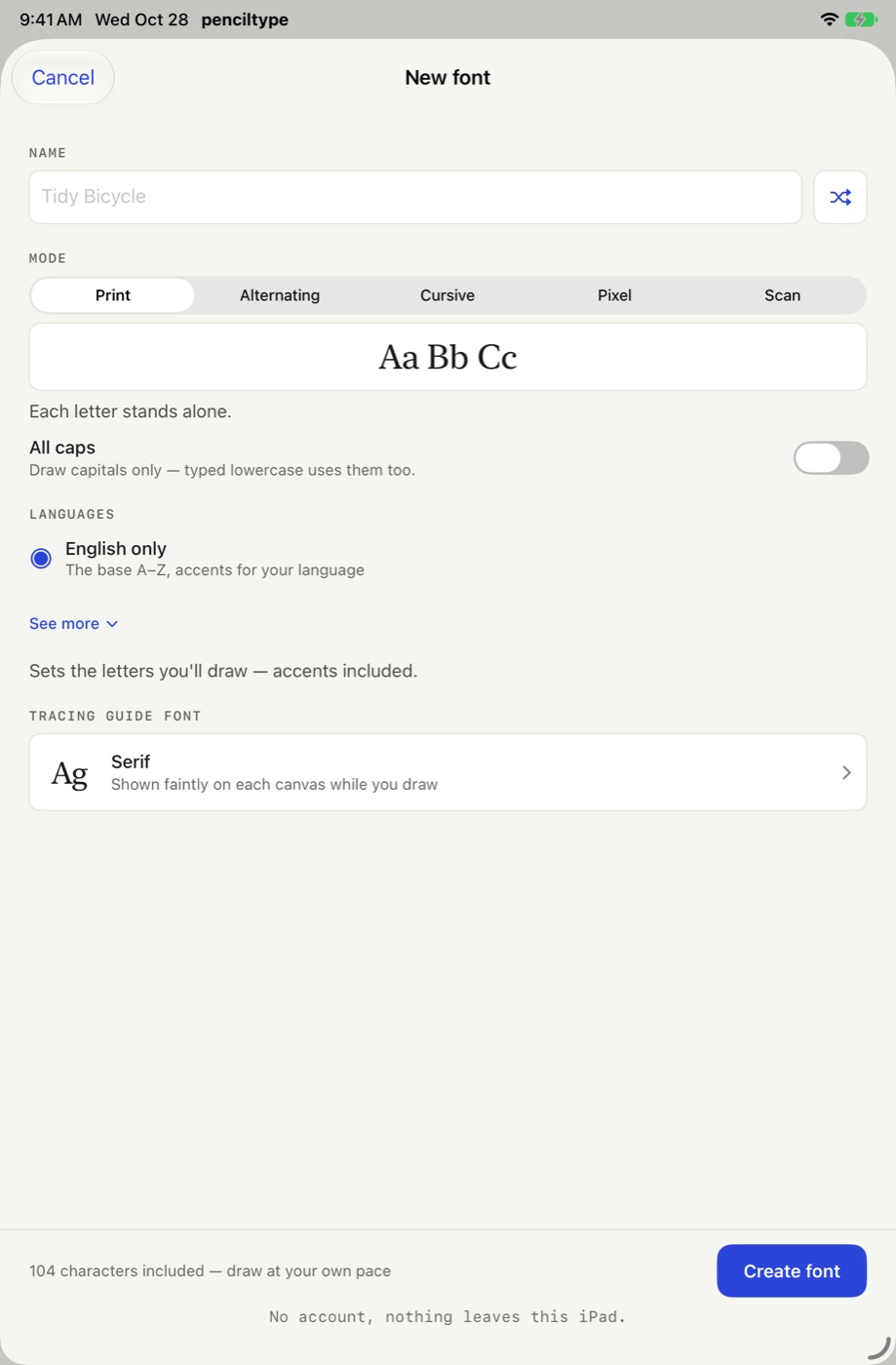
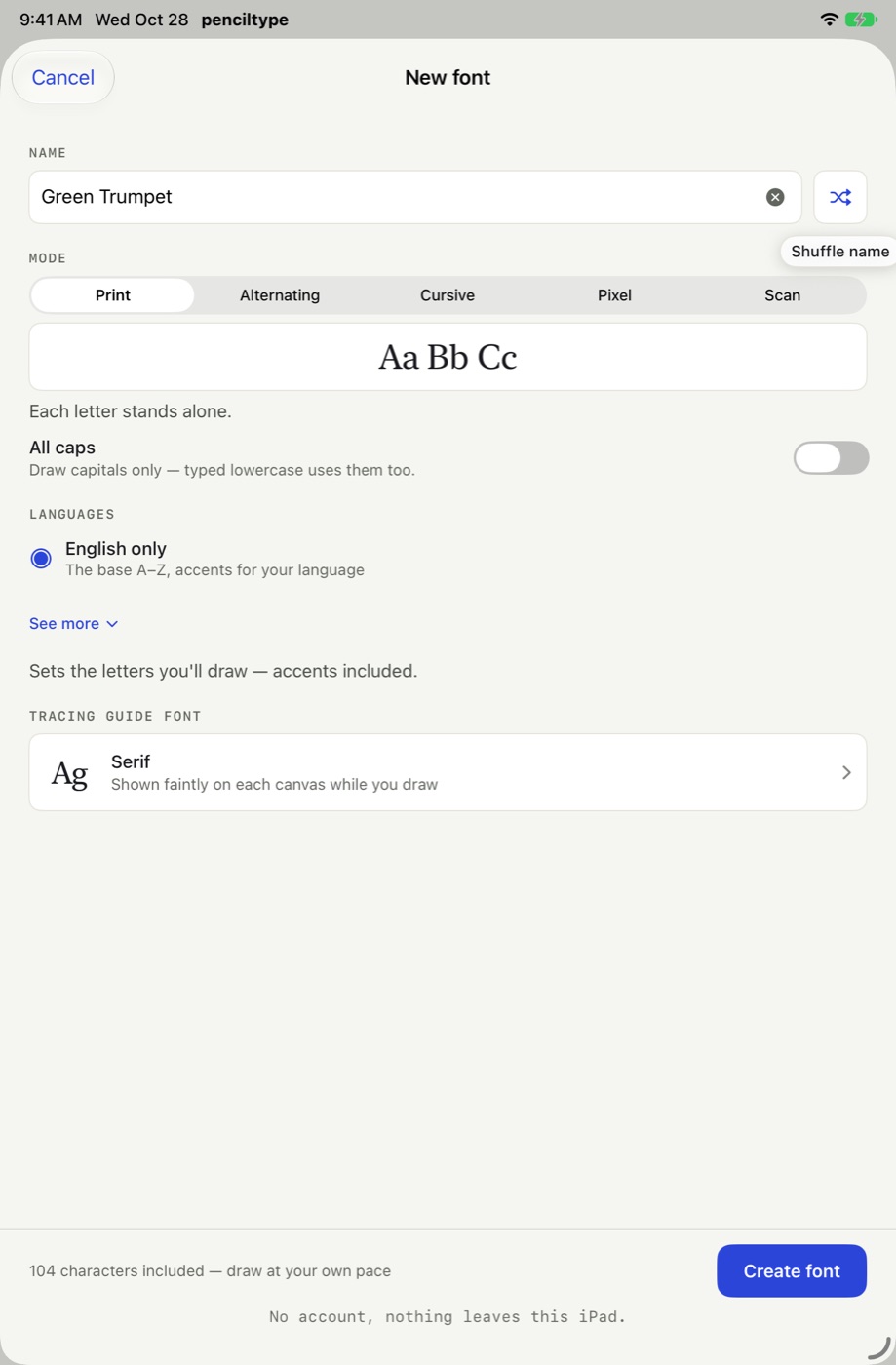
penciltype suggests a name in the style chosen in Settings › New font defaults › Suggested names, “Mellow Walrus” style by default, and never one already on your shelf. Tap the shuffle button beside the field to roll another. Tap the × in the field to clear it: the suggestion then shows faintly, and Create font still uses it if you don't type anything. Hold the shuffle button to see its name.
With the Today's date or Numbered style there's nothing to shuffle, so the button isn't shown. You can rename a font any time in its Font settings.
Kinds of font
- Each letter stands alone, the way most people print. The picture shows “Aa Bb Cc”.
- Alternating
- You can draw up to three versions of each letter, and typing cycles through them, so a word with a double letter never looks stamped. The picture shows “AAA aaa” in Caveat, a typeface that does the same. See Joins and versions.
- Cursive
- Letters join as you type, like joined-up handwriting. All caps isn't offered, because joins need lowercase letters. The picture shows “handgloves”.
- Pixel
- Bitmap letters drawn on a grid of squares, with razor-sharp corners. Choose the grid under Grid detail: Chunky (8 squares to the em), Classic (16, the default), Fine (32), Finer (64) or Ultra fine (128). The picture and the tracing guide snap to the grid you pick. See Pixel fonts.
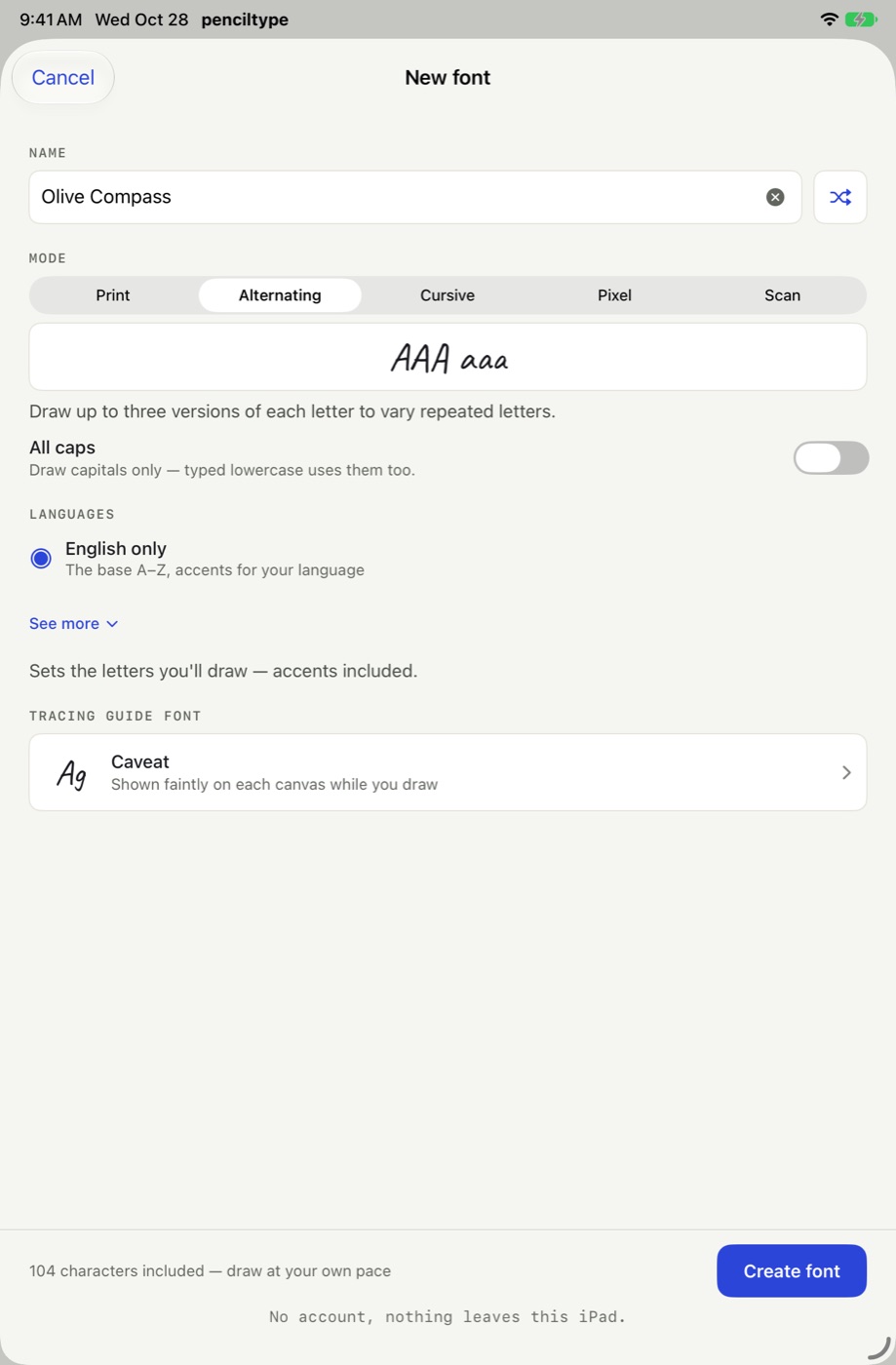
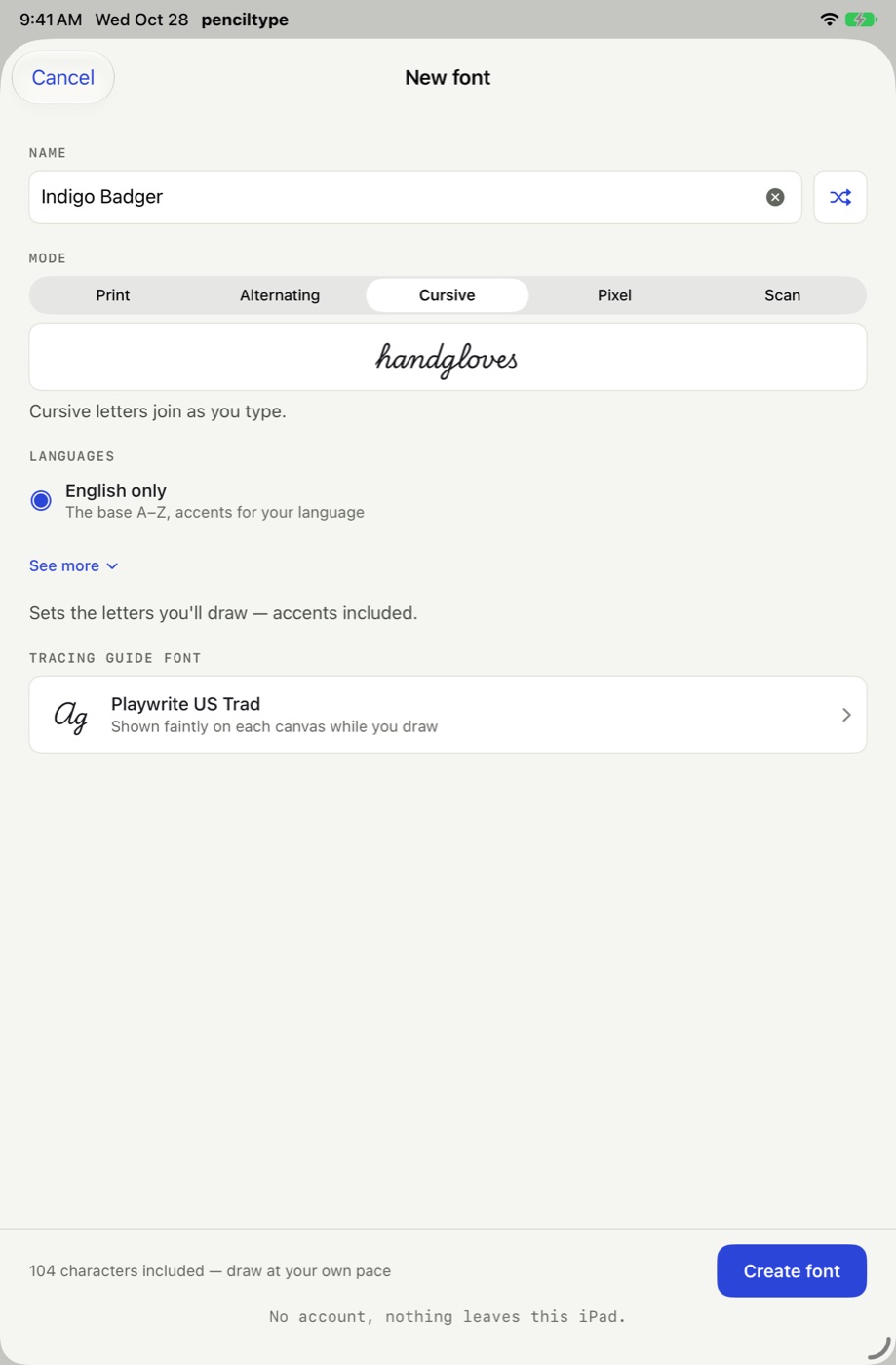
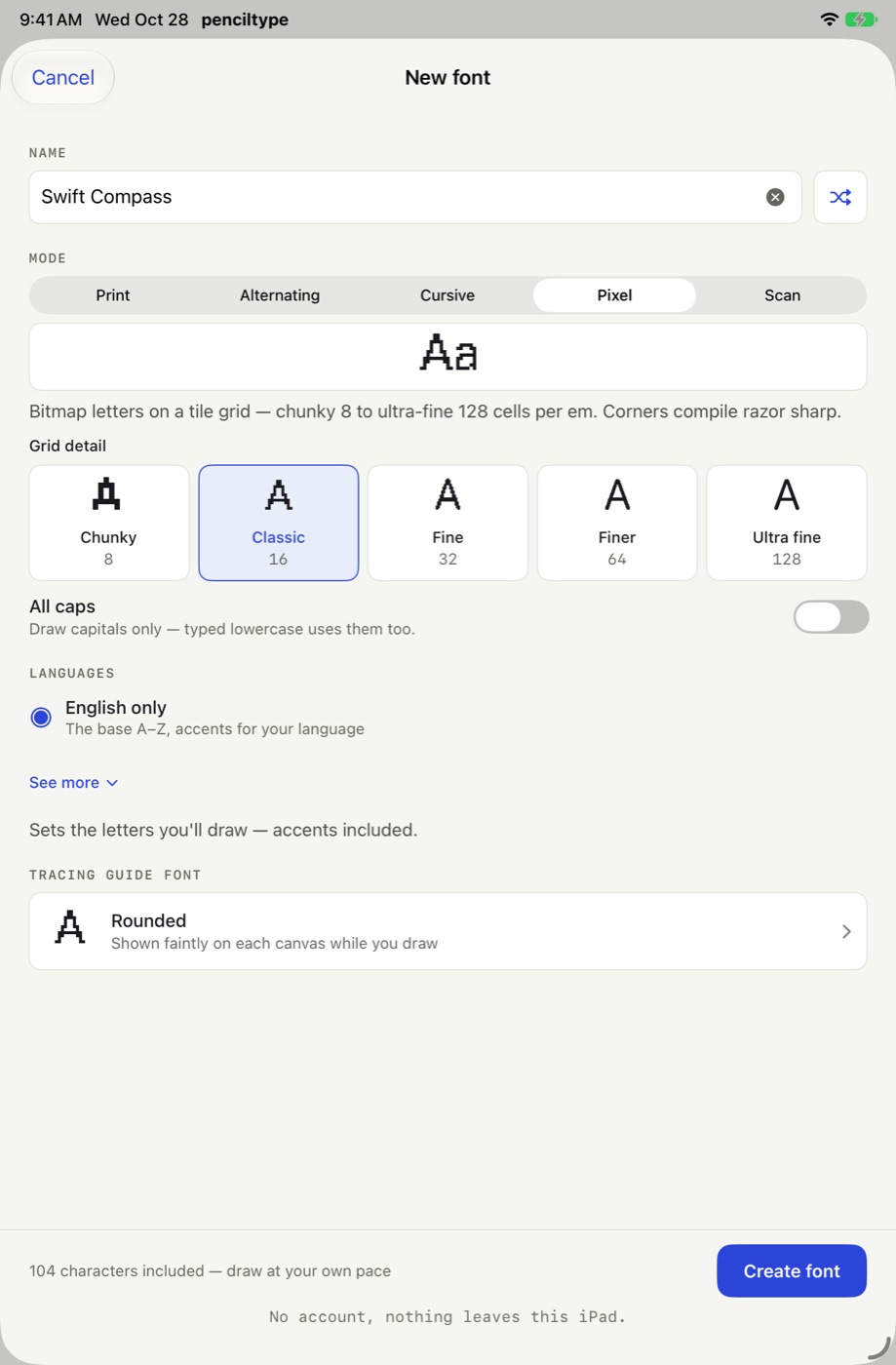
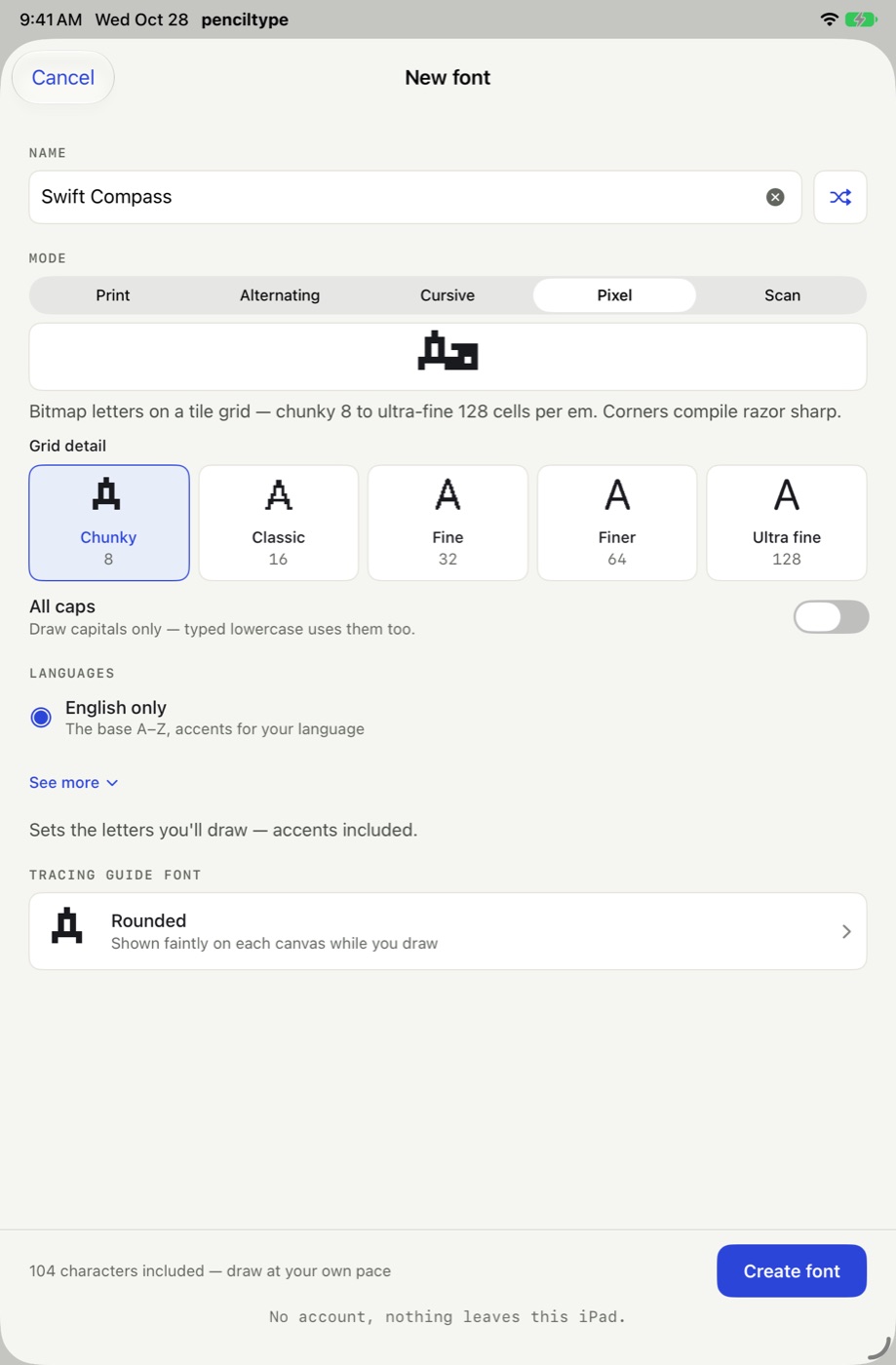
When you change the kind, the tracing guide switches to that kind's default, unless you've picked one the new kind also offers.
Starting from paper
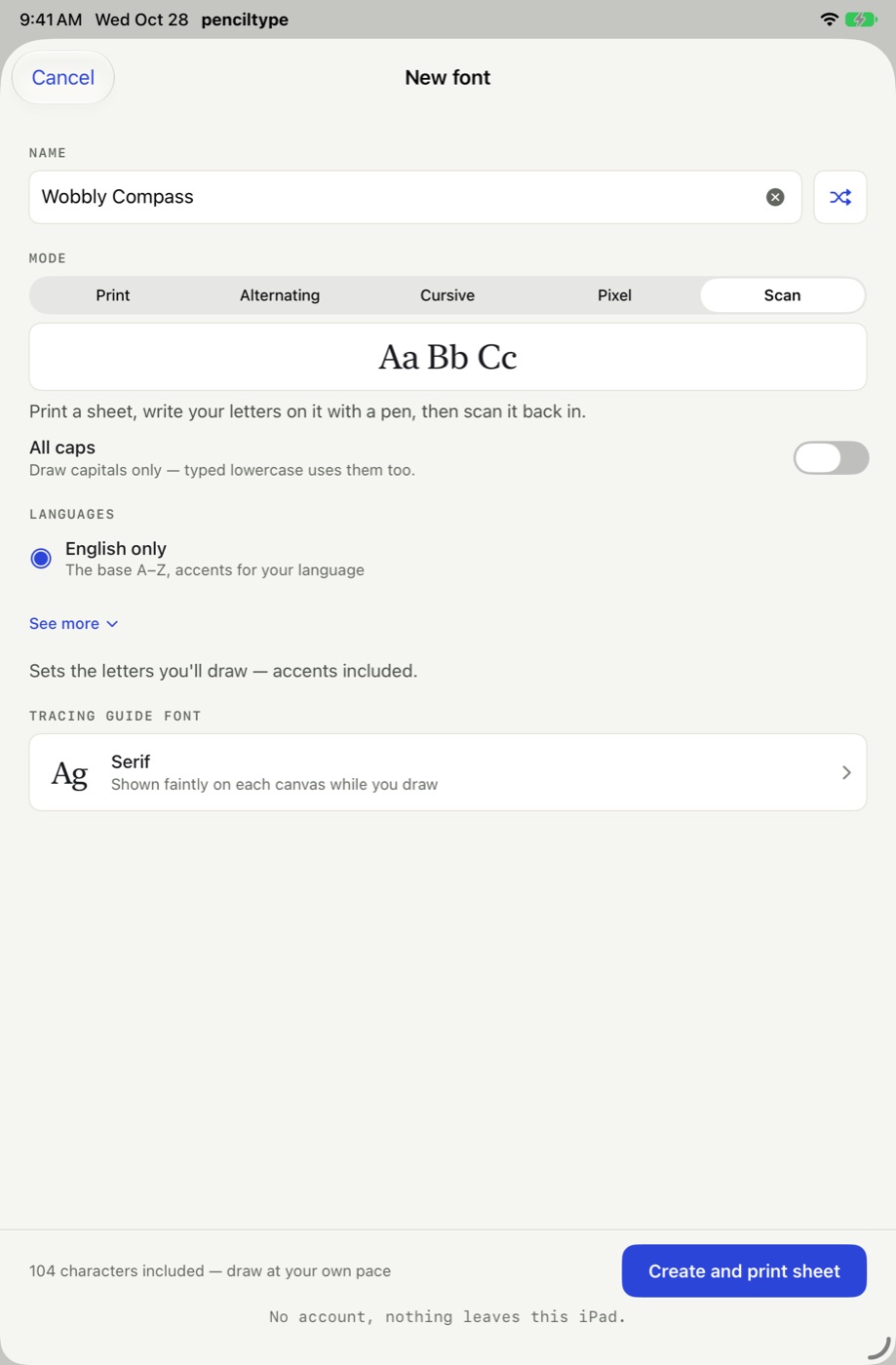
If you'd rather write with a pen, choose Scan: “Print a sheet, write your letters on it with a pen, then scan it back in.” On iPhone, where there's no room for a fifth segment, it's the Scan a paper sheet row under the others. The button at the bottom becomes Create and print sheet: it makes a Print font and opens its handwriting sheet straight away, ready to print.
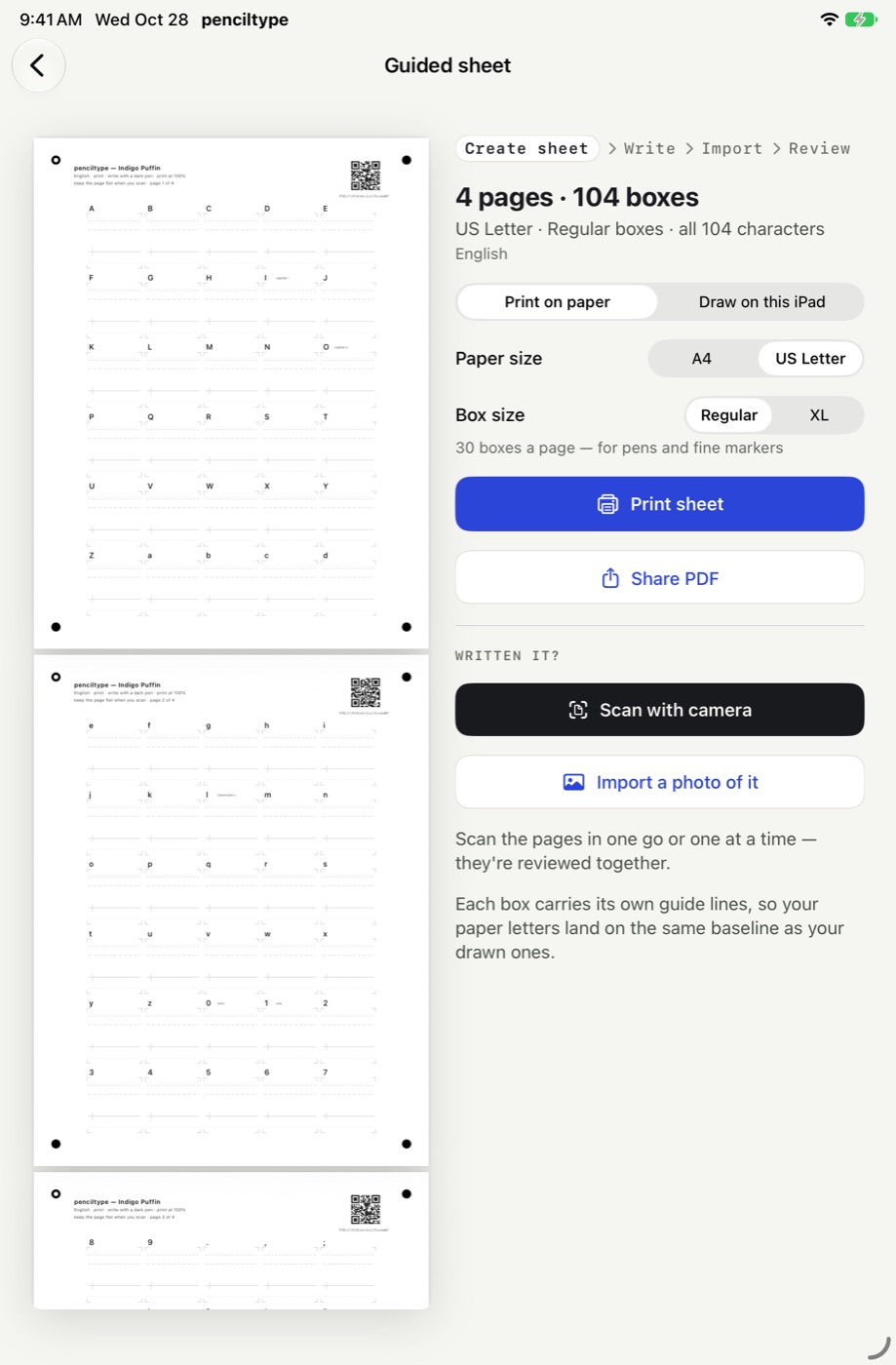
Printing, filling in and scanning the sheet are covered in Scanning.
All caps
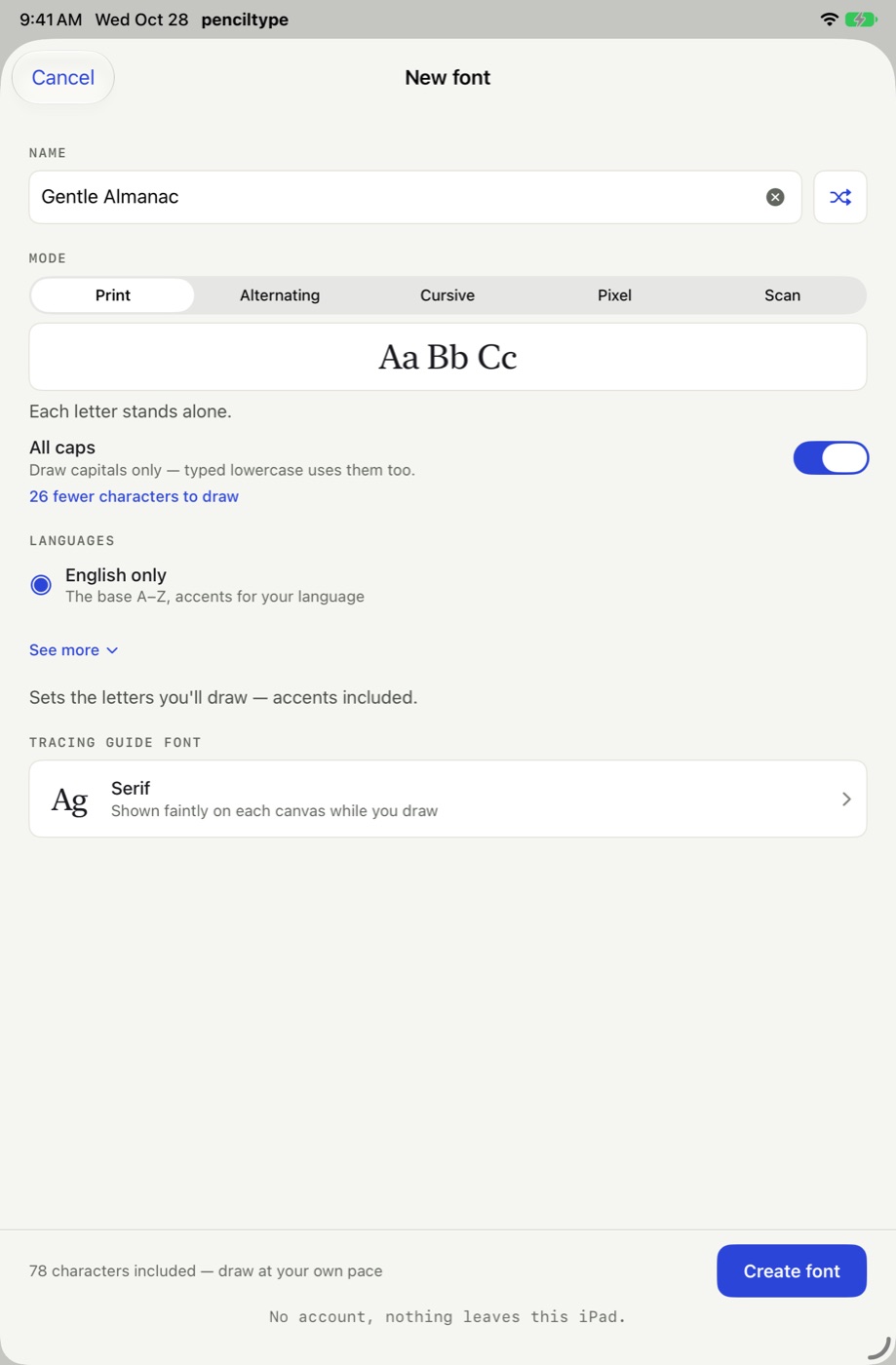
Turn on All caps to draw capitals only: when you type lowercase letters, your capitals are used for them too. The sheet tells you how many fewer characters that leaves to draw. It's offered for Print, Alternating, Pixel and Scan, but not Cursive.
Languages
Languages decide which letters and accents the font asks you to draw. Every font covers English (A to Z).
- English only
- Or the name of your device's language, for example Français only: “The base A–Z, accents for your language.”
- All languages
- Every accent penciltype knows, for all 32 languages it supports.
- Select languages
- Pick exactly the languages you need. A button appears for each, named in its own language and yours (Français · French). English can't be turned off.
The first two choices start hidden behind See more. With the accent helper on (see New font defaults), you draw each accent once and the accented letters are made for you, so extra languages cost fewer drawings than you might think.
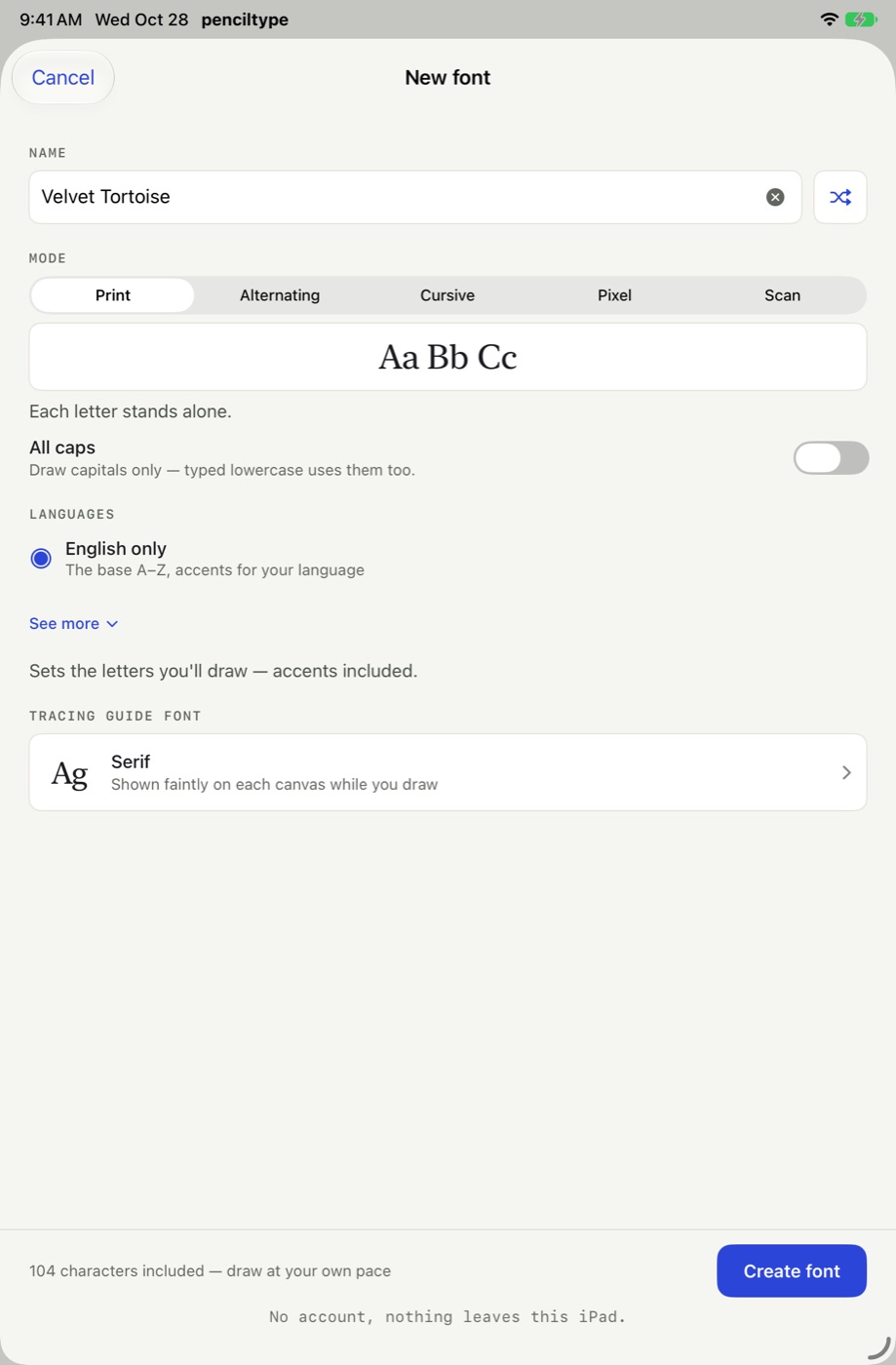
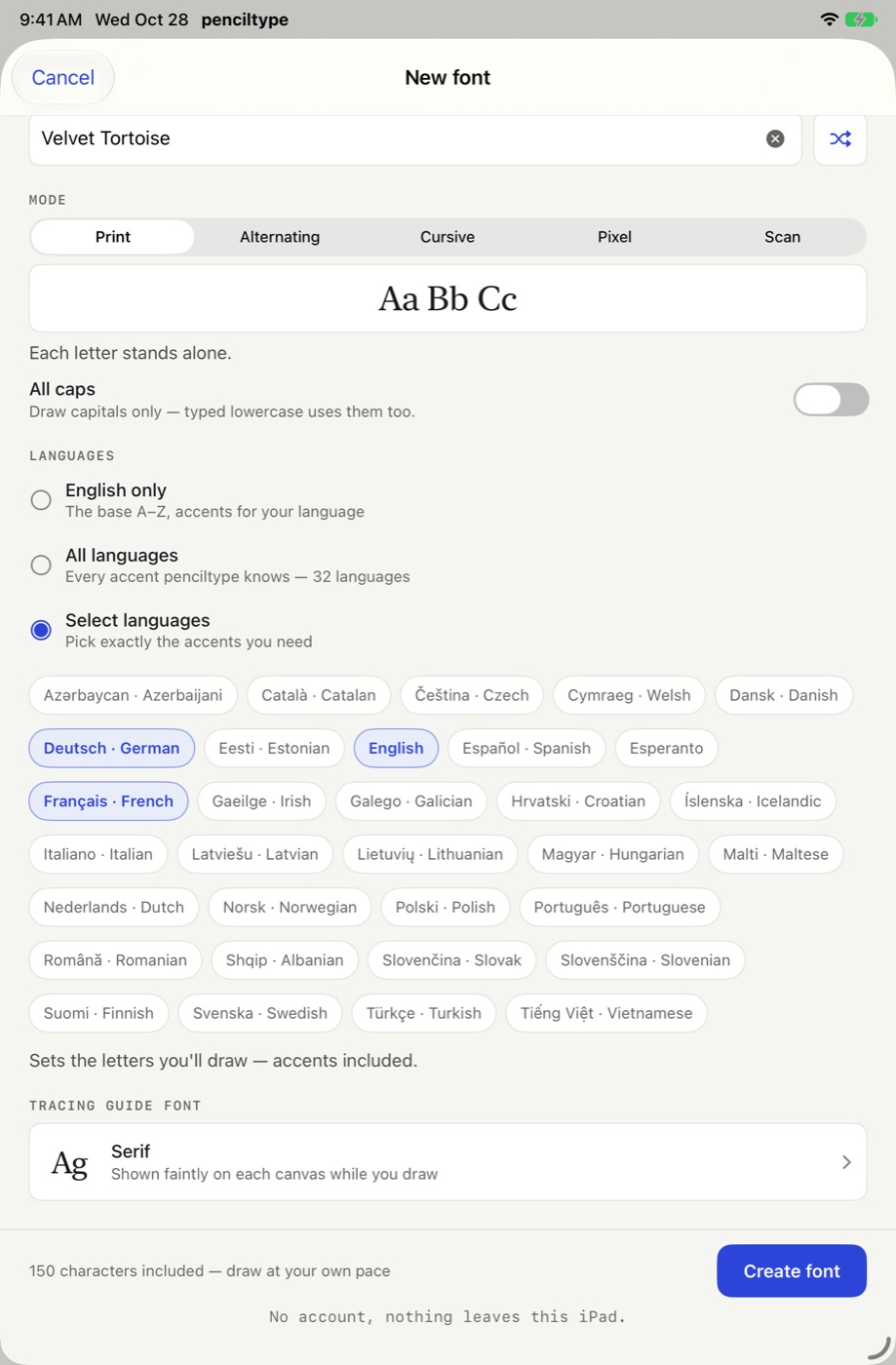
penciltype remembers your choice: the next new font starts with the same languages (the very first time, just your device's language). If the remembered choice is more than your device's language, the section opens already expanded. A font can add or remove languages later in its Font settings.
Tracing guide font
The tracing guide is a typeface shown faintly on each canvas while you draw, so every letter sits on the same lines and comes out the same size. The row shows a sample and the face's name; tap it to choose another. The faces offered depend on the kind of font, and you can also pick any font installed on your device or one of your own penciltype fonts.
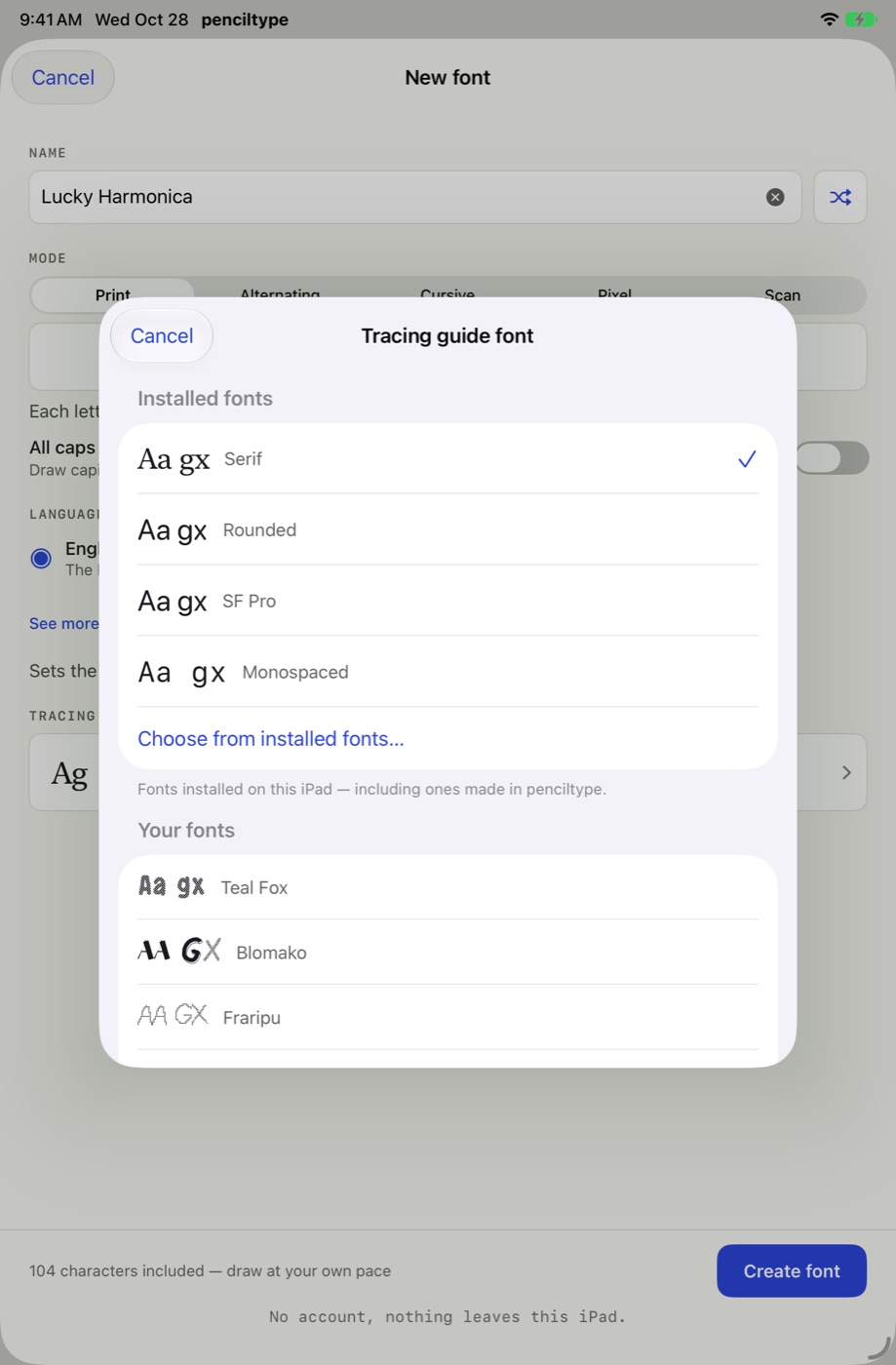
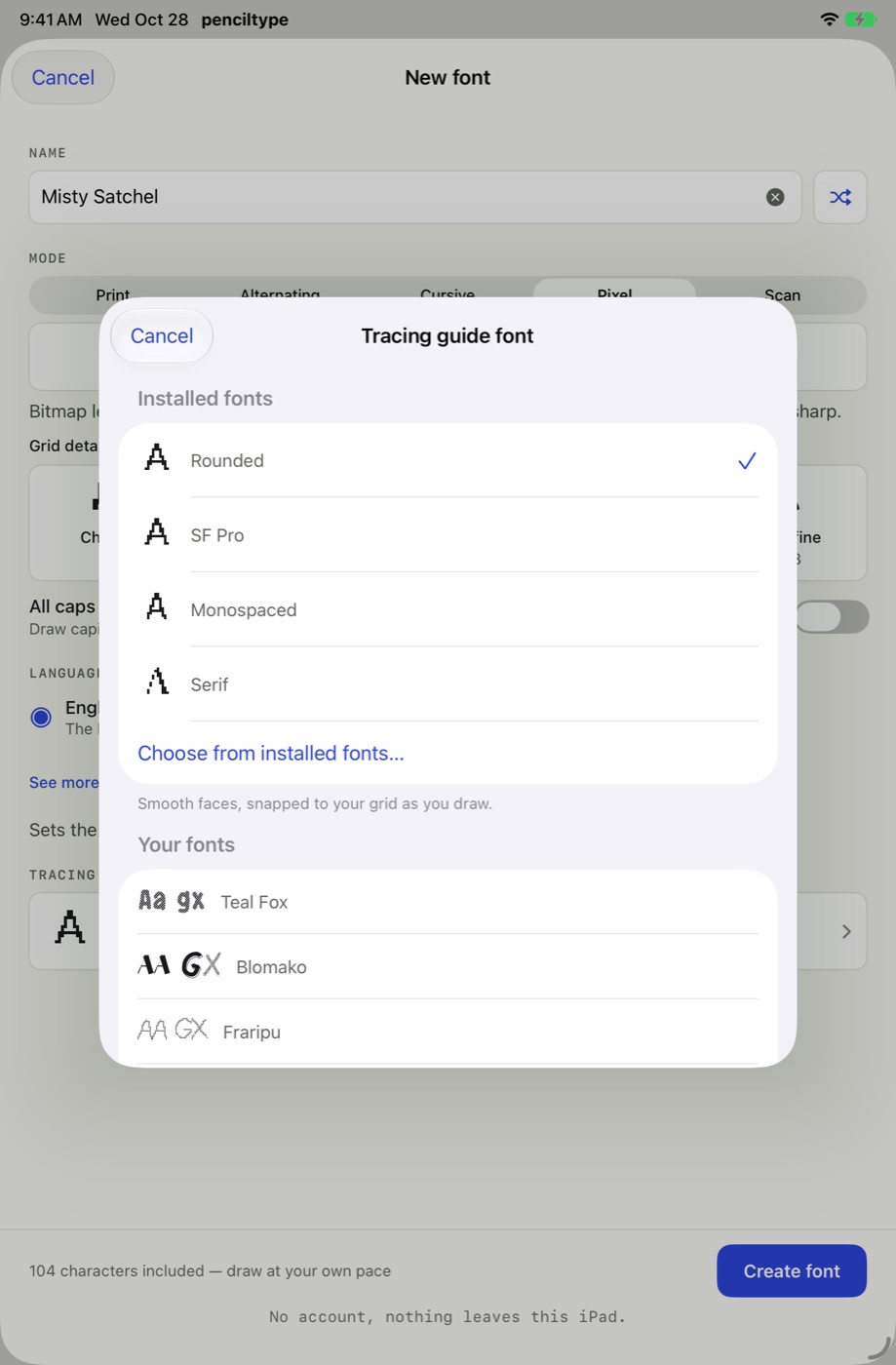
The full list of faces, and the other ways to choose, are in Settings › New font defaults, where you set each kind's default guide. A font can change its guide later in Font settings.
What a new font starts with
Besides what you choose in the sheet, every new font picks up your New font defaults:
- the designer name,
- the symbols to draw (your keyboard's, unless you've changed the list),
- the letter pairs and whole words set for its kind,
- whether the accent helper is on,
- whether turned and mirrored punctuation is made for you,
- its kind's tracing guide, unless you picked another in the sheet.
The canvas's x-height line is set from the tracing guide, so your guide lines match the letter you trace.
At the foot of the sheet, a line says where your font will live: No account, nothing leaves this iPad. (this iPhone, this Mac). With iCloud sync on, it says Syncing with your iCloud Drive. instead.